This tutorial covers the process of allocating the deal commission and other fees to the appropriate contacts or accounts. We’ll go over two examples: A common scenario that includes one outside broker and two in-house brokers, and a more complex scenario with taxes and expenses.
Instructions
The Fee Splits form allows you to take the Total Fee amount from the Fee Calculation form and allocate that amount to the appropriate deal participants or accounts. This will not actually distribute those amounts – that happens when you enter a payment – but it does set everything up for future distribution.


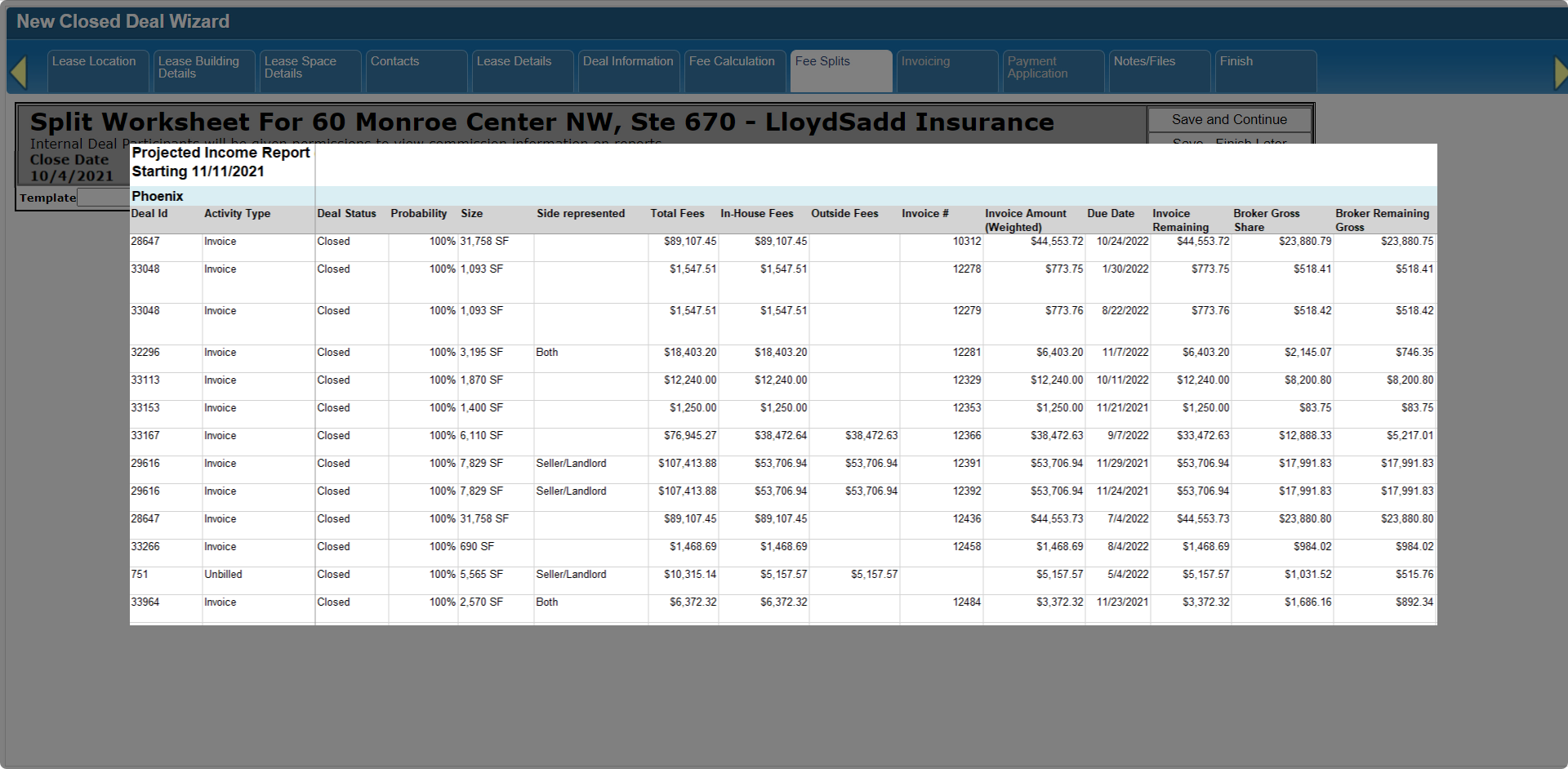
There are several reports which forecast income based on the information on this form.
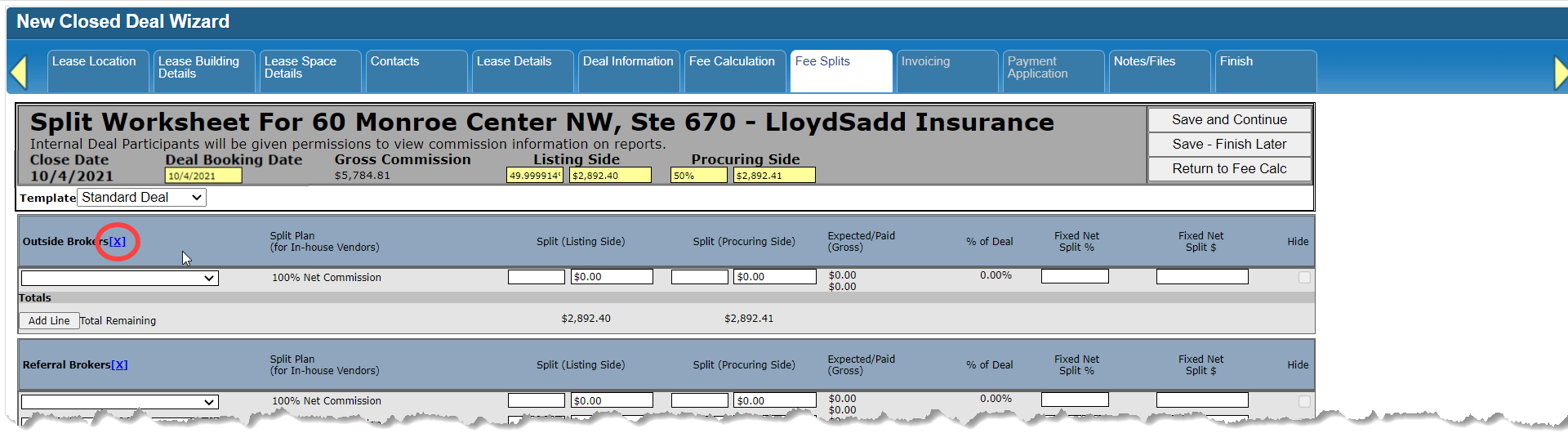
At the top of the form, you’ll see fields that apply to the entire deal. The Deal Booking Date automatically copies the Deal Closed Date when you first open the form, but you can change the date if needed.

Divide the total Gross Commission or Fees between the Listing side and the Procuring side of the deal. You can enter either the percentage or the amount, and the system will calculate the rest.

Scenario 1: One outside broker and two in-house brokers
For our first scenario, the outside Procuring Broker will receive 50% of the Gross Commission.

Select the appropriate template to open up the rest of this form. The list of templates may look different in your system if you have any that are specific to your firm.

Your selection will determine how many sections show up below, and what they are named. Each section helps to group your allocations into categories, but also plays a key role in how allocation amounts are calculated if you are entering the allocations as percentages.
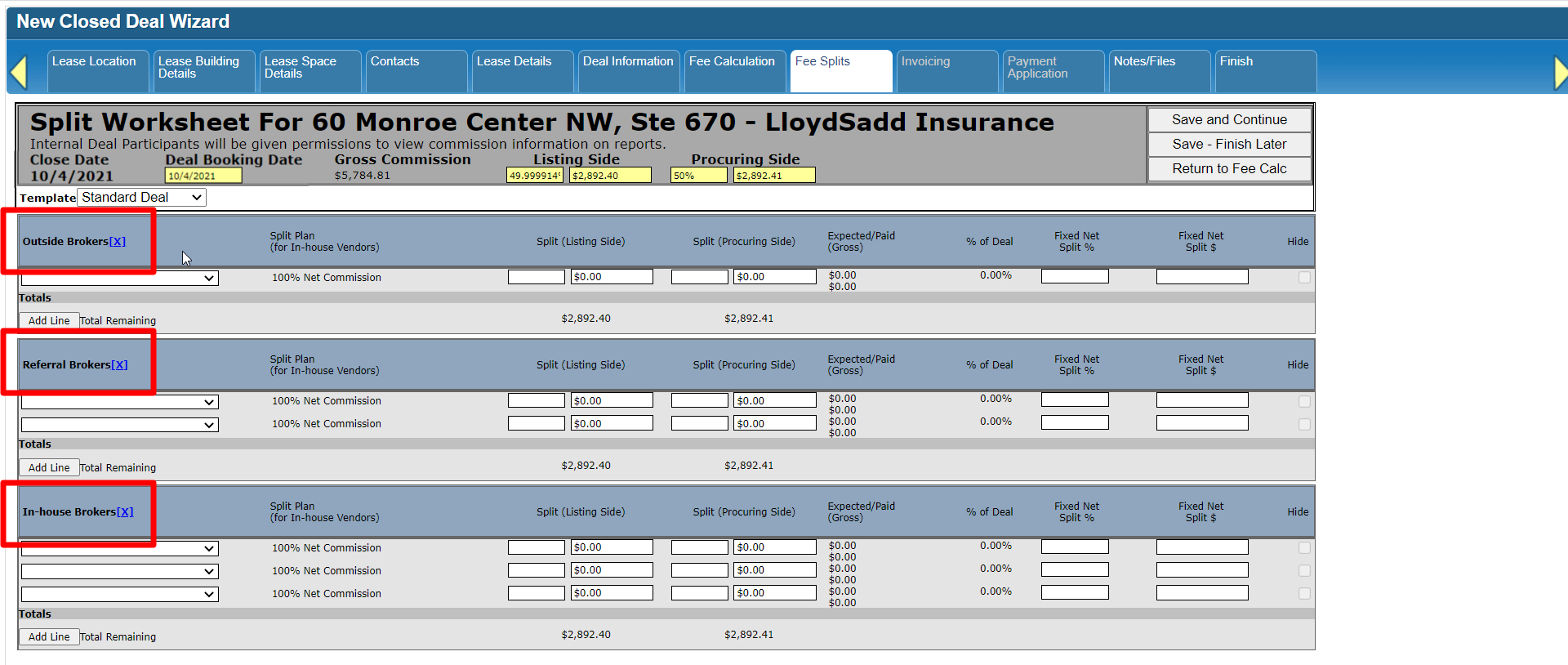
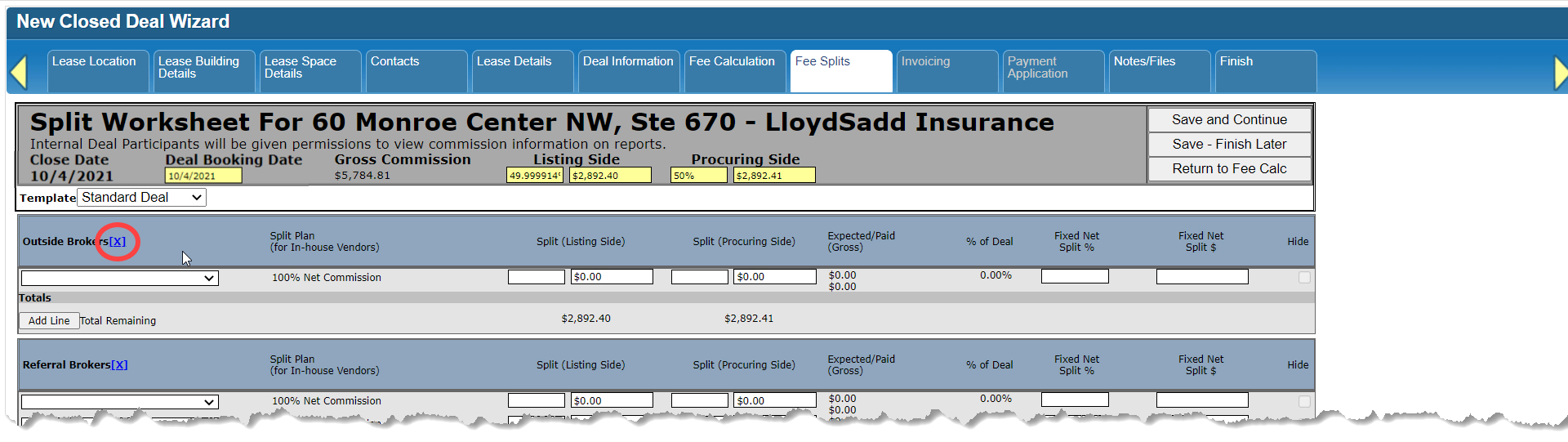
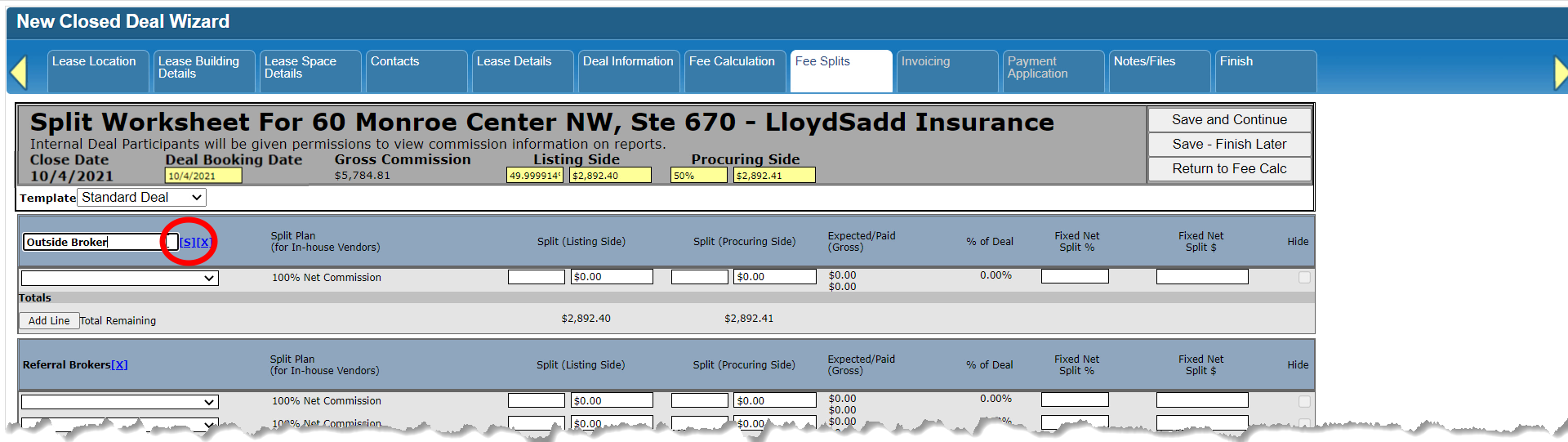
You can rename sections if needed. Just click on the [X] next to the name to unlock that field, make your changes, then click [S] to save your changes. If you find that you are changing section names a lot, contact your system administrator about having a custom template added to your system. You can also ignore any sections that aren’t relevant for this Deal.
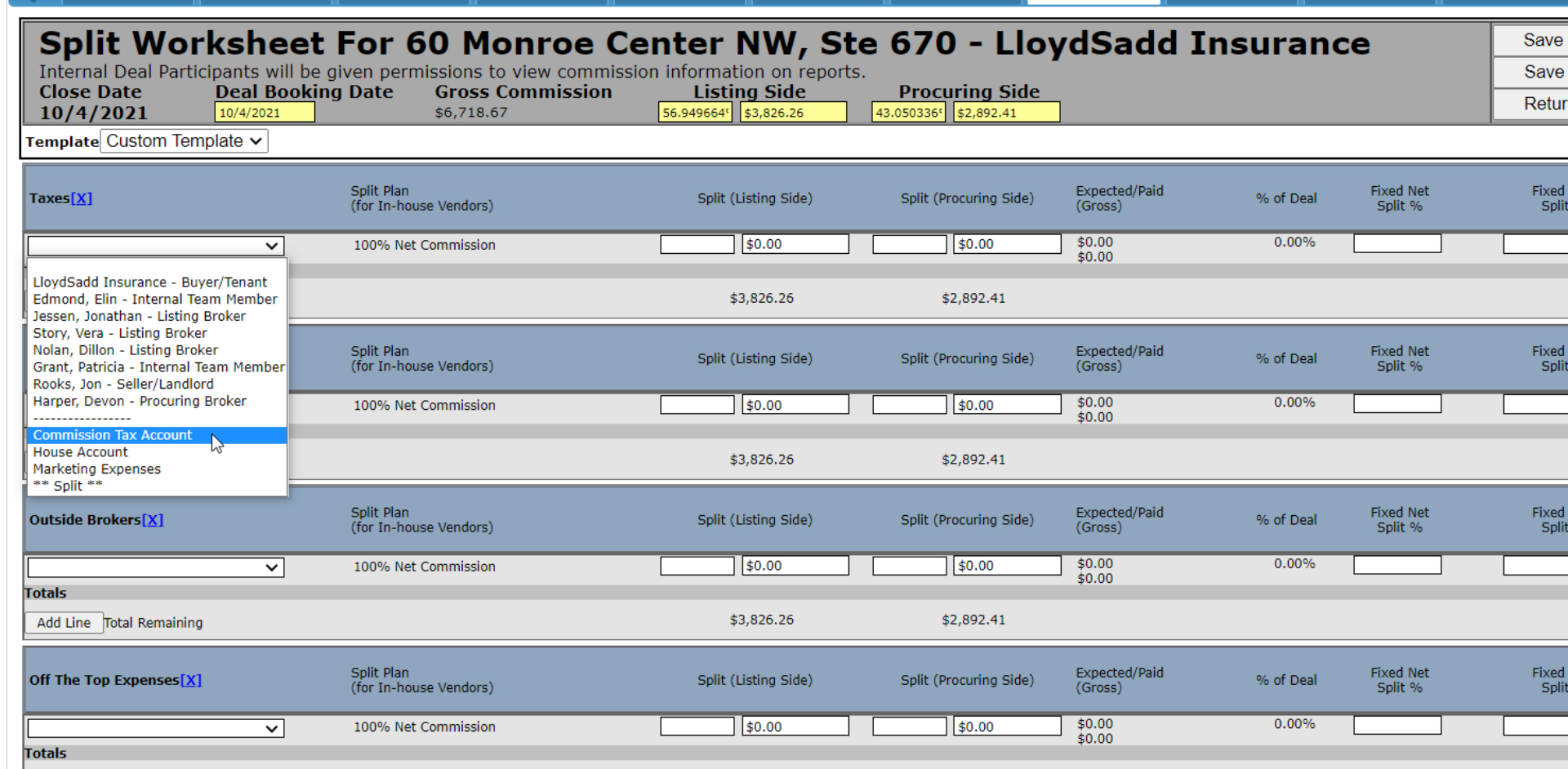
Start at the top of the form and work your way down. The drop-down field will list all of the deal contacts, as well as a list of House Accounts. House Accounts don’t require a contact or company and should only be used for non-commission allocations. House Accounts are maintained by your system administrator.

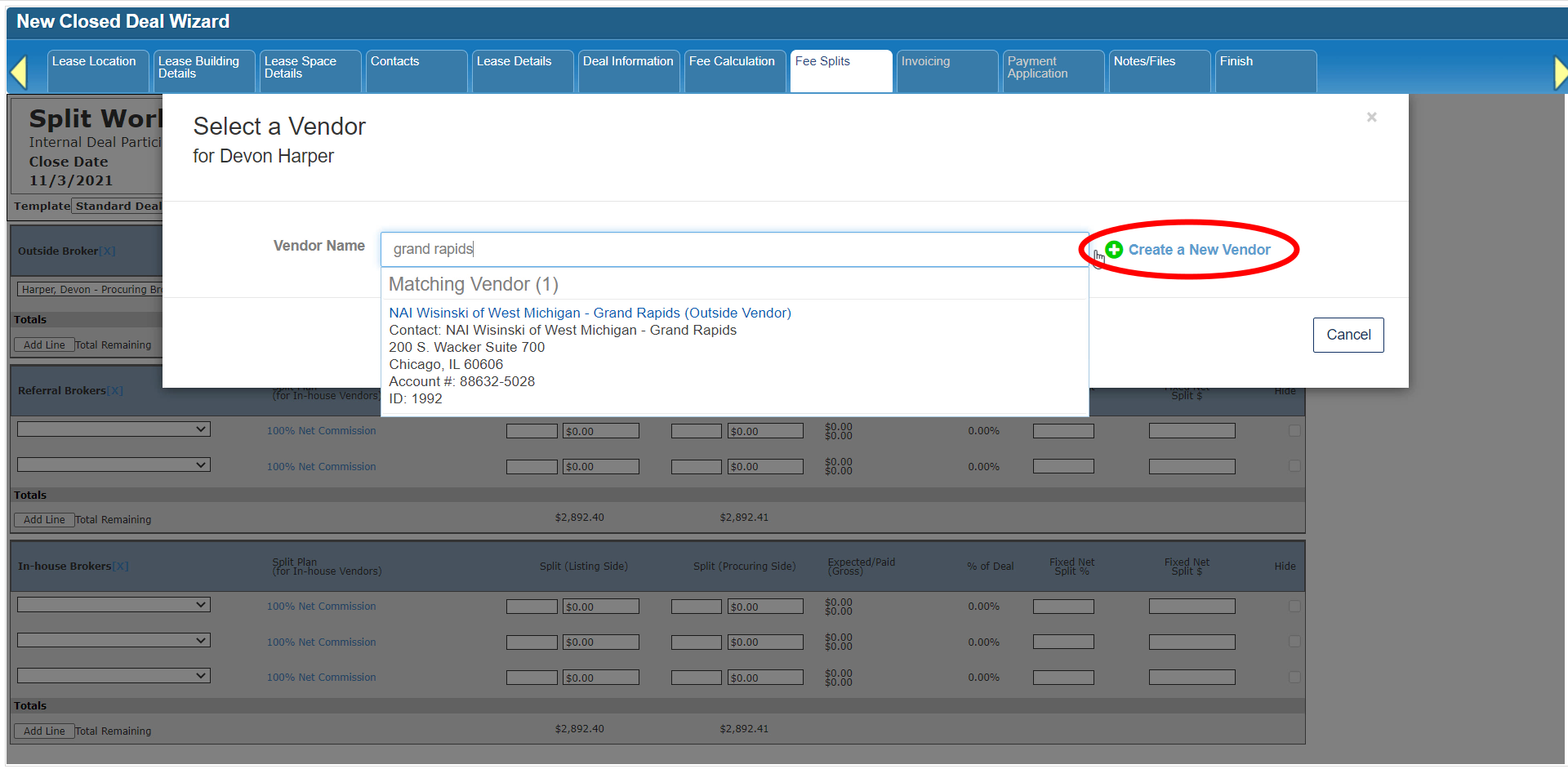
Select the appropriate contact or company to open up a Vendor search form.

Type in any combination of the Vendor’s name, city or record ID. If you don’t find the Vendor you’re looking for, click the [+] icon to create a new Vendor.
Fill in the required fields, which are indicated by an asterisk.
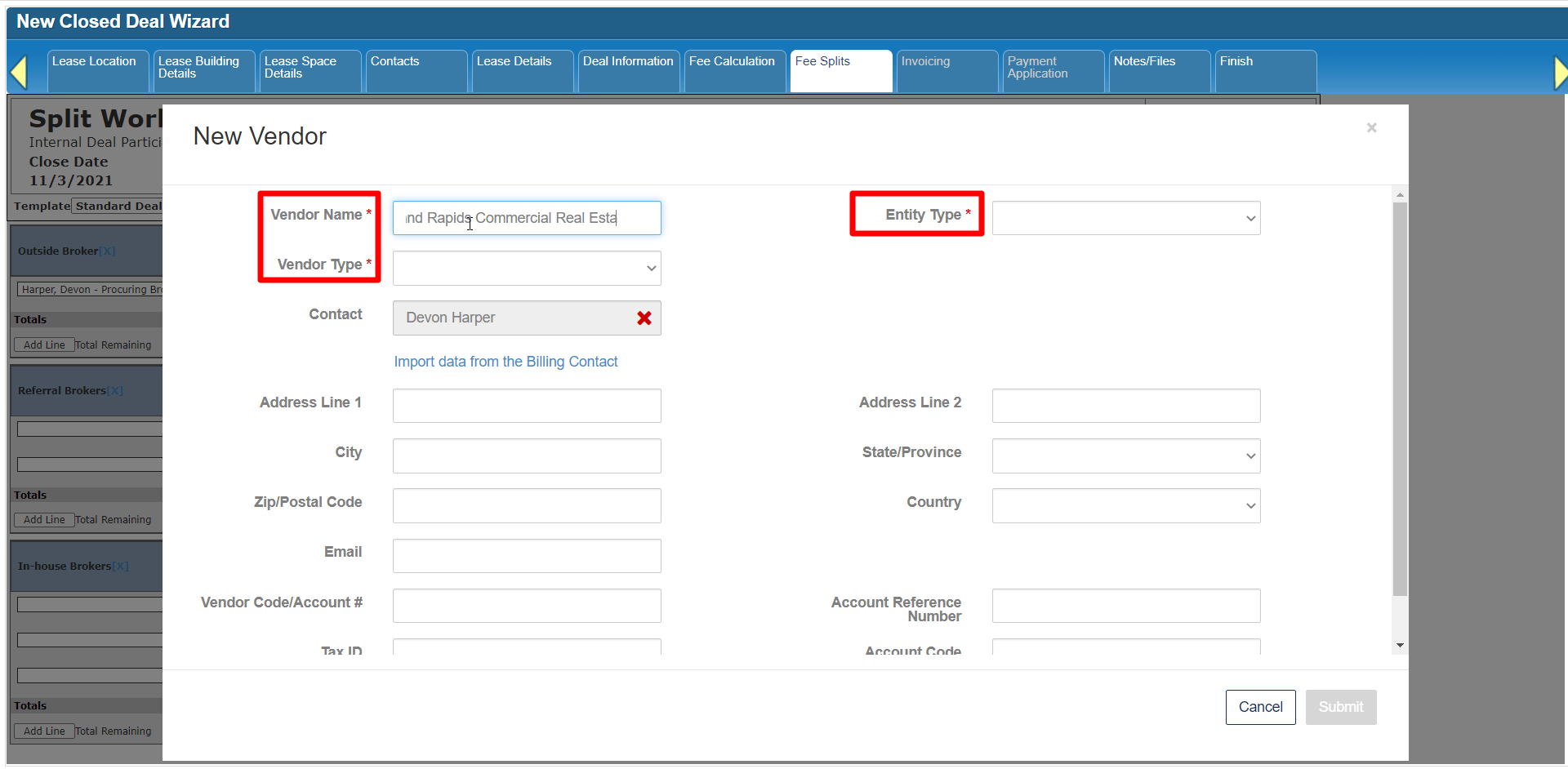
The Entity Type plays a role in how that deal participant’s commission split with the firm is calculated: Outside Vendors don’t split their commissions with your firm, In-House Vendors always require a Split Plan to determine their split, and Staff Vendors by default will not split their commission with the firm unless a Split Plan has been set up for that contact.

The contact you selected earlier is already linked on the New Vendor form, and you can save yourself some time by clicking the option to “Import data from the Billing Contact”.

Add any other relevant information as needed, then click Submit.

Your new Vendor will now be added to the Fee Splits form.
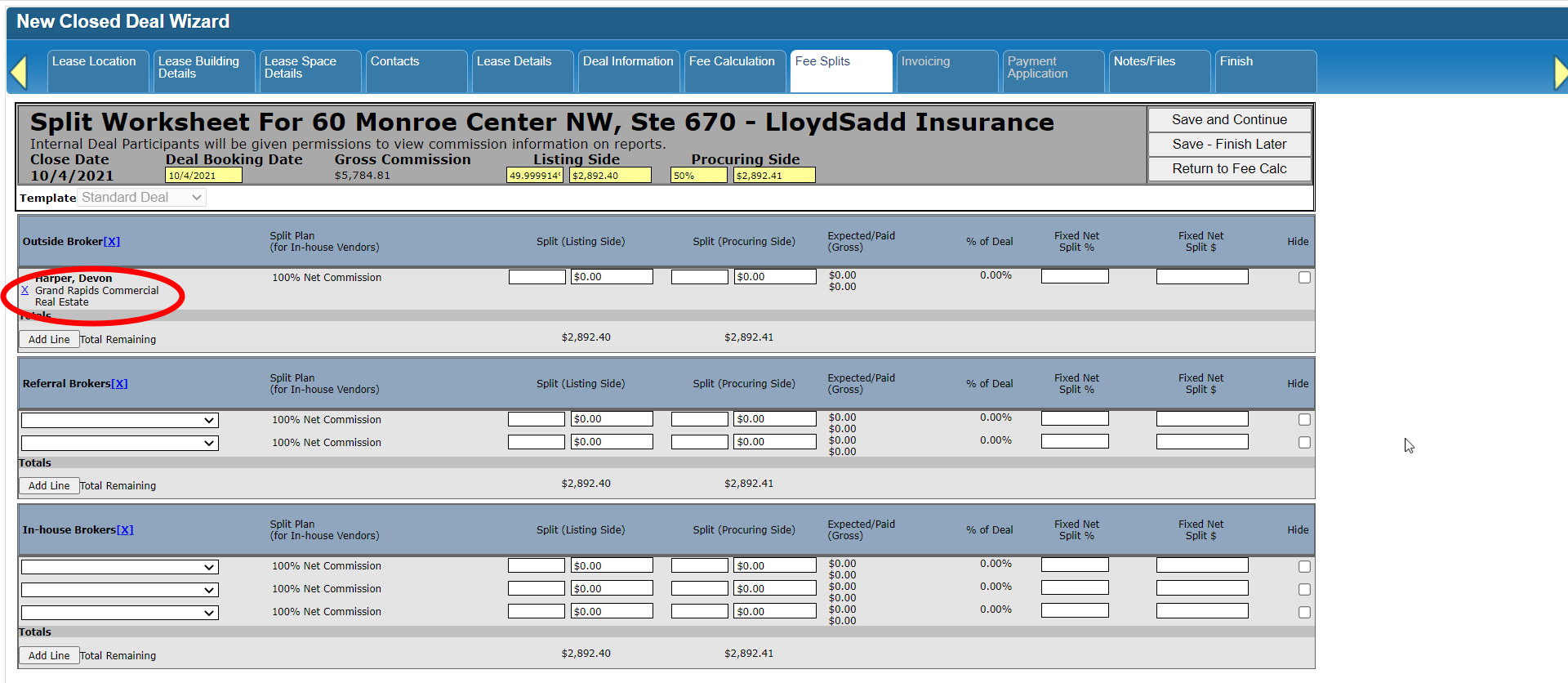
Since we’ve already divided the Gross Commission among the Listing and Procuring sides, the Outside Broker receives 100% of the Procuring Fees.
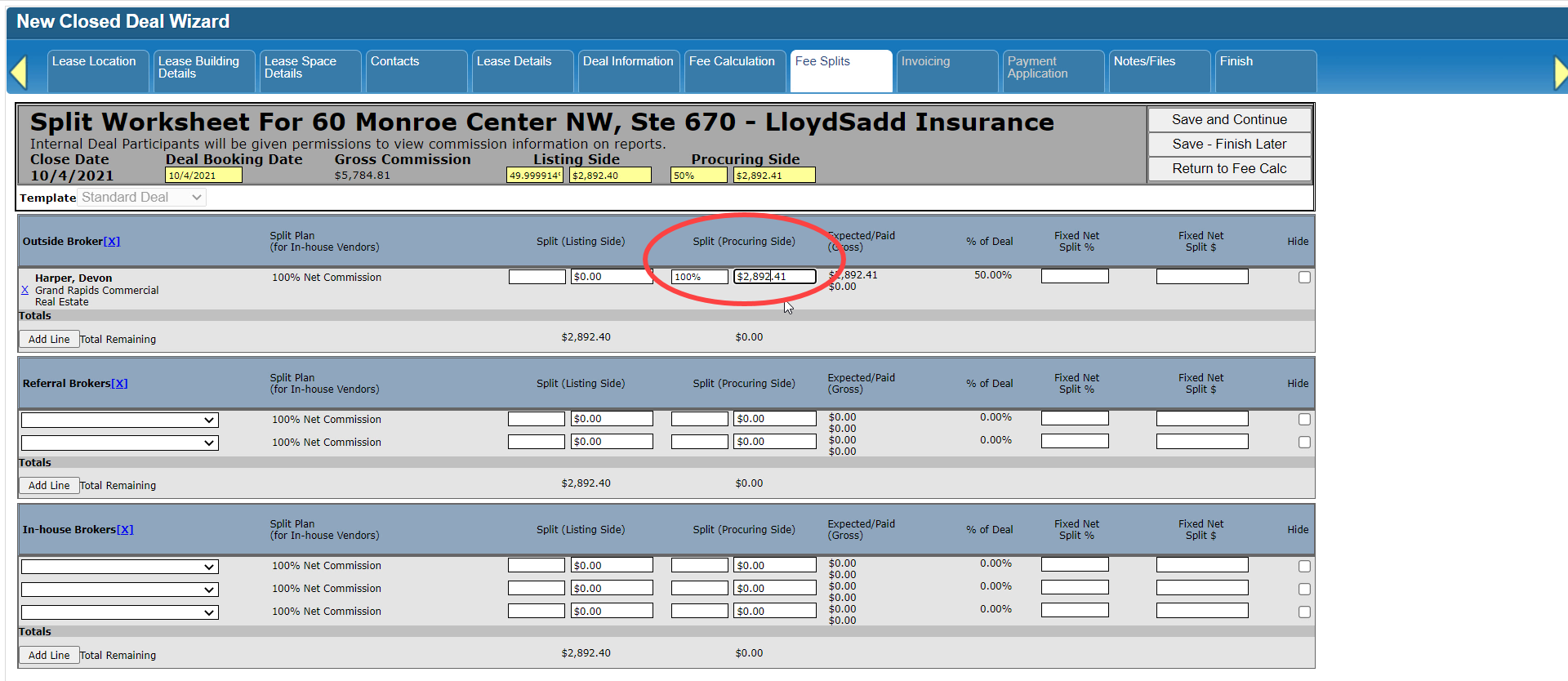
Notice that as you add allocations, the Total Remaining (or unallocated) amount for that side of the deal shrinks.

If you do need to allocate fees to another Outside Broker, click on the Add Line button to create a new row.

This deal doesn’t have any Referral Brokers, so we’ll skip that section and go straight to In-House Brokers.
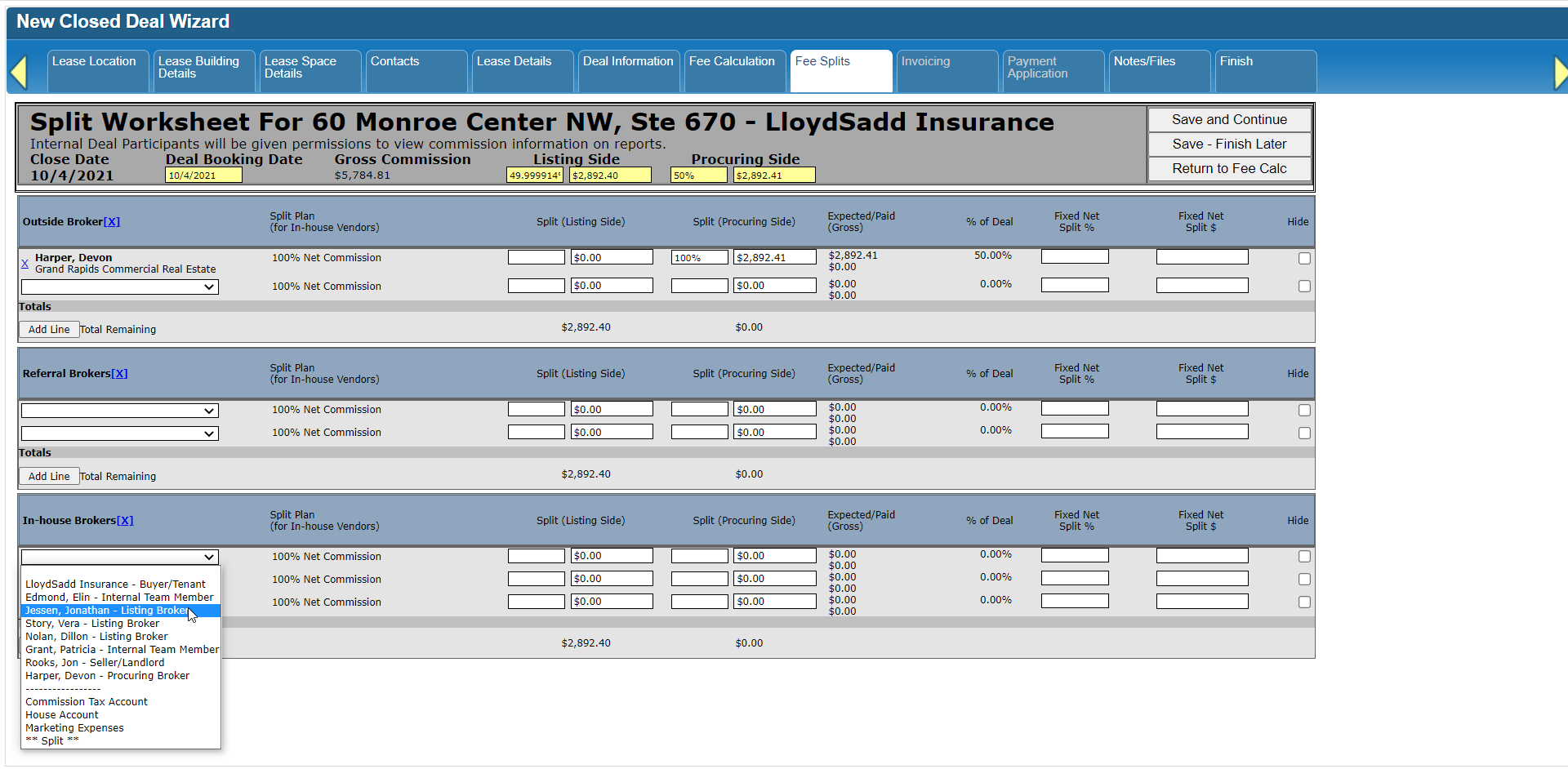
This time, when the contact is selected, the Vendor search form brings up any vendor record that is already linked to this contact, so you can just click on that result. Or, if that isn’t the correct vendor for this deal, you can still search the Vendor database or create a new record.
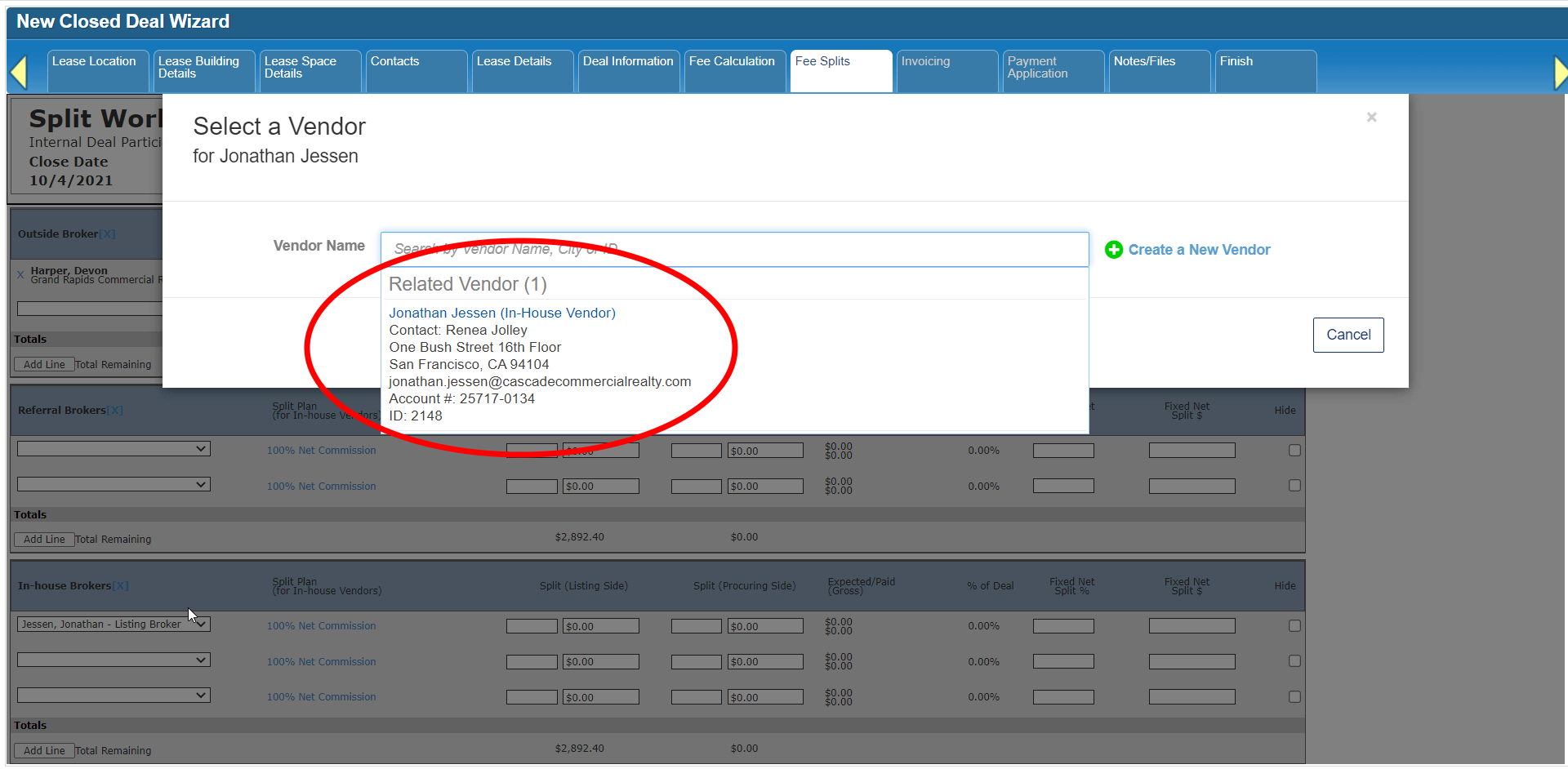
Once you select or add a vendor for an internal contact, a list of their current Split Plans becomes available. The Split Plan will already be selected if they only have one current plan, or if one of their current plans is set as the default split plan.
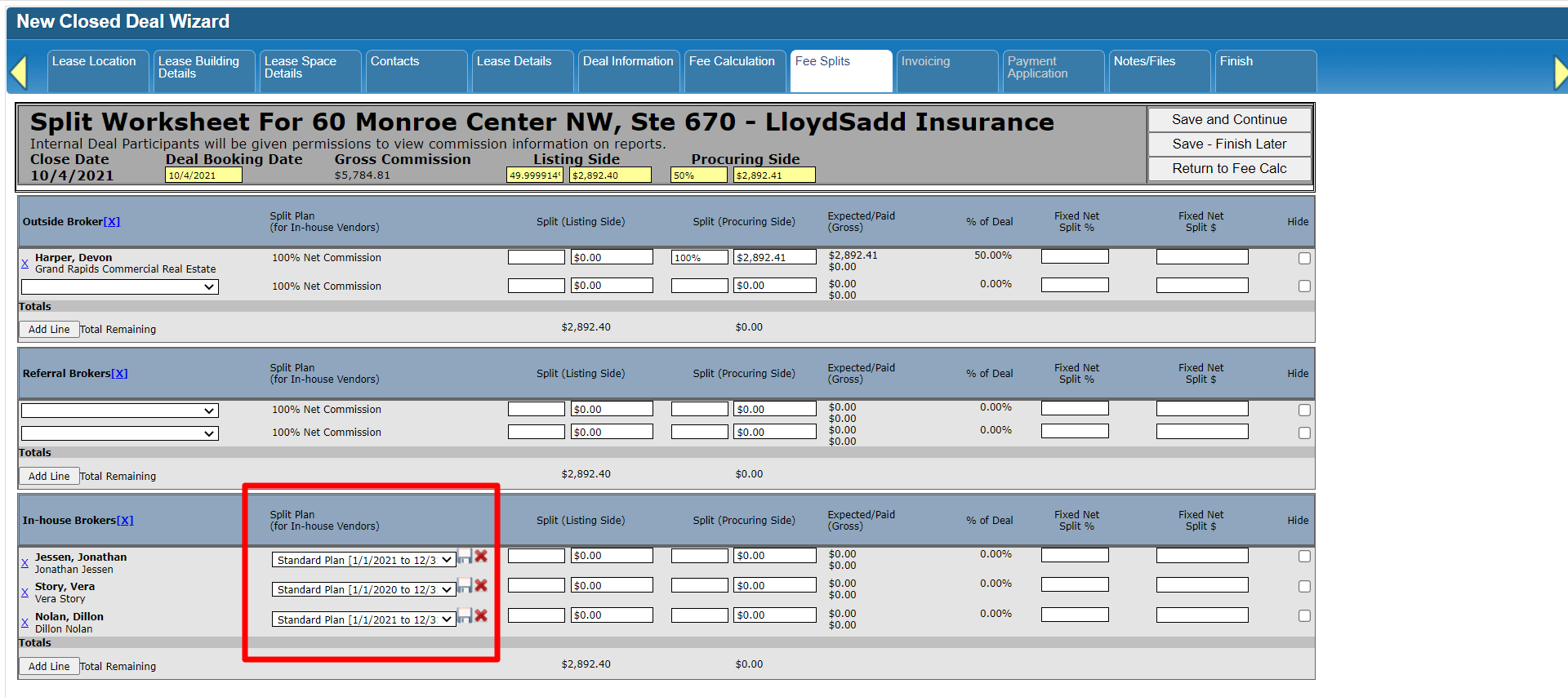
Allocate each broker’s share of the remaining amount for the Listing side of the deal until the Total Remaining is $0.00. The system will make sure you don’t over or under allocate the Total Fee amount. If you see a remaining balance at the bottom, or if you need to make a correction to a calculated amount, you can change the allocations as needed.
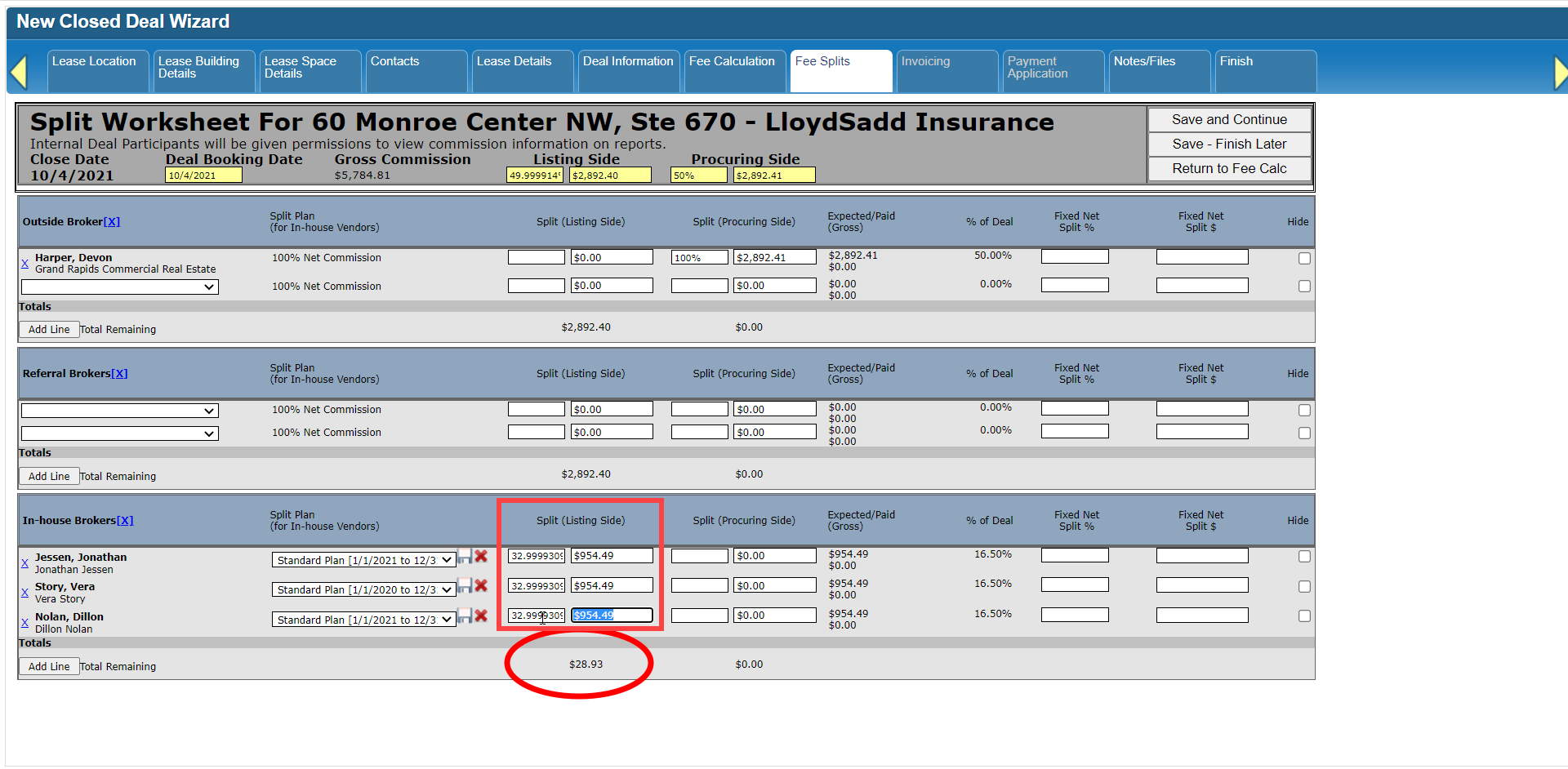
If a broker’s commission split with the firm should not follow their usual split plan but a specific percent of their gross share or a set amount, enter that information into the Fixed Net fields. This will override any calculations the system would normally perform to determine the broker’s net commission amount when the time comes to distribute the fees. These fields should be used for exceptions. If you find that you need to use them often, then contact your System Administrator about setting up an alternate Split Plan for that broker.
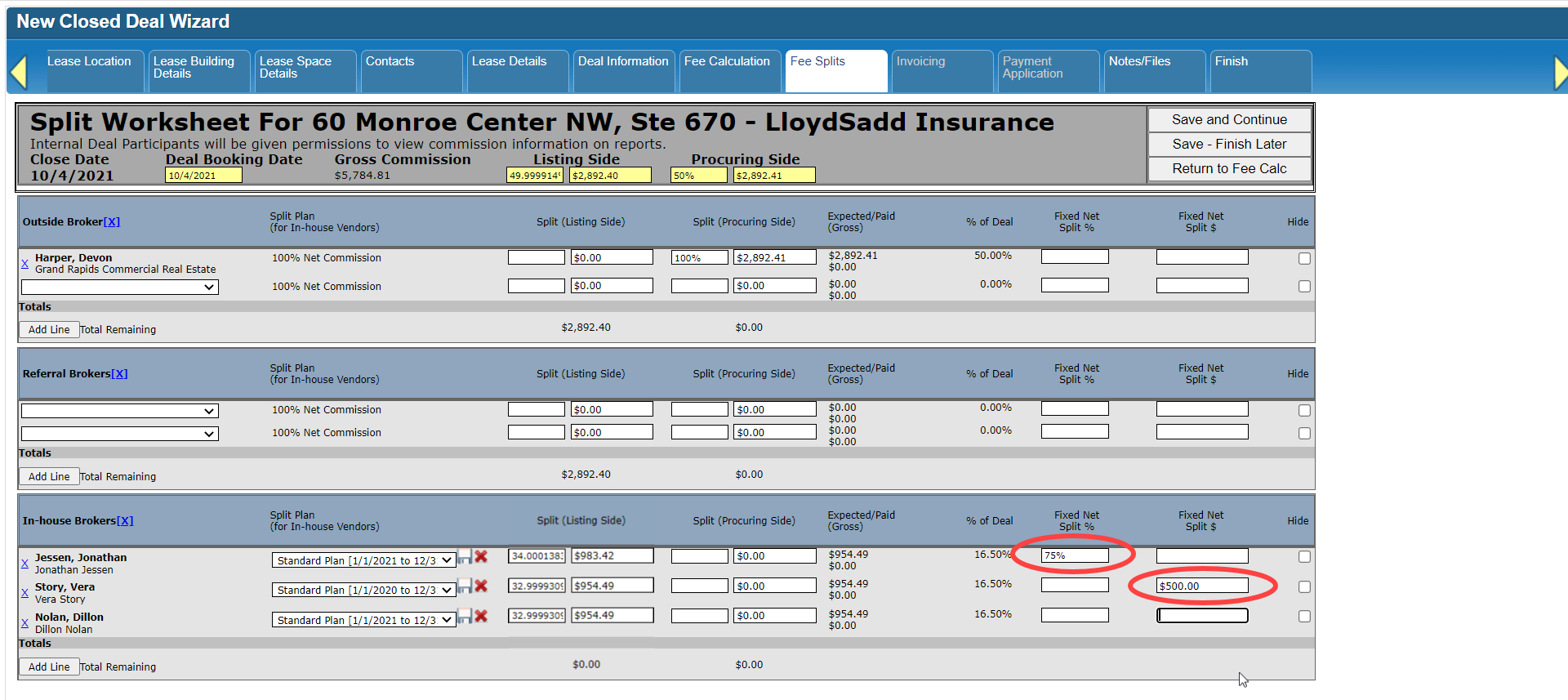
If you aren’t finished yet but want to save your current progress, click the Save – Finish Later button at the top.

Just remember to update the Listing vs Procuring Side at the top of the form before you continue working on it.

When you are done, click Save and Continue.

Scenario 2a: Include taxes and expenses
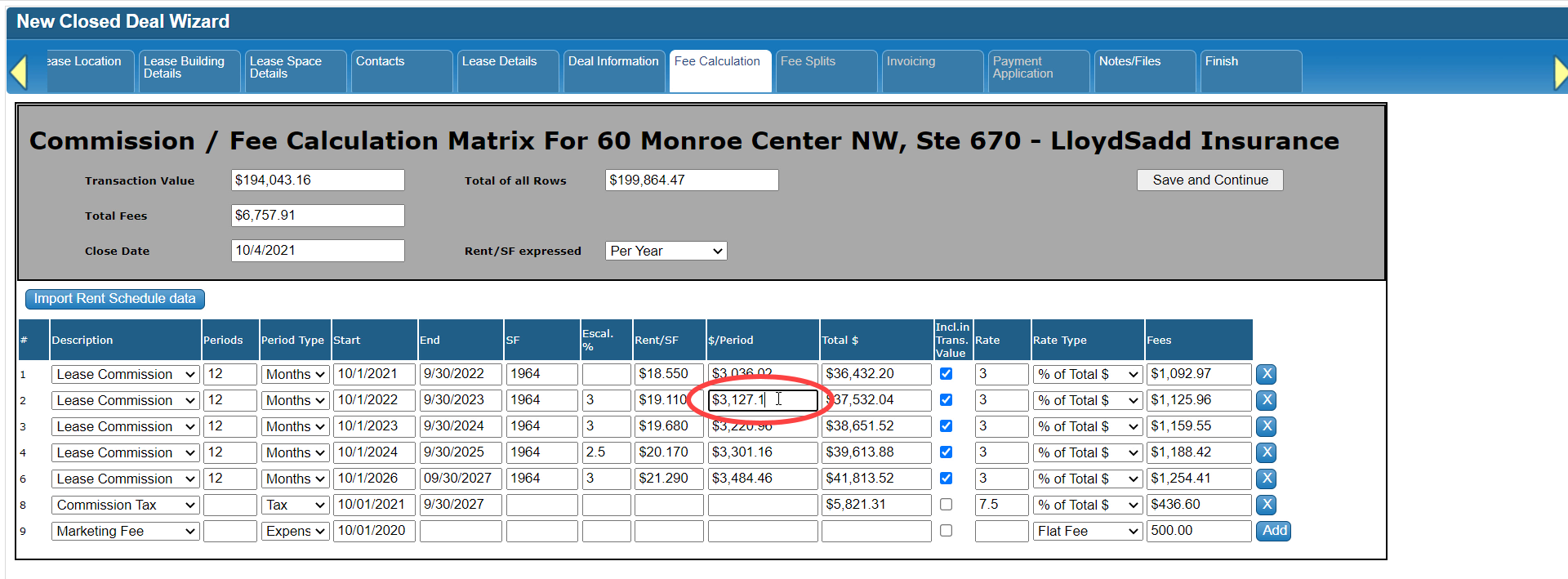
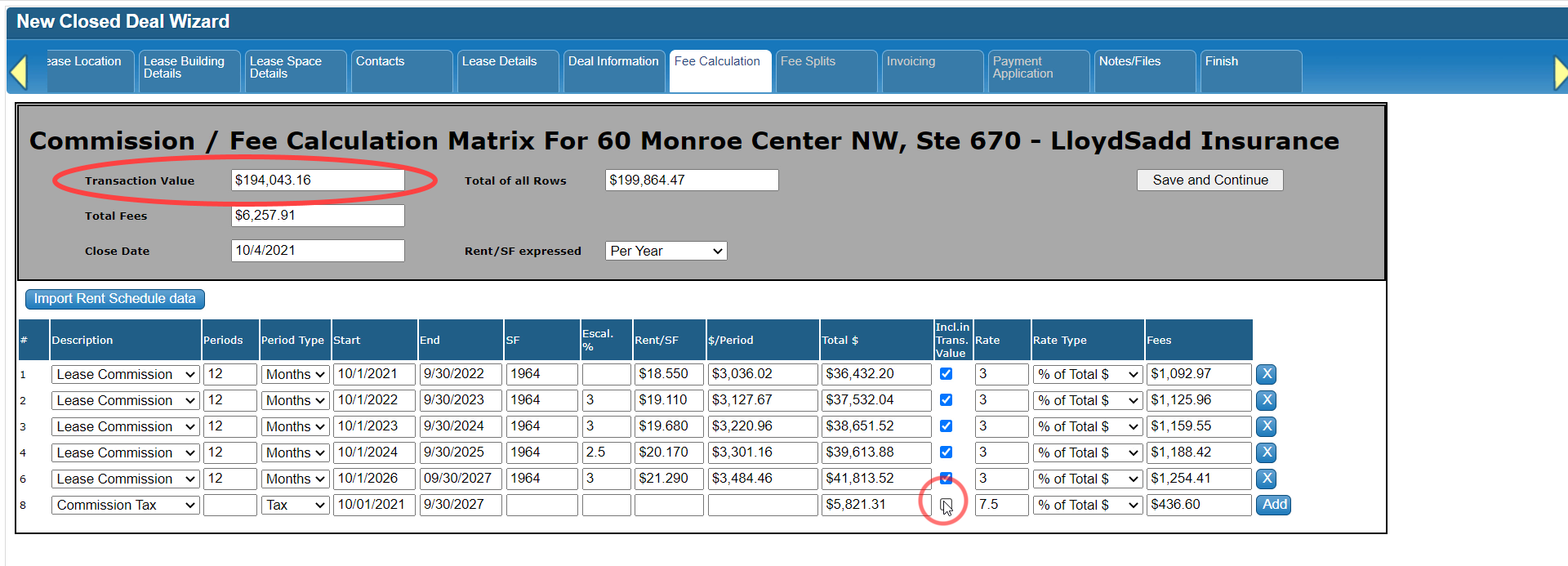
Now let’s go over the more complex example with taxes and expenses (billable as well as “off the top”). Remember that any amount you need to bill your customer needs to be on the Fee Calculation form first.

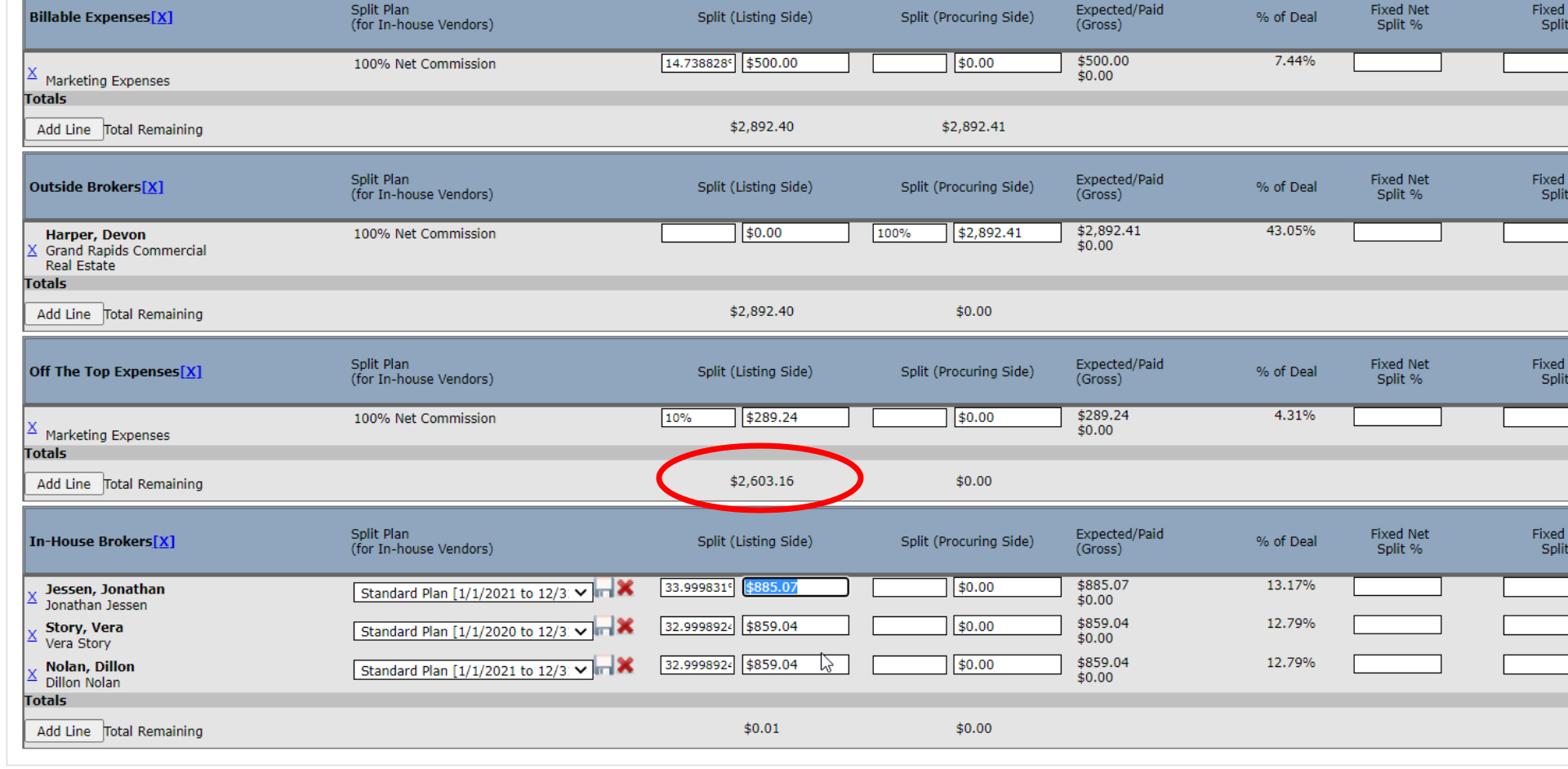
On the Fee Splits form, include any non-commission fees with the commission amount for whichever side your firm represented. In this instance, that would be the Listing Side.

Select the appropriate House Account for Taxes, then add the tax amount.


Do the same for Billable Expenses.

Under Outside Brokers, pick the Procuring Broker’s name.

Select the Vendor linked to that contact or add a new one if needed, and add their allocation from the Procuring Side – in this case, 100% of that amount.
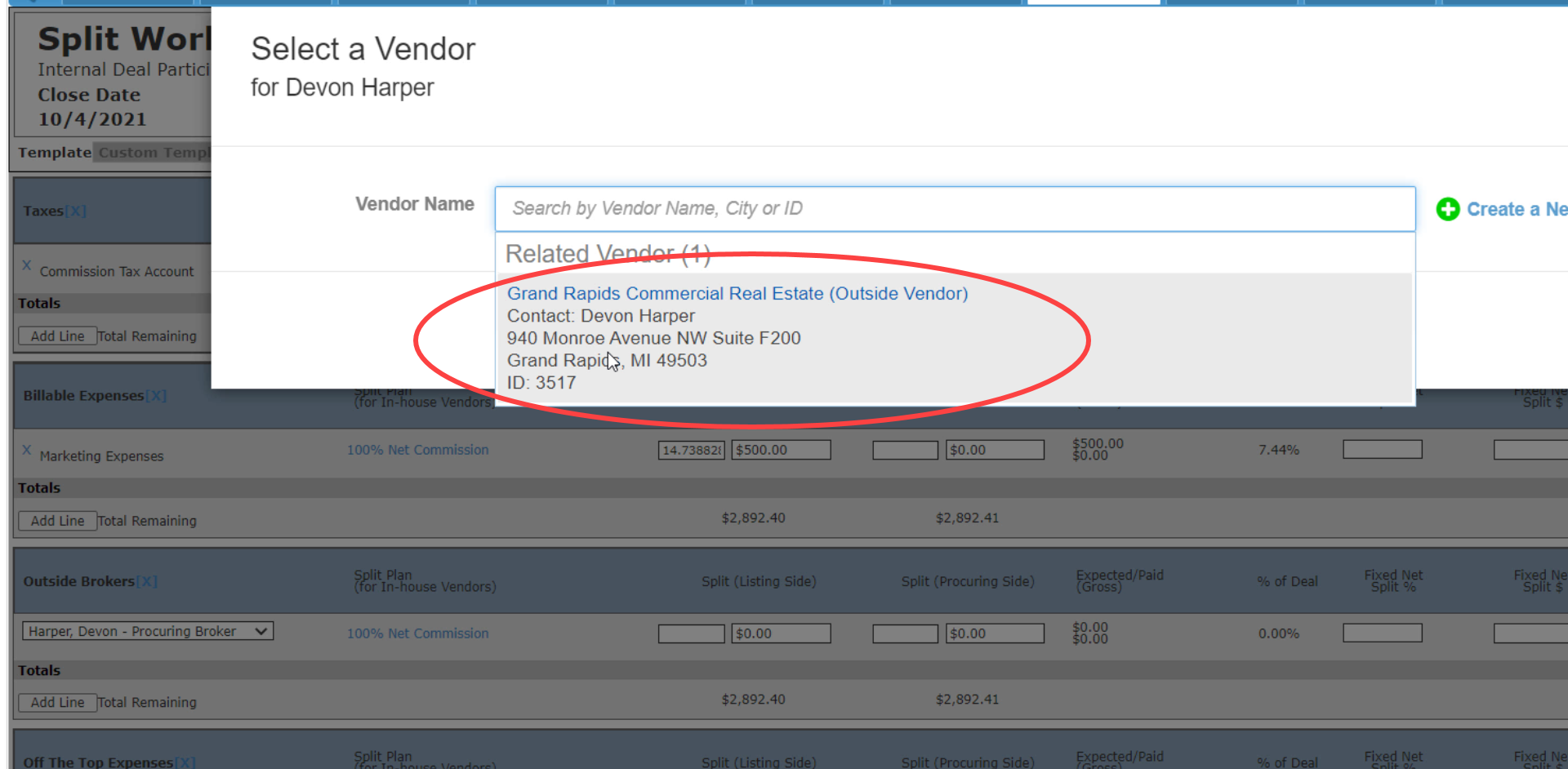

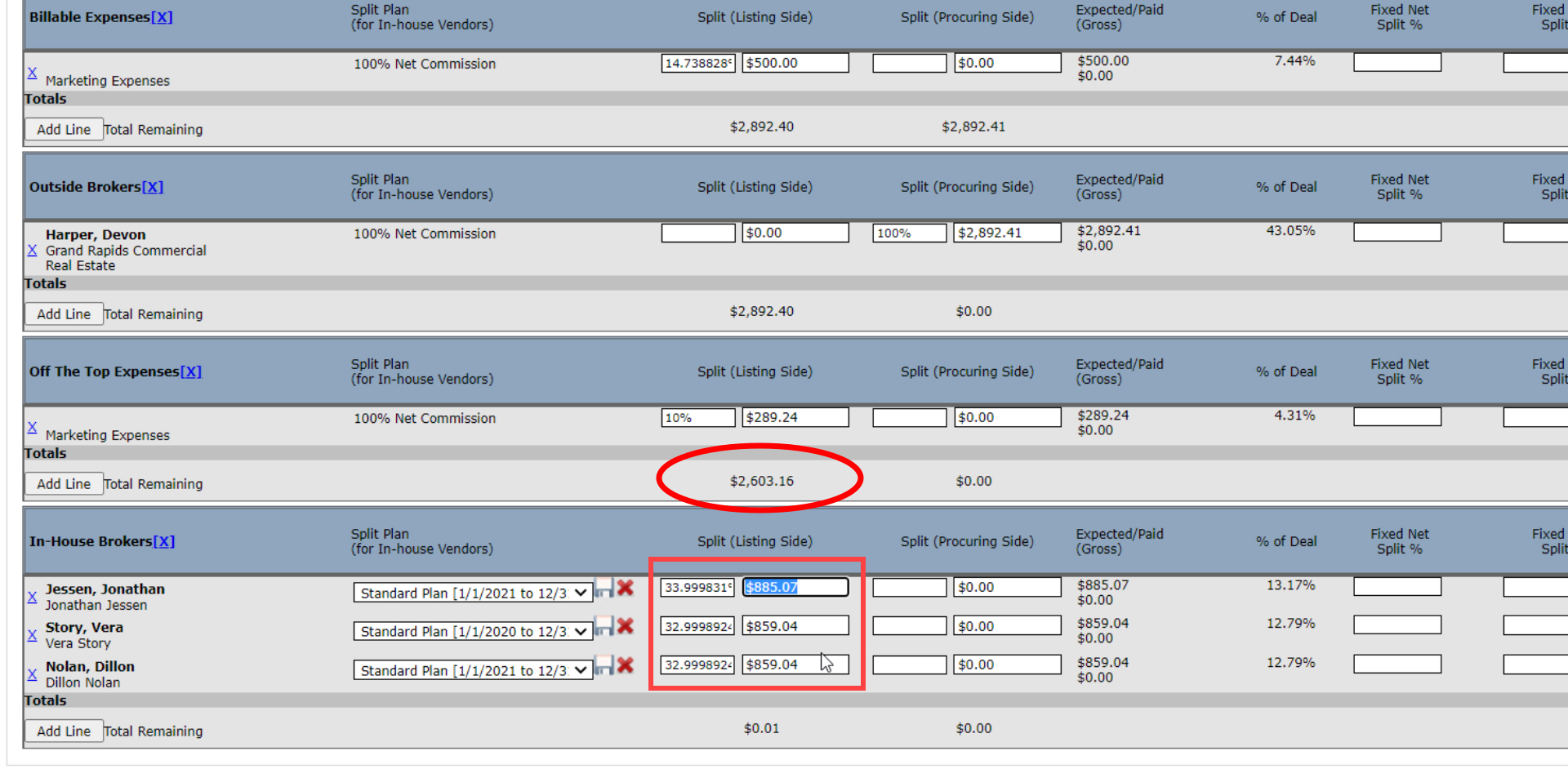
Let’s assume that for this deal, the internal brokers agreed to pay for any expenses that exceeded the amount the customer is paying. Those “Off The Top Expenses” should be allocated before each broker’s share of the remaining amount is calculated. Again, select the appropriate House Account and indicate the amount that will be deducted from the remaining fees.

Now you can add the In-House Brokers and their Vendors and allocate their share of the rest of the fees from the Listing Side. If you are entering percentages, remember that the system will calculate the amount based on the percent of the remaining amount from the section above.
Scenario 2b: Net Splits calculated on deal booking
If your brokers’ split with the firm is calculated when the deal is booked rather than when it is paid, then the In-House Brokers’ Split Plans should already be set up to reflect that.

When you click on Save and Continue, you’ll see a message that lists the brokers whose net commission amount will be calculated at this point. Click OK to continue.
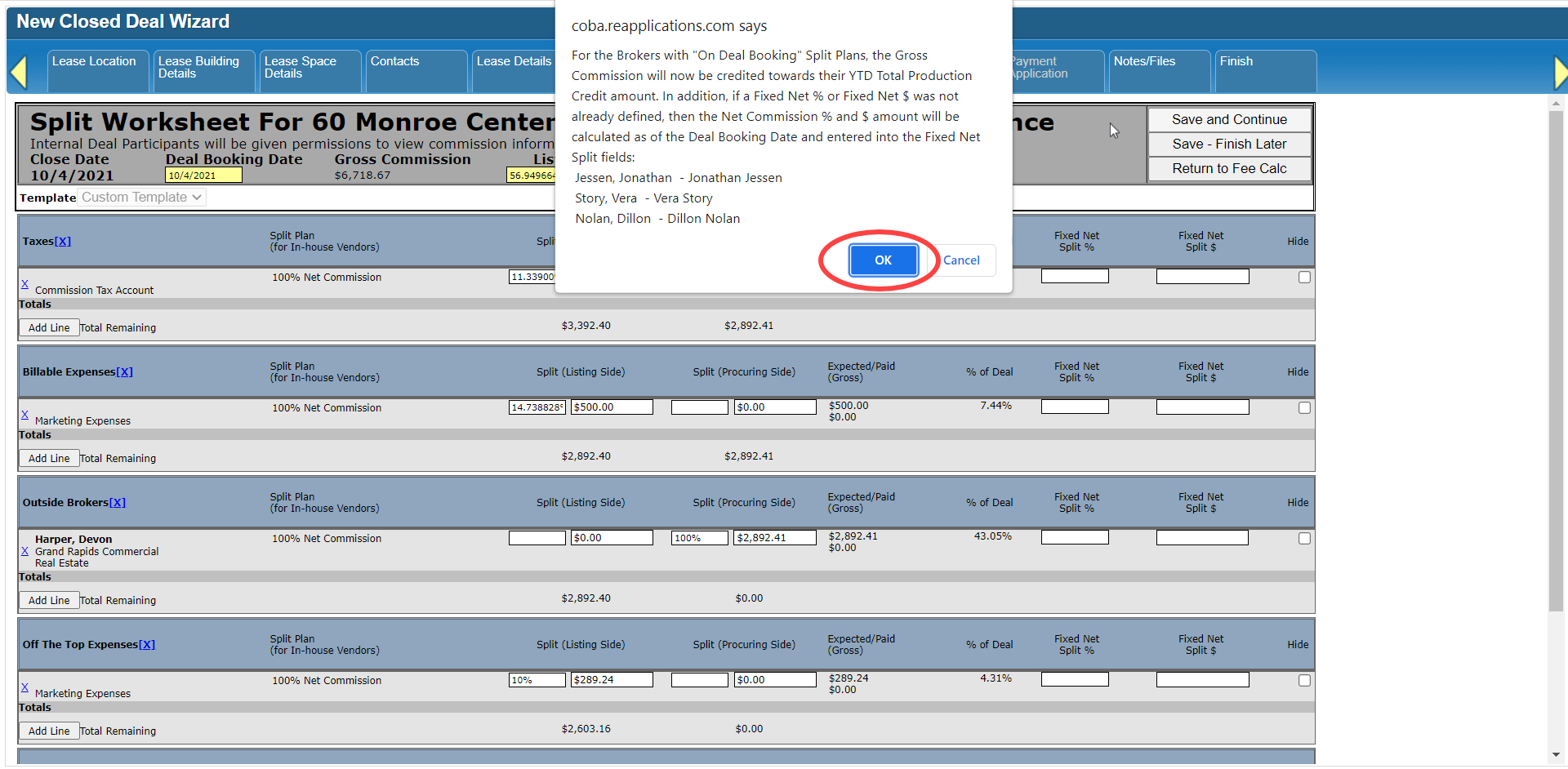
Notice how the Fixed Net fields are now populated based on each broker’s split plan and current production credit, or the total gross commission amount they’ve earned this year.

Once all of the fees have been allocated and the Fee Splits form has been saved, the form is locked.
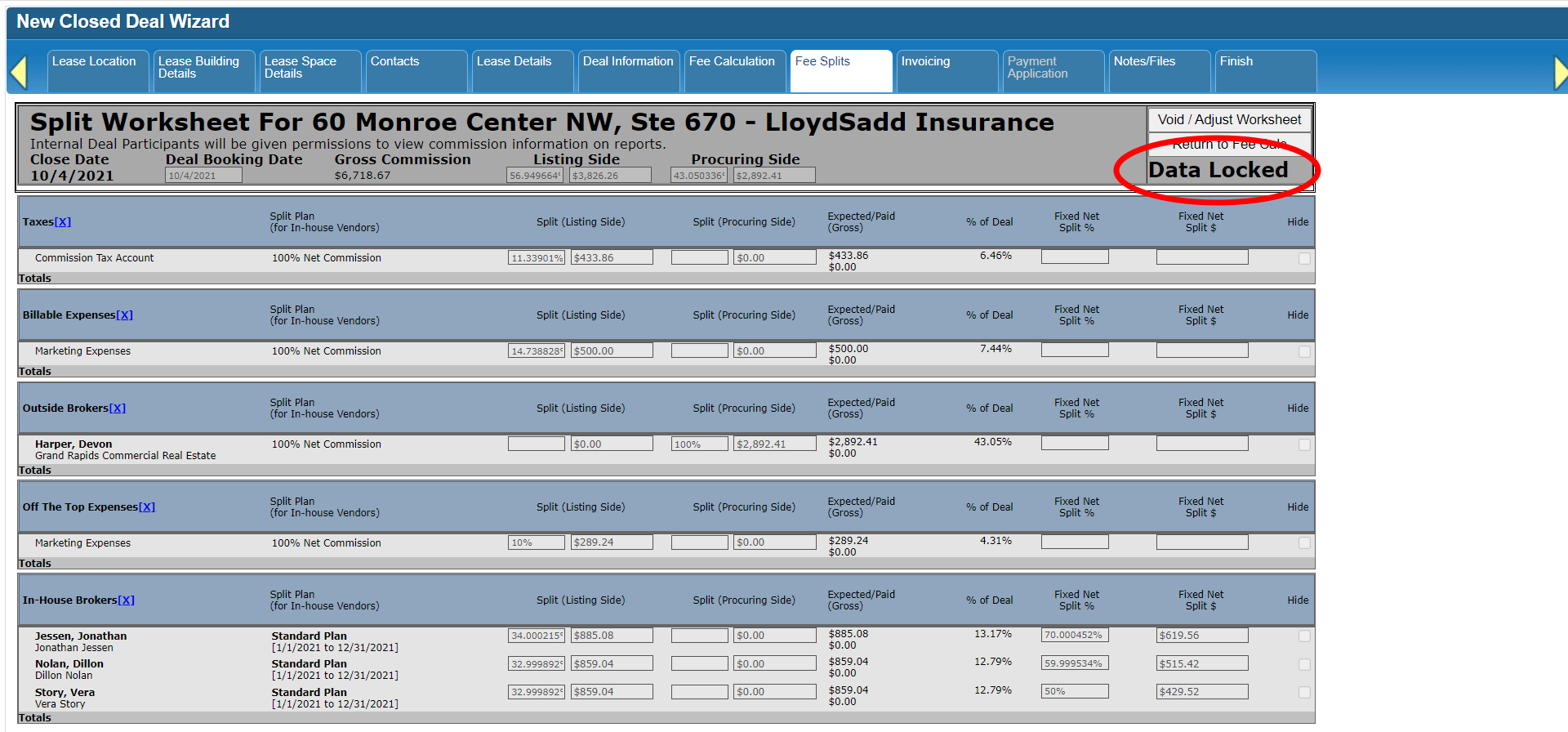
If you want to make any changes now, you can use the Void/Adjust Worksheet option at the top. We’ll cover voids and adjustments in a separate tutorial series.

Click here to go to the next tutorial.
Related articles
- How to create a new Closed Deal: Part 2 - New Closed Deal Modal
- How to create a new Closed Deal: Part 3 - Workflow Navigation
- How to create a new Closed Deal: Part 4 - Property
- How to create a new Closed Deal: Part 5 - Space
- How to create a new Closed Deal: Part 6 - Contacts
- How to create a new Closed Deal: Part 7 - Lease Details
- How to create a new Closed Deal: Part 8 - Deal Information
- How to create a new Closed Deal: Part 9 - Fee Calculation
- How to create a new Closed Deal: Part 10 - Fee Splits
- How to create a new Closed Deal: Part 11 - Invoicing
- How to create a new Closed Deal: Part 12 - Payments
- How to create a new Closed Deal: Part 13 - Notes/Files
- How to create a new Closed Deal: Part 14 - Link Project
- How to create a new Closed Deal: Part 15 - Deal Share
- How to create a new Closed Deal: Part 16 - Billing Schedule
- How to create a new Closed Deal: Part 17 - Net Adjustments
- How to create a new Closed Deal: Part 18 - Annuity Schedule
- How to create a new Closed Deal: Part 19 - Sale Details
- How to create a new Closed Deal: Part 20 - Other Starting Points
© 2023 CoStar Group
Attachments:
 CBA - Entering a Closed Deal - 09 Fee Calculation (Time 0_03_40;27).png (image/png)
 CBA - Entering a Closed Deal - 09 Fee Calculation (Time 0_03_25;21).png (image/png)
 CBA - Entering a Closed Deal - 09 Fee Calculation (Time 0_03_19;09).png (image/png)
 CBA - Entering a Closed Deal - 09 Fee Calculation (Time 0_02_41;15).png (image/png)
 CBA - Entering a Closed Deal - 09 Fee Calculation (Time 0_02_26;19).png (image/png)
 CBA - Entering a Closed Deal - 09 Fee Calculation (Time 0_01_59;03).png (image/png)
 CBA - Entering a Closed Deal - 09 Fee Calculation (Time 0_01_45;20).png (image/png)
 CBA - Entering a Closed Deal - 09 Fee Calculation (Time 0_01_41;29).png (image/png)
 CBA - Entering a Closed Deal - 09 Fee Calculation (Time 0_01_31;07).png (image/png)
 CBA - Entering a Closed Deal - 09 Fee Calculation (Time 0_01_01;20).png (image/png)
 CBA - Entering a Closed Deal - 09 Fee Calculation (Time 0_00_19;20).png (image/png)
 CBA - Entering a Closed Deal - 09 Fee Calculation (Time 0_00_21;20).png (image/png)
 CBA - Entering a Closed Deal - 09 Fee Calculation (Time 0_00_28;17).png (image/png)
 CBA - Entering a Closed Deal - 09 Fee Calculation (Time 0_00_46;04).png (image/png)
 CBA - Entering a Closed Deal - 09 Fee Calculation (Time 0_00_50;07).png (image/png)
 CBA - Entering a Closed Deal - 07 Lease Details (Time 0_04_05;00).png (image/png)
 CBA - Entering a Closed Deal - 07 Lease Details (Time 0_03_58;14).png (image/png)
 CBA - Entering a Closed Deal - 07 Lease Details (Time 0_03_50;07).png (image/png)
 CBA - Entering a Closed Deal - 07 Lease Details (Time 0_03_28;24).png (image/png)
 CBA - Entering a Closed Deal - 07 Lease Details (Time 0_03_23;17).png (image/png)
 CBA - Entering a Closed Deal - 07 Lease Details (Time 0_03_10;18).png (image/png)
 CBA - Entering a Closed Deal - 07 Lease Details (Time 0_02_59;26).png (image/png)
 CBA - Entering a Closed Deal - 07 Lease Details (Time 0_02_40;00).png (image/png)
 CBA - Entering a Closed Deal - 07 Lease Details (Time 0_02_33;17).png (image/png)
 CBA - Entering a Closed Deal - 07 Lease Details (Time 0_02_08;29).png (image/png)
 CBA - Entering a Closed Deal - 07 Lease Details (Time 0_01_52;03).png (image/png)
 CBA - Entering a Closed Deal - 07 Lease Details (Time 0_01_30;17).png (image/png)
 CBA - Entering a Closed Deal - 07 Lease Details (Time 0_01_26;00).png (image/png)
 CBA - Entering a Closed Deal - 07 Lease Details (Time 0_01_03;21).png (image/png)
 CBA - Entering a Closed Deal - 07 Lease Details (Time 0_00_19;09).png (image/png)
 CBA - Entering a Closed Deal - 05 Space (Time 0_02_48;10).png (image/png)
 CBA - Entering a Closed Deal - 05 Space (Time 0_02_43;08).png (image/png)
 CBA - Entering a Closed Deal - 05 Space (Time 0_01_24;18).png (image/png)
 CBA - Entering a Closed Deal - 05 Space (Time 0_01_11;23).png (image/png)
 CBA - Entering a Closed Deal - 05 Space (Time 0_01_04;25).png (image/png)
 CBA - Entering a Closed Deal - 05 Space (Time 0_01_00;08).png (image/png)
 CBA - Entering a Closed Deal - 05 Space (Time 0_00_42;06).png (image/png)
 CBA - Entering a Closed Deal - 05 Space (Time 0_00_30;17).png (image/png)
 CBA - Entering a Closed Deal - 05 Space (Time 0_00_26;10).png (image/png)
 CBA - Entering a Closed Deal - 05 Space (Time 0_00_21;08).png (image/png)
 CBA - Entering a Closed Deal - 03 Workflow Navigation (Time 0_01_27;28).png (image/png)
 CBA - Entering a Closed Deal - 03 Workflow Navigation (Time 0_01_01;06).png (image/png)
 CBA - Entering a Closed Deal - 03 Workflow Navigation (Time 0_00_48;01).png (image/png)
 CBA - Entering a Closed Deal - 03 Workflow Navigation (Time 0_00_37;04).png (image/png)
 CBA - Entering a Closed Deal - 03 Workflow Navigation (Time 0_00_23;29).png (image/png)
 CBA - Entering a Closed Deal - 02 New Closed Deal Modal all (Time 0_00_31;29).png (image/png)
 CBA - Entering a Closed Deal - 02 New Closed Deal Modal all (Time 0_01_09;13).png (image/png)
 CBA - Entering a Closed Deal - 02 New Closed Deal Modal all (Time 0_01_44;04).png (image/png)
 CBA - Entering a Closed Deal - 02 New Closed Deal Modal all (Time 0_01_54;08).png (image/png)
 CBA - Entering a Closed Deal - 02 New Closed Deal Modal all (Time 0_02_02;26).png (image/png)
 CBA - Entering a Closed Deal - 02 New Closed Deal Modal all (Time 0_02_35;01).png (image/png)
 CBA - Entering a Closed Deal - 02 New Closed Deal Modal all (Time 0_02_43;16).png (image/png)
 CBA - Entering a Closed Deal - 02 New Closed Deal Modal all (Time 0_02_47;26).png (image/png)
 CBA - Entering a Closed Deal - 02 New Closed Deal Modal all (Time 0_02_30;26).png (image/png)
 CBA - Entering a Closed Deal - 02 New Closed Deal Modal all (Time 0_01_27;23).png (image/png)
 CBA - Entering a Closed Deal - 02 New Closed Deal Modal all (Time 0_02_59;26).png (image/png)
 CBA - Entering a Closed Deal - 02 New Closed Deal Modal all (Time 0_03_25;09).png (image/png)
 CBA - Entering a Closed Deal - 02 New Closed Deal Modal all (Time 0_03_28;13).png (image/png)
 CBA - Entering a Closed Deal - 02 New Closed Deal Modal all (Time 0_03_50;03).png (image/png)
 CBA - Entering a Closed Deal - 02 New Closed Deal Modal all (Time 0_04_18;08).png (image/png)
 CBA - Entering a Closed Deal - 02 New Closed Deal Modal all (Time 0_04_23;06).png (image/png)
 CBA - Entering a Closed Deal - 04 Property (Time 0_00_19;25).png (image/png)
 CBA - Entering a Closed Deal - 04 Property (Time 0_00_29;24).png (image/png)
 CBA - Entering a Closed Deal - 04 Property (Time 0_00_59;14).png (image/png)
 CBA - Entering a Closed Deal - 04 Property (Time 0_01_14;23).png (image/png)
 CBA - Entering a Closed Deal - 04 Property (Time 0_01_25;02).png (image/png)
 CBA - Entering a Closed Deal - 04 Property (Time 0_01_32;17).png (image/png)
 CBA - Entering a Closed Deal - 04 Property (Time 0_01_37;08).png (image/png)
 CBA - Entering a Closed Deal - 04 Property (Time 0_01_40;21).png (image/png)
 CBA - Entering a Closed Deal - 04 Property (Time 0_02_00;11).png (image/png)
 CBA - Entering a Closed Deal - 04 Property (Time 0_02_12;07).png (image/png)
 CBA - Entering a Closed Deal - 04 Property (Time 0_02_19;12).png (image/png)
 CBA - Entering a Closed Deal - 04 Property (Time 0_02_38;22).png (image/png)
 CBA - Entering a Closed Deal - 04 Property (Time 0_02_44;24).png (image/png)
 CBA - Entering a Closed Deal - 04 Property (Time 0_02_52;14).png (image/png)
 CBA - Entering a Closed Deal - 06 Contacts (Time 0_00_33;28).png (image/png)
 CBA - Entering a Closed Deal - 06 Contacts (Time 0_00_51;04).png (image/png)
 CBA - Entering a Closed Deal - 06 Contacts (Time 0_01_21;18).png (image/png)
 CBA - Entering a Closed Deal - 06 Contacts (Time 0_01_27;02).png (image/png)
 CBA - Entering a Closed Deal - 06 Contacts (Time 0_01_40;29).png (image/png)
 CBA - Entering a Closed Deal - 06 Contacts (Time 0_01_52;12).png (image/png)
 CBA - Entering a Closed Deal - 06 Contacts (Time 0_01_58;01).png (image/png)
 CBA - Entering a Closed Deal - 06 Contacts (Time 0_02_08;13).png (image/png)
 CBA - Entering a Closed Deal - 06 Contacts (Time 0_02_26;14).png (image/png)
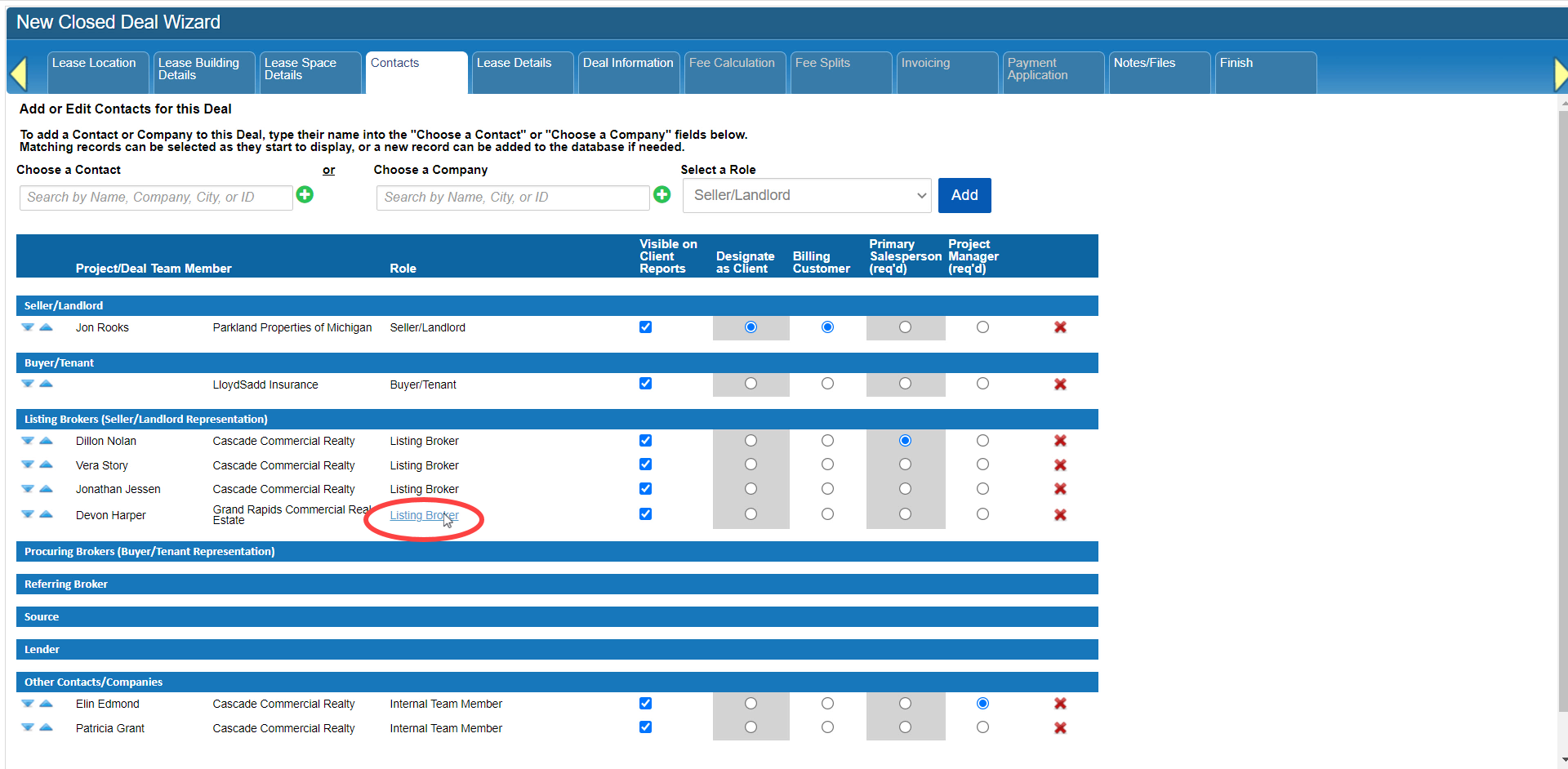 CBA - Entering a Closed Deal - 06 Contacts (Time 0_02_30;08).png (image/png)
 CBA - Entering a Closed Deal - 06 Contacts (Time 0_03_00;07).png (image/png)
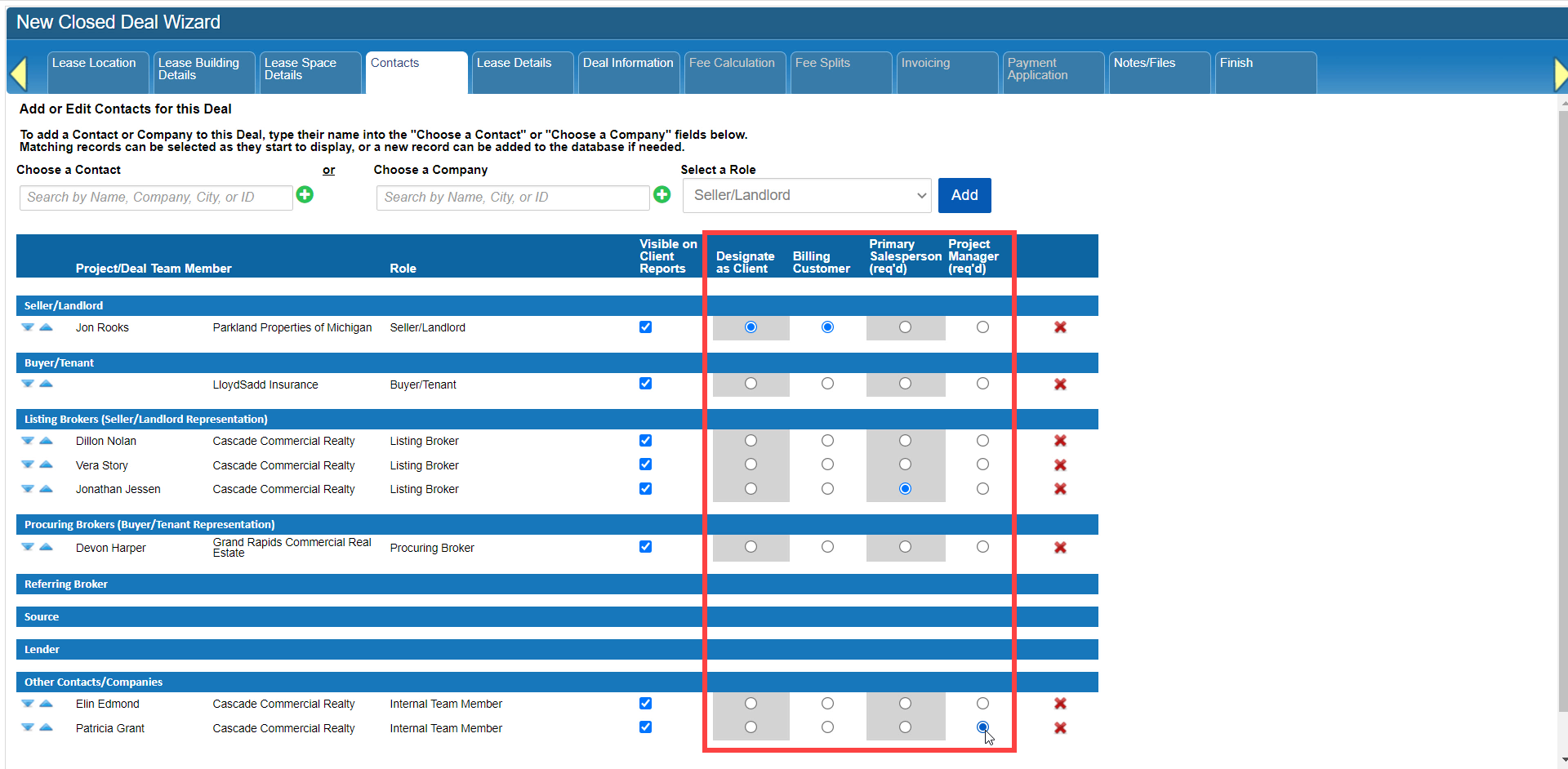 CBA - Entering a Closed Deal - 06 Contacts (Time 0_03_02;26).png (image/png)
 CBA - Entering a Closed Deal - 08 Deal Information (Time 0_00_24;04).png (image/png)
 CBA - Entering a Closed Deal - 08 Deal Information (Time 0_00_45;08).png (image/png)
 CBA - Entering a Closed Deal - 08 Deal Information (Time 0_00_52;05).png (image/png)
 CBA - Entering a Closed Deal - 08 Deal Information (Time 0_01_00;26).png (image/png)
 CBA - Entering a Closed Deal - 08 Deal Information (Time 0_01_27;04).png (image/png)
 CBA - Entering a Closed Deal - 08 Deal Information (Time 0_01_55;00).png (image/png)
 CBA - Entering a Closed Deal - 08 Deal Information (Time 0_02_14;05).png (image/png)
 CBA - Entering a Closed Deal - 08 Deal Information (Time 0_02_19;07).png (image/png)
 CBA - Entering a Closed Deal - 08 Deal Information (Time 0_02_38;14).png (image/png)
 CBA - Entering a Closed Deal - 08 Deal Information (Time 0_02_53;10).png (image/png)
 CBA - Entering a Closed Deal - 08 Deal Information (Time 0_02_55;26).png (image/png)
 CBA - Entering a Closed Deal - 08 Deal Information (Time 0_03_14;29).png (image/png)
 CBA - Entering a Closed Deal - 08 Deal Information (Time 0_03_28;25).png (image/png)
 CBA - Entering a Closed Deal - 10 Fee Splits (Time 0_00_33;01).png (image/png)
 CBA - Entering a Closed Deal - 10 Fee Splits (Time 0_00_33;01).png (image/png)
CBA - Entering a Closed Deal - 10 Fee Splits (Time 0_00_37;03).png (image/png)
CBA - Entering a Closed Deal - 10 Fee Splits (Time 0_00_50;20).png (image/png)
CBA - Entering a Closed Deal - 10 Fee Splits (Time 0_01_03;21).png (image/png)
CBA - Entering a Closed Deal - 10 Fee Splits (Time 0_01_20;05).png (image/png)
CBA - Entering a Closed Deal - 10 Fee Splits (Time 0_01_28;02).png (image/png)
CBA - Entering a Closed Deal - 10 Fee Splits (Time 0_01_42;05).png (image/png)
CBA - Entering a Closed Deal - 10 Fee Splits (Time 0_01_50;02).png (image/png)
CBA - Entering a Closed Deal - 10 Fee Splits (Time 0_02_02;04).png (image/png)
CBA - Entering a Closed Deal - 10 Fee Splits (Time 0_00_33;01).png (image/png)
CBA - Entering a Closed Deal - 10 Fee Splits (Time 0_00_37;03).png (image/png)
CBA - Entering a Closed Deal - 10 Fee Splits (Time 0_00_50;20).png (image/png)
CBA - Entering a Closed Deal - 10 Fee Splits (Time 0_01_03;21).png (image/png)
CBA - Entering a Closed Deal - 10 Fee Splits (Time 0_01_20;05).png (image/png)
CBA - Entering a Closed Deal - 10 Fee Splits (Time 0_01_28;02).png (image/png)
CBA - Entering a Closed Deal - 10 Fee Splits (Time 0_01_42;05).png (image/png)
CBA - Entering a Closed Deal - 10 Fee Splits (Time 0_01_50;02).png (image/png)
CBA - Entering a Closed Deal - 10 Fee Splits (Time 0_02_02;04).png (image/png)
 CBA - Entering a Closed Deal - 10 Fee Splits (Time 0_02_02;04).png (image/png)
CBA - Entering a Closed Deal - 10 Fee Splits (Time 0_02_09;19).png (image/png)
CBA - Entering a Closed Deal - 10 Fee Splits (Time 0_02_31;29).png (image/png)
CBA - Entering a Closed Deal - 10 Fee Splits (Time 0_02_02;04).png (image/png)
CBA - Entering a Closed Deal - 10 Fee Splits (Time 0_02_09;19).png (image/png)
CBA - Entering a Closed Deal - 10 Fee Splits (Time 0_02_31;29).png (image/png)
 CBA - Entering a Closed Deal - 10 Fee Splits (Time 0_02_31;29).png (image/png)
CBA - Entering a Closed Deal - 10 Fee Splits (Time 0_02_48;16).png (image/png)
CBA - Entering a Closed Deal - 10 Fee Splits (Time 0_03_01;27).png (image/png)
CBA - Entering a Closed Deal - 10 Fee Splits (Time 0_03_06;25).png (image/png)
CBA - Entering a Closed Deal - 10 Fee Splits (Time 0_03_19;23).png (image/png)
CBA - Entering a Closed Deal - 10 Fee Splits (Time 0_03_43;16).png (image/png)
CBA - Entering a Closed Deal - 10 Fee Splits (Time 0_03_49;06).png (image/png)
CBA - Entering a Closed Deal - 10 Fee Splits (Time 0_03_53;24).png (image/png)
CBA - Entering a Closed Deal - 10 Fee Splits (Time 0_04_14;16).png (image/png)
CBA - Entering a Closed Deal - 10 Fee Splits (Time 0_04_14;16)b.png (image/png)
CBA - Entering a Closed Deal - 10 Fee Splits (Time 0_04_19;14).png (image/png)
CBA - Entering a Closed Deal - 10 Fee Splits (Time 0_04_30;05).png (image/png)
CBA - Entering a Closed Deal - 10 Fee Splits (Time 0_04_36;24).png (image/png)
CBA - Entering a Closed Deal - 10 Fee Splits (Time 0_04_55;09).png (image/png)
CBA - Entering a Closed Deal - 10 Fee Splits (Time 0_05_23;03).png (image/png)
CBA - Entering a Closed Deal - 10 Fee Splits (Time 0_05_49;19).png (image/png)
CBA - Entering a Closed Deal - 10 Fee Splits (Time 0_06_13;20).png (image/png)
CBA - Entering a Closed Deal - 10 Fee Splits (Time 0_06_21;08).png (image/png)
CBA - Entering a Closed Deal - 10 Fee Splits (Time 0_06_28;14).png (image/png)
CBA - Entering a Closed Deal - 10 Fee Splits (Time 0_06_41;22).png (image/png)
CBA - Entering a Closed Deal - 10 Fee Splits (Time 0_06_54;27).png (image/png)
CBA - Entering a Closed Deal - 10 Fee Splits (Time 0_07_01;18).png (image/png)
CBA - Entering a Closed Deal - 10 Fee Splits (Time 0_02_31;29).png (image/png)
CBA - Entering a Closed Deal - 10 Fee Splits (Time 0_02_48;16).png (image/png)
CBA - Entering a Closed Deal - 10 Fee Splits (Time 0_03_01;27).png (image/png)
CBA - Entering a Closed Deal - 10 Fee Splits (Time 0_03_06;25).png (image/png)
CBA - Entering a Closed Deal - 10 Fee Splits (Time 0_03_19;23).png (image/png)
CBA - Entering a Closed Deal - 10 Fee Splits (Time 0_03_43;16).png (image/png)
CBA - Entering a Closed Deal - 10 Fee Splits (Time 0_03_49;06).png (image/png)
CBA - Entering a Closed Deal - 10 Fee Splits (Time 0_03_53;24).png (image/png)
CBA - Entering a Closed Deal - 10 Fee Splits (Time 0_04_14;16).png (image/png)
CBA - Entering a Closed Deal - 10 Fee Splits (Time 0_04_14;16)b.png (image/png)
CBA - Entering a Closed Deal - 10 Fee Splits (Time 0_04_19;14).png (image/png)
CBA - Entering a Closed Deal - 10 Fee Splits (Time 0_04_30;05).png (image/png)
CBA - Entering a Closed Deal - 10 Fee Splits (Time 0_04_36;24).png (image/png)
CBA - Entering a Closed Deal - 10 Fee Splits (Time 0_04_55;09).png (image/png)
CBA - Entering a Closed Deal - 10 Fee Splits (Time 0_05_23;03).png (image/png)
CBA - Entering a Closed Deal - 10 Fee Splits (Time 0_05_49;19).png (image/png)
CBA - Entering a Closed Deal - 10 Fee Splits (Time 0_06_13;20).png (image/png)
CBA - Entering a Closed Deal - 10 Fee Splits (Time 0_06_21;08).png (image/png)
CBA - Entering a Closed Deal - 10 Fee Splits (Time 0_06_28;14).png (image/png)
CBA - Entering a Closed Deal - 10 Fee Splits (Time 0_06_41;22).png (image/png)
CBA - Entering a Closed Deal - 10 Fee Splits (Time 0_06_54;27).png (image/png)
CBA - Entering a Closed Deal - 10 Fee Splits (Time 0_07_01;18).png (image/png)
 CBA - Entering a Closed Deal - 10 Fee Splits (Time 0_07_01;18).png (image/png)
 CBA - Entering a Closed Deal - 10 Fee Splits (Time 0_07_01;18).png (image/png)
CBA - Entering a Closed Deal - 10 Fee Splits (Time 0_07_05;27).png (image/png)
CBA - Entering a Closed Deal - 10 Fee Splits (Time 0_07_11;20).png (image/png)
CBA - Entering a Closed Deal - 10 Fee Splits (Time 0_07_17;26).png (image/png)
CBA - Entering a Closed Deal - 10 Fee Splits (Time 0_07_19;24).png (image/png)
CBA - Entering a Closed Deal - 10 Fee Splits (Time 0_07_25;17).png (image/png)
CBA - Entering a Closed Deal - 10 Fee Splits (Time 0_07_51;07).png (image/png)
CBA - Entering a Closed Deal - 10 Fee Splits (Time 0_08_09;09).png (image/png)
CBA - Entering a Closed Deal - 10 Fee Splits (Time 0_07_01;18).png (image/png)
CBA - Entering a Closed Deal - 10 Fee Splits (Time 0_07_05;27).png (image/png)
CBA - Entering a Closed Deal - 10 Fee Splits (Time 0_07_11;20).png (image/png)
CBA - Entering a Closed Deal - 10 Fee Splits (Time 0_07_17;26).png (image/png)
CBA - Entering a Closed Deal - 10 Fee Splits (Time 0_07_19;24).png (image/png)
CBA - Entering a Closed Deal - 10 Fee Splits (Time 0_07_25;17).png (image/png)
CBA - Entering a Closed Deal - 10 Fee Splits (Time 0_07_51;07).png (image/png)
CBA - Entering a Closed Deal - 10 Fee Splits (Time 0_08_09;09).png (image/png)
 CBA - Entering a Closed Deal - 10 Fee Splits (Time 0_08_09;09).png (image/png)
CBA - Entering a Closed Deal - 10 Fee Splits (Time 0_08_24;02).png (image/png)
CBA - Entering a Closed Deal - 10 Fee Splits (Time 0_08_29;09).png (image/png)
CBA - Entering a Closed Deal - 10 Fee Splits (Time 0_08_39;23).png (image/png)
CBA - Entering a Closed Deal - 10 Fee Splits (Time 0_08_56;13).png (image/png)
CBA - Entering a Closed Deal - 10 Fee Splits (Time 0_09_01;07).png (image/png)
CBA - Entering a Closed Deal - 10 Fee Splits (Time 0_08_09;09).png (image/png)
CBA - Entering a Closed Deal - 10 Fee Splits (Time 0_08_24;02).png (image/png)
CBA - Entering a Closed Deal - 10 Fee Splits (Time 0_08_29;09).png (image/png)
CBA - Entering a Closed Deal - 10 Fee Splits (Time 0_08_39;23).png (image/png)
CBA - Entering a Closed Deal - 10 Fee Splits (Time 0_08_56;13).png (image/png)
CBA - Entering a Closed Deal - 10 Fee Splits (Time 0_09_01;07).png (image/png)