This article provides instructions on how to update the Shareholder / Principal settings for a broker in the HR module.
Instructions
From the Home page, open the HR menu.
Click on Personnel Files.
Enter a search filter (e.g. the last name).
Click Go to run the search.
Click on the Personnel File record number to open that HR record.

From the HR record, open the Compensation menu.
Click on History.
You'll see the current Classification for the most recent Change Date. If it's incorrect, click the green plus icon to change it via a new History record.

Select "Status Change" for the Change Type.
Enter (or select on the calendar) the effective date of this change.
Change the Classification to "Associate".
Click the Submit button.

You may also wish to update the Principal field on the Personnel File form:
From the HR record, click on the Edit option.
Change the Principal setting from "Yes" to "No".
Click the Submit button.

If you also need to update these brokers' commission split plans, you can do that from the same HR record:
Open the Compensation menu.
Click on "Commission Split Plans".
If there are no more outstanding payments that need to be applied under the old plan, go to the blue arrow next to the plan and click on "Edit this record".

Change the End Date to the last date this plan is in effect.
Click the Submit button.
From the same HR Commission Split Plans list, click on the green plus icon to create a new Plan.

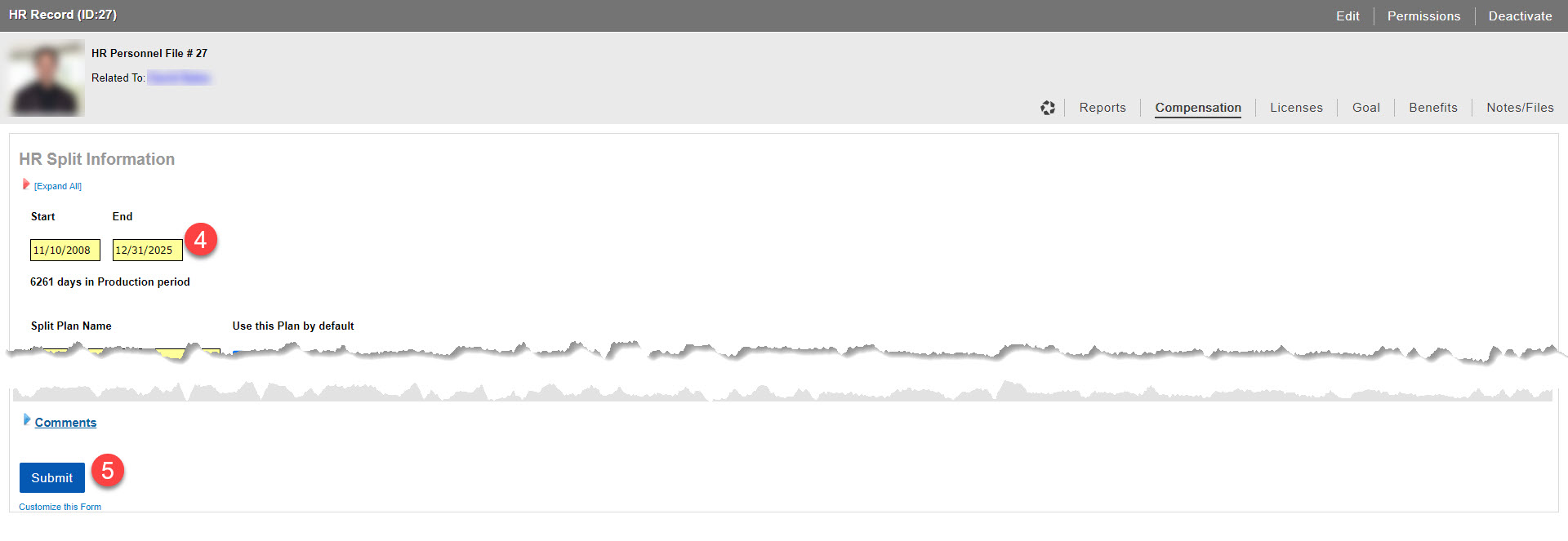
Enter the Start and End Date for the new / updated commission plan. Make sure there are no gaps between the End Date of the old plan and the Start Date of the new plan.
Give this plan a name (perhaps something that distinguishes it from the previous plan's name).
Modify the Gross Commission From/To range and Split % as needed.
Click the Add button if this new plan has multiple split thresholds. Just make sure that the very first line starts at $0 and the very last line ends at $999999999.99.
Click the Submit button.

Related articles
© 2023 CoStar Group
Attachments:
 2024-01-11_15-57-55.jpg (image/jpeg)
 2024-01-11_15-59-47.jpg (image/jpeg)
 2024-01-11_16-01-34.jpg (image/jpeg)
 2024-01-11_16-05-24.jpg (image/jpeg)
 2024-01-11_16-11-02.jpg (image/jpeg)
 2024-01-11_16-12-42.jpg (image/jpeg)
 2024-01-11_16-13-26.jpg (image/jpeg)
 2024-01-11_16-15-35.jpg (image/jpeg)
