Released: June, 2020
Summary
Brokerage Applications has a process to systematically import data from your organization’s listings found within CoStar’s Marketing Center. This process was developed to increase data-entry efficiency by eliminating double entry into both systems for setting up properties and entering listing information. In addition, as CoStar’s data is updated, the information will automatically flow down to your Brokerage Applications system as well. This update is to increase the efficiency of the existing processes related to this automated data import.
The updated process will be rolled out to Clients who are currently participating in this feature, and will be contacted to coordinate the update on their system. If you are interested in learning more about this feature, and want to find out how it may benefit your organization, please contact our support team by emailing [email protected].
In the previous version of this functionality, there was an option to flag a property for review every time it was imported. This functionality is no longer supported.
As with the previous import process, Multi-Family and Shopping Center properties are not fully supported.
For Multi-Family, the property and listing will get created but the unit mixes will not.
Depending on how the Shopping Centers are setup within CoStar, these records may require additional review after the import process.
Updated Widget
As part of the upgrade for this process, we have updated the ‘LoopNet Import’ widget. The updated widget format will allow a user who has oversight into this process to quickly identify the status of the process, make decisions on any exceptions, and see the various record types that have been processed.
This example shows the status message where there are no pending exceptions, and the system is ‘Online’ and processing records as they come in.

Exceptions Processing
On occurrences where some data points require a user’s input for proper alignment into your Brokerage Applications system, exceptions are created for a user to assist in the translation of the incoming data.
As with the previous process, once Contacts, Property Types, and Properties are matched up with the appropriate records through this process they will not appear again as exceptions. All historical exceptions processed prior to this update will not need to be addressed again as they have been saved and migrated as part of the update.
Widget - Exceptions Pending
The example below reflects the widget reflecting pending exceptions. In this case we have all three types of exceptions (Contacts, Property Types, and Properties).
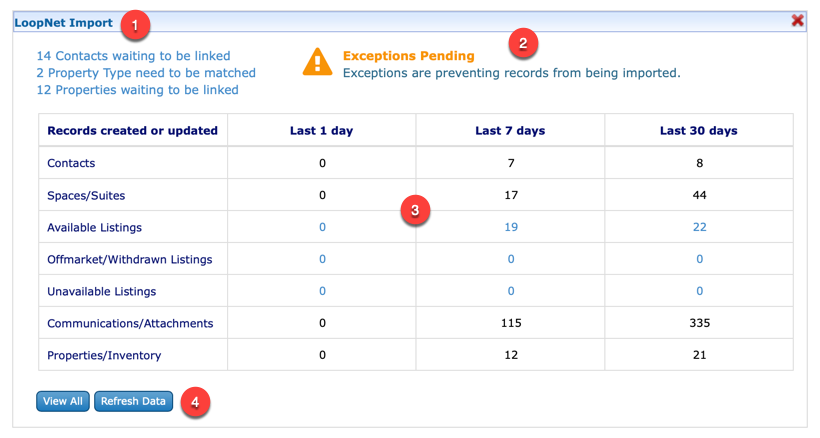
The LoopNet Import widget allows the user to clear up any exceptions encountered during the import process from CoStar’s Marketing Center. As in the previous version, the three types of exceptions include Contacts, Property Types, and Properties. Any pending exceptions will need to be cleared before the import process can begin. The individual exception statements are links to help you process the given exceptions, i.e. clicking on ‘14 Contacts waiting to be linked’ in this example will open the Contact exception processing form.
New to the widget is a simple status message that reflects the current state of exceptions. Seen here is the caution message. ‘Online’ (no exceptions) and ‘Exceptions Pending’ are the only two statuses you can expect.
In the statistics matrix, you can see a variety of data points. Any data in a light blue font are considered links where you can click through to see the specific records behind it.
To see all of the information available, you can click the ‘View All’ button. If you have been processing exceptions, a click of the ‘Refresh Data’ button will update the statistics matrix with the latest processing numbers.
Processing Exceptions
As mentioned, there are 3 different types of exceptions (Contacts, Property Types, and Properties), however clearing the exceptions all have similar behaviors.
Each row, once matched and saved, is processed one at a time, there is no form to submit.
Once the last record is matched, the form will close and you will be taken back to your home page.
Contact Exceptions
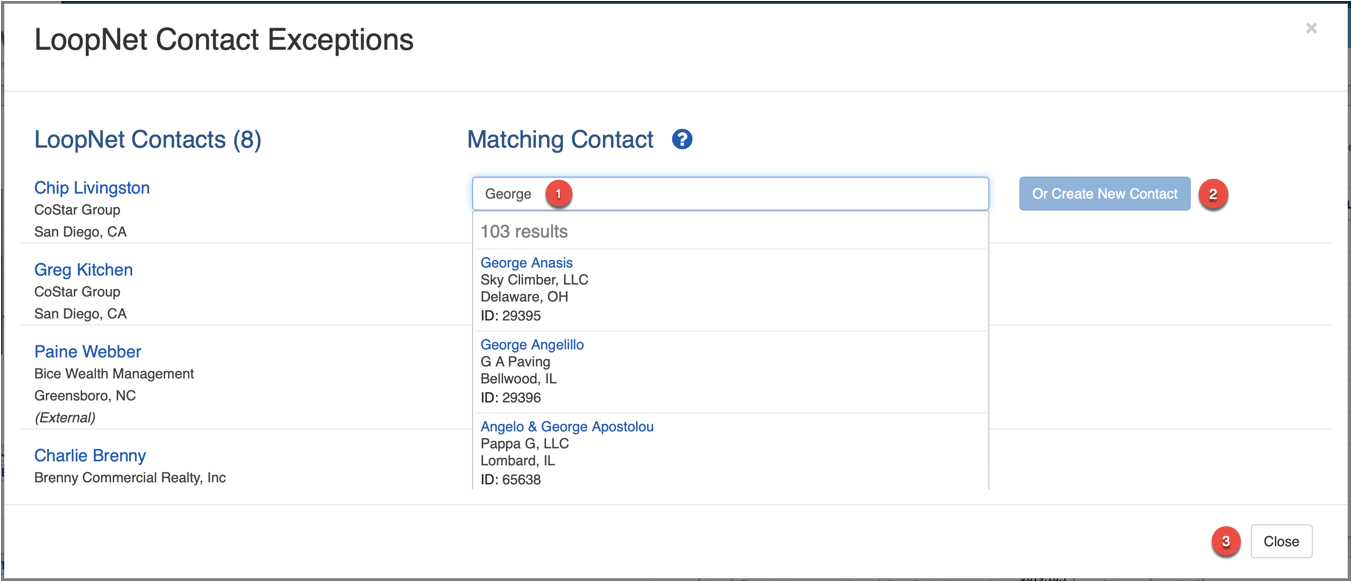
Simply clicking into the ‘Matching Contact’ field on a given row will display a drop down menu with a list of record options that may match your LoopNet Contact. Continue typing, and this dropdown list will contain search results that you are able to pick from. If you pick an existing Brokerage Applications record as a match, the ‘Or Create New Contact’ button will change to a ‘Save’ button which you can use to confirm your selection. .
If you are unable to find and match up an existing contact, you have the option of clicking the ‘Or Create New Contact’ button. Using the CoStar data, this will create a new Contact record for the incoming Contact.
Once a LoopNet Contact has been matched, the row disappears. Once all LoopNet Contacts have been matched the form will close automatically. Clicking the ‘close’ button will close the form, but all exceptions must be cleared for the import process to continue .
Property Type Exceptions
Property Type exceptions occur where the primary property type in CoStar has not been matched with one of the pre-defined Property Types within Brokerage Applications (Industrial, Retail, Office, Land, Multi-Family, Hospitality, Self-Storage or Healthcare). Once you have saved a match of the two property types, it is stored and it will no longer appear as an exception.
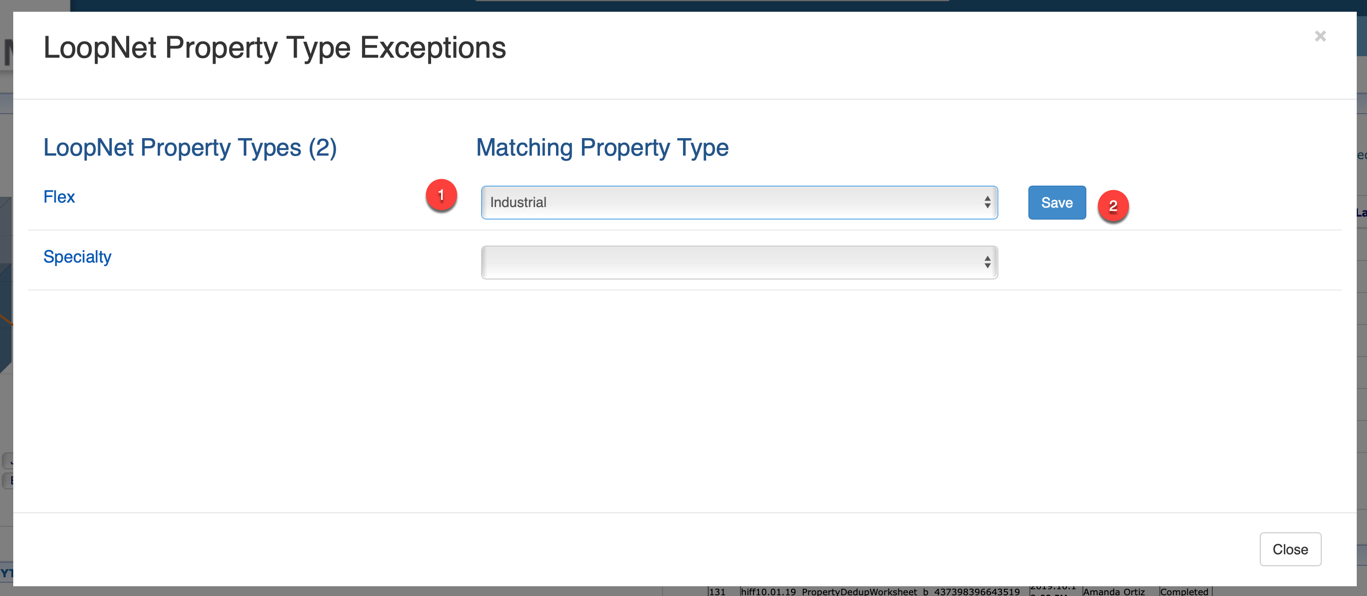
Select in the ‘Matching Property Type’ dropdown the matching Brokerage Applications Property Type that matches the ‘LoopNet Property Type’.
Once selected, the ‘Save’ button will appear to where you can confirm the selection.
Property Exceptions
As new listing come into the system, they can automatically set to attempt to create a match with existing properties within the system. The alternative is to have your process set to always create exceptions for new listings to be manually aligned with the right property.
In the example below, you can see multiple properties that need to be matched.
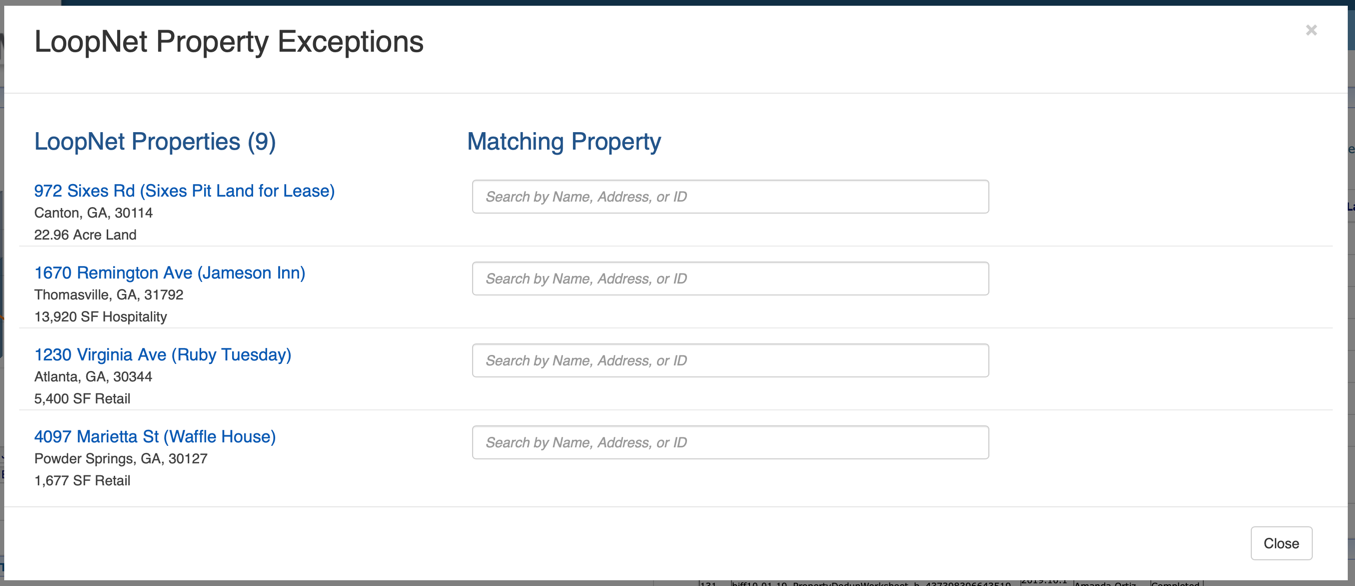
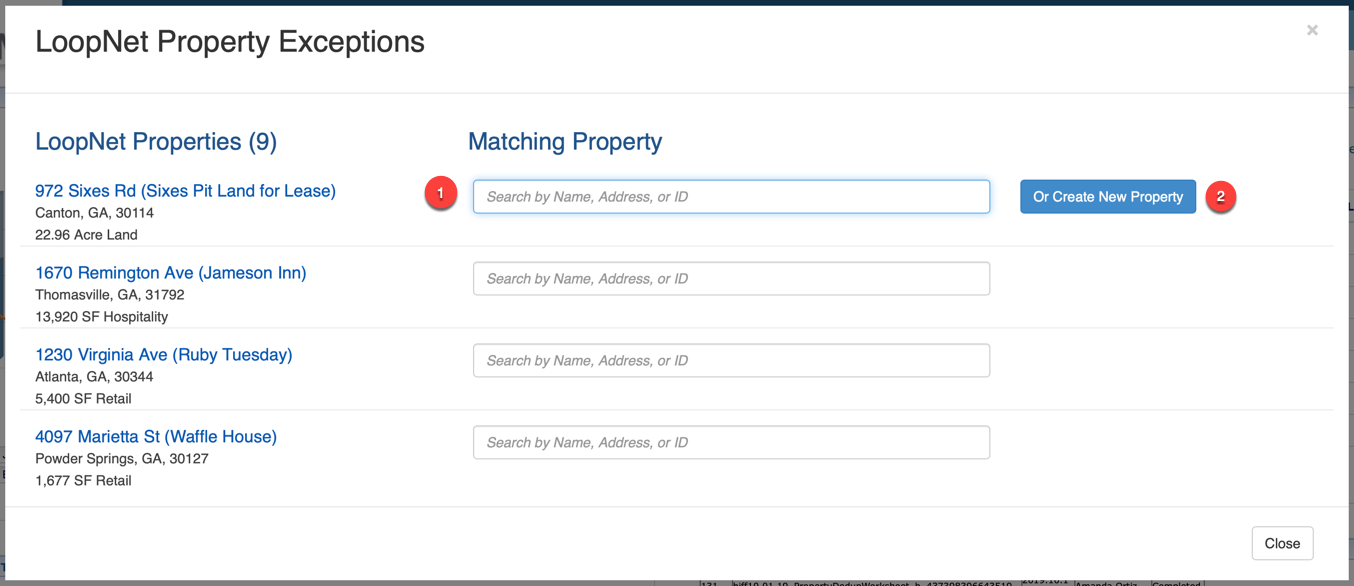
By clicking inside the search field, you can search for a matching property by Property Name, Address, or ID. It is recommended to always search for a property first to eliminate duplicate properties records within your system.
As you click into the Matching Property field to search, you will now see the ‘Or Create New Property’. If selected, Brokerage Applications will use the data from the CoStar listing to create a new record for your property.
If you have any questions or would like to schedule a detailed training on this feature, please contact [email protected].
© 2023 CoStar Group
Attachments:
 image-20200325-192437.png (image/png)
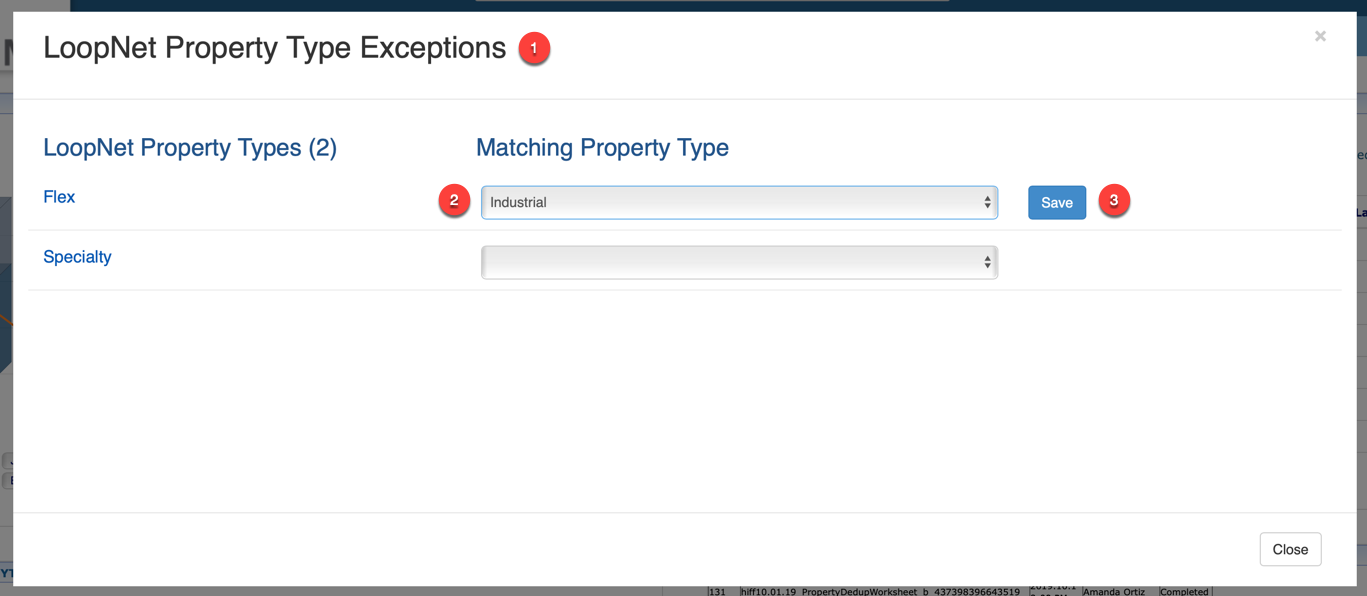 image-20200325-192518.png (image/png)
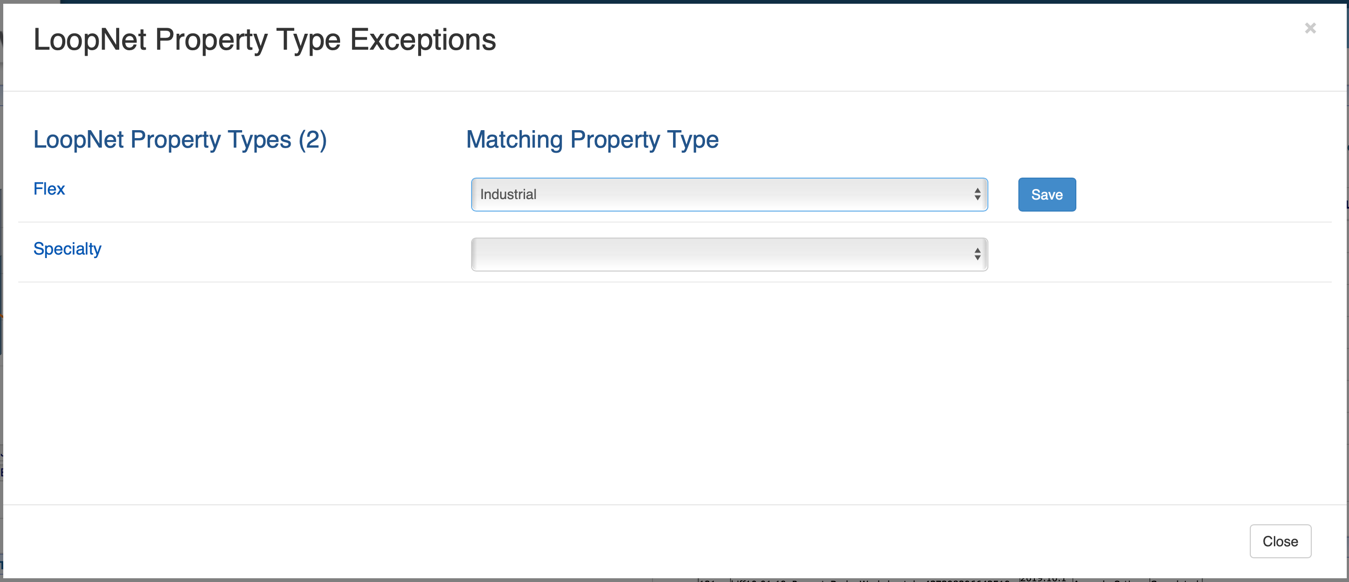 image-20200325-192542.png (image/png)
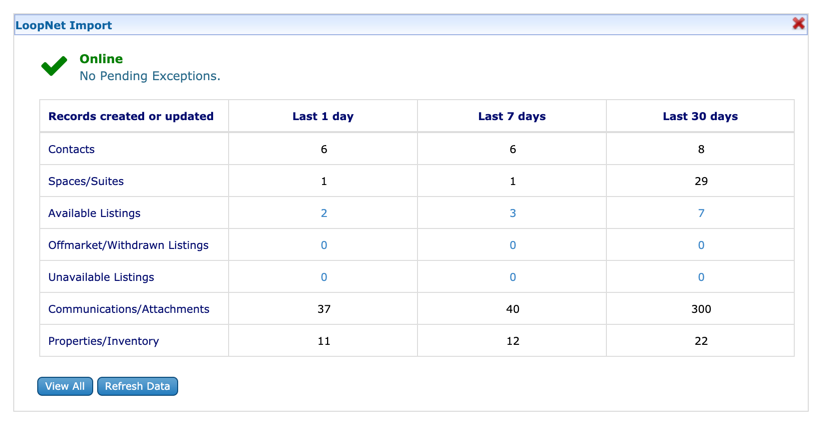 image-20200325-192645.png (image/png)
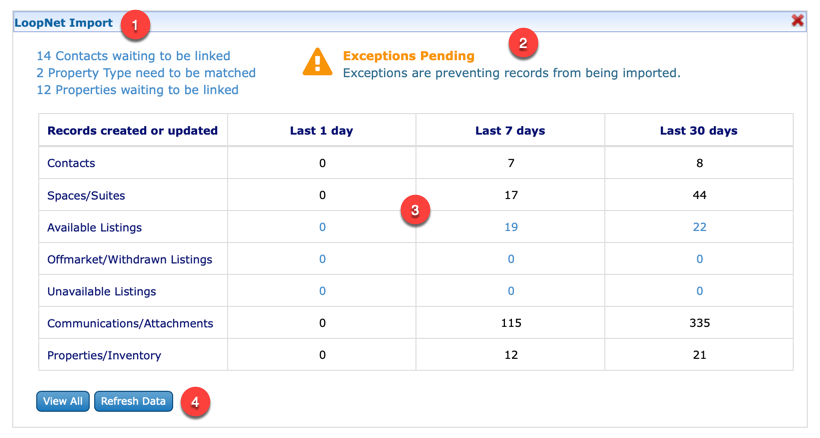 image-20200325-192658.png (image/png)
 image-20200325-200424.png (image/png)
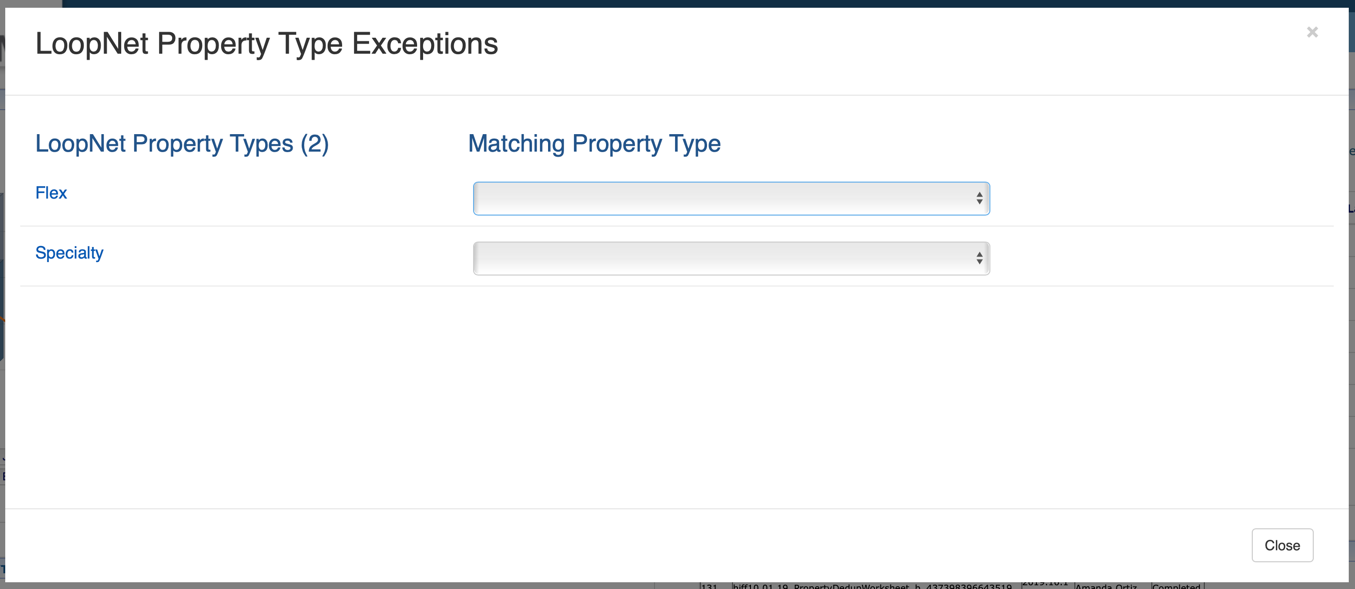 image-20200325-200505.png (image/png)
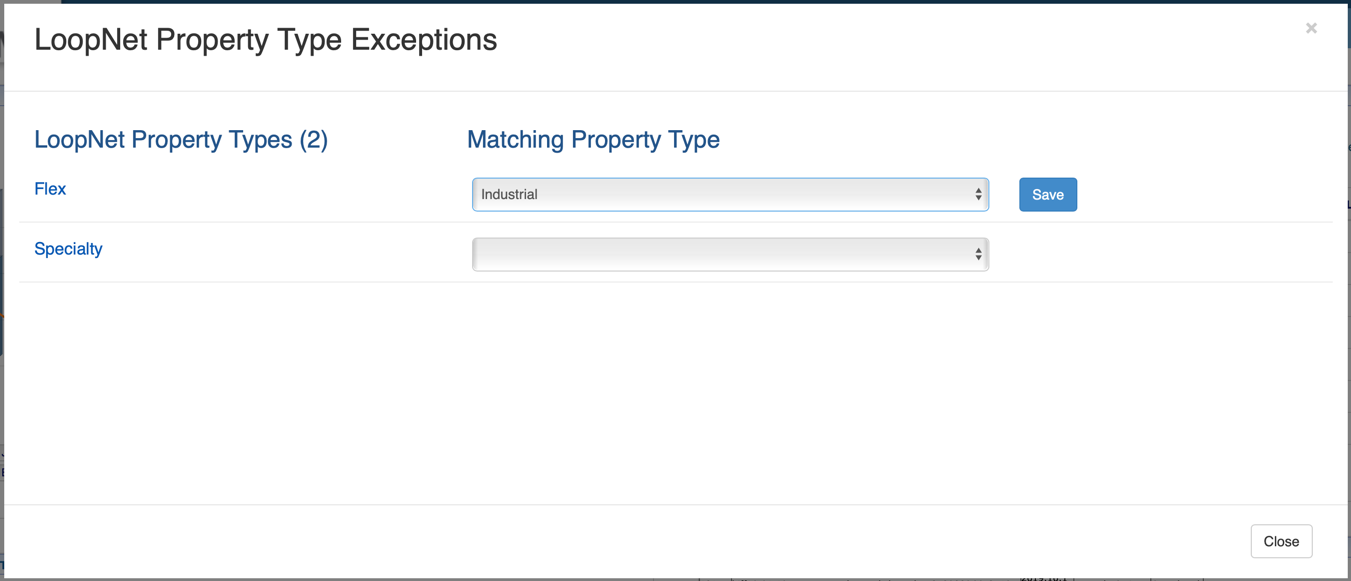 image-20200325-200535.png (image/png)
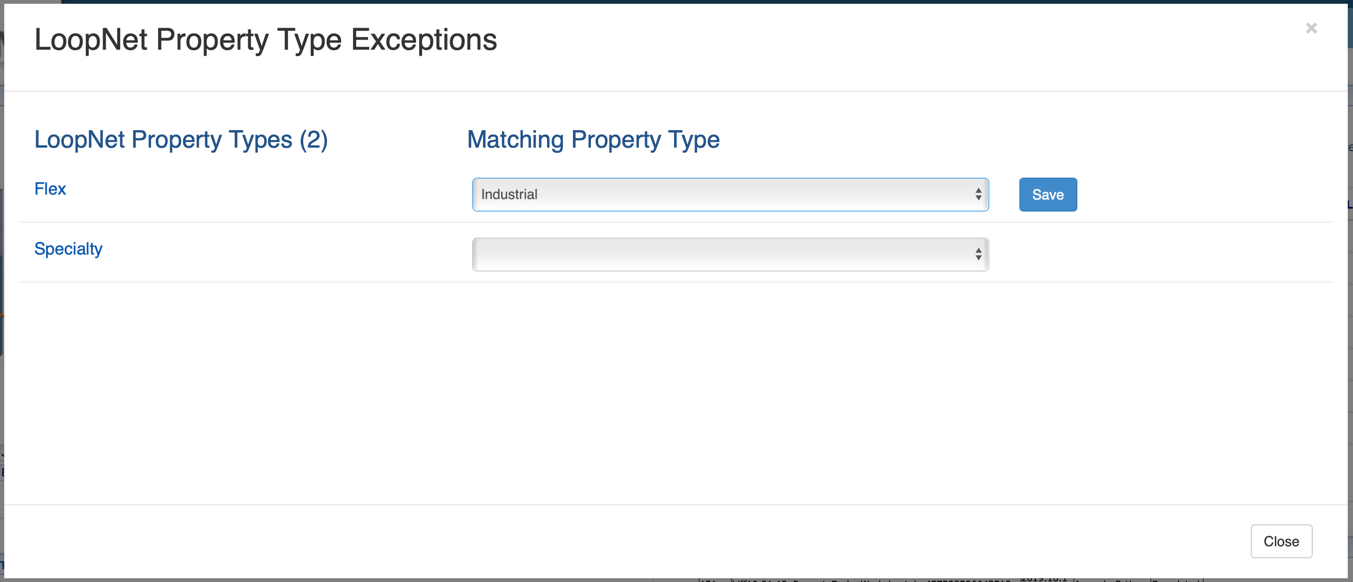 image-20200325-200624.png (image/png)
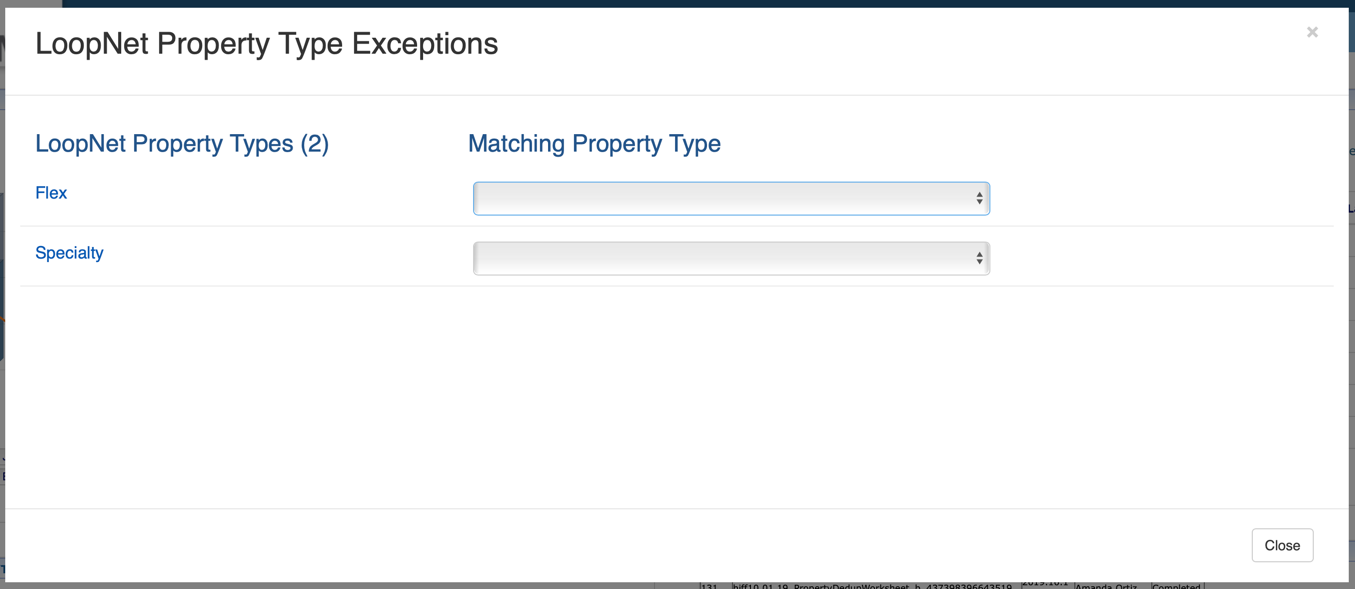 image-20200325-200657.png (image/png)
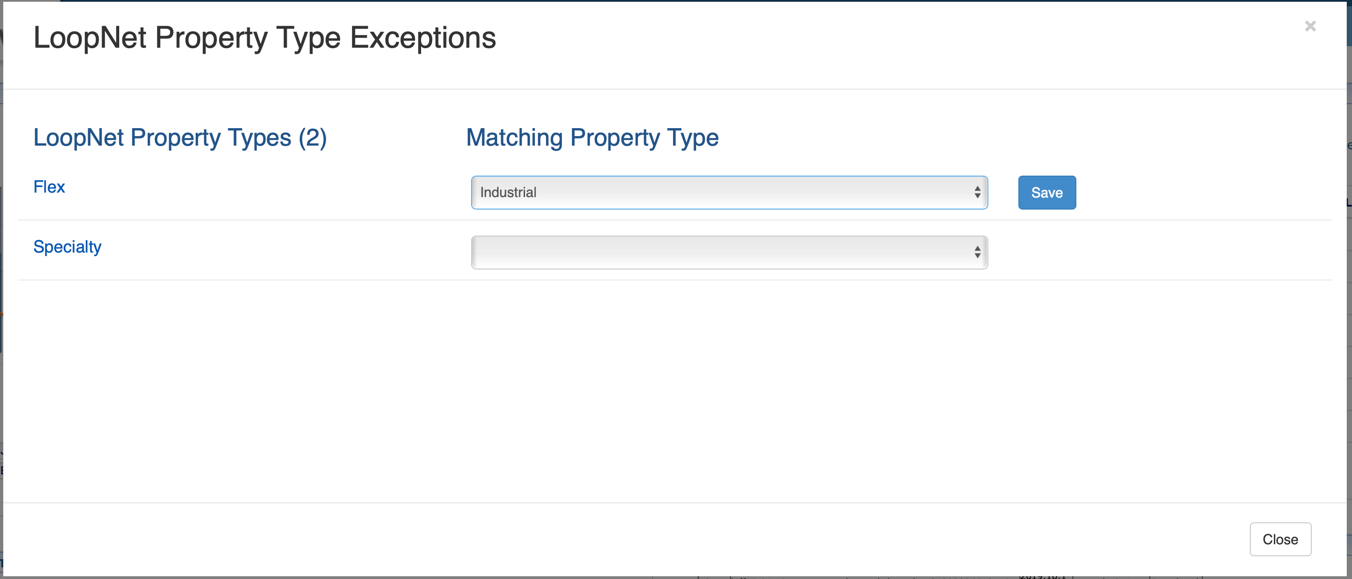 image-20200325-200730.png (image/png)
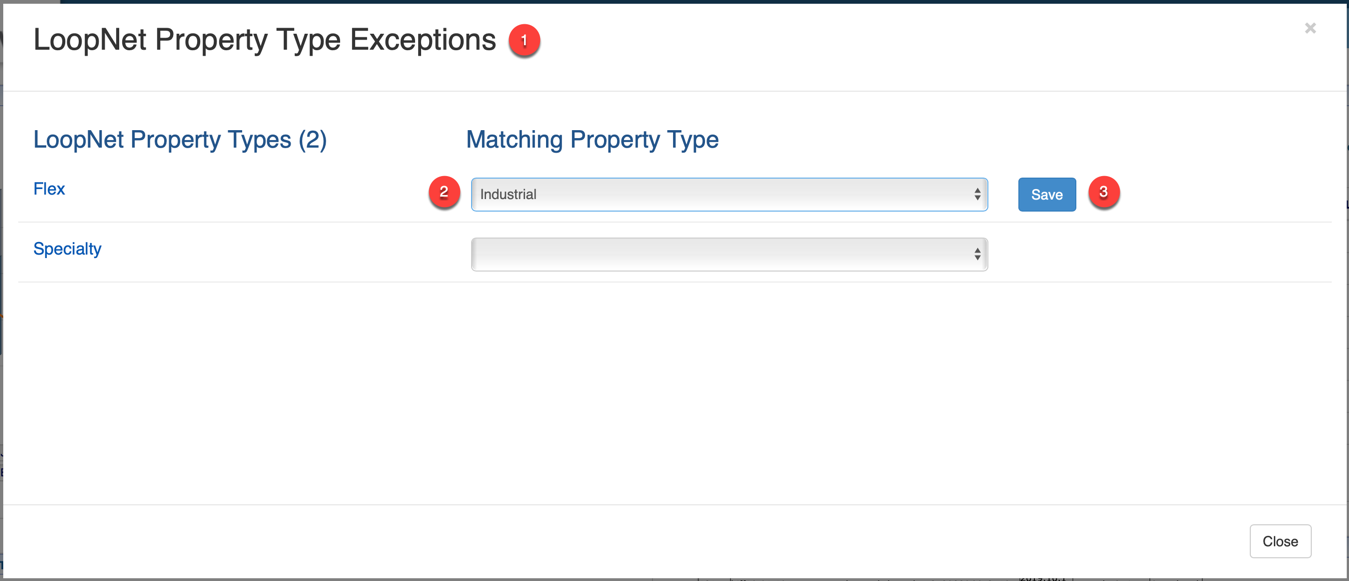 image-20200325-200855.png (image/png)
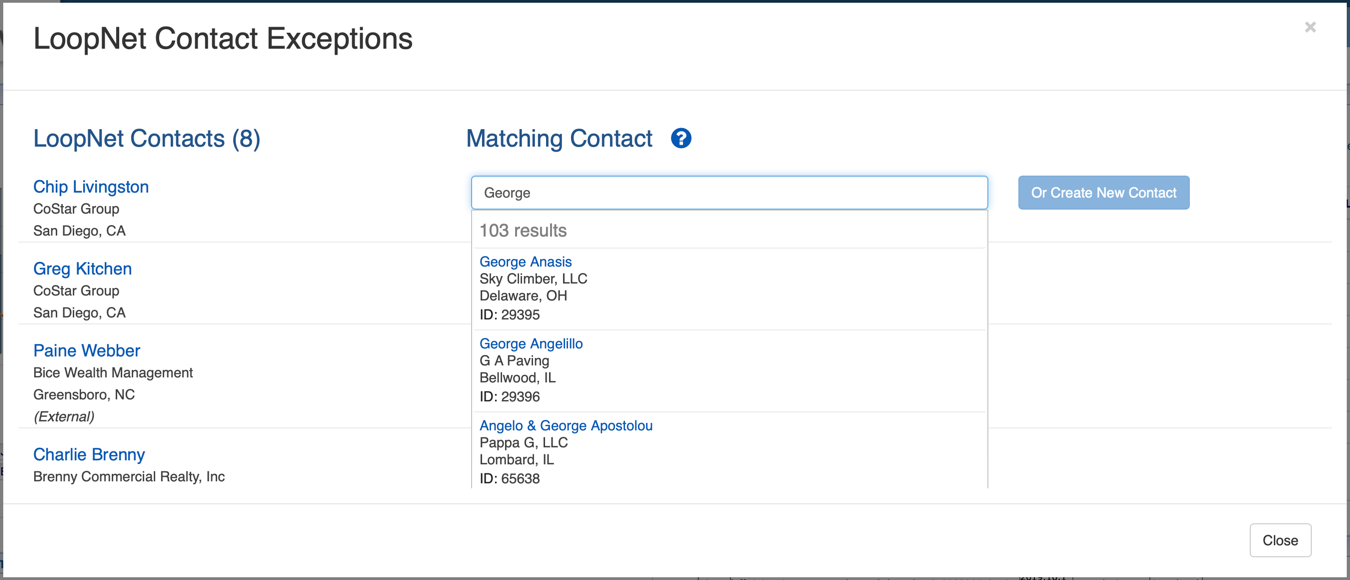 image-20200325-200901.png (image/png)
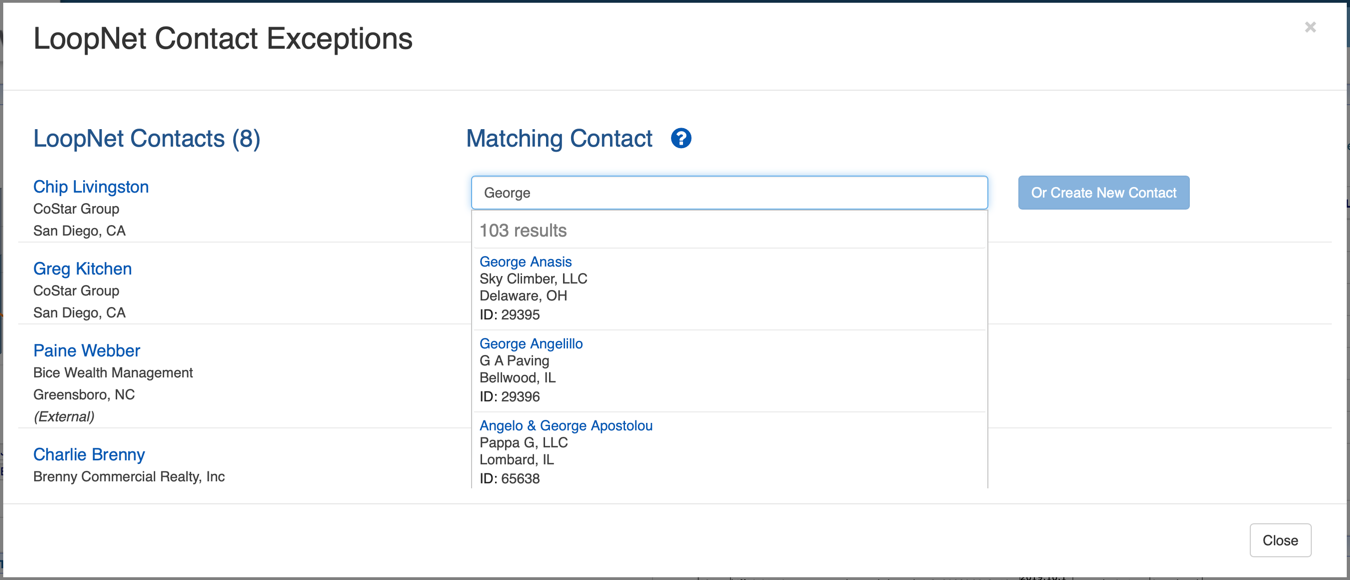 image-20200325-201050.png (image/png)
image-20200325-201131.png (image/png)
image-20200407-150457.png (image/png)
image-20200623-173800.png (image/png)
image-20200325-201050.png (image/png)
image-20200325-201131.png (image/png)
image-20200407-150457.png (image/png)
image-20200623-173800.png (image/png)