Released: November, 2019
Summary
In this release, we have provided updates to create a more consistent and efficient experience managing Accounting Entity records within the CTS workflow.
A brief list of the updates include:
Updated forms for creating new (or editing existing) Customers, House Accounts, or Vendors (In- House, Outside, or Staff).
Updated the ‘House Account’ form to include additional fields for tracking.
From the ‘Fee Splits’ tab within the CTS workflow, we have updated the process to quickly link a Contact to a Vendor.
From the ‘Invoicing’ tab within the CTS workflow, we have updated the process to quickly link a Contact to a Customer.
Updates to Accounting Entities lists and dashboards
Browser Cache: Some browsers don't automatically recognize that there is new code on our servers, which may cause our pages to behave strangely. If you encounter any issues, please first try hitting the CTRL+F5 keys on your keyboard to refresh the page.
Navigation
The locations where you would create new Accounting Entity records have been updated to reflect the new forms. Creation points include the Accounting menu from the main dashboard or from an Accounting Entity (House Account, Customer, Vendor) list.
Main Dashboard: Accounting Menu: Green Plus Icon

Accounting Entities Lists: Green Plus Icon

Customer
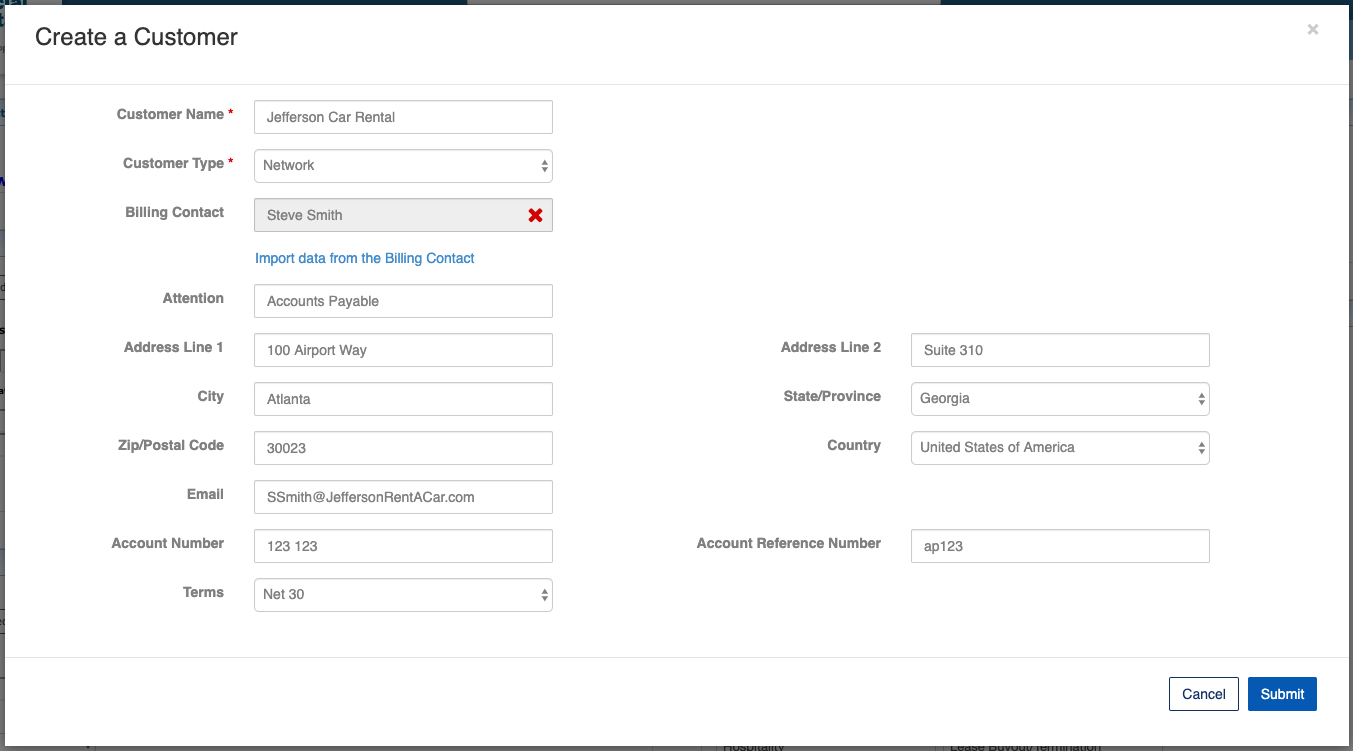
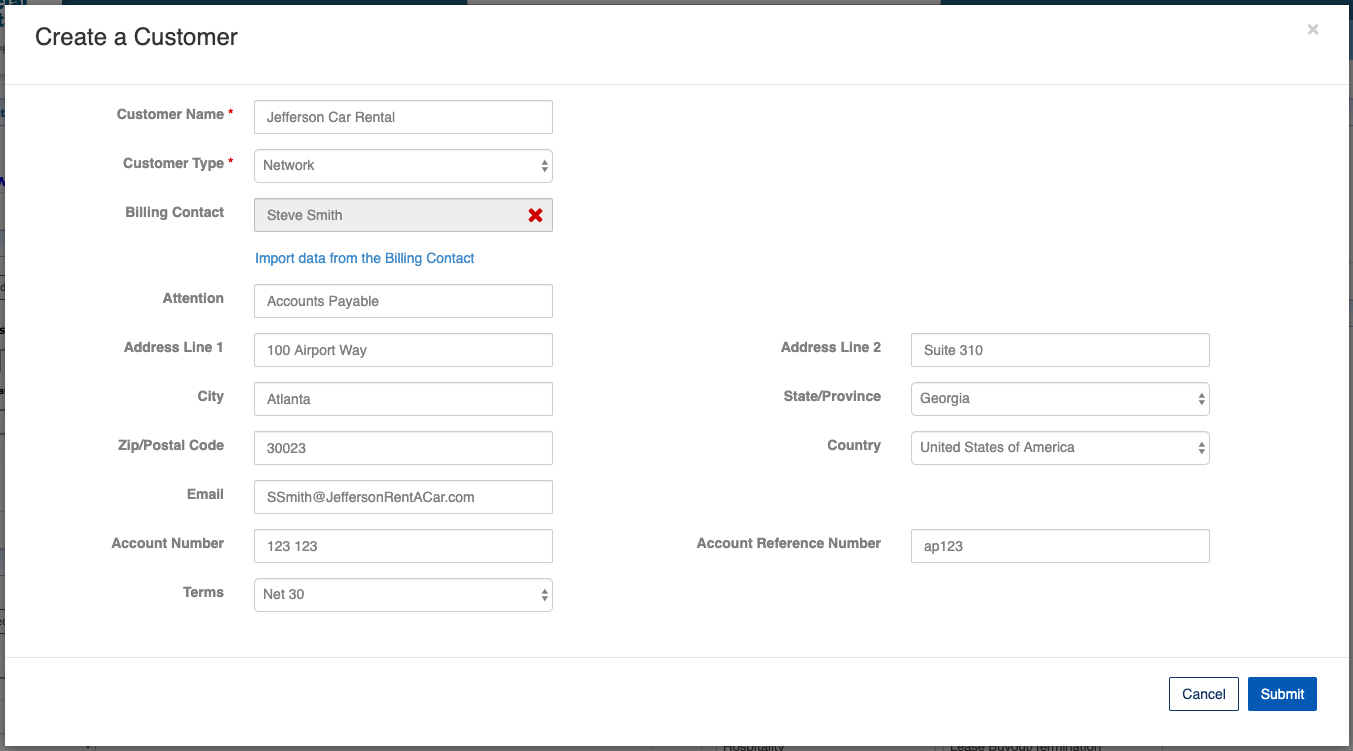
To create a new Customer, simply enter the minimum required fields to submit.
For ease of entry, you have the ability to copy the Billing Contact information to the new Customer record in two scenarios. First, when you first pick the Billing Contact, you will be prompted to confirm you are interested in copying the information. Second, you have the ability to copy the data at any point using the ‘Import data from the Billing Contact’ link. The fields that have the potential to migrate from the Billing Contact include: Attention , Address Line 1, Address Line 2, City, State/Province, Zip/Postal Code, Country, and Email.
Note: If you agree to copy the data from the Billing Contact, the system will overwrite any existing data. This includes overwriting any existing data with blank values when the Billing Contact has missing values.
House Account
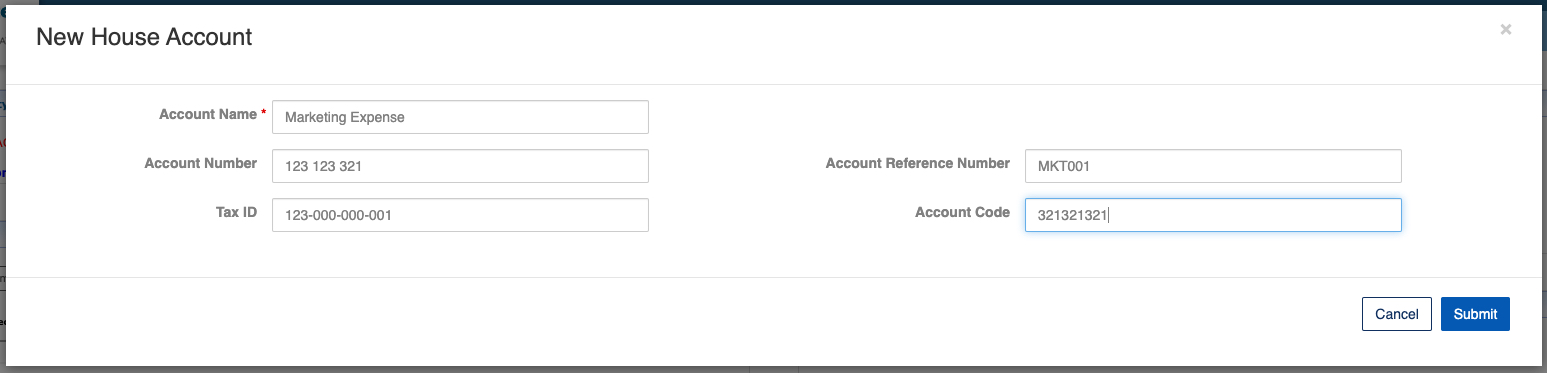
The House Account form contains the same fields as the original, but we have also added Account Number, Tax ID, Account Reference Number, and Account Code for additional tracking.
Vendor (In-House, Outside, and Staff)
The Vendor creating form has a few new features that improve data entry performance over our older forms.
The Entity Type field will automatically populate based on the location from which you launch the form. (I.e. If using the green plus from the In-House Vendor list, the new form will auto populate ‘In-House Vendor’ in the Entity Type field.) New to the form is the ability to change this Entity type on creation.
Note: Changing an Entity Type can have significant impact on existing Deals and Payments. Therefore, on edit of a Vendor record, we have disabled the Entity Type field.
The Company Contact information can be easily transferred to the record in two ways. When you pick the Contact, or you can click the ‘Import data from the Billing Contact’ at any time there is a selected Contact.

CTS Workflow: Fee Splits: matching a Contact to a Vendor
A new workflow has been created to efficiently walk you through the process of linking a Contact to a Vendor. Not unlike the previous process, you have 3 options of selecting a Vendor to match to a Contact.
Select a Vendor
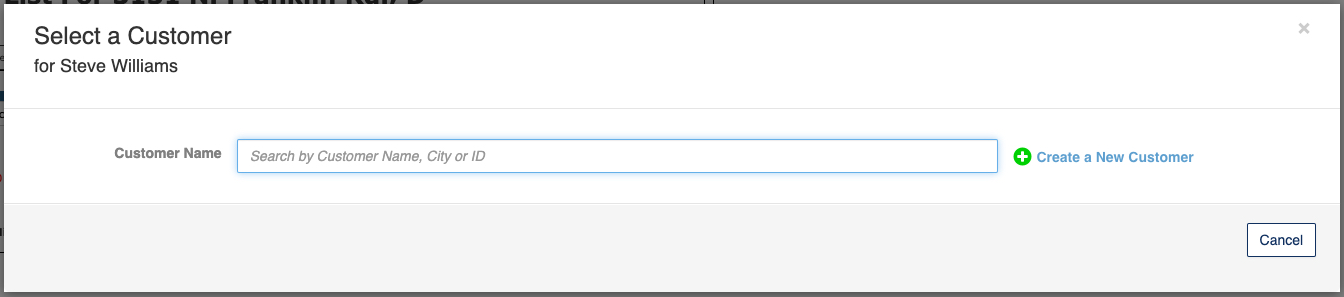
After picking the desired Contact or Company on the Fee Splits tab, a pop-up window will open and automatically show you any previously linked (related) Vendor records for you to choose from.
To search for an existing record, simply start typing. Enter an existing Vendor Name, City, or ID.
If the Vendor you desire does not exist, you can quickly create a new one by clicking the ‘Create a New Vendor’ button. This will open a new form to allow you to create a new Vendor, and on save will link your newly created Vendor to the Contact.

Create a New Vendor
Selecting the ‘Create a New Vendor’ option will open up a new window with all of the fields needed to create the record. It will automatically input the Contact selected on the Fee Splits tab, which you can use to quickly populate contact information using the ‘Import data from the Billing Contact’ link.

Once you select an existing record, or create a new one, you will immediately be taken back to the Fee Splits tab where you can see the two records linked together.
CTS Workflow - Invoicing: matching a Contact to a Customer
Creating a relationship between a Contact and a Customer record is similar to the workflow on the Fee Splits tab. Once picking a Contact, you have the option of
selecting an existing related Customer,
searching for an existing Customer, or
creating a new Customer.

Dashboards and Widgets
We have created some additional functionality for consistency between all of the Accounting Entity records. Customer, Vendor, and House Account all now have the following features:
Edit from the Quick Links menu on the list and from the Edit link at the top of the dashboard.
Summary Widget: For House Accounts and Vendors you can see a summary of the Debits and Credits applied to that entity. For Customers you can see transactional history as well as a summary of payment information.
Details Widget: This widget reflects all of the related fields.
Summary Widget (as seen on a Customer record)

Details Widget

If you have any questions or would like to schedule a detailed training on this feature, please contact [email protected].
© 2023 CoStar Group
Attachments:
 image-20191106-231253.jpeg (image/jpeg)
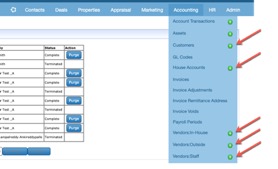 image-20191106-231253.png (image/png)
 image-20191106-231519.jpeg (image/jpeg)
 image-20191106-231519.png (image/png)
 New Customer Form.jpg (image/jpeg)
 New Customer Form.jpg (image/jpeg)
 New Customer Form.jpg (image/jpeg)
 New Customer Form.jpg (image/jpeg)
 New Customer Form.jpg (image/jpeg)
 Invalid file id - 36951f27-f8e5-4568-98e4-f96818332a93 (application/octet-stream)
Invalid file id - 858bb0ed-a2a5-49d2-ae41-e269ffda550b (application/octet-stream)
Select a Customer.jpg (image/jpeg)
Invalid file id - 36951f27-f8e5-4568-98e4-f96818332a93 (application/octet-stream)
Invalid file id - 858bb0ed-a2a5-49d2-ae41-e269ffda550b (application/octet-stream)
Select a Customer.jpg (image/jpeg)
 New Vendor Form.jpg (image/jpeg)
House Accounts New.jpg (image/jpeg)
New Vendor Form.jpg (image/jpeg)
House Accounts New.jpg (image/jpeg)
 New Customer Form.jpg (image/jpeg)
image-20191120-213302.png (image/png)
New Customer Form.jpg (image/jpeg)
image-20191120-213302.png (image/png)
 image-20191120-213514.png (image/png)
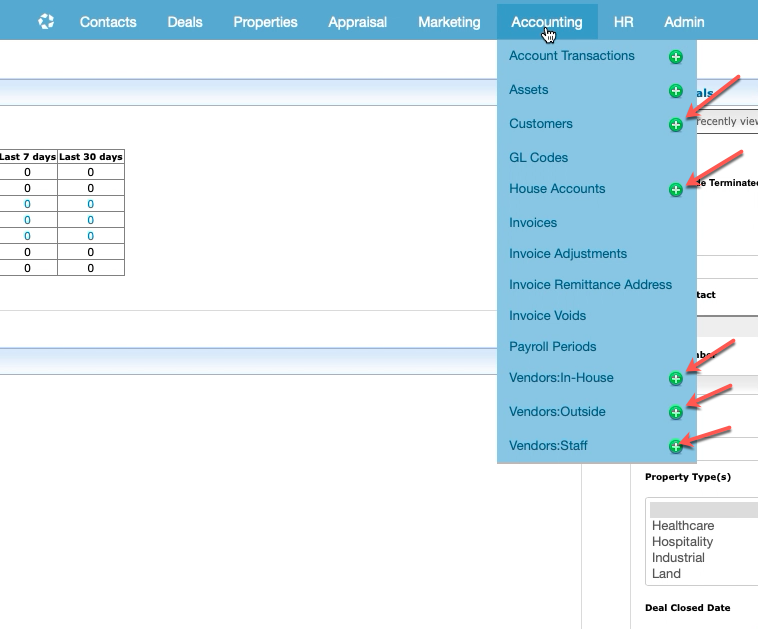 image-20191120-213530.png (image/png)
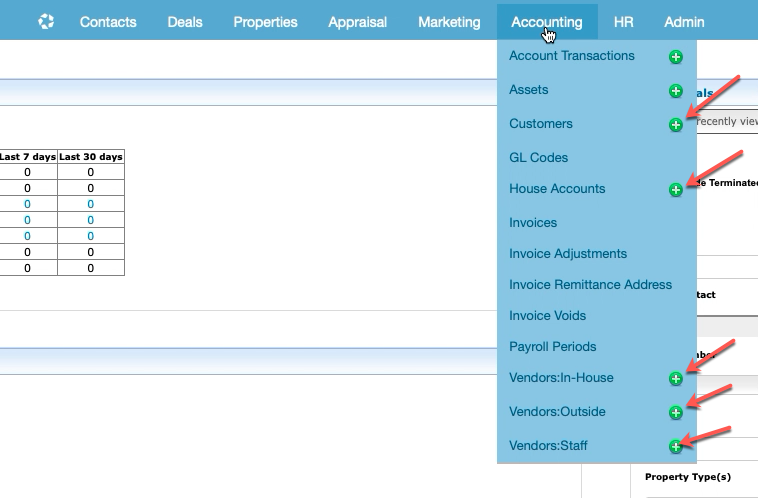 image-20191120-213548.png (image/png)
image-20191120-214945.png (image/png)
image-20191120-213548.png (image/png)
image-20191120-214945.png (image/png)
 image-20191120-215417.png (image/png)
image-20191120-220046.png (image/png)
image-20191120-215417.png (image/png)
image-20191120-220046.png (image/png)
 image-20191120-222657.png (image/png)
 image-20191120-223243.png (image/png)
image-20191120-223329.png (image/png)
image-20191120-223243.png (image/png)
image-20191120-223329.png (image/png)
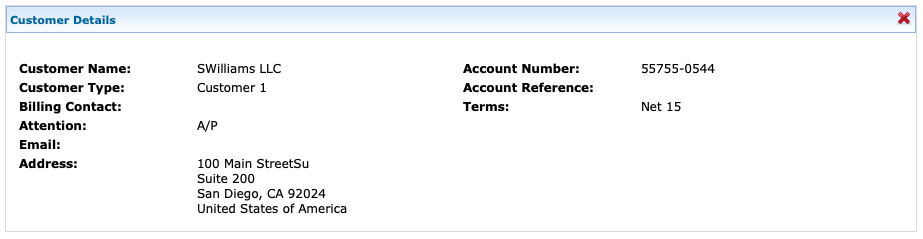 image-20191120-223504.png (image/png)
image-20191120-230409.png (image/png)
image-20191120-223504.png (image/png)
image-20191120-230409.png (image/png)