Summary
This article provides an overview of key features in the Commission Tracking (CTS) module for firms that use accrual accounting.
There is a system setting that is maintained by the CoStar Brokerage Applications server team to define the revenue recognition basis for the firm as Accrual vs Cash. By default, the setting is Cash, in which case, most of the features outlined in this article will not be available.
When the system is set to Accrual Accounting, the following features are activated.
Set Accrual Date on Invoice Actions
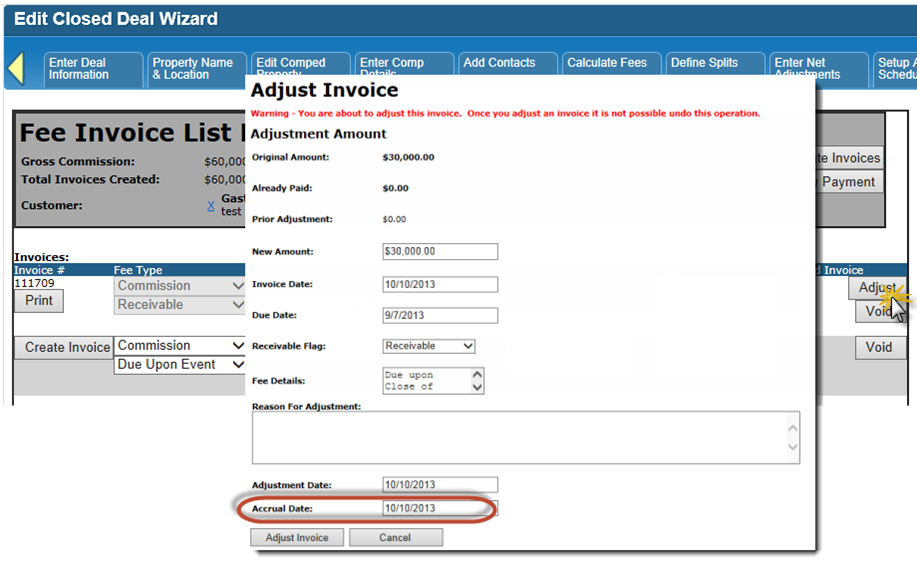
If revenue and expenses are recognized when an invoice action is taken, the defined date for that action becomes a critical piece of information.
On the Create Invoice, Adjust Invoice and Void Invoice forms, the Accrual Date field becomes visible, to ensure that the invoice, adjustment or void amount is accrued in the appropriate accounting period. The Accrual Date is separate from the Invoice Date, Adjustment Date or Void Date, but it will default to those dates unless it is manually changed by the user.


Enforce Correct Deal Adjustment Workflow
To help avoid revenue and expense recognition imbalances for Invoices that have been adjusted or voided, a feature is enabled that locks the Calculate Fees and Define Splits tab from editing, as long as there is one active Invoice on the Deal.
This ensures that the distribution of the Invoice amount corresponds to the distribution of any adjustments or voids for that Invoice.
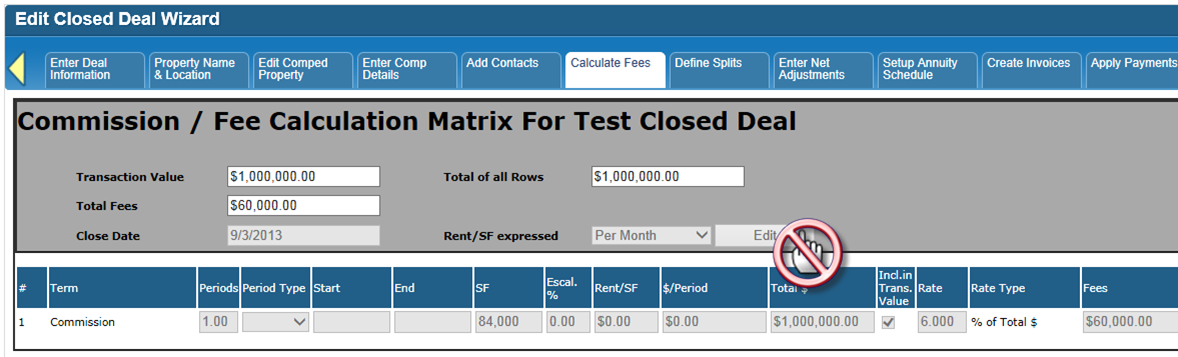
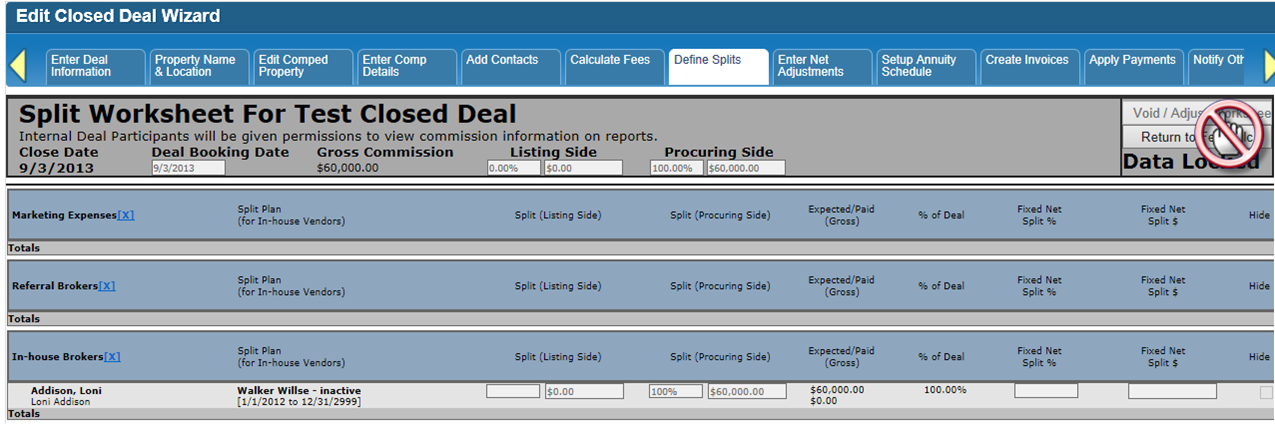
Users with the CTS:AdminApproval login user group can override the lock if needed. This should only be done if the change to the Total Fee amount does not lead to a change in the % of Deal distribution for any party on the Define Splits tab, and if the adjusted amount is recognized in a new Invoice (e.g. for Fee additions to an existing Deal).
In all other cases, the correct workflow for Total Fee and/or % of Deal distributions on a Deal is:
Void any open Invoices.
Make any necessary changes to the Calculate Fees and/or Define Splits forms.
(Re)create Invoices as needed.

Modify Key Accounting Dates
The Accounting:EditKeyDates login user group provides access to key accrual accounting information, and controls which users have the ability to modify this information.
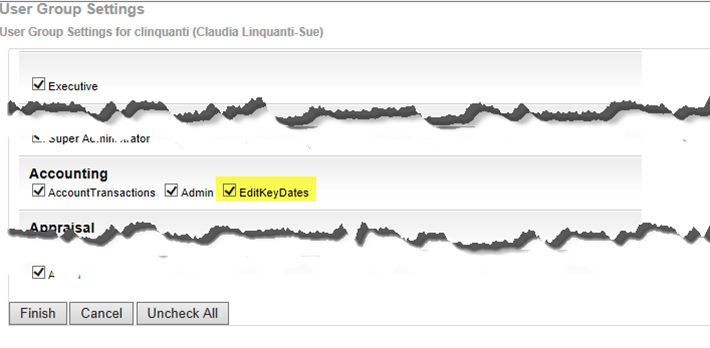
Similar to the HR:Compensation login user group, the Accounting:EditKeyDates user group can only be assigned to users by user who already has that login user group. Upon initial setup, the CoStar Brokerage Applications project manager or support team can assign the user group as requested. It is strongly recommended that only a small number of users have this level of access, considering the sensitive nature of the information they will be able to modify.
Manage Accounting GL Codes
From the main dashboard, in the Accounting menu, there is an option for managing “GL Codes”. This allows you to maintain specific revenue and expense GL Codes for specific types of deal or payment information.
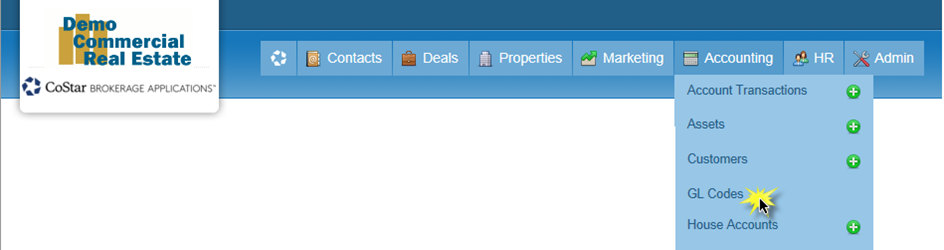
GL Codes can currently be set up for:
Locations
Business Lines
Divisions
Deal Types
Payment Methods
If an Account Code in your accounting system is comprised of a combination of deal or payment attributes, the Accrual export (see below) will provide the individual parts of the entire Code in separate columns, which can then be combined post-export. For example, if an Account Code is defined as :
2-digit code for each office / Location
4-digit code for each Deal Type
2 digit code for each broker specialty / Business Line
then the GL Codes can be set up with each 2 or 4-digit number for the appropriate attribute:

Reporting & Data Integration via Accrual Exports
An Accrual Export widget can be found on the main dashboard, which includes two export templates for reporting and data integration purposes. (Please note that access to this widget may be restricted by the permissions defined for that widget; please contact your system administrator if you do not have access to this widget.)

Accruals Export
Every time an Invoice is created, adjusted or voided, the system compiles an Accruals database with the information pertaining to that invoice, adjustment or void. The Accruals export includes rows with the gross and net allocation of that invoice, adjustment or void amount for all vendors who are allocated some portion of the Total Fees on the Define Splits tab in the Closed Deal wizard for that deal.
Similarly, every Payment that is applied or voided will populate the Accruals database with the information pertaining to that payment or void. Rows are added for both the gross and net distribution of that payment or void, as well as rows for any associated Net Expenses/Deductions.
The exact definition of how all of the accrual amounts are calculated can be found towards the end of this document.
The Accruals export can be manipulated in MS Excel (or other spreadsheet programs) to build pivot tables, filtered lists and other reports. Often, a relatively simple pivot table will provide all the information needed to compile the data needed for journal entries.
Alternatively, the Accruals export may be imported into some accounting systems, to populate detailed transactions, rather than journal entries. Please contact the vendor or representative for your accounting system for more information on importing data into that database.
Account Entity Export
Every time an Account Entity (Vendor, Customer, or House Account) is created or edited, a copy of that record is added to the Accounting Entity Snapshot database. The Account Entity Snapshot export includes an indication of whether the record was newly created, or modified.
The purpose of the Account Entity export is to allow for the Customer/Vendor database in an accounting system to be kept in sync with CoStar Brokerage Applications data. Please contact the vendor or representative for your accounting system for more information on importing data into that database.
Generating an Export
To generate an export file, select the appropriate template in the “Choose a Template” pulldown, and click the “Generate” button.
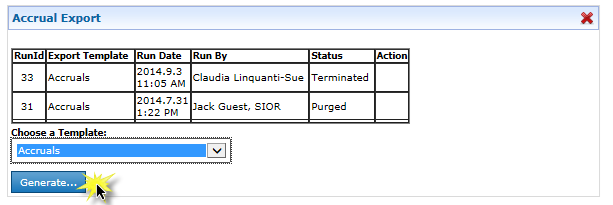
Read the instructions provided, then click “Continue”.

Define the appropriate filters, then click “Continue”. (More information on confirmed records can be found later in this section.)

The export will produce an Accruals.xls file.

When the file is opened, a message may appear in Excel that the file format is different from its file extension. This is normal, click “Yes” to open the file.

Depending on your security settings, you may also need to click “Enable Editing” once the file opens before you can do anything else. To use many of the features in Excel, such as Pivot Tables, the file must be specifically saved as an Excel file first.
Once an export is generated, you cannot generate another export for the same template until the prior export is either purged or confirmed.
Confirming an Export
To ensure that any accruals which were exported and recorded in the accounting system are not duplicated or double-counted, the Accrual Export widget has an option to Confirm exported records.
Any record in your export file that should not be confirmed can be deleted from the file before you confirm it.
Only the records in the uploaded file will be confirmed.
From the list of completed exports, click the “Confirm” button for your export.
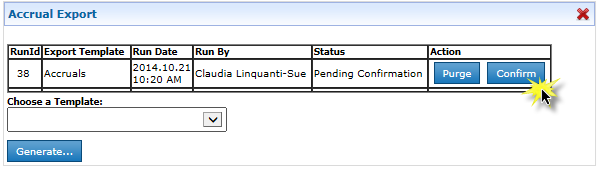
Read the instructions provided, then click “Continue”.

Click “Browse” to find and open your export file.

Click “Import the File” to upload the file and to finish the process of flagging those accrual records as Confirmed.
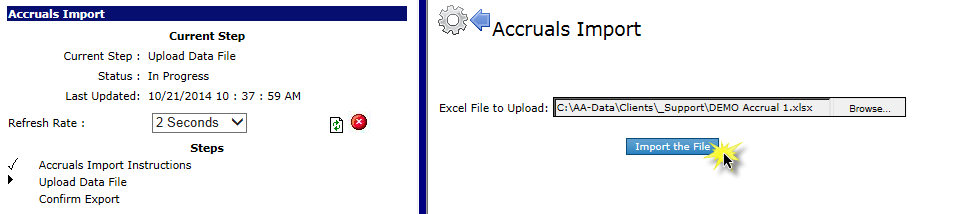
Once the process is done, click “Close”.

Purging an Export
If an export that was produced needs to be generated again without confirming it (for example, after some data corrections needed to be made inside CoStar Brokerage Applications), clicking the Purge button will reset the export settings for that template.
This process does not alter any data, it just clears the memory of which records were exported and are waiting to be confirmed.
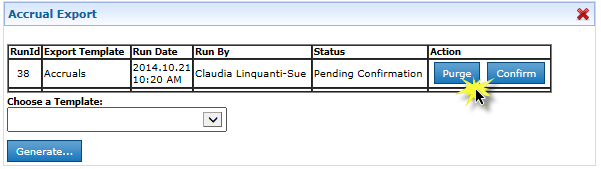
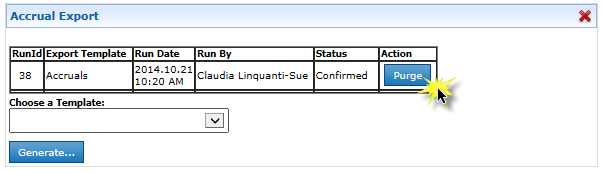
If an export has already been confirmed (i.e. the option to “Confirm” that export is no longer available), clicking the Purge button will remove the “Confirmed” flag from just those confirmed records.
The next export will include those records again, even if the export filter is set to “Export unconfirmed records only”.
Definitions and Calculations
Accounting Action Types
Accounting Action Type | Business Rule |
Invoice | One row per billed invoice |
Invoice Allocation | One row per split worksheet line item per billed invoice with allocated gross commission amount |
Commission Expense | One row per split worksheet line item per invoice or invoice void with calculated net commission amount. |
Invoice Void | One row per invoice void |
Invoice Void Allocation | One row per split worksheet line item per invoice void with allocated gross commission amount |
Invoice Adjustment | Two rows per invoice adjustment. One row with a negative of the original Invoice amount. One row with a positive of the new Invoice amount. See page titled Void and Adjustment Scenario. |
Invoice Adjustment Allocation | Two rows per split worksheet line item per invoice adjustment. One row with a negative of the original invoice allocation. One row with a positive of the new invoice allocation. See page titled Void and Adjustment Scenario. |
Payment | One row per payment |
Payment Gross Allocation | One row per payment distribution |
Payment Net Allocation | One row per payment distribution |
Payment Net Adjustment | Two rows per commission net deduction payment. One row with a negative amount for the FROM vendor AND one row with a positive amount for the TO vendor |
Payment Void | One row per payment void |
Payment Void Gross Allocation | One row per payment void distribution |
Payment Void Net Allocation | One row per payment void distribution |
Payment Void Net Adjustment | Two rows per voided commission net deduction payment. One row with a positive amount for the FROM vendor AND one row with a negative amount for the TO vendor |
Accounting Dates
Accounting Dates | Accounting Export Column |
Invoice Date | Invoice Date |
Invoice Accrual Date | Accrual Date |
Invoice Due Date | Due Date |
Adjustment Date | Invoice Adjustment Date |
Adjustment Accrual Date | Accrual Date |
invoice Void Date | Invoice Void Date |
Invoice Void Accrual Date | Accrual Date |
Payment Date | Accrual Date |
Payment Deposit Date | Deposit Date |
Payment Void Date | Accrual Date |
Accounting Entity / Contact
Accounting Action Type | Account Entity ID/Contact ID Business Rules |
Invoice | Customer/Billing Contact associated with that Deal |
Invoice Allocation | Vendor/Contact or House Account for that Split Worksheet line item |
Commission Expense | Vendor/Contact or House Account for that Split Worksheet line item |
Invoice Void | Customer/Billing Contact associated with that Deal |
Invoice Void Allocation | Vendor/Contact or House Account for that Split Worksheet line item |
Invoice Adjustment | Customer/Billing Contact associated with that Deal |
Invoice Adjustment Allocation | Vendor/Contact or House Account for that Split Worksheet line item |
Payment | Customer/Billing Contact associated with that Deal |
Payment Gross Allocation | Vendor/Contact or House Account for that Payment line item |
Payment Net Allocation | Vendor/Contact or House Account for that Payment line item |
Payment Net Adjustment | Vendor/Contact or House Account for that Payment Net Adjustment item. IF No Contact is referenced on the Net Adjustments form, refer to the Billing Contact on the Account Entity record itself |
Payment Void | Customer/Billing Contact associated with that Deal |
Payment Void Gross Allocation | Vendor/Contact or House Account for that Payment line item |
Payment Void Net Allocation | Vendor/Contact or House Account for that Payment line item |
Payment Void Net Adjustment | Vendor/Contact or House Account for that Payment Net Adjustment item. IF No Contact is referenced on the Net Adjustments form, refer to the Billing Contact on the Account Entity record itself |
Void & Adjustment Scenarios
In this example: Deal has 4 items on the Split Worksheet (Accounting Entity Type is irrelevant) and 1 Net Deduction. Payment is made on 1 Invoice.
Accounting Action | Export Rows | Accrual Amount | Notes |
Invoice | 1 Invoice Row | Positive | |
4 Invoice Allocation Rows | Positive | ||
4 Commission Expense Rows | Positive | ||
Invoice Void | 1 Void Row | Negative | |
4 Invoice Allocation Rows | Negative | ||
4 Commission Expense Rows | Negative | ||
Invoice Adjustment | 2 Adjustment Rows | 1 Negative | Negative amount reverses the prior invoice amount, |
4 Invoice Allocation Rows | Negative | Reversal of original Invoice allocation | |
4 Commission Expense Rows | Negative | Reversal of original Commission Expense | |
4 Invoice Allocation Rows | Positive | With updated amounts | |
4 Commission Expense Rows | Positive | With updated amounts | |
Payment | 1 Payment Row | Positive | |
4 Payment Gross Distribution Rows | Positive | ||
4 Payment Net Distribution Rows | Positive | ||
1 Payment Net Adjustment Row | Negative | For the From Vendor | |
1 Payment Net Adjustment Row | Positive | For the To Vendor | |
Payment Void | 1 Payment Void Row | Negative | |
4 Payment Gross Distribution Rows | Negative | ||
4 Payment Net Distribution Rows | Negative | ||
1 Payment Net Adjustment Row | Positive | For the From Vendor | |
1 Payment Net Adjustment Row | Negative | For the To Vendor |
GL Codes
Accounting Action Type | Use Revenue or Expense GL Code? |
Invoice | Revenue |
Invoice Allocation | Revenue |
Commission Expense | Expense |
Invoice Void | Revenue |
Invoice Void Allocation | Revenue |
Invoice Adjustment | Revenue |
Invoice Adjustment Allocation | Revenue |
Payment | Revenue |
Payment Gross Allocation | Expense |
Payment Net Allocation | Expense |
Payment Net Adjustment | Expense |
Payment Void | Revenue |
Payment Void Gross Allocation | Expense |
Payment Void Net Allocation | Expense |
Payment Void Net Adjustment | Expense |
Accrual Amounts
Accounting Action Type | for … | Row | Business Rule / Calculation |
Invoice | 1 | Invoice Amount | |
Invoice Allocation | 1 | Split Worksheet.Expected Gross * (Invoice.Invoice Amount / Fee Calc.Total Fees) | |
Commission Expense | for each generated Invoice | 1 | Split Worksheet.Calculated Net Commission * (Invoice.Invoice Amount / Fee Calc.Total Fees) |
Commission Expense | for each voided Invoice | 1 | Split Worksheet.Calculated Net Commission * (Invoice Void.Void Amount / Fee Calc.Total Fees) |
Commission Expense | for each Invoice Adjustment | 1 | -1 * [Split Worksheet.Calculated Net Commission * (Invoice.previous Invoice Amount / Fee Calc.Total Fees)] |
Commission Expense | for each Invoice Adjustment | 2 | Split Worksheet.Calculated Net Commission * (Invoice.updated Invoice Amount / Fee Calc.Total Fees) |
Invoice Void | 1 | Invoice Void Amount | |
Invoice Void Allocation | 1 | Split Worksheet.Expected Gross * (Invoice Void.Void Amount / Fee Calc.Total Fees) | |
Invoice Adjustment | 1 | -1 * (previous Invoice Amount) | |
Invoice Adjustment | 2 | updated Invoice Amount | |
Invoice Adjustment Allocation | 1 | -1 * [Split Worksheet.Expected Gross * (Invoice.previous Invoice Amount / Fee Calc.Total Fees)] | |
Invoice Adjustment Allocation | 2 | Split Worksheet.Expected Gross * (Invoice.updated Invoice Amount / Fee Calc.Total Fees) | |
Payment | 1 | Payment Amount allocated to that Invoice ID | |
Payment Gross Allocation | 1 | Payment Distribution.Gross Commission * (Payment Invoice Allocation / Payment Amount) | |
Payment Net Allocation | 1 | Payment Distribution.Net Commission * (Payment Invoice Allocation / Payment Amount) | |
Payment Net Adjustment | 1 | -1 * (Apply Payment.Net Deductions.$ to Apply) * (Payment Invoice Allocation / Payment Amount) | |
Payment Net Adjustment | 2 | Apply Payment.Net Deductions.$ to Apply * (Payment Invoice Allocation / Payment Amount) | |
Payment Void | 1 | Payment Void Amount allocated to that Invoice ID | |
Payment Void Gross Allocation | 1 | Payment Void Distribution.Gross Commission * (Payment Invoice Allocation / Payment Void Amount) | |
Payment Void Net Allocation | 1 | Payment Void Distribution.Net Commission * (Payment Invoice Allocation / Payment Void Amount) | |
Payment Void Net Adjustment | 1 | -1 * (Apply Payment.Net Deductions.$ to Apply) * (Payment Invoice Allocation / Payment Void Amount) | |
Payment Void Net Adjustment | 2 | Apply Payment.Net Deductions.$ to Apply * (Payment Invoice Allocation / Payment Void Amount) |
If you have any questions or would like to schedule a detailed training on this feature, please contact [email protected].
© 2023 CoStar Group
Attachments:
 image-20200115-003331.png (image/png)
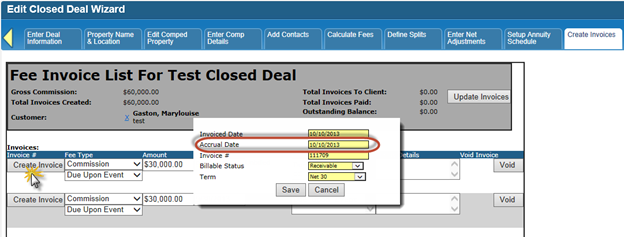 image-20200115-003347.png (image/png)
image-20200115-003410.png (image/png)
image-20200115-003425.png (image/png)
image-20200115-003504.png (image/png)
image-20200115-003518.png (image/png)
image-20200115-003641.png (image/png)
image-20200115-003716.png (image/png)
image-20200115-003825.png (image/png)
image-20200115-003940.png (image/png)
image-20200115-004113.png (image/png)
image-20200115-004127.png (image/png)
image-20200115-004150.png (image/png)
image-20200115-004208.png (image/png)
image-20200115-004222.png (image/png)
image-20200115-004312.png (image/png)
image-20200115-004329.png (image/png)
image-20200115-004345.png (image/png)
image-20200115-004403.png (image/png)
image-20200115-004420.png (image/png)
image-20200115-004518.png (image/png)
image-20200115-004628.png (image/png)
image-20200115-004745.png (image/png)
image-20200115-003347.png (image/png)
image-20200115-003410.png (image/png)
image-20200115-003425.png (image/png)
image-20200115-003504.png (image/png)
image-20200115-003518.png (image/png)
image-20200115-003641.png (image/png)
image-20200115-003716.png (image/png)
image-20200115-003825.png (image/png)
image-20200115-003940.png (image/png)
image-20200115-004113.png (image/png)
image-20200115-004127.png (image/png)
image-20200115-004150.png (image/png)
image-20200115-004208.png (image/png)
image-20200115-004222.png (image/png)
image-20200115-004312.png (image/png)
image-20200115-004329.png (image/png)
image-20200115-004345.png (image/png)
image-20200115-004403.png (image/png)
image-20200115-004420.png (image/png)
image-20200115-004518.png (image/png)
image-20200115-004628.png (image/png)
image-20200115-004745.png (image/png)