This article will demonstrate how to complete a ‘Company Deduplication’ using the Data Cleanup Widget.
Instructions:
STEP 1: Generate a Company Dedupe Worksheet
The Data Cleanup widget requires the user's login to have ‘Data Tool Cleanup’ admin permissions.
From the ‘Data Cleanup' widget, use the ‘Choose a worksheet:’ pulldown and select 'Company Dedup’
Once selected click on ‘Generate’

From the ‘Company Dedup Worksheet’ information page select ‘Generate’. By default, the worksheet will return ‘Matches only’ (only possible duplicates). You can choose to export ‘All records’.
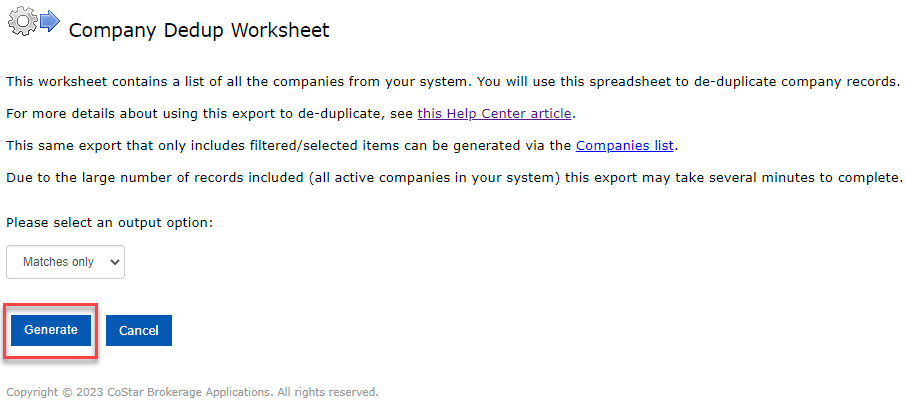
The ‘Company Dedup Worksheet’ will be available in your download folder.
STEP 2: Organize the ‘Company Dedup Worksheet’
Open the ‘Company Dedup Worksheet’ in Excel.
Recommended settings/options in Excel:
Turn on ‘Sort & Filter’ option

Under the ‘View’ menu, select ‘Freeze Panes’ and choose ‘Freeze top Row’
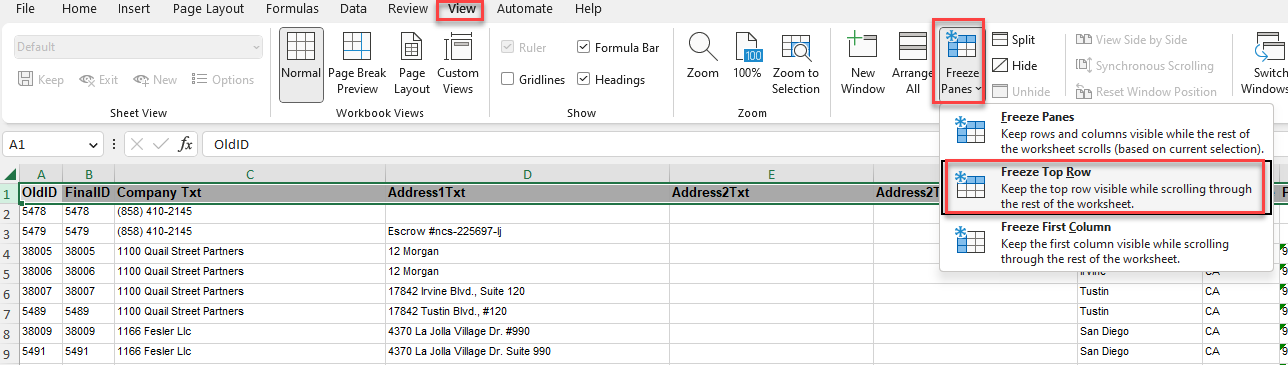
STEP 3: Complete the ‘Company Dedup Worksheet’
Review the worksheet for duplicate records.
Once you have identified duplicate records:

Copy the ‘OldID’ of the Company Record you want to keep
Paste that ID into the ‘FinalID' column of the Company you want to deduplicate

Repeat for all duplicate Companies.
Save your Excel Worksheet.
IMPORTANT: When sorting the Excel worksheet, it is critically important that you sort across all rows so that the IDs stay in alignment with the property information. If they become mixed up, this will cause serious issues with your database.
NOTE: It is important that you do not modify the column header names in the worksheet, they must remain the same as they were when exported.
When the worksheet is executed, the process will relink any of the information from the duplicate company (OldId) records to the remaining company (FinalID) record. This includes Availabilities, Comps, Tenants, Deals and Notes/files. The company attributes will not change on the remaining company record (FinalID).
STEP 4: Upload the ‘Company Dedup Worksheet’
From the ‘Data Cleanup’ widget, use the ‘Choose a worksheet’ pulldown to select ‘Company Dedup’ and click ‘Execute’.

Enter a task ID - this is only for reference; you can use the current date without formatting: mmddyyyy
Click on ‘Add file’ and find the saved worksheet on your computer and select

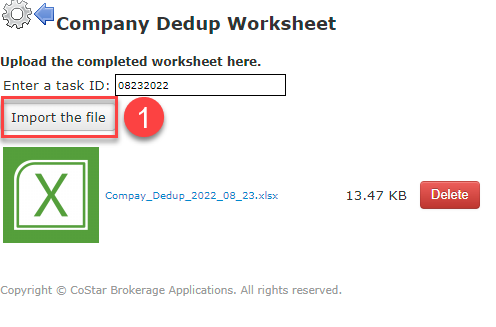
Click on ‘Import the file’ and the wizard will walk you through the rest of the process.
If you experience any issues please contact the help desk at: [email protected]
Related articles
© 2023 CoStar Group
Attachments:
 image-20230405-171214.png (image/png)
 image-20220823-223945.png (image/png)
 image-20220823-223817.png (image/png)
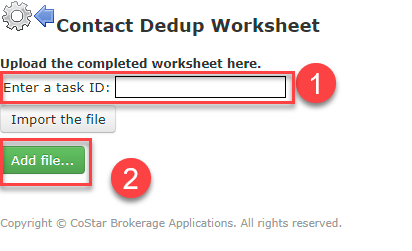 image-20220823-223644.png (image/png)
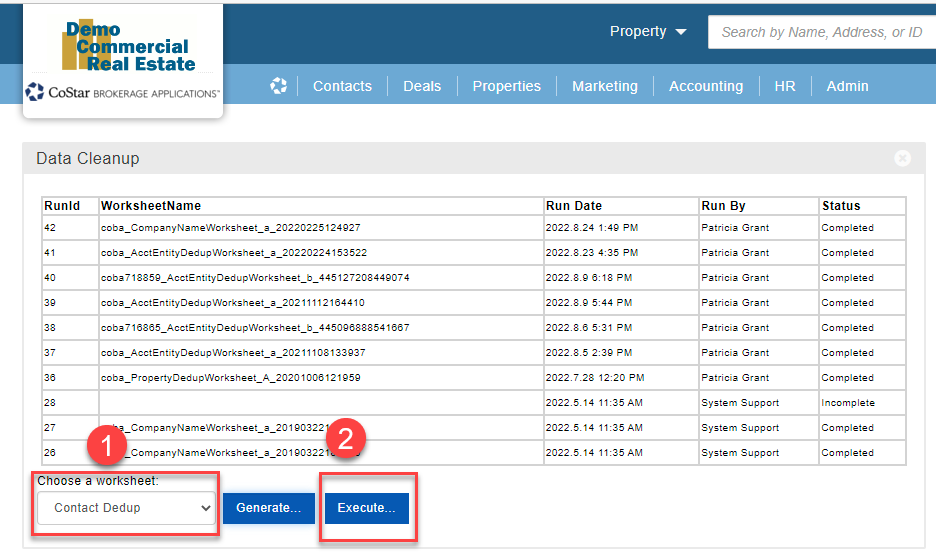 image-20220823-223406.png (image/png)
 image-20220823-223142.png (image/png)
 image-20220823-222908.png (image/png)
 image-20220823-222833.png (image/png)
 image-20220823-222358.png (image/png)
 image-20220823-222309.png (image/png)
image-20220823-222042.png (image/png)
image-20220823-222309.png (image/png)
image-20220823-222042.png (image/png)
 image-20220823-221949.png (image/png)
 image-20201006-191338.png (image/png)
 image-20201006-191620.png (image/png)
 image-20201006-191838.png (image/png)
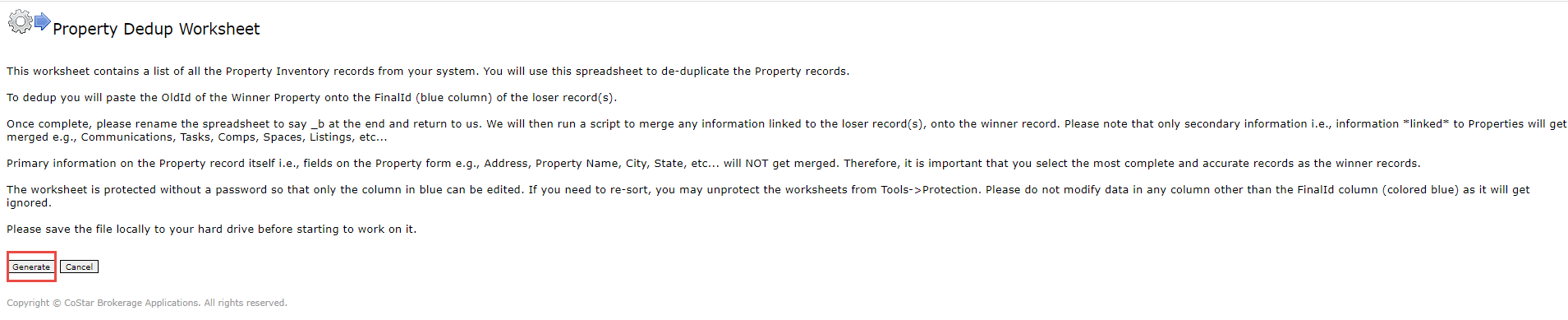 image-20201006-191920.png (image/png)
 image-20201006-194925.png (image/png)
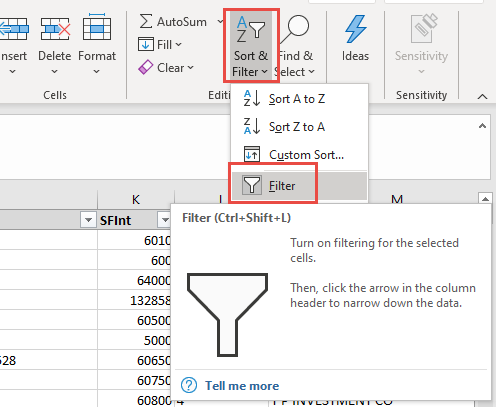 image-20201006-194955.png (image/png)
 image-20201006-195049.png (image/png)
 image-20201006-195208.png (image/png)
 image-20201006-195247.png (image/png)
 image-20201006-200453.png (image/png)
 image-20201006-200509.png (image/png)
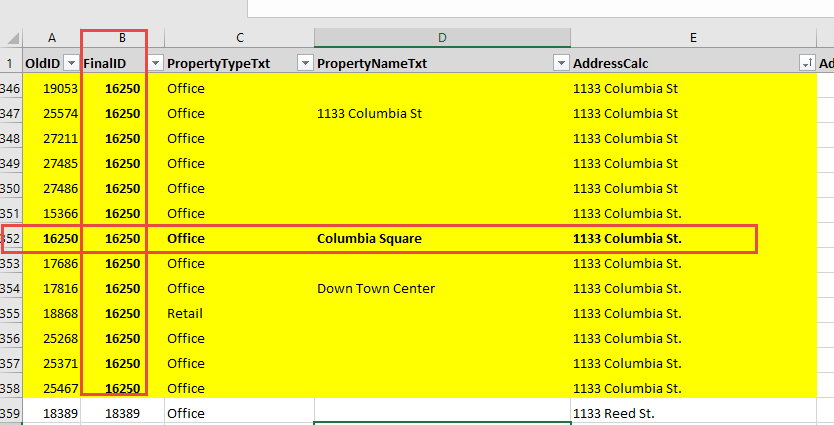 image-20201006-202355.png (image/png)
 image-20201006-202408.png (image/png)
 image-20201006-202431.png (image/png)
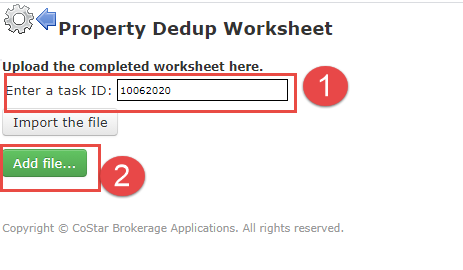 image-20201006-202446.png (image/png)
 image-20201006-203245.png (image/png)
 image-20201006-203256.png (image/png)
 image-20230405-173656.png (image/png)
image-20230405-173826.png (image/png)
image-20230405-174102.png (image/png)
image-20230405-174345.png (image/png)
image-20230405-174524.png (image/png)
image-20230405-175321.png (image/png)
image-20230405-175422.png (image/png)
image-20230405-175611.png (image/png)
image-20230405-173656.png (image/png)
image-20230405-173826.png (image/png)
image-20230405-174102.png (image/png)
image-20230405-174345.png (image/png)
image-20230405-174524.png (image/png)
image-20230405-175321.png (image/png)
image-20230405-175422.png (image/png)
image-20230405-175611.png (image/png)