This article will demonstrate how to complete a ‘Contact Deduplication’ using the Data Cleanup Widget.
Instructions:
STEP 1: Generate a Contact Dedupe Worksheet
The Data Cleanup widget requires the user's login to have ‘Data Tool Cleanup’ admin permissions.
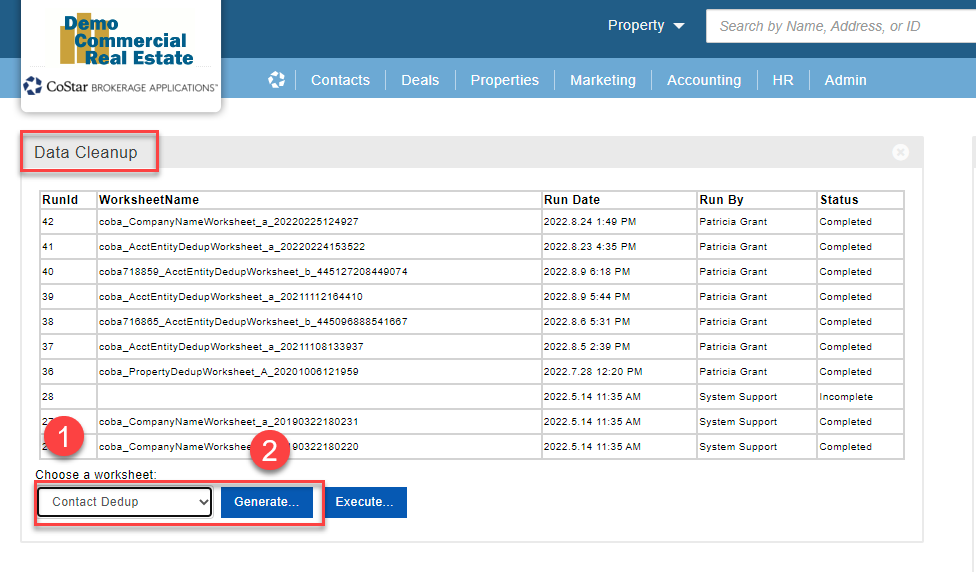
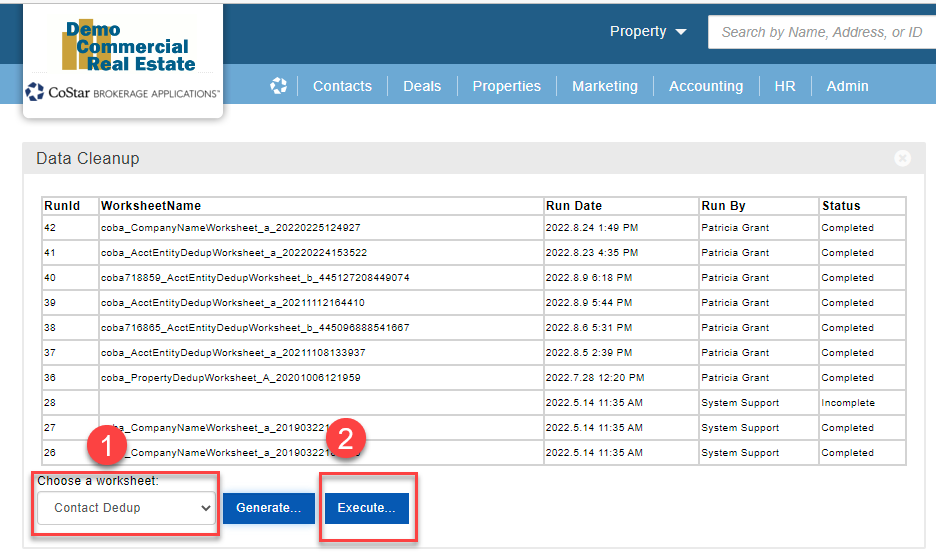
From the ‘Data Cleanup' widget, use the ‘Choose a worksheet:’ pulldown and select 'Contact Dedup’
Once selected click on ‘Generate’
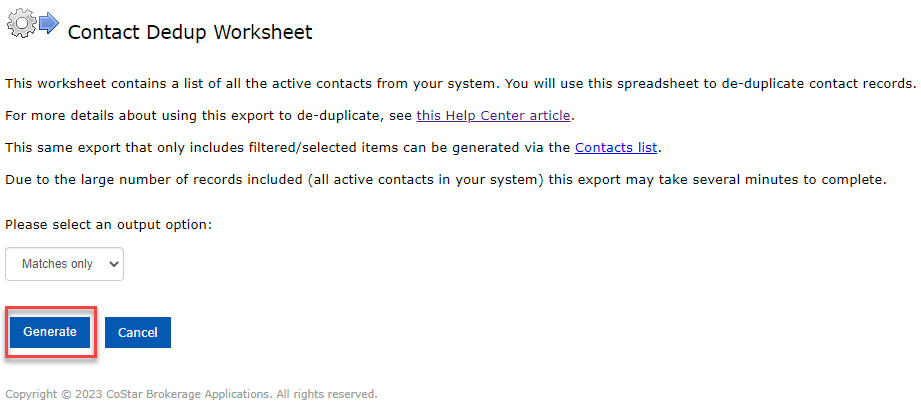
From the ‘Contact Dedup Worksheet’ information page select ‘Generate’. By default, the worksheet will return ‘Matches only’ (only possible duplicates). You can choose to export ‘All records’.
The ‘Contact Dedup Worksheet’ will be available in your download folder.
STEP 2: Organize the ‘Contact Dedup Worksheet’
Open the ‘Contact Dedup Worksheet’ in Excel.
Recommended settings/options in Excel:
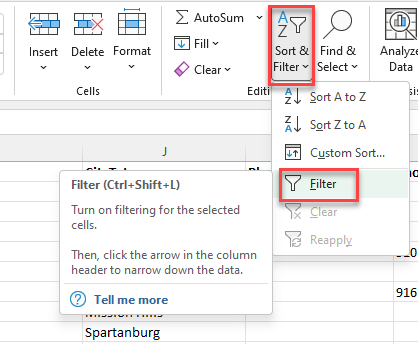
Turn on ‘Sort & Filter’ option
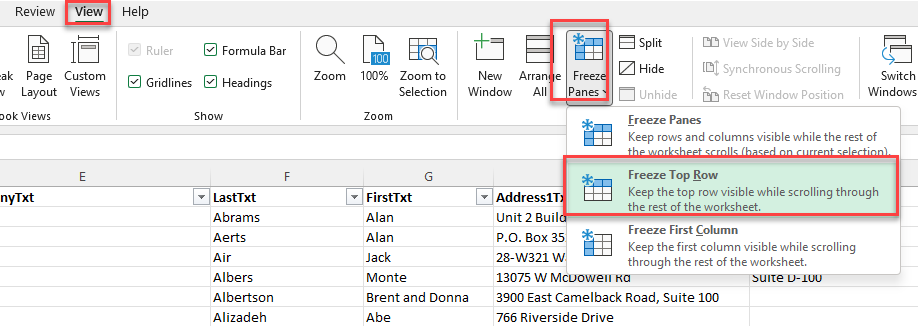
Under the ‘View’ menu, select ‘Freeze Panes’ and choose ‘Freeze top Row’
Recommended sort options (this will organize possible duplicates next to each other):
Sort ‘FirstTxt’ A to Z

Sort ‘LastTxt’ A to Z

STEP 3: Complete the ‘Contact Dedup Worksheet’
Review the worksheet for duplicate records.
Once you have identified duplicate records:

Copy the ‘OldID’ of the Contact Record you want to keep
Paste that ID into the ‘FinalID' column of the Contact you want to deduplicate

Repeat for all duplicate contacts.
Save your Excel Worksheet.
IMPORTANT: When sorting the Excel worksheet, it is critically important that you sort across all rows so that the IDs stay in alignment with the property information. If they become mixed up, this will cause serious issues with your database.
NOTE: It is important that you do not modify the column header names in the worksheet, they must remain the same as they were when exported.
When the worksheet is executed, the process will relink any of the information from the duplicate contact (OldId) records to the remaining contact (FinalID) record. This includes Availabilities, Comps, Tenants, Deals and Notes/files. The contact attributes will not change on the remaining contact record (FinalID).
STEP 4: Upload the ‘Contact Dedup Worksheet’
From the ‘Data Cleanup’ widget, use the ‘Choose a worksheet’ pulldown to select ‘Contact Dedup’ and click ‘Execute’.
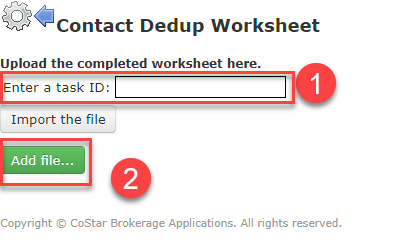
Enter a task ID - this is only for reference; you can use the current date without formatting: mmddyyyy
Click on ‘Add file’ and find the saved worksheet on your computer and select
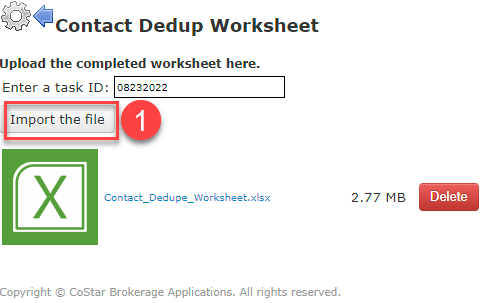
Click on ‘Import the file’ and the wizard will walk you through the rest of the process.
If you experience any issues please contact the help desk at: [email protected]
Related articles
© 2023 CoStar Group
Attachments:
 image-20201006-203256.png (image/png)
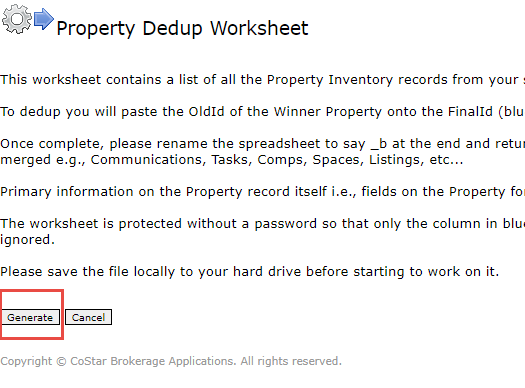 image-20201006-203245.png (image/png)
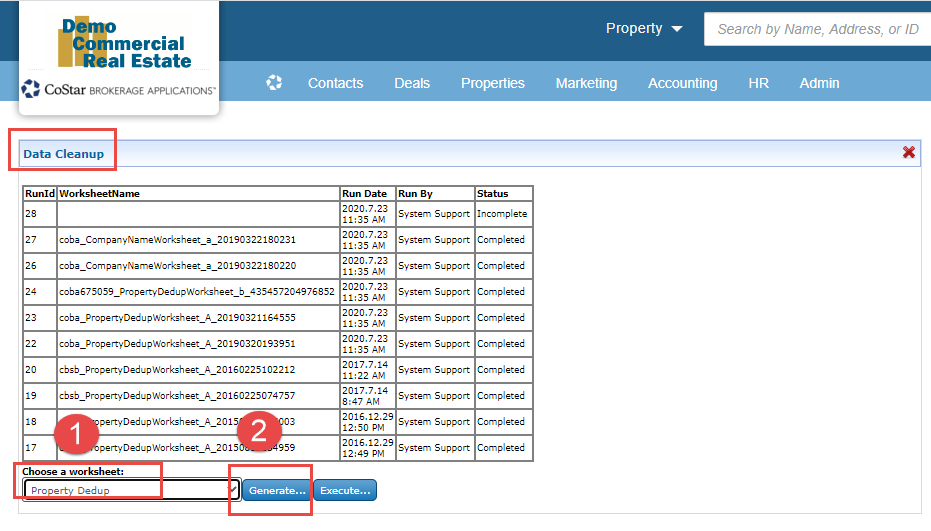 image-20201006-202446.png (image/png)
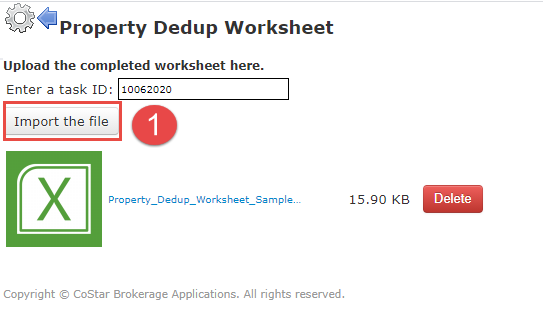 image-20201006-202431.png (image/png)
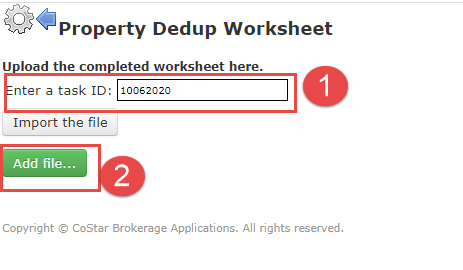 image-20201006-202408.png (image/png)
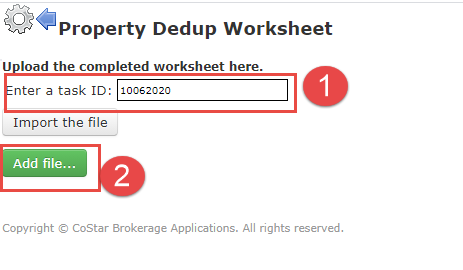 image-20201006-202355.png (image/png)
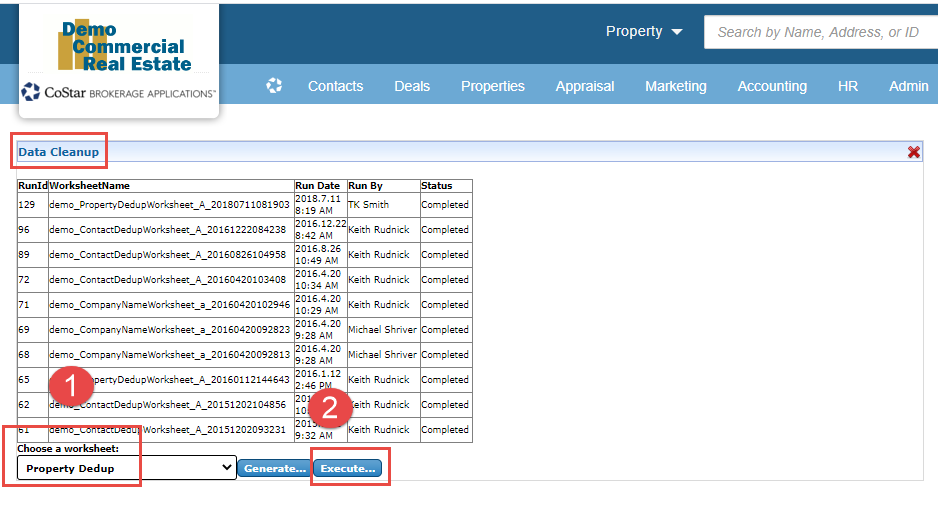 image-20201006-200509.png (image/png)
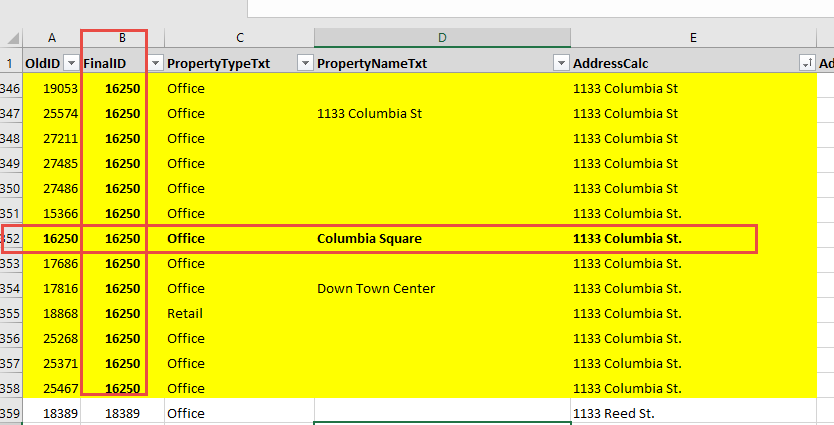 image-20201006-200453.png (image/png)
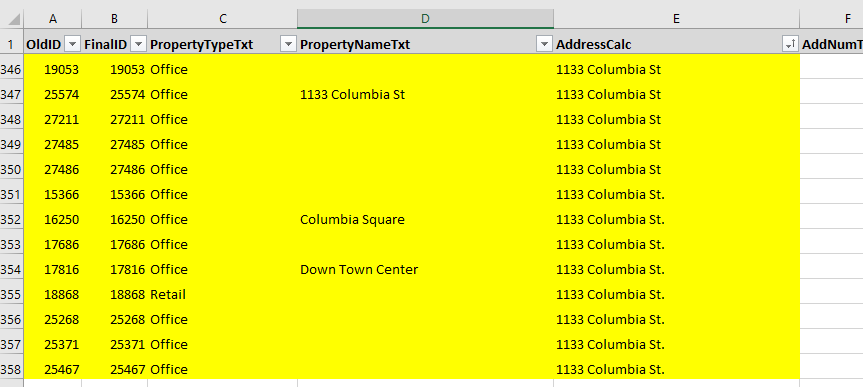 image-20201006-195247.png (image/png)
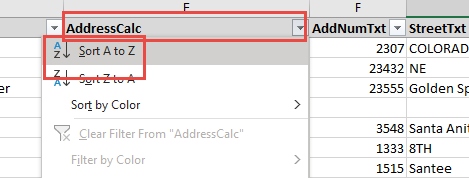 image-20201006-195208.png (image/png)
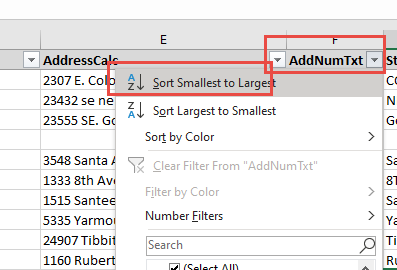 image-20201006-195049.png (image/png)
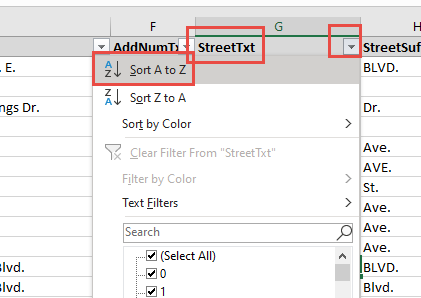 image-20201006-194955.png (image/png)
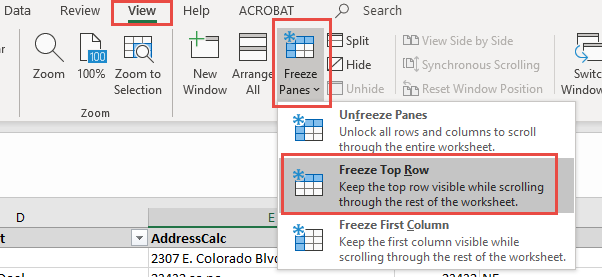 image-20201006-194925.png (image/png)
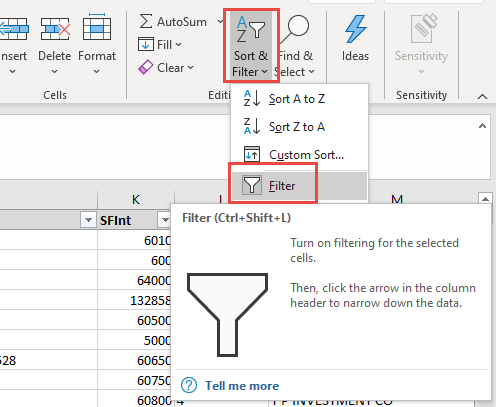 image-20201006-191920.png (image/png)
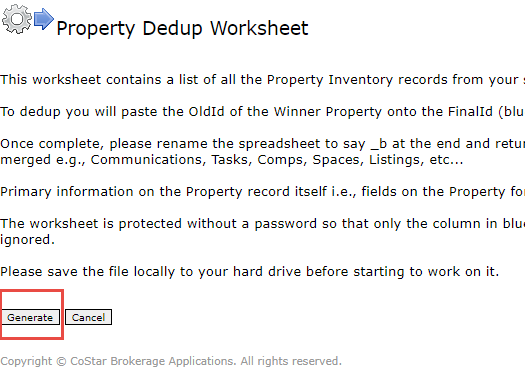 image-20201006-191838.png (image/png)
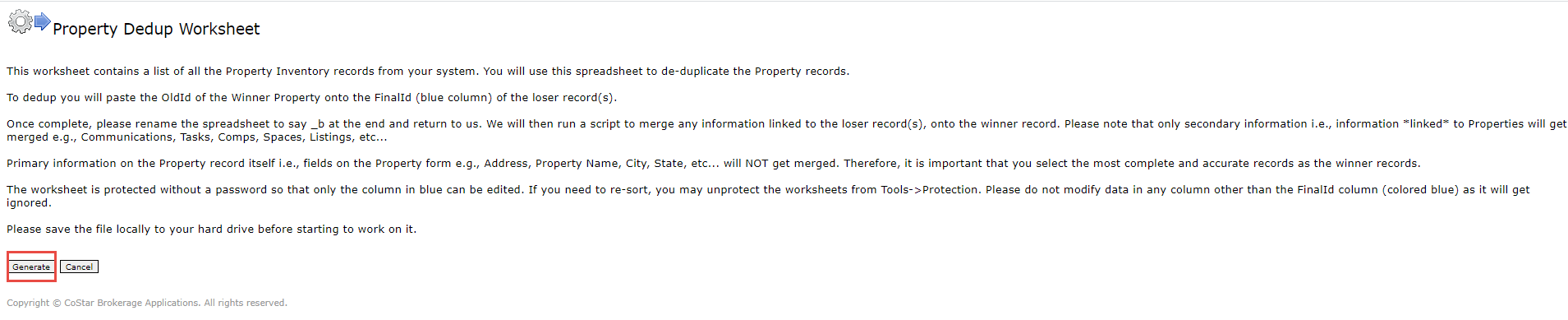 image-20201006-191620.png (image/png)
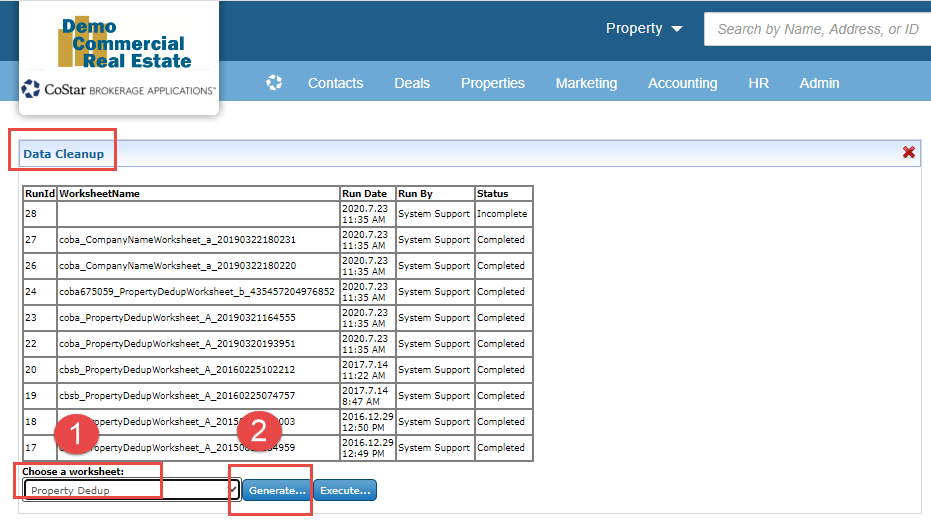 image-20201006-191338.png (image/png)
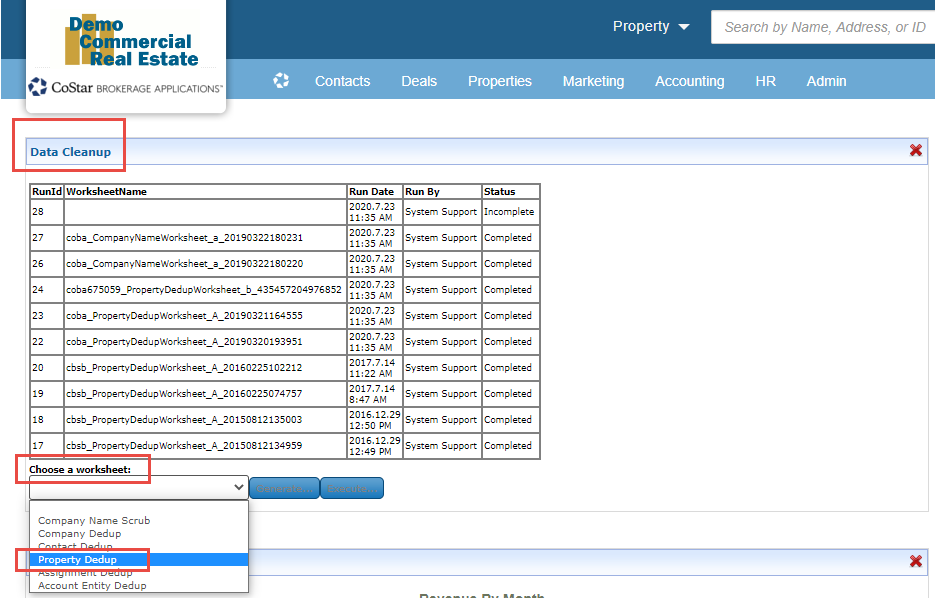 image-20220823-221949.png (image/png)
image-20220823-222042.png (image/png)
image-20220823-221949.png (image/png)
image-20220823-222042.png (image/png)
 image-20220823-222309.png (image/png)
image-20220823-222358.png (image/png)
image-20220823-222833.png (image/png)
image-20220823-222908.png (image/png)
image-20220823-222309.png (image/png)
image-20220823-222358.png (image/png)
image-20220823-222833.png (image/png)
image-20220823-222908.png (image/png)
 image-20220823-223142.png (image/png)
image-20220823-223406.png (image/png)
image-20220823-223644.png (image/png)
image-20220823-223817.png (image/png)
image-20220823-223945.png (image/png)
image-20230405-171214.png (image/png)
image-20220823-223142.png (image/png)
image-20220823-223406.png (image/png)
image-20220823-223644.png (image/png)
image-20220823-223817.png (image/png)
image-20220823-223945.png (image/png)
image-20230405-171214.png (image/png)