Released: July, 2020
Summary
This change only applies to customers who have the CTS (commission tracking system) module.
A ‘Deal’ as described in this article is a Closed Deal (Comp or Project) that has a revenue component reflecting one or more of the following accounting entries: Fees charges/calculated on the ‘Fee Splits’ tab, Invoices Created on the ‘Invoices’ tab, or Payments applied on the ‘Payments’ tab.
Historically, when deactivating a Deal with significant accounting information applied in the CTS workflow, you were prompted to remove any such information prior to deactivating without guidance. With this new feature, your system will walk you through the steps to deactivate a deal:
Reflect what information is there and the impact of removing it.
Share the dollar values associated with any reversals that may take place
Produce the necessary transactions to Void or Reverse those transactions
Deactivate the deal when finished
Attempting to deactivate a Deal without pending accounting information will simply deactivate the record. In addition, with the correct permissions, you can still remove any pending Deal information manually.
Browser Cache: Some browsers don't automatically recognize that there is new code on our servers, which may cause our pages to behave strangely. If you encounter any issues, please first try hitting the CTRL+F5 keys on your keyboard to refresh the page.
Deactivating a Deal: Navigation
To deactivate a Deal, you can simply click the ‘Deactivate’ link at the top of the main view of the Deal record. Subsequently, you can also Deactivate a deal through the Record Settings modal.

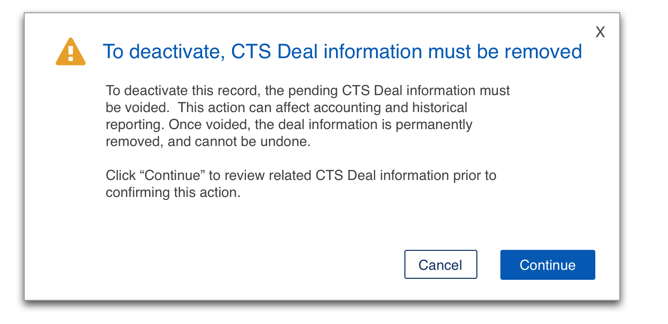
If there is no CTS information preventing the Deal to be Deactivated, it will simply Deactivate and the main page of the record will reload in a ‘read-only’ state. If there is meaningful accounting information entered on the Deal, you will be given a caution message before continuing the process.
Permissions:
This new process to reverse Deal accounting activity requires the same permissions as the current process, as if you were going to remove the transactions manually.
CTS Element | User Group Required |
|---|---|
Calculated Fees | CTS: Fee Calc |
Invoices | CTS: Invoice |
Payments | CTS: Payments |
If you have only a portion of the required permissions to deactivate the deal, you will see a message to contact your systems Administrator for assistance.
Summary View:
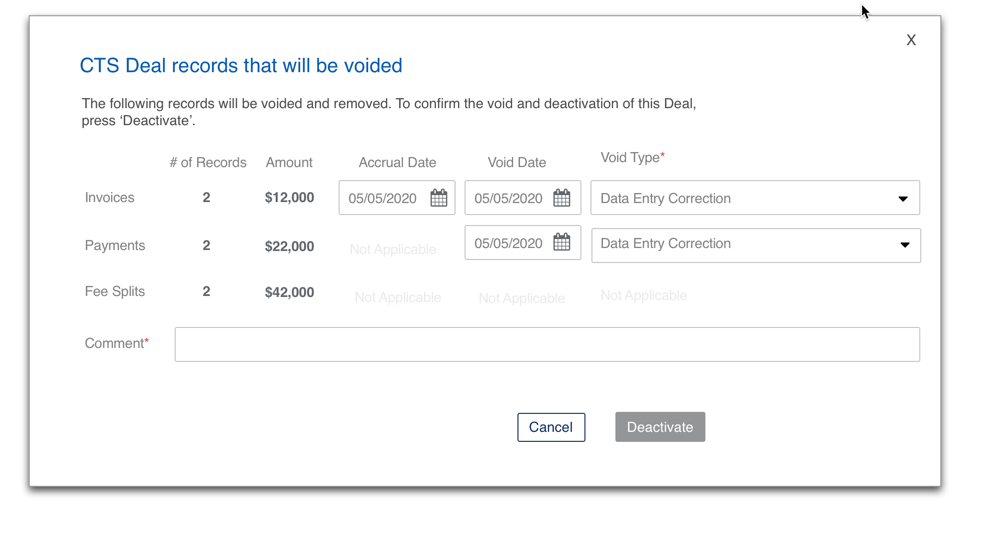
The next window will share a summary of the minimum amount of accounting related entries that will need to be removed prior to deactivating the record.
Removing accounting records through this process is not referable, so If you are unsure of the records you are deleting, or want to investigate further, simply click ‘Cancel’ to go back to the main view of the Deal.
You will also notice that each type of entry has required information, notated by a red asterisk *. This information will need to be provided for the ‘Deactivate’ button to be available.
Accrual Date: Required only for Invoices, and only relevant for systems set to accrue.
Void Date: Required for both Invoices as well as Payments.
Void Type: Required for Invoices and Payments, and defaulted to ‘Date Entry Correction’.
Comment: This comment will be notated on all of the different types of records that are removed or reversed during this process.
As with the previous process, once the process is complete, the Deal record will return to the main dashboard and be in a ‘read-only’ state.
If you have any questions or would like to schedule a detailed training on this feature, please contact [email protected].
© 2023 CoStar Group
Attachments:
 image-20200630-173738.png (image/png)
 image-20200630-174042.png (image/png)
 image-20200630-174232.png (image/png)
