Released: May, 2019
Summary
This document provides an overview of the rebuilt Global Search feature on the home page. This new feature allows you to quickly find specific or recently viewed Contacts, Companies, Deals or Property records. We have made the Search more front and center, as well as a little larger for ease of use. While the Global Search is the main part of this release, we have also updated the main header to create a cleaner look for the menu bar at the top of the home page.
Please note, while the menu bar at the top of the home page has been visually updated, the menu options and functionality have remained the same.
Previously, the Global Search feature returned only 5 results per record category. From there, you had to sort through and find the record you were looking for, or start over with a new search. Now you simply select the type of record you’re looking for, enter in one or more search words, and then choose the desired record from the results in the drop-down list.
- 1 Summary
- 2 Global Search Highlights
- 3 Search Filter Details
- 3.1 Contact
- 3.2 Company
- 3.3 Property
- 3.4 Deal
- 3.5 Assignment
Global Search Highlights
A better search feature
Previously, the Global Search feature returned only 5 results per record category. From there, you had to sort through and find the record you were looking for, or start over with a new search. Now you simply select the type of record you’re looking for, enter in one or more search words, and then choose the desired record from the results in the drop-down list.
User selected drop-down filter increases the speed and accuracy of the search results.

Upon clicking in the search field, you will see the 5 most recently viewed records for that category. Choose a record from this list, or type in a search.

Appropriate records now appear in the drop-down, and with one click you will be taken to the selected record in a new tab.

Additional search tips
Enter at least 3 characters to start the search process.
Search results reflect a maximum of 25 records at a time. If you scroll to the bottom of the list, an additional 25 (or the balance of the records if less than 25) will load into the drop-down.
Broad searches may reflect too many records, and you may be prompted to narrow your search.
As mentioned, simply inserting your cursor into the Search field will trigger the last 5 ‘Recently Viewed’ records for that category to display in the drop-down.
Use double quotes to find groups of words found together, i.e. “123 Main Street”, “IBM Headquarters”, or “San Diego”. You can also mix words within quotes and words without, i.e. Contact search could be: “Stephen Acres” Chicago.
While ‘Property’ is the default search filter, you can now set your own default for your Company. Simply contact our support team ([email protected]), and request which filter you would like set as your default.
Search Filter Details
Contact
Description: Reflects active Internal and External contacts that you have permissions to see.
Search by: Contact first or last name, Company name, City, or ID
Format Sample:

Company
Description: Reflects active Company records that you have permissions to see.
Search by: Company name, City, or ID
Format Sample:
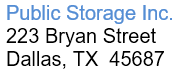
Property
Description: Reflects active Property inventory records that you have permissions to see.
Search by: Property name, Address, or ID
Format Sample:

Deal
Description: Reflects active Deal records that you have permissions to see. Deal types include: Comps, Closed Deals, Needs, Buyer Prospects, Tenant Prospects, Projects, Pipeline Deals, and Portfolios.
Search by: Deal or Property Name, Address, or ID (System ID or Internal Deal ID)
Format Sample:

Assignment
Description: Reflects active Assignment records that you have permissions to see.
Search by: Assignment Name, Client Name, or ID (System or Internal)
Format Sample:

If you have any questions or would like to schedule a detailed training on this feature, please contact [email protected].
© 2023 CoStar Group
Attachments:
 image-20191024-215641.png (image/png)
 image-20191024-221016.png (image/png)
 image-20191024-221036.png (image/png)
 image-20191024-221103.png (image/png)
image-20191024-221121.png (image/png)
image-20191024-221142.png (image/png)
image-20191024-221103.png (image/png)
image-20191024-221121.png (image/png)
image-20191024-221142.png (image/png)
 image-20191024-221314.png (image/png)
 image-20191024-221412.png (image/png)
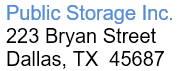 image-20191024-221500.png (image/png)
 image-20191024-221549.png (image/png)
image-20191024-221702.png (image/png)
image-20191024-221741.png (image/png)
image-20191024-221752.png (image/png)
image-20191024-221823.png (image/png)
image-20191024-221549.png (image/png)
image-20191024-221702.png (image/png)
image-20191024-221741.png (image/png)
image-20191024-221752.png (image/png)
image-20191024-221823.png (image/png)