The ‘User Teams’ functionality is used to automatically add a “Team” of users (with predefined permissions) to new deals upon creation (or the User Team can also be added manually after initial creation). User Teams can be setup based on the following criteria:
Location
Business Line
Location/Business Line Combination
Individual
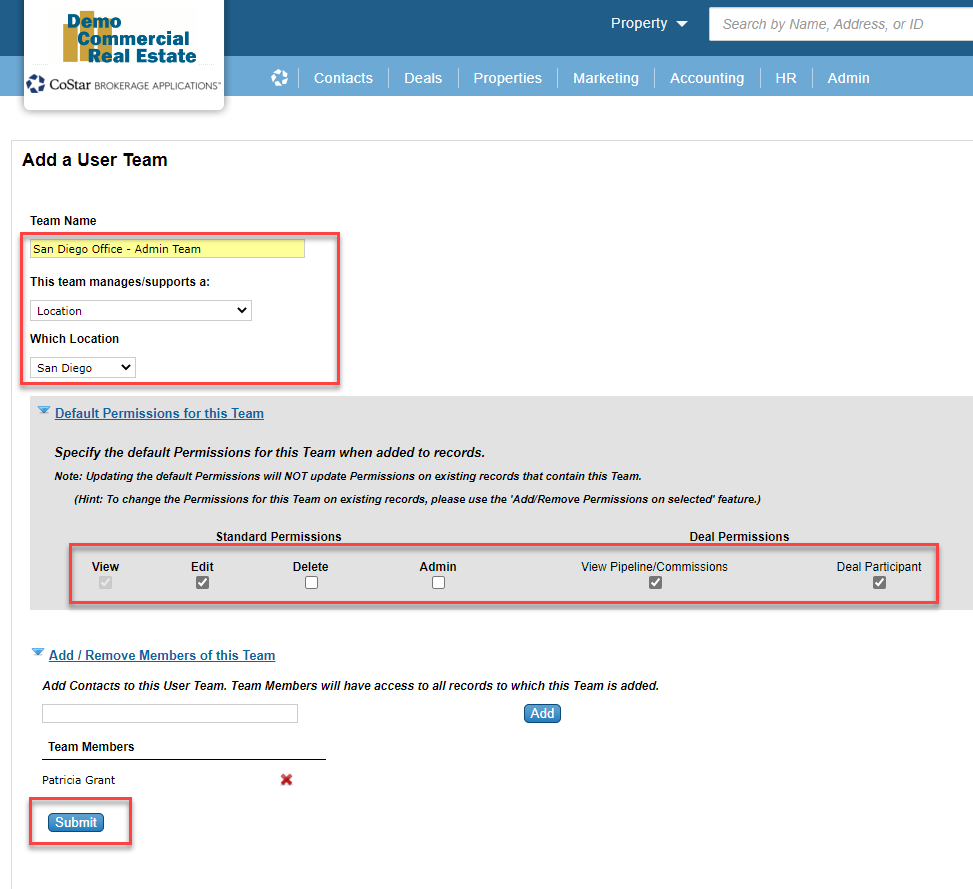
Example ‘Location’ - a User Team could be created called “San Diego Office - Admin Team” to allow members of the “San Diego Office - Admin Team” team to view and/or manage deals where the Location on the deal = San Diego.
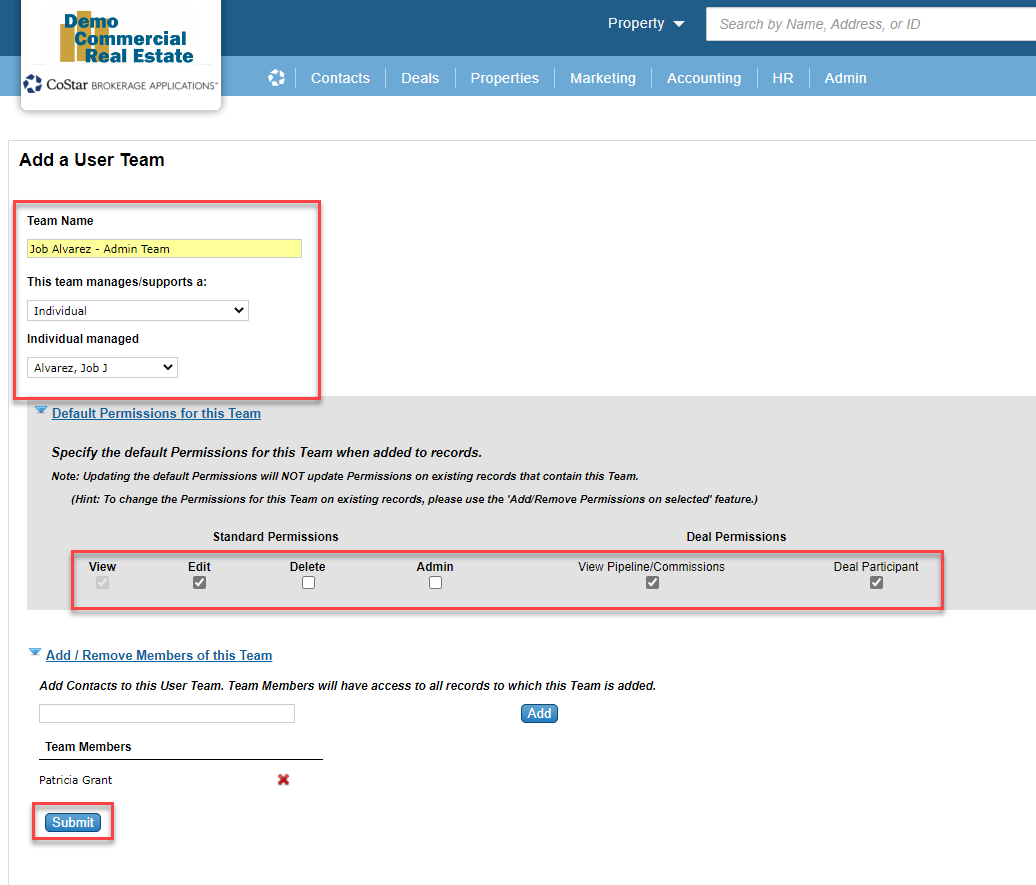
Example ‘Individual’ - a User Team could be created called “John Smith - Admin Team” to allow members of the “John Smith - Admin Team” team to view and/or manage deals where the Individual ‘John Smith’ is on the team of the deal.
After creation of a new User Team, that User Team will be a automatically added to any new deal that meet the criteria of the team (Location, Business Line, Location/Business Line Combination or Individual) on a go forward basis. Deals previously created will NOT be updated retroactively.
Instructions for creating a new 'Location User Team’:
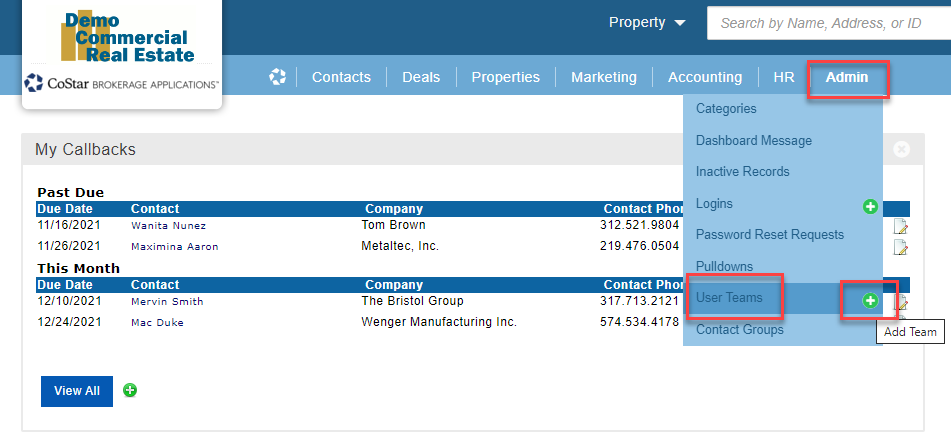
On the Main Navigation go to Admin → User Teams and click on the green + to add a new team.
Fill in the ‘Team Name’, ‘This team manages/supports a' (in this example we selected ‘Location’), ‘Which Location’, ‘Default Permissions for this Team’, and click the 'Submit’ button to create the User Team.
Instructions for creating a new 'Business Line User Team’:
On the Main Navigation go to Admin → User Teams and click on the green + to add a new team.
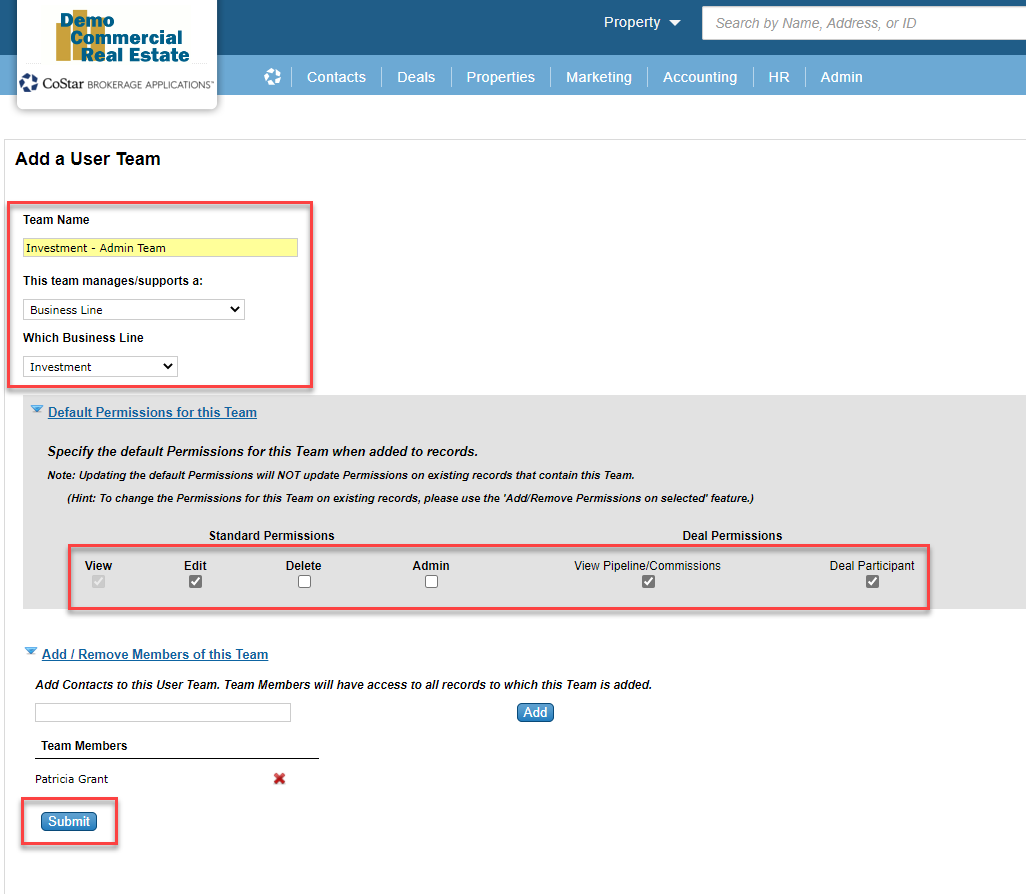
Fill in the ‘Team Name’, ‘This team manages/supports a' (in this example we selected ‘Business Line’), ‘Which Business Line’, ‘Default Permissions for this Team’, and click the 'Submit’ button to create the User Team.
Instructions for creating a new 'Location/Business Line Combo User Team’:
On the Main Navigation go to Admin → User Teams and click on the green + to add a new team.
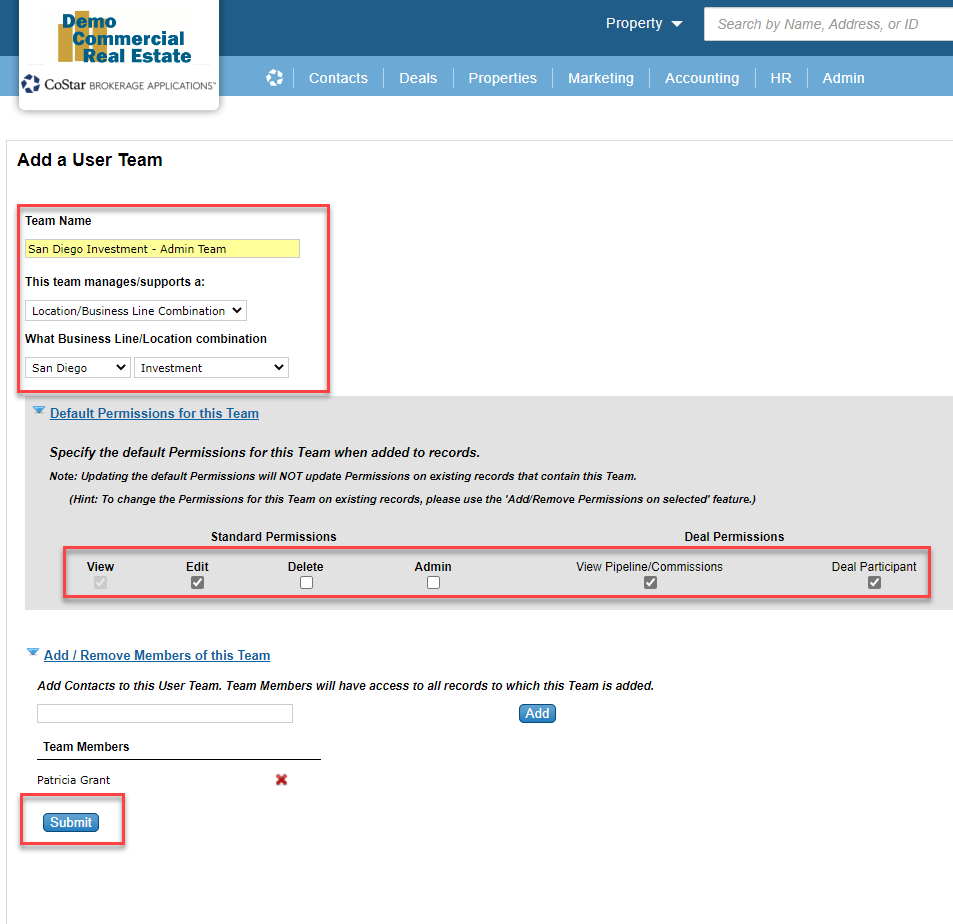
Fill in the ‘Team Name’, ‘This team manages/supports a' (in this example we selected ‘Location/Business Line Combination’), ‘Which Business Line/Location combination’, ‘Default Permissions for this Team’, and click the 'Submit’ button to create the User Team.
Instructions for creating a new 'Individual User Team’:
On the Main Navigation go to Admin → User Teams and click on the green + to add a new team.
Fill in the ‘Team Name’, ‘This team manages/supports a' (in this example we selected ‘Individual’), ‘Individual managed’, ‘Default Permissions for this Team’, and click the 'Submit’ button to create the User Team.
Adding or Removing User Team Members
You can add or remove team members of ‘User Teams’ at anytime:
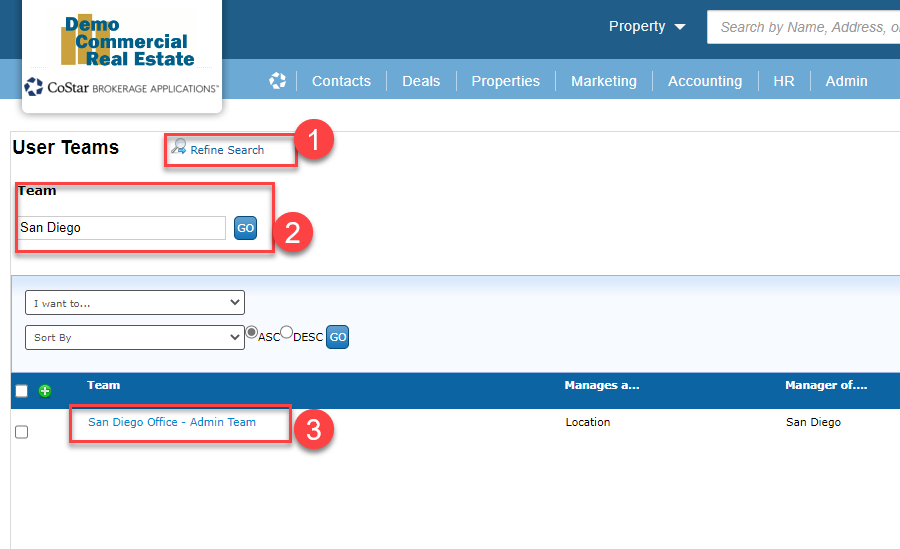
From the User Teams List - click on the ‘Refine Search’.
Enter the ‘Team’ name you with to add or remove team members and click the ‘Go’ button.
Click on the ‘Team Name’.
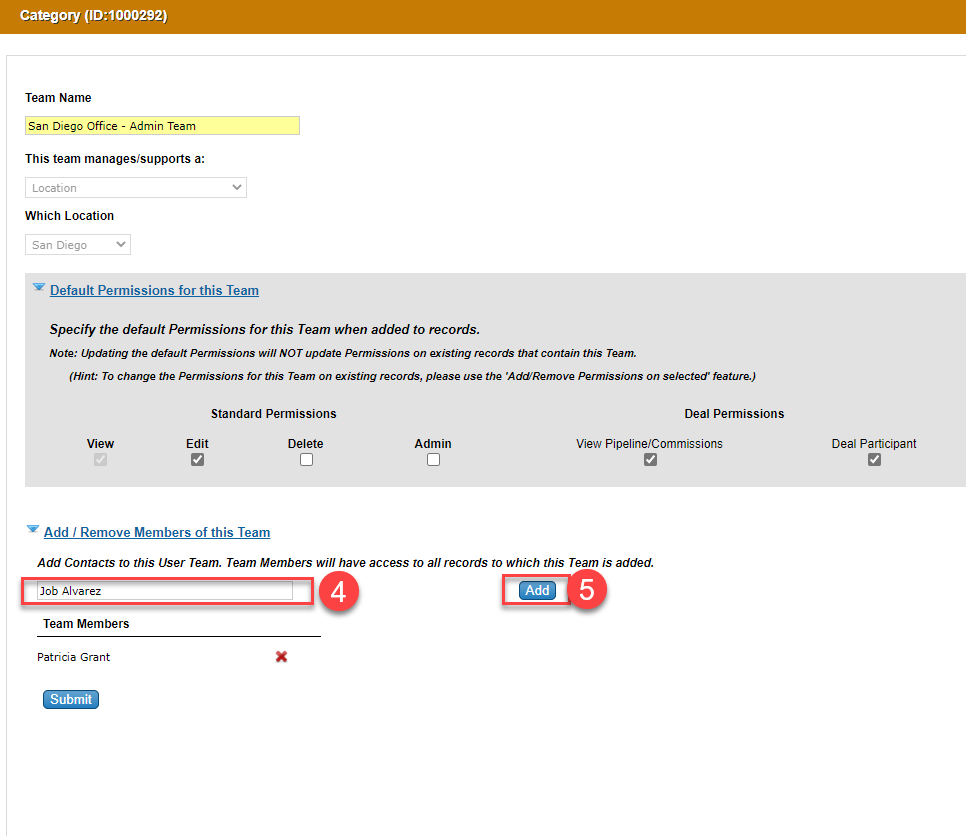
Under the ‘Add / Remove Members of this Team’ section search for the contact you wish to add.
Click the ‘Add’ button.
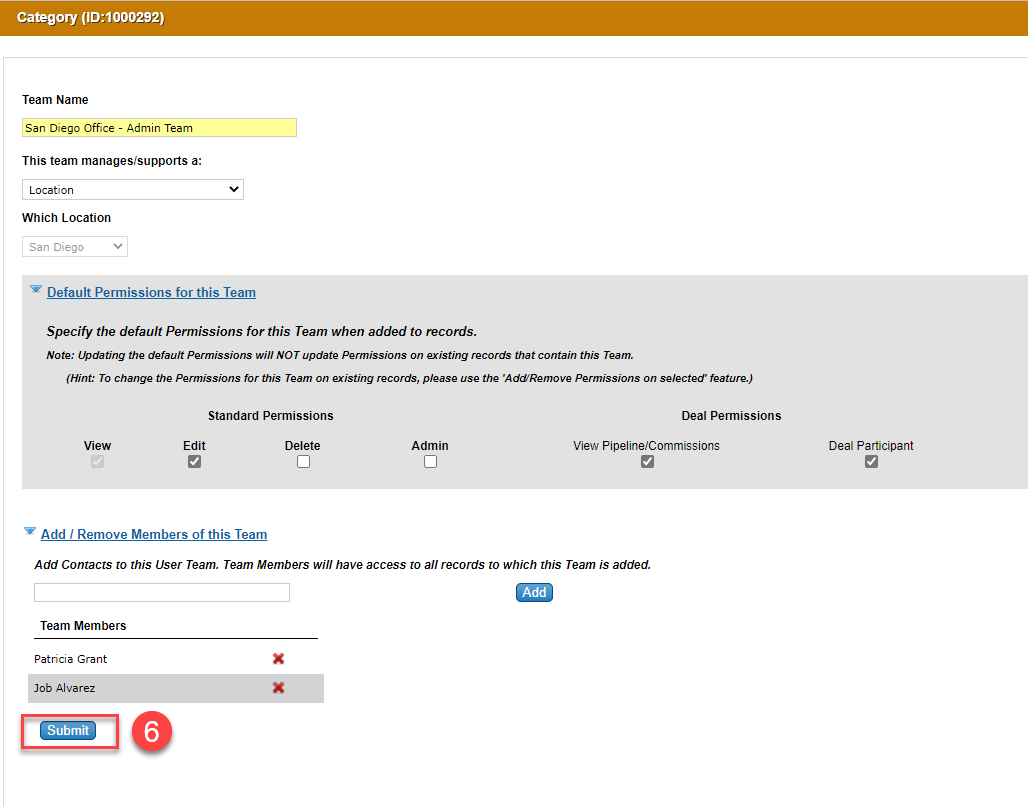
Repeat the steps until you have added all the team members desired. Click the Submit button.
TO REMOVE A MEMBER: Click on the red x (1) next to the team members name and click ‘Submit’ (2)
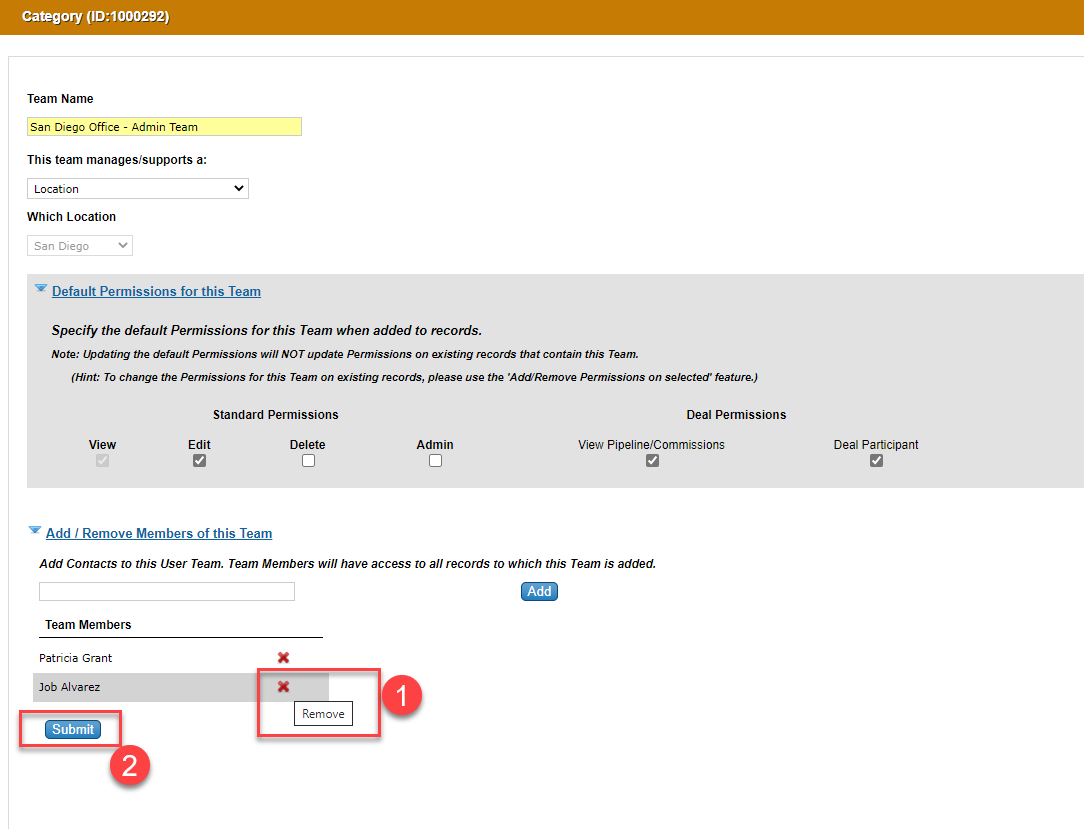
As soon as a team member has been added to an existing ‘User Team’ the newly added member will now have all the designated permissions for all deals that the ‘User Team’ is already associated with.
Related articles
© 2023 CoStar Group
Attachments:
 image-20211203-222320.png (image/png)
image-20211203-222330.png (image/png)
image-20211203-222720.png (image/png)
image-20211203-223125.png (image/png)
image-20211203-223547.png (image/png)
image-20211203-230005.png (image/png)
image-20211203-230047.png (image/png)
image-20211203-230151.png (image/png)
image-20211203-222320.png (image/png)
image-20211203-222330.png (image/png)
image-20211203-222720.png (image/png)
image-20211203-223125.png (image/png)
image-20211203-223547.png (image/png)
image-20211203-230005.png (image/png)
image-20211203-230047.png (image/png)
image-20211203-230151.png (image/png)
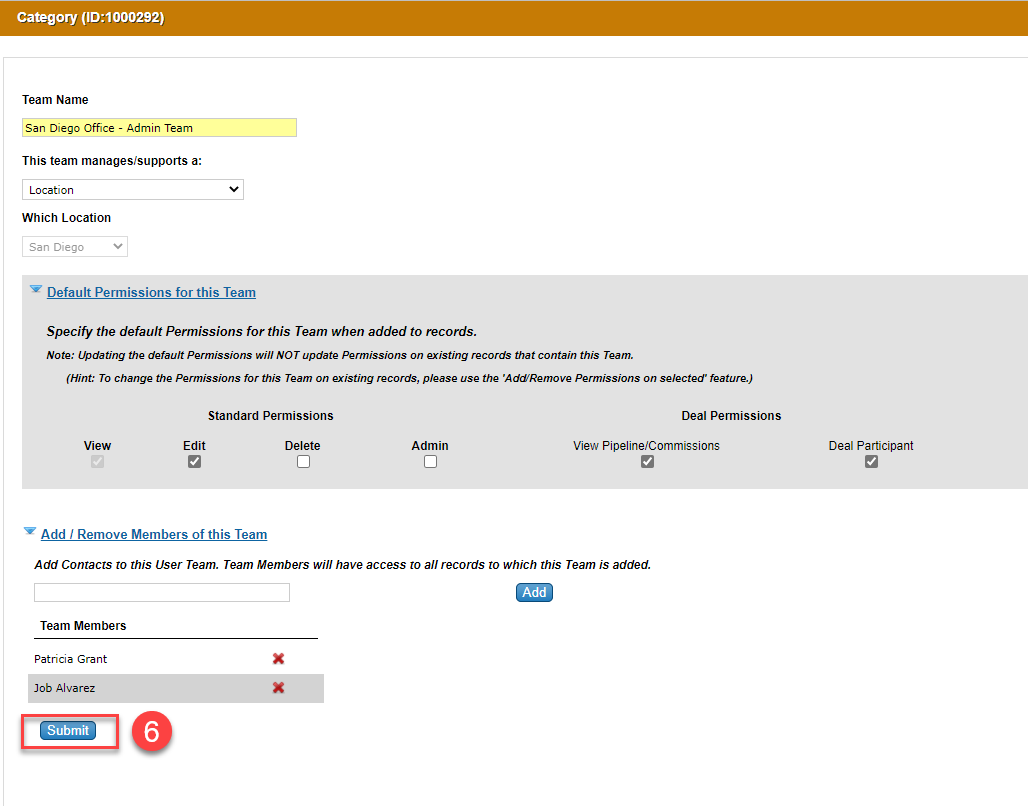 image-20211203-230402.png (image/png)
image-20211203-230408.png (image/png)
image-20211203-230402.png (image/png)
image-20211203-230408.png (image/png)