This article will explain how to customize your dashboard by adding, removing and organizing widgets on your main screen or any record that has widgets.
How to add a dashboard widget
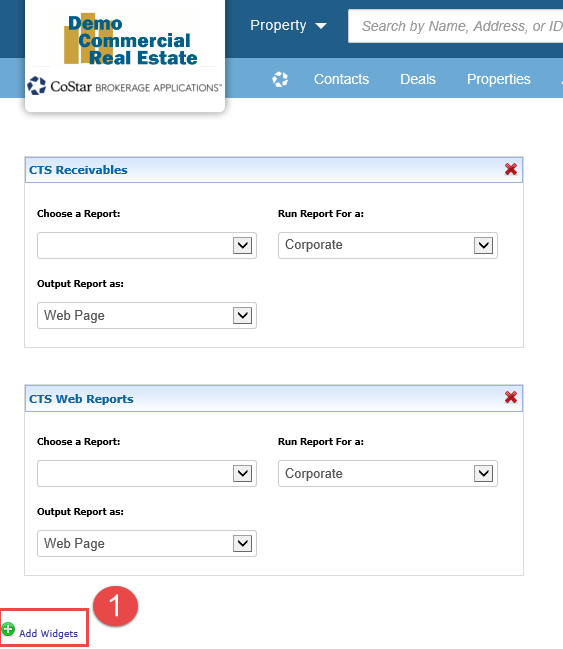
From the home screen (or any record that has widgets) scroll to the bottom of the page. Click on the ‘Add Widgets’ link at the bottom of the screen.
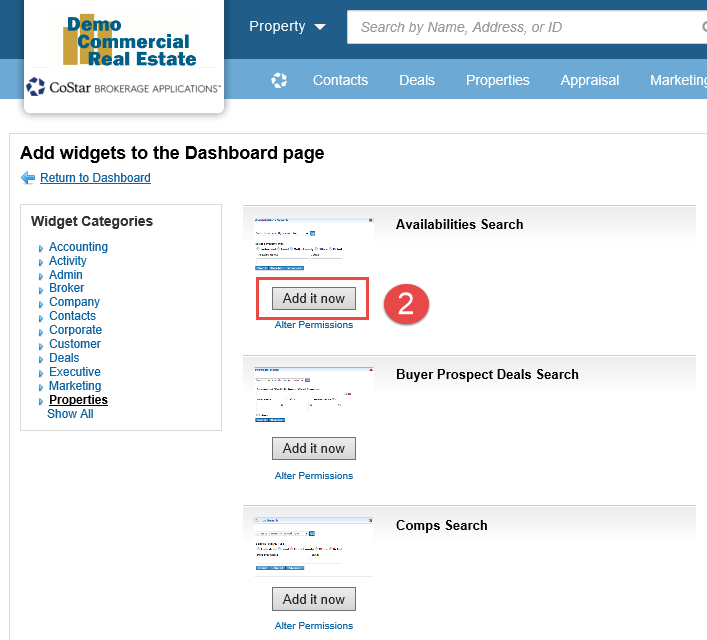
Scroll through the available widgets and click the ‘Add it now’ button to add to the top of your dashboard.
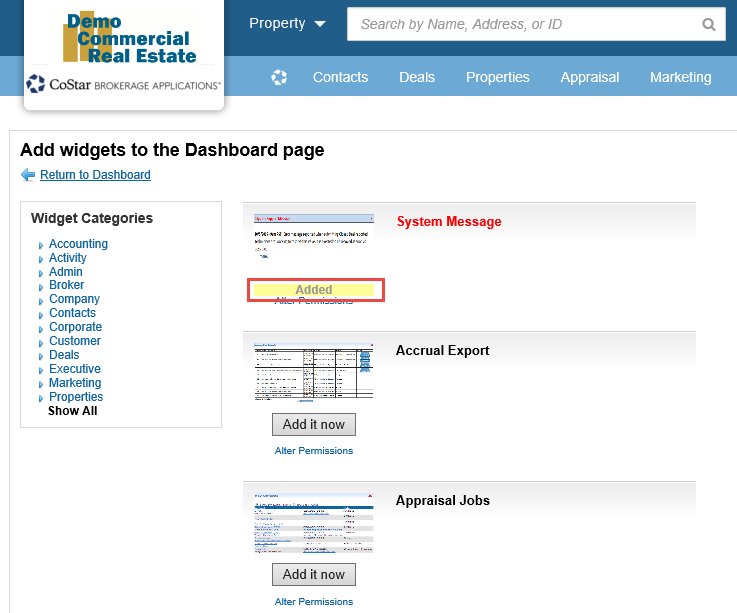
If the widget is already on your dashboard, the word ‘Added’ will indicate that this widget is already on your dashboard.
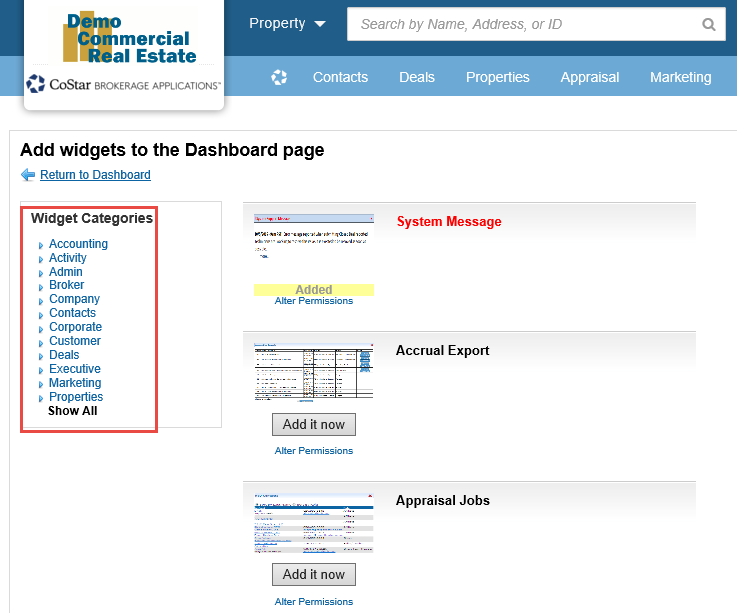
You can filter the widget list by selecting the ‘Widget Categories’ on the left side navigation.
How to remove a dashboard widget
To remove a dashboard widget, click on the red 'X' at the top right hand corner of the widget you wish to remove.
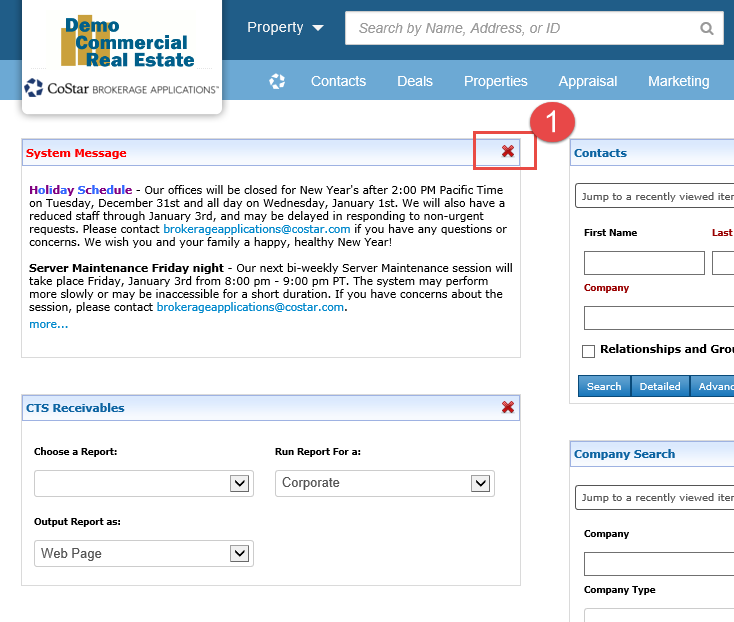
NOTE: The ‘System Message’ widget will automatically appear on your screen when there is an important message about the system. You can remove this widget after you have reviewed the message and it will reappear once a new important is message available.
How to move a dashboard widget
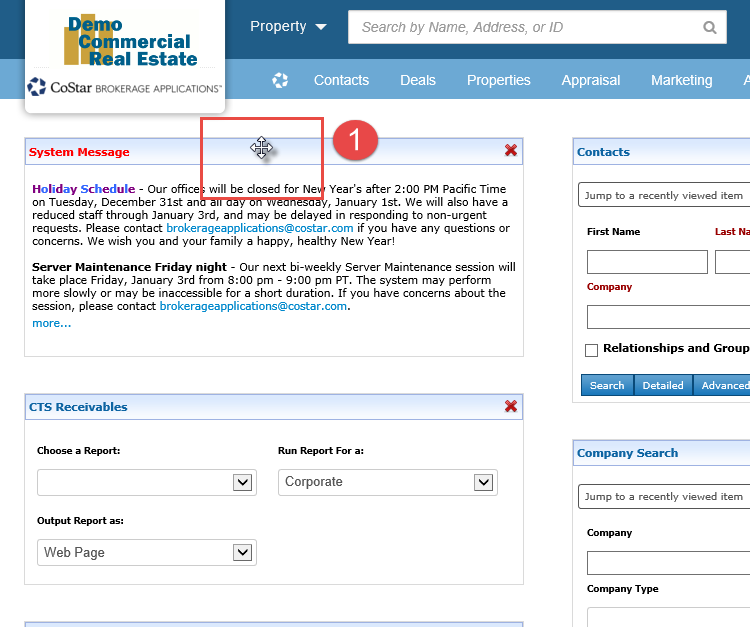
To move a dashboard widget, place your cursor over the header bar of the widget you wish to move, click and hold, move to the new location then release.
Related articles
© 2023 CoStar Group
Attachments:
 image-20200108-171032.png (image/png)
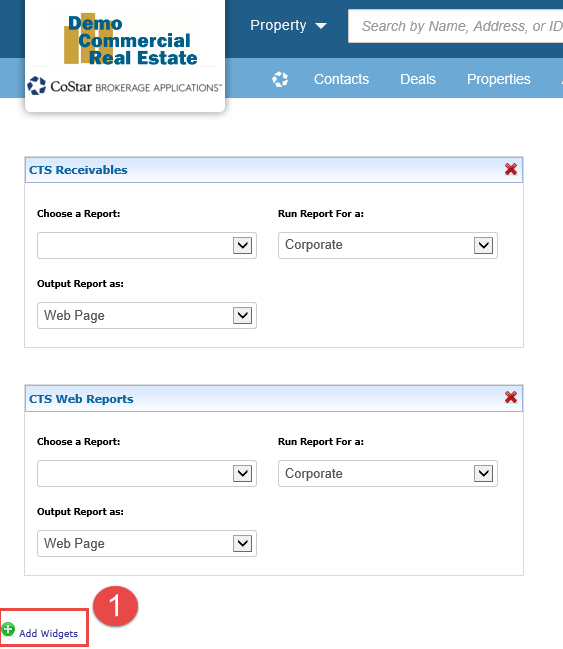 image-20200108-171505.png (image/png)
image-20200108-171600.png (image/png)
image-20200108-171505.png (image/png)
image-20200108-171600.png (image/png)
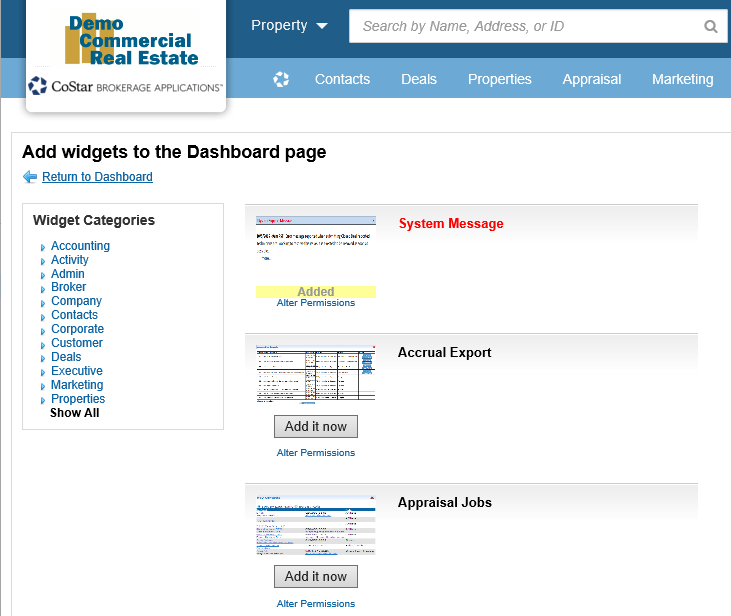 image-20200108-171634.png (image/png)
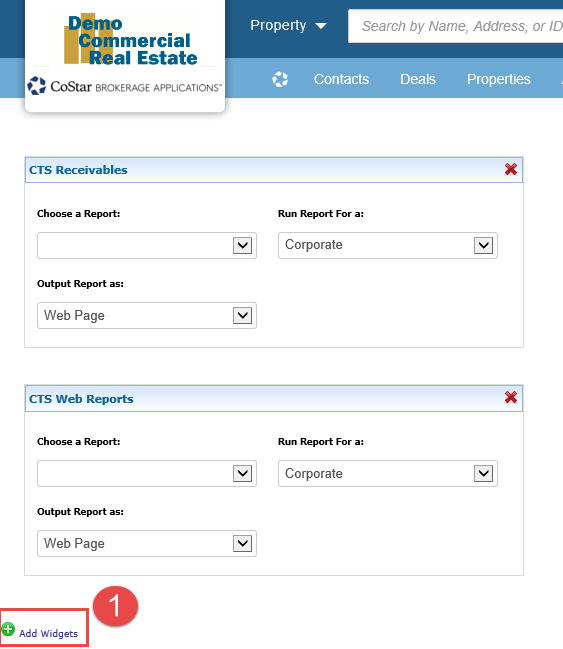 image-20200108-171704.png (image/png)
image-20200108-171913.png (image/png)
image-20200108-172058.png (image/png)
image-20200108-172313.png (image/png)
image-20200108-173437.png (image/png)
image-20200108-171704.png (image/png)
image-20200108-171913.png (image/png)
image-20200108-172058.png (image/png)
image-20200108-172313.png (image/png)
image-20200108-173437.png (image/png)