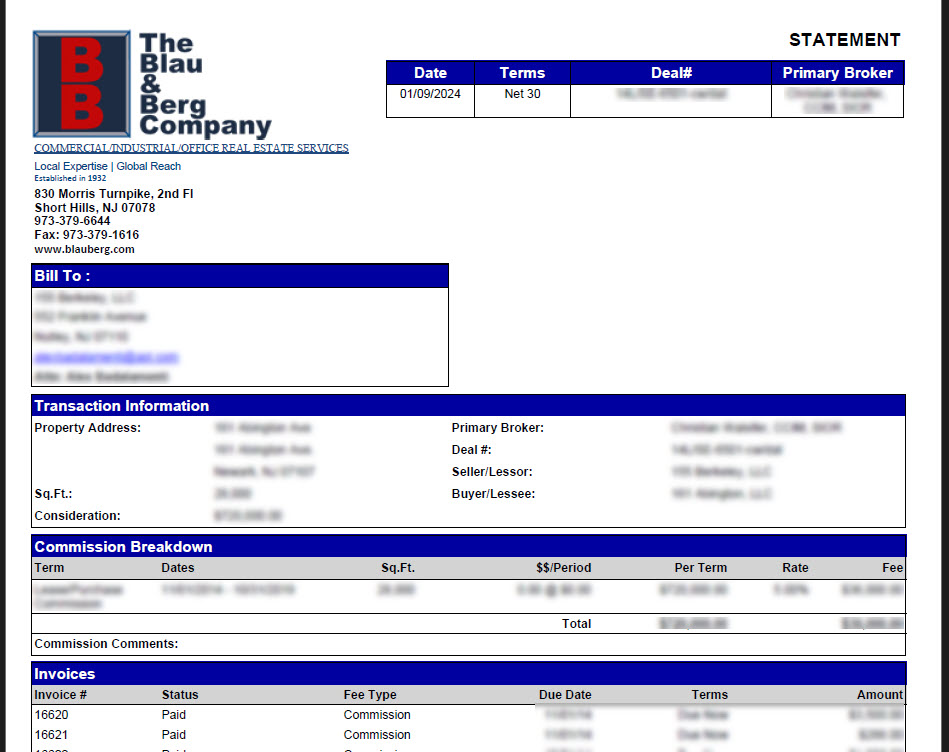
Here are detailed instructions to find and print out all invoices due and past due. In the case of Deals with multiple open Invoices, this article will also walk through printing a statement for each Deal.
Printing all open Invoices
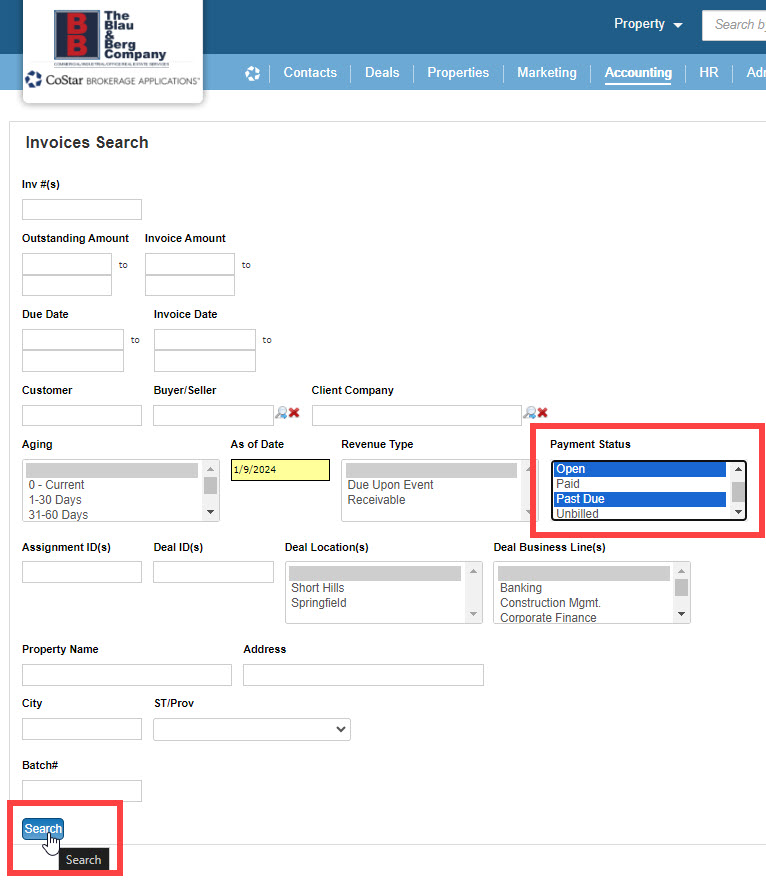
From the Home page, go to the Accounting menu and click on Invoices.

On the Invoices Search page, go to the Payment Status filter and hold the CTRL key down while clicking on "Open" and "Past Due". Then click on the Search button.
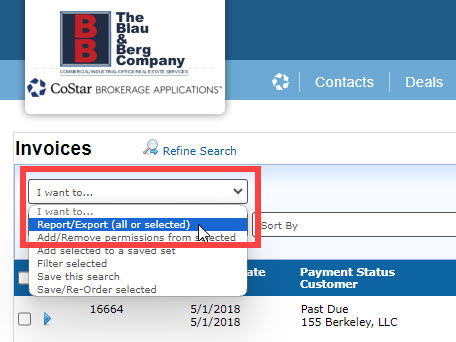
On the list of resulting Invoices, click to open the "I Want To" menu and select "Report/Export". (You do not need to select any of the invoices unless you want to only print specific ones.)
On the Report/Export Wizard that pops up, click on the Invoice report and then click the "Select this Report" button.
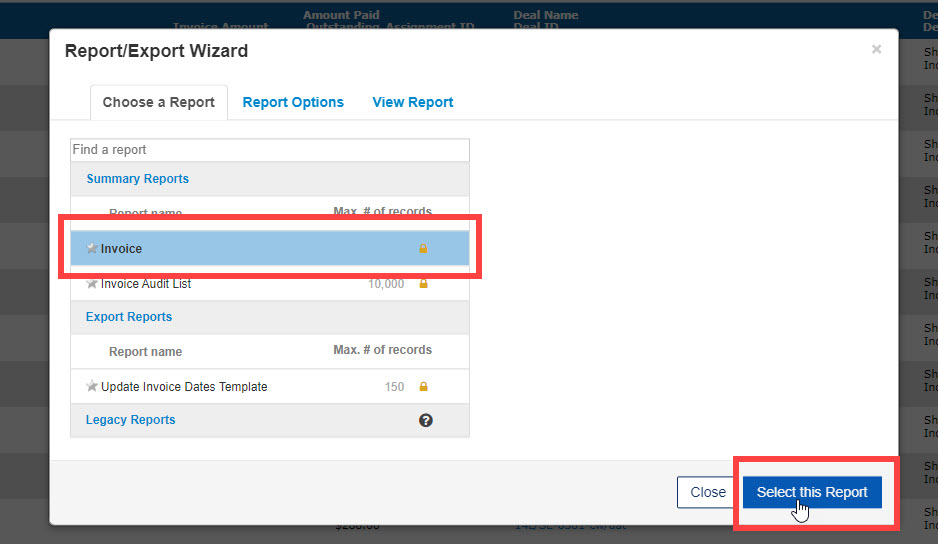
This will generate a PDF file with all of the Invoices. Depending on your workstation settings, the PDF may open automatically, or you may need to go to your Downloads folder to find it.

Printing a Statement for a Deal
You can easily determine which Deals have multiple Invoices from the same list of Invoices by Grouping the results. Open the Group By menu, then click on "Deal ID".

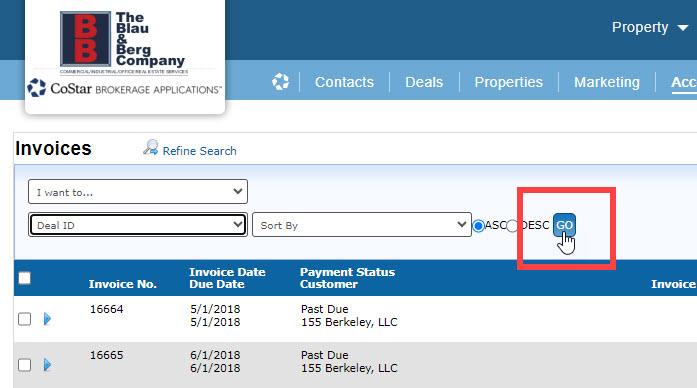
Click the Go button to apply the Grouping.

At the top of each Group, you'll see the Deal ID and a count of related open Invoices. Click on the Deal ID to open that Deal.

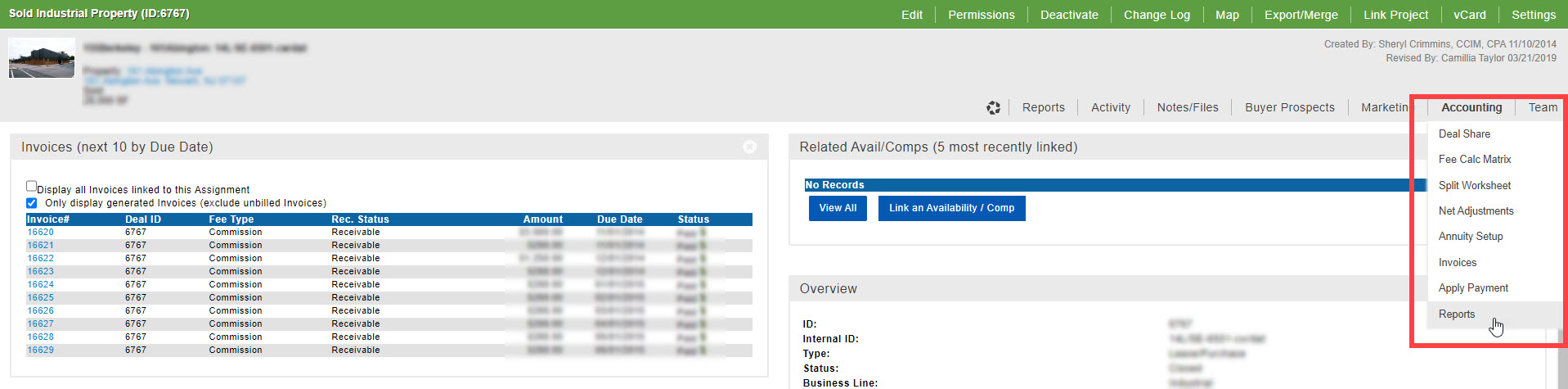
From the Deal record, open the Accounting menu and click on the "Reports" option.
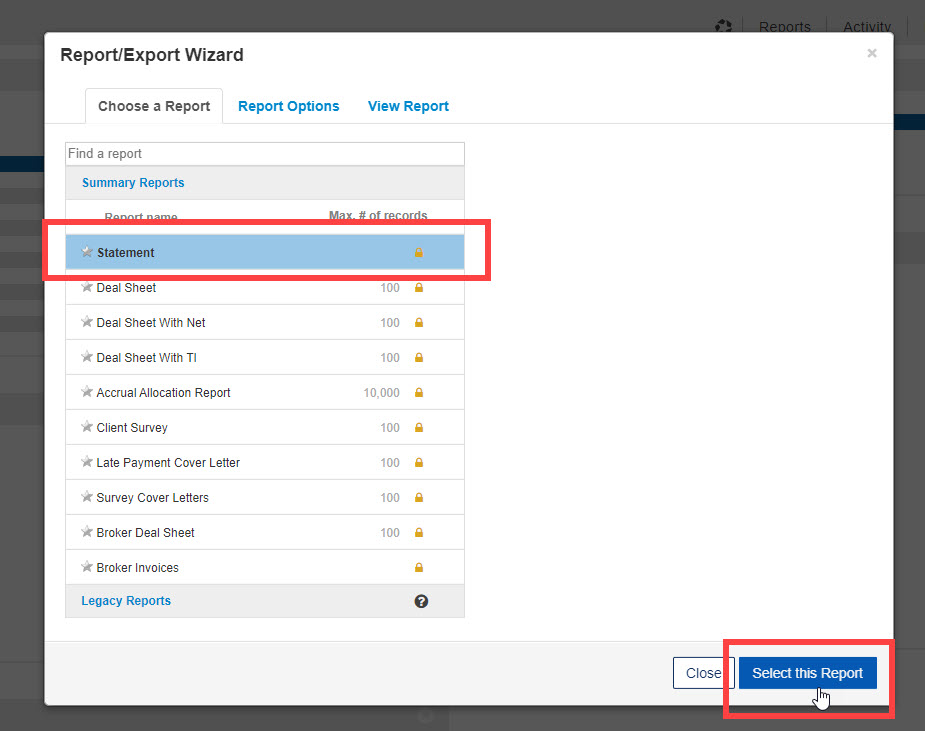
Click on the "Statement" report, then on the "Select this Report" button.
The Statement will come up as a PDF again, just like the Invoices did before.

Related articles
© 2023 CoStar Group
Attachments:
 2024-01-09_11-34-08.jpg (image/jpeg)
 2024-01-09_11-34-56.jpg (image/jpeg)
 2024-01-09_11-35-49.jpg (image/jpeg)
 2024-01-09_11-46-38.jpg (image/jpeg)
 2024-01-09_11-36-28.jpg (image/jpeg)
 2024-01-09_11-37-52.jpg (image/jpeg)
 2024-01-09_12-01-18.jpg (image/jpeg)
 2024-01-09_12-01-49.jpg (image/jpeg)
 2024-01-09_12-02-26.jpg (image/jpeg)
 2024-01-09_11-34-08b.jpg (image/jpeg)
 2024-01-09_11-37-52b.jpg (image/jpeg)
 2024-01-09_12-02-26b.jpg (image/jpeg)
 2024-01-09_11-46-16b.jpg (image/jpeg)
 2024-01-09_11-46-38.jpg (image/jpeg)
 2024-01-09_12-15-50b.jpg (image/jpeg)