Release: July, 2020
Summary
If you are tasked with updating existing Availabilities, your system is equipped with an import tool to make this job easier. While this Availability import feature has previously existed, we have updated the templates to make the process more user friendly and efficient.
This process is for simply updating data points on existing Availabilities. This process will not create new Availabilities.
Record limit for the import is 1,000.
Browser Cache: Some browsers don't automatically recognize that there is new code on our servers, which may cause our pages to behave strangely. If you encounter any issues, please first try hitting the CTRL+F5 keys on your keyboard to refresh the page.
Data Import Widget
The Availability import process can all be done through the ‘Data Import’ widget seen below. To add and use this widget, your Login must have the User Group of ‘Data Tools Import: Admin’.

From the dropdown, choose ‘Update Availabilities’. This will ensure you are using the correct template for either creating or importing a template specifically for Availabilities.
The ‘Generate’ button will create a blank template that you can manually populate with data and then use to import into the system. You will also learn in the next section how to pre-populate a template with the records you may want to update.
The ‘Execute’ button will take you through the steps of importing a populated template.
Creating a template of Availability data for Importing
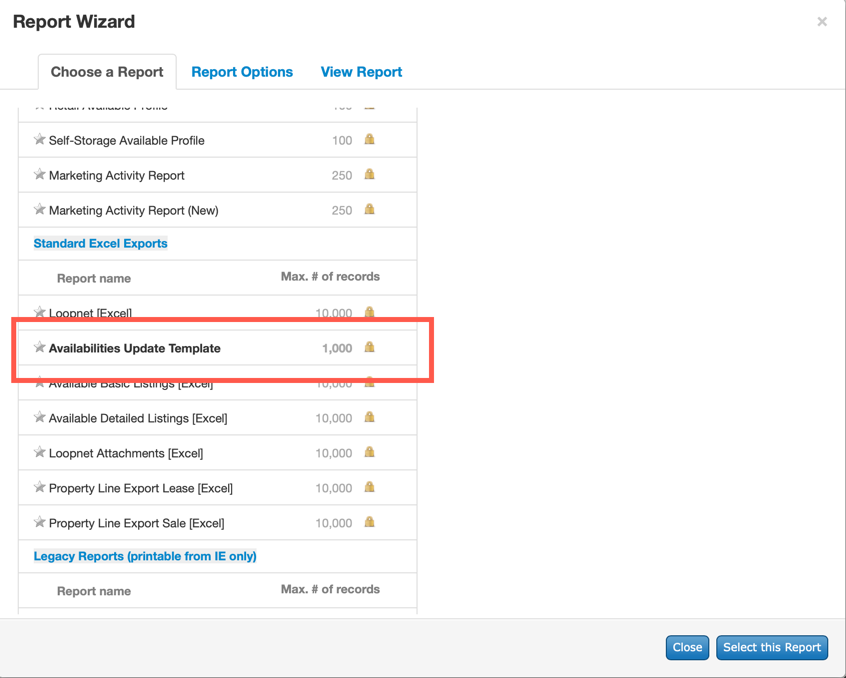
In the previous section, we have shown you how to create a blank template where you can fill in the pertinent data. An alternative, and recommended, solution to create the import file is to start with an extract from the pertinent list of Availabilities you wish to update. From the main navigation menu, click on Deal, then Availability. This will bring you to the Availability search where you can get search to the specific list of Availabilities you would like to update. Choosing this Template will return the selected records in the template with an excel file found in your computer’s ‘Download’ folder.

Business Rules for Import Template use
Opening up the recently downloaded folder from your downloads folder, you should see the data associated with each records for the given fields within the template. For the template to successfully process, there are some formatting rules that need to be followed so that all rows are processed and exceptions are minimized:

The TransID (Availability ID), Listing Status, and Listing Type are required fields.
You will notice the 2nd row in the template reflects ‘Do Not Delete This Row’. This row is intentionally populated and should not be removed or changed. This row contains distinctive formatting that support proper database alignment during the import process.
To remove a value for a given field, you must remove the existing value and type ‘Delete Value’. This extra step is to make sure no data is deleted in error. Data simply removed will result in no change in the data during the import process.
To update any data points, you can simply replace the existing data with the data in the field you wish to update. There is additional validation for all the fields to confirm that the newly data entered is in line with an expected value, i.e. Rate fields are always numeric, and any alphabetical characters would result in an exception.
Importing the Template
Now that you have your import file ready, you can launch the import tool from the Data Import widget by selecting the ‘Import Availabilities’ option, and clicking on the ‘Execute’ button (seen in the first section). A new tab will open that will contain detailed instructions on processing your file. At the end of processing an exception report will be generated to inform you of any anomalies that it may have encountered.

Using the Purge Feature
On the Data Import Widget, you can see a row for each of the imports executed. For some of the records it is possible to use the ‘Purge’ button to remove the changes made to the associated Availability records. This process is not reversible and is only recommended in cases where the data used to import was incorrect. In addition, any updates made to that record since the import will be removed. An alternative would be to use the same template, with the correct data, and re-import and update the given records.

If you have any questions or would like to schedule a detailed training on this feature, please contact [email protected].
© 2023 CoStar Group
Attachments:
 image-20200730-205436.png (image/png)
 image-20200730-211948.png (image/png)
 image-20200730-213248.png (image/png)
 image-20200730-214152.png (image/png)
 image-20200730-231343.png (image/png)
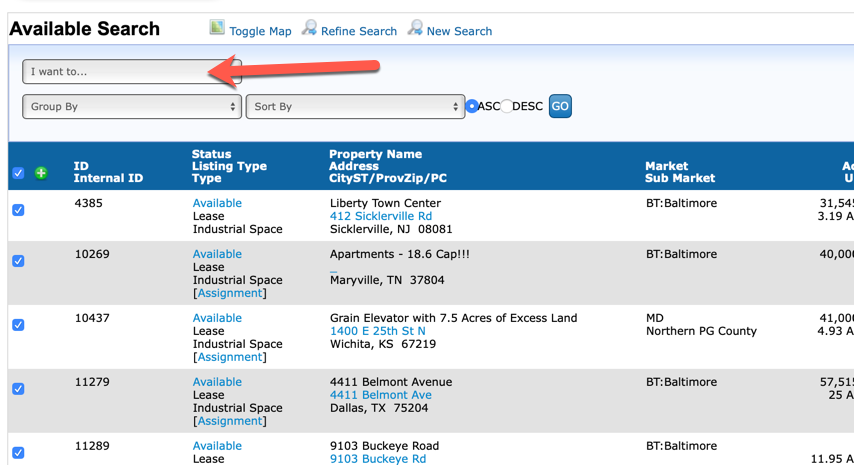 image-20200804-195321.png (image/png)
 image-20200804-195347.png (image/png)
