Some settings may need to be changed in Internet Explorer 11 for CoStar Brokerage ApplicationsTM to function correctly.
Instructions
Add URL to Trusted Sites

Go to Tools → Internet Options

Go to the Security Tab
Click on the Trusted Sites Icon
Click on the Sites button

Verify that the CoStar Brokerage ApplicationsTM URL (*.reapplications.com) is listed in the Websites box
If the CoStar Brokerage ApplicationsTM URL is not listed, enter the CoStar Brokerage ApplicationsTM URL (*.reapplications.com) in the “Add this website to the zone” box and select the Add button. Click the Close button to save your changes.
Custom Security Settings
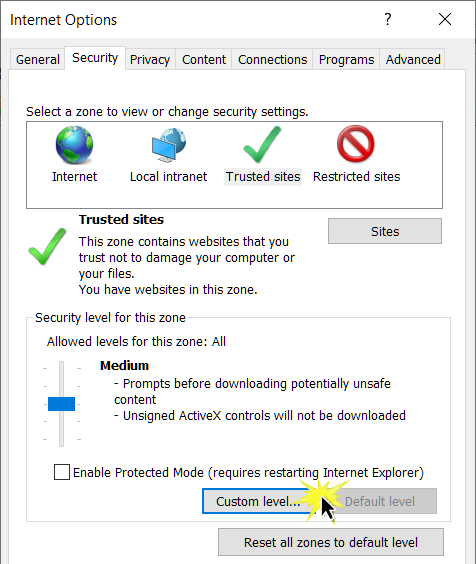
On the Security tab, click on the Custom level button

Set the following ActiveX controls and plug-ins to Enable:
Run ActiveX controls and plug-ins
Script ActiveX controls marked safe for scripting*

Set the following Download controls to Enable:
File Download
Font download
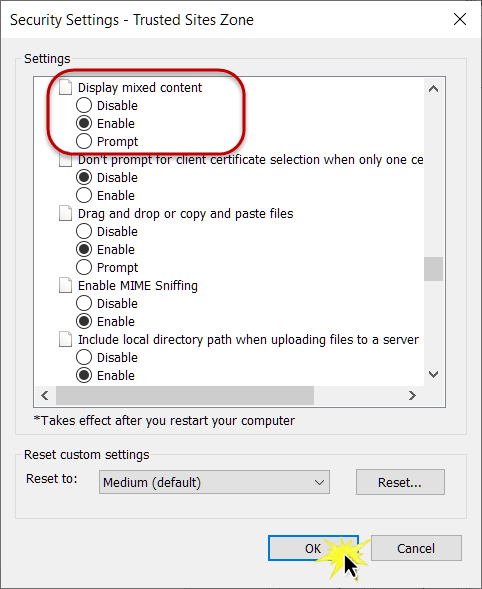
Set the following Miscellaneous controls to Enable:
Display mixed content
Click OK.
Tabbed Browsing (recommended)

Go to the General tab
Click on the Tabs button

Set the “When a pop-up is encountered” control to:
Always open pop-ups in a new tab
Click OK
Print Settings (optional)

Go to Tools → Print → Page Set-Up

Check the box to ‘Print Background Colors & Images’
Change all margins to 0.5”
Remove any text in the Header & Footer fields
Once the settings have been adjusted, close and reopen your browser.
International characters
Go to Tools → Internet Options
Go to the Advanced tab
Under the International* section:
Check the box to ‘Send UTF-8 query strings for Intranet URLs’
Check the box to ‘Send UTF-8 query strings for non-Intranet URLs’
Click OK
Once the settings have been adjusted, close and reopen a new browser
Additional Requirements
Pop-up blocking software must be disabled for CoStar Brokerage ApplicationsTM sites.
No Browser plug-ins or utilities may be installed or actively running that conflict with the normal operations of CoStar Brokerage ApplicationsTM.
Related articles
© 2023 CoStar Group
Attachments:
 image-20191030-202721.png (image/png)
 image-20191030-202944.png (image/png)
 image-20191030-203108.png (image/png)
 image-20191030-203130.png (image/png)
 image-20191030-203130.png (image/png)
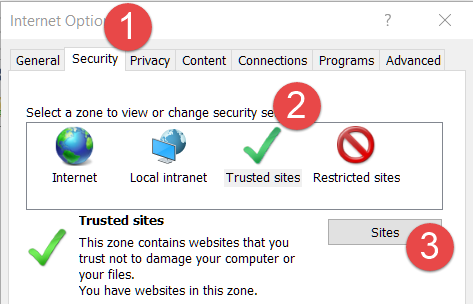 image-20191030-203458.png (image/png)
 image-20191030-203801.png (image/png)
 image-20191030-203934.png (image/png)
 image-20191030-205239.png (image/png)
 image-20191030-205516.png (image/png)
 image-20191030-205919.png (image/png)
 image-20191030-221835.png (image/png)
 image-20191030-222058.png (image/png)
 image-20191030-222504.png (image/png)
 image-20191030-222845.png (image/png)
