Summary: In this article, we will show you two ways to create a new Login. One way is to create a Login from scratch, the other is to copy an existing Login that has the same or similar role in your company of the Login you are creating.
In order to create a new internal login, the person you are creating a login for must have an internal contact record. To create a login, your permission must be Network Admin or you must have the Login Admin or Login New user group.
Instructions for creating a new Login:
STEP 1:
From the main navigation bar, hover over the ‘Admin’ menu item and then hover over the sub-menu ‘Logins’ and click the green plus button.

STEP 2:
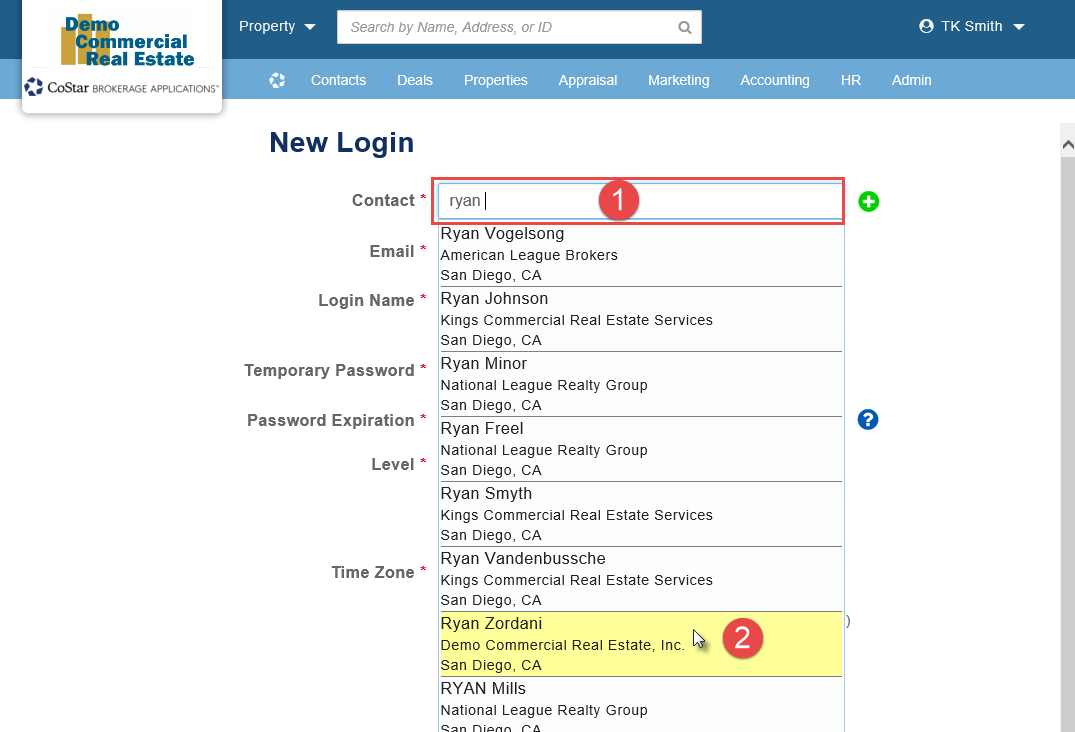
On the ‘New Login’ form begin typing the name of the contact you wish to create a contact for. Matching records will display. Contacts highlighted in yellow will indicate internal contacts. Click the contact of the person you wish to create a login for.
STEP 3:
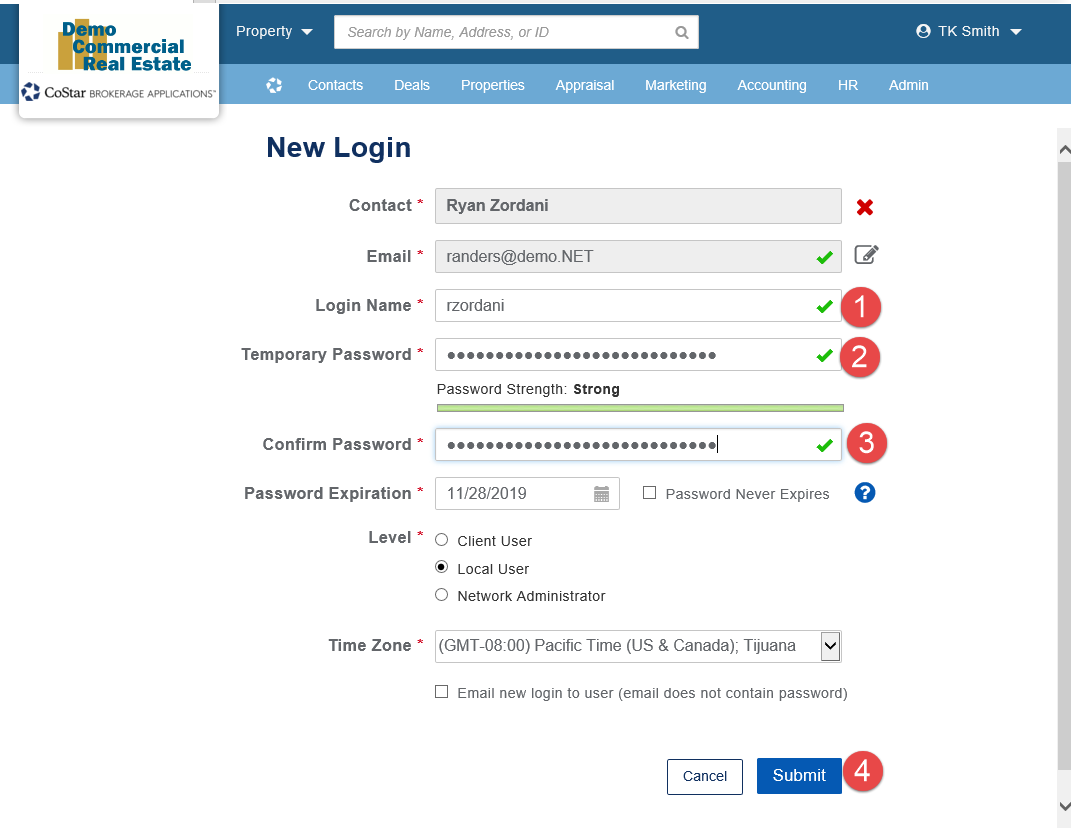
Fill in the ‘Login Name’ (1) ‘Temporary Password’ (2), ‘Confirm Password’ (3) and click Submit (4).
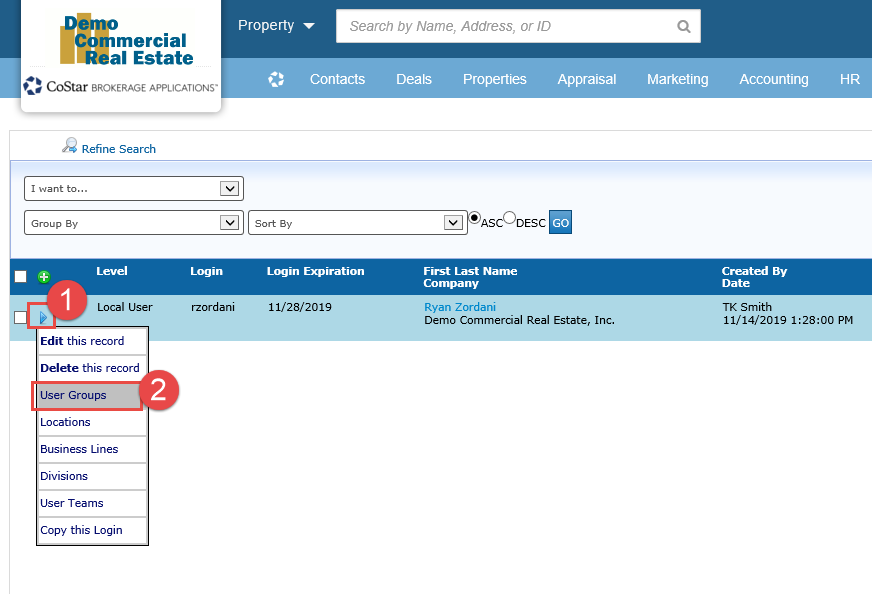
After you have created the login you can use the list menu to give additional permissions, add or update Locations, Business Lines, Divisions and User Teams.
Instructions for creating a new Login by copying an existing Login:
Many System Administrators have a set of ‘Template’ logins, one for each type of role (i.e. Broker, Assistant, Accounting) and use the template record as the Login to copy when creating Logins for new users.
STEP 1:
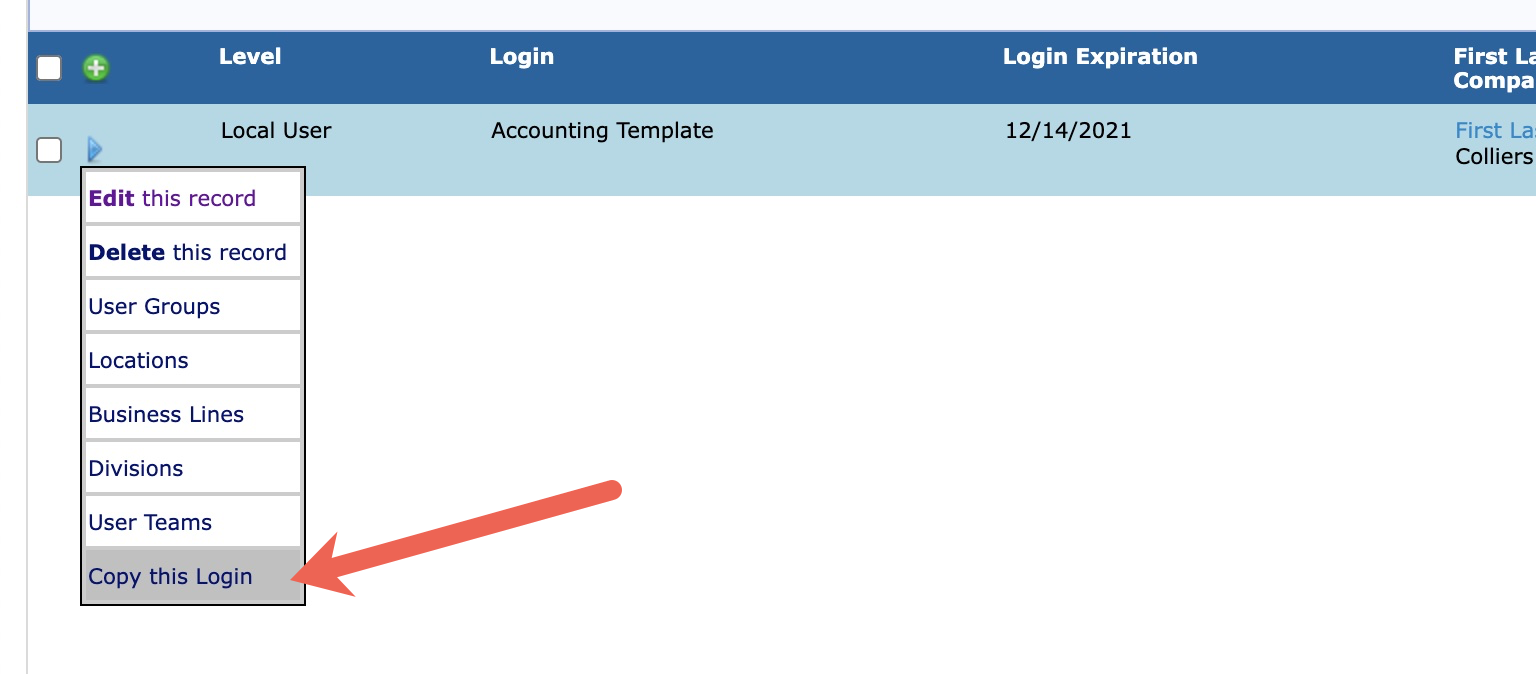
From the list of Logins, find the record of an existing login that you wish to copy. Using the ‘quick links', select ‘Copy this Login’.
STEP 2:
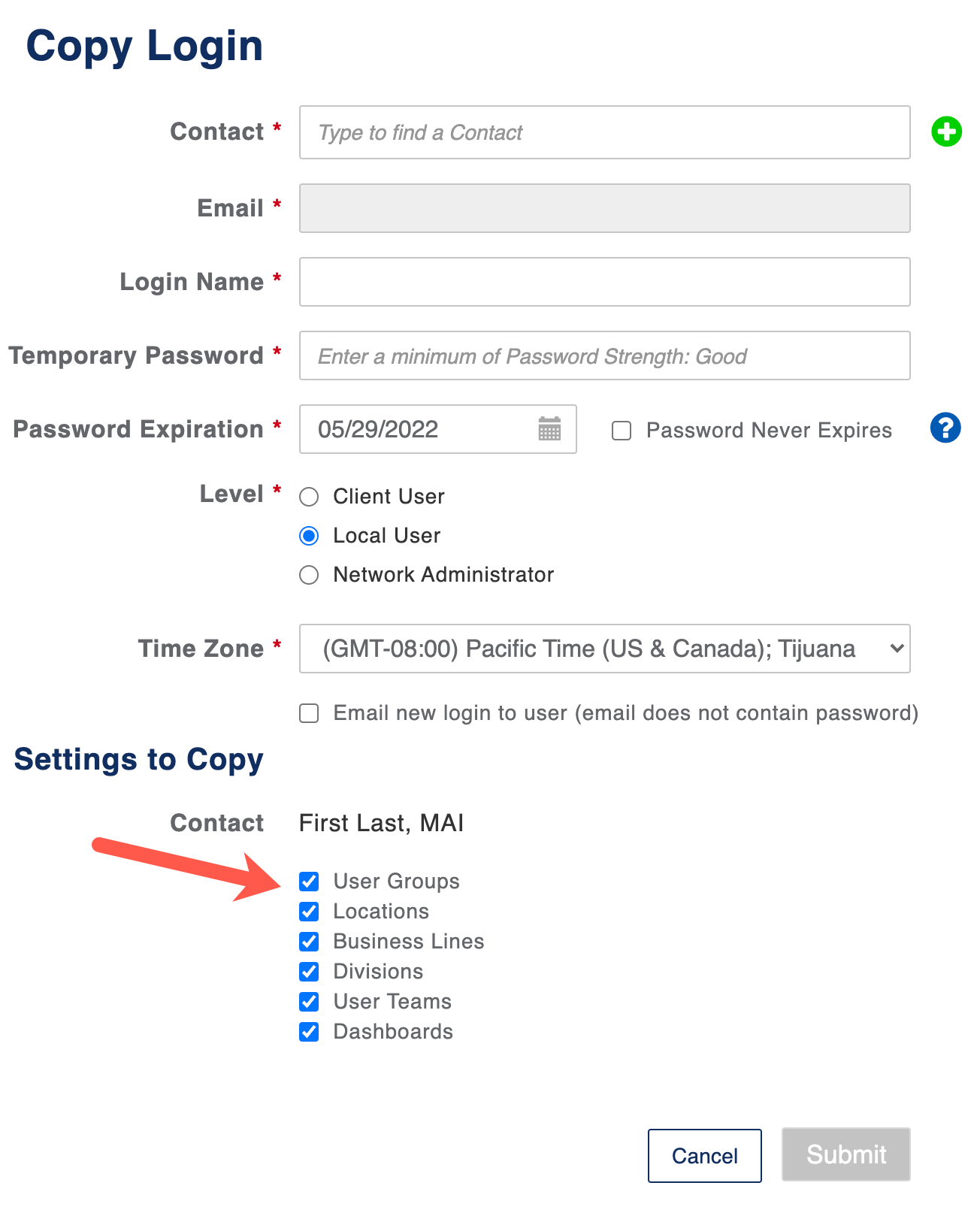
Once you are on the ‘New Login’ creation form, you will see the different options for copying the various attributes from the copied Login.
Related articles
© 2023 CoStar Group
Attachments:
 image-20191114-173059.png (image/png)
image-20191114-212712.png (image/png)
image-20191114-173059.png (image/png)
image-20191114-212712.png (image/png)
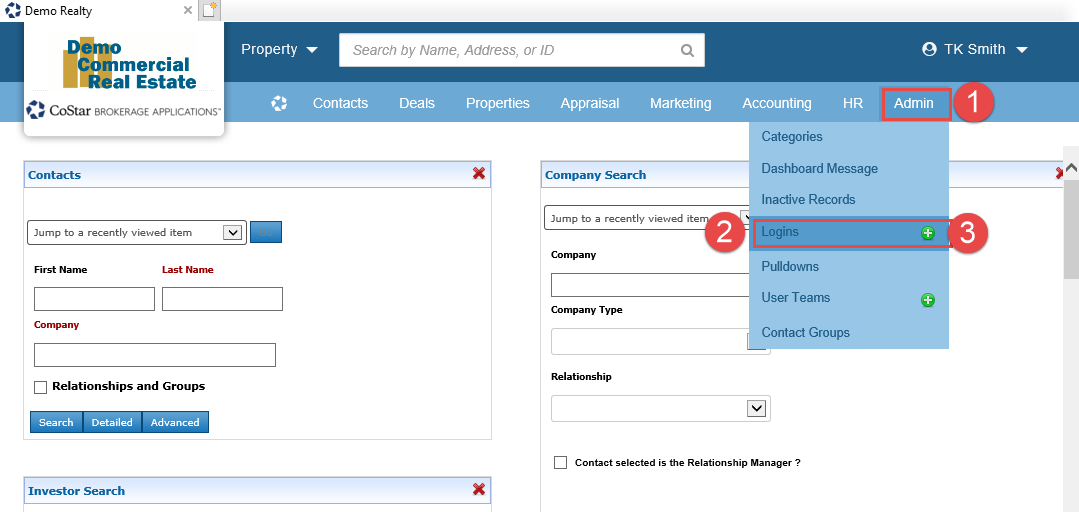 image-20191114-212724.png (image/png)
image-20191114-212735.png (image/png)
image-20191114-213045.png (image/png)
image-20211130-180513.png (image/png)
image-20191114-212724.png (image/png)
image-20191114-212735.png (image/png)
image-20191114-213045.png (image/png)
image-20211130-180513.png (image/png)
 image-20211130-180729.png (image/png)
