Released: November 2018
This document provides an overview of the upcoming changes to the Closed Deal Workflow. These enhancements allow for a faster and more context-specific data entry process.
You can view a recording of the webinar on these new features at https://youtu.be/pt-JvRhcY6c.
Highlights
Navigation has remained the same as it pertains to creating a Closed Deal. You can still create a Closed Deal anywhere you see the “Close this Deal” link (Projects, Needs, Availabilities, and Comps), or via the Closed Deal green plus icon under the “Deals” menu on the main dashboard.
We have incorporated the recent changes from the Comp workflows into the Closed Deal Workflow to
create a consistent experience.The Closed Deal process now starts with a “Get Started” form. This form will allow you to easily define key Deal information, and tie in other information to increase efficiency.
Form Customization
Note to Systems Administrators: If you have used the “Customize Form” feature on the prior version of the Comp Details or Deal Information forms: With the release of the new workflow, we are implementing newly rebuilt forms, so customizations will need to be reviewed and may need to be reapplied.
Customizations Include:
Hidden settings
Tooltips
Background Color
Font color
Font format (bold, italic, underline)
Get Started - Create a Closed Deal
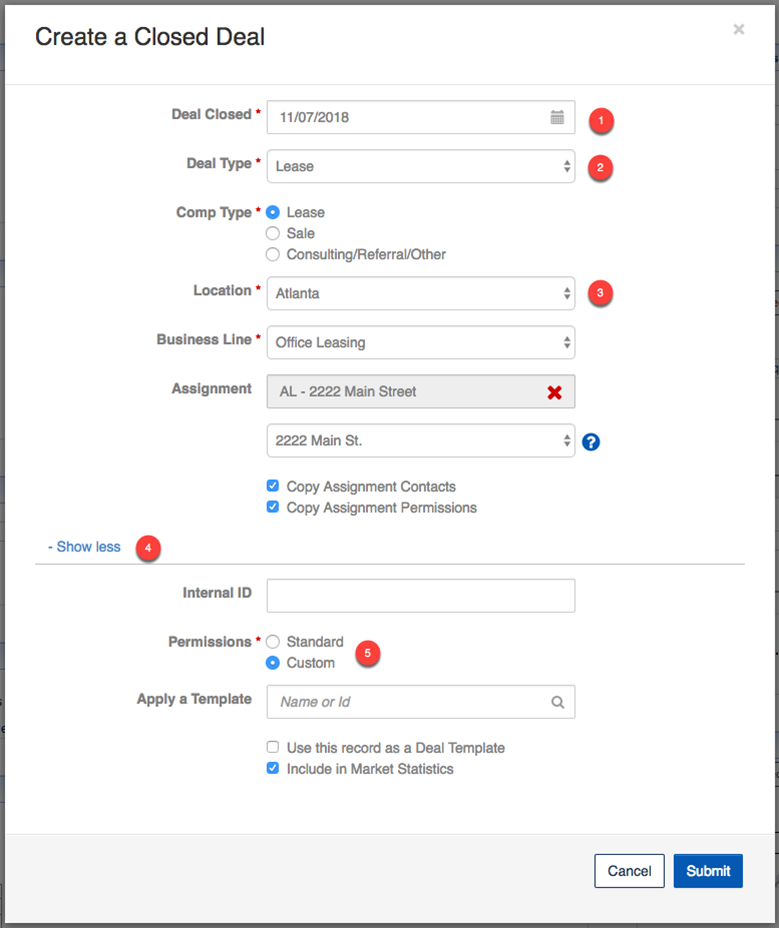
The first step in closing a Deal involves a new form that is similar to the initial form you see when you create a comp. This form identifies key data points and helps set up the workflow to be context-specific, i.e. a Sale Comp Closed Deal does not show Lease Details and vice versa.
The Deal Type (a pulldown that can be customized by your firm) is linked to Comp Type. Selecting the Deal Type drives the Comp Type based on the Filter settings within the pulldown admin module.
Location and Business Line both default to the user’s primary settings, if they weren’t already populated while the Deal was an Availability, Need, Project, etc.
Picking an Assignment allows you to quickly select any Property linked to that Assignment.
The Show more/Show less selection allows you to expand the form to see more fields, or to hide those fields from view.
The Permissions radio button simply puts the Permissions tab inside the workflow if the ‘Custom’ button is selected, but makes no actual updates to the Permissions themselves. By default, the Permissions option will be set to Standard (unless you select an Assignment first), and the system will assign View, Edit, Delete and Admin rights to the record the same way it did before this release.
Workflow Tab Updates
We have reorganized the workflow tabs to reflect a more intuitive approach to the data entry process.

The Closed Deal workflow begins with a ‘comp-like’ workflow (highlighted in red) for all Comp Type options (Lease, Sale, or Referral/Other).
Property, Space and Comp Details tabs have been renamed to reflect the selected Comp Type for each Deal.
The Deal Information form has been rebuilt and appears after defining the Property, Comp, and Contact details.
The Permissions tab no longer displays unless you select the “Custom” option on the Get Started modal. Default record permissions will still be assigned by the system automatically.
The traditional ‘Commission Tracking’ part of the workflow has not changed.
New Lease Comp Details Form
The generic “Comp Details” form has been replaced with more specific “Lease Details” and “Sale Details” forms. You may already be familiar with these forms if you enter Comps into the system that are not Closed Deals.

The new “Lease Details” form has been designed specifically to house Lease information in a logical grouping. The new form allows for a more efficient entry of data while setting up a new Lease comp.
Lease Details Header
The header allows for visibility into important details such as Tenant/Landlord information, Property characteristics, and key Lease information in one place.

Key Dates
Data entered in the “Dates” section helps drive the calculations for Months on Market and Lease Term.
The Commencement and Expiration dates are the key drivers for setting up the Rent Schedule.

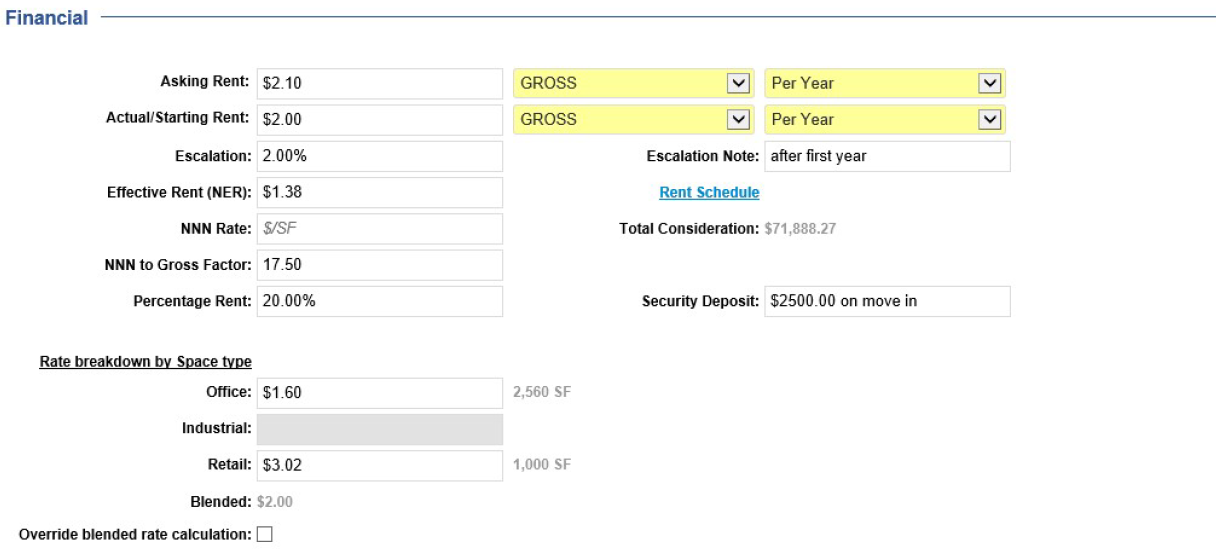
Financial
This section tracks key financial details, and several of the data points are used for calculations in the Rent Schedule (see the Rent Schedule description below for more details). If you have a Property with different space types which are available at different rates, you are able to calculate a blended rate for the entire space.
Please Note: Unless already populated, you will see the Rent Frequency fields default to a new system setting for Rent Frequency. If you are interested in having your default system setting changed or reviewed, please email [email protected].
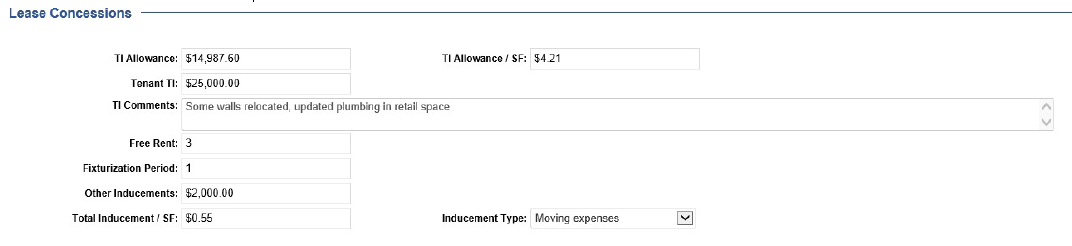
Lease Concessions
Track various data points related to Tenant Improvements and other concessions that are part of the lease agreement.
Operating Expenses (per/SF)
This section allows you to define Operating Expenses, such as:Taxes, CAM, Insurance, and more.

Lease Options
Track all of your Lease Option dates and comments in one place.

Comments
Capture and review different types of applicable comments in one place.

Comp Verification / Source
Track the status, Type, date, and confidentiality of the verification source.

New Lease Comp Details Form: Rent Schedule
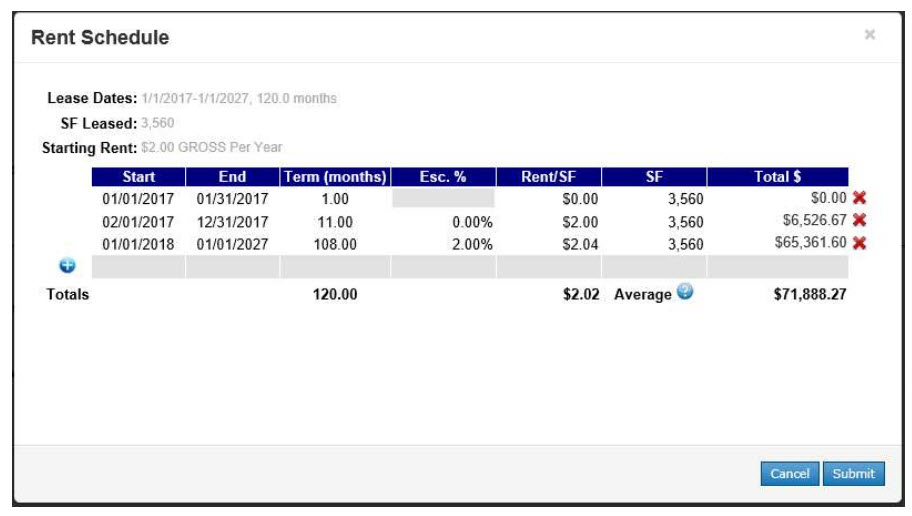
One feature of the Lease Comp Detail form includes a newly engineered Rent Schedule. Several data elements entered into the Lease Details form migrate automatically into the Rent Schedule.
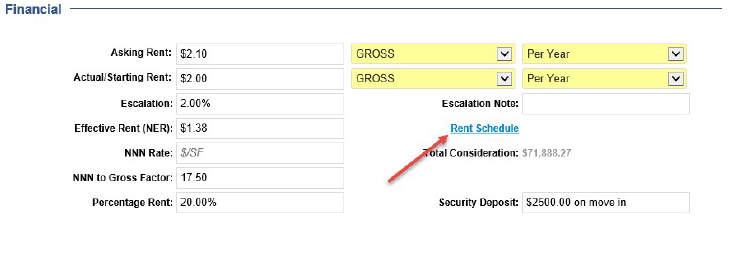
Rent Schedule: Navigation
Navigate to the Rent Schedule through the link in the “Financial” section.
Rent Schedule: Features
Certain fields are pre-populated automatically on every new row.
Track new data points: Escalation %, SF, and Total $
Dates are validated against the ‘Lease Commencement’ and ‘Lease Expiration’ dates from the Lease Details form.
Calculation of Total Consideration, Average Rent/SF, and Lease Term.
Rent Schedule: Calculations
For the first row, the Start date is populated based on the Commencement date, and for subsequent rows is calculated using the End date of the previous row +1 day.
For the first row, as well as subsequent rows, the End date is always initially populated with the Expiration date.
Term is a calculation based on the Start and End dates for a given row, and is rounded to the nearest whole month.
With the exception of the first row, the Esc. % is automatically populated based on Escalation % on the Lease Details form.
For the first row, the Rent/SF is populated based on the Actual Rent/SF entered on the Lease Detail form. With the addition of a new row, the previous row’s Rent/SF figure is used, and increased using the Escalation % (e.g. an Escalation of 2% would use 1.02 as a multiplier).
The Total $ calculation takes into consideration the actual Frequency (either per Month or per Year) on the Lease Details form, as well as the cost per SF and Term.
New Sale Comp Details Form

The new “Sale Details” form has been designed specifically to house Sale information in a logical grouping. The new form allows for more efficient data entry while setting up a new Sale comp.
Sale Details Header
The header allows for visibility into important details such as Buyer/Seller information, Property characteristics, key dates, and Sale record information in one place.
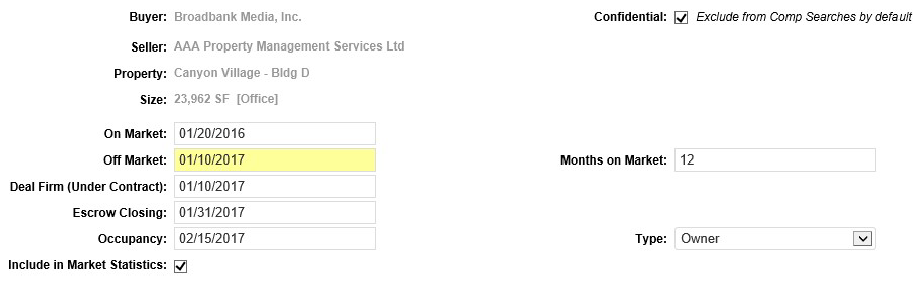
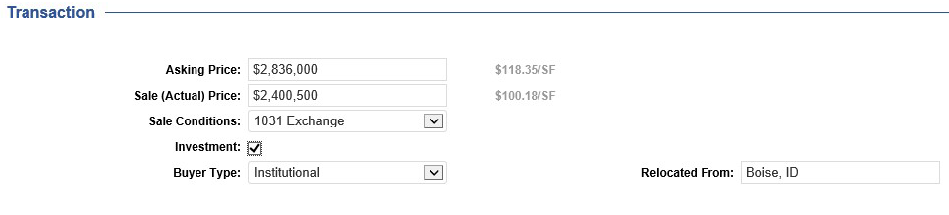
Transaction
Capture important details related to the Sale as it pertains to the Sale Price (Asking and Actual) in addition to the Buyer Type.
Investment Metrics
This updated section eliminates the need for redundant data entry on both the Comp Details and the applicable Income & Expense forms. Choose an existing Income & Expense record, or create a new one, and see important details transfer over to the Sale Comp Details form. (See the Income & Expense section for additional details.)

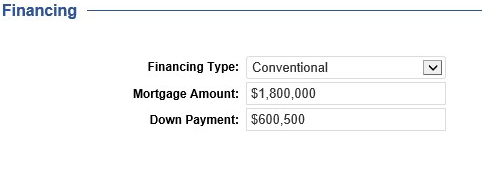
Financing
Capture loan information such as the type of financing and mortgage amounts.
Escrow & Title
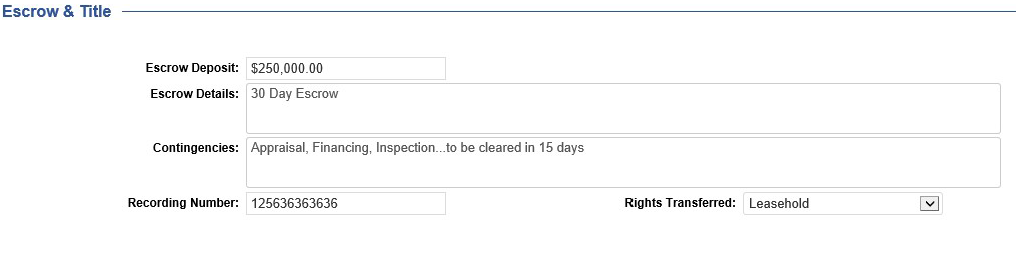
Track pertinent details such as the Escrow Deposit, Contingencies, and Recording information.
Valuation
Capture the appraised value and related comments.

Comments
Capture and review different types of applicable comments in one place.

Comp Verification / Source
Track details about the validation of the data within the Sale Comp record.

New Sale Comp Details: Income & Expense Analysis Form
The new Sale Comp Details form includes a redesign of the existing Income & Expense Analysis form. Several data elements entered into the Income & Expense Analysis form migrate automatically into the Sale Details form.
Income & Expense Analysis Features:
Quickly choose an existing Income & Expense record or create a new one.
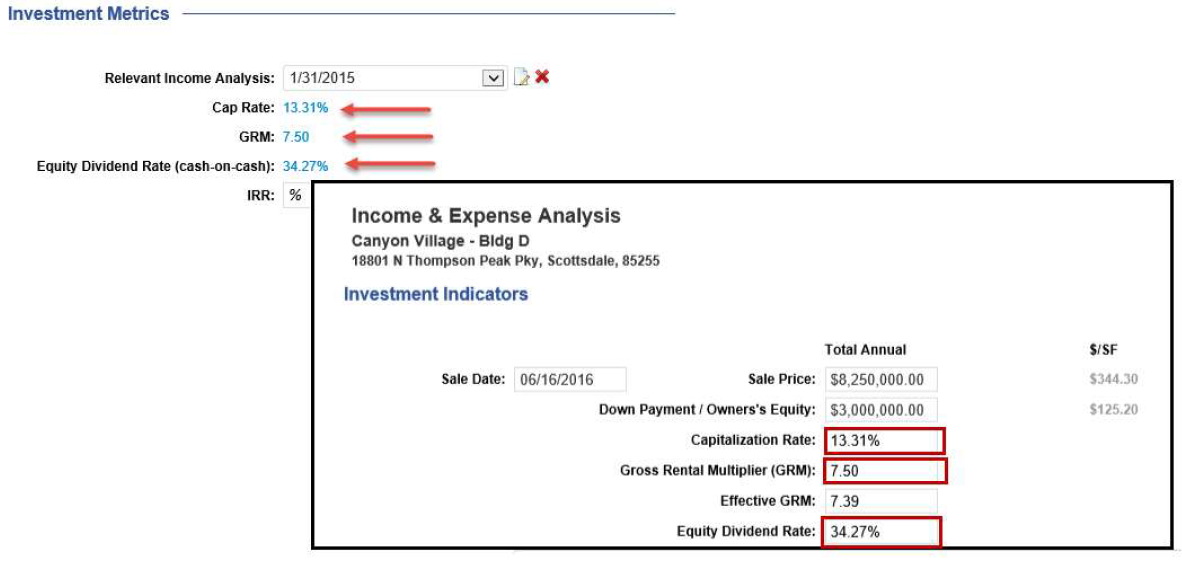
Calculations are performed automatically for key investment metrics, such as Cap Rate, Gross Rental Multiplier, and Equity Dividend Rate.
Key stats now transfer directly from the Income & Expense Summary into the Sale Comp Details form, eliminating the need for duplicate data entry.
Choosing an Existing Income & Expense Record
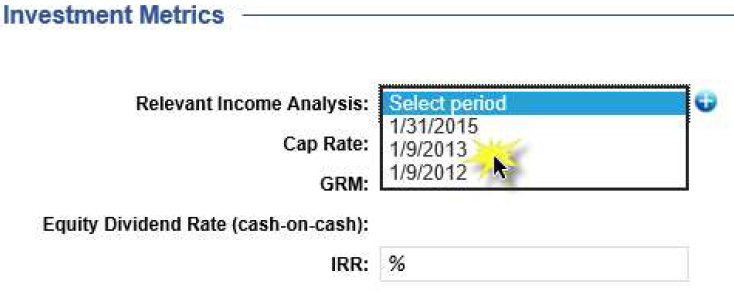
Choose a relevant existing Income and Expense Record from within the Sale Details form using the ‘Select Period’ dropdown.
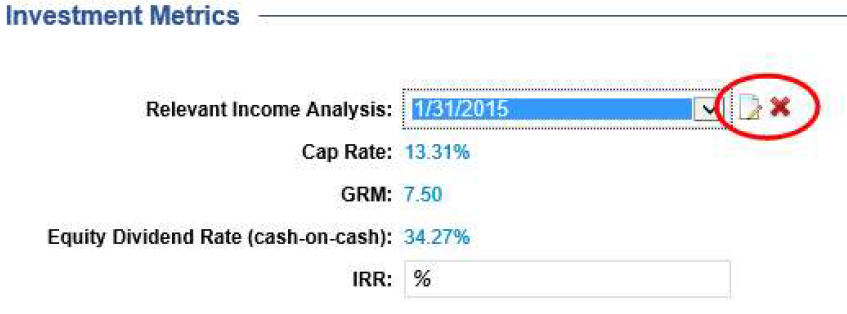
After choosing an existing Income & Expense record by date, you will see the Cap Rate, GRM, and Equity Dividend Rate automatically populate into the Sale Details form. From there, you can remove (X icon) or edit (pencil and paper icon) the Income & Expense details.
Note: Removing the Income and Expense record from the Sales Details form only unlinks the relationship with this particular Sale Comp, and the Income & Expense record remains available and associated with the given Property.
Create and Edit a new Income & Expense Record
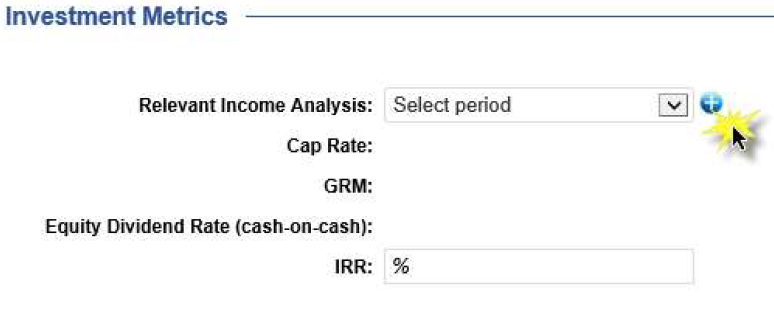
Using the ‘+’ icon, you can create a new Income & Expense record from scratch.
Automatic Data Transfer
Upon selecting an existing Income & Expense record or saving a new one, the following fields are transferred: Cap Rate, GRM, and Equity Dividend Rate.
Deal Information
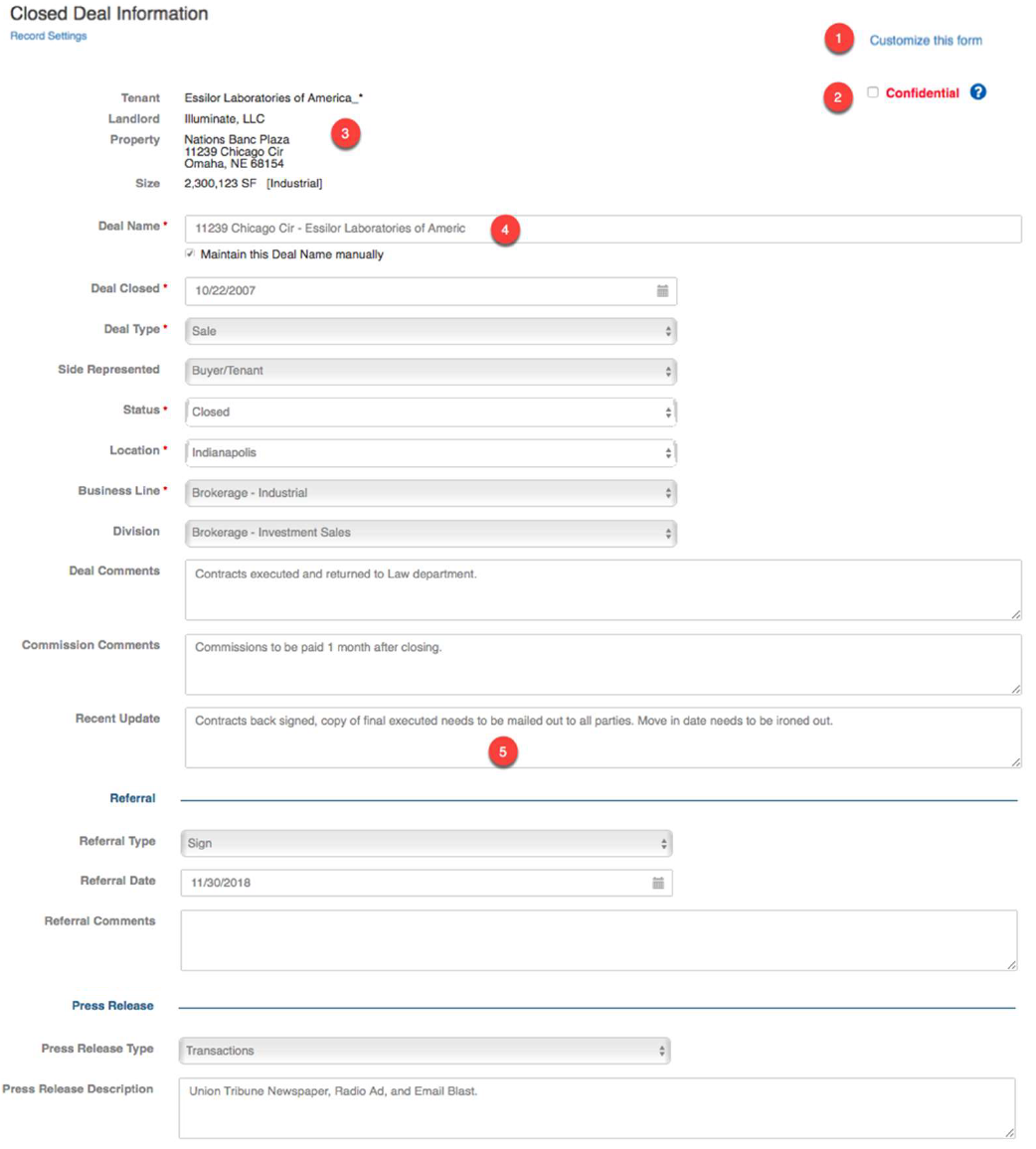
The Deal Information form has been completely rebuilt. Unused fields were removed, fields pertaining to the record (as opposed to the transaction) were moved to a rebuilt Record Settings form. Other features were retained, added or improved upon.
Customization – Make updates to the form to best suit your business process.
Header Information – Reflects Property and Contact information that describes the Deal.
Confidential Flag – Hides this Deal from Comp searches by default.
Deal Name – Now offers a calculation feature which includes the Property Name/Address and relevant Company name (see the next section for details).
Recent Update – A Note will be added to the Deal with a copy of the Recent Update any time this value is changed and the form is submitted.
Deal Name
Previously, every Deal Name had to be entered manually, unless the Deal started out as an Availability. This release includes an enhancement which allows you to let the system populate the Deal Name for you.
Improved naming convention based on Comp Type, i.e. the Building Name (or Address) and
Company Name from Buyer/Tenant (or Client) on the Contacts tab.Check the box to manually maintain the Deal Name.
The Deal Name can be modified from either Record Settings or Deal Information.

Deal Name Examples:
Sale Comp: ‘Building Name/Address – Buyer Company’
Lease Comp: ‘Building Name/Address – Tenant Company’
Other: ‘Building Name/Address – Client Company’
How will this affect my existing Deals?
Every existing deal (closed or not) will retain the current Deal Name.
Any deal entered after this release will be renamed as it becomes a Closed Deal.
Record Settings
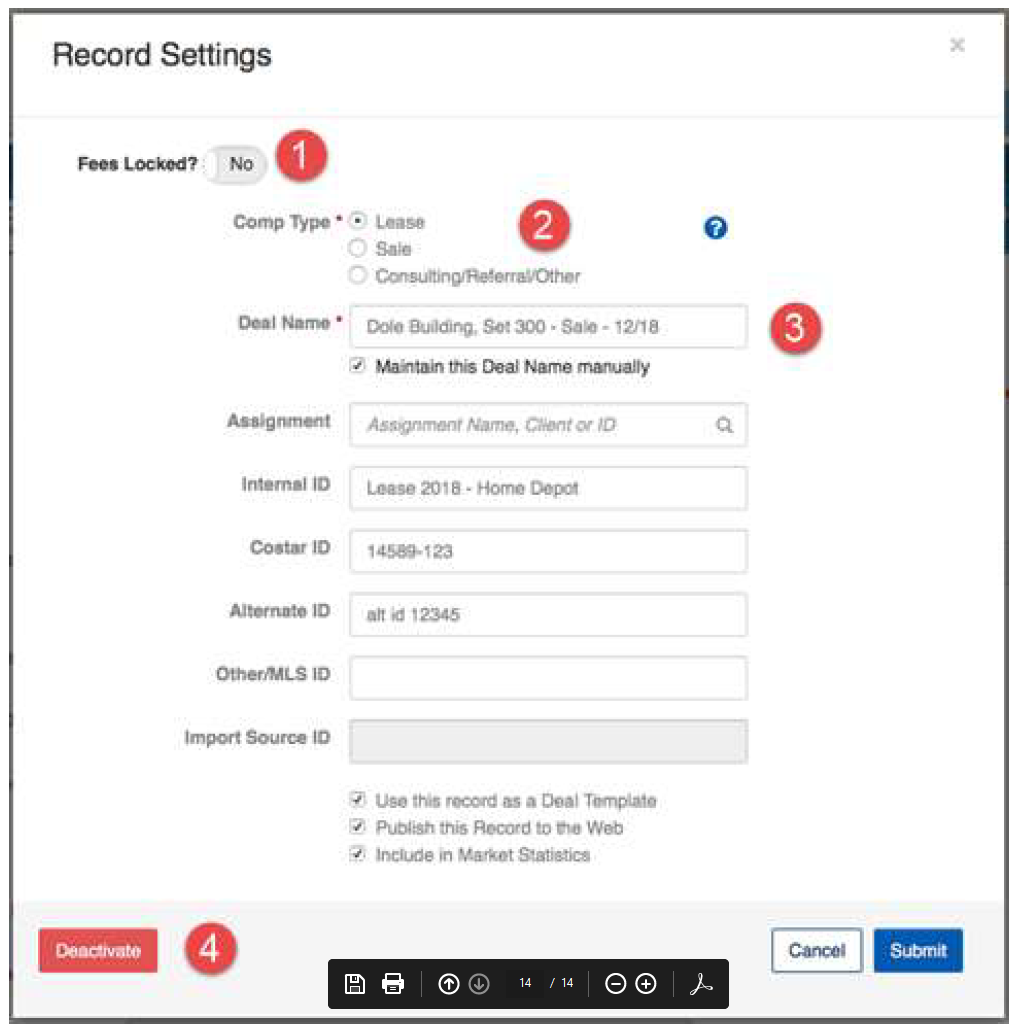
We have rebuilt the Record Settings form and added a link to the Deal Information form for quick access.
Fees Locked - Previously ‘Lock Deal’ on the prior version of the Deal Information form, this feature hides the Fee Calculation and Fee Splits Tab and requires the “CTS:AdminApproval” login User Group to unlock.
Comp Type - We have updated the functionality to allow you to change the Comp Type. The only exception is where you have a Comp Type of “Consulting/Referral/Other’ and a Property has not been selected. To change the Comp Type in this scenario, all you would need to do is add a Property through the ‘Select a Property’ tab.
Deal Name - Maintained the same as on the Deal Information form.
Activate/Deactivate - Updated to be seen as a button on the bottom of the form, the functionality
is the same. Once deactivated, the Deal will be removed from all searches and reports.
Please note: Deals with unvoided Invoices, Payments or Define Splits data cannot be deactivated.
Also note: In a future release, the menu item to control the Activation/Deactivation of a record from the Deal dashboard will be removed to prevent any accidental deactivations.
If you have any questions or would like to schedule a detailed training on these features, please contact [email protected].
© 2023 CoStar Group
Attachments:
 image-20191220-233235.png (image/png)
 image-20191220-233315.png (image/png)
 image-20191220-233442.png (image/png)
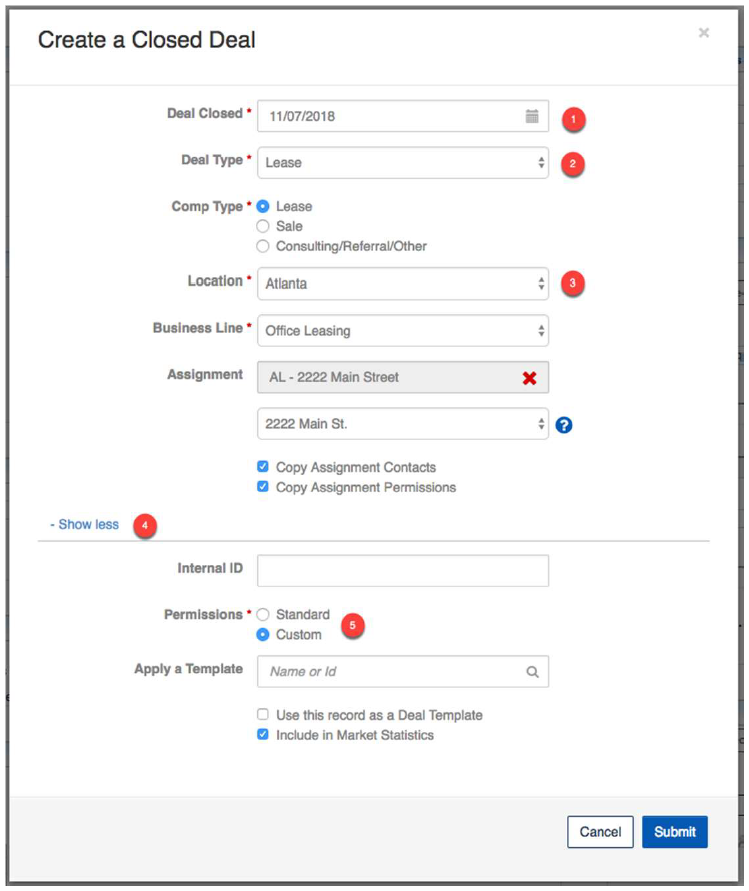 image-20191220-233634.png (image/png)
 image-20191220-233710.png (image/png)
 image-20191220-234524.png (image/png)
 image-20191220-234732.png (image/png)
 image-20191220-235216.png (image/png)
 image-20191220-235253.png (image/png)
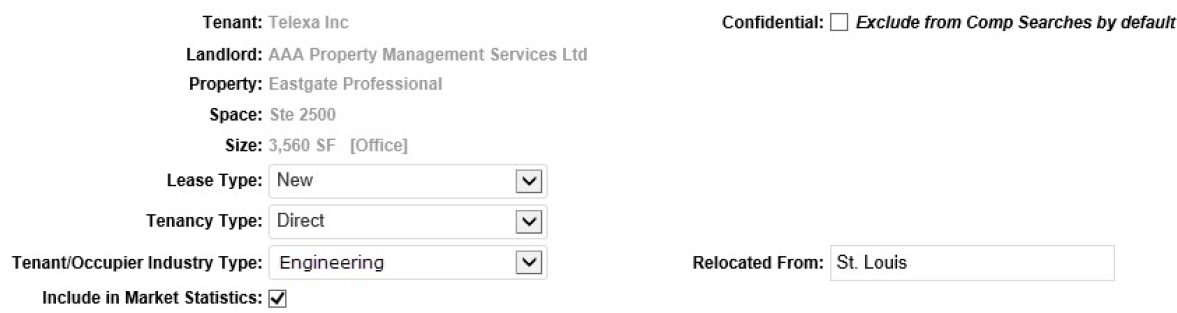 image-20191220-235438.png (image/png)
 image-20191220-235753.png (image/png)
 image-20191220-235939.png (image/png)
 image-20191221-000135.png (image/png)
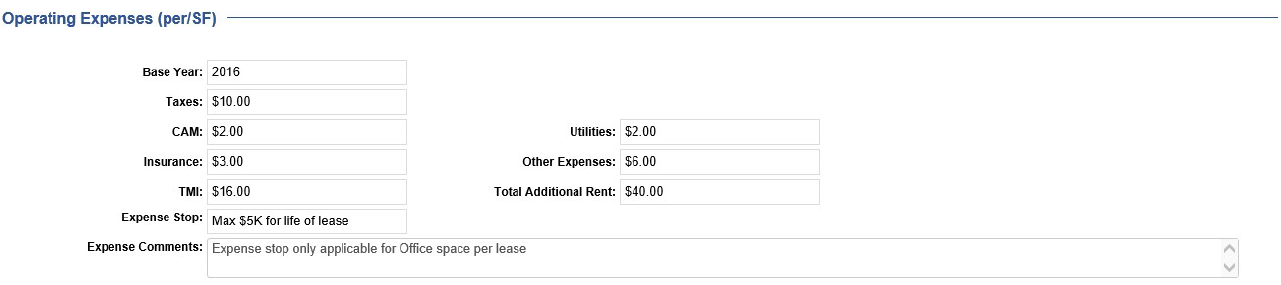 image-20191221-000150.png (image/png)
 image-20191221-000308.png (image/png)
 image-20191221-000424.png (image/png)
 image-20200103-211310.png (image/png)
 image-20200103-211615.png (image/png)
 image-20200103-211920.png (image/png)
 image-20200103-211920.png (image/png)
 image-20200103-212602.png (image/png)
 image-20200103-212602.png (image/png)
 image-20200103-212813.png (image/png)
 image-20200103-212813.png (image/png)
 image-20200103-212948.png (image/png)
 image-20200103-212948.png (image/png)
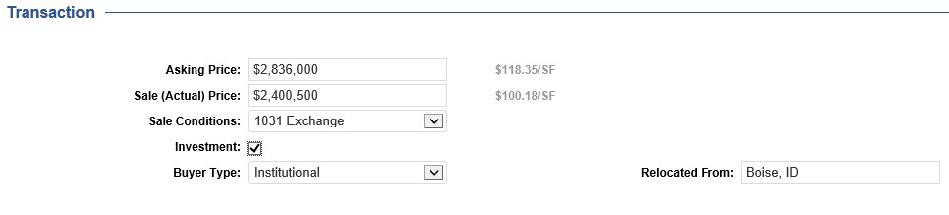 image-20200103-213125.png (image/png)
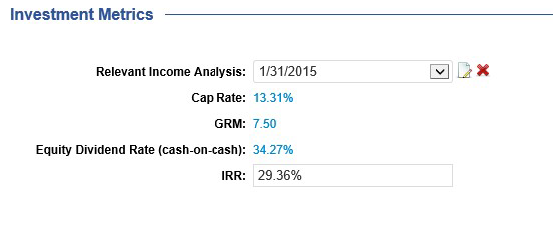 image-20200103-213320.png (image/png)
 image-20200103-213320.png (image/png)
 image-20200103-213443.png (image/png)
 image-20200103-213621.png (image/png)
image-20200103-213621.png (image/png)
image-20200103-213621.png (image/png)
 image-20200103-213728.png (image/png)
image-20200103-213837.png (image/png)
image-20200103-213837.png (image/png)
image-20200103-213728.png (image/png)
image-20200103-213837.png (image/png)
image-20200103-213837.png (image/png)
 image-20200103-214242.png (image/png)
image-20200103-214503.png (image/png)
image-20200103-214637.png (image/png)
image-20200103-214736.png (image/png)
image-20200103-214242.png (image/png)
image-20200103-214503.png (image/png)
image-20200103-214637.png (image/png)
image-20200103-214736.png (image/png)
 image-20200103-214811.png (image/png)
image-20200103-215439.png (image/png)
image-20200103-214811.png (image/png)
image-20200103-215439.png (image/png)
 image-20200103-215439.png (image/png)
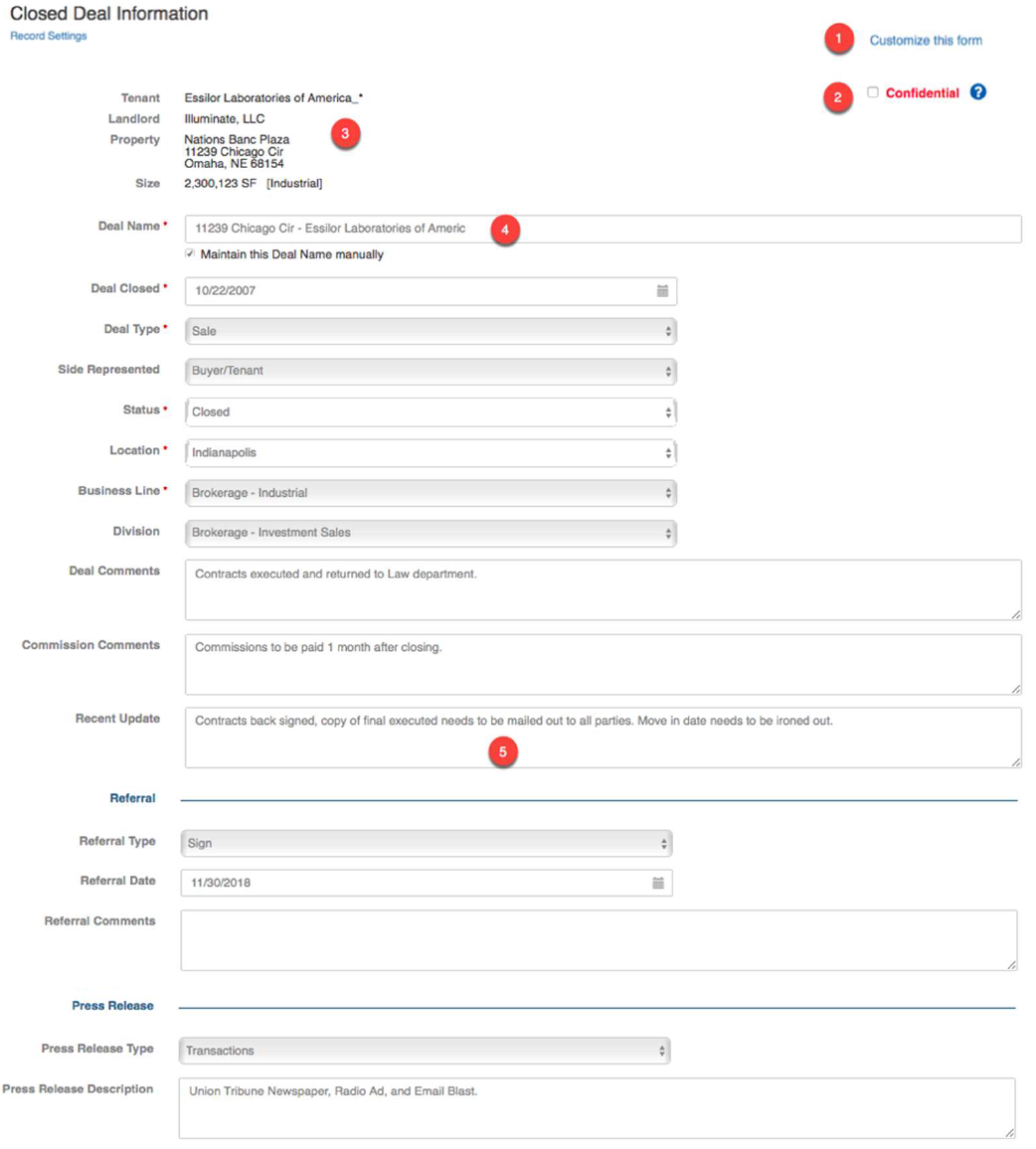 image-20200103-215757.png (image/png)
 image-20200103-215757.png (image/png)
 image-20200103-220454.png (image/png)
 image-20200103-220454.png (image/png)
 image-20200103-222024.png (image/png)
 image-20200110-221039.png (image/png)
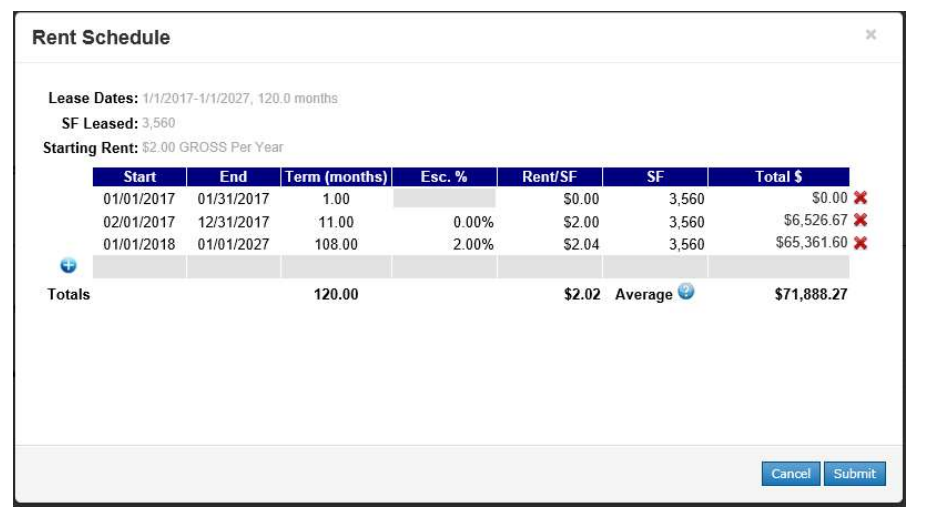 image-20200110-221804.png (image/png)
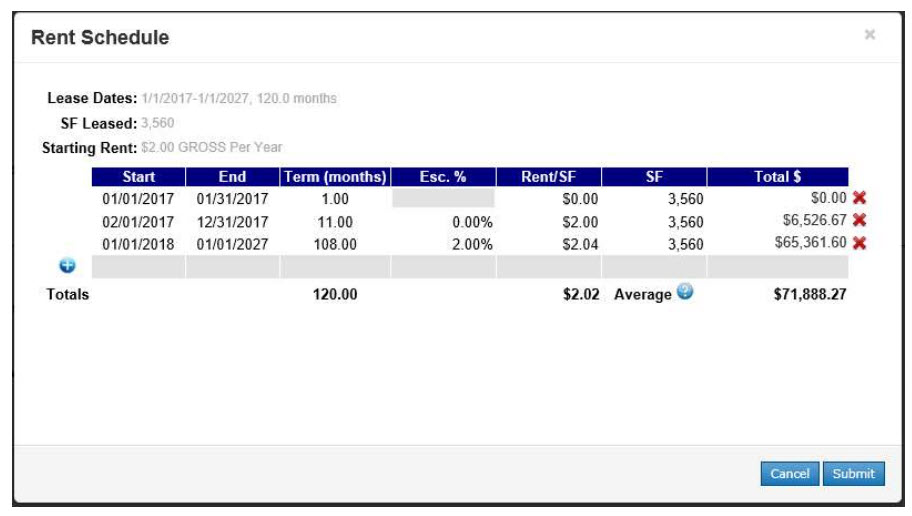 image-20200110-222421.png (image/png)
image-20200117-180329.png (image/png)
image-20200110-222421.png (image/png)
image-20200117-180329.png (image/png)
 image-20200117-180338.png (image/png)