This document provides an overview of the new Property Deduplication process. This new process provides an efficient way for you to select the Properties you wish to deduplicate, pick the best data from any of the selected Properties to move to the winning Property, and deduplicate the rest.
If you have any questions or would like to schedule a detailed training on these features, please contact [email protected].
Highlights
Purpose: The deduplication process moves associated records to a single “winning” Property. For example, existing Availabilities, Comps, Spaces, Notes, Deals, etc. will now be linked to the selected winning Property, and the non-winning Properties are deactivated.
Navigation: The way to access the Property deduplication process is through the Property Inventory search page.
Permissions: A new login user group called “Property: Dedupe” has been added to allow access to the option in the “I want to” menu from the Property Inventory list. No users have been automatically setup with this permission, but you can assign it to any user who needs to be able to deduplicate properties.
Property Selection
The process of deduplicating records begins with an Inventory Property search from the main dashboard. From there, select the Properties you wish to deduplicate, including the winner and up to four duplicates. From the “I want to” dropdown, select “Deduplicate the Selected records”. From there, you will be taken to a workflow to finish the process.

Deduplication Workflow
In most cases, you will be taken to the “Select a Winner” tab, where you are able to select the winning record out of the group, and also to select the desired data for the winning record. If either of the following conditions exist, you will be required to take an extra step to narrow down the list of selected records.
You must select at least 2, but not more than 5 records.
No more than one selected record can be flagged as being managed through CoStar Listing Manager.
If your selection matches one or both of the above criteria, you will be directed to the “Matched Properties” tab in the workflow to narrow down your selection.
Matched Properties
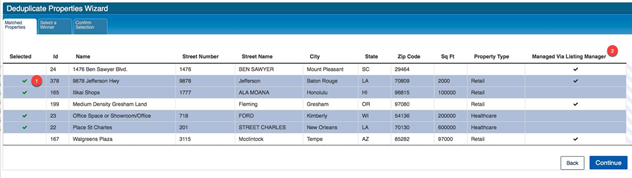
Select Records: To select a record to be included in the deduplication process, simply click anywhere on that row. You should see a green checkmark in the Selected column. If you select more than 5 records, or less than 2, you will be prompted to update your selection.
Managed Via Listing Manager: You are limited to a maximum of 1 Property record which is Managed Via Listing Manager. You can see this setting in the last column.
Once you have a selected a valid group of records, you can click Continue to move on to the “Select a Winner” tab.
Select a Winner
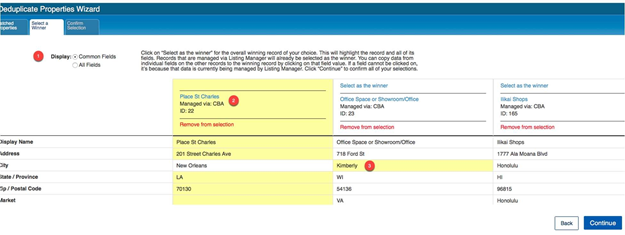
The purpose of this tab in the workflow is to choose the record you want to keep as the winning record, and to select the final set of data to be on that record.
How to choose the winning record and winning data:
You can first choose what types of fields to display. You can pick a short list of common fields, or you can pick the option to view all available fields, which will be divided into logical groupings.
Simply click on “Select as the winner” link in the header of the column. You will immediately see the data for that column highlighted.
Next, you have the option of choosing data from other records to be transferred to the winning record. Simply click on the data point of another record, and you can see that it gets highlighted, and same field in the other column is now unhighlighted. Once you are happy with your record and data selection, click “Continue”.
Please note:
If you decide to change which record is the winning record, any data selections you have made will be lost, and the highlighted section will be reset.
Listing Manager Clients - Please note:
On sets where one of the records is Managed Via Listing Manager you will see some limitations on this tab. Out of the records selected, the Managed Via Listing Manager record will always be selected as the winner. In addition, since Listing Manager controls a specific group of fields, you will not be able to move that data from losing records to the winning record, i.e. you will not be able to select those fields in this tab.
Confirm Selection
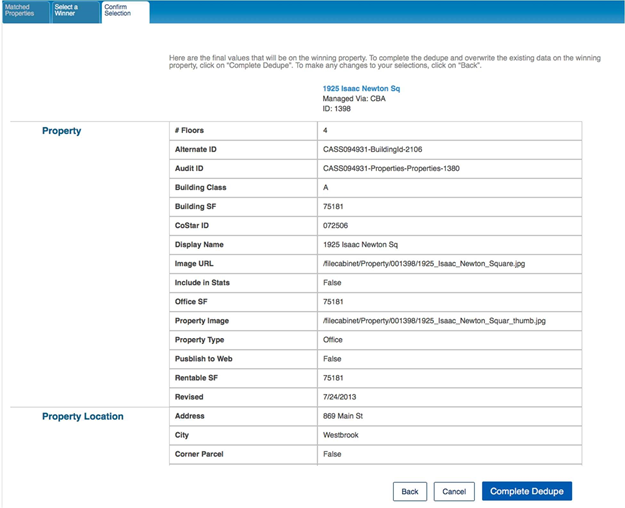
This page will allow you to do one final inspection of all the data that will be written to the winning record. On this page you have the option of finishing the process or clicking the “Back” button to update your selections.
The Deduplication process can take up to several minutes to complete, so after submitting the final data set you have the option of waiting for the confirmation. The other option is to close the workflow, and you will be directed back to the Property Inventory list.
A confirmation email containing the details surrounding the deduplication will be sent to the email associated with your login, including:
A confirmation message stating the process is complete
The number of records deactivated
A link to the chosen winning record
Frequently Asked Questions:
Why can’t I select more than 5 records?
We do limit the record to a max of 5 records, but you are able to go through the Deduplicate process as many times as you would like.
What if I just want to deactivate a group of Property records?
It is not recommended to use the Deduplication process for batch deactivation of records. The recommendation is to individually deactivate Property records. If you have a large population to deactivate, please call or email our Support team for assistance ([email protected]).
On the “Select a Winner” tab, why are some of the rows of data disabled - why can’t I click on some of the fields?
For the Deduplication process containing a record that is Managed Via Listing Manager, the fields that are controlled by Listing Manager are disabled.
On the tab to select the winning record, why don’t I see “Select as the Winner” link at the top of each column?
When there is a record that is Managed Via Listing Manager, that record will automatically be selected as the winner.
Why are there rows of data fields and/or sections missing on the data selection tab?
If there is no data for a given field across all of the selected records, those data fields are hidden. Likewise, if all the data points in a given section are empty, the entire section is hidden.
© 2023 CoStar Group
Attachments:
 image-20191219-003740.png (image/png)
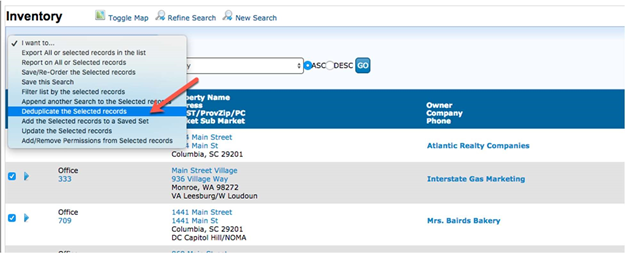 image-20191219-003953.png (image/png)
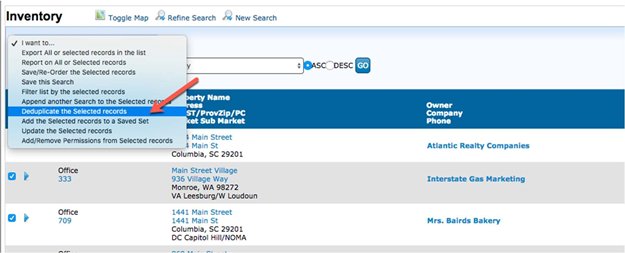 image-20191219-004347.png (image/png)
 image-20191219-004528.png (image/png)
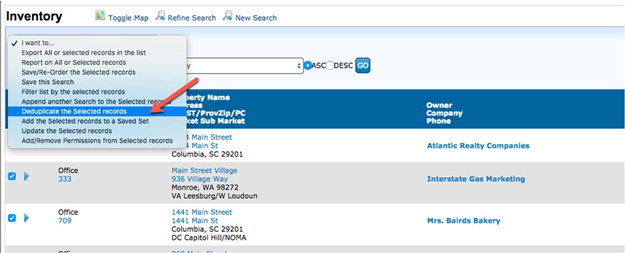 image-20191219-005135.png (image/png)
 image-20191219-005248.png (image/png)
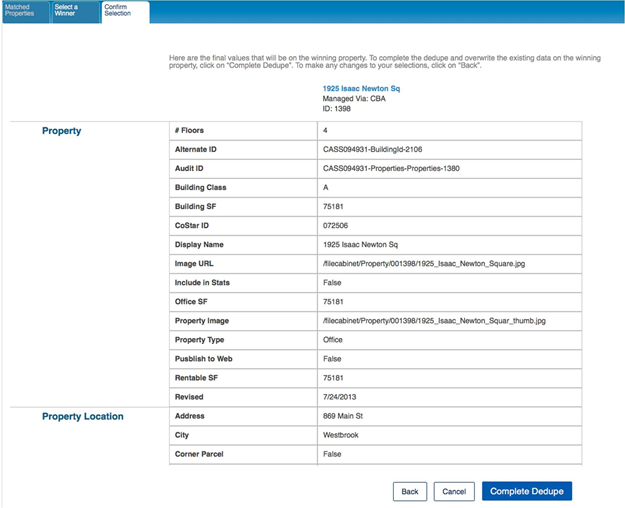 image-20191219-005255.png (image/png)
