Problem
The entire site is frozen when I log in – I can’t enter any information and the page does not scroll down. There’s also that little “ok” next the top left side widget that hasn’t been there before but for some reason, it is popping up now.
Solution
A Chrome Extension installed is most likely interfering with the program.
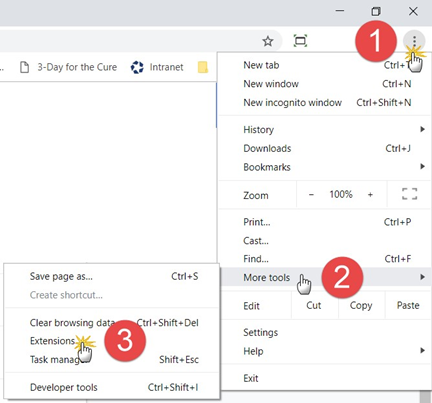
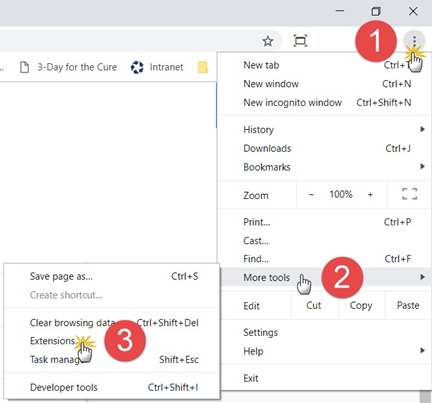
Go to the three vertical dots on the upper right corner of a Chrome Browser
Hover the “More Tools” option
Select the “Extensions”
On the Extensions page, there is at least two columns of Extensions
On the lower right of each Extension box, there is a slider switch that allows the user to temporary disable the Extension
To determine which Extension might be the problem, disable all of the Extensions on one column (For you, look for the “Zoom Info” Extension and start with that Extension only)
Close the Extension page (may not need to close the Extension page as the settings may already be saved the moment they are selected)
Open a new Browser (probably necessary so that the newest Extension settings are being used)
Open CBA (CoStar Brokerage Applications aka REApplications)
Check to see if the “Ok” and/or the “Z” icon are still visible. Check to see if the data fields now accept data
If the OK is still visible, return to the Extension page, enable the column of Extensions that were just disabled
Disable the other column of Extension and repeat the new Browsers page check process
If the Ok sign is no longer visible after disabling the first column, the offending Extension is probably in that column (no need to disable the other column)
Try enabling ½ of the Extensions of the first column, re-check CBA to see if the Ok sign is still visible
Repeat the process until the offending Extension is found
You can read more about managing Chrome extensions here:
© 2023 CoStar Group