This tutorial will go over entering the terms of this lease on the Lease Details form in the Closed Deal workflow.
The Lease Details tab will only be visible in the Closed Deal workflow if this deal has a Comp Type of “Lease”. There is a separate form for Sale Details that only shows up for deals with the “Sale” Comp Type.
Instructions
The Lease Details form encompasses the terms and attributes for this lease, including dates, rent and other financial information, concessions, expenses, options, and so on. As mentioned in previous tutorials, some of these fields may look different when you log in (such as different colors, fonts, or entirely hidden from view). We’ll focus on the key features of this form in this tutorial.

At the top of the form, there is an option to mark this comp as Confidential. This does not hide the comp record from other users in your database – that’s always determined by the record’s Permissions settings. The Confidential setting allows you to indicate that this deal should not be shared externally.

By default, when you search the Comps database, confidential comps will not show up in the results, so you don’t accidentally share them with someone outside of your firm. You do have the option to include confidential comps in your search results if you want to.
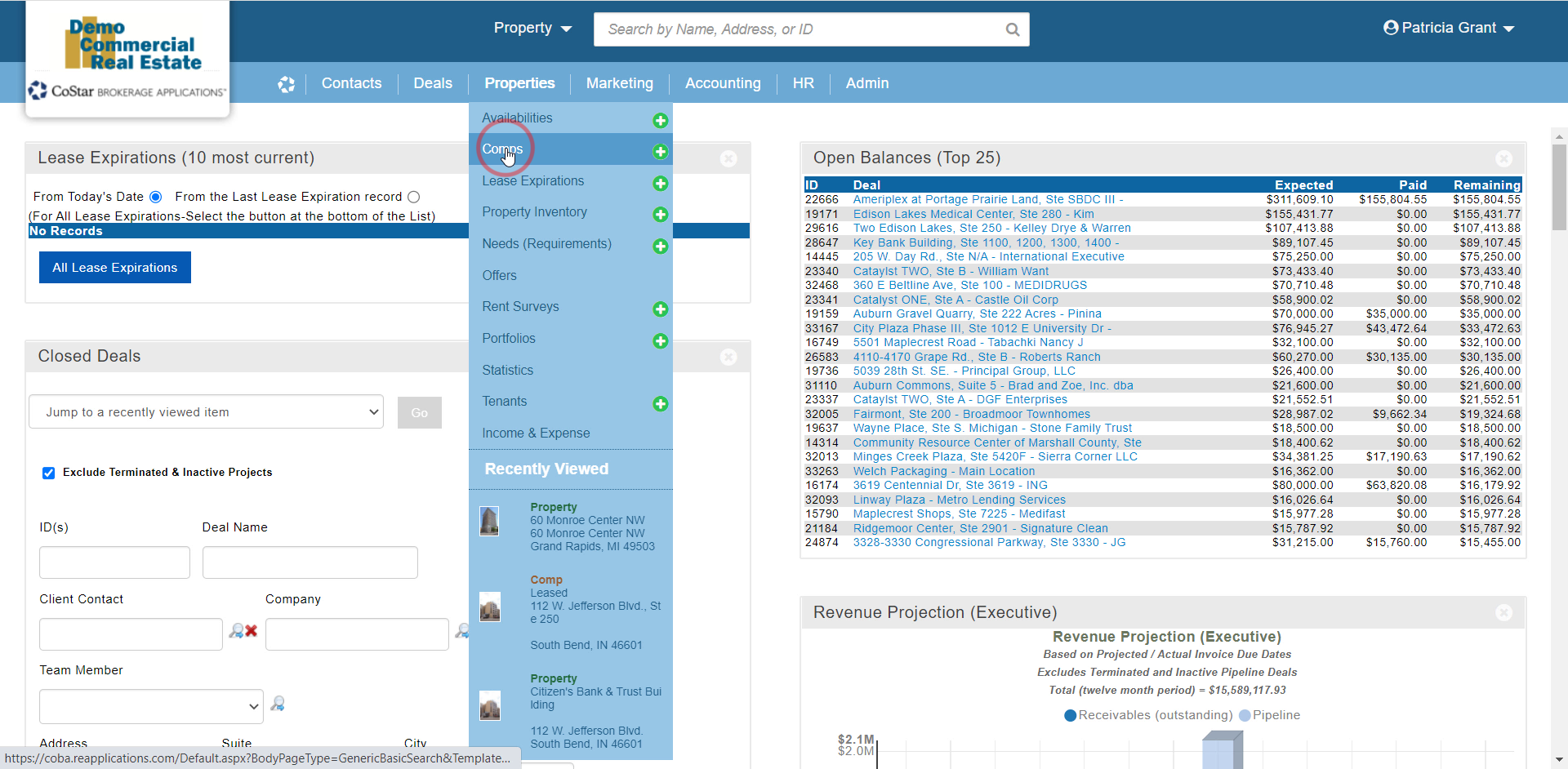

If your Closed Deal started out as an Availability and you need to refer to listing-related fields that aren’t on this form, you can click on the Additional Availability Information link to see those listing details.
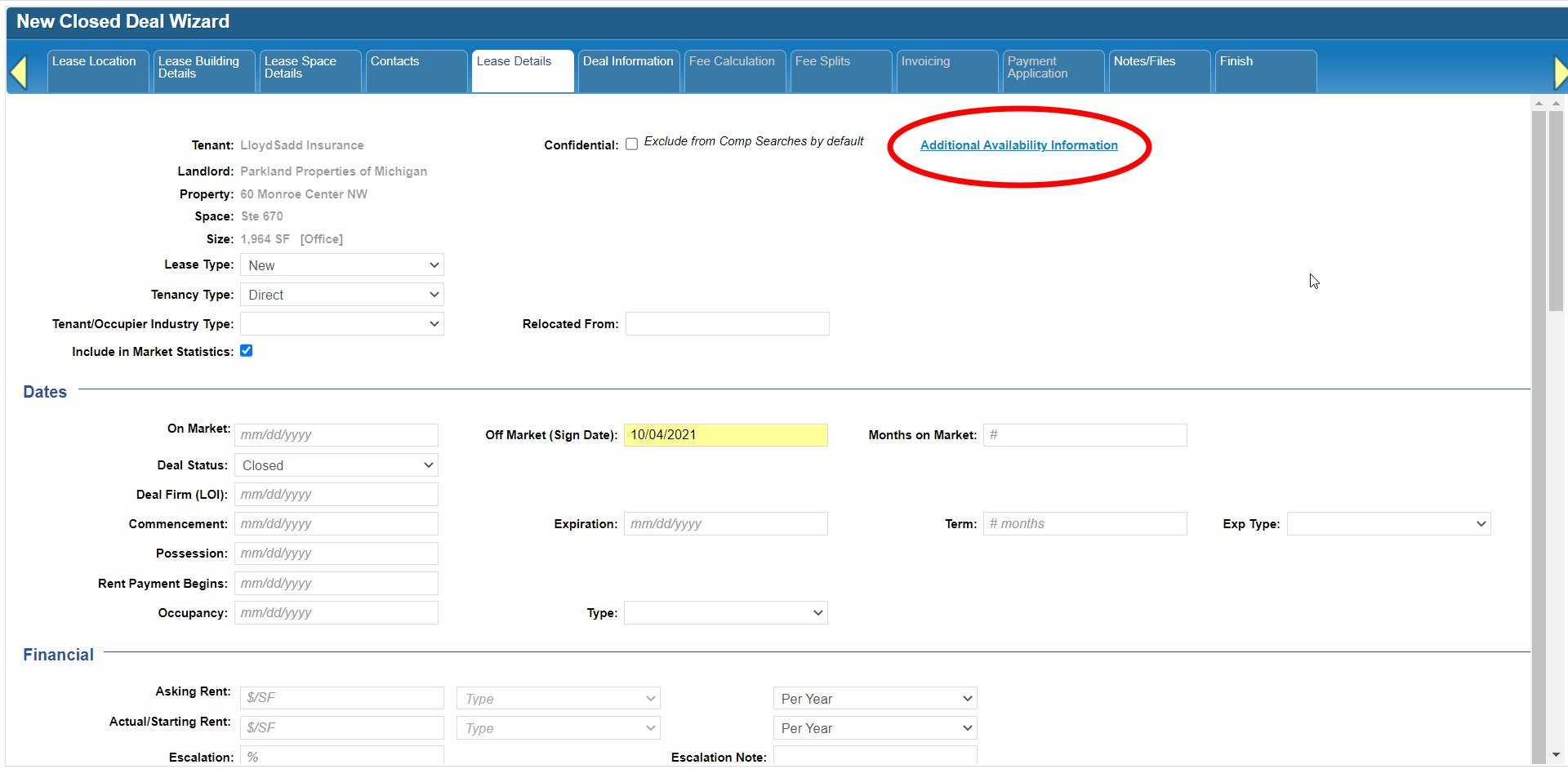
Some fields will already be populated, either because of default settings, or as a result of information you’ve already entered on previous forms, such as the Off Market date. Please note that the Off Market date initially copies the Deal Closed Date from the New Closed Deal modal, but you can change it to something else if needed without affecting the Deal Closed Date.
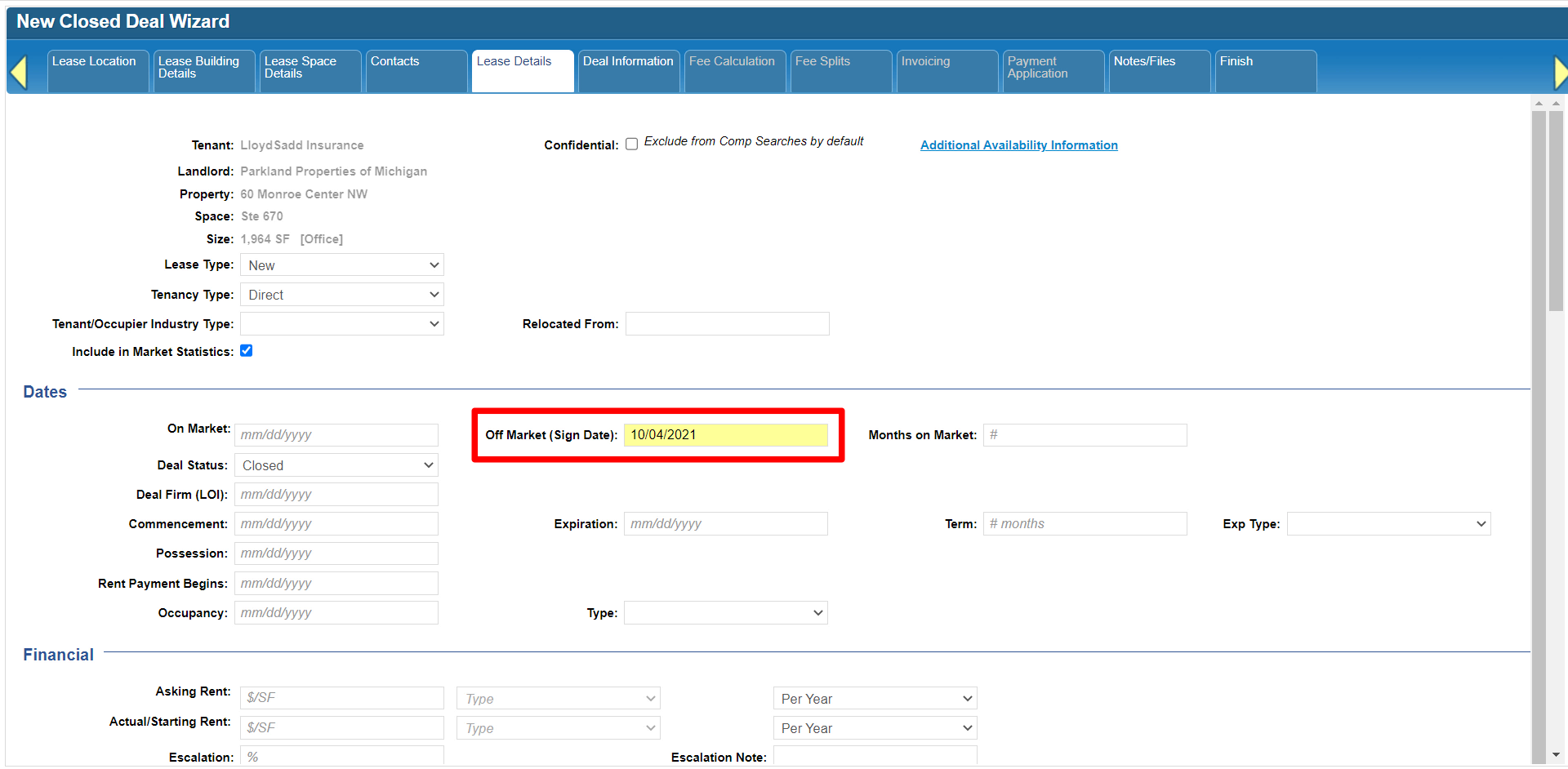
Other fields will calculate automatically based on the information you enter here. For example, Months on Market and the number of months for the Lease Term.
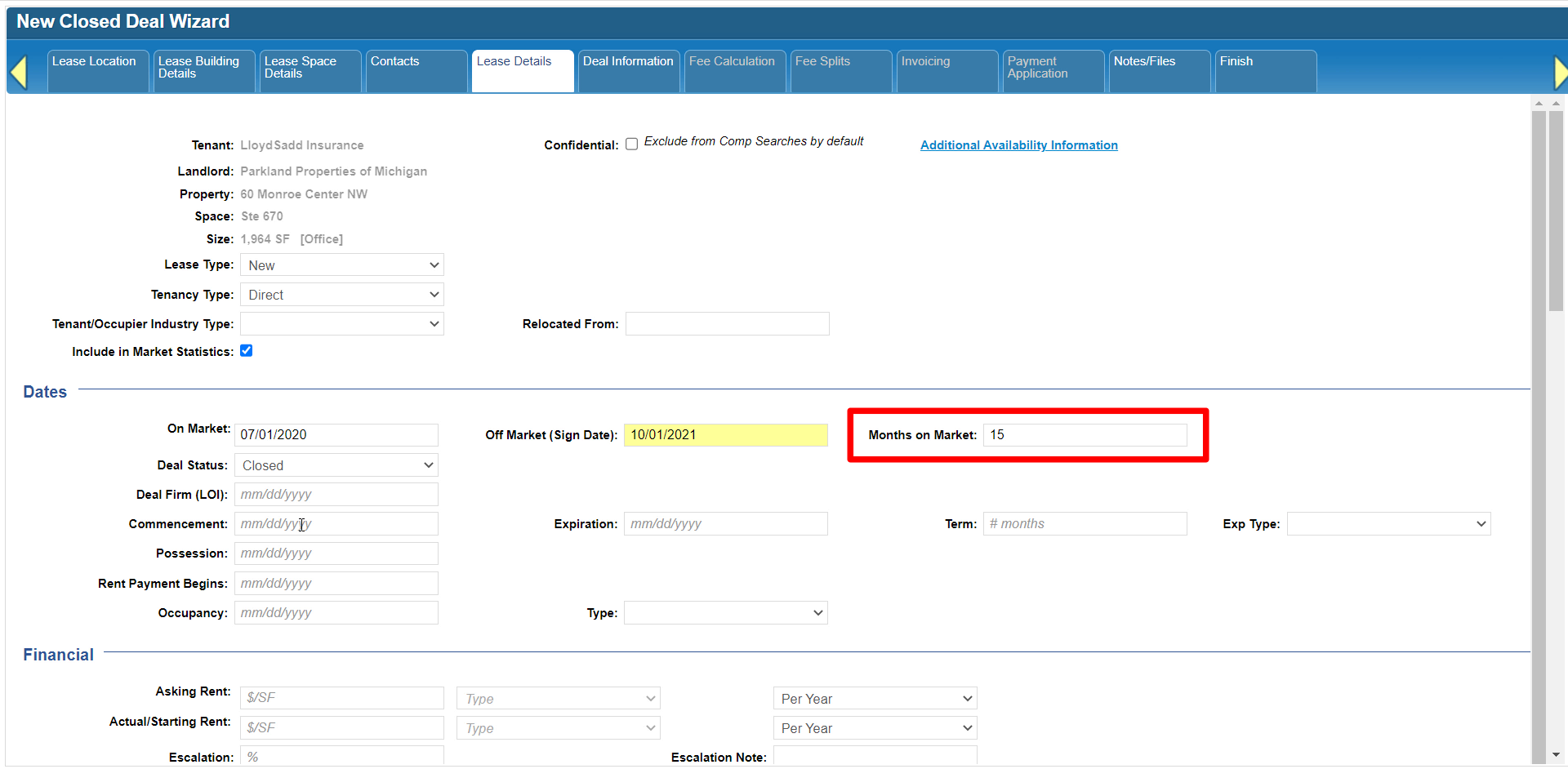

The Rent Schedule form has similar features. Populating the Rent Schedule now will save you time later when you calculate the commission amount for this deal. After entering the Commencement Date, Expiration Date, Starting Rent, and % Escalation, open the Rent Schedule for this lease to calculate the annual rents and Total Consideration for this deal.

The form will come up pre-populated with a line reflecting the entire Lease Term.
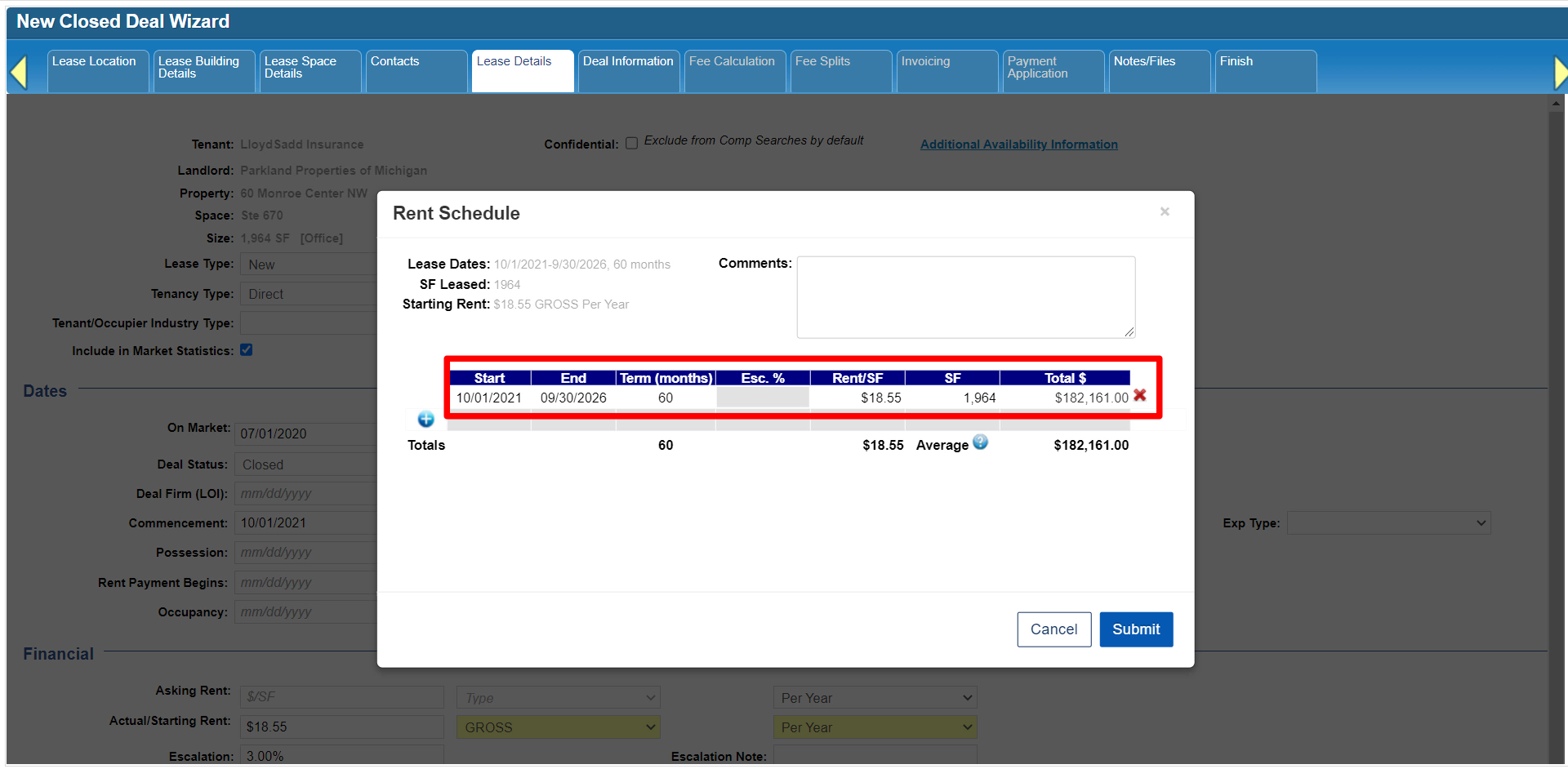
To include escalations or changes in square footage over the term of the lease, change the End date on the first line, then click the plus icon to add a new line.
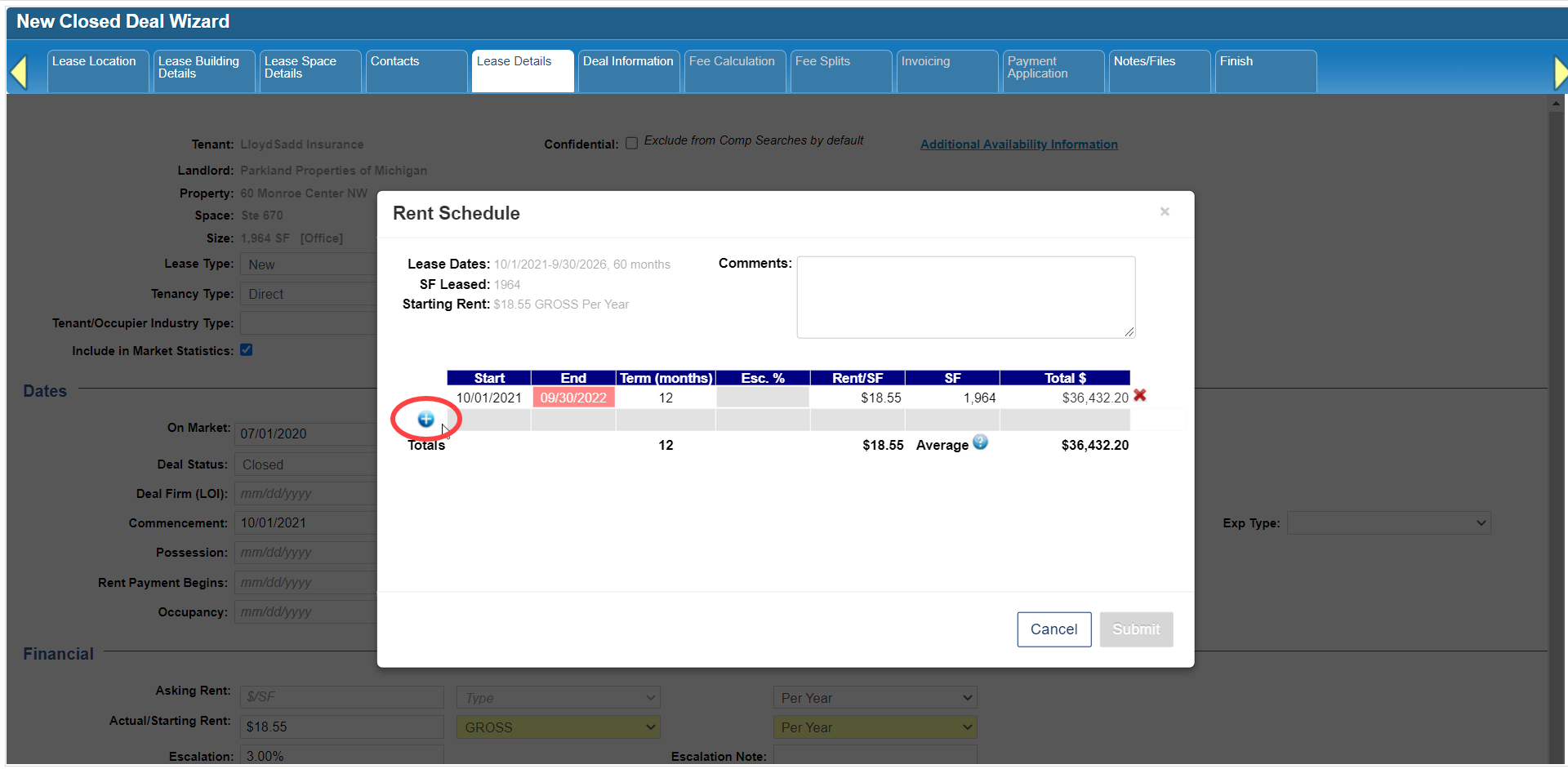
Notice how the new line automatically starts on the next day, with the Escalation % already factored in.

Make other adjustments as needed, then repeat the same steps as before until you have entered the correct details for the entire lease. The system will let you know if there are any issues with the changes, such as a gap or overlap in months.

Click Submit to save your changes.

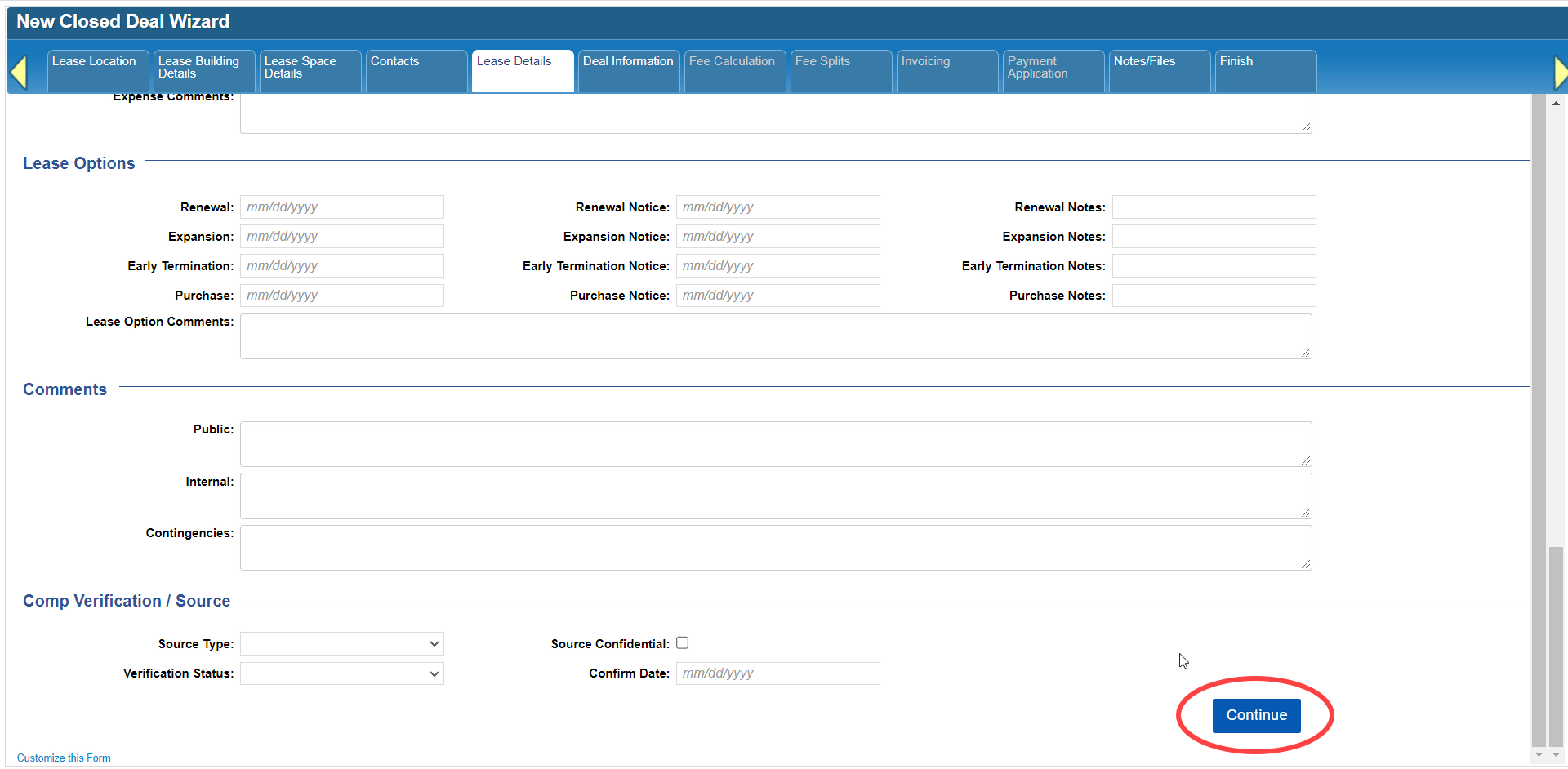
When you’ve finished updating the Lease Details form, scroll to the bottom and click Continue.
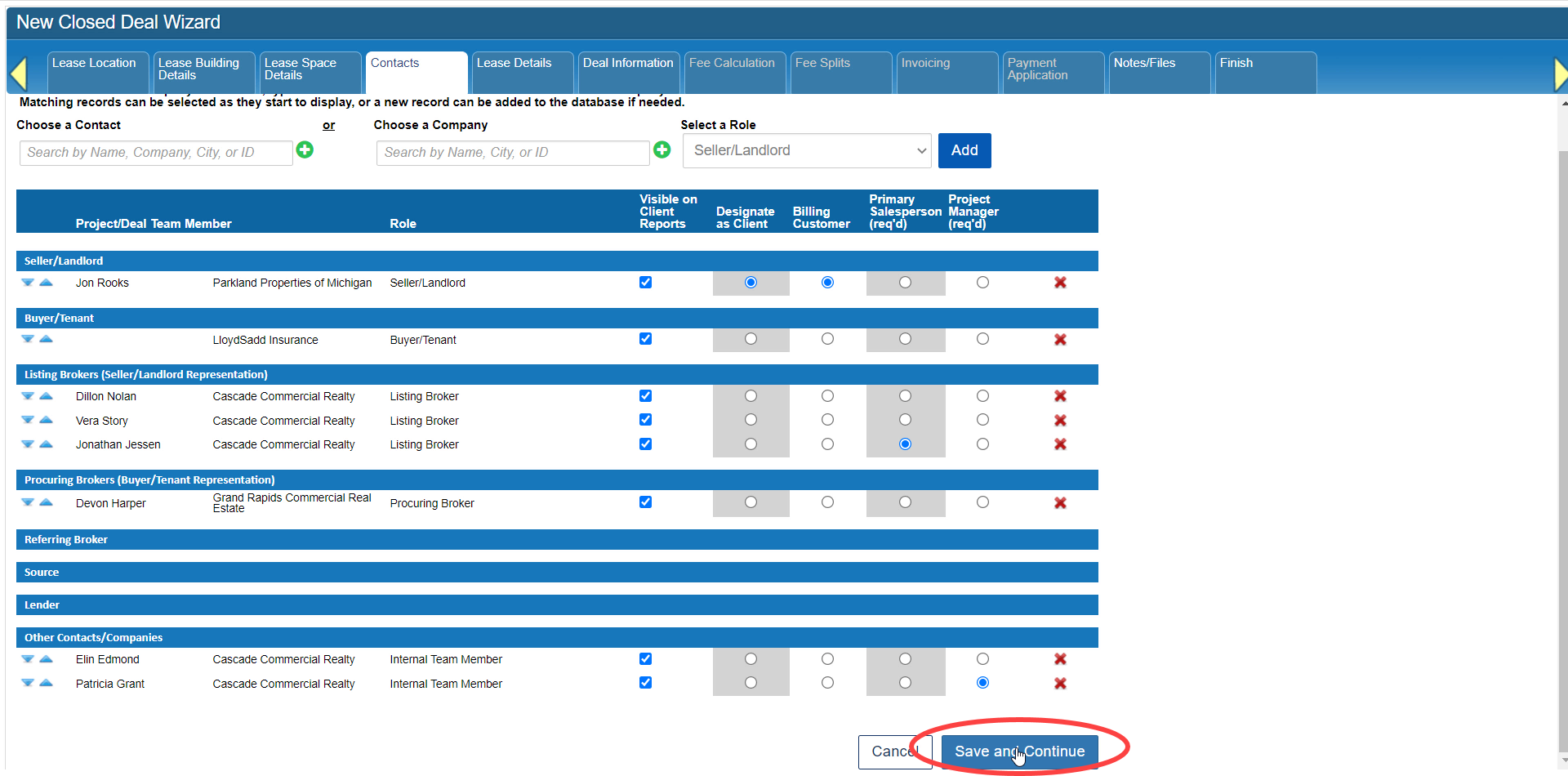
Click here to go to the next tutorial.
Related articles
- How to create a new Closed Deal: Part 2 - New Closed Deal Modal
- How to create a new Closed Deal: Part 3 - Workflow Navigation
- How to create a new Closed Deal: Part 4 - Property
- How to create a new Closed Deal: Part 5 - Space
- How to create a new Closed Deal: Part 6 - Contacts
- How to create a new Closed Deal: Part 7 - Lease Details
- How to create a new Closed Deal: Part 8 - Deal Information
- How to create a new Closed Deal: Part 9 - Fee Calculation
- How to create a new Closed Deal: Part 10 - Fee Splits
- How to create a new Closed Deal: Part 11 - Invoicing
- How to create a new Closed Deal: Part 12 - Payments
- How to create a new Closed Deal: Part 13 - Notes/Files
- How to create a new Closed Deal: Part 14 - Link Project
- How to create a new Closed Deal: Part 15 - Deal Share
- How to create a new Closed Deal: Part 16 - Billing Schedule
- How to create a new Closed Deal: Part 17 - Net Adjustments
- How to create a new Closed Deal: Part 18 - Annuity Schedule
- How to create a new Closed Deal: Part 19 - Sale Details
- How to create a new Closed Deal: Part 20 - Other Starting Points
© 2023 CoStar Group
Attachments:
 CBA - Entering a Closed Deal - 06 Contacts (Time 0_03_02;26).png (image/png)
 CBA - Entering a Closed Deal - 06 Contacts (Time 0_03_00;07).png (image/png)
 CBA - Entering a Closed Deal - 06 Contacts (Time 0_02_30;08).png (image/png)
 CBA - Entering a Closed Deal - 06 Contacts (Time 0_02_26;14).png (image/png)
 CBA - Entering a Closed Deal - 06 Contacts (Time 0_02_08;13).png (image/png)
 CBA - Entering a Closed Deal - 06 Contacts (Time 0_01_58;01).png (image/png)
 CBA - Entering a Closed Deal - 06 Contacts (Time 0_01_52;12).png (image/png)
 CBA - Entering a Closed Deal - 06 Contacts (Time 0_01_40;29).png (image/png)
 CBA - Entering a Closed Deal - 06 Contacts (Time 0_01_27;02).png (image/png)
 CBA - Entering a Closed Deal - 06 Contacts (Time 0_01_21;18).png (image/png)
 CBA - Entering a Closed Deal - 06 Contacts (Time 0_00_51;04).png (image/png)
 CBA - Entering a Closed Deal - 06 Contacts (Time 0_00_33;28).png (image/png)
 CBA - Entering a Closed Deal - 04 Property (Time 0_02_52;14).png (image/png)
 CBA - Entering a Closed Deal - 04 Property (Time 0_02_44;24).png (image/png)
 CBA - Entering a Closed Deal - 04 Property (Time 0_02_38;22).png (image/png)
 CBA - Entering a Closed Deal - 04 Property (Time 0_02_19;12).png (image/png)
 CBA - Entering a Closed Deal - 04 Property (Time 0_02_12;07).png (image/png)
 CBA - Entering a Closed Deal - 04 Property (Time 0_02_00;11).png (image/png)
 CBA - Entering a Closed Deal - 04 Property (Time 0_01_40;21).png (image/png)
 CBA - Entering a Closed Deal - 04 Property (Time 0_01_37;08).png (image/png)
 CBA - Entering a Closed Deal - 04 Property (Time 0_01_32;17).png (image/png)
 CBA - Entering a Closed Deal - 04 Property (Time 0_01_25;02).png (image/png)
 CBA - Entering a Closed Deal - 04 Property (Time 0_01_14;23).png (image/png)
 CBA - Entering a Closed Deal - 04 Property (Time 0_00_59;14).png (image/png)
 CBA - Entering a Closed Deal - 04 Property (Time 0_00_29;24).png (image/png)
 CBA - Entering a Closed Deal - 04 Property (Time 0_00_19;25).png (image/png)
 CBA - Entering a Closed Deal - 02 New Closed Deal Modal all (Time 0_04_23;06).png (image/png)
 CBA - Entering a Closed Deal - 02 New Closed Deal Modal all (Time 0_04_18;08).png (image/png)
 CBA - Entering a Closed Deal - 02 New Closed Deal Modal all (Time 0_03_50;03).png (image/png)
 CBA - Entering a Closed Deal - 02 New Closed Deal Modal all (Time 0_03_28;13).png (image/png)
 CBA - Entering a Closed Deal - 02 New Closed Deal Modal all (Time 0_03_25;09).png (image/png)
 CBA - Entering a Closed Deal - 02 New Closed Deal Modal all (Time 0_02_59;26).png (image/png)
 CBA - Entering a Closed Deal - 02 New Closed Deal Modal all (Time 0_01_27;23).png (image/png)
 CBA - Entering a Closed Deal - 02 New Closed Deal Modal all (Time 0_02_30;26).png (image/png)
 CBA - Entering a Closed Deal - 02 New Closed Deal Modal all (Time 0_02_47;26).png (image/png)
 CBA - Entering a Closed Deal - 02 New Closed Deal Modal all (Time 0_02_43;16).png (image/png)
 CBA - Entering a Closed Deal - 02 New Closed Deal Modal all (Time 0_02_35;01).png (image/png)
 CBA - Entering a Closed Deal - 02 New Closed Deal Modal all (Time 0_02_02;26).png (image/png)
 CBA - Entering a Closed Deal - 02 New Closed Deal Modal all (Time 0_01_54;08).png (image/png)
 CBA - Entering a Closed Deal - 02 New Closed Deal Modal all (Time 0_01_44;04).png (image/png)
 CBA - Entering a Closed Deal - 02 New Closed Deal Modal all (Time 0_01_09;13).png (image/png)
 CBA - Entering a Closed Deal - 02 New Closed Deal Modal all (Time 0_00_31;29).png (image/png)
 CBA - Entering a Closed Deal - 03 Workflow Navigation (Time 0_00_23;29).png (image/png)
 CBA - Entering a Closed Deal - 03 Workflow Navigation (Time 0_00_37;04).png (image/png)
 CBA - Entering a Closed Deal - 03 Workflow Navigation (Time 0_00_48;01).png (image/png)
 CBA - Entering a Closed Deal - 03 Workflow Navigation (Time 0_01_01;06).png (image/png)
 CBA - Entering a Closed Deal - 03 Workflow Navigation (Time 0_01_27;28).png (image/png)
 CBA - Entering a Closed Deal - 05 Space (Time 0_00_21;08).png (image/png)
 CBA - Entering a Closed Deal - 05 Space (Time 0_00_26;10).png (image/png)
 CBA - Entering a Closed Deal - 05 Space (Time 0_00_30;17).png (image/png)
 CBA - Entering a Closed Deal - 05 Space (Time 0_00_42;06).png (image/png)
 CBA - Entering a Closed Deal - 05 Space (Time 0_01_00;08).png (image/png)
 CBA - Entering a Closed Deal - 05 Space (Time 0_01_04;25).png (image/png)
 CBA - Entering a Closed Deal - 05 Space (Time 0_01_11;23).png (image/png)
 CBA - Entering a Closed Deal - 05 Space (Time 0_01_24;18).png (image/png)
 CBA - Entering a Closed Deal - 05 Space (Time 0_02_43;08).png (image/png)
 CBA - Entering a Closed Deal - 05 Space (Time 0_02_48;10).png (image/png)
 CBA - Entering a Closed Deal - 07 Lease Details (Time 0_00_19;09).png (image/png)
CBA - Entering a Closed Deal - 07 Lease Details (Time 0_01_03;21).png (image/png)
CBA - Entering a Closed Deal - 07 Lease Details (Time 0_01_26;00).png (image/png)
CBA - Entering a Closed Deal - 07 Lease Details (Time 0_01_30;17).png (image/png)
CBA - Entering a Closed Deal - 07 Lease Details (Time 0_01_52;03).png (image/png)
CBA - Entering a Closed Deal - 07 Lease Details (Time 0_02_08;29).png (image/png)
CBA - Entering a Closed Deal - 07 Lease Details (Time 0_02_33;17).png (image/png)
CBA - Entering a Closed Deal - 07 Lease Details (Time 0_02_40;00).png (image/png)
CBA - Entering a Closed Deal - 07 Lease Details (Time 0_02_59;26).png (image/png)
CBA - Entering a Closed Deal - 07 Lease Details (Time 0_03_10;18).png (image/png)
CBA - Entering a Closed Deal - 07 Lease Details (Time 0_03_23;17).png (image/png)
CBA - Entering a Closed Deal - 07 Lease Details (Time 0_03_28;24).png (image/png)
CBA - Entering a Closed Deal - 07 Lease Details (Time 0_03_50;07).png (image/png)
CBA - Entering a Closed Deal - 07 Lease Details (Time 0_03_58;14).png (image/png)
CBA - Entering a Closed Deal - 07 Lease Details (Time 0_04_05;00).png (image/png)
CBA - Entering a Closed Deal - 07 Lease Details (Time 0_00_19;09).png (image/png)
CBA - Entering a Closed Deal - 07 Lease Details (Time 0_01_03;21).png (image/png)
CBA - Entering a Closed Deal - 07 Lease Details (Time 0_01_26;00).png (image/png)
CBA - Entering a Closed Deal - 07 Lease Details (Time 0_01_30;17).png (image/png)
CBA - Entering a Closed Deal - 07 Lease Details (Time 0_01_52;03).png (image/png)
CBA - Entering a Closed Deal - 07 Lease Details (Time 0_02_08;29).png (image/png)
CBA - Entering a Closed Deal - 07 Lease Details (Time 0_02_33;17).png (image/png)
CBA - Entering a Closed Deal - 07 Lease Details (Time 0_02_40;00).png (image/png)
CBA - Entering a Closed Deal - 07 Lease Details (Time 0_02_59;26).png (image/png)
CBA - Entering a Closed Deal - 07 Lease Details (Time 0_03_10;18).png (image/png)
CBA - Entering a Closed Deal - 07 Lease Details (Time 0_03_23;17).png (image/png)
CBA - Entering a Closed Deal - 07 Lease Details (Time 0_03_28;24).png (image/png)
CBA - Entering a Closed Deal - 07 Lease Details (Time 0_03_50;07).png (image/png)
CBA - Entering a Closed Deal - 07 Lease Details (Time 0_03_58;14).png (image/png)
CBA - Entering a Closed Deal - 07 Lease Details (Time 0_04_05;00).png (image/png)