Part 18 of this series will be coming soon!
This tutorial will go over entering the terms of a sale transaction on the Sale Details form in the Closed Deal workflow.
The Sale Details tab will only be visible in the Closed Deal workflow if this deal has a Comp Type of “Sale”. There is a separate form for Lease Details that only shows up for deals with the “Lease” Comp Type.
Instructions
The Sale Details form encompasses the terms and attributes for this sale, including dates, price, investment metrics, financing and escrow details, valuation, and so on. As mentioned in previous tutorials, some of these fields may look different when you log in (such as different colors, fonts, or entirely hidden from view). We’ll focus on the key features of this form in this tutorial.

At the top of the form is a summary of the Buyer, Seller and Property that have already been selected for this Deal.
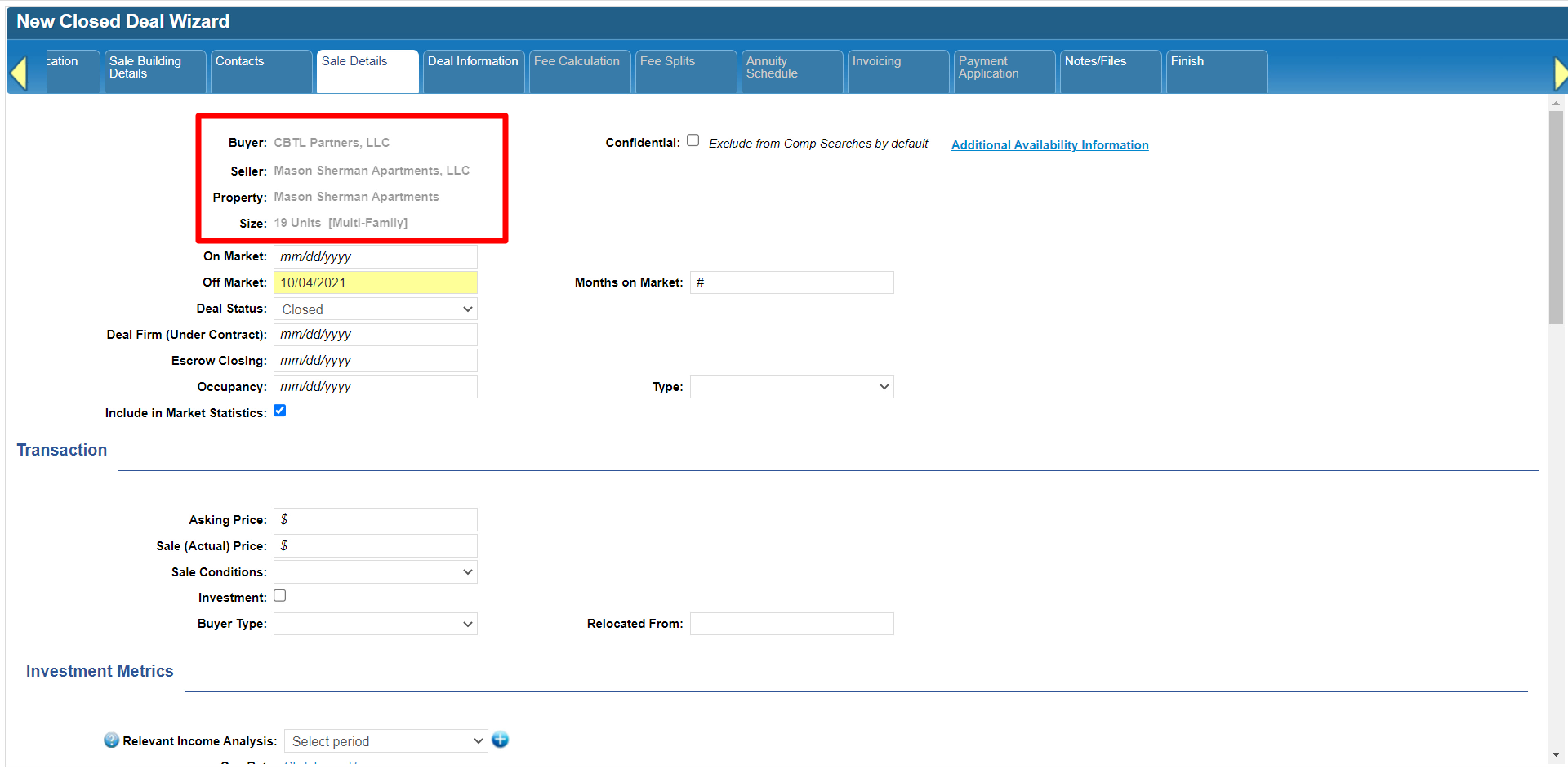
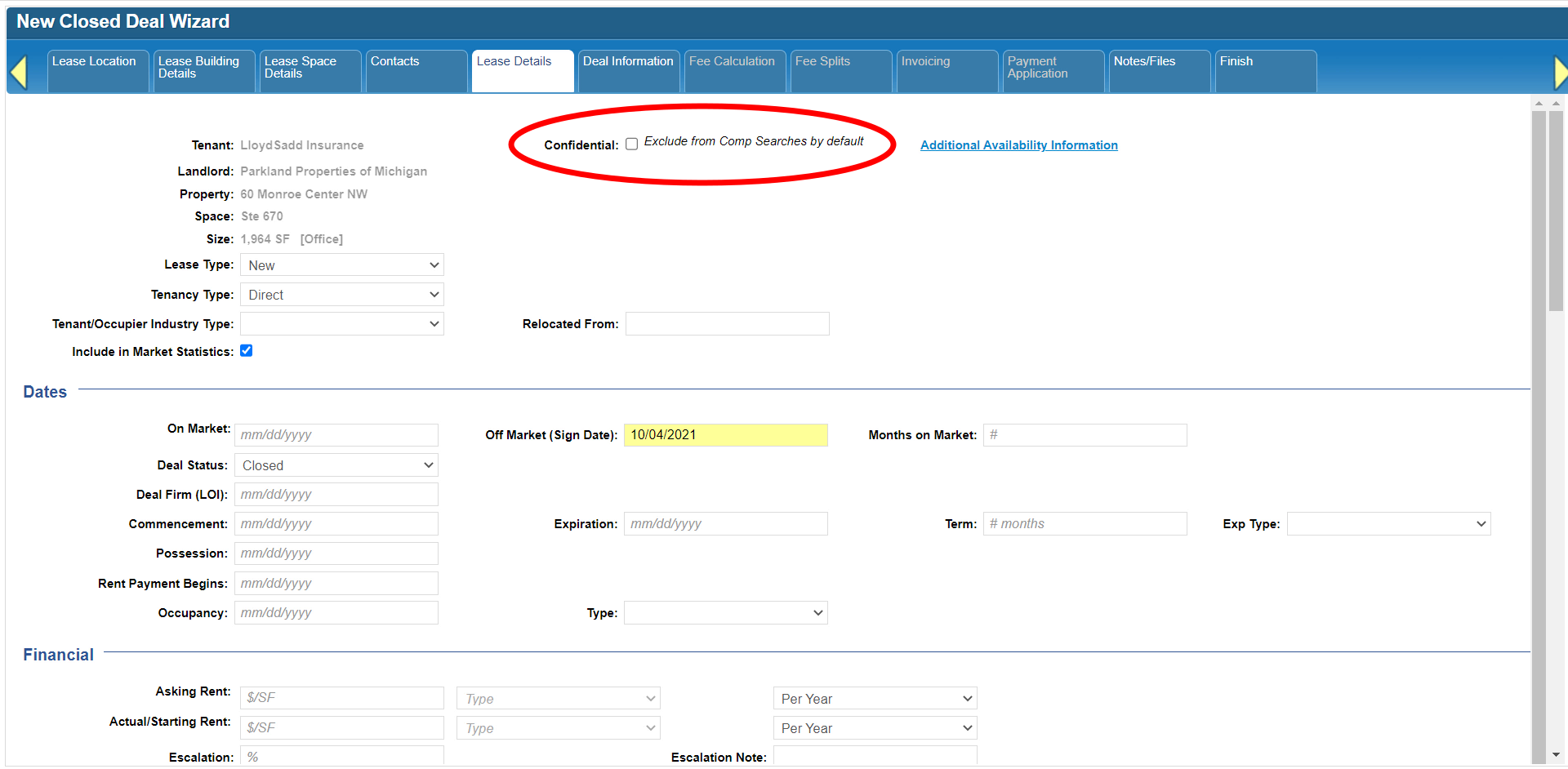
Next to that is an option to mark this comp as Confidential. This does not hide the comp record from other users in your database – that’s always determined by the record’s Permissions settings. The Confidential setting allows you to indicate that this deal should not be shared externally.

By default, when you search the Comps database, confidential comps will not show up in the results, so you don’t accidentally share them with someone outside of your firm. You do have the option to include confidential comps in your search results if you want to.

If your Closed Deal started out as an Availability and you need to refer to listing-related fields that aren’t on this form, you can click on the Additional Availability Information link to see those listing details.

Required fields are highlighted in yellow, such as the Off Market date. Please note that the Off Market date initially copies the Deal Closed Date from the New Closed Deal modal, but you can change it to something else if needed without affecting the Deal Closed Date.

Add any transaction details you have. Under Investment Metrics, you can either already select an existing Income Analysis, or you can click the blue plus button to add a new one. There will be a more detailed tutorial available soon for the Income & Expense Analysis form.

Once an Income Analysis has been linked to this Deal, you can modify it by clicking on the notepad button or remove the link by clicking on the red [X] button. This will not delete the Income & Expense record itself, just its association with this Deal.

Clicking on the link next to Cap Rate, GRM or Equity Dividend Rate will take you directly to the relevant field on the Income and Expense Analysis form – either to the existing one that was selected or created previously, or to a new one.

You don’t need to fill out the rest of the form; required fields will already be populated.

Click Submit on this form to save your changes.

For Property Types that can have Rent Surveys (Healthcare, Hospitality, Manufactured Housing, Multi-Family or Self-Storage), you have the option of selecting an existing Rent Survey or creating a new one.

After creating a new Rent Survey, you may need to click on the blue refresh button to see it in the pulldown menu.

Similar to the Income Analysis, you can edit a selected Rent Survey via the notepad button or remove the link via the red [X] button. There will also be a more detailed tutorial available soon for the Rent Survey wizard.

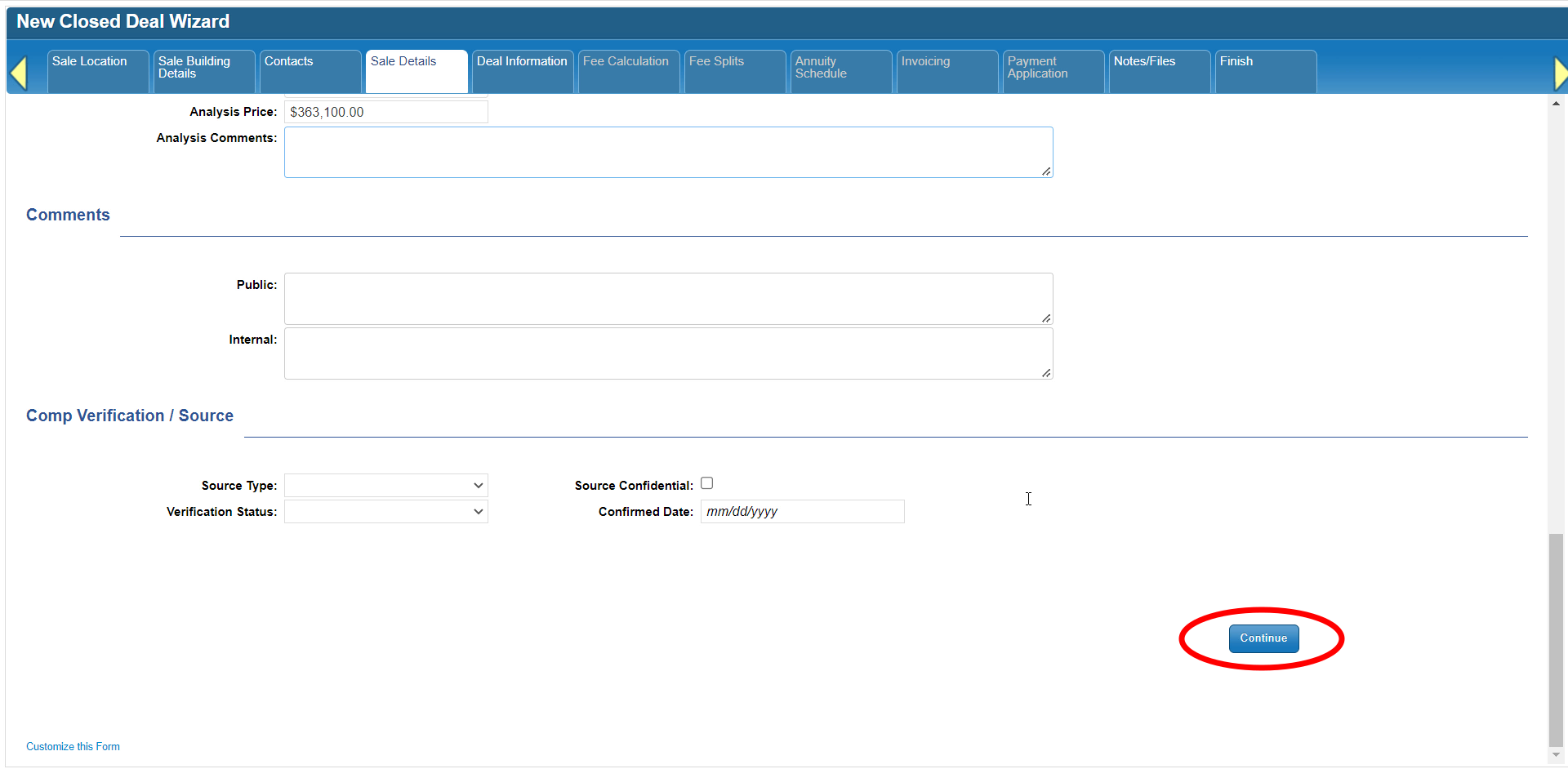
Once you’ve added the rest of the information for this sale, click Continue to save your changes and move on to the next step.
Click here for the next tutorial.
Related articles
- How to create a new Closed Deal: Part 2 - New Closed Deal Modal
- How to create a new Closed Deal: Part 3 - Workflow Navigation
- How to create a new Closed Deal: Part 4 - Property
- How to create a new Closed Deal: Part 5 - Space
- How to create a new Closed Deal: Part 6 - Contacts
- How to create a new Closed Deal: Part 7 - Lease Details
- How to create a new Closed Deal: Part 8 - Deal Information
- How to create a new Closed Deal: Part 9 - Fee Calculation
- How to create a new Closed Deal: Part 10 - Fee Splits
- How to create a new Closed Deal: Part 11 - Invoicing
- How to create a new Closed Deal: Part 12 - Payments
- How to create a new Closed Deal: Part 13 - Notes/Files
- How to create a new Closed Deal: Part 14 - Link Project
- How to create a new Closed Deal: Part 15 - Deal Share
- How to create a new Closed Deal: Part 16 - Billing Schedule
- How to create a new Closed Deal: Part 17 - Net Adjustments
- How to create a new Closed Deal: Part 18 - Annuity Schedule
- How to create a new Closed Deal: Part 19 - Sale Details
- How to create a new Closed Deal: Part 20 - Other Starting Points
© 2023 CoStar Group
Attachments:
 CBA - Entering a Closed Deal - 17 Net Adjustments (Time 0_05_15;24).png (image/png)
 CBA - Entering a Closed Deal - 17 Net Adjustments (Time 0_05_13;03).png (image/png)
 CBA - Entering a Closed Deal - 17 Net Adjustments (Time 0_05_02;14).png (image/png)
 CBA - Entering a Closed Deal - 17 Net Adjustments (Time 0_04_59;12).png (image/png)
 CBA - Entering a Closed Deal - 17 Net Adjustments (Time 0_04_54;26).png (image/png)
 CBA - Entering a Closed Deal - 17 Net Adjustments (Time 0_04_43;00).png (image/png)
 CBA - Entering a Closed Deal - 17 Net Adjustments (Time 0_04_33;29).png (image/png)
 2022-02-03_17-43-07b.png (image/png)
 CBA - Entering a Closed Deal - 17 Net Adjustments (Time 0_04_24;24).png (image/png)
 CBA - Entering a Closed Deal - 17 Net Adjustments (Time 0_04_10;01).png (image/png)
 CBA - Entering a Closed Deal - 17 Net Adjustments (Time 0_03_58;16).png (image/png)
 CBA - Entering a Closed Deal - 17 Net Adjustments (Time 0_03_48;23).png (image/png)
 CBA - Entering a Closed Deal - 17 Net Adjustments (Time 0_03_45;10).png (image/png)
 CBA - Entering a Closed Deal - 17 Net Adjustments (Time 0_03_38;29).png (image/png)
 CBA - Entering a Closed Deal - 17 Net Adjustments (Time 0_03_32;11).png (image/png)
 CBA - Entering a Closed Deal - 17 Net Adjustments (Time 0_03_23;21).png (image/png)
 CBA - Entering a Closed Deal - 17 Net Adjustments (Time 0_03_43;00).png (image/png)
 CBA - Entering a Closed Deal - 17 Net Adjustments (Time 0_03_16;04).png (image/png)
 CBA - Entering a Closed Deal - 17 Net Adjustments (Time 0_03_00;15).png (image/png)
 CBA - Entering a Closed Deal - 17 Net Adjustments (Time 0_02_56;25).png (image/png)
 CBA - Entering a Closed Deal - 17 Net Adjustments (Time 0_02_52;13).png (image/png)
 CBA - Entering a Closed Deal - 17 Net Adjustments (Time 0_02_42;16).png (image/png)
 CBA - Entering a Closed Deal - 17 Net Adjustments (Time 0_02_36;13).png (image/png)
 CBA - Entering a Closed Deal - 17 Net Adjustments (Time 0_02_11;19).png (image/png)
 CBA - Entering a Closed Deal - 17 Net Adjustments (Time 0_02_02;07).png (image/png)
 CBA - Entering a Closed Deal - 17 Net Adjustments (Time 0_01_56;29).png (image/png)
 CBA - Entering a Closed Deal - 17 Net Adjustments (Time 0_01_47;17).png (image/png)
 CBA - Entering a Closed Deal - 17 Net Adjustments (Time 0_01_40;22).png (image/png)
 CBA - Entering a Closed Deal - 17 Net Adjustments (Time 0_01_29;26).png (image/png)
 CBA - Entering a Closed Deal - 17 Net Adjustments (Time 0_01_12;27)a.png (image/png)
 CBA - Entering a Closed Deal - 17 Net Adjustments (Time 0_00_56;09).png (image/png)
 CBA - Entering a Closed Deal - 17 Net Adjustments (Time 0_00_47;26).png (image/png)
 CBA - Entering a Closed Deal - 17 Net Adjustments (Time 0_00_44;17).png (image/png)
 CBA - Entering a Closed Deal - 15 Deal Share (Time 0_04_57;18).png (image/png)
 CBA - Entering a Closed Deal - 15 Deal Share (Time 0_04_47;05).png (image/png)
 CBA - Entering a Closed Deal - 15 Deal Share (Time 0_04_35;17).png (image/png)
 CBA - Entering a Closed Deal - 15 Deal Share (Time 0_04_21;12).png (image/png)
 CBA - Entering a Closed Deal - 15 Deal Share (Time 0_04_10;08).png (image/png)
 CBA - Entering a Closed Deal - 15 Deal Share (Time 0_04_05;15).png (image/png)
 CBA - Entering a Closed Deal - 15 Deal Share (Time 0_03_59;00).png (image/png)
 CBA - Entering a Closed Deal - 15 Deal Share (Time 0_03_45;02).png (image/png)
 CBA - Entering a Closed Deal - 15 Deal Share (Time 0_03_22;02).png (image/png)
 CBA - Entering a Closed Deal - 15 Deal Share (Time 0_03_01;23).png (image/png)
 CBA - Entering a Closed Deal - 15 Deal Share (Time 0_02_46;06).png (image/png)
 CBA - Entering a Closed Deal - 15 Deal Share (Time 0_02_29;01).png (image/png)
 CBA - Entering a Closed Deal - 15 Deal Share (Time 0_02_19;16).png (image/png)
 CBA - Entering a Closed Deal - 15 Deal Share (Time 0_02_12;00).png (image/png)
 CBA - Entering a Closed Deal - 15 Deal Share (Time 0_02_07;02)b.png (image/png)
 CBA - Entering a Closed Deal - 15 Deal Share (Time 0_02_07;02).png (image/png)
 CBA - Entering a Closed Deal - 15 Deal Share (Time 0_02_00;04).png (image/png)
 CBA - Entering a Closed Deal - 15 Deal Share (Time 0_01_50;00)b.png (image/png)
 CBA - Entering a Closed Deal - 15 Deal Share (Time 0_01_34;21).png (image/png)
 CBA - Entering a Closed Deal - 15 Deal Share (Time 0_01_30;11).png (image/png)
 CBA - Entering a Closed Deal - 15 Deal Share (Time 0_01_23;08).png (image/png)
 CBA - Entering a Closed Deal - 15 Deal Share (Time 0_00_52;19).png (image/png)
 CBA - Entering a Closed Deal - 13 Notes (Time 0_05_10;01).png (image/png)
 CBA - Entering a Closed Deal - 13 Notes (Time 0_04_57;25).png (image/png)
 CBA - Entering a Closed Deal - 13 Notes (Time 0_04_50;02).png (image/png)
 CBA - Entering a Closed Deal - 13 Notes (Time 0_04_43;22).png (image/png)
 CBA - Entering a Closed Deal - 13 Notes (Time 0_04_35;11).png (image/png)
 CBA - Entering a Closed Deal - 13 Notes (Time 0_04_26;01).png (image/png)
 CBA - Entering a Closed Deal - 13 Notes (Time 0_04_15;19).png (image/png)
 CBA - Entering a Closed Deal - 13 Notes (Time 0_03_58;16).png (image/png)
 CBA - Entering a Closed Deal - 13 Notes (Time 0_03_49;06).png (image/png)
 CBA - Entering a Closed Deal - 13 Notes (Time 0_03_37;08).png (image/png)
 CBA - Entering a Closed Deal - 13 Notes (Time 0_03_29;19).png (image/png)
 CBA - Entering a Closed Deal - 13 Notes (Time 0_03_21;05).png (image/png)
 CBA - Entering a Closed Deal - 13 Notes (Time 0_03_06;03).png (image/png)
 CBA - Entering a Closed Deal - 13 Notes (Time 0_02_59;02).png (image/png)
 CBA - Entering a Closed Deal - 13 Notes (Time 0_02_45;17).png (image/png)
 CBA - Entering a Closed Deal - 13 Notes (Time 0_02_35;23).png (image/png)
 CBA - Entering a Closed Deal - 13 Notes (Time 0_02_16;23).png (image/png)
 CBA - Entering a Closed Deal - 13 Notes (Time 0_02_15;03).png (image/png)
 CBA - Entering a Closed Deal - 13 Notes (Time 0_02_06;29).png (image/png)
 CBA - Entering a Closed Deal - 13 Notes (Time 0_01_28;22).png (image/png)
 CBA - Entering a Closed Deal - 13 Notes (Time 0_01_08;16).png (image/png)
 CBA - Entering a Closed Deal - 13 Notes (Time 0_01_01;07).png (image/png)
 CBA - Entering a Closed Deal - 13 Notes (Time 0_00_55;19).png (image/png)
 CBA - Entering a Closed Deal - 13 Notes (Time 0_00_46;17).png (image/png)
 CBA - Entering a Closed Deal - 13 Notes (Time 0_00_21;22).png (image/png)
 CBA - Entering a Closed Deal - 11 Invoicing (Time 0_05_17;29).png (image/png)
 CBA - Entering a Closed Deal - 11 Invoicing (Time 0_05_05;29).png (image/png)
 CBA - Entering a Closed Deal - 11 Invoicing (Time 0_04_58;18).png (image/png)
 CBA - Entering a Closed Deal - 11 Invoicing (Time 0_04_34;19).png (image/png)
 CBA - Entering a Closed Deal - 11 Invoicing (Time 0_04_27;27).png (image/png)
 CBA - Entering a Closed Deal - 11 Invoicing (Time 0_04_16;19).png (image/png)
 CBA - Entering a Closed Deal - 11 Invoicing (Time 0_04_05;12).png (image/png)
 CBA - Entering a Closed Deal - 11 Invoicing (Time 0_03_57;27).png (image/png)
 CBA - Entering a Closed Deal - 11 Invoicing (Time 0_03_44;12).png (image/png)
 CBA - Entering a Closed Deal - 11 Invoicing (Time 0_03_41;15).png (image/png)
 CBA - Entering a Closed Deal - 11 Invoicing (Time 0_03_38;08).png (image/png)
 CBA - Entering a Closed Deal - 11 Invoicing (Time 0_03_30;19).png (image/png)
 CBA - Entering a Closed Deal - 11 Invoicing (Time 0_03_27;19).png (image/png)
 CBA - Entering a Closed Deal - 11 Invoicing (Time 0_03_07;01).png (image/png)
 CBA - Entering a Closed Deal - 11 Invoicing (Time 0_02_51;27)b.png (image/png)
 CBA - Entering a Closed Deal - 11 Invoicing (Time 0_02_51;27).png (image/png)
 CBA - Entering a Closed Deal - 11 Invoicing (Time 0_02_41;23).png (image/png)
 CBA - Entering a Closed Deal - 11 Invoicing (Time 0_02_28;27).png (image/png)
 CBA - Entering a Closed Deal - 11 Invoicing (Time 0_02_24;27).png (image/png)
 CBA - Entering a Closed Deal - 11 Invoicing (Time 0_02_17;23).png (image/png)
 CBA - Entering a Closed Deal - 11 Invoicing (Time 0_02_05;23).png (image/png)
 CBA - Entering a Closed Deal - 11 Invoicing (Time 0_01_57;12).png (image/png)
 CBA - Entering a Closed Deal - 11 Invoicing (Time 0_01_47;01).png (image/png)
 CBA - Entering a Closed Deal - 11 Invoicing (Time 0_01_38;20).png (image/png)
 CBA - Entering a Closed Deal - 11 Invoicing (Time 0_01_32;13).png (image/png)
 CBA - Entering a Closed Deal - 11 Invoicing (Time 0_01_17;06).png (image/png)
 CBA - Entering a Closed Deal - 11 Invoicing (Time 0_01_14;14).png (image/png)
 CBA - Entering a Closed Deal - 11 Invoicing (Time 0_01_06;10).png (image/png)
 CBA - Entering a Closed Deal - 11 Invoicing (Time 0_01_00;06).png (image/png)
 CBA - Entering a Closed Deal - 11 Invoicing (Time 0_00_53;21).png (image/png)
 CBA - Entering a Closed Deal - 11 Invoicing (Time 0_00_27;14).png (image/png)
 CBA - Entering a Closed Deal - 09 Fee Calculation (Time 0_03_40;27).png (image/png)
 CBA - Entering a Closed Deal - 09 Fee Calculation (Time 0_03_25;21).png (image/png)
 CBA - Entering a Closed Deal - 09 Fee Calculation (Time 0_03_19;09).png (image/png)
 CBA - Entering a Closed Deal - 09 Fee Calculation (Time 0_02_41;15).png (image/png)
 CBA - Entering a Closed Deal - 09 Fee Calculation (Time 0_02_26;19).png (image/png)
 CBA - Entering a Closed Deal - 09 Fee Calculation (Time 0_01_59;03).png (image/png)
 CBA - Entering a Closed Deal - 09 Fee Calculation (Time 0_01_45;20).png (image/png)
 CBA - Entering a Closed Deal - 09 Fee Calculation (Time 0_01_41;29).png (image/png)
 CBA - Entering a Closed Deal - 09 Fee Calculation (Time 0_01_31;07).png (image/png)
 CBA - Entering a Closed Deal - 09 Fee Calculation (Time 0_01_01;20).png (image/png)
 CBA - Entering a Closed Deal - 09 Fee Calculation (Time 0_00_19;20).png (image/png)
 CBA - Entering a Closed Deal - 09 Fee Calculation (Time 0_00_21;20).png (image/png)
 CBA - Entering a Closed Deal - 09 Fee Calculation (Time 0_00_28;17).png (image/png)
 CBA - Entering a Closed Deal - 09 Fee Calculation (Time 0_00_46;04).png (image/png)
 CBA - Entering a Closed Deal - 09 Fee Calculation (Time 0_00_50;07).png (image/png)
 CBA - Entering a Closed Deal - 07 Lease Details (Time 0_04_05;00).png (image/png)
 CBA - Entering a Closed Deal - 07 Lease Details (Time 0_03_58;14).png (image/png)
 CBA - Entering a Closed Deal - 07 Lease Details (Time 0_03_50;07).png (image/png)
 CBA - Entering a Closed Deal - 07 Lease Details (Time 0_03_28;24).png (image/png)
 CBA - Entering a Closed Deal - 07 Lease Details (Time 0_03_23;17).png (image/png)
 CBA - Entering a Closed Deal - 07 Lease Details (Time 0_03_10;18).png (image/png)
 CBA - Entering a Closed Deal - 07 Lease Details (Time 0_02_59;26).png (image/png)
 CBA - Entering a Closed Deal - 07 Lease Details (Time 0_02_40;00).png (image/png)
 CBA - Entering a Closed Deal - 07 Lease Details (Time 0_02_33;17).png (image/png)
 CBA - Entering a Closed Deal - 07 Lease Details (Time 0_02_08;29).png (image/png)
 CBA - Entering a Closed Deal - 07 Lease Details (Time 0_01_52;03).png (image/png)
 CBA - Entering a Closed Deal - 07 Lease Details (Time 0_01_30;17).png (image/png)
 CBA - Entering a Closed Deal - 07 Lease Details (Time 0_01_26;00).png (image/png)
 CBA - Entering a Closed Deal - 07 Lease Details (Time 0_01_03;21).png (image/png)
 CBA - Entering a Closed Deal - 07 Lease Details (Time 0_00_19;09).png (image/png)
 CBA - Entering a Closed Deal - 05 Space (Time 0_02_48;10).png (image/png)
 CBA - Entering a Closed Deal - 05 Space (Time 0_02_43;08).png (image/png)
 CBA - Entering a Closed Deal - 05 Space (Time 0_01_24;18).png (image/png)
 CBA - Entering a Closed Deal - 05 Space (Time 0_01_11;23).png (image/png)
 CBA - Entering a Closed Deal - 05 Space (Time 0_01_04;25).png (image/png)
 CBA - Entering a Closed Deal - 05 Space (Time 0_01_00;08).png (image/png)
 CBA - Entering a Closed Deal - 05 Space (Time 0_00_42;06).png (image/png)
 CBA - Entering a Closed Deal - 05 Space (Time 0_00_30;17).png (image/png)
 CBA - Entering a Closed Deal - 05 Space (Time 0_00_26;10).png (image/png)
 CBA - Entering a Closed Deal - 05 Space (Time 0_00_21;08).png (image/png)
 CBA - Entering a Closed Deal - 03 Workflow Navigation (Time 0_01_27;28).png (image/png)
 CBA - Entering a Closed Deal - 03 Workflow Navigation (Time 0_01_01;06).png (image/png)
 CBA - Entering a Closed Deal - 03 Workflow Navigation (Time 0_00_48;01).png (image/png)
 CBA - Entering a Closed Deal - 03 Workflow Navigation (Time 0_00_37;04).png (image/png)
 CBA - Entering a Closed Deal - 03 Workflow Navigation (Time 0_00_23;29).png (image/png)
 CBA - Entering a Closed Deal - 02 New Closed Deal Modal all (Time 0_00_31;29).png (image/png)
 CBA - Entering a Closed Deal - 02 New Closed Deal Modal all (Time 0_01_09;13).png (image/png)
 CBA - Entering a Closed Deal - 02 New Closed Deal Modal all (Time 0_01_44;04).png (image/png)
 CBA - Entering a Closed Deal - 02 New Closed Deal Modal all (Time 0_01_54;08).png (image/png)
 CBA - Entering a Closed Deal - 02 New Closed Deal Modal all (Time 0_02_02;26).png (image/png)
 CBA - Entering a Closed Deal - 02 New Closed Deal Modal all (Time 0_02_35;01).png (image/png)
 CBA - Entering a Closed Deal - 02 New Closed Deal Modal all (Time 0_02_43;16).png (image/png)
 CBA - Entering a Closed Deal - 02 New Closed Deal Modal all (Time 0_02_47;26).png (image/png)
 CBA - Entering a Closed Deal - 02 New Closed Deal Modal all (Time 0_02_30;26).png (image/png)
 CBA - Entering a Closed Deal - 02 New Closed Deal Modal all (Time 0_01_27;23).png (image/png)
 CBA - Entering a Closed Deal - 02 New Closed Deal Modal all (Time 0_02_59;26).png (image/png)
 CBA - Entering a Closed Deal - 02 New Closed Deal Modal all (Time 0_03_25;09).png (image/png)
 CBA - Entering a Closed Deal - 02 New Closed Deal Modal all (Time 0_03_28;13).png (image/png)
 CBA - Entering a Closed Deal - 02 New Closed Deal Modal all (Time 0_03_50;03).png (image/png)
 CBA - Entering a Closed Deal - 02 New Closed Deal Modal all (Time 0_04_18;08).png (image/png)
 CBA - Entering a Closed Deal - 02 New Closed Deal Modal all (Time 0_04_23;06).png (image/png)
 CBA - Entering a Closed Deal - 04 Property (Time 0_00_19;25).png (image/png)
 CBA - Entering a Closed Deal - 04 Property (Time 0_00_29;24).png (image/png)
 CBA - Entering a Closed Deal - 04 Property (Time 0_00_59;14).png (image/png)
 CBA - Entering a Closed Deal - 04 Property (Time 0_01_14;23).png (image/png)
 CBA - Entering a Closed Deal - 04 Property (Time 0_01_25;02).png (image/png)
 CBA - Entering a Closed Deal - 04 Property (Time 0_01_32;17).png (image/png)
 CBA - Entering a Closed Deal - 04 Property (Time 0_01_37;08).png (image/png)
 CBA - Entering a Closed Deal - 04 Property (Time 0_01_40;21).png (image/png)
 CBA - Entering a Closed Deal - 04 Property (Time 0_02_00;11).png (image/png)
 CBA - Entering a Closed Deal - 04 Property (Time 0_02_12;07).png (image/png)
 CBA - Entering a Closed Deal - 04 Property (Time 0_02_19;12).png (image/png)
 CBA - Entering a Closed Deal - 04 Property (Time 0_02_38;22).png (image/png)
 CBA - Entering a Closed Deal - 04 Property (Time 0_02_44;24).png (image/png)
 CBA - Entering a Closed Deal - 04 Property (Time 0_02_52;14).png (image/png)
 CBA - Entering a Closed Deal - 06 Contacts (Time 0_00_33;28).png (image/png)
 CBA - Entering a Closed Deal - 06 Contacts (Time 0_00_51;04).png (image/png)
 CBA - Entering a Closed Deal - 06 Contacts (Time 0_01_21;18).png (image/png)
 CBA - Entering a Closed Deal - 06 Contacts (Time 0_01_27;02).png (image/png)
 CBA - Entering a Closed Deal - 06 Contacts (Time 0_01_40;29).png (image/png)
 CBA - Entering a Closed Deal - 06 Contacts (Time 0_01_52;12).png (image/png)
 CBA - Entering a Closed Deal - 06 Contacts (Time 0_01_58;01).png (image/png)
 CBA - Entering a Closed Deal - 06 Contacts (Time 0_02_08;13).png (image/png)
 CBA - Entering a Closed Deal - 06 Contacts (Time 0_02_26;14).png (image/png)
 CBA - Entering a Closed Deal - 06 Contacts (Time 0_02_30;08).png (image/png)
 CBA - Entering a Closed Deal - 06 Contacts (Time 0_03_00;07).png (image/png)
 CBA - Entering a Closed Deal - 06 Contacts (Time 0_03_02;26).png (image/png)
 CBA - Entering a Closed Deal - 08 Deal Information (Time 0_00_24;04).png (image/png)
 CBA - Entering a Closed Deal - 08 Deal Information (Time 0_00_45;08).png (image/png)
 CBA - Entering a Closed Deal - 08 Deal Information (Time 0_00_52;05).png (image/png)
 CBA - Entering a Closed Deal - 08 Deal Information (Time 0_01_00;26).png (image/png)
 CBA - Entering a Closed Deal - 08 Deal Information (Time 0_01_27;04).png (image/png)
 CBA - Entering a Closed Deal - 08 Deal Information (Time 0_01_55;00).png (image/png)
 CBA - Entering a Closed Deal - 08 Deal Information (Time 0_02_14;05).png (image/png)
 CBA - Entering a Closed Deal - 08 Deal Information (Time 0_02_19;07).png (image/png)
 CBA - Entering a Closed Deal - 08 Deal Information (Time 0_02_38;14).png (image/png)
 CBA - Entering a Closed Deal - 08 Deal Information (Time 0_02_53;10).png (image/png)
 CBA - Entering a Closed Deal - 08 Deal Information (Time 0_02_55;26).png (image/png)
 CBA - Entering a Closed Deal - 08 Deal Information (Time 0_03_14;29).png (image/png)
 CBA - Entering a Closed Deal - 08 Deal Information (Time 0_03_28;25).png (image/png)
 CBA - Entering a Closed Deal - 10 Fee Splits (Time 0_00_33;01).png (image/png)
 CBA - Entering a Closed Deal - 10 Fee Splits (Time 0_00_37;03).png (image/png)
 CBA - Entering a Closed Deal - 10 Fee Splits (Time 0_00_50;20).png (image/png)
 CBA - Entering a Closed Deal - 10 Fee Splits (Time 0_01_03;21).png (image/png)
 CBA - Entering a Closed Deal - 10 Fee Splits (Time 0_01_20;05).png (image/png)
 CBA - Entering a Closed Deal - 10 Fee Splits (Time 0_01_28;02).png (image/png)
 CBA - Entering a Closed Deal - 10 Fee Splits (Time 0_01_42;05).png (image/png)
 CBA - Entering a Closed Deal - 10 Fee Splits (Time 0_01_50;02).png (image/png)
 CBA - Entering a Closed Deal - 10 Fee Splits (Time 0_02_02;04).png (image/png)
 CBA - Entering a Closed Deal - 10 Fee Splits (Time 0_02_09;19).png (image/png)
 CBA - Entering a Closed Deal - 10 Fee Splits (Time 0_02_31;29).png (image/png)
 CBA - Entering a Closed Deal - 10 Fee Splits (Time 0_02_48;16).png (image/png)
 CBA - Entering a Closed Deal - 10 Fee Splits (Time 0_03_01;27).png (image/png)
 CBA - Entering a Closed Deal - 10 Fee Splits (Time 0_03_06;25).png (image/png)
 CBA - Entering a Closed Deal - 10 Fee Splits (Time 0_03_19;23).png (image/png)
 CBA - Entering a Closed Deal - 10 Fee Splits (Time 0_03_43;16).png (image/png)
 CBA - Entering a Closed Deal - 10 Fee Splits (Time 0_03_49;06).png (image/png)
 CBA - Entering a Closed Deal - 10 Fee Splits (Time 0_03_53;24).png (image/png)
 CBA - Entering a Closed Deal - 10 Fee Splits (Time 0_04_14;16).png (image/png)
 CBA - Entering a Closed Deal - 10 Fee Splits (Time 0_04_14;16)b.png (image/png)
 CBA - Entering a Closed Deal - 10 Fee Splits (Time 0_04_19;14).png (image/png)
 CBA - Entering a Closed Deal - 10 Fee Splits (Time 0_04_30;05).png (image/png)
 CBA - Entering a Closed Deal - 10 Fee Splits (Time 0_04_36;24).png (image/png)
 CBA - Entering a Closed Deal - 10 Fee Splits (Time 0_04_55;09).png (image/png)
 CBA - Entering a Closed Deal - 10 Fee Splits (Time 0_05_23;03).png (image/png)
 CBA - Entering a Closed Deal - 10 Fee Splits (Time 0_05_49;19).png (image/png)
 CBA - Entering a Closed Deal - 10 Fee Splits (Time 0_06_13;20).png (image/png)
 CBA - Entering a Closed Deal - 10 Fee Splits (Time 0_06_21;08).png (image/png)
 CBA - Entering a Closed Deal - 10 Fee Splits (Time 0_06_28;14).png (image/png)
 CBA - Entering a Closed Deal - 10 Fee Splits (Time 0_06_41;22).png (image/png)
 CBA - Entering a Closed Deal - 10 Fee Splits (Time 0_06_54;27).png (image/png)
 CBA - Entering a Closed Deal - 10 Fee Splits (Time 0_07_01;18).png (image/png)
 CBA - Entering a Closed Deal - 10 Fee Splits (Time 0_07_05;27).png (image/png)
 CBA - Entering a Closed Deal - 10 Fee Splits (Time 0_07_11;20).png (image/png)
 CBA - Entering a Closed Deal - 10 Fee Splits (Time 0_07_17;26).png (image/png)
 CBA - Entering a Closed Deal - 10 Fee Splits (Time 0_07_19;24).png (image/png)
 CBA - Entering a Closed Deal - 10 Fee Splits (Time 0_07_25;17).png (image/png)
 CBA - Entering a Closed Deal - 10 Fee Splits (Time 0_07_51;07).png (image/png)
 CBA - Entering a Closed Deal - 10 Fee Splits (Time 0_08_09;09).png (image/png)
 CBA - Entering a Closed Deal - 10 Fee Splits (Time 0_08_24;02).png (image/png)
 CBA - Entering a Closed Deal - 10 Fee Splits (Time 0_08_29;09).png (image/png)
 CBA - Entering a Closed Deal - 10 Fee Splits (Time 0_08_39;23).png (image/png)
 CBA - Entering a Closed Deal - 10 Fee Splits (Time 0_08_56;13).png (image/png)
 CBA - Entering a Closed Deal - 10 Fee Splits (Time 0_09_01;07).png (image/png)
 CBA - Entering a Closed Deal - 11 Invoicing (Time 0_04_49;26).png (image/png)
 CBA - Entering a Closed Deal - 12 Payment (Time 0_00_42;22).png (image/png)
 CBA - Entering a Closed Deal - 12 Payment (Time 0_00_57;13).png (image/png)
 CBA - Entering a Closed Deal - 12 Payment (Time 0_01_16;20).png (image/png)
 CBA - Entering a Closed Deal - 12 Payment (Time 0_01_27;13).png (image/png)
 CBA - Entering a Closed Deal - 12 Payment (Time 0_01_39;28).png (image/png)
 CBA - Entering a Closed Deal - 12 Payment (Time 0_01_48;26).png (image/png)
 CBA - Entering a Closed Deal - 12 Payment (Time 0_02_02;21).png (image/png)
 CBA - Entering a Closed Deal - 12 Payment (Time 0_02_06;19).png (image/png)
 CBA - Entering a Closed Deal - 12 Payment (Time 0_02_17;16).png (image/png)
 CBA - Entering a Closed Deal - 12 Payment (Time 0_02_32;10).png (image/png)
 CBA - Entering a Closed Deal - 12 Payment (Time 0_02_46;02).png (image/png)
 CBA - Entering a Closed Deal - 12 Payment (Time 0_03_00;15).png (image/png)
 CBA - Entering a Closed Deal - 12 Payment (Time 0_03_15;06).png (image/png)
 CBA - Entering a Closed Deal - 12 Payment (Time 0_03_18;23).png (image/png)
 CBA - Entering a Closed Deal - 12 Payment (Time 0_03_29;27).png (image/png)
 CBA - Entering a Closed Deal - 12 Payment (Time 0_03_44;25).png (image/png)
 CBA - Entering a Closed Deal - 12 Payment (Time 0_03_57;09).png (image/png)
 CBA - Entering a Closed Deal - 12 Payment (Time 0_03_57;09)b.png (image/png)
 CBA - Entering a Closed Deal - 12 Payment (Time 0_04_22;24).png (image/png)
 CBA - Entering a Closed Deal - 12 Payment (Time 0_04_34;28).png (image/png)
 CBA - Entering a Closed Deal - 12 Payment (Time 0_04_47;09).png (image/png)
 CBA - Entering a Closed Deal - 12 Payment (Time 0_04_54;23).png (image/png)
 CBA - Entering a Closed Deal - 12 Payment (Time 0_05_05;16).png (image/png)
 CBA - Entering a Closed Deal - 12 Payment (Time 0_05_09;25).png (image/png)
 CBA - Entering a Closed Deal - 12 Payment (Time 0_05_15;25).png (image/png)
 CBA - Entering a Closed Deal - 14 Link Project (Time 0_00_27;08).png (image/png)
 CBA - Entering a Closed Deal - 14 Link Project (Time 0_00_32;23)b.png (image/png)
 CBA - Entering a Closed Deal - 14 Link Project (Time 0_00_46;20).png (image/png)
 CBA - Entering a Closed Deal - 14 Link Project (Time 0_00_59;28).png (image/png)
 CBA - Entering a Closed Deal - 14 Link Project (Time 0_01_13;06).png (image/png)
 CBA - Entering a Closed Deal - 14 Link Project (Time 0_01_23;07)b.png (image/png)
 CBA - Entering a Closed Deal - 14 Link Project (Time 0_01_33;00).png (image/png)
 CBA - Entering a Closed Deal - 14 Link Project (Time 0_01_49;16).png (image/png)
 CBA - Entering a Closed Deal - 14 Link Project (Time 0_01_55;09).png (image/png)
 CBA - Entering a Closed Deal - 14 Link Project (Time 0_02_13;06).png (image/png)
 CBA - Entering a Closed Deal - 14 Link Project (Time 0_02_19;21).png (image/png)
 CBA - Entering a Closed Deal - 14 Link Project (Time 0_02_25;06).png (image/png)
 CBA - Entering a Closed Deal - 14 Link Project (Time 0_02_26;25).png (image/png)
 CBA - Entering a Closed Deal - 14 Link Project (Time 0_02_31;06).png (image/png)
 CBA - Entering a Closed Deal - 14 Link Project (Time 0_02_39;25).png (image/png)
 CBA - Entering a Closed Deal - 14 Link Project (Time 0_03_07;19).png (image/png)
 CBA - Entering a Closed Deal - 14 Link Project (Time 0_03_14;12).png (image/png)
 CBA - Entering a Closed Deal - 14 Link Project (Time 0_03_34;09).png (image/png)
 CBA - Entering a Closed Deal - 14 Link Project (Time 0_03_38;09).png (image/png)
 2022-01-07_16-29-19.jpg (image/jpeg)
 CBA - Entering a Closed Deal - 14 Link Project (Time 0_04_12;18).png (image/png)
 CBA - Entering a Closed Deal - 14 Link Project (Time 0_04_21;11).png (image/png)
 CBA - Entering a Closed Deal - 14 Link Project (Time 0_04_25;04)b.png (image/png)
 CBA - Entering a Closed Deal - 14 Link Project (Time 0_04_37;16)b.png (image/png)
 CBA - Entering a Closed Deal - 14 Link Project (Time 0_04_57;04)b.png (image/png)
 CBA - Entering a Closed Deal - 14 Link Project (Time 0_05_01;15)b.png (image/png)
 CBA - Entering a Closed Deal - 14 Link Project (Time 0_05_11;08)b.png (image/png)
 CBA - Entering a Closed Deal - 16 Billing Schedule (Time 0_00_36;13).png (image/png)
 CBA - Entering a Closed Deal - 16 Billing Schedule (Time 0_00_55;16).png (image/png)
 CBA - Entering a Closed Deal - 16 Billing Schedule (Time 0_01_20;06).png (image/png)
 CBA - Entering a Closed Deal - 16 Billing Schedule (Time 0_01_23;06).png (image/png)
 CBA - Entering a Closed Deal - 16 Billing Schedule (Time 0_01_25;00).png (image/png)
 CBA - Entering a Closed Deal - 16 Billing Schedule (Time 0_01_40;00).png (image/png)
 CBA - Entering a Closed Deal - 16 Billing Schedule (Time 0_01_41;20).png (image/png)
 CBA - Entering a Closed Deal - 16 Billing Schedule (Time 0_01_47;17).png (image/png)
 CBA - Entering a Closed Deal - 16 Billing Schedule (Time 0_01_56;23).png (image/png)
 CBA - Entering a Closed Deal - 16 Billing Schedule (Time 0_02_07;23).png (image/png)
 CBA - Entering a Closed Deal - 16 Billing Schedule (Time 0_02_21;00).png (image/png)
 CBA - Entering a Closed Deal - 16 Billing Schedule (Time 0_02_28;21).png (image/png)
 CBA - Entering a Closed Deal - 16 Billing Schedule (Time 0_02_38;10).png (image/png)
 CBA - Entering a Closed Deal - 16 Billing Schedule (Time 0_02_43;18).png (image/png)
 CBA - Entering a Closed Deal - 16 Billing Schedule (Time 0_02_50;28).png (image/png)
 CBA - Entering a Closed Deal - 16 Billing Schedule (Time 0_02_58;04).png (image/png)
 CBA - Entering a Closed Deal - 16 Billing Schedule (Time 0_03_03;14).png (image/png)
 CBA - Entering a Closed Deal - 19 Sale Details (Time 0_00_14;09).png (image/png)
CBA - Entering a Closed Deal - 19 Sale Details (Time 0_01_01;24).png (image/png)
CBA - Entering a Closed Deal - 19 Sale Details (Time 0_01_13;00).png (image/png)
2022-03-04_15-07-29.png (image/png)
CBA - Entering a Closed Deal - 19 Sale Details (Time 0_01_55;22).png (image/png)
CBA - Entering a Closed Deal - 19 Sale Details (Time 0_02_09;11).png (image/png)
CBA - Entering a Closed Deal - 19 Sale Details (Time 0_02_29;21)b.png (image/png)
CBA - Entering a Closed Deal - 19 Sale Details (Time 0_02_44;14)b.png (image/png)
CBA - Entering a Closed Deal - 19 Sale Details (Time 0_02_44;14)c.png (image/png)
CBA - Entering a Closed Deal - 19 Sale Details (Time 0_03_22;10).png (image/png)
CBA - Entering a Closed Deal - 19 Sale Details (Time 0_03_26;29).png (image/png)
CBA - Entering a Closed Deal - 19 Sale Details (Time 0_03_39;27)b.png (image/png)
CBA - Entering a Closed Deal - 19 Sale Details (Time 0_03_50;02).png (image/png)
CBA - Entering a Closed Deal - 19 Sale Details (Time 0_03_59;23)b.png (image/png)
CBA - Entering a Closed Deal - 19 Sale Details (Time 0_04_15;14).png (image/png)
CBA - Entering a Closed Deal - 19 Sale Details (Time 0_00_14;09).png (image/png)
CBA - Entering a Closed Deal - 19 Sale Details (Time 0_01_01;24).png (image/png)
CBA - Entering a Closed Deal - 19 Sale Details (Time 0_01_13;00).png (image/png)
2022-03-04_15-07-29.png (image/png)
CBA - Entering a Closed Deal - 19 Sale Details (Time 0_01_55;22).png (image/png)
CBA - Entering a Closed Deal - 19 Sale Details (Time 0_02_09;11).png (image/png)
CBA - Entering a Closed Deal - 19 Sale Details (Time 0_02_29;21)b.png (image/png)
CBA - Entering a Closed Deal - 19 Sale Details (Time 0_02_44;14)b.png (image/png)
CBA - Entering a Closed Deal - 19 Sale Details (Time 0_02_44;14)c.png (image/png)
CBA - Entering a Closed Deal - 19 Sale Details (Time 0_03_22;10).png (image/png)
CBA - Entering a Closed Deal - 19 Sale Details (Time 0_03_26;29).png (image/png)
CBA - Entering a Closed Deal - 19 Sale Details (Time 0_03_39;27)b.png (image/png)
CBA - Entering a Closed Deal - 19 Sale Details (Time 0_03_50;02).png (image/png)
CBA - Entering a Closed Deal - 19 Sale Details (Time 0_03_59;23)b.png (image/png)
CBA - Entering a Closed Deal - 19 Sale Details (Time 0_04_15;14).png (image/png)