This tutorial will go over the various ways you can start creating a new Closed Deal.
Instructions
At the beginning of this tutorial series, we demonstrated how to create a new Closed Deal from scratch via the Deals menu on the Home page.

However, there are several more ways to create a Closed Deal.
From the Home page (create a new record)
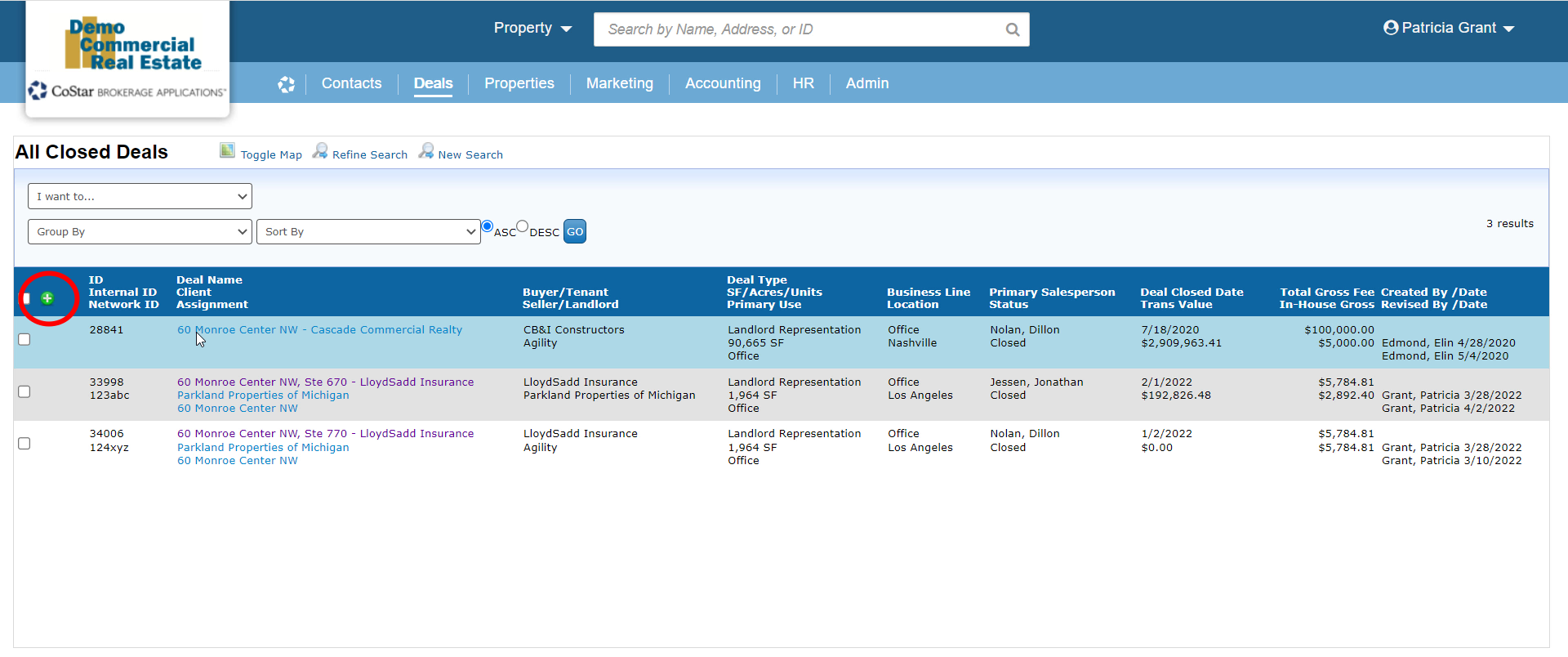
The Deals menu on the Home page is only one of the starting points for a new Closed Deal. If you run a search for Closed Deals, the list of results will include a green plus button at the top left of the list. Click on that button to open the New Closed Deal modal.
Similarly, you can use the Closed Deals search widget on the Home page – not only to search for Closed Deals, but also to create a new Closed Deal without having to run a search first. Click the New Closed Deal button to start the process.

If you don’t see the Closed Deals widget on your Home page, scroll to the bottom of the dashboard and click on the option to Add Widgets. This will open the widget library.

Go to the Deals category. Find the Closed Deals widget in the list on the right and click on Add it Now.
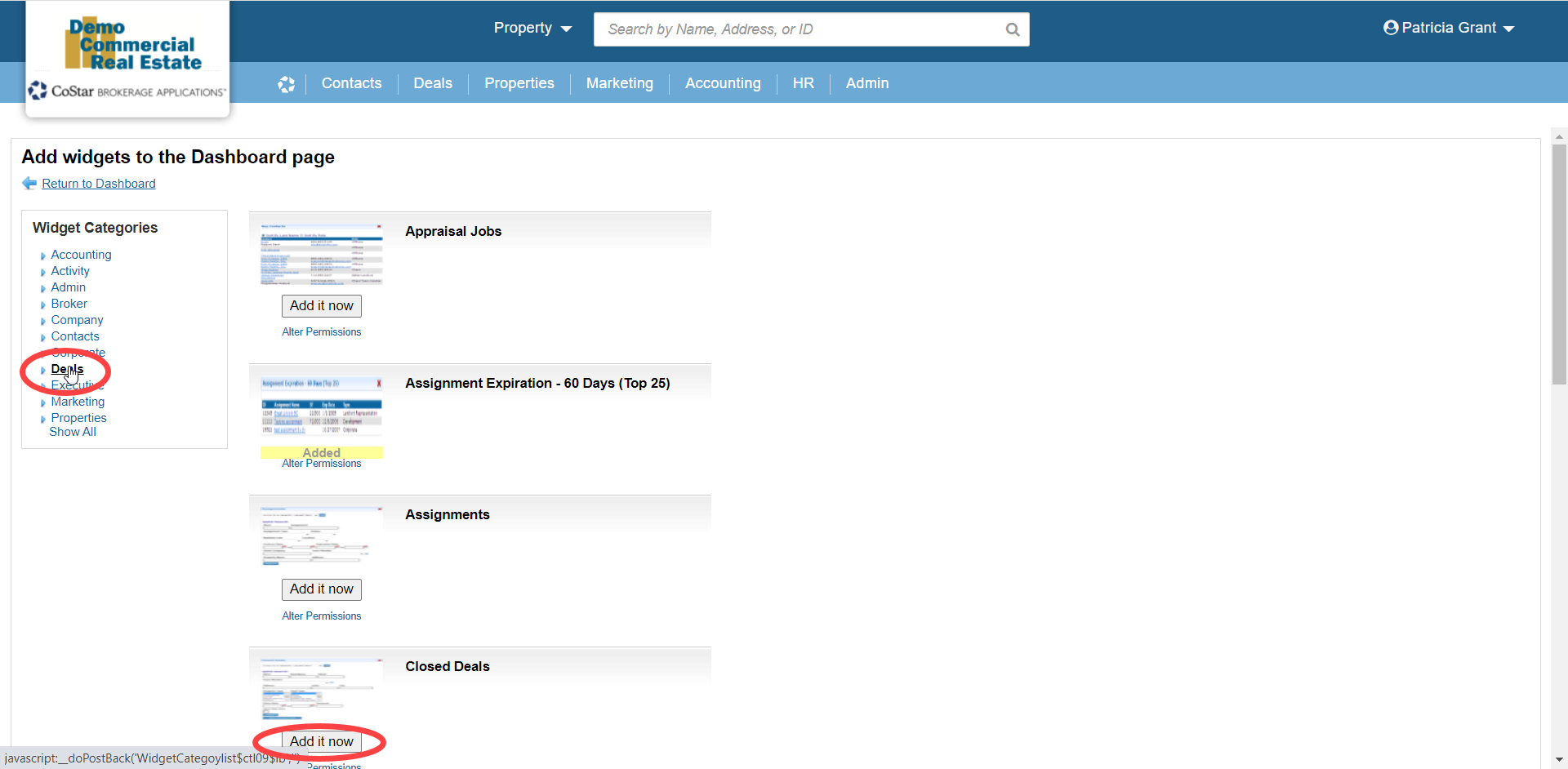
Contact your System Administrator if you don’t see the widget listed, as they may need to give you permission to use it. Use the Return to Dashboard link at the top to go back to the Home page. The Closed Deals widget will now be in the top left corner of your dashboard.
From an Assignment
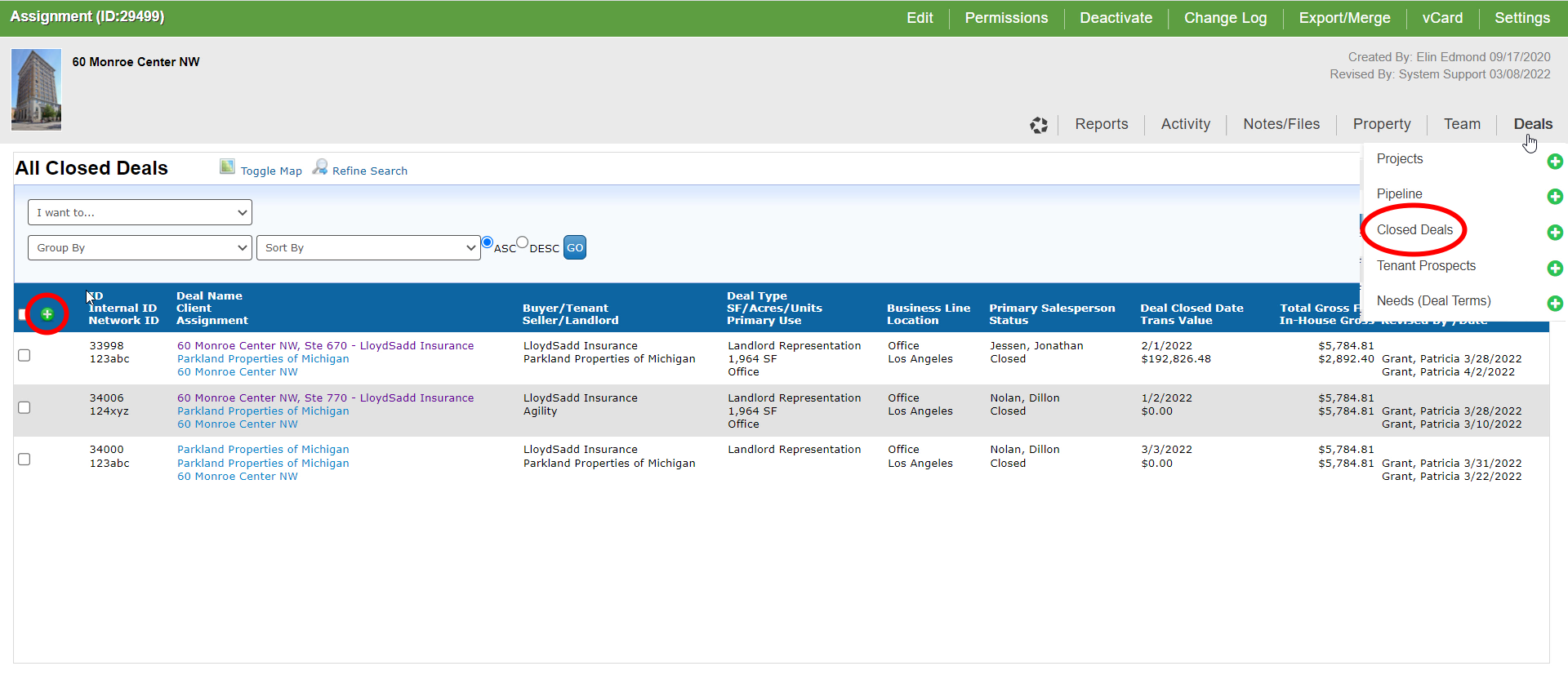
If you are working with an existing Assignment or are starting the data entry process by creating the Assignment first, you can initiate a new Closed Deal directly from that Assignment record. Open the Deals menu at the top of the Assignment record and click on the green plus button next to Closed Deals.

Or, click on Closed Deals to open that list and use the same green plus button in the top left corner.
Close an existing Deal
All of the options so far assume that your Deal wasn’t already being tracked in CoStar Brokerage Applications. Here are a few examples to show you how to transition an existing active Deal to a Closed Deal.
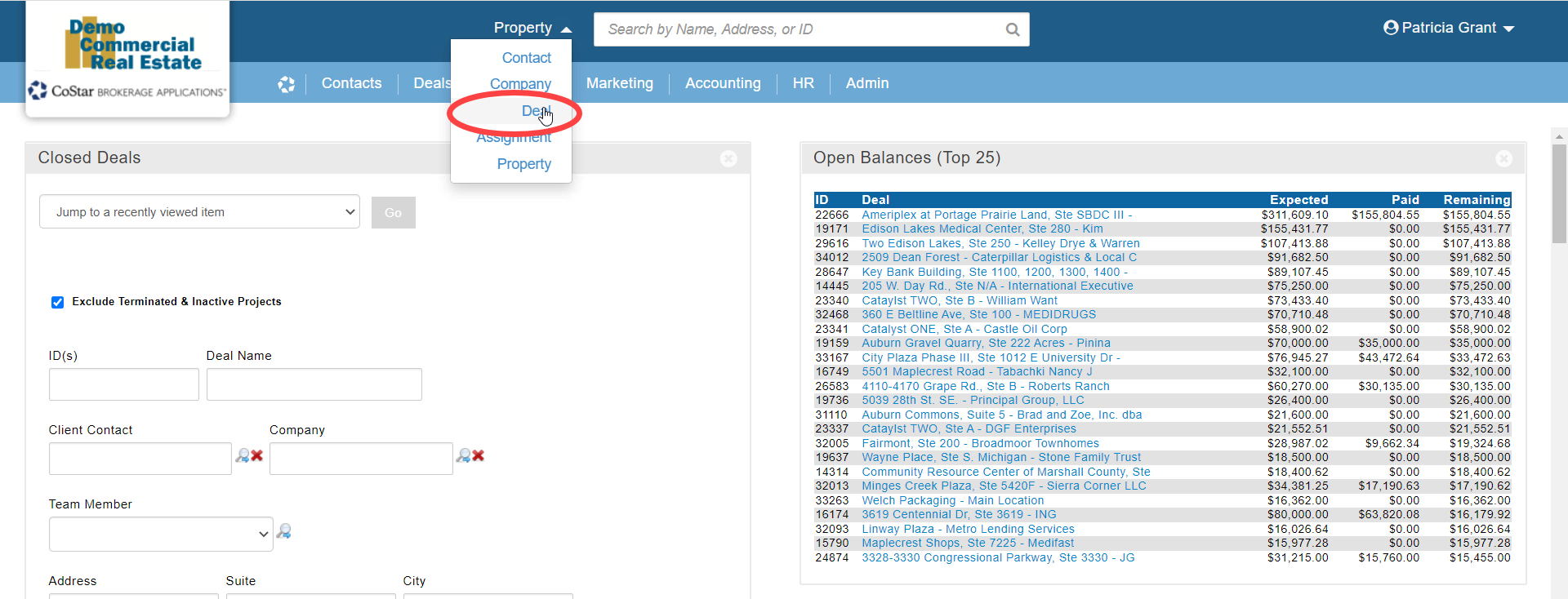
We’ll get into different examples for why you might have an existing record that you can convert. But the simplest solution for finding that existing Deal is the Global Search at the top of the Home page.

Select Deals from the dropdown menu next to the search field and type in the Deal name, Property name, Property address or record ID. Your Deal should be included in the results, whether it’s Available, Unavailable, Withdrawn, Leased, or Sold, or a Need or other type of Project.

From an Availability
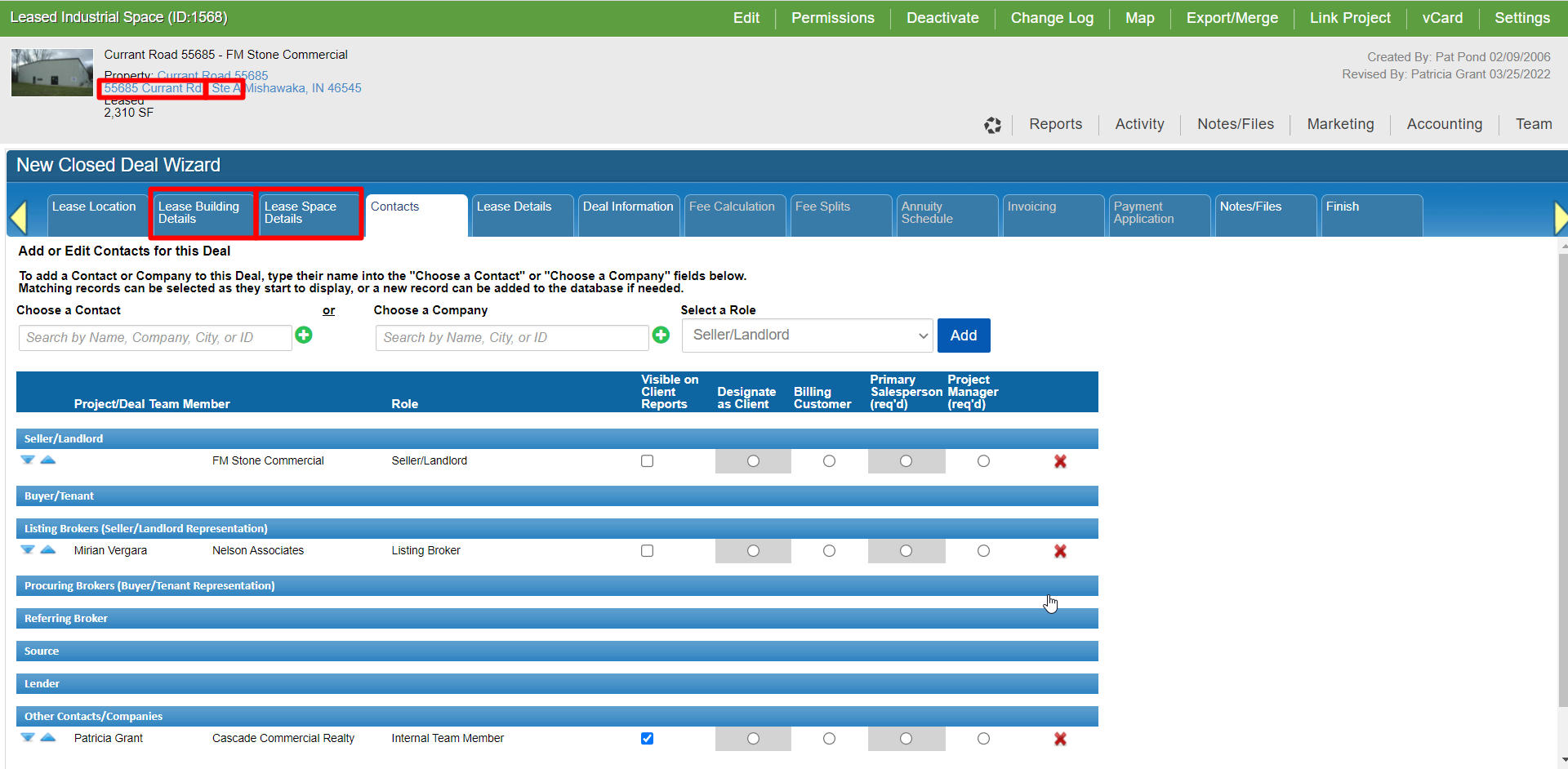
Let’s start with a common scenario for listings. If you already have an Availability in the system for your lease or sale listing, you can convert that Availability to a Closed Deal. Click on the Close This Deal option at the top of the Availability record.

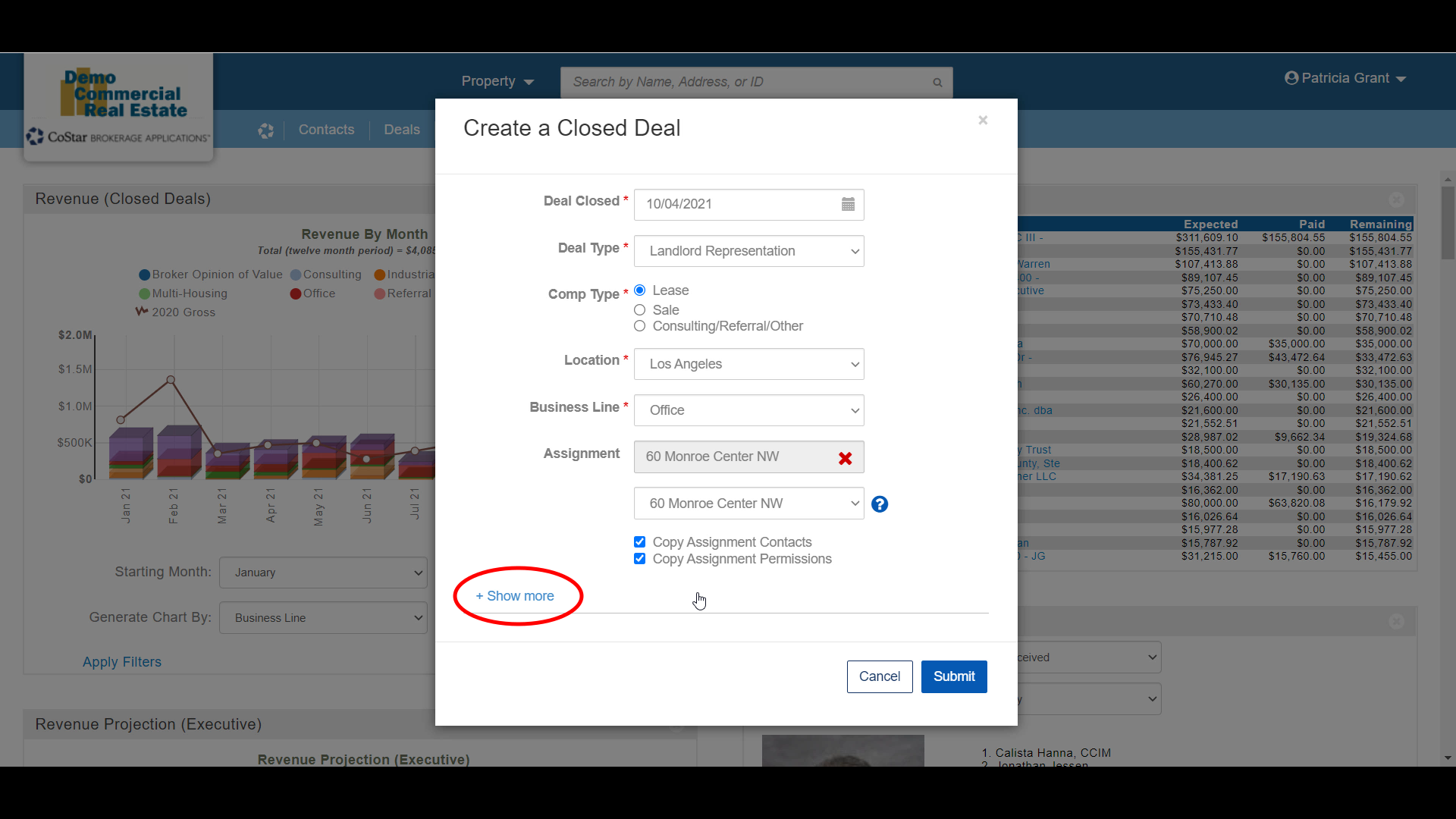
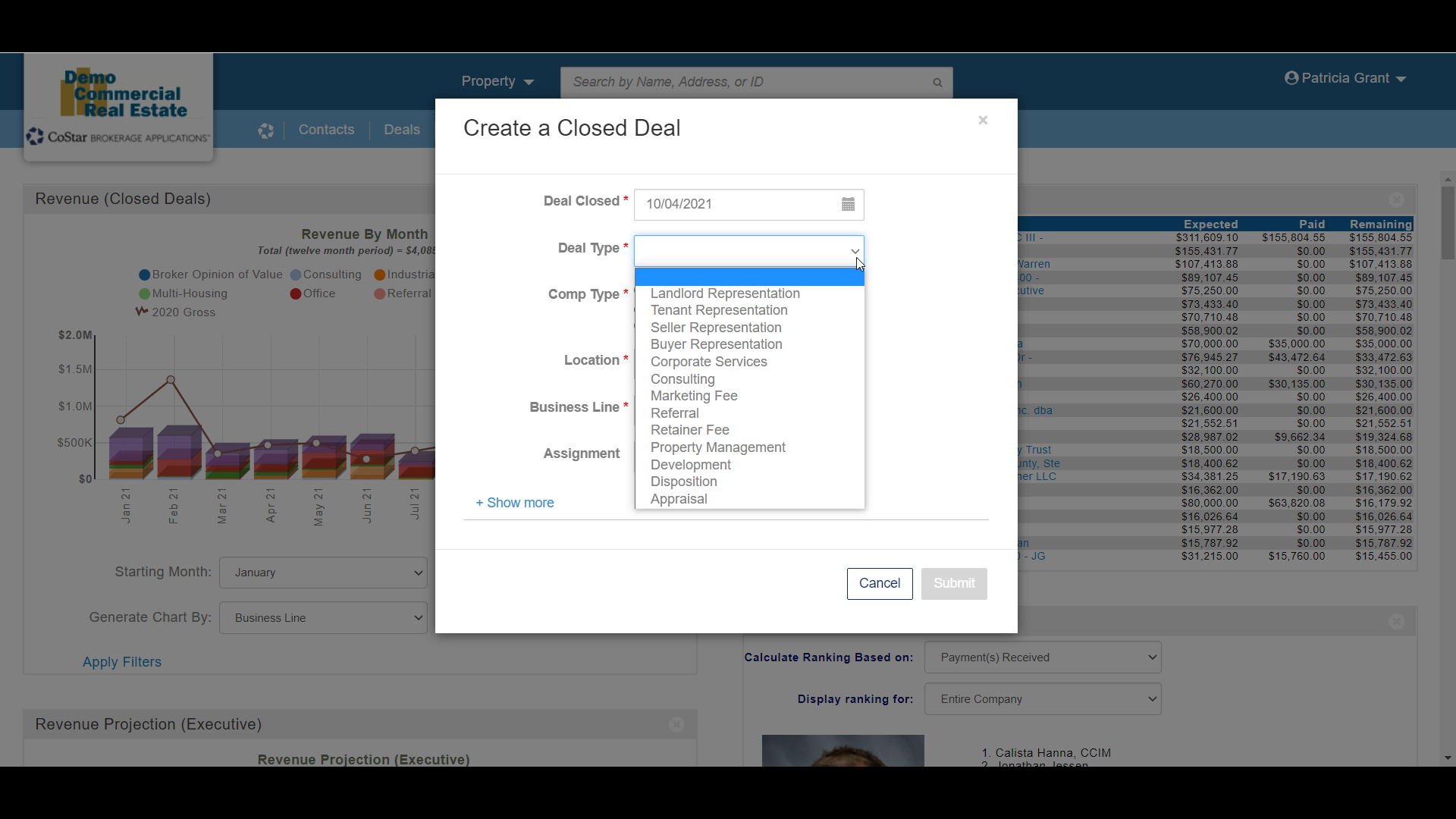
Fill out the New Closed Deal modal and click Submit.

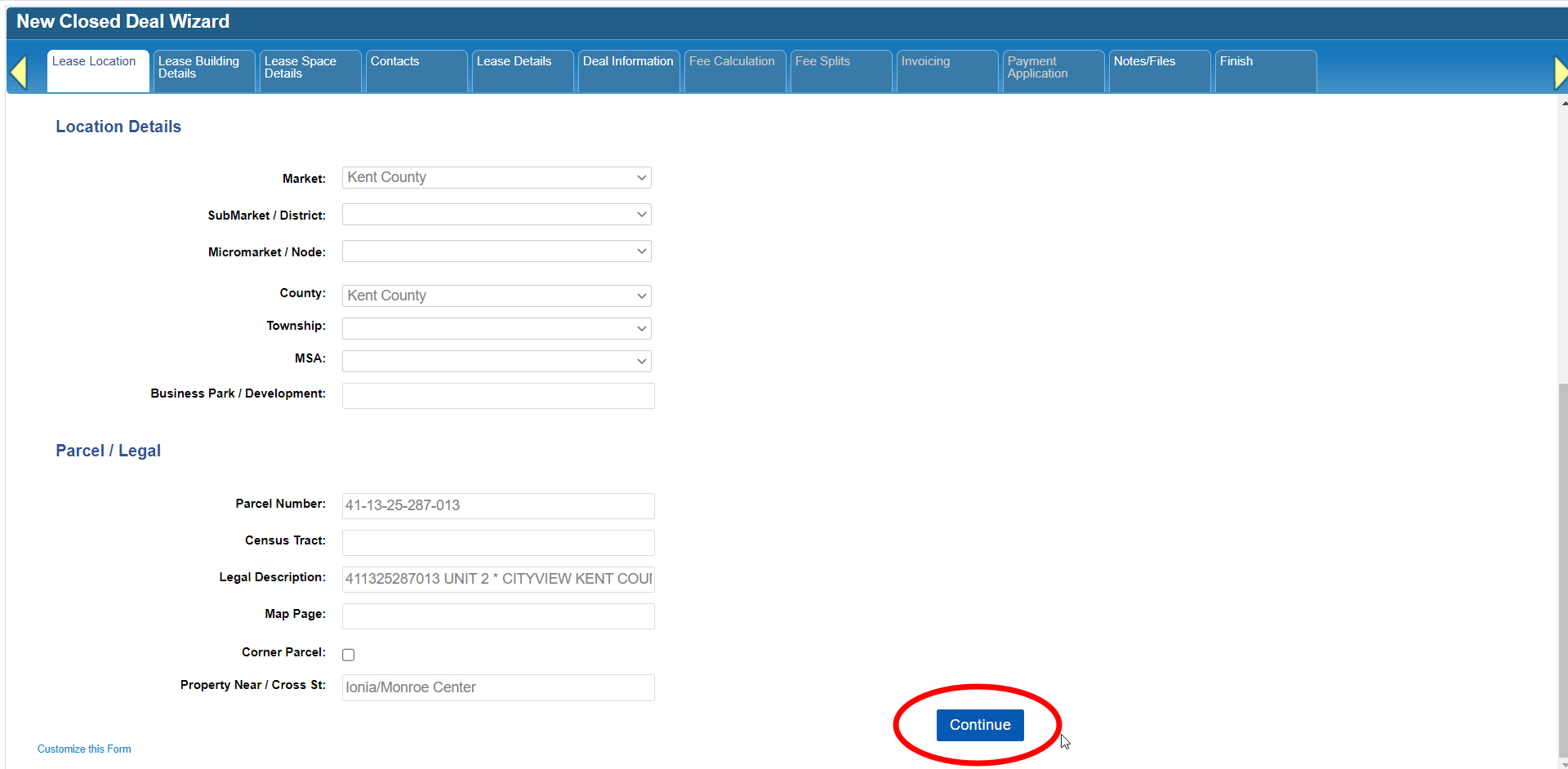
Notice how the Property and Space are already selected, and you are taken straight to the Contacts tab. Any information that had already been entered on the Availability will be retained once it becomes a Closed Deal.
A quick note here about Availabilities that download from CoStar or LoopNet. Your firm has the option to allow your listings to download automatically from CoStar to Brokerage Apps. Even if you convert an Availability to a Closed Deal in Brokerage Apps, you still need to take that listing off the market in CoStar. In other words, the information only flows one way - from CoStar to Brokerage Apps.
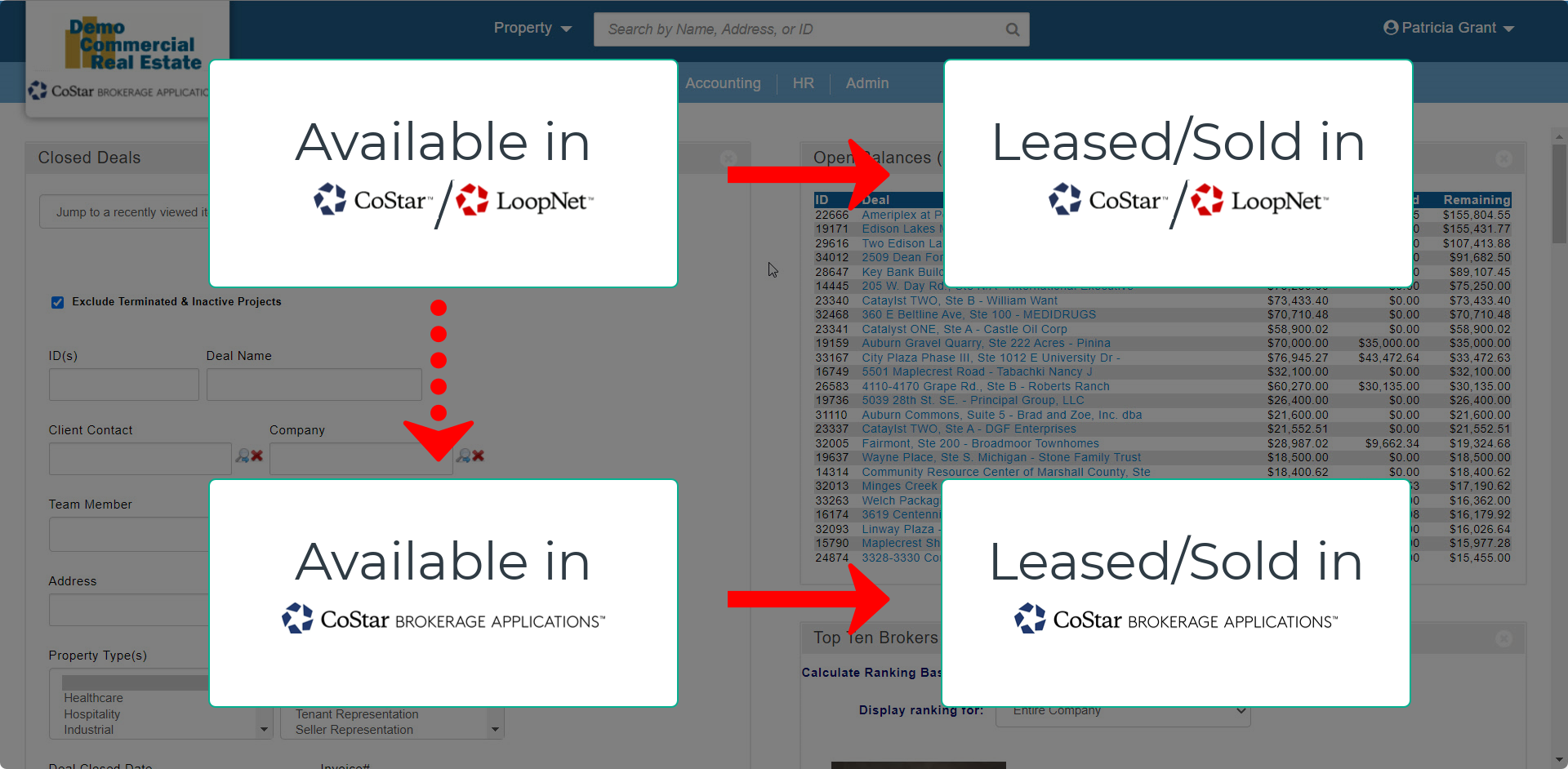
As for searching for your listing via the Availabilities Search: Depending on your firm’s internal workflow, you may be closing an Availability in Brokerage Apps before it’s taken off the market in CoStar, in which case you want to search for it as an Available Property or Space.

However, if the listing was removed from CoStar first and that update has already downloaded to Brokerage Apps, you may need to search for an Unavailable Property or Space. You’re still searching the Availabilities database, just for a different Listing Status.

This is why the Global Search option on the Home page is so handy – it will find your listing whether it’s still available or has already been changed to unavailable.
So how should you handle an Availability for divisible space that is only partially leased while the remaining Space is still on the market?
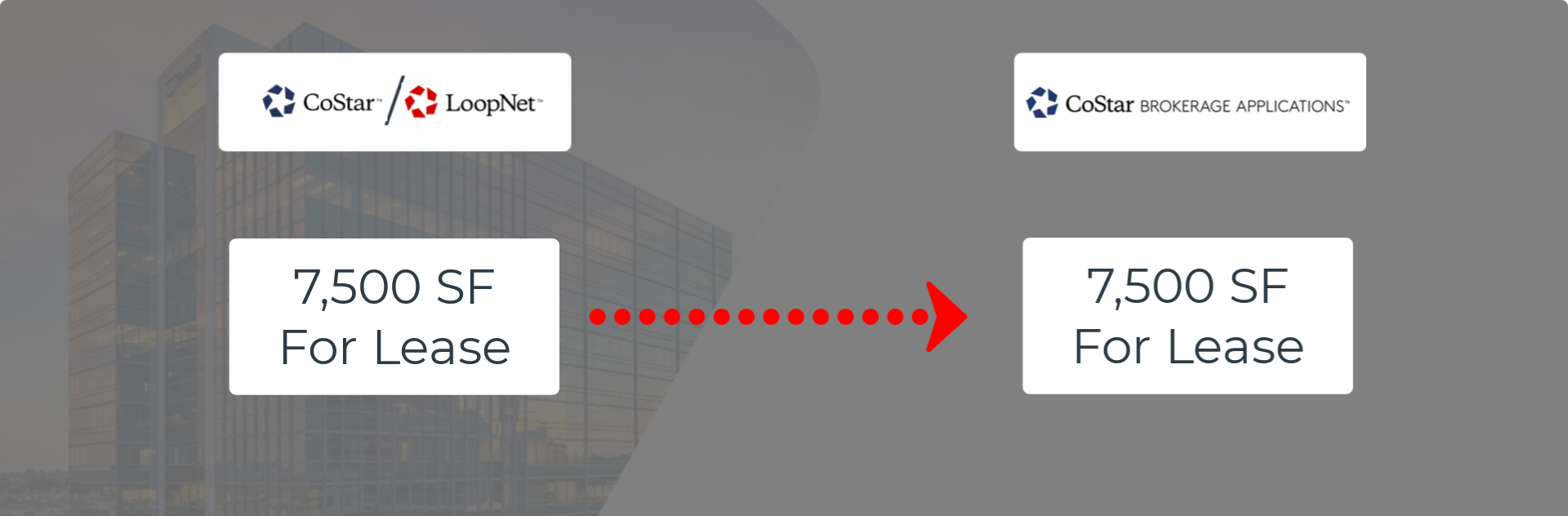
Generally speaking, and especially if your CoStar or LoopNet listings download to Brokerage Apps, we recommend creating a new Closed Deal for the leased Space, and updating the available square footage in the existing listing in CoStar, LoopNet or Brokerage Apps. Just remember that if you update CoStar or LoopNet, you don’t need to make the same update in Brokerage Apps – the automatic download will do that for you.

From a Comp
Alternatively, the Availability may have already been converted to a Lease or Sale comp by someone else. In that case, you’ll want to search the Comps database instead of the Availabilities database.

Click on Leased or Sold to open the Comp record.

At the top of the record is the same Close This Deal option as on Availabilities.

From a Project or Need
Other types of Deals can also be tracked in Brokerage Apps while they are still active. Needs or general Projects are commonly used to track Tenant or Buyer Rep deals.
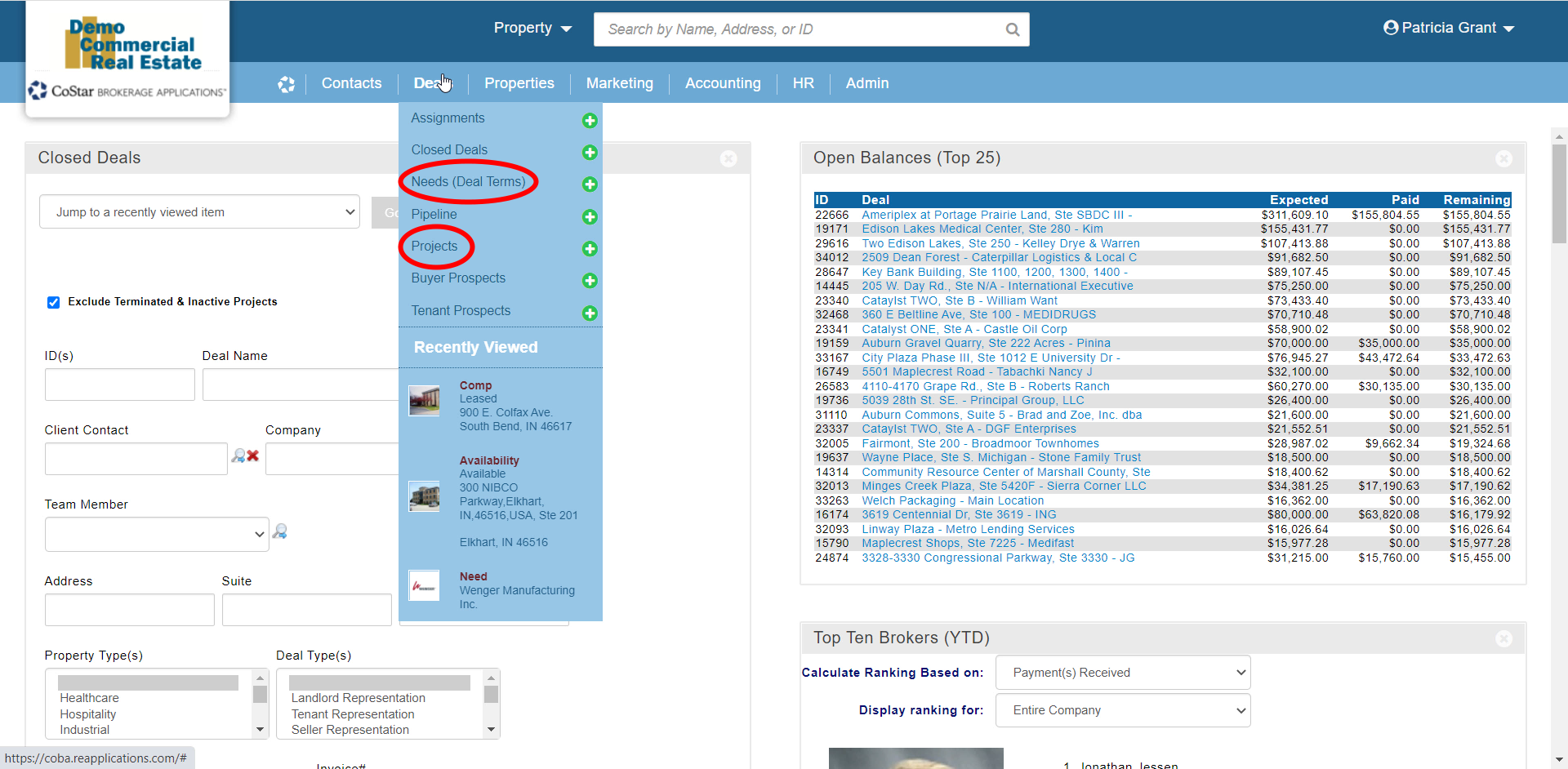
Some firms use Projects for tracking Property Management, Construction Management, Consulting, Referral or any other kind of deal. Regardless of the type of record, most transactional records can be converted to Closed Deals via the Close This Deal option at the top of the record.
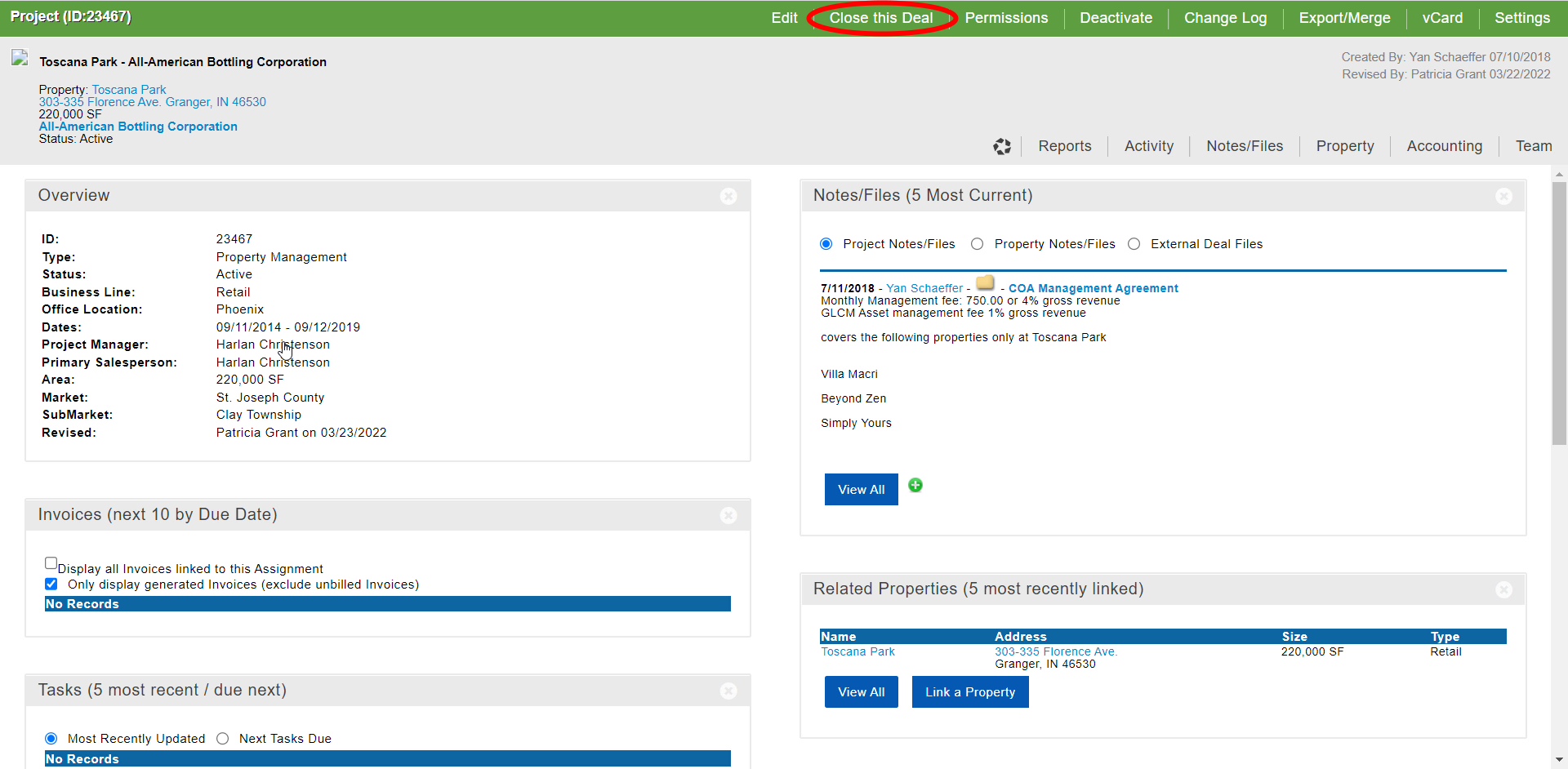
If you don’t see the option to Close This Deal, it’s either because the record you have open is a type that can’t be converted directly into a Closed Deal (such as Assignments), or it already is a Closed Deal.


At the end of the day, any type of internal Deal which directly results in revenue to the firm can become a Closed Deal, since the purpose of Closed Deals is to calculate, bill and distribute commissions and other fees.
Support Resources
If you have any questions about any part of this tutorial series, you can contact our support team for more information. We also have a Help Center that’s always available online, with user guides, troubleshooting tips, training videos, and more. Links to these resources are in the Profile menu at the top of your Home page.

Related articles
- How to create a new Closed Deal: Part 2 - New Closed Deal Modal
- How to create a new Closed Deal: Part 3 - Workflow Navigation
- How to create a new Closed Deal: Part 4 - Property
- How to create a new Closed Deal: Part 5 - Space
- How to create a new Closed Deal: Part 6 - Contacts
- How to create a new Closed Deal: Part 7 - Lease Details
- How to create a new Closed Deal: Part 8 - Deal Information
- How to create a new Closed Deal: Part 9 - Fee Calculation
- How to create a new Closed Deal: Part 10 - Fee Splits
- How to create a new Closed Deal: Part 11 - Invoicing
- How to create a new Closed Deal: Part 12 - Payments
- How to create a new Closed Deal: Part 13 - Notes/Files
- How to create a new Closed Deal: Part 14 - Link Project
- How to create a new Closed Deal: Part 15 - Deal Share
- How to create a new Closed Deal: Part 16 - Billing Schedule
- How to create a new Closed Deal: Part 17 - Net Adjustments
- How to create a new Closed Deal: Part 18 - Annuity Schedule
- How to create a new Closed Deal: Part 19 - Sale Details
- How to create a new Closed Deal: Part 20 - Other Starting Points
© 2023 CoStar Group
Attachments:
 CBA - Entering a Closed Deal - 19 Sale Details (Time 0_04_15;14).png (image/png)
 CBA - Entering a Closed Deal - 19 Sale Details (Time 0_03_59;23)b.png (image/png)
 CBA - Entering a Closed Deal - 19 Sale Details (Time 0_03_50;02).png (image/png)
 CBA - Entering a Closed Deal - 19 Sale Details (Time 0_03_39;27)b.png (image/png)
 CBA - Entering a Closed Deal - 19 Sale Details (Time 0_03_26;29).png (image/png)
 CBA - Entering a Closed Deal - 19 Sale Details (Time 0_03_22;10).png (image/png)
 CBA - Entering a Closed Deal - 19 Sale Details (Time 0_02_44;14)c.png (image/png)
 CBA - Entering a Closed Deal - 19 Sale Details (Time 0_02_44;14)b.png (image/png)
 CBA - Entering a Closed Deal - 19 Sale Details (Time 0_02_29;21)b.png (image/png)
 CBA - Entering a Closed Deal - 19 Sale Details (Time 0_02_09;11).png (image/png)
 CBA - Entering a Closed Deal - 19 Sale Details (Time 0_01_55;22).png (image/png)
 2022-03-04_15-07-29.png (image/png)
 CBA - Entering a Closed Deal - 19 Sale Details (Time 0_01_13;00).png (image/png)
 CBA - Entering a Closed Deal - 19 Sale Details (Time 0_01_01;24).png (image/png)
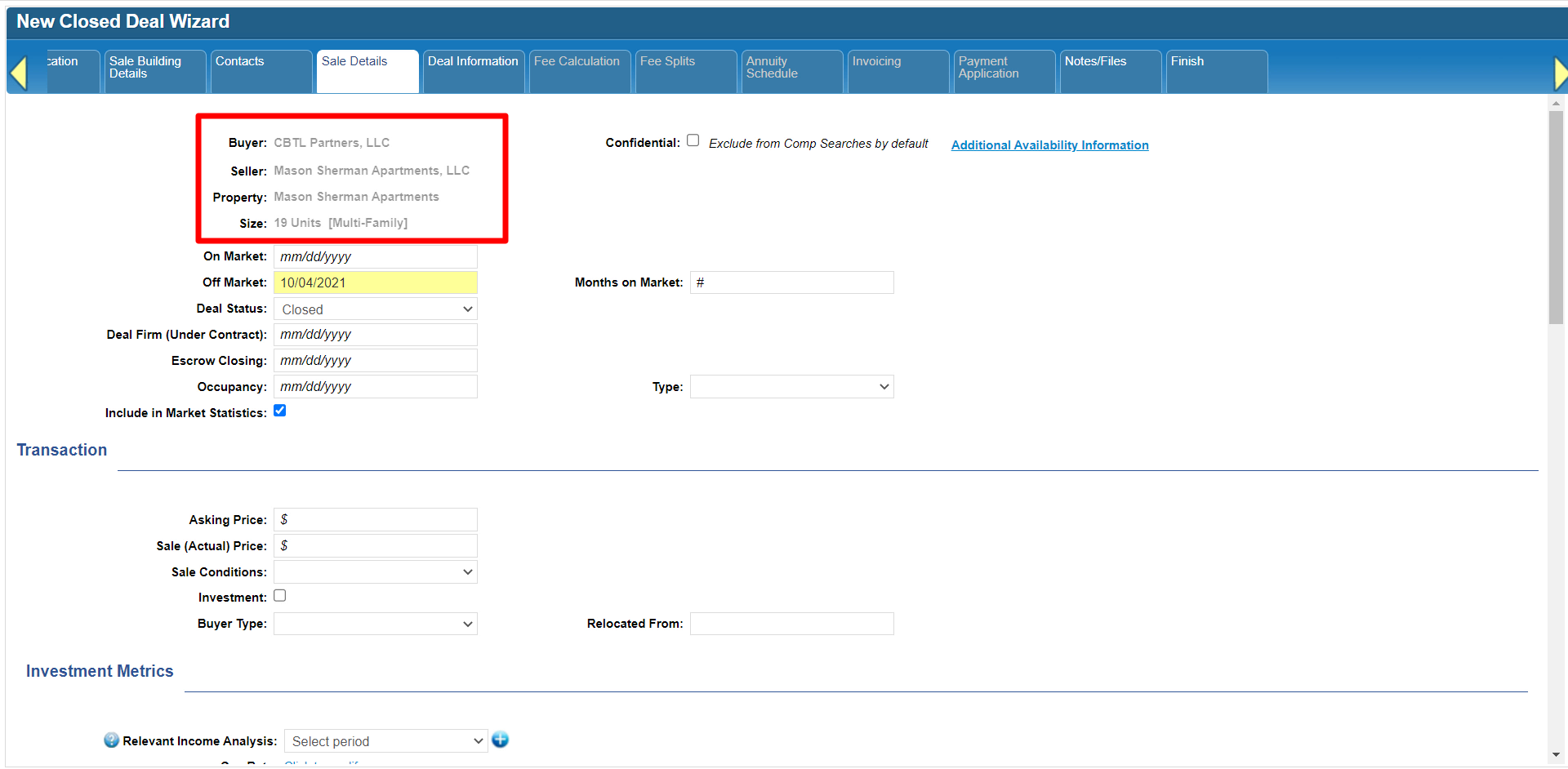 CBA - Entering a Closed Deal - 19 Sale Details (Time 0_00_14;09).png (image/png)
 CBA - Entering a Closed Deal - 16 Billing Schedule (Time 0_03_03;14).png (image/png)
 CBA - Entering a Closed Deal - 16 Billing Schedule (Time 0_02_58;04).png (image/png)
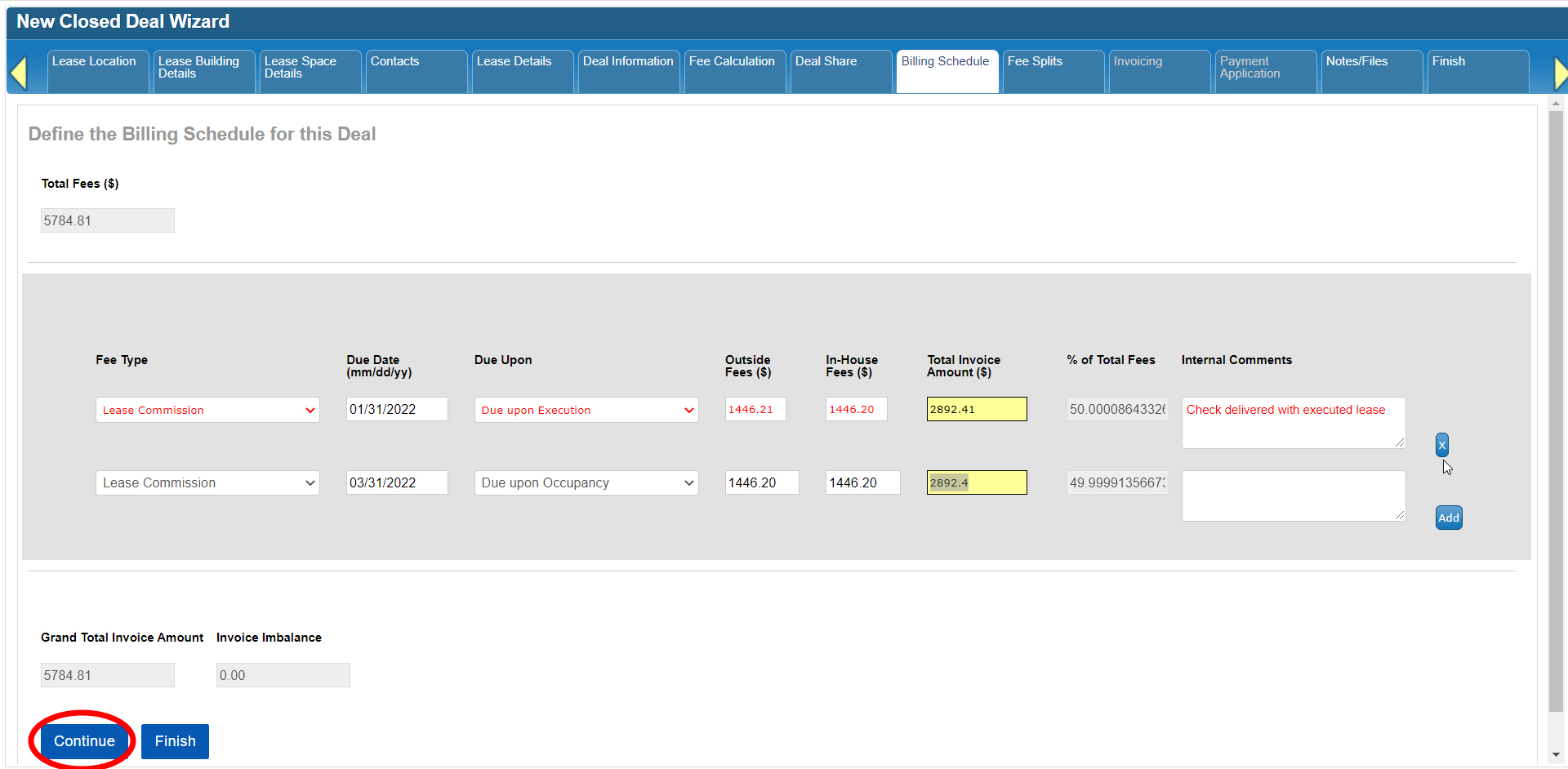 CBA - Entering a Closed Deal - 16 Billing Schedule (Time 0_02_50;28).png (image/png)
 CBA - Entering a Closed Deal - 16 Billing Schedule (Time 0_02_43;18).png (image/png)
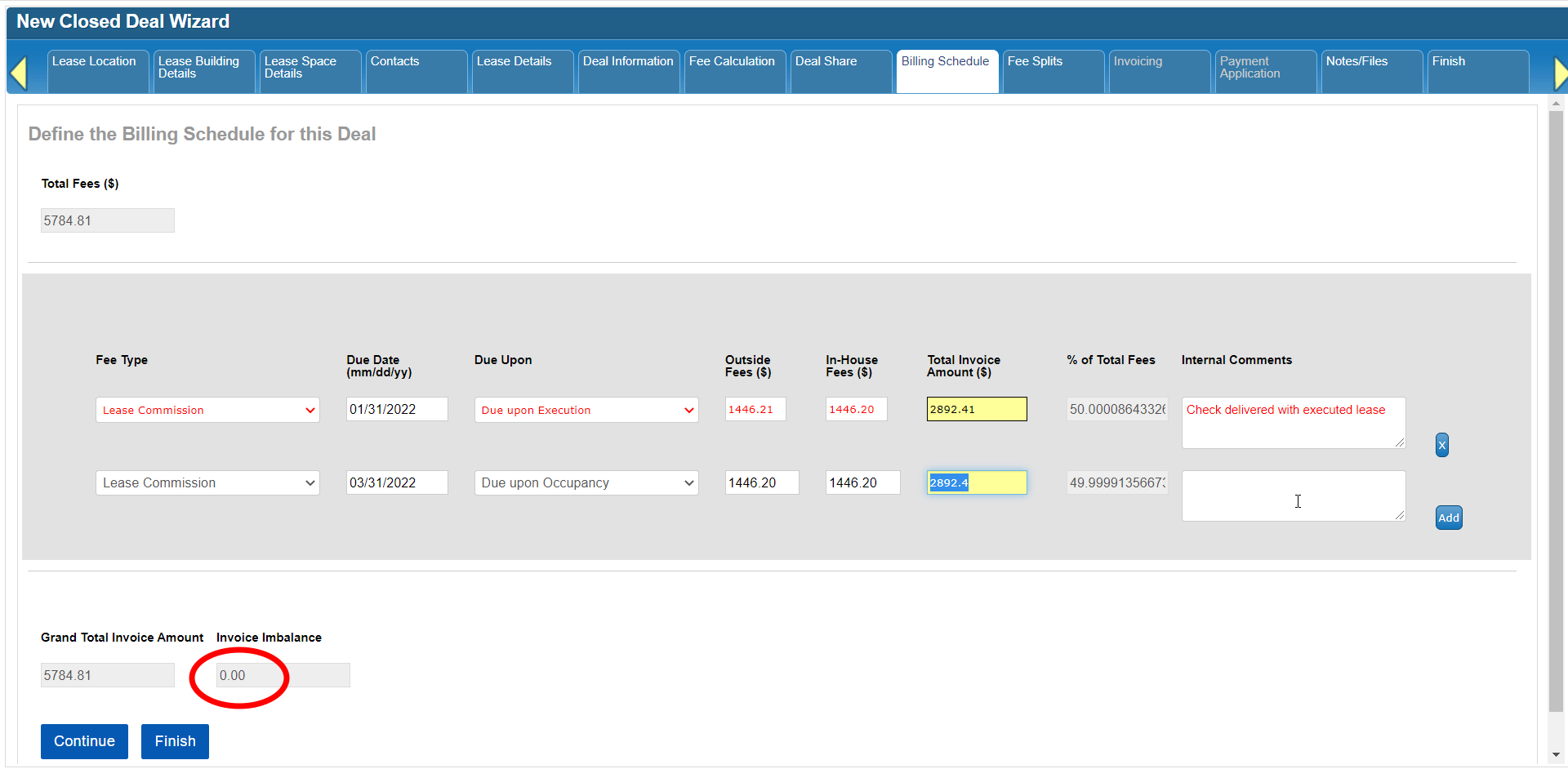 CBA - Entering a Closed Deal - 16 Billing Schedule (Time 0_02_38;10).png (image/png)
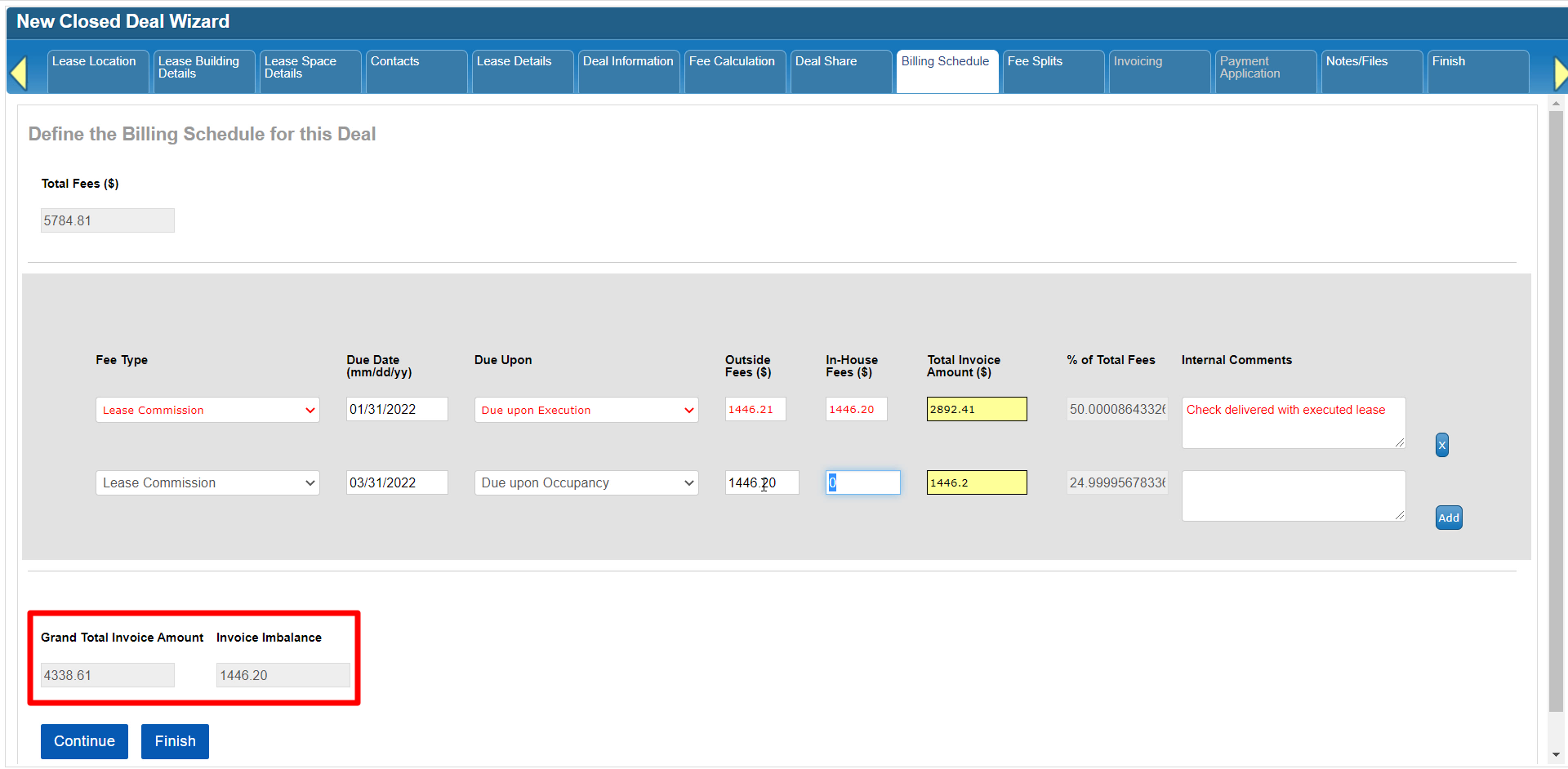 CBA - Entering a Closed Deal - 16 Billing Schedule (Time 0_02_28;21).png (image/png)
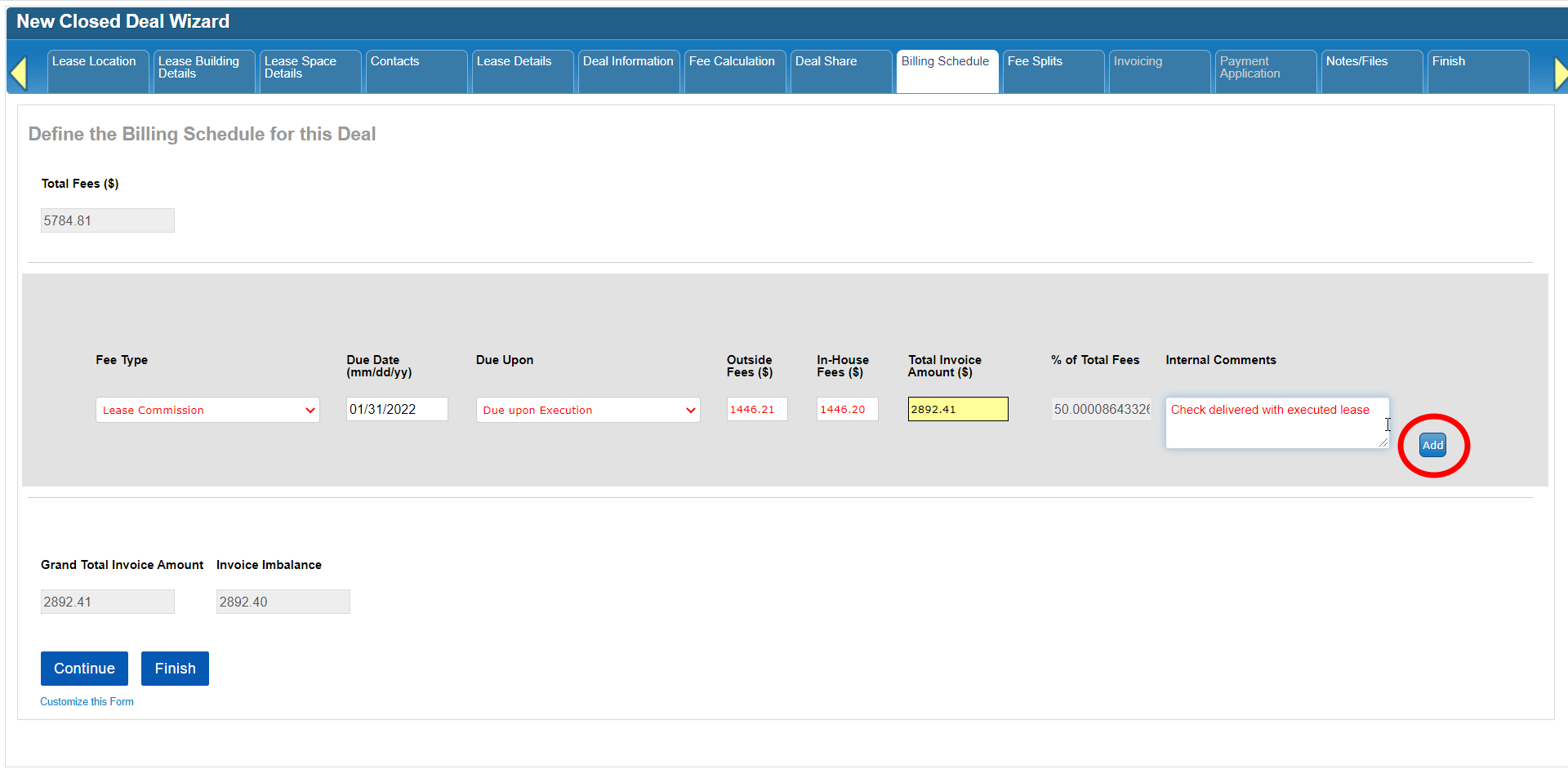 CBA - Entering a Closed Deal - 16 Billing Schedule (Time 0_02_21;00).png (image/png)
 CBA - Entering a Closed Deal - 16 Billing Schedule (Time 0_02_07;23).png (image/png)
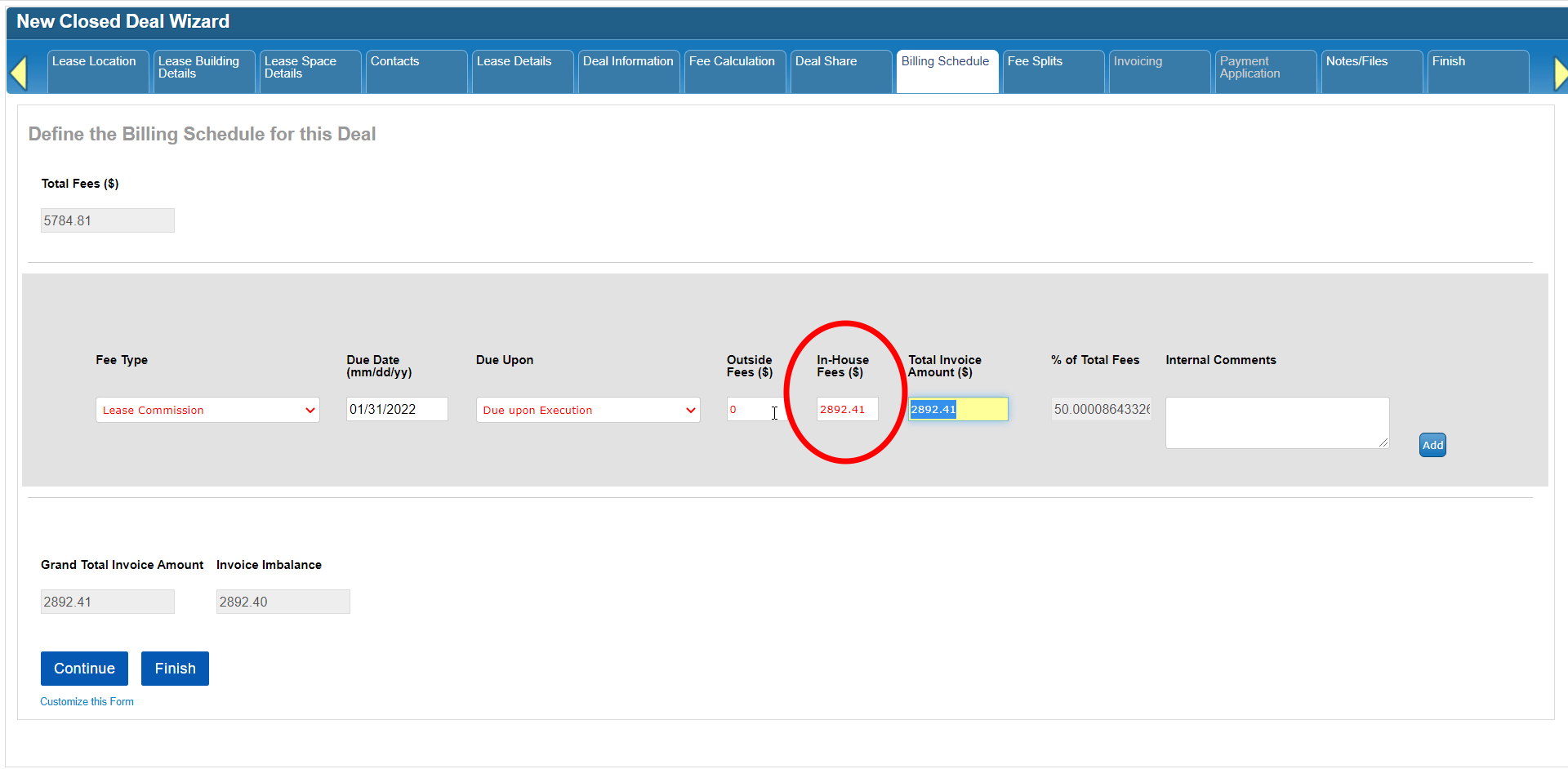 CBA - Entering a Closed Deal - 16 Billing Schedule (Time 0_01_56;23).png (image/png)
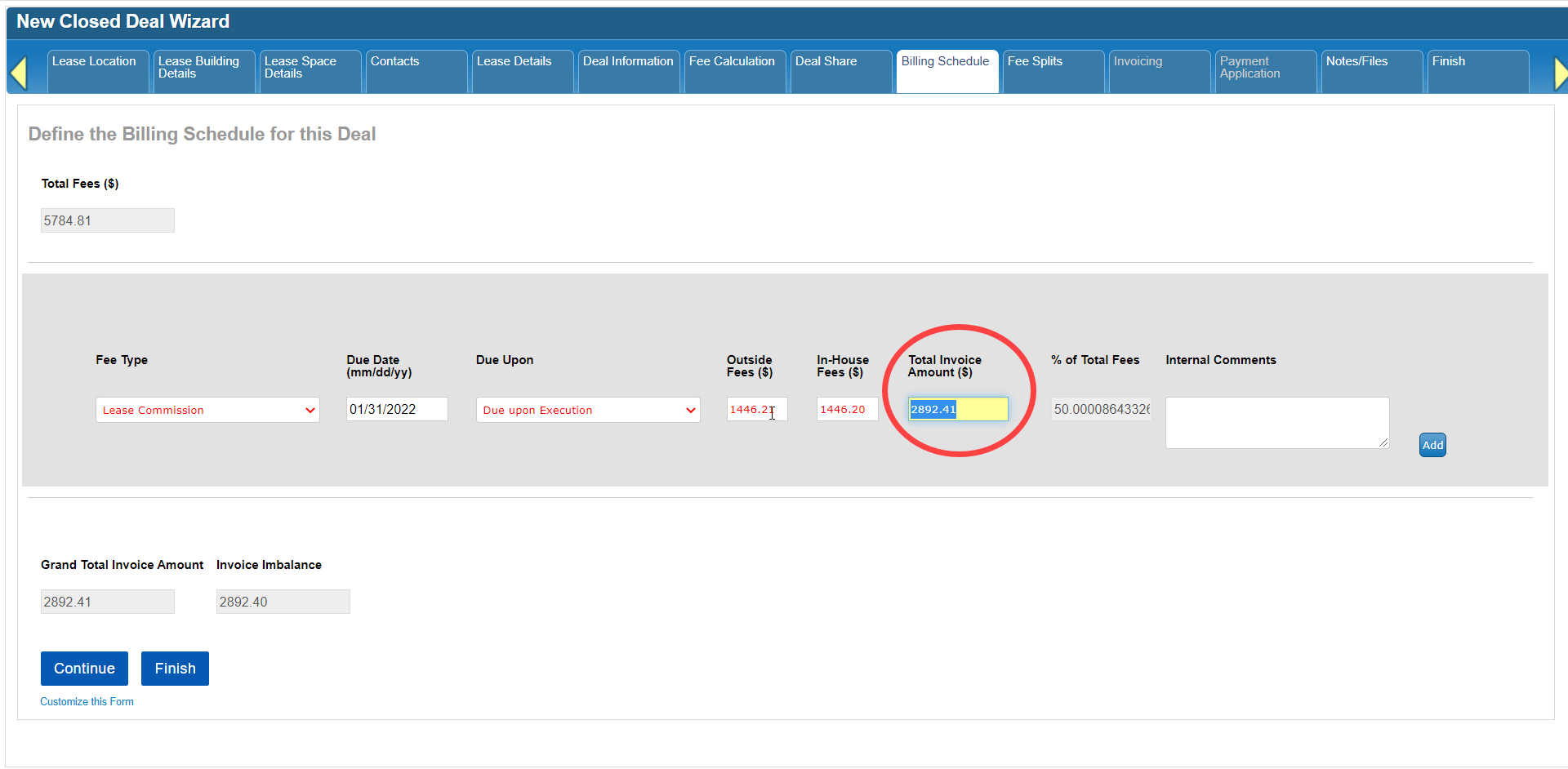 CBA - Entering a Closed Deal - 16 Billing Schedule (Time 0_01_47;17).png (image/png)
 CBA - Entering a Closed Deal - 16 Billing Schedule (Time 0_01_41;20).png (image/png)
 CBA - Entering a Closed Deal - 16 Billing Schedule (Time 0_01_40;00).png (image/png)
 CBA - Entering a Closed Deal - 16 Billing Schedule (Time 0_01_25;00).png (image/png)
 CBA - Entering a Closed Deal - 16 Billing Schedule (Time 0_01_23;06).png (image/png)
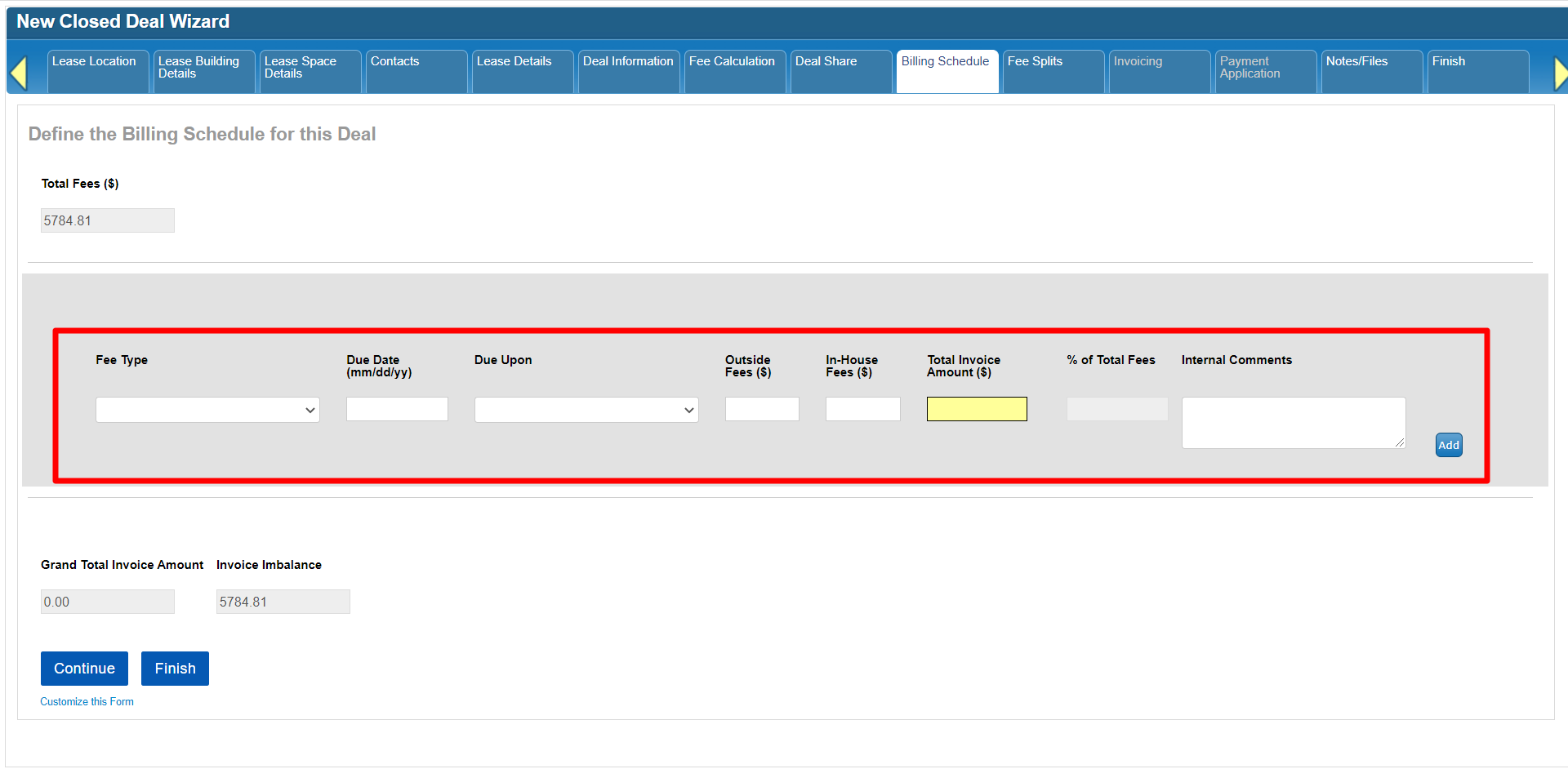 CBA - Entering a Closed Deal - 16 Billing Schedule (Time 0_01_20;06).png (image/png)
 CBA - Entering a Closed Deal - 16 Billing Schedule (Time 0_00_55;16).png (image/png)
 CBA - Entering a Closed Deal - 16 Billing Schedule (Time 0_00_36;13).png (image/png)
 CBA - Entering a Closed Deal - 14 Link Project (Time 0_05_11;08)b.png (image/png)
 CBA - Entering a Closed Deal - 14 Link Project (Time 0_05_01;15)b.png (image/png)
 CBA - Entering a Closed Deal - 14 Link Project (Time 0_04_57;04)b.png (image/png)
 CBA - Entering a Closed Deal - 14 Link Project (Time 0_04_37;16)b.png (image/png)
 CBA - Entering a Closed Deal - 14 Link Project (Time 0_04_25;04)b.png (image/png)
 CBA - Entering a Closed Deal - 14 Link Project (Time 0_04_21;11).png (image/png)
 CBA - Entering a Closed Deal - 14 Link Project (Time 0_04_12;18).png (image/png)
 2022-01-07_16-29-19.jpg (image/jpeg)
 CBA - Entering a Closed Deal - 14 Link Project (Time 0_03_38;09).png (image/png)
 CBA - Entering a Closed Deal - 14 Link Project (Time 0_03_34;09).png (image/png)
 CBA - Entering a Closed Deal - 14 Link Project (Time 0_03_14;12).png (image/png)
 CBA - Entering a Closed Deal - 14 Link Project (Time 0_03_07;19).png (image/png)
 CBA - Entering a Closed Deal - 14 Link Project (Time 0_02_39;25).png (image/png)
 CBA - Entering a Closed Deal - 14 Link Project (Time 0_02_31;06).png (image/png)
 CBA - Entering a Closed Deal - 14 Link Project (Time 0_02_26;25).png (image/png)
 CBA - Entering a Closed Deal - 14 Link Project (Time 0_02_25;06).png (image/png)
 CBA - Entering a Closed Deal - 14 Link Project (Time 0_02_19;21).png (image/png)
 CBA - Entering a Closed Deal - 14 Link Project (Time 0_02_13;06).png (image/png)
 CBA - Entering a Closed Deal - 14 Link Project (Time 0_01_55;09).png (image/png)
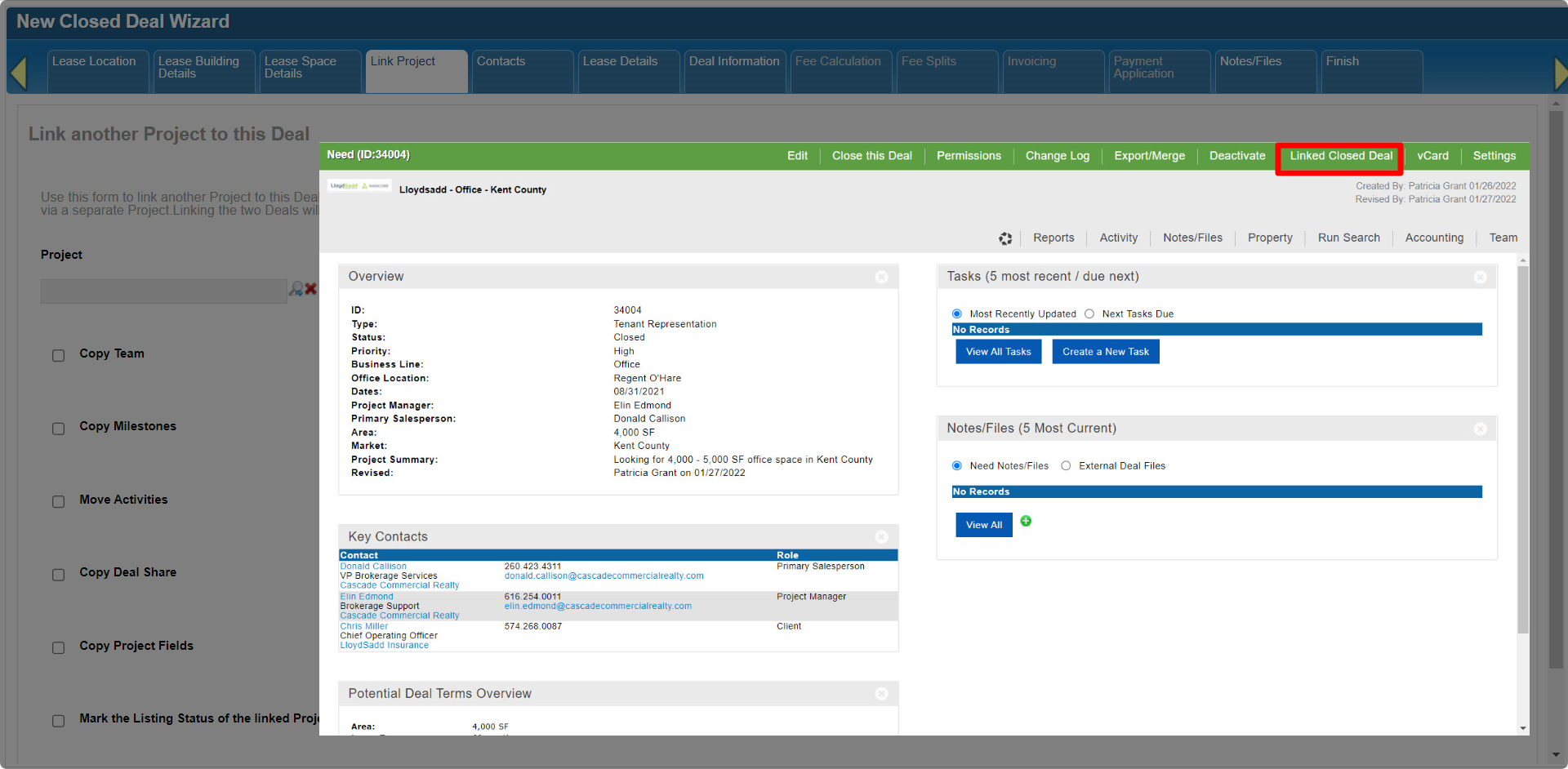 CBA - Entering a Closed Deal - 14 Link Project (Time 0_01_49;16).png (image/png)
 CBA - Entering a Closed Deal - 14 Link Project (Time 0_01_33;00).png (image/png)
 CBA - Entering a Closed Deal - 14 Link Project (Time 0_01_23;07)b.png (image/png)
 CBA - Entering a Closed Deal - 14 Link Project (Time 0_01_13;06).png (image/png)
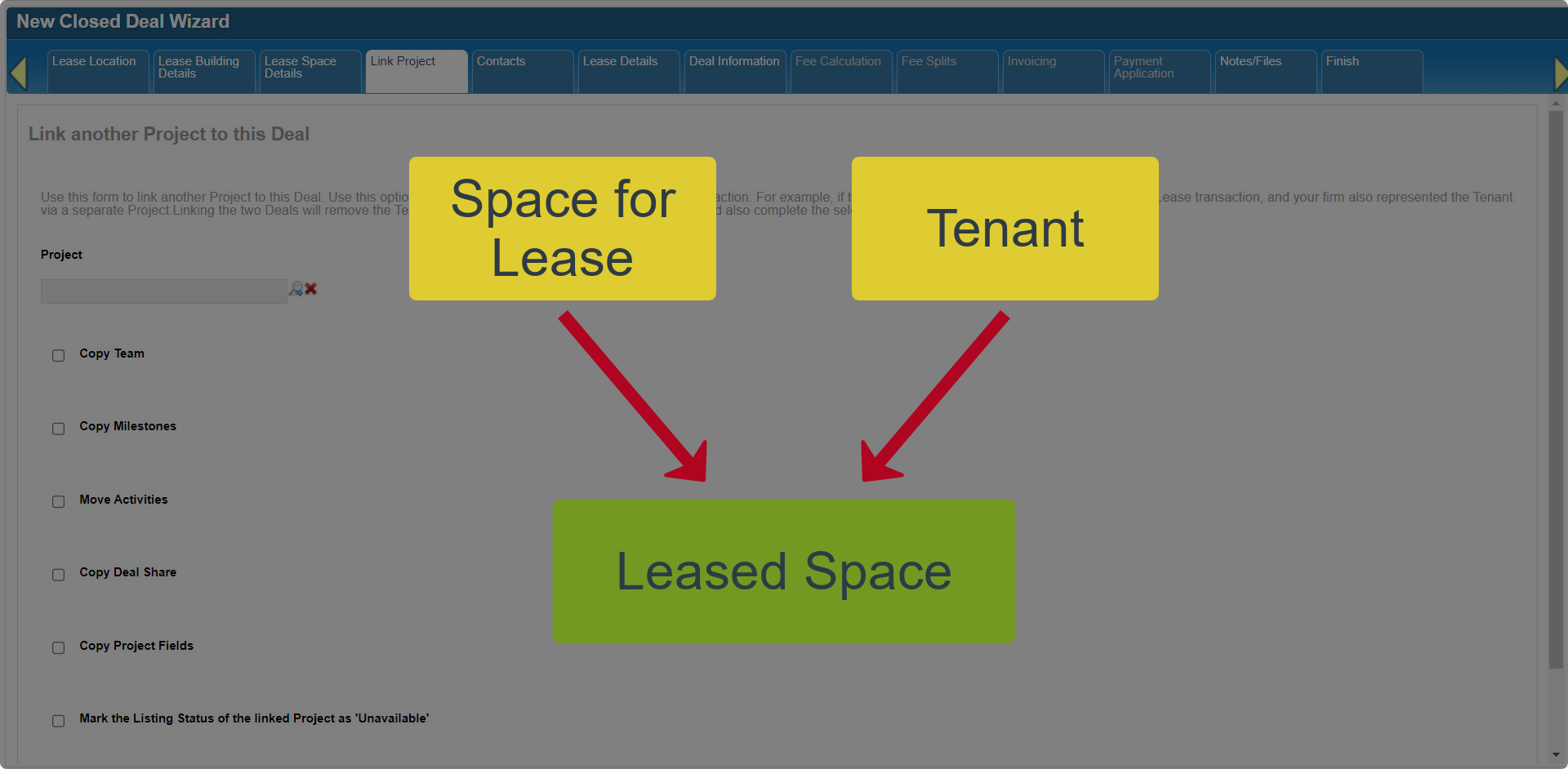 CBA - Entering a Closed Deal - 14 Link Project (Time 0_00_59;28).png (image/png)
 CBA - Entering a Closed Deal - 14 Link Project (Time 0_00_46;20).png (image/png)
 CBA - Entering a Closed Deal - 14 Link Project (Time 0_00_32;23)b.png (image/png)
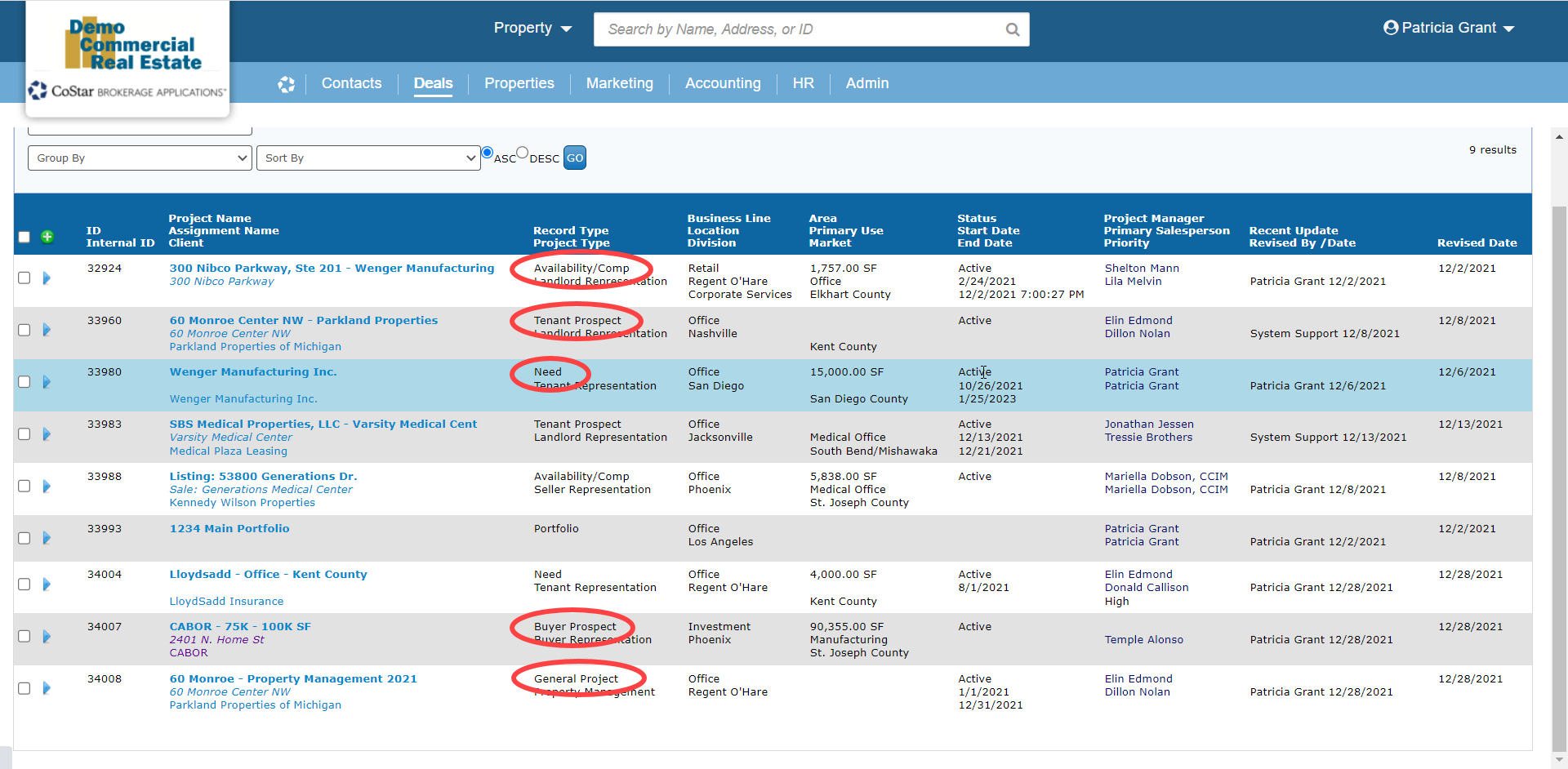 CBA - Entering a Closed Deal - 14 Link Project (Time 0_00_27;08).png (image/png)
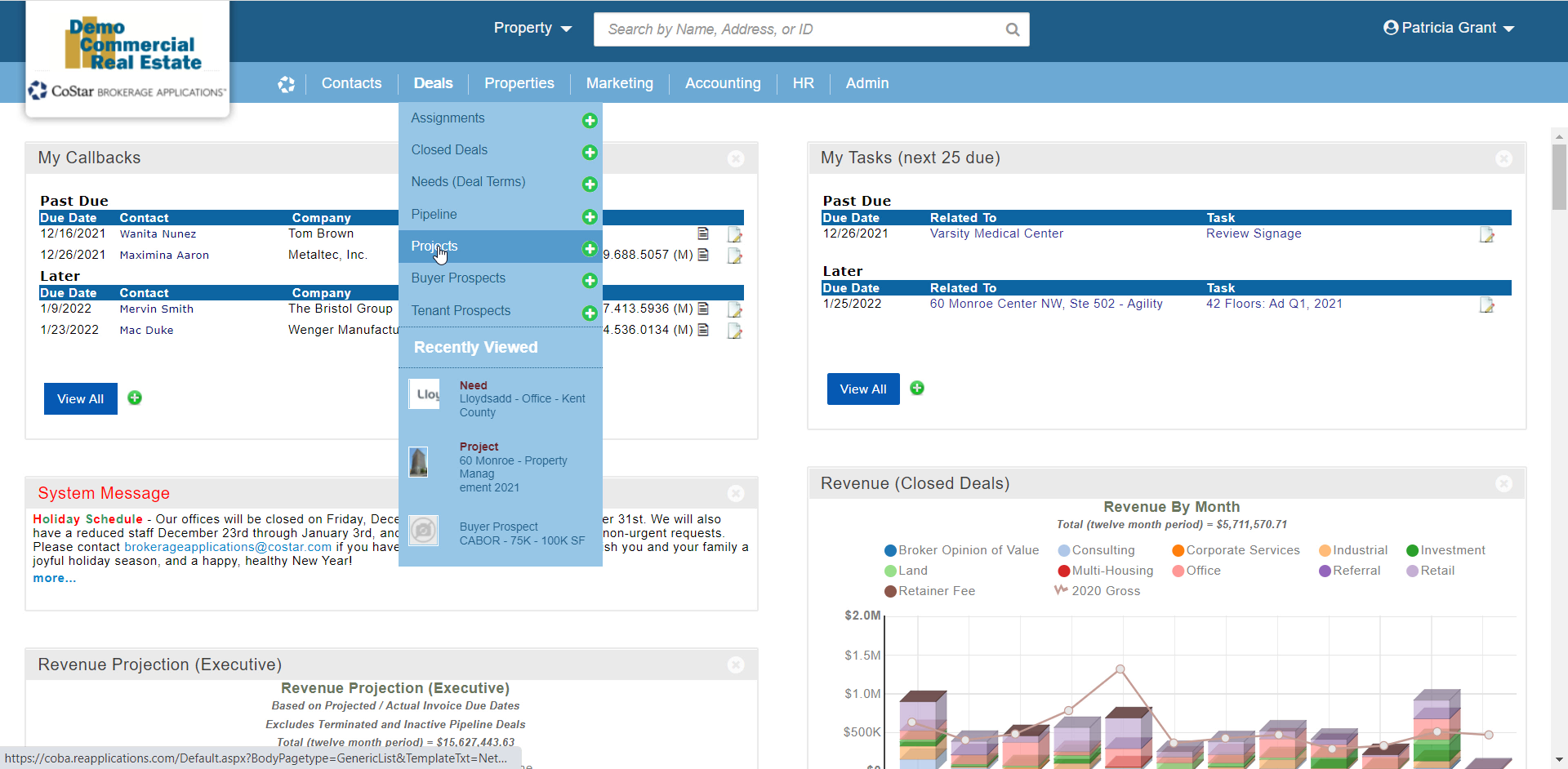 CBA - Entering a Closed Deal - 12 Payment (Time 0_05_15;25).png (image/png)
 CBA - Entering a Closed Deal - 12 Payment (Time 0_05_09;25).png (image/png)
 CBA - Entering a Closed Deal - 12 Payment (Time 0_05_05;16).png (image/png)
 CBA - Entering a Closed Deal - 12 Payment (Time 0_04_54;23).png (image/png)
 CBA - Entering a Closed Deal - 12 Payment (Time 0_04_47;09).png (image/png)
 CBA - Entering a Closed Deal - 12 Payment (Time 0_04_34;28).png (image/png)
 CBA - Entering a Closed Deal - 12 Payment (Time 0_04_22;24).png (image/png)
 CBA - Entering a Closed Deal - 12 Payment (Time 0_03_57;09)b.png (image/png)
 CBA - Entering a Closed Deal - 12 Payment (Time 0_03_57;09).png (image/png)
 CBA - Entering a Closed Deal - 12 Payment (Time 0_03_44;25).png (image/png)
 CBA - Entering a Closed Deal - 12 Payment (Time 0_03_29;27).png (image/png)
 CBA - Entering a Closed Deal - 12 Payment (Time 0_03_18;23).png (image/png)
 CBA - Entering a Closed Deal - 12 Payment (Time 0_03_15;06).png (image/png)
 CBA - Entering a Closed Deal - 12 Payment (Time 0_03_00;15).png (image/png)
 CBA - Entering a Closed Deal - 12 Payment (Time 0_02_46;02).png (image/png)
 CBA - Entering a Closed Deal - 12 Payment (Time 0_02_32;10).png (image/png)
 CBA - Entering a Closed Deal - 12 Payment (Time 0_02_17;16).png (image/png)
 CBA - Entering a Closed Deal - 12 Payment (Time 0_02_06;19).png (image/png)
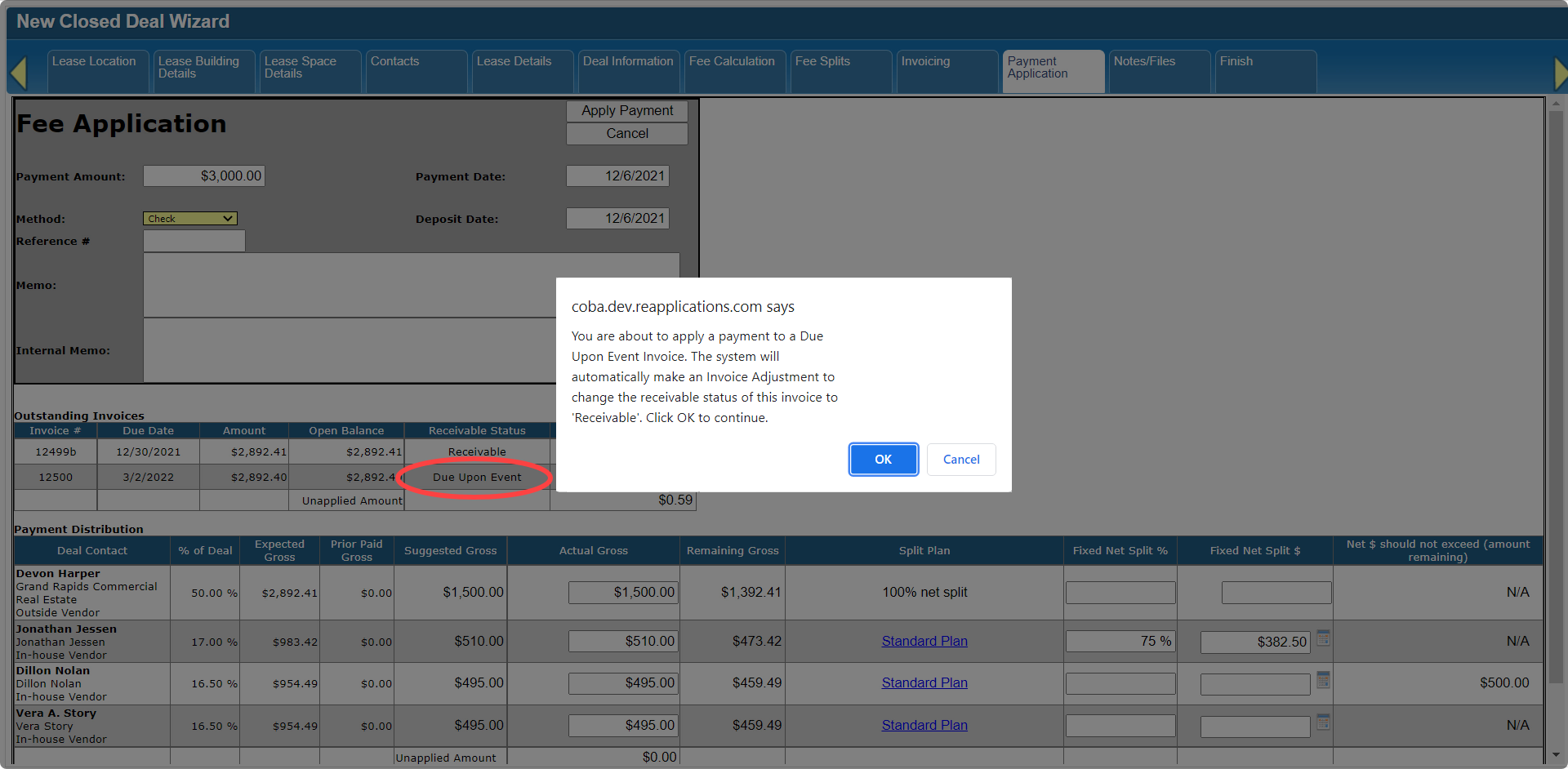 CBA - Entering a Closed Deal - 12 Payment (Time 0_02_02;21).png (image/png)
 CBA - Entering a Closed Deal - 12 Payment (Time 0_01_48;26).png (image/png)
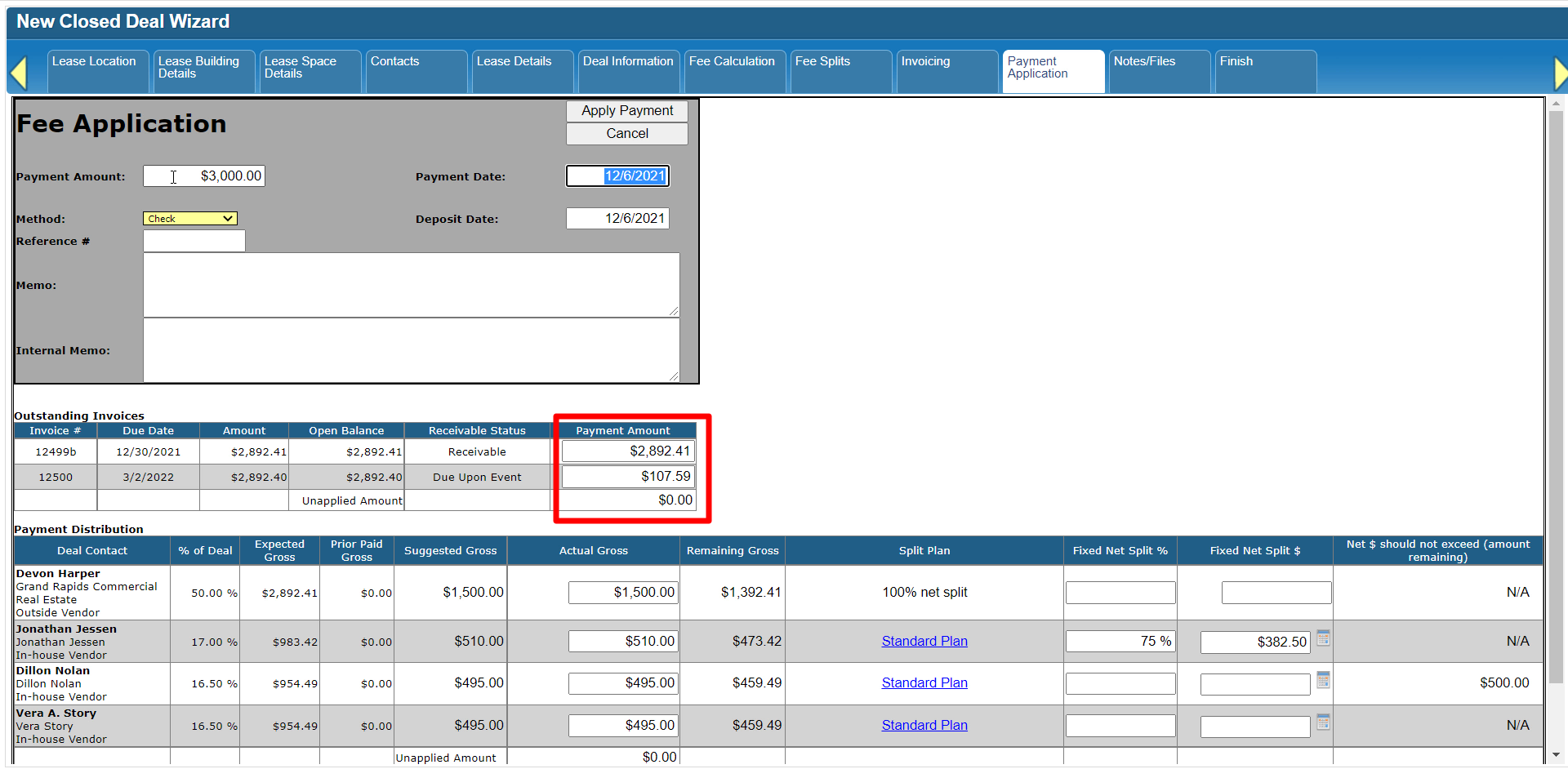 CBA - Entering a Closed Deal - 12 Payment (Time 0_01_39;28).png (image/png)
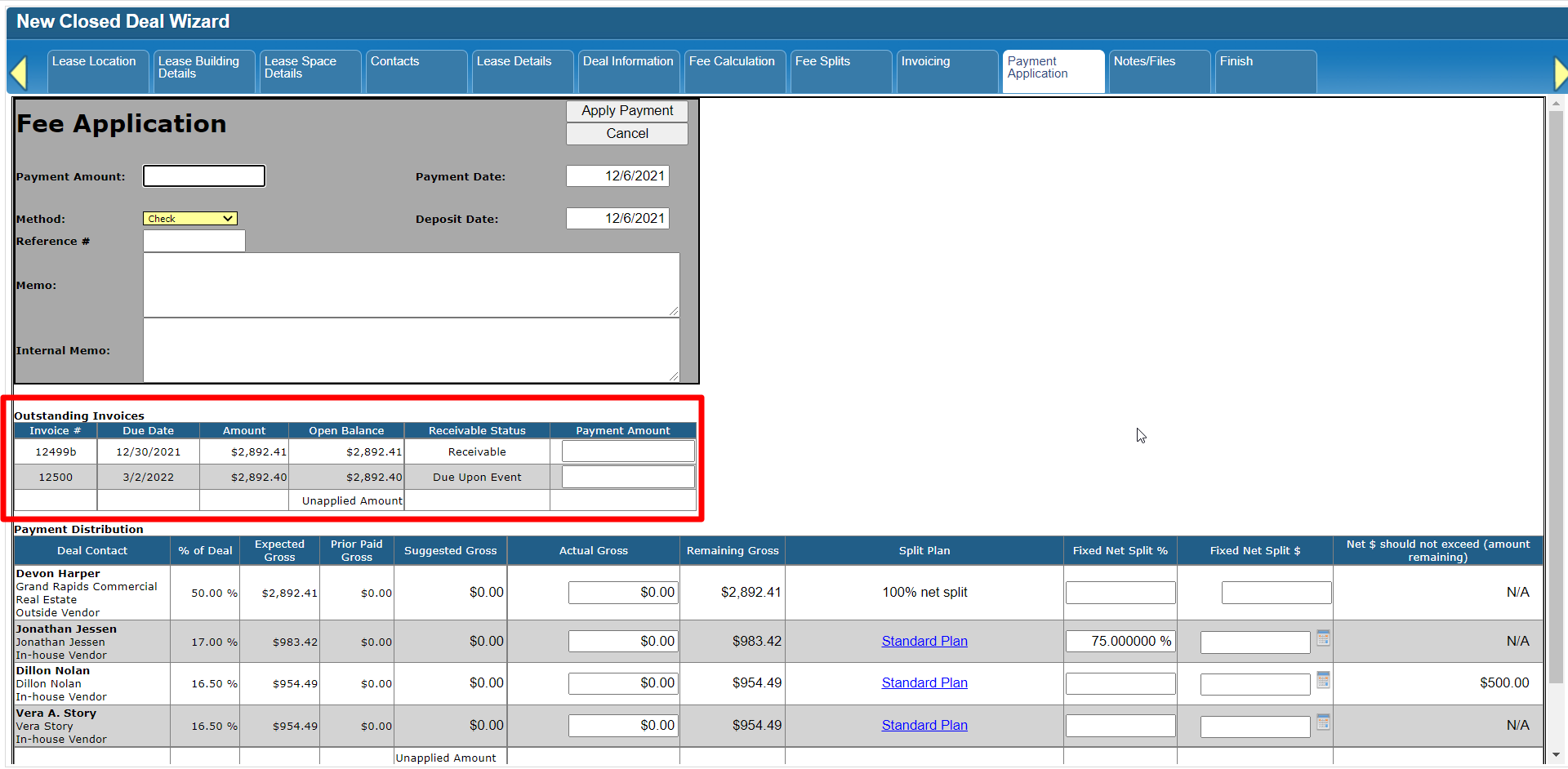 CBA - Entering a Closed Deal - 12 Payment (Time 0_01_27;13).png (image/png)
 CBA - Entering a Closed Deal - 12 Payment (Time 0_01_16;20).png (image/png)
 CBA - Entering a Closed Deal - 12 Payment (Time 0_00_57;13).png (image/png)
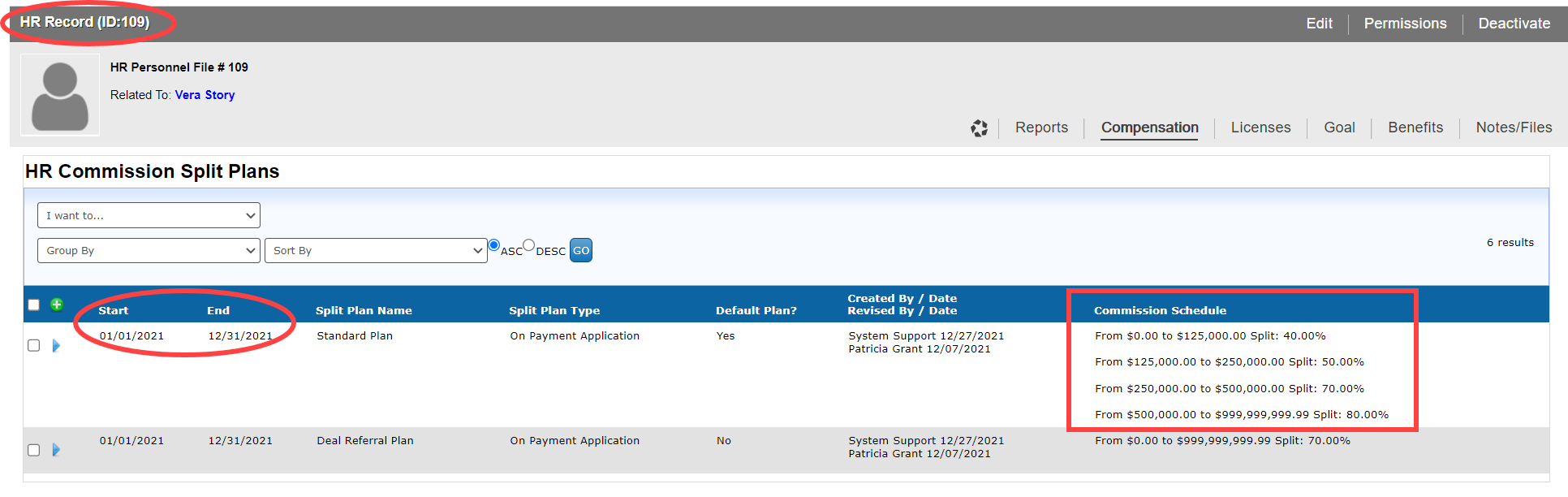 CBA - Entering a Closed Deal - 12 Payment (Time 0_00_42;22).png (image/png)
 CBA - Entering a Closed Deal - 11 Invoicing (Time 0_04_49;26).png (image/png)
 CBA - Entering a Closed Deal - 10 Fee Splits (Time 0_09_01;07).png (image/png)
 CBA - Entering a Closed Deal - 10 Fee Splits (Time 0_08_56;13).png (image/png)
 CBA - Entering a Closed Deal - 10 Fee Splits (Time 0_08_39;23).png (image/png)
 CBA - Entering a Closed Deal - 10 Fee Splits (Time 0_08_29;09).png (image/png)
 CBA - Entering a Closed Deal - 10 Fee Splits (Time 0_08_24;02).png (image/png)
 CBA - Entering a Closed Deal - 10 Fee Splits (Time 0_08_09;09).png (image/png)
 CBA - Entering a Closed Deal - 10 Fee Splits (Time 0_07_51;07).png (image/png)
 CBA - Entering a Closed Deal - 10 Fee Splits (Time 0_07_25;17).png (image/png)
 CBA - Entering a Closed Deal - 10 Fee Splits (Time 0_07_19;24).png (image/png)
 CBA - Entering a Closed Deal - 10 Fee Splits (Time 0_07_17;26).png (image/png)
 CBA - Entering a Closed Deal - 10 Fee Splits (Time 0_07_11;20).png (image/png)
 CBA - Entering a Closed Deal - 10 Fee Splits (Time 0_07_05;27).png (image/png)
 CBA - Entering a Closed Deal - 10 Fee Splits (Time 0_07_01;18).png (image/png)
 CBA - Entering a Closed Deal - 10 Fee Splits (Time 0_06_54;27).png (image/png)
 CBA - Entering a Closed Deal - 10 Fee Splits (Time 0_06_41;22).png (image/png)
 CBA - Entering a Closed Deal - 10 Fee Splits (Time 0_06_28;14).png (image/png)
 CBA - Entering a Closed Deal - 10 Fee Splits (Time 0_06_21;08).png (image/png)
 CBA - Entering a Closed Deal - 10 Fee Splits (Time 0_06_13;20).png (image/png)
 CBA - Entering a Closed Deal - 10 Fee Splits (Time 0_05_49;19).png (image/png)
 CBA - Entering a Closed Deal - 10 Fee Splits (Time 0_05_23;03).png (image/png)
 CBA - Entering a Closed Deal - 10 Fee Splits (Time 0_04_55;09).png (image/png)
 CBA - Entering a Closed Deal - 10 Fee Splits (Time 0_04_36;24).png (image/png)
 CBA - Entering a Closed Deal - 10 Fee Splits (Time 0_04_30;05).png (image/png)
 CBA - Entering a Closed Deal - 10 Fee Splits (Time 0_04_19;14).png (image/png)
 CBA - Entering a Closed Deal - 10 Fee Splits (Time 0_04_14;16)b.png (image/png)
 CBA - Entering a Closed Deal - 10 Fee Splits (Time 0_04_14;16).png (image/png)
 CBA - Entering a Closed Deal - 10 Fee Splits (Time 0_03_53;24).png (image/png)
 CBA - Entering a Closed Deal - 10 Fee Splits (Time 0_03_49;06).png (image/png)
 CBA - Entering a Closed Deal - 10 Fee Splits (Time 0_03_43;16).png (image/png)
 CBA - Entering a Closed Deal - 10 Fee Splits (Time 0_03_19;23).png (image/png)
 CBA - Entering a Closed Deal - 10 Fee Splits (Time 0_03_06;25).png (image/png)
 CBA - Entering a Closed Deal - 10 Fee Splits (Time 0_03_01;27).png (image/png)
 CBA - Entering a Closed Deal - 10 Fee Splits (Time 0_02_48;16).png (image/png)
 CBA - Entering a Closed Deal - 10 Fee Splits (Time 0_02_31;29).png (image/png)
 CBA - Entering a Closed Deal - 10 Fee Splits (Time 0_02_09;19).png (image/png)
 CBA - Entering a Closed Deal - 10 Fee Splits (Time 0_02_02;04).png (image/png)
 CBA - Entering a Closed Deal - 10 Fee Splits (Time 0_01_50;02).png (image/png)
 CBA - Entering a Closed Deal - 10 Fee Splits (Time 0_01_42;05).png (image/png)
 CBA - Entering a Closed Deal - 10 Fee Splits (Time 0_01_28;02).png (image/png)
 CBA - Entering a Closed Deal - 10 Fee Splits (Time 0_01_20;05).png (image/png)
 CBA - Entering a Closed Deal - 10 Fee Splits (Time 0_01_03;21).png (image/png)
 CBA - Entering a Closed Deal - 10 Fee Splits (Time 0_00_50;20).png (image/png)
 CBA - Entering a Closed Deal - 10 Fee Splits (Time 0_00_37;03).png (image/png)
 CBA - Entering a Closed Deal - 10 Fee Splits (Time 0_00_33;01).png (image/png)
 CBA - Entering a Closed Deal - 08 Deal Information (Time 0_03_28;25).png (image/png)
 CBA - Entering a Closed Deal - 08 Deal Information (Time 0_03_14;29).png (image/png)
 CBA - Entering a Closed Deal - 08 Deal Information (Time 0_02_55;26).png (image/png)
 CBA - Entering a Closed Deal - 08 Deal Information (Time 0_02_53;10).png (image/png)
 CBA - Entering a Closed Deal - 08 Deal Information (Time 0_02_38;14).png (image/png)
 CBA - Entering a Closed Deal - 08 Deal Information (Time 0_02_19;07).png (image/png)
 CBA - Entering a Closed Deal - 08 Deal Information (Time 0_02_14;05).png (image/png)
 CBA - Entering a Closed Deal - 08 Deal Information (Time 0_01_55;00).png (image/png)
 CBA - Entering a Closed Deal - 08 Deal Information (Time 0_01_27;04).png (image/png)
 CBA - Entering a Closed Deal - 08 Deal Information (Time 0_01_00;26).png (image/png)
 CBA - Entering a Closed Deal - 08 Deal Information (Time 0_00_52;05).png (image/png)
 CBA - Entering a Closed Deal - 08 Deal Information (Time 0_00_45;08).png (image/png)
 CBA - Entering a Closed Deal - 08 Deal Information (Time 0_00_24;04).png (image/png)
 CBA - Entering a Closed Deal - 06 Contacts (Time 0_03_02;26).png (image/png)
 CBA - Entering a Closed Deal - 06 Contacts (Time 0_03_00;07).png (image/png)
 CBA - Entering a Closed Deal - 06 Contacts (Time 0_02_30;08).png (image/png)
 CBA - Entering a Closed Deal - 06 Contacts (Time 0_02_26;14).png (image/png)
 CBA - Entering a Closed Deal - 06 Contacts (Time 0_02_08;13).png (image/png)
 CBA - Entering a Closed Deal - 06 Contacts (Time 0_01_58;01).png (image/png)
 CBA - Entering a Closed Deal - 06 Contacts (Time 0_01_52;12).png (image/png)
 CBA - Entering a Closed Deal - 06 Contacts (Time 0_01_40;29).png (image/png)
 CBA - Entering a Closed Deal - 06 Contacts (Time 0_01_27;02).png (image/png)
 CBA - Entering a Closed Deal - 06 Contacts (Time 0_01_21;18).png (image/png)
 CBA - Entering a Closed Deal - 06 Contacts (Time 0_00_51;04).png (image/png)
 CBA - Entering a Closed Deal - 06 Contacts (Time 0_00_33;28).png (image/png)
 CBA - Entering a Closed Deal - 04 Property (Time 0_02_52;14).png (image/png)
 CBA - Entering a Closed Deal - 04 Property (Time 0_02_44;24).png (image/png)
 CBA - Entering a Closed Deal - 04 Property (Time 0_02_38;22).png (image/png)
 CBA - Entering a Closed Deal - 04 Property (Time 0_02_19;12).png (image/png)
 CBA - Entering a Closed Deal - 04 Property (Time 0_02_12;07).png (image/png)
 CBA - Entering a Closed Deal - 04 Property (Time 0_02_00;11).png (image/png)
 CBA - Entering a Closed Deal - 04 Property (Time 0_01_40;21).png (image/png)
 CBA - Entering a Closed Deal - 04 Property (Time 0_01_37;08).png (image/png)
 CBA - Entering a Closed Deal - 04 Property (Time 0_01_32;17).png (image/png)
 CBA - Entering a Closed Deal - 04 Property (Time 0_01_25;02).png (image/png)
 CBA - Entering a Closed Deal - 04 Property (Time 0_01_14;23).png (image/png)
 CBA - Entering a Closed Deal - 04 Property (Time 0_00_59;14).png (image/png)
 CBA - Entering a Closed Deal - 04 Property (Time 0_00_29;24).png (image/png)
 CBA - Entering a Closed Deal - 04 Property (Time 0_00_19;25).png (image/png)
 CBA - Entering a Closed Deal - 02 New Closed Deal Modal all (Time 0_04_23;06).png (image/png)
 CBA - Entering a Closed Deal - 02 New Closed Deal Modal all (Time 0_04_18;08).png (image/png)
 CBA - Entering a Closed Deal - 02 New Closed Deal Modal all (Time 0_03_50;03).png (image/png)
 CBA - Entering a Closed Deal - 02 New Closed Deal Modal all (Time 0_03_28;13).png (image/png)
 CBA - Entering a Closed Deal - 02 New Closed Deal Modal all (Time 0_03_25;09).png (image/png)
 CBA - Entering a Closed Deal - 02 New Closed Deal Modal all (Time 0_02_59;26).png (image/png)
 CBA - Entering a Closed Deal - 02 New Closed Deal Modal all (Time 0_01_27;23).png (image/png)
 CBA - Entering a Closed Deal - 02 New Closed Deal Modal all (Time 0_02_30;26).png (image/png)
 CBA - Entering a Closed Deal - 02 New Closed Deal Modal all (Time 0_02_47;26).png (image/png)
 CBA - Entering a Closed Deal - 02 New Closed Deal Modal all (Time 0_02_43;16).png (image/png)
 CBA - Entering a Closed Deal - 02 New Closed Deal Modal all (Time 0_02_35;01).png (image/png)
 CBA - Entering a Closed Deal - 02 New Closed Deal Modal all (Time 0_02_02;26).png (image/png)
 CBA - Entering a Closed Deal - 02 New Closed Deal Modal all (Time 0_01_54;08).png (image/png)
 CBA - Entering a Closed Deal - 02 New Closed Deal Modal all (Time 0_01_44;04).png (image/png)
 CBA - Entering a Closed Deal - 02 New Closed Deal Modal all (Time 0_01_09;13).png (image/png)
 CBA - Entering a Closed Deal - 02 New Closed Deal Modal all (Time 0_00_31;29).png (image/png)
 CBA - Entering a Closed Deal - 03 Workflow Navigation (Time 0_00_23;29).png (image/png)
 CBA - Entering a Closed Deal - 03 Workflow Navigation (Time 0_00_37;04).png (image/png)
 CBA - Entering a Closed Deal - 03 Workflow Navigation (Time 0_00_48;01).png (image/png)
 CBA - Entering a Closed Deal - 03 Workflow Navigation (Time 0_01_01;06).png (image/png)
 CBA - Entering a Closed Deal - 03 Workflow Navigation (Time 0_01_27;28).png (image/png)
 CBA - Entering a Closed Deal - 05 Space (Time 0_00_21;08).png (image/png)
 CBA - Entering a Closed Deal - 05 Space (Time 0_00_26;10).png (image/png)
 CBA - Entering a Closed Deal - 05 Space (Time 0_00_30;17).png (image/png)
 CBA - Entering a Closed Deal - 05 Space (Time 0_00_42;06).png (image/png)
 CBA - Entering a Closed Deal - 05 Space (Time 0_01_00;08).png (image/png)
 CBA - Entering a Closed Deal - 05 Space (Time 0_01_04;25).png (image/png)
 CBA - Entering a Closed Deal - 05 Space (Time 0_01_11;23).png (image/png)
 CBA - Entering a Closed Deal - 05 Space (Time 0_01_24;18).png (image/png)
 CBA - Entering a Closed Deal - 05 Space (Time 0_02_43;08).png (image/png)
 CBA - Entering a Closed Deal - 05 Space (Time 0_02_48;10).png (image/png)
 CBA - Entering a Closed Deal - 07 Lease Details (Time 0_00_19;09).png (image/png)
 CBA - Entering a Closed Deal - 07 Lease Details (Time 0_01_03;21).png (image/png)
 CBA - Entering a Closed Deal - 07 Lease Details (Time 0_01_26;00).png (image/png)
 CBA - Entering a Closed Deal - 07 Lease Details (Time 0_01_30;17).png (image/png)
 CBA - Entering a Closed Deal - 07 Lease Details (Time 0_01_52;03).png (image/png)
 CBA - Entering a Closed Deal - 07 Lease Details (Time 0_02_08;29).png (image/png)
 CBA - Entering a Closed Deal - 07 Lease Details (Time 0_02_33;17).png (image/png)
 CBA - Entering a Closed Deal - 07 Lease Details (Time 0_02_40;00).png (image/png)
 CBA - Entering a Closed Deal - 07 Lease Details (Time 0_02_59;26).png (image/png)
 CBA - Entering a Closed Deal - 07 Lease Details (Time 0_03_10;18).png (image/png)
 CBA - Entering a Closed Deal - 07 Lease Details (Time 0_03_23;17).png (image/png)
 CBA - Entering a Closed Deal - 07 Lease Details (Time 0_03_28;24).png (image/png)
 CBA - Entering a Closed Deal - 07 Lease Details (Time 0_03_50;07).png (image/png)
 CBA - Entering a Closed Deal - 07 Lease Details (Time 0_03_58;14).png (image/png)
 CBA - Entering a Closed Deal - 07 Lease Details (Time 0_04_05;00).png (image/png)
 CBA - Entering a Closed Deal - 09 Fee Calculation (Time 0_00_50;07).png (image/png)
 CBA - Entering a Closed Deal - 09 Fee Calculation (Time 0_00_46;04).png (image/png)
 CBA - Entering a Closed Deal - 09 Fee Calculation (Time 0_00_28;17).png (image/png)
 CBA - Entering a Closed Deal - 09 Fee Calculation (Time 0_00_21;20).png (image/png)
 CBA - Entering a Closed Deal - 09 Fee Calculation (Time 0_00_19;20).png (image/png)
 CBA - Entering a Closed Deal - 09 Fee Calculation (Time 0_01_01;20).png (image/png)
 CBA - Entering a Closed Deal - 09 Fee Calculation (Time 0_01_31;07).png (image/png)
 CBA - Entering a Closed Deal - 09 Fee Calculation (Time 0_01_41;29).png (image/png)
 CBA - Entering a Closed Deal - 09 Fee Calculation (Time 0_01_45;20).png (image/png)
 CBA - Entering a Closed Deal - 09 Fee Calculation (Time 0_01_59;03).png (image/png)
 CBA - Entering a Closed Deal - 09 Fee Calculation (Time 0_02_26;19).png (image/png)
 CBA - Entering a Closed Deal - 09 Fee Calculation (Time 0_02_41;15).png (image/png)
 CBA - Entering a Closed Deal - 09 Fee Calculation (Time 0_03_19;09).png (image/png)
 CBA - Entering a Closed Deal - 09 Fee Calculation (Time 0_03_25;21).png (image/png)
 CBA - Entering a Closed Deal - 09 Fee Calculation (Time 0_03_40;27).png (image/png)
 CBA - Entering a Closed Deal - 11 Invoicing (Time 0_00_27;14).png (image/png)
 CBA - Entering a Closed Deal - 11 Invoicing (Time 0_00_53;21).png (image/png)
 CBA - Entering a Closed Deal - 11 Invoicing (Time 0_01_00;06).png (image/png)
 CBA - Entering a Closed Deal - 11 Invoicing (Time 0_01_06;10).png (image/png)
 CBA - Entering a Closed Deal - 11 Invoicing (Time 0_01_14;14).png (image/png)
 CBA - Entering a Closed Deal - 11 Invoicing (Time 0_01_17;06).png (image/png)
 CBA - Entering a Closed Deal - 11 Invoicing (Time 0_01_32;13).png (image/png)
 CBA - Entering a Closed Deal - 11 Invoicing (Time 0_01_38;20).png (image/png)
 CBA - Entering a Closed Deal - 11 Invoicing (Time 0_01_47;01).png (image/png)
 CBA - Entering a Closed Deal - 11 Invoicing (Time 0_01_57;12).png (image/png)
 CBA - Entering a Closed Deal - 11 Invoicing (Time 0_02_05;23).png (image/png)
 CBA - Entering a Closed Deal - 11 Invoicing (Time 0_02_17;23).png (image/png)
 CBA - Entering a Closed Deal - 11 Invoicing (Time 0_02_24;27).png (image/png)
 CBA - Entering a Closed Deal - 11 Invoicing (Time 0_02_28;27).png (image/png)
 CBA - Entering a Closed Deal - 11 Invoicing (Time 0_02_41;23).png (image/png)
 CBA - Entering a Closed Deal - 11 Invoicing (Time 0_02_51;27).png (image/png)
 CBA - Entering a Closed Deal - 11 Invoicing (Time 0_02_51;27)b.png (image/png)
 CBA - Entering a Closed Deal - 11 Invoicing (Time 0_03_07;01).png (image/png)
 CBA - Entering a Closed Deal - 11 Invoicing (Time 0_03_27;19).png (image/png)
 CBA - Entering a Closed Deal - 11 Invoicing (Time 0_03_30;19).png (image/png)
 CBA - Entering a Closed Deal - 11 Invoicing (Time 0_03_38;08).png (image/png)
 CBA - Entering a Closed Deal - 11 Invoicing (Time 0_03_41;15).png (image/png)
 CBA - Entering a Closed Deal - 11 Invoicing (Time 0_03_44;12).png (image/png)
 CBA - Entering a Closed Deal - 11 Invoicing (Time 0_03_57;27).png (image/png)
 CBA - Entering a Closed Deal - 11 Invoicing (Time 0_04_05;12).png (image/png)
 CBA - Entering a Closed Deal - 11 Invoicing (Time 0_04_16;19).png (image/png)
 CBA - Entering a Closed Deal - 11 Invoicing (Time 0_04_27;27).png (image/png)
 CBA - Entering a Closed Deal - 11 Invoicing (Time 0_04_34;19).png (image/png)
 CBA - Entering a Closed Deal - 11 Invoicing (Time 0_04_58;18).png (image/png)
 CBA - Entering a Closed Deal - 11 Invoicing (Time 0_05_05;29).png (image/png)
 CBA - Entering a Closed Deal - 11 Invoicing (Time 0_05_17;29).png (image/png)
 CBA - Entering a Closed Deal - 13 Notes (Time 0_00_21;22).png (image/png)
 CBA - Entering a Closed Deal - 13 Notes (Time 0_00_46;17).png (image/png)
 CBA - Entering a Closed Deal - 13 Notes (Time 0_00_55;19).png (image/png)
 CBA - Entering a Closed Deal - 13 Notes (Time 0_01_01;07).png (image/png)
 CBA - Entering a Closed Deal - 13 Notes (Time 0_01_08;16).png (image/png)
 CBA - Entering a Closed Deal - 13 Notes (Time 0_01_28;22).png (image/png)
 CBA - Entering a Closed Deal - 13 Notes (Time 0_02_06;29).png (image/png)
 CBA - Entering a Closed Deal - 13 Notes (Time 0_02_15;03).png (image/png)
 CBA - Entering a Closed Deal - 13 Notes (Time 0_02_16;23).png (image/png)
 CBA - Entering a Closed Deal - 13 Notes (Time 0_02_35;23).png (image/png)
 CBA - Entering a Closed Deal - 13 Notes (Time 0_02_45;17).png (image/png)
 CBA - Entering a Closed Deal - 13 Notes (Time 0_02_59;02).png (image/png)
 CBA - Entering a Closed Deal - 13 Notes (Time 0_03_06;03).png (image/png)
 CBA - Entering a Closed Deal - 13 Notes (Time 0_03_21;05).png (image/png)
 CBA - Entering a Closed Deal - 13 Notes (Time 0_03_29;19).png (image/png)
 CBA - Entering a Closed Deal - 13 Notes (Time 0_03_37;08).png (image/png)
 CBA - Entering a Closed Deal - 13 Notes (Time 0_03_49;06).png (image/png)
 CBA - Entering a Closed Deal - 13 Notes (Time 0_03_58;16).png (image/png)
 CBA - Entering a Closed Deal - 13 Notes (Time 0_04_15;19).png (image/png)
 CBA - Entering a Closed Deal - 13 Notes (Time 0_04_26;01).png (image/png)
 CBA - Entering a Closed Deal - 13 Notes (Time 0_04_35;11).png (image/png)
 CBA - Entering a Closed Deal - 13 Notes (Time 0_04_43;22).png (image/png)
 CBA - Entering a Closed Deal - 13 Notes (Time 0_04_50;02).png (image/png)
 CBA - Entering a Closed Deal - 13 Notes (Time 0_04_57;25).png (image/png)
 CBA - Entering a Closed Deal - 13 Notes (Time 0_05_10;01).png (image/png)
 CBA - Entering a Closed Deal - 15 Deal Share (Time 0_00_52;19).png (image/png)
 CBA - Entering a Closed Deal - 15 Deal Share (Time 0_01_23;08).png (image/png)
 CBA - Entering a Closed Deal - 15 Deal Share (Time 0_01_30;11).png (image/png)
 CBA - Entering a Closed Deal - 15 Deal Share (Time 0_01_34;21).png (image/png)
 CBA - Entering a Closed Deal - 15 Deal Share (Time 0_01_50;00)b.png (image/png)
 CBA - Entering a Closed Deal - 15 Deal Share (Time 0_02_00;04).png (image/png)
 CBA - Entering a Closed Deal - 15 Deal Share (Time 0_02_07;02).png (image/png)
 CBA - Entering a Closed Deal - 15 Deal Share (Time 0_02_07;02)b.png (image/png)
 CBA - Entering a Closed Deal - 15 Deal Share (Time 0_02_12;00).png (image/png)
 CBA - Entering a Closed Deal - 15 Deal Share (Time 0_02_19;16).png (image/png)
 CBA - Entering a Closed Deal - 15 Deal Share (Time 0_02_29;01).png (image/png)
 CBA - Entering a Closed Deal - 15 Deal Share (Time 0_02_46;06).png (image/png)
 CBA - Entering a Closed Deal - 15 Deal Share (Time 0_03_01;23).png (image/png)
 CBA - Entering a Closed Deal - 15 Deal Share (Time 0_03_22;02).png (image/png)
 CBA - Entering a Closed Deal - 15 Deal Share (Time 0_03_45;02).png (image/png)
 CBA - Entering a Closed Deal - 15 Deal Share (Time 0_03_59;00).png (image/png)
 CBA - Entering a Closed Deal - 15 Deal Share (Time 0_04_05;15).png (image/png)
 CBA - Entering a Closed Deal - 15 Deal Share (Time 0_04_10;08).png (image/png)
 CBA - Entering a Closed Deal - 15 Deal Share (Time 0_04_21;12).png (image/png)
 CBA - Entering a Closed Deal - 15 Deal Share (Time 0_04_35;17).png (image/png)
 CBA - Entering a Closed Deal - 15 Deal Share (Time 0_04_47;05).png (image/png)
 CBA - Entering a Closed Deal - 15 Deal Share (Time 0_04_57;18).png (image/png)
 CBA - Entering a Closed Deal - 17 Net Adjustments (Time 0_00_44;17).png (image/png)
 CBA - Entering a Closed Deal - 17 Net Adjustments (Time 0_00_47;26).png (image/png)
 CBA - Entering a Closed Deal - 17 Net Adjustments (Time 0_00_56;09).png (image/png)
 CBA - Entering a Closed Deal - 17 Net Adjustments (Time 0_01_12;27)a.png (image/png)
 CBA - Entering a Closed Deal - 17 Net Adjustments (Time 0_01_29;26).png (image/png)
 CBA - Entering a Closed Deal - 17 Net Adjustments (Time 0_01_40;22).png (image/png)
 CBA - Entering a Closed Deal - 17 Net Adjustments (Time 0_01_47;17).png (image/png)
 CBA - Entering a Closed Deal - 17 Net Adjustments (Time 0_01_56;29).png (image/png)
 CBA - Entering a Closed Deal - 17 Net Adjustments (Time 0_02_02;07).png (image/png)
 CBA - Entering a Closed Deal - 17 Net Adjustments (Time 0_02_11;19).png (image/png)
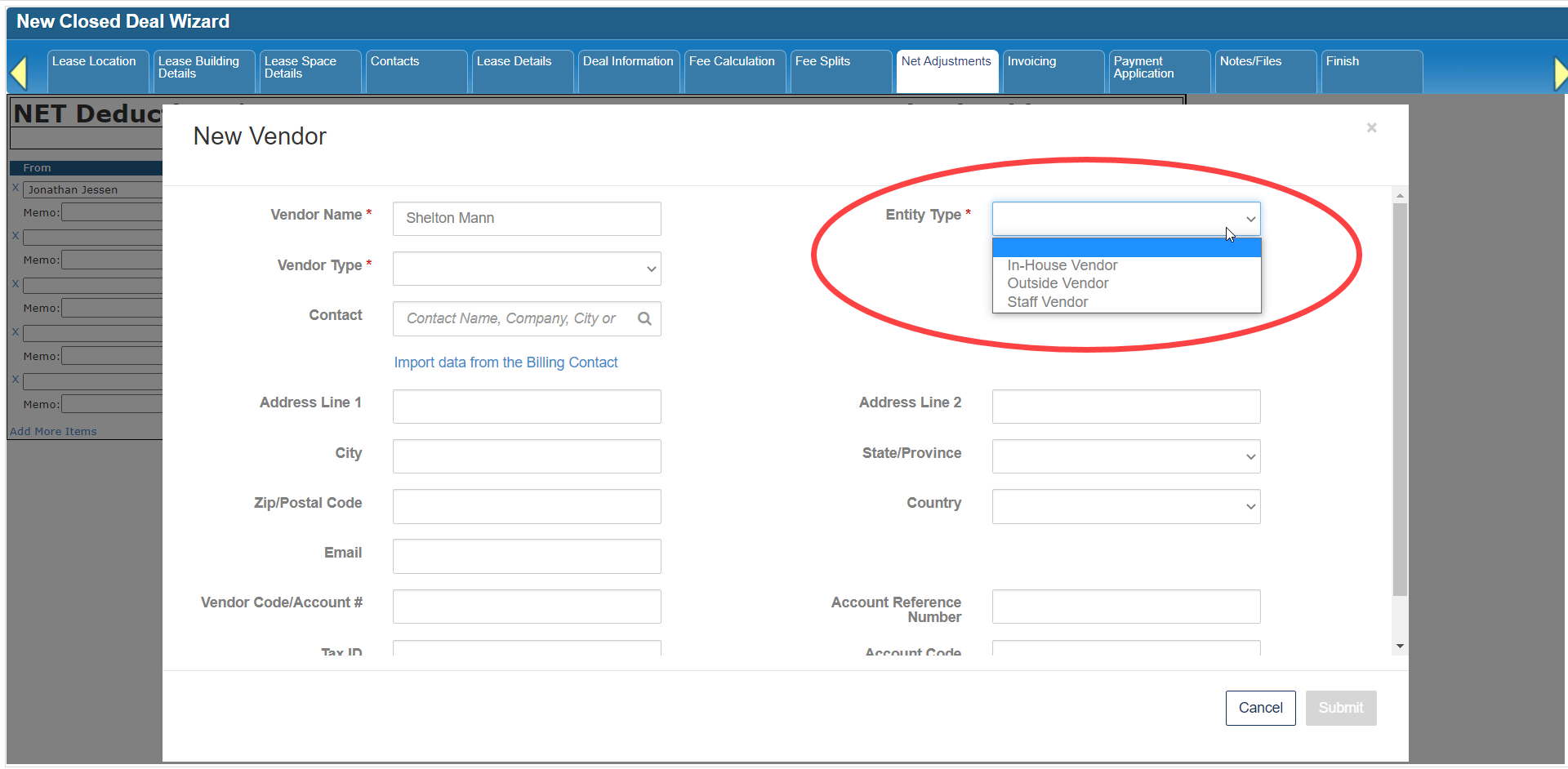 CBA - Entering a Closed Deal - 17 Net Adjustments (Time 0_02_36;13).png (image/png)
 CBA - Entering a Closed Deal - 17 Net Adjustments (Time 0_02_42;16).png (image/png)
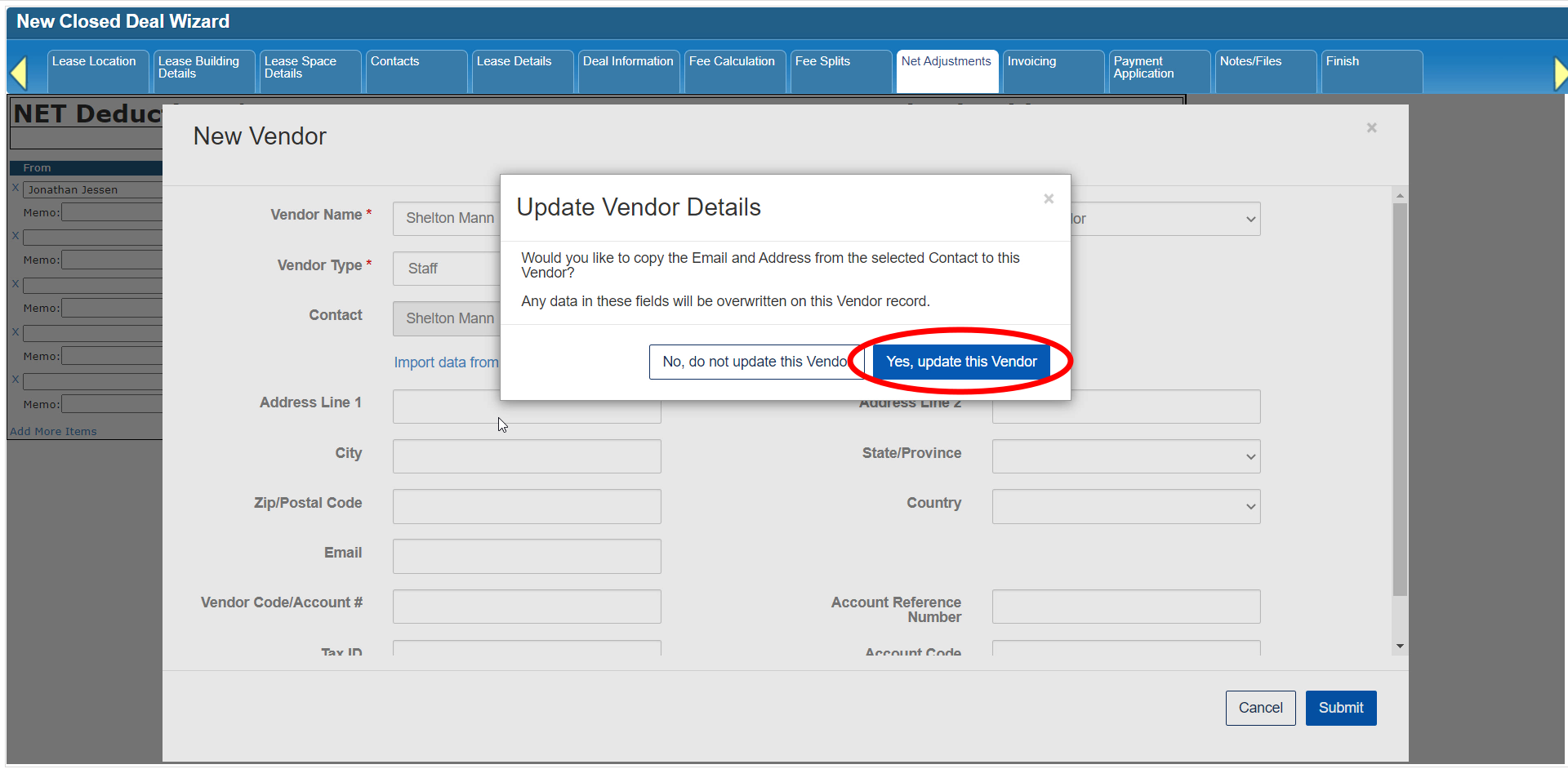 CBA - Entering a Closed Deal - 17 Net Adjustments (Time 0_02_52;13).png (image/png)
 CBA - Entering a Closed Deal - 17 Net Adjustments (Time 0_02_56;25).png (image/png)
 CBA - Entering a Closed Deal - 17 Net Adjustments (Time 0_03_00;15).png (image/png)
 CBA - Entering a Closed Deal - 17 Net Adjustments (Time 0_03_16;04).png (image/png)
 CBA - Entering a Closed Deal - 17 Net Adjustments (Time 0_03_43;00).png (image/png)
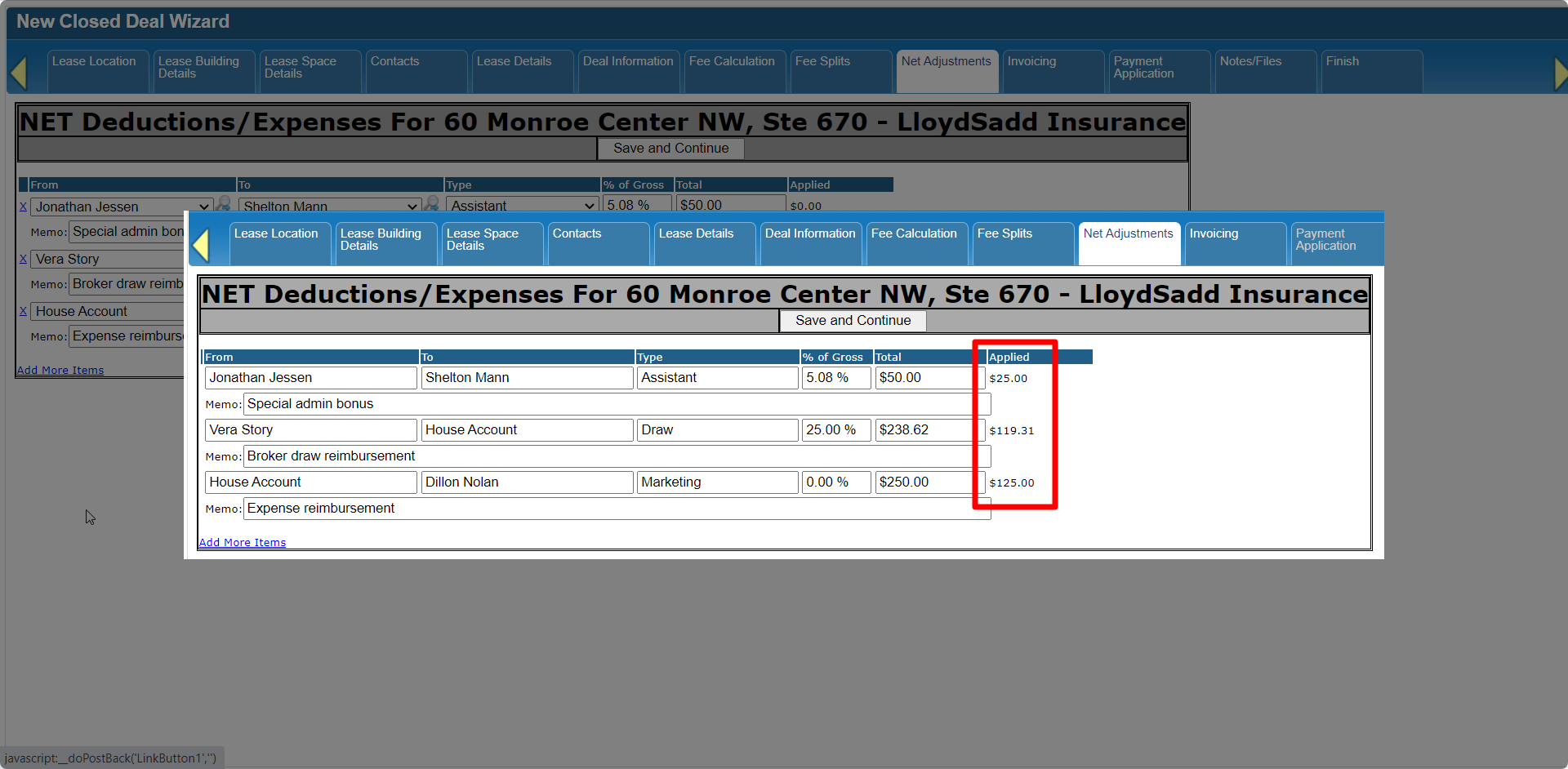 CBA - Entering a Closed Deal - 17 Net Adjustments (Time 0_03_23;21).png (image/png)
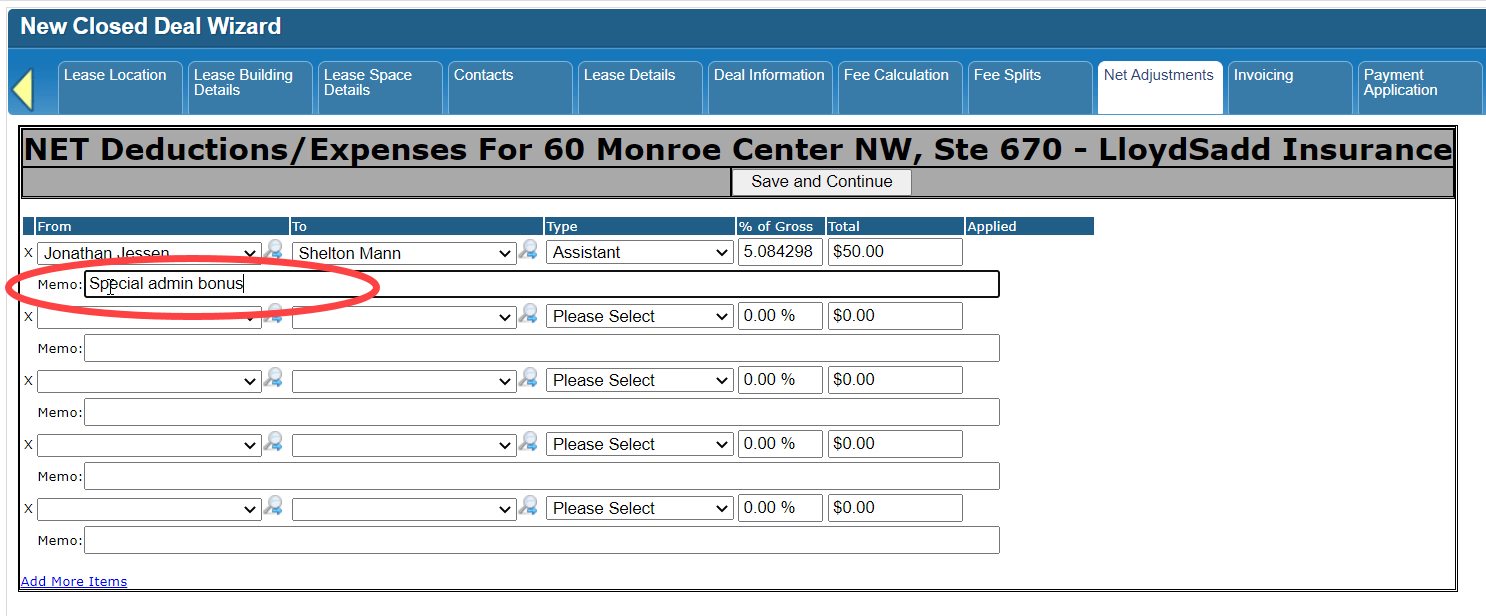 CBA - Entering a Closed Deal - 17 Net Adjustments (Time 0_03_32;11).png (image/png)
 CBA - Entering a Closed Deal - 17 Net Adjustments (Time 0_03_38;29).png (image/png)
 CBA - Entering a Closed Deal - 17 Net Adjustments (Time 0_03_45;10).png (image/png)
 CBA - Entering a Closed Deal - 17 Net Adjustments (Time 0_03_48;23).png (image/png)
 CBA - Entering a Closed Deal - 17 Net Adjustments (Time 0_03_58;16).png (image/png)
 CBA - Entering a Closed Deal - 17 Net Adjustments (Time 0_04_10;01).png (image/png)
 CBA - Entering a Closed Deal - 17 Net Adjustments (Time 0_04_24;24).png (image/png)
 2022-02-03_17-43-07b.png (image/png)
 CBA - Entering a Closed Deal - 17 Net Adjustments (Time 0_04_33;29).png (image/png)
 CBA - Entering a Closed Deal - 17 Net Adjustments (Time 0_04_43;00).png (image/png)
 CBA - Entering a Closed Deal - 17 Net Adjustments (Time 0_04_54;26).png (image/png)
 CBA - Entering a Closed Deal - 17 Net Adjustments (Time 0_04_59;12).png (image/png)
 CBA - Entering a Closed Deal - 17 Net Adjustments (Time 0_05_02;14).png (image/png)
 CBA - Entering a Closed Deal - 17 Net Adjustments (Time 0_05_13;03).png (image/png)
 CBA - Entering a Closed Deal - 17 Net Adjustments (Time 0_05_15;24).png (image/png)
 CBA - Entering a Closed Deal - 20 Other Starting Points (Time 0_00_16;14).png (image/png)
CBA - Entering a Closed Deal - 20 Other Starting Points (Time 0_00_38;07).png (image/png)
CBA - Entering a Closed Deal - 20 Other Starting Points (Time 0_00_16;14).png (image/png)
CBA - Entering a Closed Deal - 20 Other Starting Points (Time 0_00_38;07).png (image/png)
 CBA - Entering a Closed Deal - 20 Other Starting Points (Time 0_00_38;07)b.png (image/png)
2022-03-28_16-33-59.png (image/png)
CBA - Entering a Closed Deal - 20 Other Starting Points (Time 0_00_38;07)b.png (image/png)
2022-03-28_16-33-59.png (image/png)
 2022-03-28_16-33-59b.png (image/png)
CBA - Entering a Closed Deal - 20 Other Starting Points (Time 0_01_10;29).png (image/png)
CBA - Entering a Closed Deal - 20 Other Starting Points (Time 0_01_17;16)b.png (image/png)
CBA - Entering a Closed Deal - 20 Other Starting Points (Time 0_02_00;21).png (image/png)
CBA - Entering a Closed Deal - 20 Other Starting Points (Time 0_02_09;23)b.png (image/png)
CBA - Entering a Closed Deal - 20 Other Starting Points (Time 0_02_39;04).png (image/png)
CBA - Entering a Closed Deal - 20 Other Starting Points (Time 0_02_44;03).png (image/png)
2022-03-28_16-33-59b.png (image/png)
CBA - Entering a Closed Deal - 20 Other Starting Points (Time 0_01_10;29).png (image/png)
CBA - Entering a Closed Deal - 20 Other Starting Points (Time 0_01_17;16)b.png (image/png)
CBA - Entering a Closed Deal - 20 Other Starting Points (Time 0_02_00;21).png (image/png)
CBA - Entering a Closed Deal - 20 Other Starting Points (Time 0_02_09;23)b.png (image/png)
CBA - Entering a Closed Deal - 20 Other Starting Points (Time 0_02_39;04).png (image/png)
CBA - Entering a Closed Deal - 20 Other Starting Points (Time 0_02_44;03).png (image/png)
 CBA - Entering a Closed Deal - 20 Other Starting Points (Time 0_02_44;03)b.png (image/png)
CBA - Entering a Closed Deal - 20 Other Starting Points (Time 0_02_57;24).png (image/png)
CBA - Entering a Closed Deal - 20 Other Starting Points (Time 0_03_22;27).png (image/png)
CBA - Entering a Closed Deal - 20 Other Starting Points (Time 0_03_29;09).png (image/png)
CBA - Entering a Closed Deal - 20 Other Starting Points (Time 0_03_34;10).png (image/png)
CBA - Entering a Closed Deal - 20 Other Starting Points (Time 0_04_07;22).png (image/png)
CBA - Entering a Closed Deal - 20 Other Starting Points (Time 0_04_32;14).png (image/png)
CBA - Entering a Closed Deal - 20 Other Starting Points (Time 0_04_45;12).png (image/png)
CBA - Entering a Closed Deal - 20 Other Starting Points (Time 0_05_16;21)b.png (image/png)
CBA - Entering a Closed Deal - 20 Other Starting Points (Time 0_05_30;12).png (image/png)
CBA - Entering a Closed Deal - 20 Other Starting Points (Time 0_05_48;04)b.png (image/png)
CBA - Entering a Closed Deal - 20 Other Starting Points (Time 0_05_58;11)b.png (image/png)
CBA - Entering a Closed Deal - 20 Other Starting Points (Time 0_06_04;05).png (image/png)
CBA - Entering a Closed Deal - 20 Other Starting Points (Time 0_06_19;01).png (image/png)
CBA - Entering a Closed Deal - 20 Other Starting Points (Time 0_06_40;20).png (image/png)
CBA - Entering a Closed Deal - 20 Other Starting Points (Time 0_06_51;14)b.png (image/png)
CBA - Entering a Closed Deal - 20 Other Starting Points (Time 0_07_02;14)b.png (image/png)
CBA - Entering a Closed Deal - 20 Other Starting Points (Time 0_07_38;29)b.png (image/png)
CBA - Entering a Closed Deal - 20 Other Starting Points (Time 0_02_44;03)b.png (image/png)
CBA - Entering a Closed Deal - 20 Other Starting Points (Time 0_02_57;24).png (image/png)
CBA - Entering a Closed Deal - 20 Other Starting Points (Time 0_03_22;27).png (image/png)
CBA - Entering a Closed Deal - 20 Other Starting Points (Time 0_03_29;09).png (image/png)
CBA - Entering a Closed Deal - 20 Other Starting Points (Time 0_03_34;10).png (image/png)
CBA - Entering a Closed Deal - 20 Other Starting Points (Time 0_04_07;22).png (image/png)
CBA - Entering a Closed Deal - 20 Other Starting Points (Time 0_04_32;14).png (image/png)
CBA - Entering a Closed Deal - 20 Other Starting Points (Time 0_04_45;12).png (image/png)
CBA - Entering a Closed Deal - 20 Other Starting Points (Time 0_05_16;21)b.png (image/png)
CBA - Entering a Closed Deal - 20 Other Starting Points (Time 0_05_30;12).png (image/png)
CBA - Entering a Closed Deal - 20 Other Starting Points (Time 0_05_48;04)b.png (image/png)
CBA - Entering a Closed Deal - 20 Other Starting Points (Time 0_05_58;11)b.png (image/png)
CBA - Entering a Closed Deal - 20 Other Starting Points (Time 0_06_04;05).png (image/png)
CBA - Entering a Closed Deal - 20 Other Starting Points (Time 0_06_19;01).png (image/png)
CBA - Entering a Closed Deal - 20 Other Starting Points (Time 0_06_40;20).png (image/png)
CBA - Entering a Closed Deal - 20 Other Starting Points (Time 0_06_51;14)b.png (image/png)
CBA - Entering a Closed Deal - 20 Other Starting Points (Time 0_07_02;14)b.png (image/png)
CBA - Entering a Closed Deal - 20 Other Starting Points (Time 0_07_38;29)b.png (image/png)