This tutorial will include the Billing Schedule’s intended purpose and how it provides details for accurate commission billing without affecting critical accounting data.
This is an optional step and may not be relevant for your firm’s internal process. If that’s the case, you can ask your System Administrator to hide this tab from the workflow in your user settings.
Instructions
The Billing Schedule tab is usually used in conjunction with the Deal Share tab. Both are part of a simplified Closed Deal data entry process designed for brokers or staff who are not meant to have access to or modify potentially sensitive accounting information.
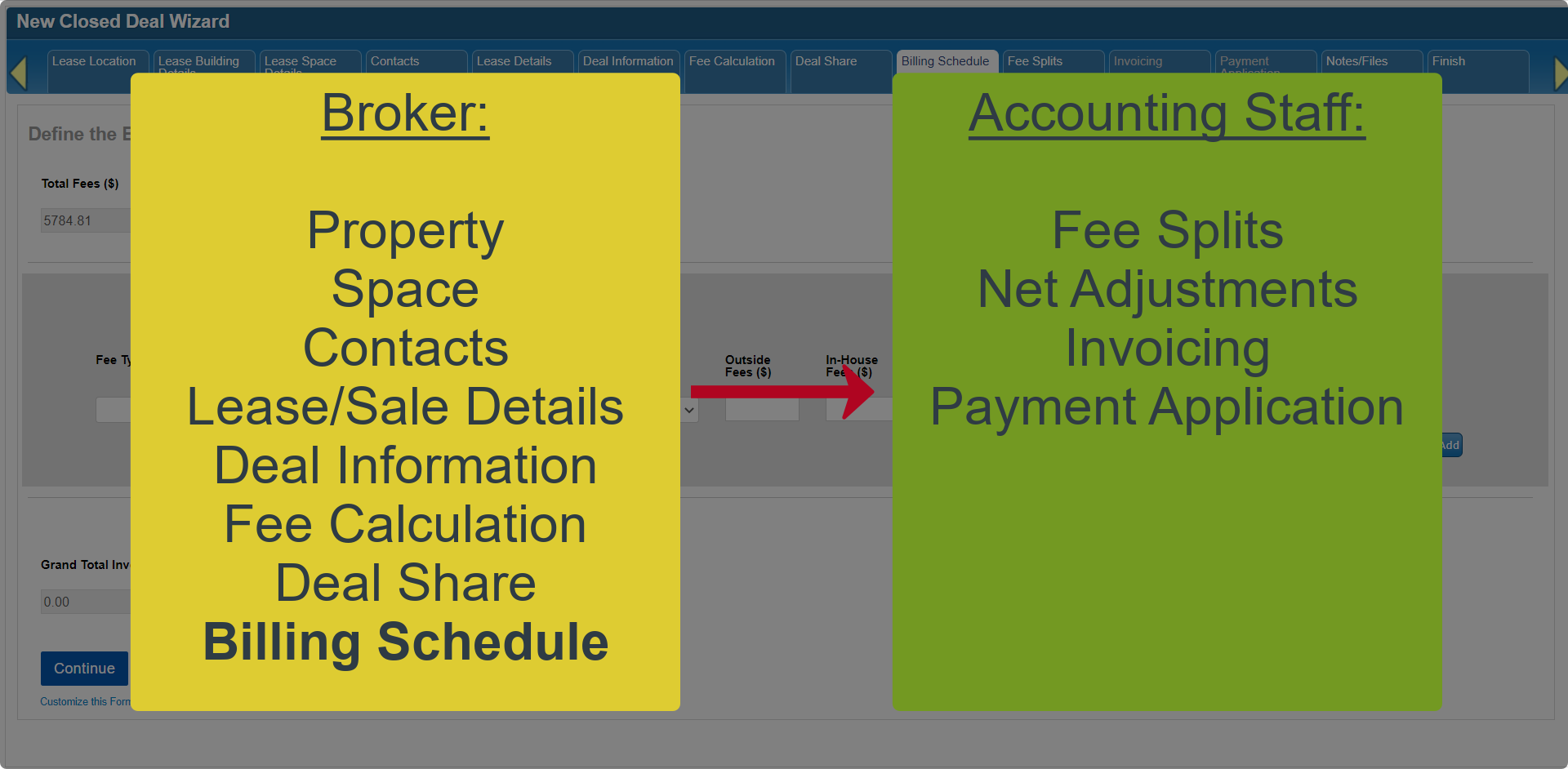
In this step, you can set up invoices for the Total Fee amount that was defined on the Fee Calculation tab.

Unlike the Deal Share tab, the information you enter here will carry over to the Invoicing tab. However, the Billing Schedule form doesn’t require access to Customer accounts and does not have the ability to bill invoices or affect receivables.
At the top of the form is the Total Fee amount.

Below that is a list of invoices.

At the bottom is a total of all Invoices in the schedule above, as well as a calculation for the balance between the Total Fee and total scheduled Invoice amounts.

Begin by selecting a Fee Type from the pulldown menu.

Add the Due Date and Due Upon instructions.

Next you have fields for entering a separate amount for billable fees that are intended for outside parties, vs fees that will be distributed internally.

The Total Invoice Amount will be calculated for you.

If that distinction isn’t important to your firm, just enter the entire invoice amount into the In-House Fees field. Most of our current accounting reports rely on information from the Fee Splits tab, not this tab, to determine outside vs in-house fees.

The Internal Comments allow you to provide any additional instructions or notes regarding each invoice.

Click the Add button to the right of this invoice to set up the next invoice.
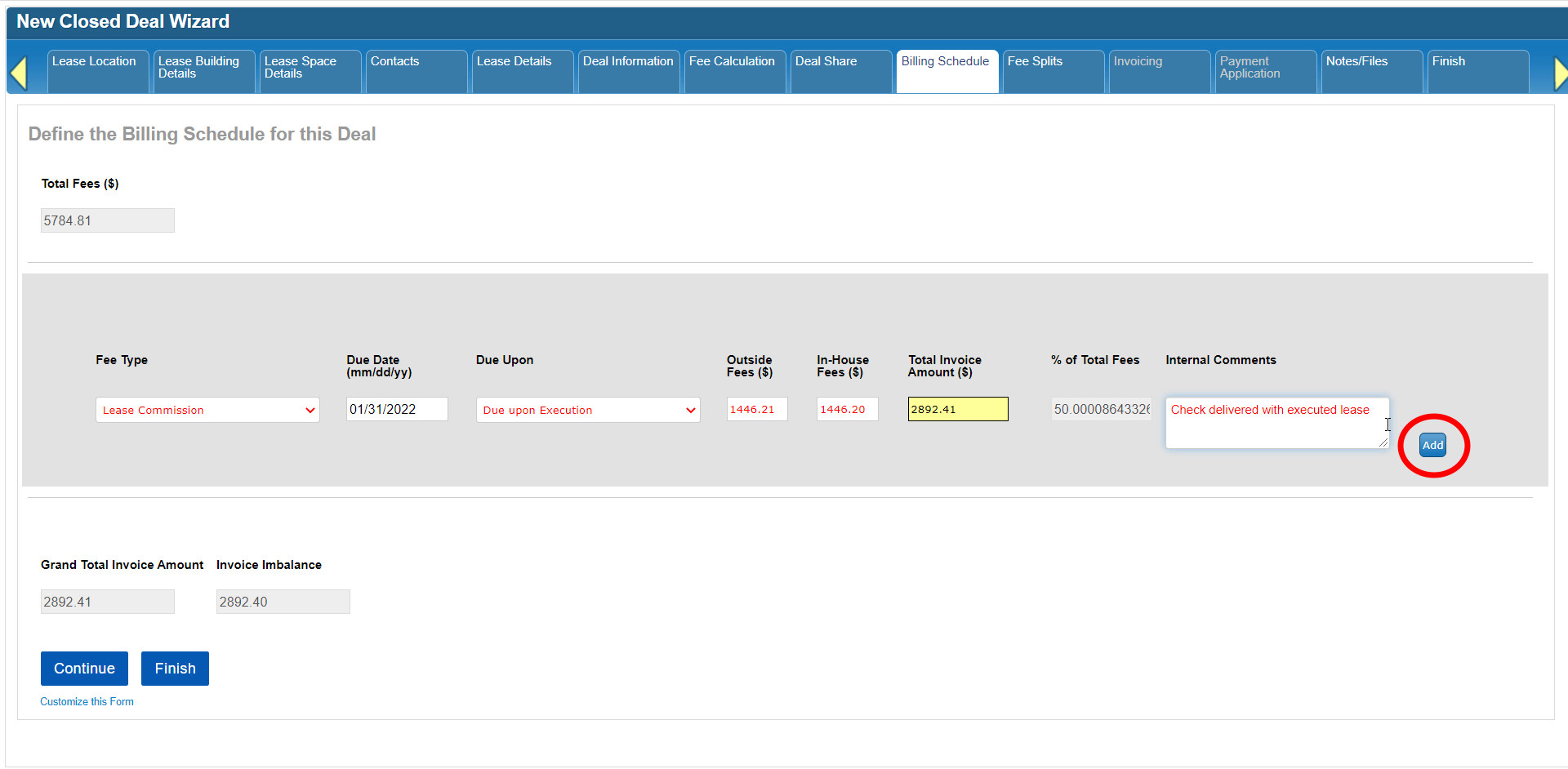
Notice how the totals at the bottom of the form update in real time as you add more information.

You will need to make sure the Invoice Imbalance reaches $0 before you can continue to the next tab.

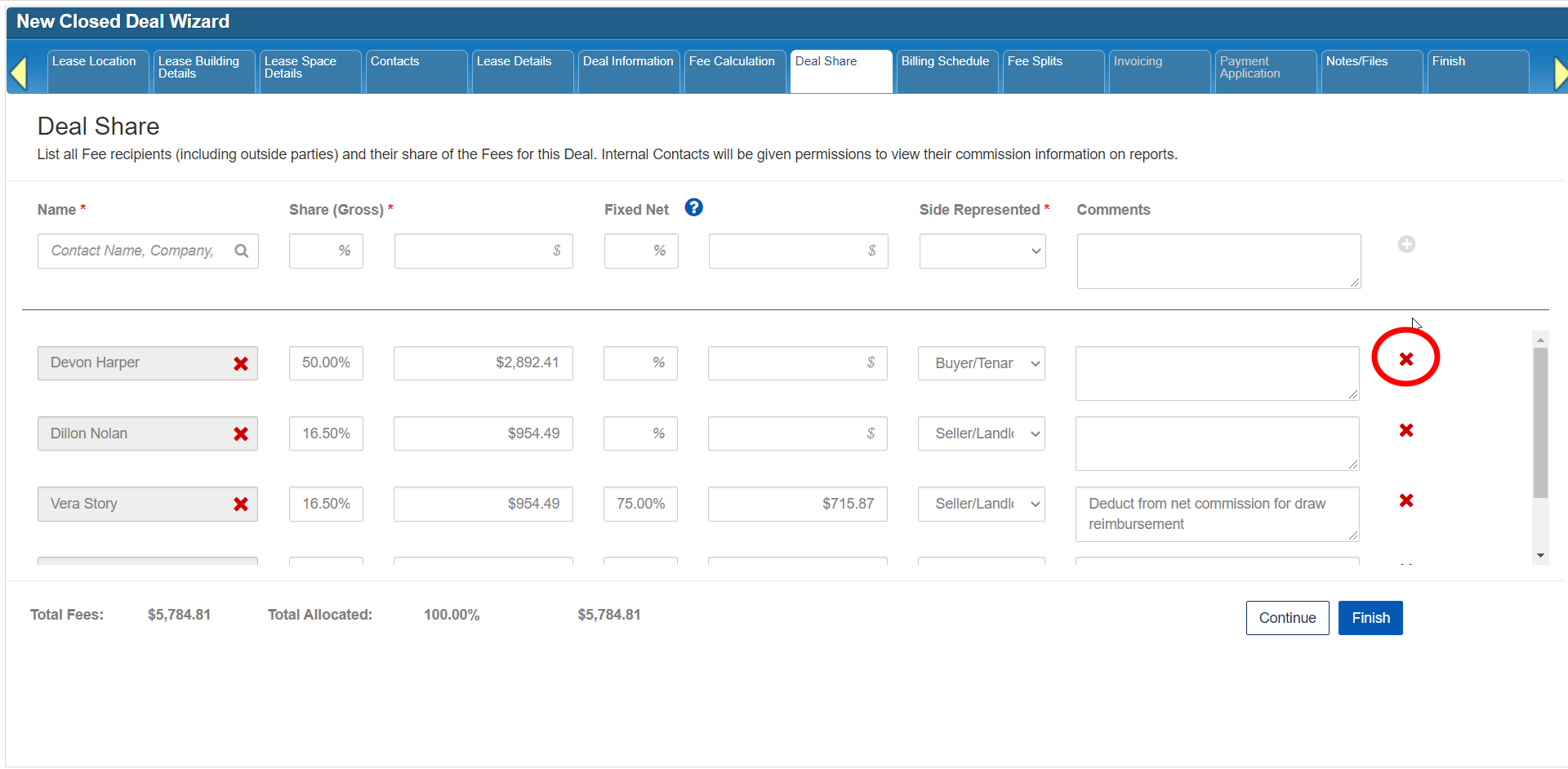
To remove an invoice, click the [X] button to the right of that invoice.

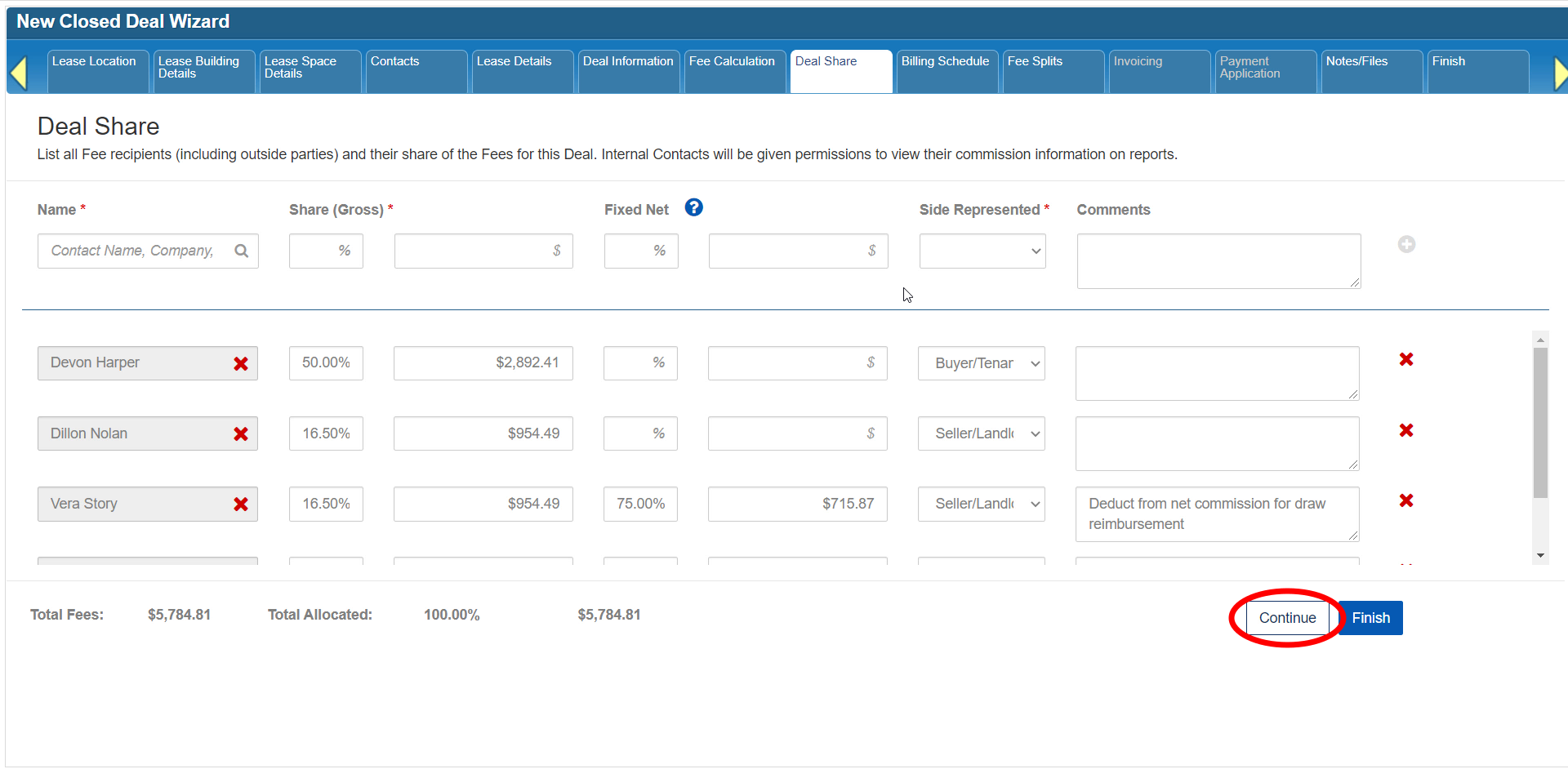
Once all of the fees have been scheduled for billing, click Continue to move on to the next step.

Please note, you will not be able to change or remove an invoice on this tab after it has been billed via the Invoicing tab.

Click here for the next tutorial.
Related articles
- How to create a new Closed Deal: Part 2 - New Closed Deal Modal
- How to create a new Closed Deal: Part 3 - Workflow Navigation
- How to create a new Closed Deal: Part 4 - Property
- How to create a new Closed Deal: Part 5 - Space
- How to create a new Closed Deal: Part 6 - Contacts
- How to create a new Closed Deal: Part 7 - Lease Details
- How to create a new Closed Deal: Part 8 - Deal Information
- How to create a new Closed Deal: Part 9 - Fee Calculation
- How to create a new Closed Deal: Part 10 - Fee Splits
- How to create a new Closed Deal: Part 11 - Invoicing
- How to create a new Closed Deal: Part 12 - Payments
- How to create a new Closed Deal: Part 13 - Notes/Files
- How to create a new Closed Deal: Part 14 - Link Project
- How to create a new Closed Deal: Part 15 - Deal Share
- How to create a new Closed Deal: Part 16 - Billing Schedule
- How to create a new Closed Deal: Part 17 - Net Adjustments
- How to create a new Closed Deal: Part 18 - Annuity Schedule
- How to create a new Closed Deal: Part 19 - Sale Details
- How to create a new Closed Deal: Part 20 - Other Starting Points
© 2023 CoStar Group
Attachments:
 CBA - Entering a Closed Deal - 15 Deal Share (Time 0_04_57;18).png (image/png)
 CBA - Entering a Closed Deal - 15 Deal Share (Time 0_04_47;05).png (image/png)
 CBA - Entering a Closed Deal - 15 Deal Share (Time 0_04_35;17).png (image/png)
 CBA - Entering a Closed Deal - 15 Deal Share (Time 0_04_21;12).png (image/png)
 CBA - Entering a Closed Deal - 15 Deal Share (Time 0_04_10;08).png (image/png)
 CBA - Entering a Closed Deal - 15 Deal Share (Time 0_04_05;15).png (image/png)
 CBA - Entering a Closed Deal - 15 Deal Share (Time 0_03_59;00).png (image/png)
 CBA - Entering a Closed Deal - 15 Deal Share (Time 0_03_45;02).png (image/png)
 CBA - Entering a Closed Deal - 15 Deal Share (Time 0_03_22;02).png (image/png)
 CBA - Entering a Closed Deal - 15 Deal Share (Time 0_03_01;23).png (image/png)
 CBA - Entering a Closed Deal - 15 Deal Share (Time 0_02_46;06).png (image/png)
 CBA - Entering a Closed Deal - 15 Deal Share (Time 0_02_29;01).png (image/png)
 CBA - Entering a Closed Deal - 15 Deal Share (Time 0_02_19;16).png (image/png)
 CBA - Entering a Closed Deal - 15 Deal Share (Time 0_02_12;00).png (image/png)
 CBA - Entering a Closed Deal - 15 Deal Share (Time 0_02_07;02)b.png (image/png)
 CBA - Entering a Closed Deal - 15 Deal Share (Time 0_02_07;02).png (image/png)
 CBA - Entering a Closed Deal - 15 Deal Share (Time 0_02_00;04).png (image/png)
 CBA - Entering a Closed Deal - 15 Deal Share (Time 0_01_50;00)b.png (image/png)
 CBA - Entering a Closed Deal - 15 Deal Share (Time 0_01_34;21).png (image/png)
 CBA - Entering a Closed Deal - 15 Deal Share (Time 0_01_30;11).png (image/png)
 CBA - Entering a Closed Deal - 15 Deal Share (Time 0_01_23;08).png (image/png)
 CBA - Entering a Closed Deal - 15 Deal Share (Time 0_00_52;19).png (image/png)
 CBA - Entering a Closed Deal - 13 Notes (Time 0_05_10;01).png (image/png)
 CBA - Entering a Closed Deal - 13 Notes (Time 0_04_57;25).png (image/png)
 CBA - Entering a Closed Deal - 13 Notes (Time 0_04_50;02).png (image/png)
 CBA - Entering a Closed Deal - 13 Notes (Time 0_04_43;22).png (image/png)
 CBA - Entering a Closed Deal - 13 Notes (Time 0_04_35;11).png (image/png)
 CBA - Entering a Closed Deal - 13 Notes (Time 0_04_26;01).png (image/png)
 CBA - Entering a Closed Deal - 13 Notes (Time 0_04_15;19).png (image/png)
 CBA - Entering a Closed Deal - 13 Notes (Time 0_03_58;16).png (image/png)
 CBA - Entering a Closed Deal - 13 Notes (Time 0_03_49;06).png (image/png)
 CBA - Entering a Closed Deal - 13 Notes (Time 0_03_37;08).png (image/png)
 CBA - Entering a Closed Deal - 13 Notes (Time 0_03_29;19).png (image/png)
 CBA - Entering a Closed Deal - 13 Notes (Time 0_03_21;05).png (image/png)
 CBA - Entering a Closed Deal - 13 Notes (Time 0_03_06;03).png (image/png)
 CBA - Entering a Closed Deal - 13 Notes (Time 0_02_59;02).png (image/png)
 CBA - Entering a Closed Deal - 13 Notes (Time 0_02_45;17).png (image/png)
 CBA - Entering a Closed Deal - 13 Notes (Time 0_02_35;23).png (image/png)
 CBA - Entering a Closed Deal - 13 Notes (Time 0_02_16;23).png (image/png)
 CBA - Entering a Closed Deal - 13 Notes (Time 0_02_15;03).png (image/png)
 CBA - Entering a Closed Deal - 13 Notes (Time 0_02_06;29).png (image/png)
 CBA - Entering a Closed Deal - 13 Notes (Time 0_01_28;22).png (image/png)
 CBA - Entering a Closed Deal - 13 Notes (Time 0_01_08;16).png (image/png)
 CBA - Entering a Closed Deal - 13 Notes (Time 0_01_01;07).png (image/png)
 CBA - Entering a Closed Deal - 13 Notes (Time 0_00_55;19).png (image/png)
 CBA - Entering a Closed Deal - 13 Notes (Time 0_00_46;17).png (image/png)
 CBA - Entering a Closed Deal - 13 Notes (Time 0_00_21;22).png (image/png)
 CBA - Entering a Closed Deal - 11 Invoicing (Time 0_05_17;29).png (image/png)
 CBA - Entering a Closed Deal - 11 Invoicing (Time 0_05_05;29).png (image/png)
 CBA - Entering a Closed Deal - 11 Invoicing (Time 0_04_58;18).png (image/png)
 CBA - Entering a Closed Deal - 11 Invoicing (Time 0_04_34;19).png (image/png)
 CBA - Entering a Closed Deal - 11 Invoicing (Time 0_04_27;27).png (image/png)
 CBA - Entering a Closed Deal - 11 Invoicing (Time 0_04_16;19).png (image/png)
 CBA - Entering a Closed Deal - 11 Invoicing (Time 0_04_05;12).png (image/png)
 CBA - Entering a Closed Deal - 11 Invoicing (Time 0_03_57;27).png (image/png)
 CBA - Entering a Closed Deal - 11 Invoicing (Time 0_03_44;12).png (image/png)
 CBA - Entering a Closed Deal - 11 Invoicing (Time 0_03_41;15).png (image/png)
 CBA - Entering a Closed Deal - 11 Invoicing (Time 0_03_38;08).png (image/png)
 CBA - Entering a Closed Deal - 11 Invoicing (Time 0_03_30;19).png (image/png)
 CBA - Entering a Closed Deal - 11 Invoicing (Time 0_03_27;19).png (image/png)
 CBA - Entering a Closed Deal - 11 Invoicing (Time 0_03_07;01).png (image/png)
 CBA - Entering a Closed Deal - 11 Invoicing (Time 0_02_51;27)b.png (image/png)
 CBA - Entering a Closed Deal - 11 Invoicing (Time 0_02_51;27).png (image/png)
 CBA - Entering a Closed Deal - 11 Invoicing (Time 0_02_41;23).png (image/png)
 CBA - Entering a Closed Deal - 11 Invoicing (Time 0_02_28;27).png (image/png)
 CBA - Entering a Closed Deal - 11 Invoicing (Time 0_02_24;27).png (image/png)
 CBA - Entering a Closed Deal - 11 Invoicing (Time 0_02_17;23).png (image/png)
 CBA - Entering a Closed Deal - 11 Invoicing (Time 0_02_05;23).png (image/png)
 CBA - Entering a Closed Deal - 11 Invoicing (Time 0_01_57;12).png (image/png)
 CBA - Entering a Closed Deal - 11 Invoicing (Time 0_01_47;01).png (image/png)
 CBA - Entering a Closed Deal - 11 Invoicing (Time 0_01_38;20).png (image/png)
 CBA - Entering a Closed Deal - 11 Invoicing (Time 0_01_32;13).png (image/png)
 CBA - Entering a Closed Deal - 11 Invoicing (Time 0_01_17;06).png (image/png)
 CBA - Entering a Closed Deal - 11 Invoicing (Time 0_01_14;14).png (image/png)
 CBA - Entering a Closed Deal - 11 Invoicing (Time 0_01_06;10).png (image/png)
 CBA - Entering a Closed Deal - 11 Invoicing (Time 0_01_00;06).png (image/png)
 CBA - Entering a Closed Deal - 11 Invoicing (Time 0_00_53;21).png (image/png)
 CBA - Entering a Closed Deal - 11 Invoicing (Time 0_00_27;14).png (image/png)
 CBA - Entering a Closed Deal - 09 Fee Calculation (Time 0_03_40;27).png (image/png)
 CBA - Entering a Closed Deal - 09 Fee Calculation (Time 0_03_25;21).png (image/png)
 CBA - Entering a Closed Deal - 09 Fee Calculation (Time 0_03_19;09).png (image/png)
 CBA - Entering a Closed Deal - 09 Fee Calculation (Time 0_02_41;15).png (image/png)
 CBA - Entering a Closed Deal - 09 Fee Calculation (Time 0_02_26;19).png (image/png)
 CBA - Entering a Closed Deal - 09 Fee Calculation (Time 0_01_59;03).png (image/png)
 CBA - Entering a Closed Deal - 09 Fee Calculation (Time 0_01_45;20).png (image/png)
 CBA - Entering a Closed Deal - 09 Fee Calculation (Time 0_01_41;29).png (image/png)
 CBA - Entering a Closed Deal - 09 Fee Calculation (Time 0_01_31;07).png (image/png)
 CBA - Entering a Closed Deal - 09 Fee Calculation (Time 0_01_01;20).png (image/png)
 CBA - Entering a Closed Deal - 09 Fee Calculation (Time 0_00_19;20).png (image/png)
 CBA - Entering a Closed Deal - 09 Fee Calculation (Time 0_00_21;20).png (image/png)
 CBA - Entering a Closed Deal - 09 Fee Calculation (Time 0_00_28;17).png (image/png)
 CBA - Entering a Closed Deal - 09 Fee Calculation (Time 0_00_46;04).png (image/png)
 CBA - Entering a Closed Deal - 09 Fee Calculation (Time 0_00_50;07).png (image/png)
 CBA - Entering a Closed Deal - 07 Lease Details (Time 0_04_05;00).png (image/png)
 CBA - Entering a Closed Deal - 07 Lease Details (Time 0_03_58;14).png (image/png)
 CBA - Entering a Closed Deal - 07 Lease Details (Time 0_03_50;07).png (image/png)
 CBA - Entering a Closed Deal - 07 Lease Details (Time 0_03_28;24).png (image/png)
 CBA - Entering a Closed Deal - 07 Lease Details (Time 0_03_23;17).png (image/png)
 CBA - Entering a Closed Deal - 07 Lease Details (Time 0_03_10;18).png (image/png)
 CBA - Entering a Closed Deal - 07 Lease Details (Time 0_02_59;26).png (image/png)
 CBA - Entering a Closed Deal - 07 Lease Details (Time 0_02_40;00).png (image/png)
 CBA - Entering a Closed Deal - 07 Lease Details (Time 0_02_33;17).png (image/png)
 CBA - Entering a Closed Deal - 07 Lease Details (Time 0_02_08;29).png (image/png)
 CBA - Entering a Closed Deal - 07 Lease Details (Time 0_01_52;03).png (image/png)
 CBA - Entering a Closed Deal - 07 Lease Details (Time 0_01_30;17).png (image/png)
 CBA - Entering a Closed Deal - 07 Lease Details (Time 0_01_26;00).png (image/png)
 CBA - Entering a Closed Deal - 07 Lease Details (Time 0_01_03;21).png (image/png)
 CBA - Entering a Closed Deal - 07 Lease Details (Time 0_00_19;09).png (image/png)
 CBA - Entering a Closed Deal - 05 Space (Time 0_02_48;10).png (image/png)
 CBA - Entering a Closed Deal - 05 Space (Time 0_02_43;08).png (image/png)
 CBA - Entering a Closed Deal - 05 Space (Time 0_01_24;18).png (image/png)
 CBA - Entering a Closed Deal - 05 Space (Time 0_01_11;23).png (image/png)
 CBA - Entering a Closed Deal - 05 Space (Time 0_01_04;25).png (image/png)
 CBA - Entering a Closed Deal - 05 Space (Time 0_01_00;08).png (image/png)
 CBA - Entering a Closed Deal - 05 Space (Time 0_00_42;06).png (image/png)
 CBA - Entering a Closed Deal - 05 Space (Time 0_00_30;17).png (image/png)
 CBA - Entering a Closed Deal - 05 Space (Time 0_00_26;10).png (image/png)
 CBA - Entering a Closed Deal - 05 Space (Time 0_00_21;08).png (image/png)
 CBA - Entering a Closed Deal - 03 Workflow Navigation (Time 0_01_27;28).png (image/png)
 CBA - Entering a Closed Deal - 03 Workflow Navigation (Time 0_01_01;06).png (image/png)
 CBA - Entering a Closed Deal - 03 Workflow Navigation (Time 0_00_48;01).png (image/png)
 CBA - Entering a Closed Deal - 03 Workflow Navigation (Time 0_00_37;04).png (image/png)
 CBA - Entering a Closed Deal - 03 Workflow Navigation (Time 0_00_23;29).png (image/png)
 CBA - Entering a Closed Deal - 02 New Closed Deal Modal all (Time 0_00_31;29).png (image/png)
 CBA - Entering a Closed Deal - 02 New Closed Deal Modal all (Time 0_01_09;13).png (image/png)
 CBA - Entering a Closed Deal - 02 New Closed Deal Modal all (Time 0_01_44;04).png (image/png)
 CBA - Entering a Closed Deal - 02 New Closed Deal Modal all (Time 0_01_54;08).png (image/png)
 CBA - Entering a Closed Deal - 02 New Closed Deal Modal all (Time 0_02_02;26).png (image/png)
 CBA - Entering a Closed Deal - 02 New Closed Deal Modal all (Time 0_02_35;01).png (image/png)
 CBA - Entering a Closed Deal - 02 New Closed Deal Modal all (Time 0_02_43;16).png (image/png)
 CBA - Entering a Closed Deal - 02 New Closed Deal Modal all (Time 0_02_47;26).png (image/png)
 CBA - Entering a Closed Deal - 02 New Closed Deal Modal all (Time 0_02_30;26).png (image/png)
 CBA - Entering a Closed Deal - 02 New Closed Deal Modal all (Time 0_01_27;23).png (image/png)
 CBA - Entering a Closed Deal - 02 New Closed Deal Modal all (Time 0_02_59;26).png (image/png)
 CBA - Entering a Closed Deal - 02 New Closed Deal Modal all (Time 0_03_25;09).png (image/png)
 CBA - Entering a Closed Deal - 02 New Closed Deal Modal all (Time 0_03_28;13).png (image/png)
 CBA - Entering a Closed Deal - 02 New Closed Deal Modal all (Time 0_03_50;03).png (image/png)
 CBA - Entering a Closed Deal - 02 New Closed Deal Modal all (Time 0_04_18;08).png (image/png)
 CBA - Entering a Closed Deal - 02 New Closed Deal Modal all (Time 0_04_23;06).png (image/png)
 CBA - Entering a Closed Deal - 04 Property (Time 0_00_19;25).png (image/png)
 CBA - Entering a Closed Deal - 04 Property (Time 0_00_29;24).png (image/png)
 CBA - Entering a Closed Deal - 04 Property (Time 0_00_59;14).png (image/png)
 CBA - Entering a Closed Deal - 04 Property (Time 0_01_14;23).png (image/png)
 CBA - Entering a Closed Deal - 04 Property (Time 0_01_25;02).png (image/png)
 CBA - Entering a Closed Deal - 04 Property (Time 0_01_32;17).png (image/png)
 CBA - Entering a Closed Deal - 04 Property (Time 0_01_37;08).png (image/png)
 CBA - Entering a Closed Deal - 04 Property (Time 0_01_40;21).png (image/png)
 CBA - Entering a Closed Deal - 04 Property (Time 0_02_00;11).png (image/png)
 CBA - Entering a Closed Deal - 04 Property (Time 0_02_12;07).png (image/png)
 CBA - Entering a Closed Deal - 04 Property (Time 0_02_19;12).png (image/png)
 CBA - Entering a Closed Deal - 04 Property (Time 0_02_38;22).png (image/png)
 CBA - Entering a Closed Deal - 04 Property (Time 0_02_44;24).png (image/png)
 CBA - Entering a Closed Deal - 04 Property (Time 0_02_52;14).png (image/png)
 CBA - Entering a Closed Deal - 06 Contacts (Time 0_00_33;28).png (image/png)
 CBA - Entering a Closed Deal - 06 Contacts (Time 0_00_51;04).png (image/png)
 CBA - Entering a Closed Deal - 06 Contacts (Time 0_01_21;18).png (image/png)
 CBA - Entering a Closed Deal - 06 Contacts (Time 0_01_27;02).png (image/png)
 CBA - Entering a Closed Deal - 06 Contacts (Time 0_01_40;29).png (image/png)
 CBA - Entering a Closed Deal - 06 Contacts (Time 0_01_52;12).png (image/png)
 CBA - Entering a Closed Deal - 06 Contacts (Time 0_01_58;01).png (image/png)
 CBA - Entering a Closed Deal - 06 Contacts (Time 0_02_08;13).png (image/png)
 CBA - Entering a Closed Deal - 06 Contacts (Time 0_02_26;14).png (image/png)
 CBA - Entering a Closed Deal - 06 Contacts (Time 0_02_30;08).png (image/png)
 CBA - Entering a Closed Deal - 06 Contacts (Time 0_03_00;07).png (image/png)
 CBA - Entering a Closed Deal - 06 Contacts (Time 0_03_02;26).png (image/png)
 CBA - Entering a Closed Deal - 08 Deal Information (Time 0_00_24;04).png (image/png)
 CBA - Entering a Closed Deal - 08 Deal Information (Time 0_00_45;08).png (image/png)
 CBA - Entering a Closed Deal - 08 Deal Information (Time 0_00_52;05).png (image/png)
 CBA - Entering a Closed Deal - 08 Deal Information (Time 0_01_00;26).png (image/png)
 CBA - Entering a Closed Deal - 08 Deal Information (Time 0_01_27;04).png (image/png)
 CBA - Entering a Closed Deal - 08 Deal Information (Time 0_01_55;00).png (image/png)
 CBA - Entering a Closed Deal - 08 Deal Information (Time 0_02_14;05).png (image/png)
 CBA - Entering a Closed Deal - 08 Deal Information (Time 0_02_19;07).png (image/png)
 CBA - Entering a Closed Deal - 08 Deal Information (Time 0_02_38;14).png (image/png)
 CBA - Entering a Closed Deal - 08 Deal Information (Time 0_02_53;10).png (image/png)
 CBA - Entering a Closed Deal - 08 Deal Information (Time 0_02_55;26).png (image/png)
 CBA - Entering a Closed Deal - 08 Deal Information (Time 0_03_14;29).png (image/png)
 CBA - Entering a Closed Deal - 08 Deal Information (Time 0_03_28;25).png (image/png)
 CBA - Entering a Closed Deal - 10 Fee Splits (Time 0_00_33;01).png (image/png)
 CBA - Entering a Closed Deal - 10 Fee Splits (Time 0_00_37;03).png (image/png)
 CBA - Entering a Closed Deal - 10 Fee Splits (Time 0_00_50;20).png (image/png)
 CBA - Entering a Closed Deal - 10 Fee Splits (Time 0_01_03;21).png (image/png)
 CBA - Entering a Closed Deal - 10 Fee Splits (Time 0_01_20;05).png (image/png)
 CBA - Entering a Closed Deal - 10 Fee Splits (Time 0_01_28;02).png (image/png)
 CBA - Entering a Closed Deal - 10 Fee Splits (Time 0_01_42;05).png (image/png)
 CBA - Entering a Closed Deal - 10 Fee Splits (Time 0_01_50;02).png (image/png)
 CBA - Entering a Closed Deal - 10 Fee Splits (Time 0_02_02;04).png (image/png)
 CBA - Entering a Closed Deal - 10 Fee Splits (Time 0_02_09;19).png (image/png)
 CBA - Entering a Closed Deal - 10 Fee Splits (Time 0_02_31;29).png (image/png)
 CBA - Entering a Closed Deal - 10 Fee Splits (Time 0_02_48;16).png (image/png)
 CBA - Entering a Closed Deal - 10 Fee Splits (Time 0_03_01;27).png (image/png)
 CBA - Entering a Closed Deal - 10 Fee Splits (Time 0_03_06;25).png (image/png)
 CBA - Entering a Closed Deal - 10 Fee Splits (Time 0_03_19;23).png (image/png)
 CBA - Entering a Closed Deal - 10 Fee Splits (Time 0_03_43;16).png (image/png)
 CBA - Entering a Closed Deal - 10 Fee Splits (Time 0_03_49;06).png (image/png)
 CBA - Entering a Closed Deal - 10 Fee Splits (Time 0_03_53;24).png (image/png)
 CBA - Entering a Closed Deal - 10 Fee Splits (Time 0_04_14;16).png (image/png)
 CBA - Entering a Closed Deal - 10 Fee Splits (Time 0_04_14;16)b.png (image/png)
 CBA - Entering a Closed Deal - 10 Fee Splits (Time 0_04_19;14).png (image/png)
 CBA - Entering a Closed Deal - 10 Fee Splits (Time 0_04_30;05).png (image/png)
 CBA - Entering a Closed Deal - 10 Fee Splits (Time 0_04_36;24).png (image/png)
 CBA - Entering a Closed Deal - 10 Fee Splits (Time 0_04_55;09).png (image/png)
 CBA - Entering a Closed Deal - 10 Fee Splits (Time 0_05_23;03).png (image/png)
 CBA - Entering a Closed Deal - 10 Fee Splits (Time 0_05_49;19).png (image/png)
 CBA - Entering a Closed Deal - 10 Fee Splits (Time 0_06_13;20).png (image/png)
 CBA - Entering a Closed Deal - 10 Fee Splits (Time 0_06_21;08).png (image/png)
 CBA - Entering a Closed Deal - 10 Fee Splits (Time 0_06_28;14).png (image/png)
 CBA - Entering a Closed Deal - 10 Fee Splits (Time 0_06_41;22).png (image/png)
 CBA - Entering a Closed Deal - 10 Fee Splits (Time 0_06_54;27).png (image/png)
 CBA - Entering a Closed Deal - 10 Fee Splits (Time 0_07_01;18).png (image/png)
 CBA - Entering a Closed Deal - 10 Fee Splits (Time 0_07_05;27).png (image/png)
 CBA - Entering a Closed Deal - 10 Fee Splits (Time 0_07_11;20).png (image/png)
 CBA - Entering a Closed Deal - 10 Fee Splits (Time 0_07_17;26).png (image/png)
 CBA - Entering a Closed Deal - 10 Fee Splits (Time 0_07_19;24).png (image/png)
 CBA - Entering a Closed Deal - 10 Fee Splits (Time 0_07_25;17).png (image/png)
 CBA - Entering a Closed Deal - 10 Fee Splits (Time 0_07_51;07).png (image/png)
 CBA - Entering a Closed Deal - 10 Fee Splits (Time 0_08_09;09).png (image/png)
 CBA - Entering a Closed Deal - 10 Fee Splits (Time 0_08_24;02).png (image/png)
 CBA - Entering a Closed Deal - 10 Fee Splits (Time 0_08_29;09).png (image/png)
 CBA - Entering a Closed Deal - 10 Fee Splits (Time 0_08_39;23).png (image/png)
 CBA - Entering a Closed Deal - 10 Fee Splits (Time 0_08_56;13).png (image/png)
 CBA - Entering a Closed Deal - 10 Fee Splits (Time 0_09_01;07).png (image/png)
 CBA - Entering a Closed Deal - 11 Invoicing (Time 0_04_49;26).png (image/png)
 CBA - Entering a Closed Deal - 12 Payment (Time 0_00_42;22).png (image/png)
 CBA - Entering a Closed Deal - 12 Payment (Time 0_00_57;13).png (image/png)
 CBA - Entering a Closed Deal - 12 Payment (Time 0_01_16;20).png (image/png)
 CBA - Entering a Closed Deal - 12 Payment (Time 0_01_27;13).png (image/png)
 CBA - Entering a Closed Deal - 12 Payment (Time 0_01_39;28).png (image/png)
 CBA - Entering a Closed Deal - 12 Payment (Time 0_01_48;26).png (image/png)
 CBA - Entering a Closed Deal - 12 Payment (Time 0_02_02;21).png (image/png)
 CBA - Entering a Closed Deal - 12 Payment (Time 0_02_06;19).png (image/png)
 CBA - Entering a Closed Deal - 12 Payment (Time 0_02_17;16).png (image/png)
 CBA - Entering a Closed Deal - 12 Payment (Time 0_02_32;10).png (image/png)
 CBA - Entering a Closed Deal - 12 Payment (Time 0_02_46;02).png (image/png)
 CBA - Entering a Closed Deal - 12 Payment (Time 0_03_00;15).png (image/png)
 CBA - Entering a Closed Deal - 12 Payment (Time 0_03_15;06).png (image/png)
 CBA - Entering a Closed Deal - 12 Payment (Time 0_03_18;23).png (image/png)
 CBA - Entering a Closed Deal - 12 Payment (Time 0_03_29;27).png (image/png)
 CBA - Entering a Closed Deal - 12 Payment (Time 0_03_44;25).png (image/png)
 CBA - Entering a Closed Deal - 12 Payment (Time 0_03_57;09).png (image/png)
 CBA - Entering a Closed Deal - 12 Payment (Time 0_03_57;09)b.png (image/png)
 CBA - Entering a Closed Deal - 12 Payment (Time 0_04_22;24).png (image/png)
 CBA - Entering a Closed Deal - 12 Payment (Time 0_04_34;28).png (image/png)
 CBA - Entering a Closed Deal - 12 Payment (Time 0_04_47;09).png (image/png)
 CBA - Entering a Closed Deal - 12 Payment (Time 0_04_54;23).png (image/png)
 CBA - Entering a Closed Deal - 12 Payment (Time 0_05_05;16).png (image/png)
 CBA - Entering a Closed Deal - 12 Payment (Time 0_05_09;25).png (image/png)
 CBA - Entering a Closed Deal - 12 Payment (Time 0_05_15;25).png (image/png)
 CBA - Entering a Closed Deal - 14 Link Project (Time 0_00_27;08).png (image/png)
 CBA - Entering a Closed Deal - 14 Link Project (Time 0_00_32;23)b.png (image/png)
 CBA - Entering a Closed Deal - 14 Link Project (Time 0_00_46;20).png (image/png)
 CBA - Entering a Closed Deal - 14 Link Project (Time 0_00_59;28).png (image/png)
 CBA - Entering a Closed Deal - 14 Link Project (Time 0_01_13;06).png (image/png)
 CBA - Entering a Closed Deal - 14 Link Project (Time 0_01_23;07)b.png (image/png)
 CBA - Entering a Closed Deal - 14 Link Project (Time 0_01_33;00).png (image/png)
 CBA - Entering a Closed Deal - 14 Link Project (Time 0_01_49;16).png (image/png)
 CBA - Entering a Closed Deal - 14 Link Project (Time 0_01_55;09).png (image/png)
 CBA - Entering a Closed Deal - 14 Link Project (Time 0_02_13;06).png (image/png)
 CBA - Entering a Closed Deal - 14 Link Project (Time 0_02_19;21).png (image/png)
 CBA - Entering a Closed Deal - 14 Link Project (Time 0_02_25;06).png (image/png)
 CBA - Entering a Closed Deal - 14 Link Project (Time 0_02_26;25).png (image/png)
 CBA - Entering a Closed Deal - 14 Link Project (Time 0_02_31;06).png (image/png)
 CBA - Entering a Closed Deal - 14 Link Project (Time 0_02_39;25).png (image/png)
 CBA - Entering a Closed Deal - 14 Link Project (Time 0_03_07;19).png (image/png)
 CBA - Entering a Closed Deal - 14 Link Project (Time 0_03_14;12).png (image/png)
 CBA - Entering a Closed Deal - 14 Link Project (Time 0_03_34;09).png (image/png)
 CBA - Entering a Closed Deal - 14 Link Project (Time 0_03_38;09).png (image/png)
 2022-01-07_16-29-19.jpg (image/jpeg)
 CBA - Entering a Closed Deal - 14 Link Project (Time 0_04_12;18).png (image/png)
 CBA - Entering a Closed Deal - 14 Link Project (Time 0_04_21;11).png (image/png)
 CBA - Entering a Closed Deal - 14 Link Project (Time 0_04_25;04)b.png (image/png)
 CBA - Entering a Closed Deal - 14 Link Project (Time 0_04_37;16)b.png (image/png)
 CBA - Entering a Closed Deal - 14 Link Project (Time 0_04_57;04)b.png (image/png)
 CBA - Entering a Closed Deal - 14 Link Project (Time 0_05_01;15)b.png (image/png)
 CBA - Entering a Closed Deal - 14 Link Project (Time 0_05_11;08)b.png (image/png)
 CBA - Entering a Closed Deal - 16 Billing Schedule (Time 0_00_36;13).png (image/png)
CBA - Entering a Closed Deal - 16 Billing Schedule (Time 0_00_55;16).png (image/png)
CBA - Entering a Closed Deal - 16 Billing Schedule (Time 0_01_20;06).png (image/png)
CBA - Entering a Closed Deal - 16 Billing Schedule (Time 0_01_23;06).png (image/png)
CBA - Entering a Closed Deal - 16 Billing Schedule (Time 0_01_25;00).png (image/png)
CBA - Entering a Closed Deal - 16 Billing Schedule (Time 0_01_40;00).png (image/png)
CBA - Entering a Closed Deal - 16 Billing Schedule (Time 0_01_41;20).png (image/png)
CBA - Entering a Closed Deal - 16 Billing Schedule (Time 0_01_47;17).png (image/png)
CBA - Entering a Closed Deal - 16 Billing Schedule (Time 0_01_56;23).png (image/png)
CBA - Entering a Closed Deal - 16 Billing Schedule (Time 0_02_07;23).png (image/png)
CBA - Entering a Closed Deal - 16 Billing Schedule (Time 0_02_21;00).png (image/png)
CBA - Entering a Closed Deal - 16 Billing Schedule (Time 0_02_28;21).png (image/png)
CBA - Entering a Closed Deal - 16 Billing Schedule (Time 0_02_38;10).png (image/png)
CBA - Entering a Closed Deal - 16 Billing Schedule (Time 0_02_43;18).png (image/png)
CBA - Entering a Closed Deal - 16 Billing Schedule (Time 0_02_50;28).png (image/png)
CBA - Entering a Closed Deal - 16 Billing Schedule (Time 0_02_58;04).png (image/png)
CBA - Entering a Closed Deal - 16 Billing Schedule (Time 0_03_03;14).png (image/png)
CBA - Entering a Closed Deal - 16 Billing Schedule (Time 0_00_36;13).png (image/png)
CBA - Entering a Closed Deal - 16 Billing Schedule (Time 0_00_55;16).png (image/png)
CBA - Entering a Closed Deal - 16 Billing Schedule (Time 0_01_20;06).png (image/png)
CBA - Entering a Closed Deal - 16 Billing Schedule (Time 0_01_23;06).png (image/png)
CBA - Entering a Closed Deal - 16 Billing Schedule (Time 0_01_25;00).png (image/png)
CBA - Entering a Closed Deal - 16 Billing Schedule (Time 0_01_40;00).png (image/png)
CBA - Entering a Closed Deal - 16 Billing Schedule (Time 0_01_41;20).png (image/png)
CBA - Entering a Closed Deal - 16 Billing Schedule (Time 0_01_47;17).png (image/png)
CBA - Entering a Closed Deal - 16 Billing Schedule (Time 0_01_56;23).png (image/png)
CBA - Entering a Closed Deal - 16 Billing Schedule (Time 0_02_07;23).png (image/png)
CBA - Entering a Closed Deal - 16 Billing Schedule (Time 0_02_21;00).png (image/png)
CBA - Entering a Closed Deal - 16 Billing Schedule (Time 0_02_28;21).png (image/png)
CBA - Entering a Closed Deal - 16 Billing Schedule (Time 0_02_38;10).png (image/png)
CBA - Entering a Closed Deal - 16 Billing Schedule (Time 0_02_43;18).png (image/png)
CBA - Entering a Closed Deal - 16 Billing Schedule (Time 0_02_50;28).png (image/png)
CBA - Entering a Closed Deal - 16 Billing Schedule (Time 0_02_58;04).png (image/png)
CBA - Entering a Closed Deal - 16 Billing Schedule (Time 0_03_03;14).png (image/png)