This tutorial will go over managing Net Adjustments in the Closed Deal workflow. We’ll cover what Net Adjustments are, how to set them up, and how to distribute them via Payments.
This is an optional step and may not be relevant for your firm’s internal process. If that’s the case, you can ask your System Administrator to hide this tab from the workflow in your user settings.
Instructions
Net Adjustments are transfers of money that are related to this Deal and that affect the final Net amounts to be distributed when a payment is processed. Net Adjustments do not affect the Gross Commission allocation for this Deal, so they don’t have any impact on the Production Credit or Split thresholds for an internal Broker.
They can be useful in many different scenarios. For example: A Broker paying a staff member a bonus from their own Net Commission, a Broker paying off a draw advance, or the firm reimbursing a Broker for a marketing expense.


Any time a portion of the fees for this Deal is meant to be distributed after the Net Commissions are calculated, you should use Net Adjustments.
The Net Adjustments tab is used to set up these post-Net exchanges before applying a Payment.
Start by selecting the Payer in the From list and the Payee or Recipient in the To list.

Both lists will include all of the Vendors on the Fee Splits tab, as well as all of the House Accounts in the system.

If this Net Adjustment involves another Vendor (such as a staff member who is not getting a Gross Commission on this Deal), use the magnifying glass to search the Vendor database.

Type in their name, city or record ID, then select the right Vendor from the list of results.

If you don’t see the Vendor you’re looking for, click on the green [+] icon to create a new Vendor.

Fill in the required fields, which are indicated by an asterisk.

The Entity Type plays a role in how that deal participant’s commission split with the firm is normally calculated: Outside Vendors don’t split their commissions with your firm, In-House Vendors always require a Split Plan to determine their split, and Staff Vendors by default will not split their commission with the firm unless a Split Plan has been set up for that contact.

Select the Vendor Type, then search for and select the appropriate Contact record. Internal Contacts are highlighted in yellow.

You can save yourself some time by allowing the system to copy the address and other details from the Contact if they are the same for the Vendor.
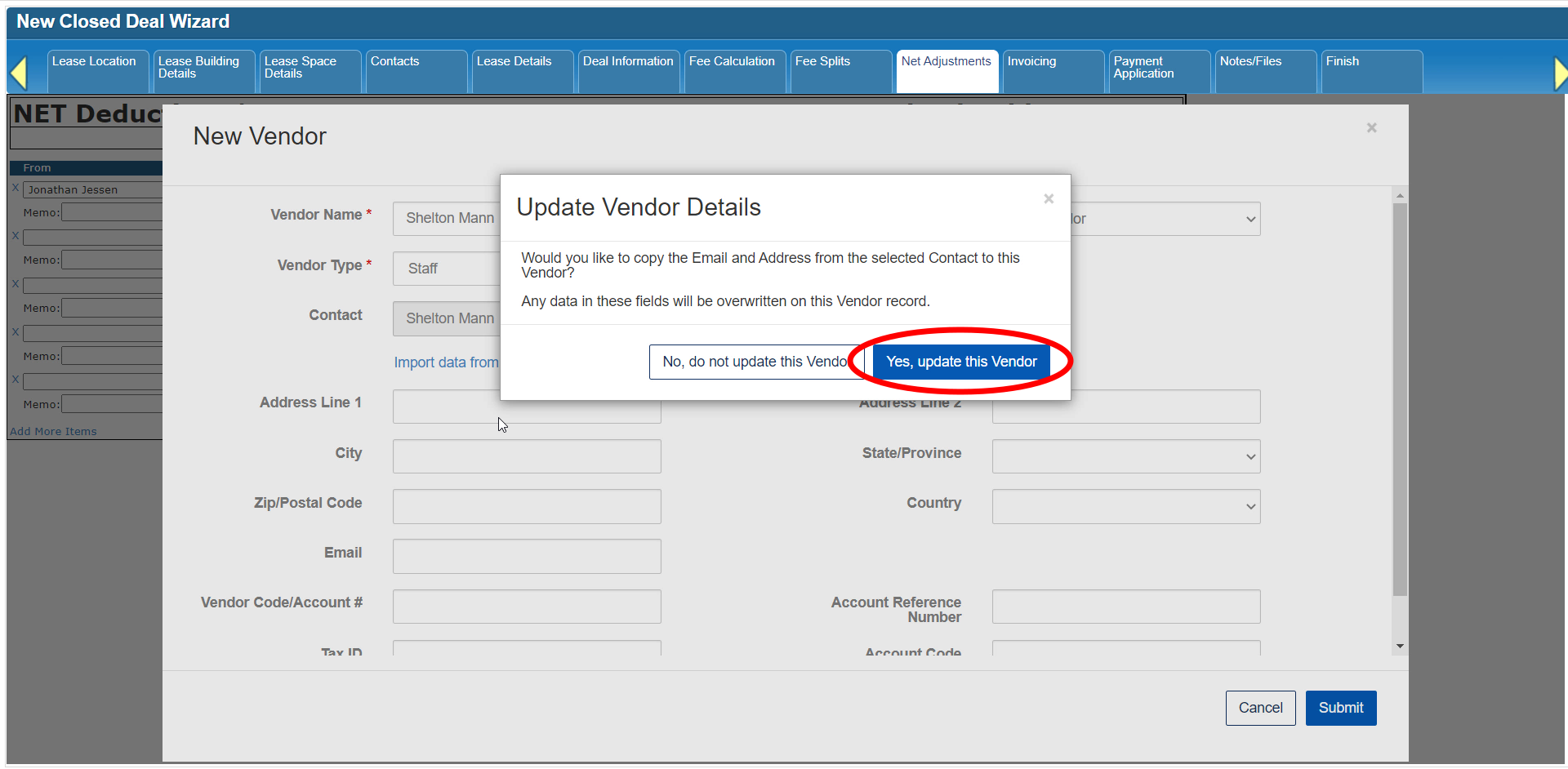
Add any other relevant information as needed, then click Submit.

Your new Vendor will now be added to the Net Adjustments form.

If applicable, select the Type of adjustment.

You now have the option of calculating the adjustment amount as a % of the Gross Commission allocated to the Vendor in the From field, or by entering the amount directly.

Once a payment is applied to this deal, you’ll be able to see how much of this Net Adjustment has been distributed.

The Memo field lets you add any other comments or instructions.

Once you’ve added all of the Net Adjustments for this Deal, click Save and Continue.

To remove an adjustment, click the [X] icon to the left of that adjustment.

Adjustments that are partially or fully applied cannot be removed.

Click the Add More Items option to add more Net Adjustments to this Deal.

To distribute a Net Adjustment, you need to apply a Payment to this Deal. You can learn more about applying payments by going to our tutorial on the Payment Application tab.

The Payment Application form includes a section at the bottom that lists all Net Adjustments for this Deal.

This list indicates the Payer and Recipient accounts, as well as the Net Adjustment Type, the total Adjustment Amount, and how much of that amount has not been applied or distributed yet.

You can enter either the % or specific Net Adjustment amount to apply with this payment.

The system will calculate how much will be left after this distribution.
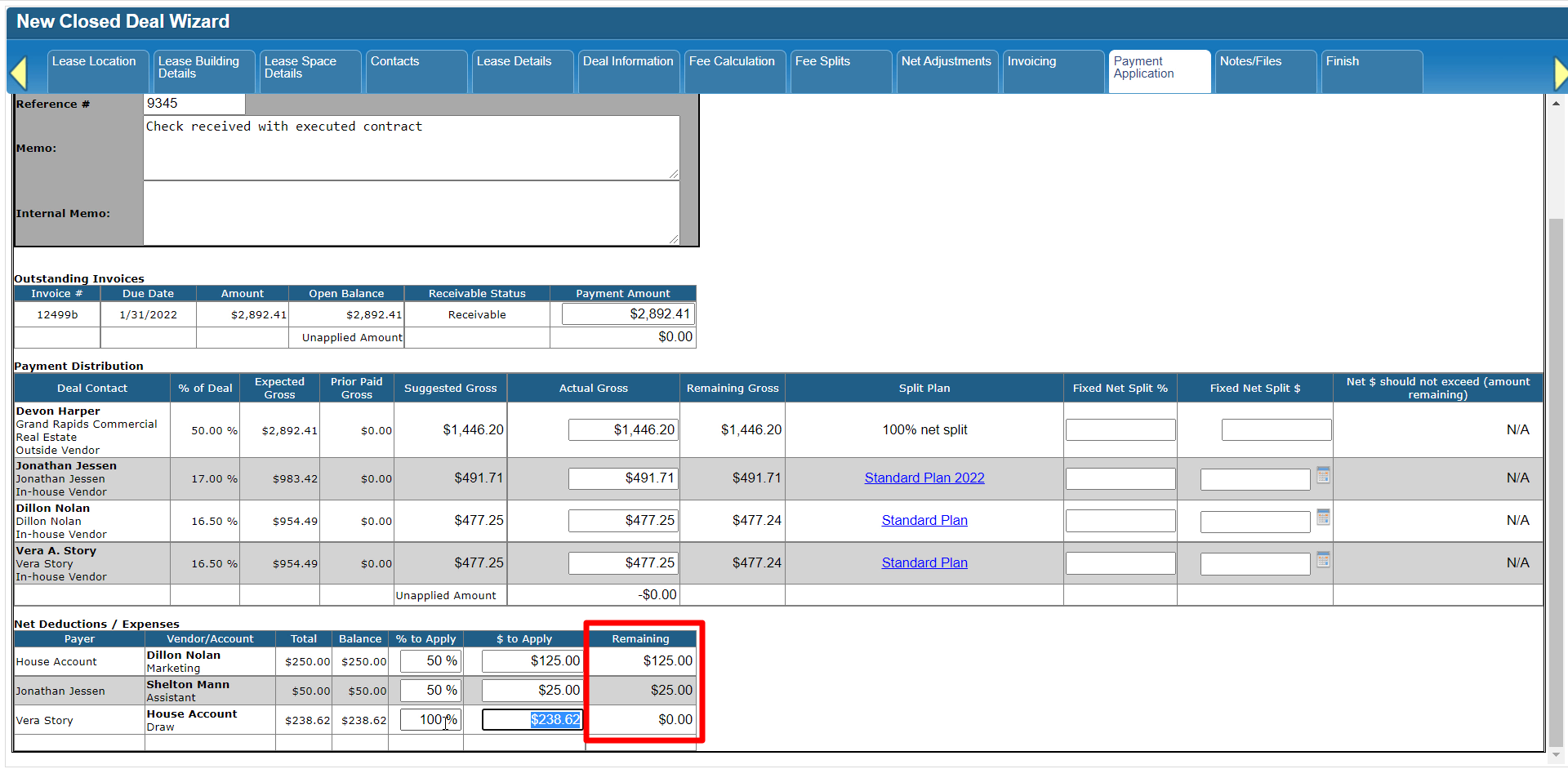
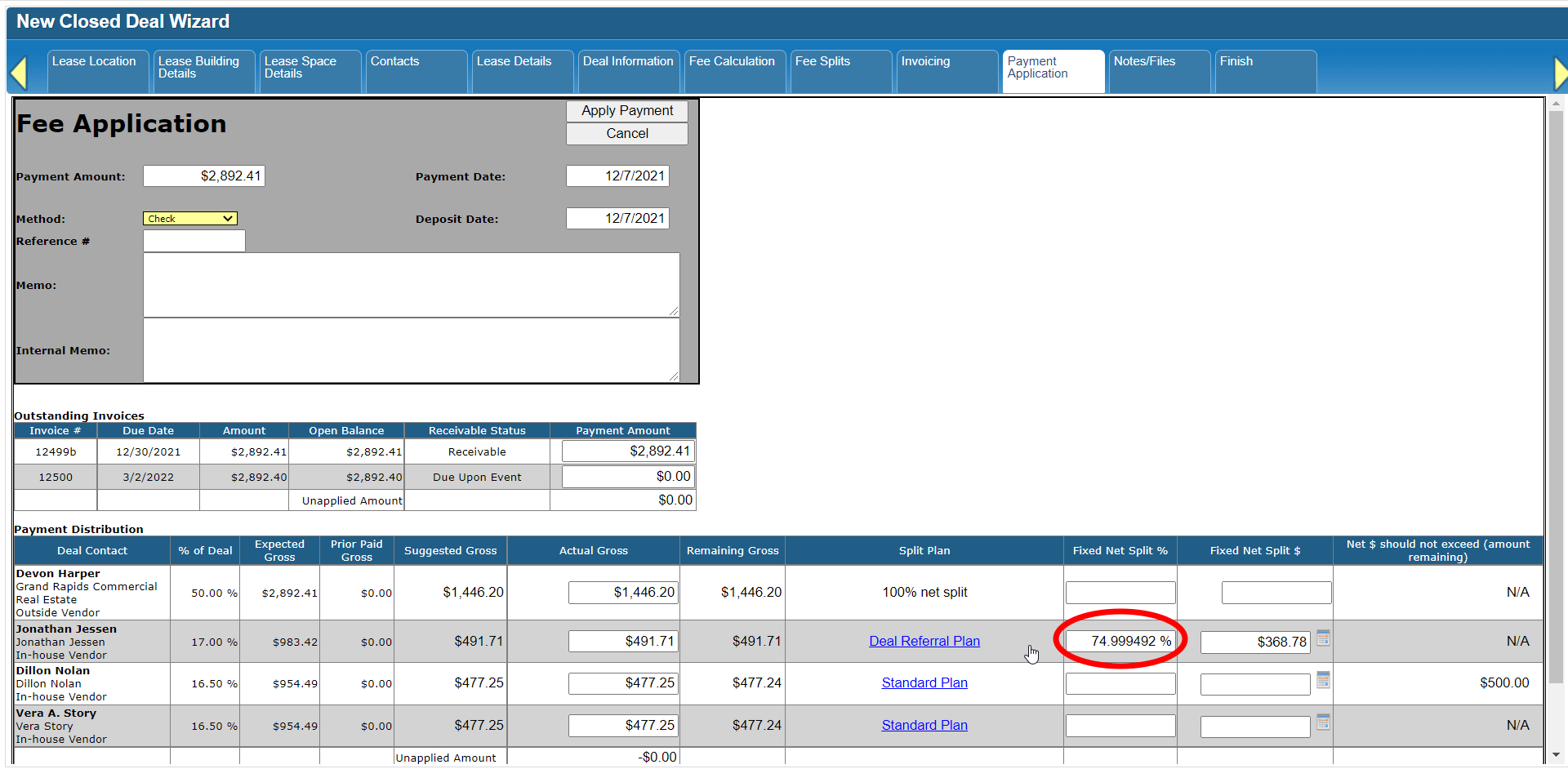
Please note that if the Payer is listed above and is therefore allocated part of the Gross Commission for this Deal, you are not allowed to deduct more from that Payer than the amount they will receive for their Net Commission, after their commission is split with the firm.


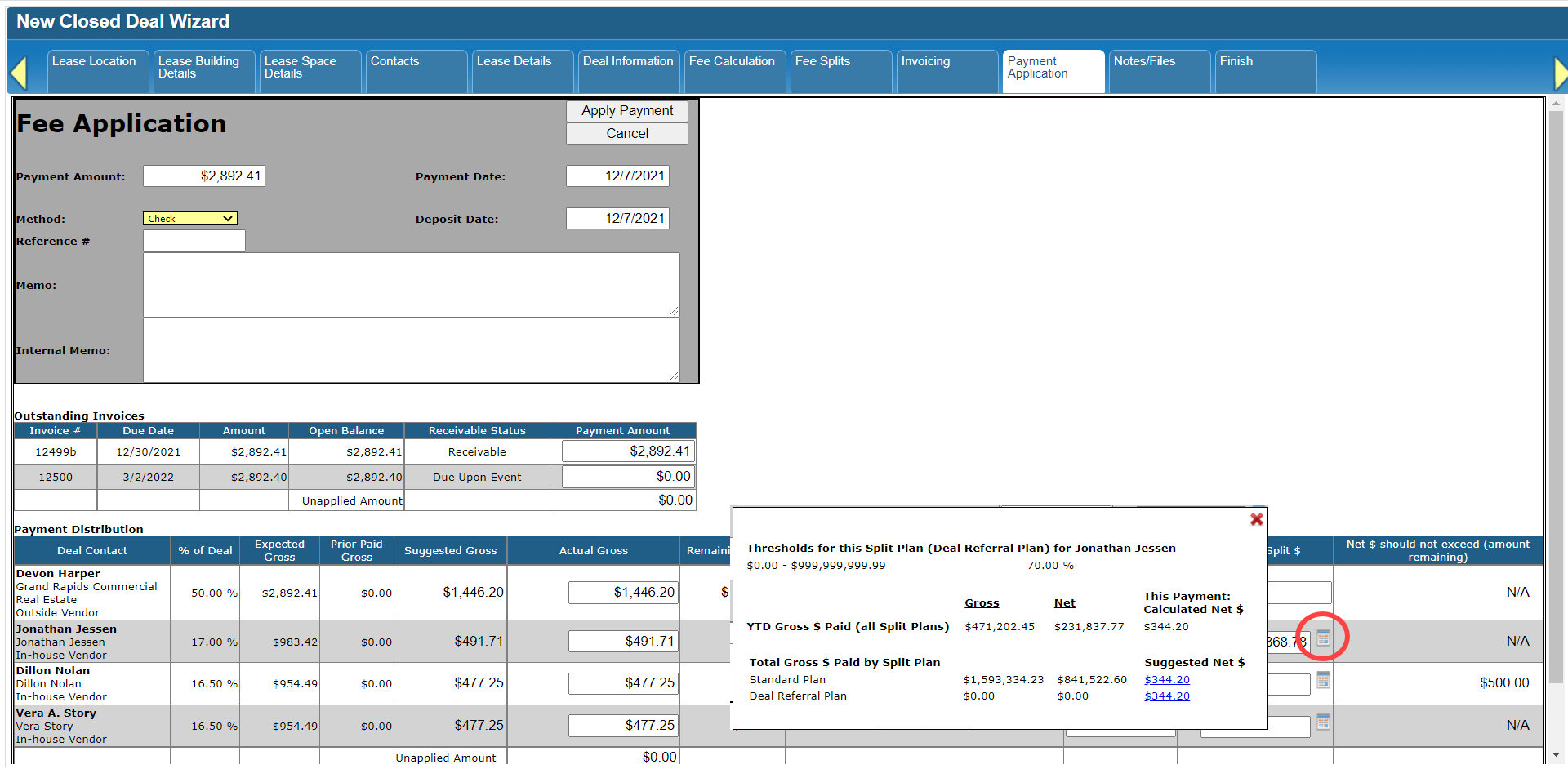
If you’re not sure how much their Net Commission will be, click on the calculator icon in their row and look for the Calculated Net amount for this payment.


Once you submit the Payment, the Fee Application report will include a page for each Net Adjustment Payer and Recipient with their Net Adjustment and final distribution amounts.


Click here for the next tutorial.
Related articles
- How to create a new Closed Deal: Part 2 - New Closed Deal Modal
- How to create a new Closed Deal: Part 3 - Workflow Navigation
- How to create a new Closed Deal: Part 4 - Property
- How to create a new Closed Deal: Part 5 - Space
- How to create a new Closed Deal: Part 6 - Contacts
- How to create a new Closed Deal: Part 7 - Lease Details
- How to create a new Closed Deal: Part 8 - Deal Information
- How to create a new Closed Deal: Part 9 - Fee Calculation
- How to create a new Closed Deal: Part 10 - Fee Splits
- How to create a new Closed Deal: Part 11 - Invoicing
- How to create a new Closed Deal: Part 12 - Payments
- How to create a new Closed Deal: Part 13 - Notes/Files
- How to create a new Closed Deal: Part 14 - Link Project
- How to create a new Closed Deal: Part 15 - Deal Share
- How to create a new Closed Deal: Part 16 - Billing Schedule
- How to create a new Closed Deal: Part 17 - Net Adjustments
- How to create a new Closed Deal: Part 18 - Annuity Schedule
- How to create a new Closed Deal: Part 19 - Sale Details
- How to create a new Closed Deal: Part 20 - Other Starting Points
© 2023 CoStar Group
Attachments:
 CBA - Entering a Closed Deal - 16 Billing Schedule (Time 0_03_03;14).png (image/png)
 CBA - Entering a Closed Deal - 16 Billing Schedule (Time 0_02_58;04).png (image/png)
 CBA - Entering a Closed Deal - 16 Billing Schedule (Time 0_02_50;28).png (image/png)
 CBA - Entering a Closed Deal - 16 Billing Schedule (Time 0_02_43;18).png (image/png)
 CBA - Entering a Closed Deal - 16 Billing Schedule (Time 0_02_38;10).png (image/png)
 CBA - Entering a Closed Deal - 16 Billing Schedule (Time 0_02_28;21).png (image/png)
 CBA - Entering a Closed Deal - 16 Billing Schedule (Time 0_02_21;00).png (image/png)
 CBA - Entering a Closed Deal - 16 Billing Schedule (Time 0_02_07;23).png (image/png)
 CBA - Entering a Closed Deal - 16 Billing Schedule (Time 0_01_56;23).png (image/png)
 CBA - Entering a Closed Deal - 16 Billing Schedule (Time 0_01_47;17).png (image/png)
 CBA - Entering a Closed Deal - 16 Billing Schedule (Time 0_01_41;20).png (image/png)
 CBA - Entering a Closed Deal - 16 Billing Schedule (Time 0_01_40;00).png (image/png)
 CBA - Entering a Closed Deal - 16 Billing Schedule (Time 0_01_25;00).png (image/png)
 CBA - Entering a Closed Deal - 16 Billing Schedule (Time 0_01_23;06).png (image/png)
 CBA - Entering a Closed Deal - 16 Billing Schedule (Time 0_01_20;06).png (image/png)
 CBA - Entering a Closed Deal - 16 Billing Schedule (Time 0_00_55;16).png (image/png)
 CBA - Entering a Closed Deal - 16 Billing Schedule (Time 0_00_36;13).png (image/png)
 CBA - Entering a Closed Deal - 14 Link Project (Time 0_05_11;08)b.png (image/png)
 CBA - Entering a Closed Deal - 14 Link Project (Time 0_05_01;15)b.png (image/png)
 CBA - Entering a Closed Deal - 14 Link Project (Time 0_04_57;04)b.png (image/png)
 CBA - Entering a Closed Deal - 14 Link Project (Time 0_04_37;16)b.png (image/png)
 CBA - Entering a Closed Deal - 14 Link Project (Time 0_04_25;04)b.png (image/png)
 CBA - Entering a Closed Deal - 14 Link Project (Time 0_04_21;11).png (image/png)
 CBA - Entering a Closed Deal - 14 Link Project (Time 0_04_12;18).png (image/png)
 2022-01-07_16-29-19.jpg (image/jpeg)
 CBA - Entering a Closed Deal - 14 Link Project (Time 0_03_38;09).png (image/png)
 CBA - Entering a Closed Deal - 14 Link Project (Time 0_03_34;09).png (image/png)
 CBA - Entering a Closed Deal - 14 Link Project (Time 0_03_14;12).png (image/png)
 CBA - Entering a Closed Deal - 14 Link Project (Time 0_03_07;19).png (image/png)
 CBA - Entering a Closed Deal - 14 Link Project (Time 0_02_39;25).png (image/png)
 CBA - Entering a Closed Deal - 14 Link Project (Time 0_02_31;06).png (image/png)
 CBA - Entering a Closed Deal - 14 Link Project (Time 0_02_26;25).png (image/png)
 CBA - Entering a Closed Deal - 14 Link Project (Time 0_02_25;06).png (image/png)
 CBA - Entering a Closed Deal - 14 Link Project (Time 0_02_19;21).png (image/png)
 CBA - Entering a Closed Deal - 14 Link Project (Time 0_02_13;06).png (image/png)
 CBA - Entering a Closed Deal - 14 Link Project (Time 0_01_55;09).png (image/png)
 CBA - Entering a Closed Deal - 14 Link Project (Time 0_01_49;16).png (image/png)
 CBA - Entering a Closed Deal - 14 Link Project (Time 0_01_33;00).png (image/png)
 CBA - Entering a Closed Deal - 14 Link Project (Time 0_01_23;07)b.png (image/png)
 CBA - Entering a Closed Deal - 14 Link Project (Time 0_01_13;06).png (image/png)
 CBA - Entering a Closed Deal - 14 Link Project (Time 0_00_59;28).png (image/png)
 CBA - Entering a Closed Deal - 14 Link Project (Time 0_00_46;20).png (image/png)
 CBA - Entering a Closed Deal - 14 Link Project (Time 0_00_32;23)b.png (image/png)
 CBA - Entering a Closed Deal - 14 Link Project (Time 0_00_27;08).png (image/png)
 CBA - Entering a Closed Deal - 12 Payment (Time 0_05_15;25).png (image/png)
 CBA - Entering a Closed Deal - 12 Payment (Time 0_05_09;25).png (image/png)
 CBA - Entering a Closed Deal - 12 Payment (Time 0_05_05;16).png (image/png)
 CBA - Entering a Closed Deal - 12 Payment (Time 0_04_54;23).png (image/png)
 CBA - Entering a Closed Deal - 12 Payment (Time 0_04_47;09).png (image/png)
 CBA - Entering a Closed Deal - 12 Payment (Time 0_04_34;28).png (image/png)
 CBA - Entering a Closed Deal - 12 Payment (Time 0_04_22;24).png (image/png)
 CBA - Entering a Closed Deal - 12 Payment (Time 0_03_57;09)b.png (image/png)
 CBA - Entering a Closed Deal - 12 Payment (Time 0_03_57;09).png (image/png)
 CBA - Entering a Closed Deal - 12 Payment (Time 0_03_44;25).png (image/png)
 CBA - Entering a Closed Deal - 12 Payment (Time 0_03_29;27).png (image/png)
 CBA - Entering a Closed Deal - 12 Payment (Time 0_03_18;23).png (image/png)
 CBA - Entering a Closed Deal - 12 Payment (Time 0_03_15;06).png (image/png)
 CBA - Entering a Closed Deal - 12 Payment (Time 0_03_00;15).png (image/png)
 CBA - Entering a Closed Deal - 12 Payment (Time 0_02_46;02).png (image/png)
 CBA - Entering a Closed Deal - 12 Payment (Time 0_02_32;10).png (image/png)
 CBA - Entering a Closed Deal - 12 Payment (Time 0_02_17;16).png (image/png)
 CBA - Entering a Closed Deal - 12 Payment (Time 0_02_06;19).png (image/png)
 CBA - Entering a Closed Deal - 12 Payment (Time 0_02_02;21).png (image/png)
 CBA - Entering a Closed Deal - 12 Payment (Time 0_01_48;26).png (image/png)
 CBA - Entering a Closed Deal - 12 Payment (Time 0_01_39;28).png (image/png)
 CBA - Entering a Closed Deal - 12 Payment (Time 0_01_27;13).png (image/png)
 CBA - Entering a Closed Deal - 12 Payment (Time 0_01_16;20).png (image/png)
 CBA - Entering a Closed Deal - 12 Payment (Time 0_00_57;13).png (image/png)
 CBA - Entering a Closed Deal - 12 Payment (Time 0_00_42;22).png (image/png)
 CBA - Entering a Closed Deal - 11 Invoicing (Time 0_04_49;26).png (image/png)
 CBA - Entering a Closed Deal - 10 Fee Splits (Time 0_09_01;07).png (image/png)
 CBA - Entering a Closed Deal - 10 Fee Splits (Time 0_08_56;13).png (image/png)
 CBA - Entering a Closed Deal - 10 Fee Splits (Time 0_08_39;23).png (image/png)
 CBA - Entering a Closed Deal - 10 Fee Splits (Time 0_08_29;09).png (image/png)
 CBA - Entering a Closed Deal - 10 Fee Splits (Time 0_08_24;02).png (image/png)
 CBA - Entering a Closed Deal - 10 Fee Splits (Time 0_08_09;09).png (image/png)
 CBA - Entering a Closed Deal - 10 Fee Splits (Time 0_07_51;07).png (image/png)
 CBA - Entering a Closed Deal - 10 Fee Splits (Time 0_07_25;17).png (image/png)
 CBA - Entering a Closed Deal - 10 Fee Splits (Time 0_07_19;24).png (image/png)
 CBA - Entering a Closed Deal - 10 Fee Splits (Time 0_07_17;26).png (image/png)
 CBA - Entering a Closed Deal - 10 Fee Splits (Time 0_07_11;20).png (image/png)
 CBA - Entering a Closed Deal - 10 Fee Splits (Time 0_07_05;27).png (image/png)
 CBA - Entering a Closed Deal - 10 Fee Splits (Time 0_07_01;18).png (image/png)
 CBA - Entering a Closed Deal - 10 Fee Splits (Time 0_06_54;27).png (image/png)
 CBA - Entering a Closed Deal - 10 Fee Splits (Time 0_06_41;22).png (image/png)
 CBA - Entering a Closed Deal - 10 Fee Splits (Time 0_06_28;14).png (image/png)
 CBA - Entering a Closed Deal - 10 Fee Splits (Time 0_06_21;08).png (image/png)
 CBA - Entering a Closed Deal - 10 Fee Splits (Time 0_06_13;20).png (image/png)
 CBA - Entering a Closed Deal - 10 Fee Splits (Time 0_05_49;19).png (image/png)
 CBA - Entering a Closed Deal - 10 Fee Splits (Time 0_05_23;03).png (image/png)
 CBA - Entering a Closed Deal - 10 Fee Splits (Time 0_04_55;09).png (image/png)
 CBA - Entering a Closed Deal - 10 Fee Splits (Time 0_04_36;24).png (image/png)
 CBA - Entering a Closed Deal - 10 Fee Splits (Time 0_04_30;05).png (image/png)
 CBA - Entering a Closed Deal - 10 Fee Splits (Time 0_04_19;14).png (image/png)
 CBA - Entering a Closed Deal - 10 Fee Splits (Time 0_04_14;16)b.png (image/png)
 CBA - Entering a Closed Deal - 10 Fee Splits (Time 0_04_14;16).png (image/png)
 CBA - Entering a Closed Deal - 10 Fee Splits (Time 0_03_53;24).png (image/png)
 CBA - Entering a Closed Deal - 10 Fee Splits (Time 0_03_49;06).png (image/png)
 CBA - Entering a Closed Deal - 10 Fee Splits (Time 0_03_43;16).png (image/png)
 CBA - Entering a Closed Deal - 10 Fee Splits (Time 0_03_19;23).png (image/png)
 CBA - Entering a Closed Deal - 10 Fee Splits (Time 0_03_06;25).png (image/png)
 CBA - Entering a Closed Deal - 10 Fee Splits (Time 0_03_01;27).png (image/png)
 CBA - Entering a Closed Deal - 10 Fee Splits (Time 0_02_48;16).png (image/png)
 CBA - Entering a Closed Deal - 10 Fee Splits (Time 0_02_31;29).png (image/png)
 CBA - Entering a Closed Deal - 10 Fee Splits (Time 0_02_09;19).png (image/png)
 CBA - Entering a Closed Deal - 10 Fee Splits (Time 0_02_02;04).png (image/png)
 CBA - Entering a Closed Deal - 10 Fee Splits (Time 0_01_50;02).png (image/png)
 CBA - Entering a Closed Deal - 10 Fee Splits (Time 0_01_42;05).png (image/png)
 CBA - Entering a Closed Deal - 10 Fee Splits (Time 0_01_28;02).png (image/png)
 CBA - Entering a Closed Deal - 10 Fee Splits (Time 0_01_20;05).png (image/png)
 CBA - Entering a Closed Deal - 10 Fee Splits (Time 0_01_03;21).png (image/png)
 CBA - Entering a Closed Deal - 10 Fee Splits (Time 0_00_50;20).png (image/png)
 CBA - Entering a Closed Deal - 10 Fee Splits (Time 0_00_37;03).png (image/png)
 CBA - Entering a Closed Deal - 10 Fee Splits (Time 0_00_33;01).png (image/png)
 CBA - Entering a Closed Deal - 08 Deal Information (Time 0_03_28;25).png (image/png)
 CBA - Entering a Closed Deal - 08 Deal Information (Time 0_03_14;29).png (image/png)
 CBA - Entering a Closed Deal - 08 Deal Information (Time 0_02_55;26).png (image/png)
 CBA - Entering a Closed Deal - 08 Deal Information (Time 0_02_53;10).png (image/png)
 CBA - Entering a Closed Deal - 08 Deal Information (Time 0_02_38;14).png (image/png)
 CBA - Entering a Closed Deal - 08 Deal Information (Time 0_02_19;07).png (image/png)
 CBA - Entering a Closed Deal - 08 Deal Information (Time 0_02_14;05).png (image/png)
 CBA - Entering a Closed Deal - 08 Deal Information (Time 0_01_55;00).png (image/png)
 CBA - Entering a Closed Deal - 08 Deal Information (Time 0_01_27;04).png (image/png)
 CBA - Entering a Closed Deal - 08 Deal Information (Time 0_01_00;26).png (image/png)
 CBA - Entering a Closed Deal - 08 Deal Information (Time 0_00_52;05).png (image/png)
 CBA - Entering a Closed Deal - 08 Deal Information (Time 0_00_45;08).png (image/png)
 CBA - Entering a Closed Deal - 08 Deal Information (Time 0_00_24;04).png (image/png)
 CBA - Entering a Closed Deal - 06 Contacts (Time 0_03_02;26).png (image/png)
 CBA - Entering a Closed Deal - 06 Contacts (Time 0_03_00;07).png (image/png)
 CBA - Entering a Closed Deal - 06 Contacts (Time 0_02_30;08).png (image/png)
 CBA - Entering a Closed Deal - 06 Contacts (Time 0_02_26;14).png (image/png)
 CBA - Entering a Closed Deal - 06 Contacts (Time 0_02_08;13).png (image/png)
 CBA - Entering a Closed Deal - 06 Contacts (Time 0_01_58;01).png (image/png)
 CBA - Entering a Closed Deal - 06 Contacts (Time 0_01_52;12).png (image/png)
 CBA - Entering a Closed Deal - 06 Contacts (Time 0_01_40;29).png (image/png)
 CBA - Entering a Closed Deal - 06 Contacts (Time 0_01_27;02).png (image/png)
 CBA - Entering a Closed Deal - 06 Contacts (Time 0_01_21;18).png (image/png)
 CBA - Entering a Closed Deal - 06 Contacts (Time 0_00_51;04).png (image/png)
 CBA - Entering a Closed Deal - 06 Contacts (Time 0_00_33;28).png (image/png)
 CBA - Entering a Closed Deal - 04 Property (Time 0_02_52;14).png (image/png)
 CBA - Entering a Closed Deal - 04 Property (Time 0_02_44;24).png (image/png)
 CBA - Entering a Closed Deal - 04 Property (Time 0_02_38;22).png (image/png)
 CBA - Entering a Closed Deal - 04 Property (Time 0_02_19;12).png (image/png)
 CBA - Entering a Closed Deal - 04 Property (Time 0_02_12;07).png (image/png)
 CBA - Entering a Closed Deal - 04 Property (Time 0_02_00;11).png (image/png)
 CBA - Entering a Closed Deal - 04 Property (Time 0_01_40;21).png (image/png)
 CBA - Entering a Closed Deal - 04 Property (Time 0_01_37;08).png (image/png)
 CBA - Entering a Closed Deal - 04 Property (Time 0_01_32;17).png (image/png)
 CBA - Entering a Closed Deal - 04 Property (Time 0_01_25;02).png (image/png)
 CBA - Entering a Closed Deal - 04 Property (Time 0_01_14;23).png (image/png)
 CBA - Entering a Closed Deal - 04 Property (Time 0_00_59;14).png (image/png)
 CBA - Entering a Closed Deal - 04 Property (Time 0_00_29;24).png (image/png)
 CBA - Entering a Closed Deal - 04 Property (Time 0_00_19;25).png (image/png)
 CBA - Entering a Closed Deal - 02 New Closed Deal Modal all (Time 0_04_23;06).png (image/png)
 CBA - Entering a Closed Deal - 02 New Closed Deal Modal all (Time 0_04_18;08).png (image/png)
 CBA - Entering a Closed Deal - 02 New Closed Deal Modal all (Time 0_03_50;03).png (image/png)
 CBA - Entering a Closed Deal - 02 New Closed Deal Modal all (Time 0_03_28;13).png (image/png)
 CBA - Entering a Closed Deal - 02 New Closed Deal Modal all (Time 0_03_25;09).png (image/png)
 CBA - Entering a Closed Deal - 02 New Closed Deal Modal all (Time 0_02_59;26).png (image/png)
 CBA - Entering a Closed Deal - 02 New Closed Deal Modal all (Time 0_01_27;23).png (image/png)
 CBA - Entering a Closed Deal - 02 New Closed Deal Modal all (Time 0_02_30;26).png (image/png)
 CBA - Entering a Closed Deal - 02 New Closed Deal Modal all (Time 0_02_47;26).png (image/png)
 CBA - Entering a Closed Deal - 02 New Closed Deal Modal all (Time 0_02_43;16).png (image/png)
 CBA - Entering a Closed Deal - 02 New Closed Deal Modal all (Time 0_02_35;01).png (image/png)
 CBA - Entering a Closed Deal - 02 New Closed Deal Modal all (Time 0_02_02;26).png (image/png)
 CBA - Entering a Closed Deal - 02 New Closed Deal Modal all (Time 0_01_54;08).png (image/png)
 CBA - Entering a Closed Deal - 02 New Closed Deal Modal all (Time 0_01_44;04).png (image/png)
 CBA - Entering a Closed Deal - 02 New Closed Deal Modal all (Time 0_01_09;13).png (image/png)
 CBA - Entering a Closed Deal - 02 New Closed Deal Modal all (Time 0_00_31;29).png (image/png)
 CBA - Entering a Closed Deal - 03 Workflow Navigation (Time 0_00_23;29).png (image/png)
 CBA - Entering a Closed Deal - 03 Workflow Navigation (Time 0_00_37;04).png (image/png)
 CBA - Entering a Closed Deal - 03 Workflow Navigation (Time 0_00_48;01).png (image/png)
 CBA - Entering a Closed Deal - 03 Workflow Navigation (Time 0_01_01;06).png (image/png)
 CBA - Entering a Closed Deal - 03 Workflow Navigation (Time 0_01_27;28).png (image/png)
 CBA - Entering a Closed Deal - 05 Space (Time 0_00_21;08).png (image/png)
 CBA - Entering a Closed Deal - 05 Space (Time 0_00_26;10).png (image/png)
 CBA - Entering a Closed Deal - 05 Space (Time 0_00_30;17).png (image/png)
 CBA - Entering a Closed Deal - 05 Space (Time 0_00_42;06).png (image/png)
 CBA - Entering a Closed Deal - 05 Space (Time 0_01_00;08).png (image/png)
 CBA - Entering a Closed Deal - 05 Space (Time 0_01_04;25).png (image/png)
 CBA - Entering a Closed Deal - 05 Space (Time 0_01_11;23).png (image/png)
 CBA - Entering a Closed Deal - 05 Space (Time 0_01_24;18).png (image/png)
 CBA - Entering a Closed Deal - 05 Space (Time 0_02_43;08).png (image/png)
 CBA - Entering a Closed Deal - 05 Space (Time 0_02_48;10).png (image/png)
 CBA - Entering a Closed Deal - 07 Lease Details (Time 0_00_19;09).png (image/png)
 CBA - Entering a Closed Deal - 07 Lease Details (Time 0_01_03;21).png (image/png)
 CBA - Entering a Closed Deal - 07 Lease Details (Time 0_01_26;00).png (image/png)
 CBA - Entering a Closed Deal - 07 Lease Details (Time 0_01_30;17).png (image/png)
 CBA - Entering a Closed Deal - 07 Lease Details (Time 0_01_52;03).png (image/png)
 CBA - Entering a Closed Deal - 07 Lease Details (Time 0_02_08;29).png (image/png)
 CBA - Entering a Closed Deal - 07 Lease Details (Time 0_02_33;17).png (image/png)
 CBA - Entering a Closed Deal - 07 Lease Details (Time 0_02_40;00).png (image/png)
 CBA - Entering a Closed Deal - 07 Lease Details (Time 0_02_59;26).png (image/png)
 CBA - Entering a Closed Deal - 07 Lease Details (Time 0_03_10;18).png (image/png)
 CBA - Entering a Closed Deal - 07 Lease Details (Time 0_03_23;17).png (image/png)
 CBA - Entering a Closed Deal - 07 Lease Details (Time 0_03_28;24).png (image/png)
 CBA - Entering a Closed Deal - 07 Lease Details (Time 0_03_50;07).png (image/png)
 CBA - Entering a Closed Deal - 07 Lease Details (Time 0_03_58;14).png (image/png)
 CBA - Entering a Closed Deal - 07 Lease Details (Time 0_04_05;00).png (image/png)
 CBA - Entering a Closed Deal - 09 Fee Calculation (Time 0_00_50;07).png (image/png)
 CBA - Entering a Closed Deal - 09 Fee Calculation (Time 0_00_46;04).png (image/png)
 CBA - Entering a Closed Deal - 09 Fee Calculation (Time 0_00_28;17).png (image/png)
 CBA - Entering a Closed Deal - 09 Fee Calculation (Time 0_00_21;20).png (image/png)
 CBA - Entering a Closed Deal - 09 Fee Calculation (Time 0_00_19;20).png (image/png)
 CBA - Entering a Closed Deal - 09 Fee Calculation (Time 0_01_01;20).png (image/png)
 CBA - Entering a Closed Deal - 09 Fee Calculation (Time 0_01_31;07).png (image/png)
 CBA - Entering a Closed Deal - 09 Fee Calculation (Time 0_01_41;29).png (image/png)
 CBA - Entering a Closed Deal - 09 Fee Calculation (Time 0_01_45;20).png (image/png)
 CBA - Entering a Closed Deal - 09 Fee Calculation (Time 0_01_59;03).png (image/png)
 CBA - Entering a Closed Deal - 09 Fee Calculation (Time 0_02_26;19).png (image/png)
 CBA - Entering a Closed Deal - 09 Fee Calculation (Time 0_02_41;15).png (image/png)
 CBA - Entering a Closed Deal - 09 Fee Calculation (Time 0_03_19;09).png (image/png)
 CBA - Entering a Closed Deal - 09 Fee Calculation (Time 0_03_25;21).png (image/png)
 CBA - Entering a Closed Deal - 09 Fee Calculation (Time 0_03_40;27).png (image/png)
 CBA - Entering a Closed Deal - 11 Invoicing (Time 0_00_27;14).png (image/png)
 CBA - Entering a Closed Deal - 11 Invoicing (Time 0_00_53;21).png (image/png)
 CBA - Entering a Closed Deal - 11 Invoicing (Time 0_01_00;06).png (image/png)
 CBA - Entering a Closed Deal - 11 Invoicing (Time 0_01_06;10).png (image/png)
 CBA - Entering a Closed Deal - 11 Invoicing (Time 0_01_14;14).png (image/png)
 CBA - Entering a Closed Deal - 11 Invoicing (Time 0_01_17;06).png (image/png)
 CBA - Entering a Closed Deal - 11 Invoicing (Time 0_01_32;13).png (image/png)
 CBA - Entering a Closed Deal - 11 Invoicing (Time 0_01_38;20).png (image/png)
 CBA - Entering a Closed Deal - 11 Invoicing (Time 0_01_47;01).png (image/png)
 CBA - Entering a Closed Deal - 11 Invoicing (Time 0_01_57;12).png (image/png)
 CBA - Entering a Closed Deal - 11 Invoicing (Time 0_02_05;23).png (image/png)
 CBA - Entering a Closed Deal - 11 Invoicing (Time 0_02_17;23).png (image/png)
 CBA - Entering a Closed Deal - 11 Invoicing (Time 0_02_24;27).png (image/png)
 CBA - Entering a Closed Deal - 11 Invoicing (Time 0_02_28;27).png (image/png)
 CBA - Entering a Closed Deal - 11 Invoicing (Time 0_02_41;23).png (image/png)
 CBA - Entering a Closed Deal - 11 Invoicing (Time 0_02_51;27).png (image/png)
 CBA - Entering a Closed Deal - 11 Invoicing (Time 0_02_51;27)b.png (image/png)
 CBA - Entering a Closed Deal - 11 Invoicing (Time 0_03_07;01).png (image/png)
 CBA - Entering a Closed Deal - 11 Invoicing (Time 0_03_27;19).png (image/png)
 CBA - Entering a Closed Deal - 11 Invoicing (Time 0_03_30;19).png (image/png)
 CBA - Entering a Closed Deal - 11 Invoicing (Time 0_03_38;08).png (image/png)
 CBA - Entering a Closed Deal - 11 Invoicing (Time 0_03_41;15).png (image/png)
 CBA - Entering a Closed Deal - 11 Invoicing (Time 0_03_44;12).png (image/png)
 CBA - Entering a Closed Deal - 11 Invoicing (Time 0_03_57;27).png (image/png)
 CBA - Entering a Closed Deal - 11 Invoicing (Time 0_04_05;12).png (image/png)
 CBA - Entering a Closed Deal - 11 Invoicing (Time 0_04_16;19).png (image/png)
 CBA - Entering a Closed Deal - 11 Invoicing (Time 0_04_27;27).png (image/png)
 CBA - Entering a Closed Deal - 11 Invoicing (Time 0_04_34;19).png (image/png)
 CBA - Entering a Closed Deal - 11 Invoicing (Time 0_04_58;18).png (image/png)
 CBA - Entering a Closed Deal - 11 Invoicing (Time 0_05_05;29).png (image/png)
 CBA - Entering a Closed Deal - 11 Invoicing (Time 0_05_17;29).png (image/png)
 CBA - Entering a Closed Deal - 13 Notes (Time 0_00_21;22).png (image/png)
 CBA - Entering a Closed Deal - 13 Notes (Time 0_00_46;17).png (image/png)
 CBA - Entering a Closed Deal - 13 Notes (Time 0_00_55;19).png (image/png)
 CBA - Entering a Closed Deal - 13 Notes (Time 0_01_01;07).png (image/png)
 CBA - Entering a Closed Deal - 13 Notes (Time 0_01_08;16).png (image/png)
 CBA - Entering a Closed Deal - 13 Notes (Time 0_01_28;22).png (image/png)
 CBA - Entering a Closed Deal - 13 Notes (Time 0_02_06;29).png (image/png)
 CBA - Entering a Closed Deal - 13 Notes (Time 0_02_15;03).png (image/png)
 CBA - Entering a Closed Deal - 13 Notes (Time 0_02_16;23).png (image/png)
 CBA - Entering a Closed Deal - 13 Notes (Time 0_02_35;23).png (image/png)
 CBA - Entering a Closed Deal - 13 Notes (Time 0_02_45;17).png (image/png)
 CBA - Entering a Closed Deal - 13 Notes (Time 0_02_59;02).png (image/png)
 CBA - Entering a Closed Deal - 13 Notes (Time 0_03_06;03).png (image/png)
 CBA - Entering a Closed Deal - 13 Notes (Time 0_03_21;05).png (image/png)
 CBA - Entering a Closed Deal - 13 Notes (Time 0_03_29;19).png (image/png)
 CBA - Entering a Closed Deal - 13 Notes (Time 0_03_37;08).png (image/png)
 CBA - Entering a Closed Deal - 13 Notes (Time 0_03_49;06).png (image/png)
 CBA - Entering a Closed Deal - 13 Notes (Time 0_03_58;16).png (image/png)
 CBA - Entering a Closed Deal - 13 Notes (Time 0_04_15;19).png (image/png)
 CBA - Entering a Closed Deal - 13 Notes (Time 0_04_26;01).png (image/png)
 CBA - Entering a Closed Deal - 13 Notes (Time 0_04_35;11).png (image/png)
 CBA - Entering a Closed Deal - 13 Notes (Time 0_04_43;22).png (image/png)
 CBA - Entering a Closed Deal - 13 Notes (Time 0_04_50;02).png (image/png)
 CBA - Entering a Closed Deal - 13 Notes (Time 0_04_57;25).png (image/png)
 CBA - Entering a Closed Deal - 13 Notes (Time 0_05_10;01).png (image/png)
 CBA - Entering a Closed Deal - 15 Deal Share (Time 0_00_52;19).png (image/png)
 CBA - Entering a Closed Deal - 15 Deal Share (Time 0_01_23;08).png (image/png)
 CBA - Entering a Closed Deal - 15 Deal Share (Time 0_01_30;11).png (image/png)
 CBA - Entering a Closed Deal - 15 Deal Share (Time 0_01_34;21).png (image/png)
 CBA - Entering a Closed Deal - 15 Deal Share (Time 0_01_50;00)b.png (image/png)
 CBA - Entering a Closed Deal - 15 Deal Share (Time 0_02_00;04).png (image/png)
 CBA - Entering a Closed Deal - 15 Deal Share (Time 0_02_07;02).png (image/png)
 CBA - Entering a Closed Deal - 15 Deal Share (Time 0_02_07;02)b.png (image/png)
 CBA - Entering a Closed Deal - 15 Deal Share (Time 0_02_12;00).png (image/png)
 CBA - Entering a Closed Deal - 15 Deal Share (Time 0_02_19;16).png (image/png)
 CBA - Entering a Closed Deal - 15 Deal Share (Time 0_02_29;01).png (image/png)
 CBA - Entering a Closed Deal - 15 Deal Share (Time 0_02_46;06).png (image/png)
 CBA - Entering a Closed Deal - 15 Deal Share (Time 0_03_01;23).png (image/png)
 CBA - Entering a Closed Deal - 15 Deal Share (Time 0_03_22;02).png (image/png)
 CBA - Entering a Closed Deal - 15 Deal Share (Time 0_03_45;02).png (image/png)
 CBA - Entering a Closed Deal - 15 Deal Share (Time 0_03_59;00).png (image/png)
 CBA - Entering a Closed Deal - 15 Deal Share (Time 0_04_05;15).png (image/png)
 CBA - Entering a Closed Deal - 15 Deal Share (Time 0_04_10;08).png (image/png)
 CBA - Entering a Closed Deal - 15 Deal Share (Time 0_04_21;12).png (image/png)
 CBA - Entering a Closed Deal - 15 Deal Share (Time 0_04_35;17).png (image/png)
 CBA - Entering a Closed Deal - 15 Deal Share (Time 0_04_47;05).png (image/png)
 CBA - Entering a Closed Deal - 15 Deal Share (Time 0_04_57;18).png (image/png)
 CBA - Entering a Closed Deal - 17 Net Adjustments (Time 0_00_44;17).png (image/png)
CBA - Entering a Closed Deal - 17 Net Adjustments (Time 0_00_47;26).png (image/png)
CBA - Entering a Closed Deal - 17 Net Adjustments (Time 0_00_56;09).png (image/png)
CBA - Entering a Closed Deal - 17 Net Adjustments (Time 0_01_12;27)a.png (image/png)
CBA - Entering a Closed Deal - 17 Net Adjustments (Time 0_01_29;26).png (image/png)
CBA - Entering a Closed Deal - 17 Net Adjustments (Time 0_01_40;22).png (image/png)
CBA - Entering a Closed Deal - 17 Net Adjustments (Time 0_01_47;17).png (image/png)
CBA - Entering a Closed Deal - 17 Net Adjustments (Time 0_01_56;29).png (image/png)
CBA - Entering a Closed Deal - 17 Net Adjustments (Time 0_02_02;07).png (image/png)
CBA - Entering a Closed Deal - 17 Net Adjustments (Time 0_02_11;19).png (image/png)
CBA - Entering a Closed Deal - 17 Net Adjustments (Time 0_02_36;13).png (image/png)
CBA - Entering a Closed Deal - 17 Net Adjustments (Time 0_02_42;16).png (image/png)
CBA - Entering a Closed Deal - 17 Net Adjustments (Time 0_02_52;13).png (image/png)
CBA - Entering a Closed Deal - 17 Net Adjustments (Time 0_02_56;25).png (image/png)
CBA - Entering a Closed Deal - 17 Net Adjustments (Time 0_03_00;15).png (image/png)
CBA - Entering a Closed Deal - 17 Net Adjustments (Time 0_03_16;04).png (image/png)
CBA - Entering a Closed Deal - 17 Net Adjustments (Time 0_03_43;00).png (image/png)
CBA - Entering a Closed Deal - 17 Net Adjustments (Time 0_00_44;17).png (image/png)
CBA - Entering a Closed Deal - 17 Net Adjustments (Time 0_00_47;26).png (image/png)
CBA - Entering a Closed Deal - 17 Net Adjustments (Time 0_00_56;09).png (image/png)
CBA - Entering a Closed Deal - 17 Net Adjustments (Time 0_01_12;27)a.png (image/png)
CBA - Entering a Closed Deal - 17 Net Adjustments (Time 0_01_29;26).png (image/png)
CBA - Entering a Closed Deal - 17 Net Adjustments (Time 0_01_40;22).png (image/png)
CBA - Entering a Closed Deal - 17 Net Adjustments (Time 0_01_47;17).png (image/png)
CBA - Entering a Closed Deal - 17 Net Adjustments (Time 0_01_56;29).png (image/png)
CBA - Entering a Closed Deal - 17 Net Adjustments (Time 0_02_02;07).png (image/png)
CBA - Entering a Closed Deal - 17 Net Adjustments (Time 0_02_11;19).png (image/png)
CBA - Entering a Closed Deal - 17 Net Adjustments (Time 0_02_36;13).png (image/png)
CBA - Entering a Closed Deal - 17 Net Adjustments (Time 0_02_42;16).png (image/png)
CBA - Entering a Closed Deal - 17 Net Adjustments (Time 0_02_52;13).png (image/png)
CBA - Entering a Closed Deal - 17 Net Adjustments (Time 0_02_56;25).png (image/png)
CBA - Entering a Closed Deal - 17 Net Adjustments (Time 0_03_00;15).png (image/png)
CBA - Entering a Closed Deal - 17 Net Adjustments (Time 0_03_16;04).png (image/png)
CBA - Entering a Closed Deal - 17 Net Adjustments (Time 0_03_43;00).png (image/png)
 CBA - Entering a Closed Deal - 17 Net Adjustments (Time 0_03_23;21).png (image/png)
CBA - Entering a Closed Deal - 17 Net Adjustments (Time 0_03_32;11).png (image/png)
CBA - Entering a Closed Deal - 17 Net Adjustments (Time 0_03_38;29).png (image/png)
CBA - Entering a Closed Deal - 17 Net Adjustments (Time 0_03_45;10).png (image/png)
CBA - Entering a Closed Deal - 17 Net Adjustments (Time 0_03_48;23).png (image/png)
CBA - Entering a Closed Deal - 17 Net Adjustments (Time 0_03_58;16).png (image/png)
CBA - Entering a Closed Deal - 17 Net Adjustments (Time 0_04_10;01).png (image/png)
CBA - Entering a Closed Deal - 17 Net Adjustments (Time 0_04_24;24).png (image/png)
2022-02-03_17-43-07b.png (image/png)
CBA - Entering a Closed Deal - 17 Net Adjustments (Time 0_04_33;29).png (image/png)
CBA - Entering a Closed Deal - 17 Net Adjustments (Time 0_04_43;00).png (image/png)
CBA - Entering a Closed Deal - 17 Net Adjustments (Time 0_04_54;26).png (image/png)
CBA - Entering a Closed Deal - 17 Net Adjustments (Time 0_04_59;12).png (image/png)
CBA - Entering a Closed Deal - 17 Net Adjustments (Time 0_05_02;14).png (image/png)
CBA - Entering a Closed Deal - 17 Net Adjustments (Time 0_05_13;03).png (image/png)
CBA - Entering a Closed Deal - 17 Net Adjustments (Time 0_05_15;24).png (image/png)
CBA - Entering a Closed Deal - 17 Net Adjustments (Time 0_03_23;21).png (image/png)
CBA - Entering a Closed Deal - 17 Net Adjustments (Time 0_03_32;11).png (image/png)
CBA - Entering a Closed Deal - 17 Net Adjustments (Time 0_03_38;29).png (image/png)
CBA - Entering a Closed Deal - 17 Net Adjustments (Time 0_03_45;10).png (image/png)
CBA - Entering a Closed Deal - 17 Net Adjustments (Time 0_03_48;23).png (image/png)
CBA - Entering a Closed Deal - 17 Net Adjustments (Time 0_03_58;16).png (image/png)
CBA - Entering a Closed Deal - 17 Net Adjustments (Time 0_04_10;01).png (image/png)
CBA - Entering a Closed Deal - 17 Net Adjustments (Time 0_04_24;24).png (image/png)
2022-02-03_17-43-07b.png (image/png)
CBA - Entering a Closed Deal - 17 Net Adjustments (Time 0_04_33;29).png (image/png)
CBA - Entering a Closed Deal - 17 Net Adjustments (Time 0_04_43;00).png (image/png)
CBA - Entering a Closed Deal - 17 Net Adjustments (Time 0_04_54;26).png (image/png)
CBA - Entering a Closed Deal - 17 Net Adjustments (Time 0_04_59;12).png (image/png)
CBA - Entering a Closed Deal - 17 Net Adjustments (Time 0_05_02;14).png (image/png)
CBA - Entering a Closed Deal - 17 Net Adjustments (Time 0_05_13;03).png (image/png)
CBA - Entering a Closed Deal - 17 Net Adjustments (Time 0_05_15;24).png (image/png)