Scheduled release date: February 7th, 2023.
Summary
We are introducing an updated version of the Comp Search and List to improve their functionality and to keep up with the latest browser technologies. CoStar users will find the look and features of the new search and list to be familiar. This tutorial will go over the different aspects of the updated functionality.
Browser Cache: Some browsers don't automatically recognize that there is new code on our servers, which may cause our pages to behave strangely. If you encounter any issues, please first try hitting the CTRL+F5 keys on your keyboard to refresh the page.
This update will not remove your Saved Searches and Sets for Comps.
Video Tutorial
The content of this article is also available as a video tutorial.
Comp Search Filters
There are a few ways to get to the Comp Search & List:
From the Home page, open the Property menu, then click on Comps. This will open the Comps List in the background and a Comp Search Filters form in front of it.

From the Comps Search widget on the Home dashboard. This will apply any filters you added via the widget and take you straight to the Comps List.

From a Saved Search for comps. On the Home page, open the menu under the CoStar icon and click on Saved Searches. To run a Saved Search, click on the Search Name. Jump to the section on Saved Searches for more details about comp Saved Searches.

The Comp Search Filters form is divided into sections. You can either scroll through the entire form, or you can jump to a section by clicking on the section name along the top of the form.

As you add your search criteria, the number of applied filters in each section will show at the top.

“Unknown (blank)” option in pulldown selections - In some dropdown selection menus you may see ‘Unknown (blank)’. It will also return any valued that are not found in the pulldown list. This could occur by changing or removing pulldown values without updating the data or through data imports.
Primary
The top or Primary section contains the most commonly used search filters for Lease or Sale comps. This includes filters for the Property Name and Address.

Location
The Location section contains additional geographic filters like Market and Submarket.

Comp Details
The Comp Details section is subdivided into filters for Lease, Sale, and the record Source. Just remember that the Primary section already includes the most popular filters, such as Lease Rate or Sale Price.

Property/Space
The Property/Space section has filters for attributes of the building or space that was leased or sold.

Contacts
The Contacts section allows you to filter by Contacts or Companies that played a role in the transaction. You can specify which role or designation (e.g. Listing Broker or Client) and add as many Contacts or Companies to the filter as you wish.

Please note: The results will only include Comps which have all of the selected Contacts/Companies with the indicated roles.
For example, if you search for John Smith as a Listing Broker, Sarah Miller as a Listing Broker, and The Home Depot, Inc. as the Buyer/Tenant, then all of the resulting comps will have both John Smith and Sarah Miller as Listing Brokers and The Home Depot, Inc. as the Buyer/Tenant.

Other
The Other section replaces the Comp Advanced Search option that used to be on a separate form. You can now combine the most commonly used filters from the sections above with additional filters for almost every available building, space or comp attribute.
The same concept applies here that was described in the Contacts section: The results will only include comps which meet all of the selected criteria.

However, pulldown fields are sort of an exception to that rule. For long pulldown lists, you can find specific entries by typing into the search field at the top of the list. This applies to any pulldown field anywhere on this form. And even though you can only add each field once to the filter criteria, pulldown fields will allow you to select multiple entries at the same time by checking the box next to each one. In this case, the results will include comps which meet any of the selected entries for that field. For example, if you select Construction Type and add Concrete, Concrete Tilt-up and Concrete/Block as criteria, the results will include any comp with a Construction Type of Concrete, Concrete Tilt-up or Concrete/Block.

Filter Actions
To see a list of Comps which match your criteria, click the Apply Filter button.

Use the Clear button to remove all of the current filters from the form. The form itself will remain open so you can start over with your search criteria.

The Cancel button will close the Comp Search Filters form and display the Comps List without applying any changes.

Comp Search List
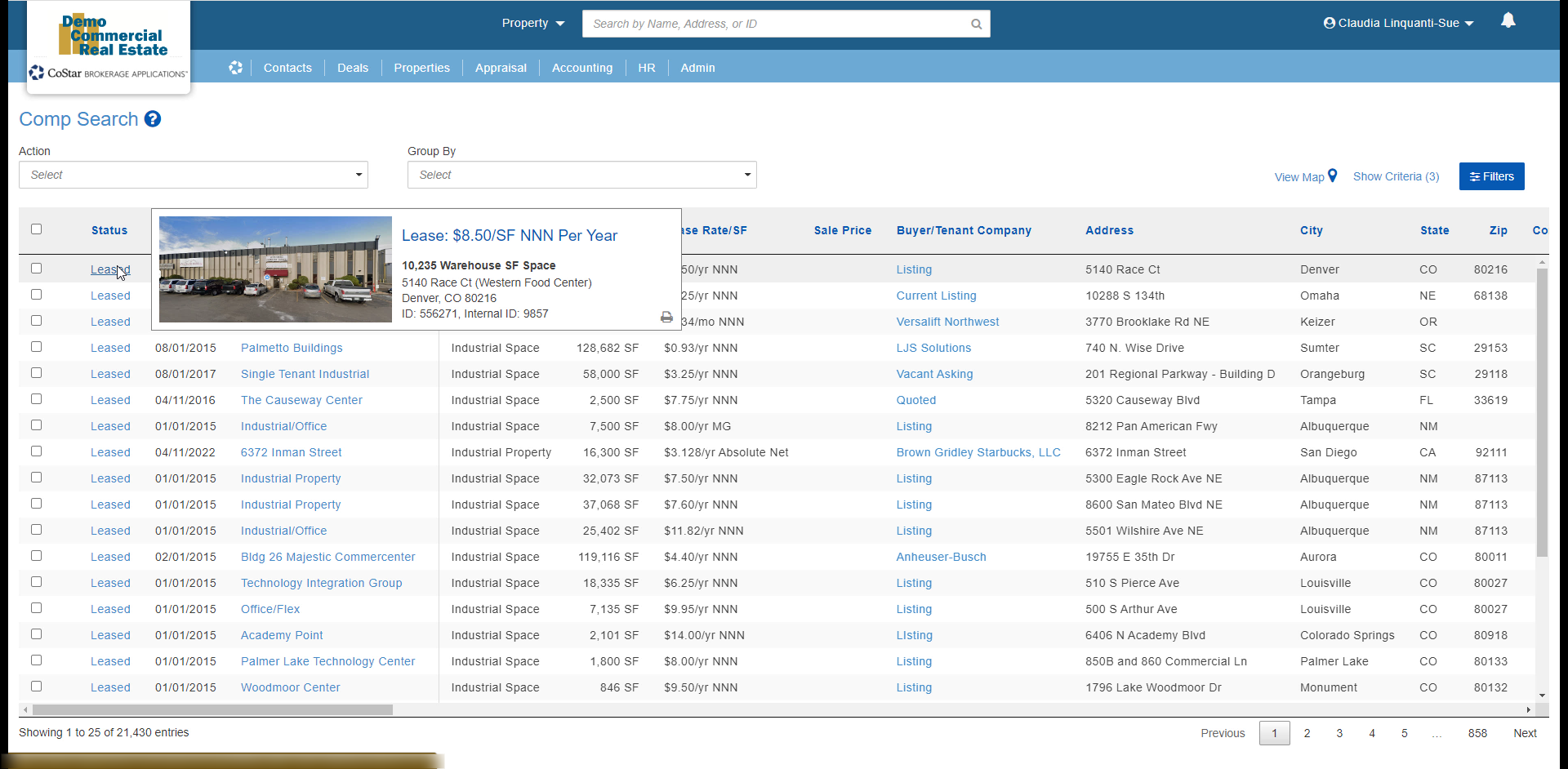
The new Comp List is designed to be easier to read and use, while making more information about each comp available directly in the list. It now has a spreadsheet-style layout. Depending on your settings, the first columns may stay in place when you scroll to the right so you will always know exactly which comps are in the list as you review the additional information.

When you place your cursor over the Status (“Leased” or “Sold”) of each comp, a placard pops up with the property image and a brief summary of the comp details. Clicking on the Status itself will open the full comp page in a new browser window or tab.

Additional links are on the Property Name and any Contacts or Companies associated with the Comp. If a Company name doesn’t have a link, it’s because that name isn’t coming from an actual Company record, it’s just referenced on the comp as a name.

You can select individual records by checking the box to the left of each comp. Selected records will be highlighted in blue. Once your records are selected, use the Action menu at the top of the list to perform the next step.

Action Menu
The Action menu contains many of the features you can use to process either the records you selected or the entire list of results if nothing is selected. This menu is the same as before the latest update. It includes options to:
Create reports or exports [Report/Export (all or selected)]
Save a set of specific records that you can pull up again later, or add records to an existing set [Save/Re-Order Selected] & [Add selected to a Saved Set]
Include specific records from this search with the results of a new search [Append selected to another search]
Filter the list to include only selected records [Filter selected]
Save your search criteria so you can easily run the same search again later [Save this search]
Perform global data or permission updates (this requires special login settings) [Update selected] & [Add/Remove Permissions from selected]
Open the old form and list - this option will go away once the transition to the new Comp Search format is complete [Search Comp (legacy)]

Group By
Selecting a field in the Group By menu will group all of the records in the list under the individual values in that field. For example, if you group by Status, the list will be divided into 2 groups - Sold vs Leased.

Remove the grouping by opening the Group By menu again and selecting the option to Remove ‘Group By’.

Sorting
Each of the column headers can be clicked on to sort the list by that field. Click once to sort in ascending order (a,b,c or 1,2,3). Click twice to sort in descending order (c,b,a or 3,2,1). When the list is sorted, an arrow will show up next to the field it is sorted by. Pointed up means the list is sorted in ascending order. Pointed down means descending order.

If you sort a list that has been grouped, the records will be sorted within each group. The grouping itself will not be removed.

View Map
The View Map button towards the top right of the list displays a map of all or of the selected records in a new window that displays in front of the list.

By default, only the first 25 records will have pins on the map until you click on the option to Show All Pins at the top of the window.

Show Criteria
You can see how many filters have been applied to the list next to the Show Criteria option. Click on that option to see exactly which filters have been applied.

You can remove a filter by clicking the [x] next to it. Click Apply to save your changes or Cancel to close the Selected Criteria window without re-filtering the list.

Filters
The Filters button opens the Comp Search Filters form in front of the list. Use this option if you want to add or change filters instead of just removing some of them. You can also remove filters via this form, it’s just easier to use the Show Criteria option if you only want to remove filters.

Pages
At the bottom of the list are the number of search results (on the left) and options to navigate through the pages of results. Each page will include 25 records.

Modify Layout
One of the features being introduced with the new list functionality is the ability to customize the layout of the list. You can include or remove various fields, and you can freeze up to three of the first columns in the list so that they always display when you scroll the list to the right.
These customizations are specific to your login, and do not affect any other users. You can alter the list to see the information that is most important to you and your business.
To change the current layout, click the ‘Modify Layout’ link on the bottom right hand side of the list.
The customization form will appear as a pop-up window.

Available Fields: Displayed in alphabetical order, this list represents fields that are available for you to add to the list that are not currently displayed. You can select multiple fields by holding down the CTRL key while clicking on the field names.
Left and Right arrows: Once you have selected a field (or multiple fields), you can use the single arrows to move them between the Available Fields and Selected Fields columns. One click of the double arrows will move all of the fields from one column to the other.
Selected Fields: These are the fields that will show on the list, in the order you see here.
Up and Down Arrows: These buttons will allow you to move fields in the ‘Selected Fields’ column. Select one or multiple fields and click on the up or down arrows to move those fields.
Number of Columns to Freeze: This number indicates how many columns will be ‘frozen’ in the list so they always display.
Default Layout: This button will remove any customizations and restore the list back to the default layout, but only in this window until you click the ‘Apply Layout’ button. You can continue to customize the layout, apply the changes as they are, or cancel all changes.
Cancel Button: Selecting this button will ignore any changes made to this form, close the form, and take you back to the list.
Apply Layout: Selecting this button will save the changes you have made to the Selected Fields or number of columns to freeze. You only need to apply these changes once and will see them every time you open the list going forward.
Create a New Comp
Depending on your login settings, you may have the option to Create New Comp in the top right corner of the Comp Search page, above the Filters button. Contact your system administrator if you should be able to create a new Comp record and don’t see that option.

Comps Search Widget
Running a quick search using the Comps Search widget on the main dashboard will now return results in the new Comps List. Use the Show Criteria or Filters buttons at the top of the list to see or change your search criteria.
Saved Searches
All existing and new Saved Searches for comps will now open the new Comps List filtered by your saved search criteria. The Saved Searches themselves will not be changed or removed by this update, you will just see the results in the new list format.

If you open a Saved Set for comps, you will still see the same Saved Set list as before.

If you have any questions or would like to schedule a detailed training on this feature, please contact [email protected].
© 2023 CoStar Group
Attachments:
 CBA - New Comp Search & List (Time 0_01_01;29).png (image/png)
 CBA - New Comp Search & List (Time 0_01_01;29)b.png (image/png)
CBA - New Comp Search & List (Time 0_01_13;22).png (image/png)
CBA - New Comp Search & List (Time 0_01_31;20).png (image/png)
CBA - New Comp Search & List (Time 0_01_54;21).png (image/png)
CBA - New Comp Search & List (Time 0_01_01;29)b.png (image/png)
CBA - New Comp Search & List (Time 0_01_13;22).png (image/png)
CBA - New Comp Search & List (Time 0_01_31;20).png (image/png)
CBA - New Comp Search & List (Time 0_01_54;21).png (image/png)
 CBA - New Comp Search & List (Time 0_02_02;11).png (image/png)
 CBA - New Comp Search & List (Time 0_02_07;15).png (image/png)
 CBA - New Comp Search & List (Time 0_02_20;09).png (image/png)
 CBA - New Comp Search & List (Time 0_02_24;12).png (image/png)
 CBA - New Comp Search & List (Time 0_02_42;14).png (image/png)
 CBA - New Comp Search & List (Time 0_03_30;21).png (image/png)
 CBA - New Comp Search & List (Time 0_03_38;23).png (image/png)
CBA - New Comp Search & List (Time 0_03_50;24).png (image/png)
CBA - New Comp Search & List (Time 0_03_38;23).png (image/png)
CBA - New Comp Search & List (Time 0_03_50;24).png (image/png)
 CBA - New Comp Search & List (Time 0_04_54;29).png (image/png)
 CBA - New Comp Search & List (Time 0_05_13;03).png (image/png)
 CBA - New Comp Search & List (Time 0_05_18;07).png (image/png)
 CBA - New Comp Search & List (Time 0_05_31;01).png (image/png)
 CBA - New Comp Search & List (Time 0_05_56;00).png (image/png)
 CBA - New Comp Search & List (Time 0_06_07;28).png (image/png)
 CBA - New Comp Search & List (Time 0_06_07;28)b.png (image/png)
 CBA - New Comp Search & List (Time 0_06_37;05).png (image/png)
 CBA - New Comp Search & List (Time 0_06_49;03).png (image/png)
 CBA - New Comp Search & List (Time 0_06_56;17).png (image/png)
 CBA - New Comp Search & List (Time 0_08_00;18).png (image/png)
 CBA - New Comp Search & List (Time 0_08_17;01).png (image/png)
 CBA - New Comp Search & List (Time 0_08_46;14).png (image/png)
 CBA - New Comp Search & List (Time 0_09_02;14).png (image/png)
 CBA - New Comp Search & List (Time 0_09_07;24).png (image/png)
 CBA - New Comp Search & List (Time 0_09_21;07).png (image/png)
 CBA - New Comp Search & List (Time 0_09_34;07).png (image/png)
 CBA - New Comp Search & List (Time 0_09_41;15).png (image/png)
 CBA - New Comp Search & List (Time 0_09_54;02).png (image/png)
 CBA - New Comp Search & List (Time 0_10_16;14).png (image/png)
 2022-08-16_16-29-13.png (image/png)
 2022-08-16_16-29-13b.png (image/png)
CBA - New Comp Search & List (Time 0_11_28;11).png (image/png)
CBA - New Comp Search & List (Time 0_01_54;22).png (image/png)
CBA - New Comp Search & List (Time 0_02_02;18).png (image/png)
CBA - New Comp Search & List (Time 0_02_09;08).png (image/png)
CBA - New Comp Search & List (Time 0_02_21;20).png (image/png)
CBA - New Comp Search & List (Time 0_02_27;21).png (image/png)
CBA - New Comp Search & List (Time 0_02_43;04).png (image/png)
CBA - New Comp Search & List (Time 0_03_24;08)b.png (image/png)
CBA - New Comp Search & List (Time 0_03_50;24).png (image/png)
CBA - New Comp Search & List (Time 0_04_54;09).png (image/png)
CBA - New Comp Search & List (Time 0_05_12;22).png (image/png)
CBA - New Comp Search & List (Time 0_05_20;09).png (image/png)
CBA - New Comp Search & List (Time 0_05_31;12).png (image/png)
CBA - New Comp Search & List (Time 0_05_51;20).png (image/png)
CBA - New Comp Search & List (Time 0_06_07;26).png (image/png)
CBA - New Comp Search & List (Time 0_06_36;26).png (image/png)
CBA - New Comp Search & List (Time 0_06_48;23).png (image/png)
CBA - New Comp Search & List (Time 0_07_01;21).png (image/png)
2022-08-16_16-29-13b.png (image/png)
CBA - New Comp Search & List (Time 0_11_28;11).png (image/png)
CBA - New Comp Search & List (Time 0_01_54;22).png (image/png)
CBA - New Comp Search & List (Time 0_02_02;18).png (image/png)
CBA - New Comp Search & List (Time 0_02_09;08).png (image/png)
CBA - New Comp Search & List (Time 0_02_21;20).png (image/png)
CBA - New Comp Search & List (Time 0_02_27;21).png (image/png)
CBA - New Comp Search & List (Time 0_02_43;04).png (image/png)
CBA - New Comp Search & List (Time 0_03_24;08)b.png (image/png)
CBA - New Comp Search & List (Time 0_03_50;24).png (image/png)
CBA - New Comp Search & List (Time 0_04_54;09).png (image/png)
CBA - New Comp Search & List (Time 0_05_12;22).png (image/png)
CBA - New Comp Search & List (Time 0_05_20;09).png (image/png)
CBA - New Comp Search & List (Time 0_05_31;12).png (image/png)
CBA - New Comp Search & List (Time 0_05_51;20).png (image/png)
CBA - New Comp Search & List (Time 0_06_07;26).png (image/png)
CBA - New Comp Search & List (Time 0_06_36;26).png (image/png)
CBA - New Comp Search & List (Time 0_06_48;23).png (image/png)
CBA - New Comp Search & List (Time 0_07_01;21).png (image/png)
 CBA - New Comp Search & List (Time 0_08_01;25).png (image/png)
CBA - New Comp Search & List (Time 0_07_09;09).png (image/png)
CBA - New Comp Search & List (Time 0_08_17;04).png (image/png)
CBA - New Comp Search & List (Time 0_08_42;15).png (image/png)
CBA - New Comp Search & List (Time 0_09_03;09).png (image/png)
CBA - New Comp Search & List (Time 0_09_07;18).png (image/png)
CBA - New Comp Search & List (Time 0_09_21;10).png (image/png)
CBA - New Comp Search & List (Time 0_09_30;22).png (image/png)
CBA - New Comp Search & List (Time 0_09_44;10).png (image/png)
CBA - New Comp Search & List (Time 0_09_54;20).png (image/png)
CBA - New Comp Search & List (Time 0_10_18;19).png (image/png)
2023-02-07_17-51-10.png (image/png)
CBA - New Comp Search & List (Time 0_08_01;25).png (image/png)
CBA - New Comp Search & List (Time 0_07_09;09).png (image/png)
CBA - New Comp Search & List (Time 0_08_17;04).png (image/png)
CBA - New Comp Search & List (Time 0_08_42;15).png (image/png)
CBA - New Comp Search & List (Time 0_09_03;09).png (image/png)
CBA - New Comp Search & List (Time 0_09_07;18).png (image/png)
CBA - New Comp Search & List (Time 0_09_21;10).png (image/png)
CBA - New Comp Search & List (Time 0_09_30;22).png (image/png)
CBA - New Comp Search & List (Time 0_09_44;10).png (image/png)
CBA - New Comp Search & List (Time 0_09_54;20).png (image/png)
CBA - New Comp Search & List (Time 0_10_18;19).png (image/png)
2023-02-07_17-51-10.png (image/png)