This process starts at the properties page, in Explorer, for the file CoStarOutlookSync.dll. After Outlook Sync has been installed it can be found in the following folder:
%USERPROFILE%\AppData\Roaming\CoStar\OutlookSync
(typically C:\Users\[user name]\AppData\Roaming\CoStar\OutlookSync)
Instructions
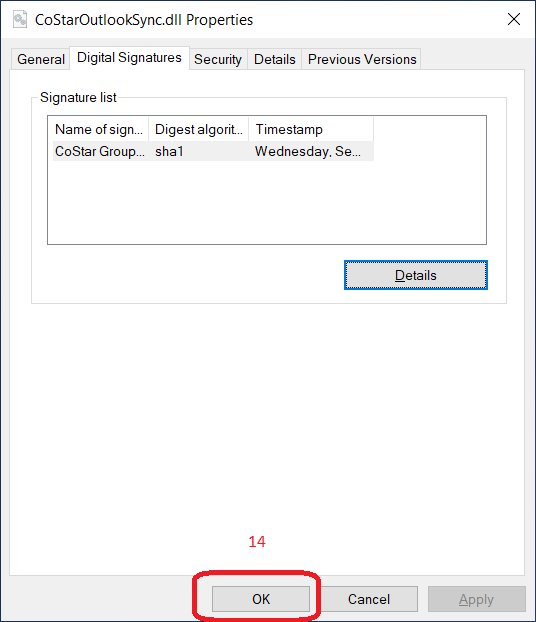
In the Digital Signatures tab, select the CoStar certificate in the Signatures list, to enable the Details button (see figure 1 below.)
Click the Details button, to open the Digital Signature Details dialog.
Click the View Certificate button in the Digital Signature Details dialog, to open the Certificate dialog.
Click the Install Certificate button, in the Certificate dialog, to open the Certificate Import Wizard.
Click the radiobutton labeled, "Place all certificates in the following store" to enable the Browse button.
Click the Browse button, to open the Select Certificate Store dialog.
Select the Trusted Publishers leaf in the treeview.
Click the Ok button, to dismiss the Select Certificate Store dialog.

Click the Next button. (see figure 2)

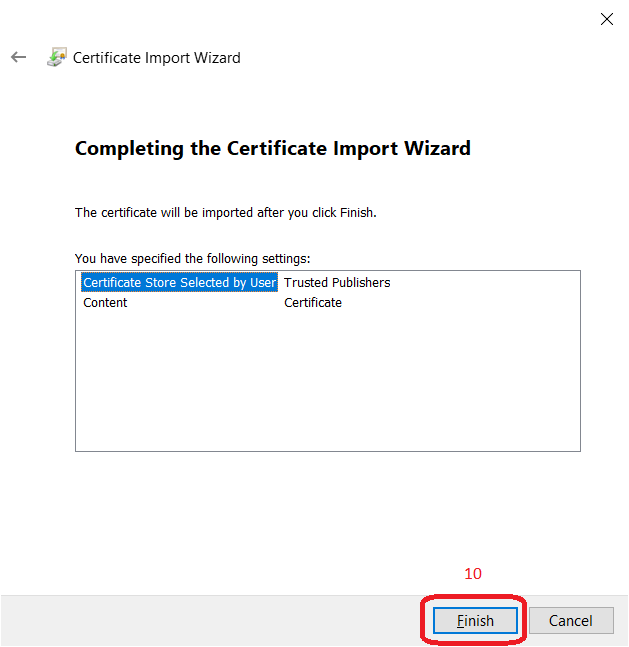
Click the Finish button, to dismiss the Certificate Import Wizard. (see figure 3)
Click the Ok button, to dismiss the pop-up message box. (see figure 4)
Click the Ok button, to dismiss the Certificate dialog.
Click the Ok button, to dismiss the Digital Signature Details dialog.

Click the Ok button, to dismiss the CoStarOutlookSync.dll Properties dialog. (see figure 5)
© 2023 CoStar Group
Attachments:
 importcert01.png (image/png)
importcert01.png (image/png)
importcert01.png (image/png)
 importcert02.png (image/png)
importcert03.png (image/png)
importcert04.png (image/png)
importcert05.png (image/png)
importcert02.png (image/png)
importcert03.png (image/png)
importcert04.png (image/png)
importcert05.png (image/png)