This tutorial goes over the basic features of the CoStar Brokerage Applications system, including the Home page, Searching, Lists, Record pages, and Reporting.
Home Page
The first page you see after you log in is the Home page, sometimes also called the Main Dashboard page. If you ever get lost, come back to this browser tab (usually at the far left of your browser) and click on the CoStar icon to go back to this page.

Global Search
The bar at the very top is for performing quick searches for Contacts, Companies, Deals, Assignments, or Properties.

Please note: You will only see the menu options you have the permissions to see based on the type of system/modules your firm subscribes to and your login permissions.
Profile Menu
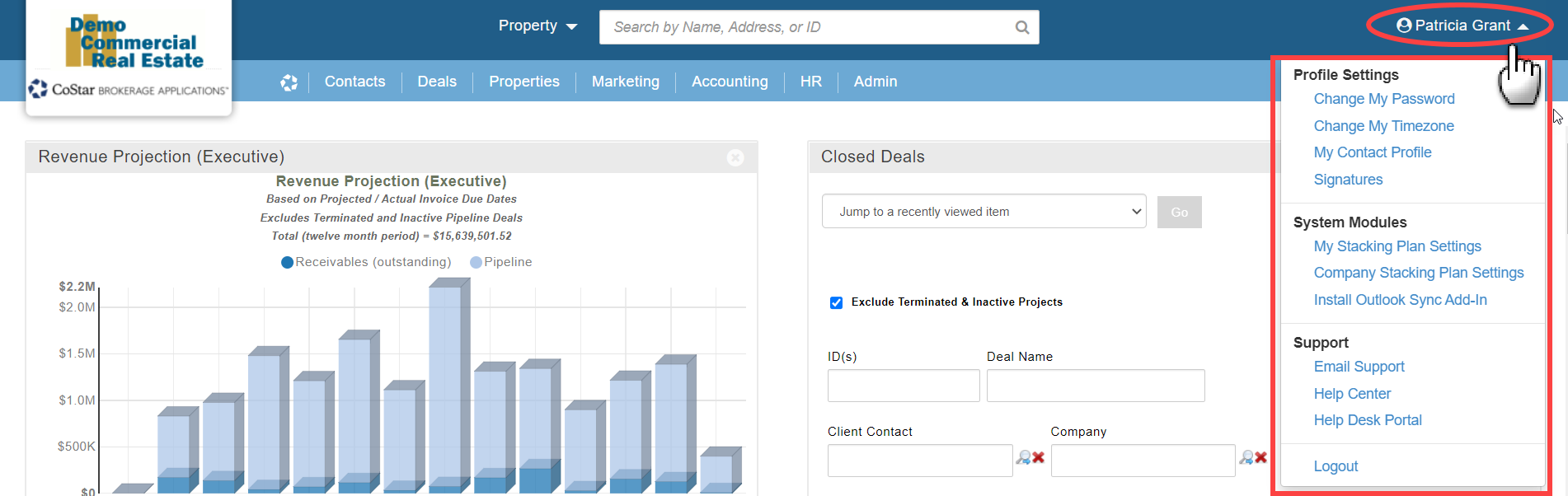
In the top right corner of the Home page, you’ll see your name and the option to open a menu. This is where you can change your personal settings, access support resources, and log out.
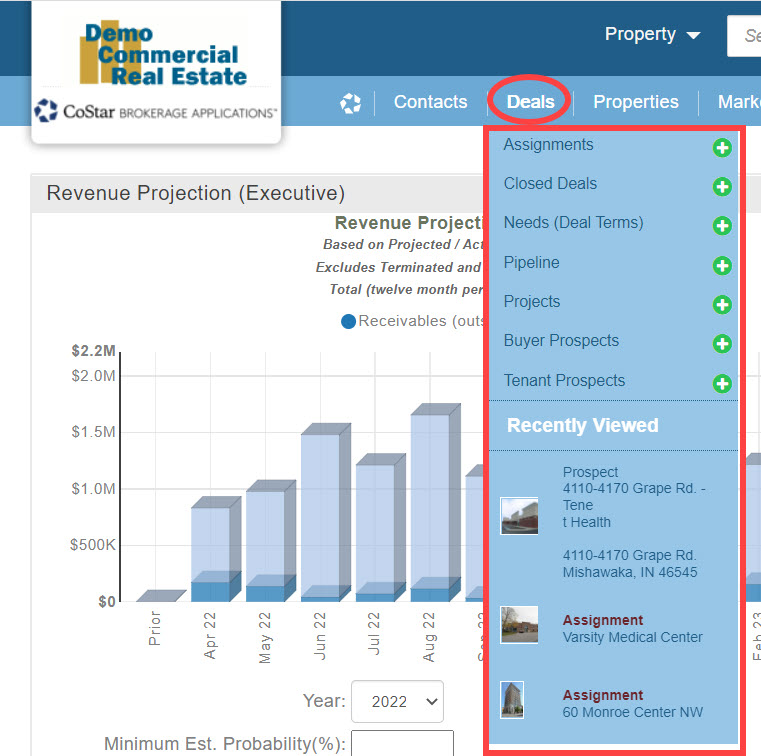
Main Navigation / Menu Bar
The main navigation bar (or menu bar) is the light blue bar towards the top of the Home page.

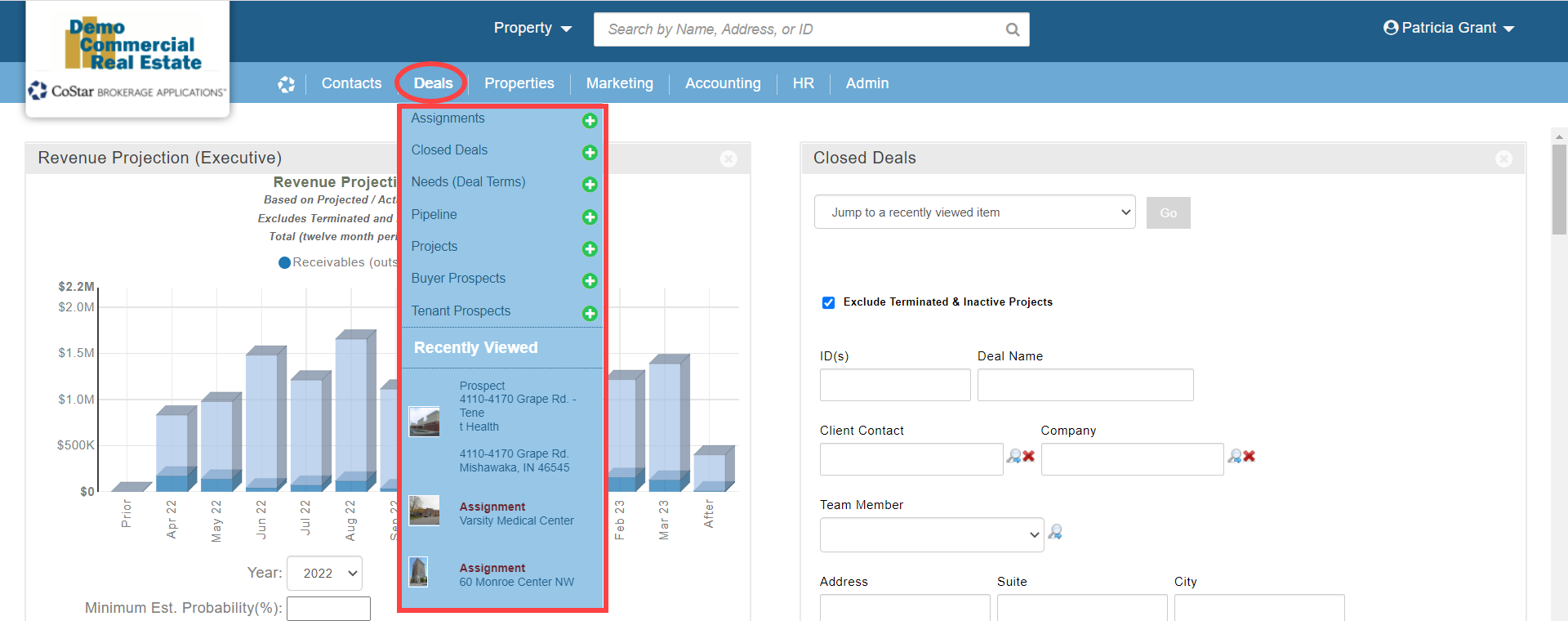
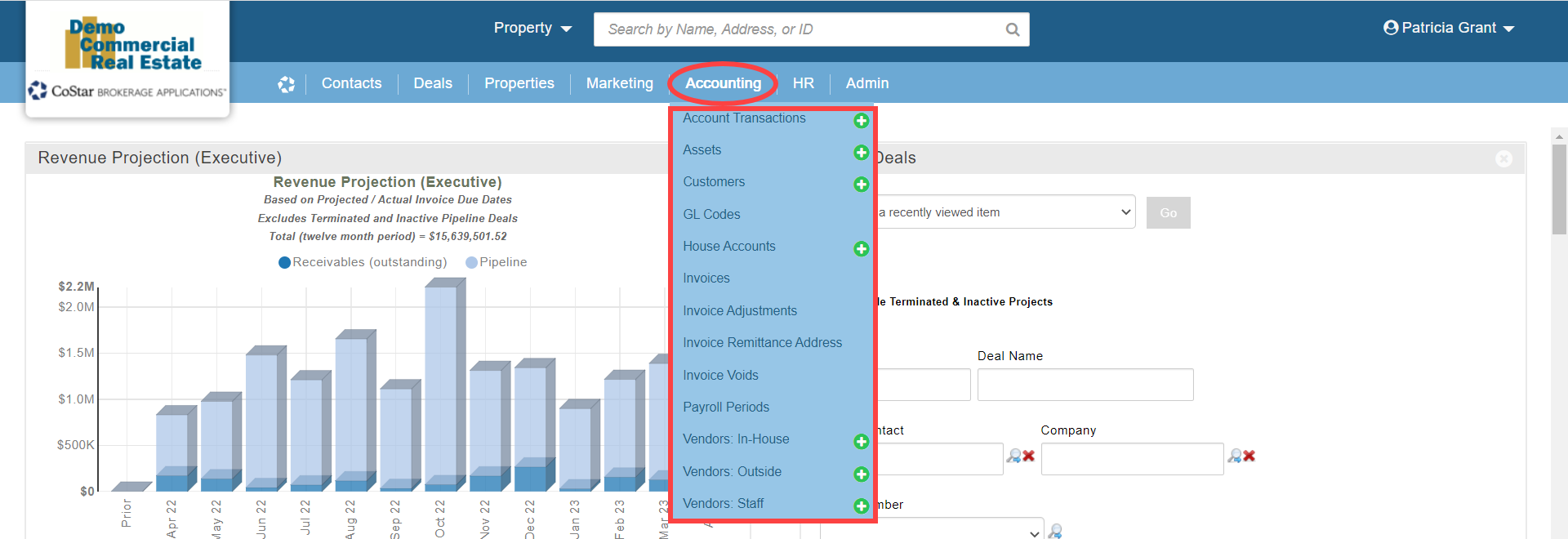
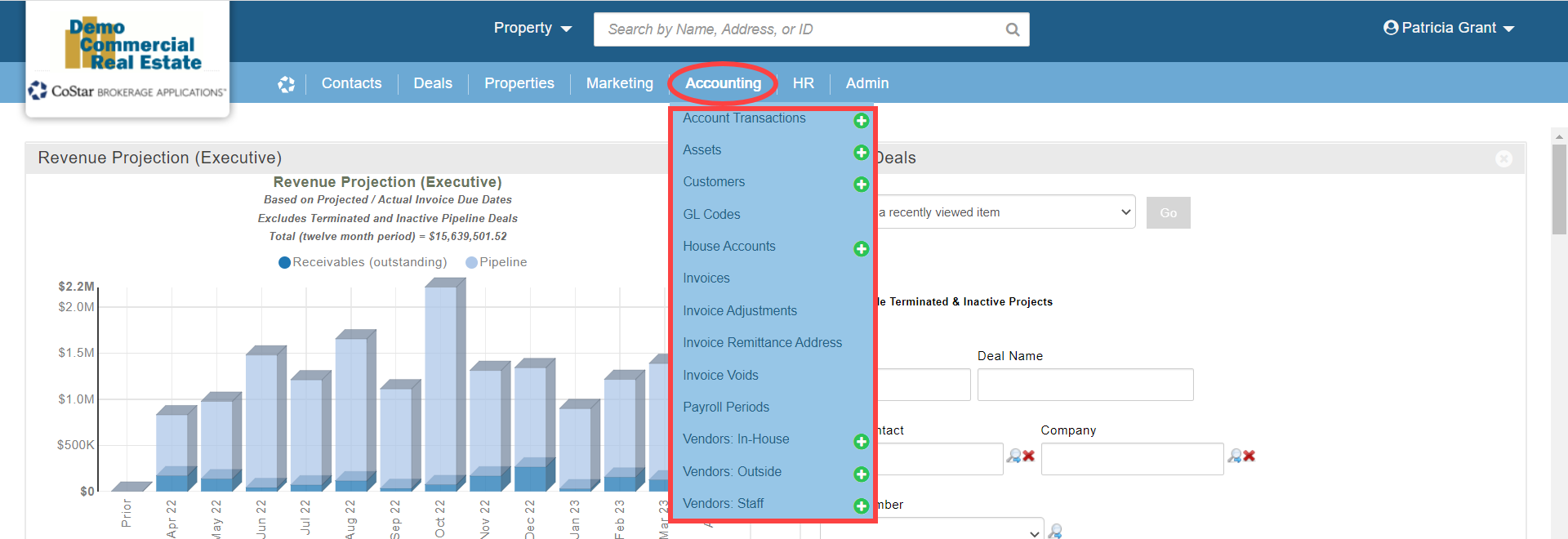
Each of the main navigation options in this bar represents a functional category with a menu.
Please note: You will only see the menu options you have the permissions to see based on the type of system/modules your firm subscribes to and your login permissions. Login settings also determine which types of records you can create in the system.
Main Dashboard
The main body of the Home page consists of a dashboard with “widgets”. Each widget focuses on a specific part of the product or a specific set of data. You can customize the content and layout of your dashboard to meet your unique needs.

Searching
There are several different ways to find the information you need in the system:
The Global Search bar at the top of the Home page is the best option if you are looking for a specific record.

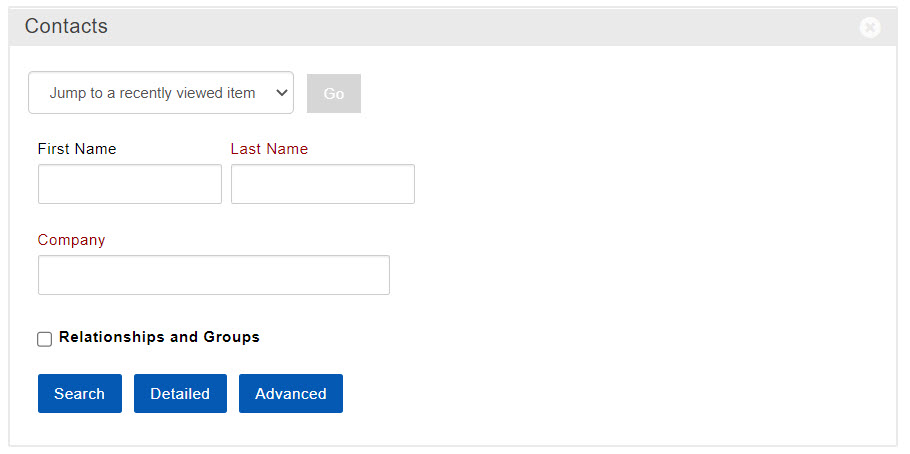
Some of the widgets for the main dashboard contain a basic search form with fields for the most commonly used search criteria for that type of record.

The menu items in the main navigation bar will often take you to a Detailed Search form with a larger number of commonly searched fields.

Most Detailed Search forms include a link to an Advanced Search which allows you to add criteria for the majority or all of the attributes for that type of record.
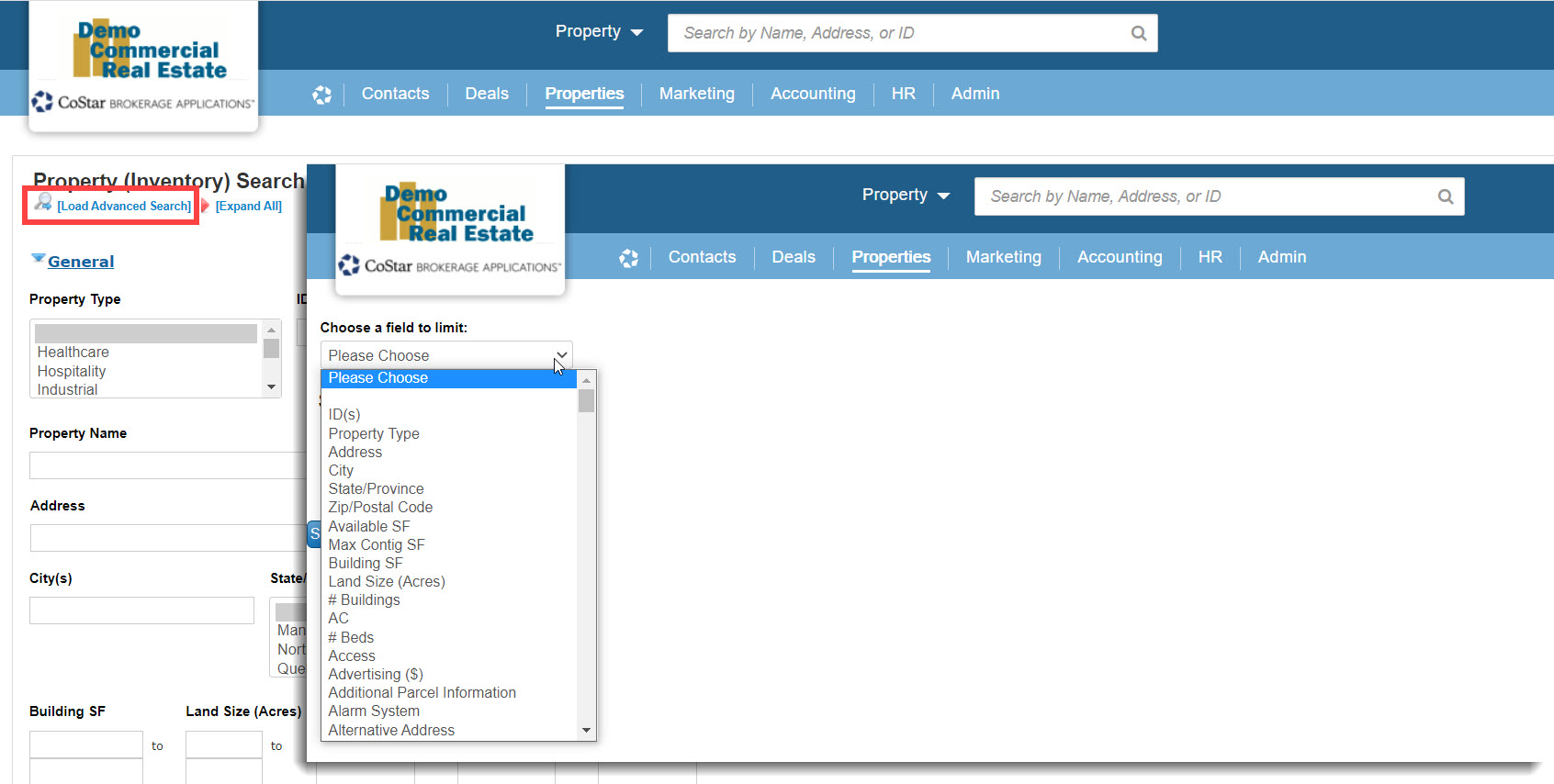
Most lists will include a link at the top to filter the records in the list based on common search criteria. If you ran a Detailed Search first, the option to refine your search will open the Detailed Search form again.

Lists
In many cases, when you run a search for a set of records, you’ll see a list of results. There are a lot of things you can do from here, such as viewing the results on a map, filtering the list with additional criteria, grouping and sorting, running reports, and more.

Record Pages
Many times, when you click on the link to open a specific record, a new browser tab will open with a page dedicated to that record. You’ll see a lot of the same features on these record pages that are also on the Home page. You can take actions (like editing the record), view and add information associated with that record (notes, for example), and run reports. Record pages have their own dashboard with widgets. Closing the browser tab will close that record.

Reporting
Just as there are numerous ways to run searches, there are also different ways you can report on the data in the system:
Some widgets for the main dashboard on the Home page are dedicated entirely to running reports for a specific module. You can select from a list of available reports, add criteria to filter the data, and apply other options or settings, depending on the report.

Other widgets will display a summary or short list of records, with an option to run a complete report with more details and/or records.
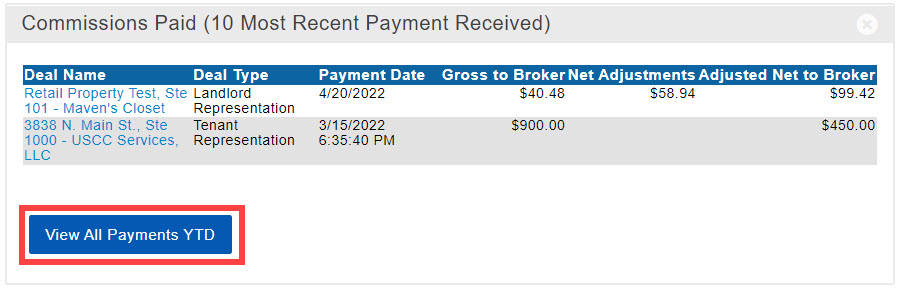
Most lists will include an action menu (“I Want To …”) that includes the option to Report/Export All or Selected records in the list.

Individual record pages for major record types such as for Properties, Comps, Contacts, etc. have a menu option for reports that you can run for that record.

Those are the major components of the CoStar Brokerage Applications system. Next, we’ll go into more detail for the individual components.
Click here to continue to the next topic in this series.
Related articles
© 2023 CoStar Group
Attachments:
 image-20220309-214522.png (image/png)
 image-20220309-213518.png (image/png)
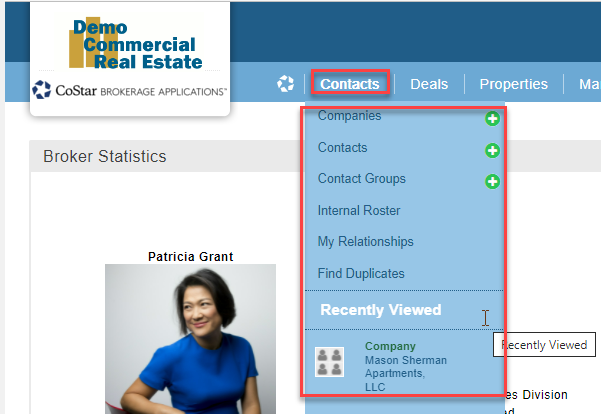 image-20220309-212509.png (image/png)
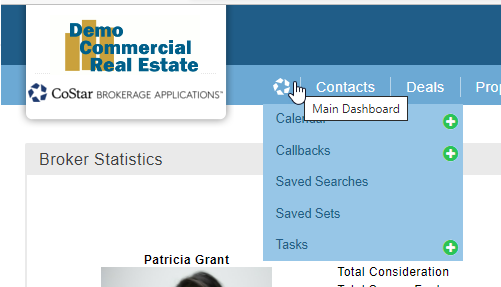 image-20220309-212503.png (image/png)
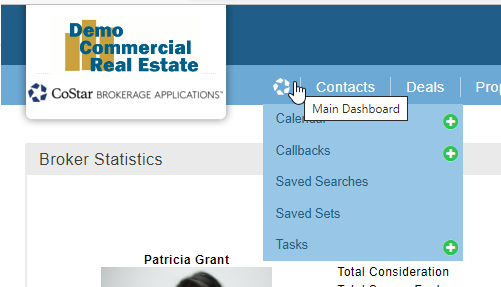 image-20220309-212444.png (image/png)
 image-20220309-211429.png (image/png)
image-20220309-235332.png (image/png)
image-20220309-211429.png (image/png)
image-20220309-235332.png (image/png)
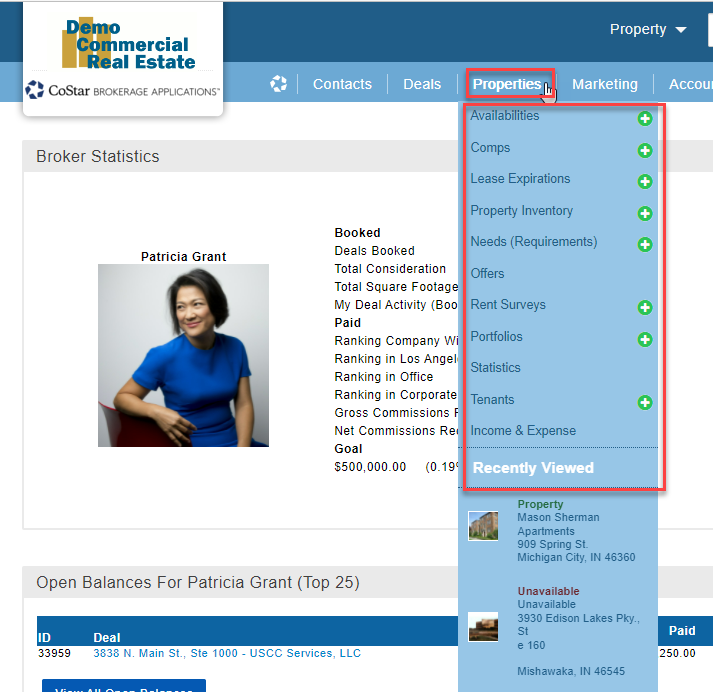 image-20220309-235410.png (image/png)
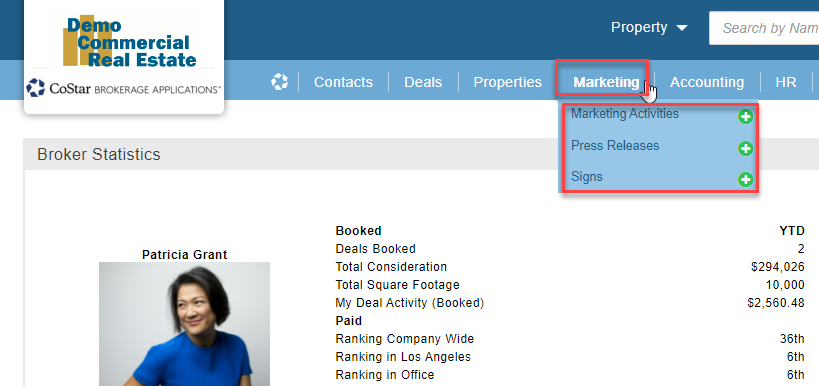 image-20220309-235449.png (image/png)
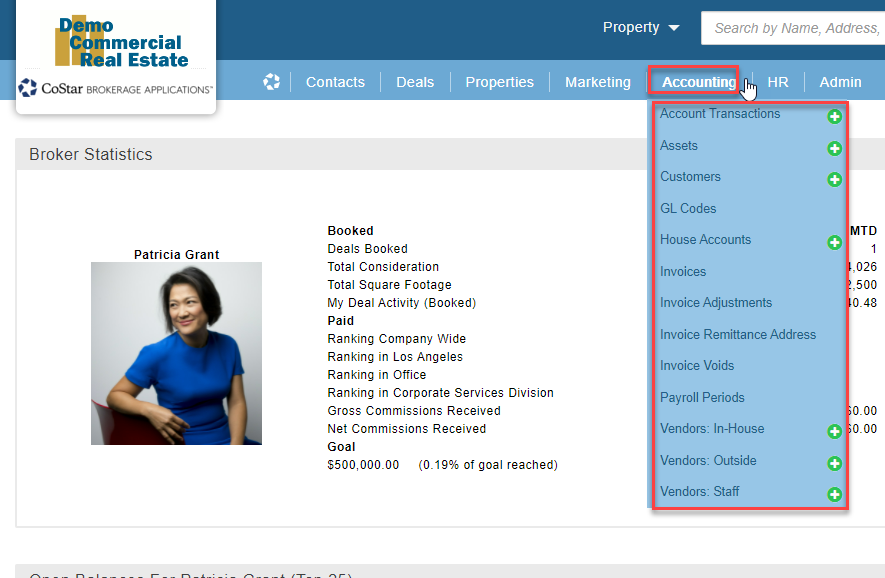 image-20220309-235523.png (image/png)
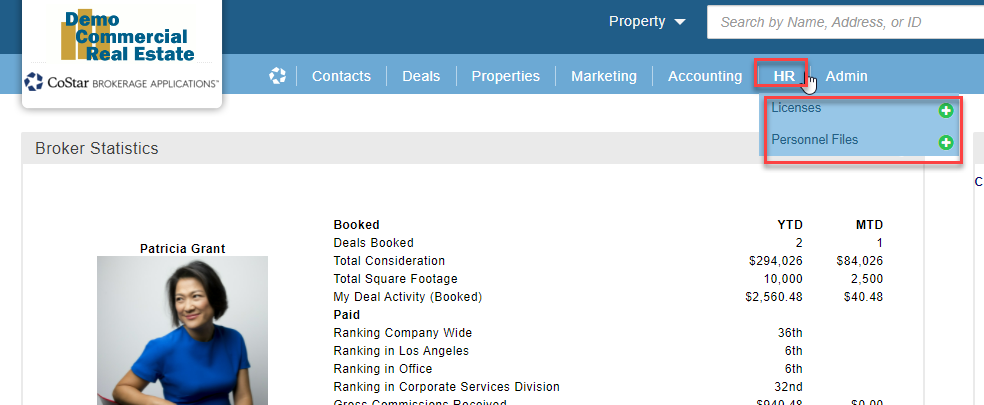 image-20220309-235554.png (image/png)
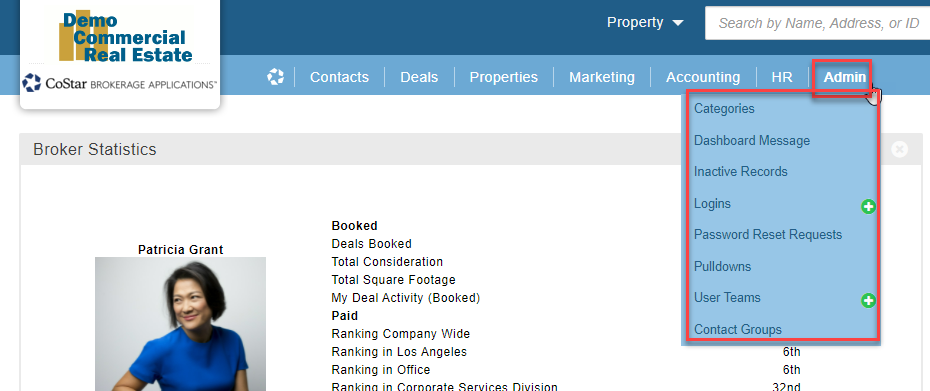 image-20220329-214758.png (image/png)
 image-20220329-215022.png (image/png)
 2022-03-29_14-48-32.png (image/png)
 image-20220329-215143.png (image/png)
image-20220329-215304.png (image/png)
image-20220329-215143.png (image/png)
image-20220329-215304.png (image/png)
 2022-04-15_14-33-44.png (image/png)
2022-04-15_14-36-59.png (image/png)
2022-04-15_14-33-44.png (image/png)
2022-04-15_14-36-59.png (image/png)
 2022-04-15_14-31-49.png (image/png)
 2022-04-15_14-31-49.jpg (image/jpeg)
 2022-04-15_14-42-18.jpg (image/jpeg)
 2022-04-15_14-45-15.jpg (image/jpeg)
 2022-04-15_14-48-02.jpg (image/jpeg)
 2022-04-15_14-49-10.jpg (image/jpeg)
 2022-04-15_14-51-06.jpg (image/jpeg)
 2022-04-15_14-51-54.png (image/png)
 2022-04-15_14-52-53.png (image/png)
 2022-04-15_14-53-46.png (image/png)
 2022-04-15_14-55-29.png (image/png)
 2022-04-15_14-55-29.png (image/png)
 2022-04-15_14-56-46.png (image/png)
 2022-04-15_14-57-36.png (image/png)
 2022-04-15_14-58-38.png (image/png)
2022-04-15_14-59-56.png (image/png)
2022-04-15_15-03-40.png (image/png)
2022-04-15_15-06-04.png (image/png)
2022-04-15_14-58-38.png (image/png)
2022-04-15_14-59-56.png (image/png)
2022-04-15_15-03-40.png (image/png)
2022-04-15_15-06-04.png (image/png)
 2022-04-21_15-58-03.jpg (image/jpeg)
 2022-04-21_15-58-03b.jpg (image/jpeg)
 2022-04-21_16-00-31.jpg (image/jpeg)
2022-04-21_16-02-24.jpg (image/jpeg)
2022-04-21_16-02-24b.jpg (image/jpeg)
2022-04-21_16-00-31.jpg (image/jpeg)
2022-04-21_16-02-24.jpg (image/jpeg)
2022-04-21_16-02-24b.jpg (image/jpeg)
 2022-04-21_16-02-24c.jpg (image/jpeg)
2022-04-21_16-11-21.jpg (image/jpeg)
2022-04-21_16-20-58.jpg (image/jpeg)
2022-04-21_16-02-24c.jpg (image/jpeg)
2022-04-21_16-11-21.jpg (image/jpeg)
2022-04-21_16-20-58.jpg (image/jpeg)
 2022-04-21_16-24-33.jpg (image/jpeg)
 2022-04-21_16-24-33b.jpg (image/jpeg)
 2022-04-21_17-14-06.jpg (image/jpeg)
2022-04-21_17-20-49.jpg (image/jpeg)
2022-04-21_17-14-06.jpg (image/jpeg)
2022-04-21_17-20-49.jpg (image/jpeg)