This tutorial covers the menu bar on the Home page and briefly describes the contents of each of the menu items.
Main Navigation/Menu Bar
The main navigation bar (or menu bar) is the light blue bar towards the top of the Home page.

Each of the main navigation options in this bar represent a functional category with a menu.
Please note: You will only see the menu options you have the permissions to see based on the type of system/modules your firm subscribes to and your login permissions.
You can use the Table of Contents at the top of this page to jump straight to any category. If you are following along by watching the videos, there will be a separate video for each category.
CoStar Logo
The CoStar logo serves two purposes:
Clicking on the logo will take you back to the Home page, and
it houses a menu of Organizer features.
Under the CoStar Logo, you will find the following menu items:

Calendar - will open a calendar feature for managing your daily schedule.
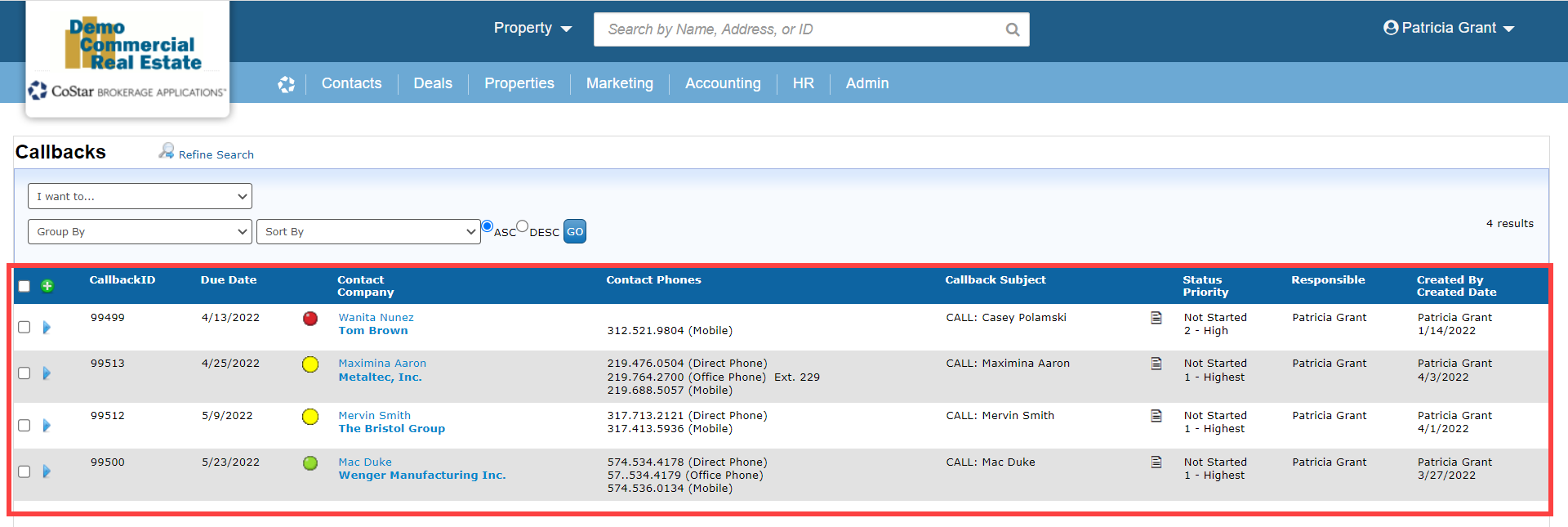
Callbacks - will load a list with filter options for finding and managing your callbacks.
Saved Searches - The system allows you to save specific search criteria after running a search to make it easier to run the same search again. From this menu item you can view and re-run any of the Searches you have saved.
Saved Sets - The system allows you to save a set of records after running a search to make it easier to find those exact records again. From this menu item you can view and open any of the Saved Sets you have created.
Tasks - will take you to a list with filter options for finding and managing Tasks that are in your name or that you have permission to see.
Contacts
The Contacts menu provides access to Contact and Company records, as well as some CRM and administrative features:

Companies - will take you to a search form and list for finding and managing Company records.
Contacts - will take you to a search form and list for finding and managing Contact records.
Contact Groups - will load a list with filter options for finding and managing Contact Groups.
Internal Roster - will open a list of all Internal Contact records. These are contacts that have been identified as working for your firm.
My Relationships - will take you to a list of your contacts. These are contacts with which you are flagged as having a relationship.
Find Duplicates - will open an administrative tool for finding and merging duplicate Contact or Company records.
Recently Viewed - displays the last 3 Contact or Company records you have visited.
Deals
The Deals menu will take you to different types of records which represent internal deals or client agreements:

Assignments - are designed to manage all aspects of exclusive agreements with a brokerage firm's clients. Assignments can be used to track contract expiration dates and all Properties, Contacts, Deals, and activities related to the engagement.
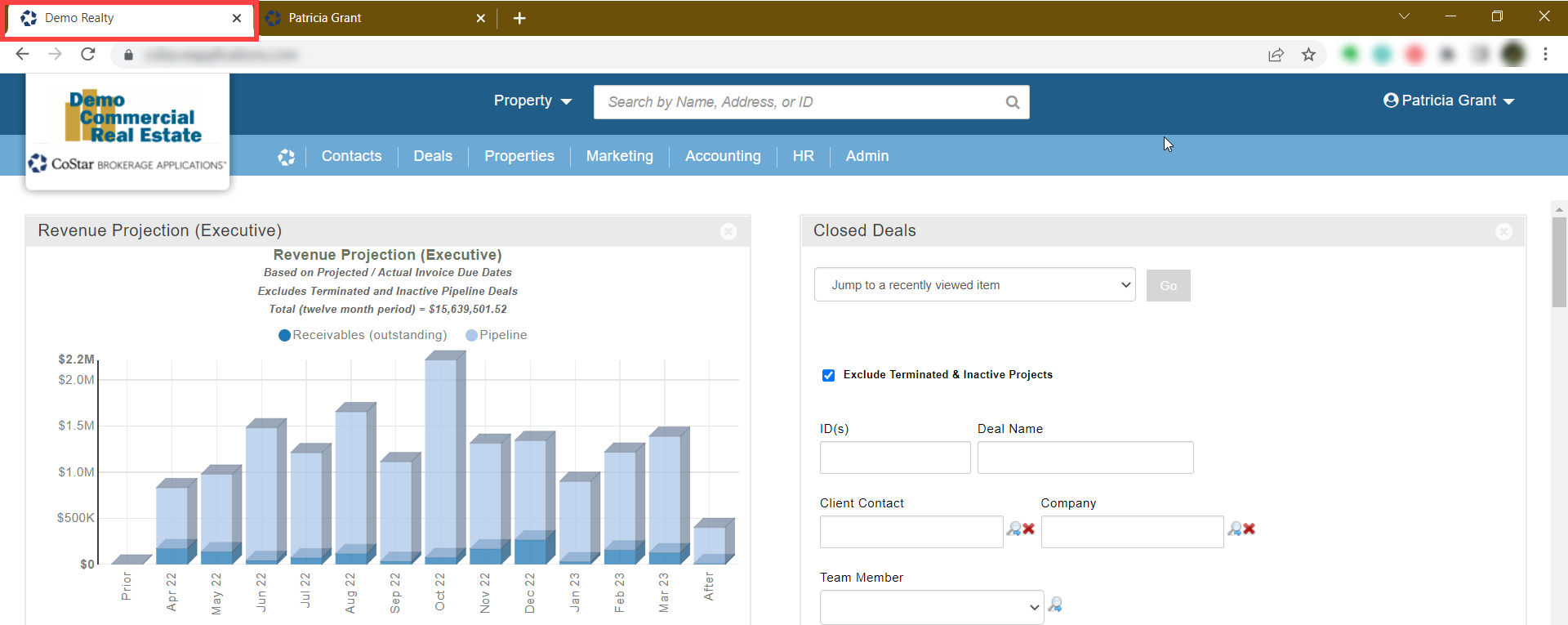
Closed Deals - are generated via the Commission Tracking System (CTS) module. They are deals that allow the firm to calculate, invoice and pay commissions and other fees to internal and external vendors.
Needs (Deal Terms) - are designed to be used when working with Buyers or Tenants to buy or lease a property or space. Needs allow you to define and save specific listing and property attributes that the Buyer or Tenant is looking for. These criteria can be used to quickly find matching Availabilities in the system. This type of deal also has additional features for managing the Buyer/Tenant’s preferred terms for a lease or sale agreement. The Needs (Deal Terms) list displays fields that focus on the internal Deal settings and agreement term preferences in the Need records.
Pipeline - All deals (with the exception of Assignments) have the ability to store Pipeline data to help users track their potential future business. Deals with Pipeline data will show up in the Pipeline list.
Projects - All types of Deals (except Assignments) can be searched, viewed or reported on via the Projects list. This includes General Projects, which can be used to track Property Management, Construction Management, Consulting, Referral, and other kinds of engagements.
Buyer Prospects - track information on potential buyers for a sale listing, including multiple offers, emails, call notes and documents, and other activities related to the sale negotiation process. Buyer Prospect details can be included in progress reports for the Seller of the property.
Tenant Prospects - track information on potential tenants for a lease listing, including lease preferences, emails, call notes and documents, and other activities related to the lease negotiation process. Tenant Prospect details can be included in progress reports for the property’s Landlord.
Recently Viewed - displays the last 3 Deal records you have visited.
Properties
The Properties menu provides access to any market information that is being managed in the system by your firm. In some cases, the same record can be found via Properties (e.g. because there is a listing on the market for Space for lease) and via Deals (e.g. because your firm represents the Landlord for that listing):

Availabilities - will load a search form and list for finding and managing Properties or Spaces that are Available for Lease or for Sale (or both).
Comps - will take you to a search form and list for finding and managing Leased or Sold Properties or Spaces (whether they are your firm’s deals or external deals).
Lease Expirations - will open a search form and list for finding and managing Property Tenancy (i.e. Space) records which contain a Lease Expiration date.
Please note: The Lease Expiration data on this list comes from Property Tenancy records, not from Lease Comp records. Space records are automatically created or updated when Leased Space Comps are created, but can also be created and updated manually.Property Inventory - will load a search form and list for finding and managing Property records, i.e. records which represent current buildings or land lots.
Needs (Requirements) - will open a list with filter options for finding and managing the same set of records as the Needs (Deal Terms) item under the Deals menu. However, the Needs (Requirements) list displays fields that focus on the Buyer or Tenant’s requirements rather than internal Deal information.
Offers - will take you to a search form and list for finding and managing Offers (and counter-offers) from potential Buyers on sale listings.
Rent Surveys - will open a search form and list for finding and managing a history of Rent Surveys for Health Care, Hospitality, Manufactured Housing, Multi-Family, and Self Storage properties. Rent Survey records track Occupancy, Unit Mix, Concessions, Premiums, and Effective rents.
Portfolios - will take you to a search form and list for finding and managing Portfolio records. Portfolios allow you to link multiple Availability or Comp records that are (or were) marketed together and manage information about that group of properties.
Statistics - will load a dashboard with widgets for searching and reporting on Property Statistics. The Property Statistics module stores and compares periodic “snapshots” of current building, land and space attributes, and calculates Property level statistics based on current Availabilities and from Comps with Off Market Dates in the indicated month or quarter. For each Property, the system determines total Vacant, Occupied and Available SF with Asking/Actual Rate ranges, in addition to performing various Absorption calculations. The Property Statistics Search widget will let you search for existing Statistics runs or schedule a new run. The Statistics Reports widget allows you to run reports on these periodic “snapshots” or on the “live” or current database.
Tenants - will take you to a search form and list for finding and managing Tenancy (i.e. Space) records. This includes all Space records across all Properties. Space records are automatically created or updated when Leased Space Comps are created but they can also be created and managed manually.
Income & Expense - will open a list with filter options for finding and managing your Income & Expense records. An Income & Expense history can be tracked on any Property record and includes all Income, Expense, Analysis and Investment Indicators. Income & Expense records are also automatically created when Cap Rate, GRM or Equity Dividend Rate are populated on Sale Comps.
Recently Viewed - displays the last 3 Property related records you have visited.
Marketing
The Marketing menu contains features related to marketing efforts for your listings:

Marketing Activities - will take you to a list with filter options for finding and managing Marketing Activity records. Marketing Activities are associated with Availabilities (i.e. Lease or Sale listings) and allow you to track your efforts to market your clients' listings, such as email campaigns, flyer mailings, call campaigns, social media posts, tours, addition to third party listing services, and more. Marketing Activity details can be included in progress reports for the property’s Seller or Landlord.
Press Release - will open a list with filter options for finding and managing Press Releases.
Signs - will take you to a search form and list for finding and managing your Sign inventory. Sign records track sign attributes, placement, and vendor details.
Accounting
The Accounting menu houses data and features related to the Commission Tracking System (CTS):

Account Transactions - will take you to a list with filter options for finding and managing all Account Transaction records. Some types of Account Transactions (such as Payments or Payment Net Deductions) are created automatically from the Closed Deal workflow. Others (such as Draw Advances or Expense Reimbursements) are created manually or imported.
Assets - will open a list with filter options for finding and managing Asset records, which can be used to track laptops or other office assets.
Customers - will take you to a list with filter options for finding and managing all Customer records.
GL Codes - will load a form for managing your accounting General Ledger Codes.
House Accounts - will take you to a list with filter options for finding and managing House Account records.
Invoices - will open a search form and list for finding, applying payments to, and documenting status updates on all Invoices.
Invoice Adjustments - will take you to a list with filter options for finding and viewing all Invoice Adjustments.
Invoice Remittance Address - will open a list for managing one or multiple Invoice Remittance Addresses for the invoices you send out.
Invoice Voids - will take you to a list with filter options for finding and viewing all Invoice Voids.
Payroll Periods - will load a form for entering the dates for your Payroll Periods. Pre-defined Payroll Periods make it easier to generate Broker Pay Sheets.
Vendors: In-House - will take you to a list with filter options for finding and managing all In-House Vendor records. In-House Vendors are for brokers employed by or contracted for your firm.
Vendors: Outside - will open a list with filter options for finding and managing all Outside Vendor records. Outside Vendors are for external brokers.
Vendors: Staff - will take you to a list with filter options for finding and managing all Staff Vendor records. Staff Vendors are for internal staff members (non-brokers). Unlike In-House Vendors, Staff Vendors do not require a commission split plan.
HR
The HR menu contains features for managing sensitive information for employees and contractors:

Licenses - will open a list with filter options for finding and managing License records. License records allow you to track broker, business, driving or any other kind of license information, including expiration dates.
Personnel Files - will take you to a list with filter options for finding and managing Personnel File records (also sometimes referred to as HR records). Personnel Files allow you to track employee/contractor details, including their Compensation History and Commission Split Plans.
Admin
The Admin menu provides access to system setup and maintenance features:

Categories - will take you to a list for managing Category values. Certain pulldown (or drop down menu) values are stored as a Category.
Dashboard Message - will open a submenu for managing 6 different types of Dashboard Messages. Each type displays on a different dashboard widget on the Home page:
Home Msg (for the Welcome Message widget)
Company Msg (for the Company Message widget)
Local Msg (for the Local Office Message widget)
Company Links (for the Industry Links, News and Research widget)
Company Tools (for the Resources and Productivity Tools widget)
New Deals (for the Notable Deals and Transactions widget)
Inactive Records - will open a submenu for managing 5 different types of inactive records. From these lists you can find and reactivate the following:
Contact (Contacts and Companies)
Projects (Deals, e.g. Closed Deals, Needs, General Projects, internal Availabilities or Comps, etc.)
Property (Property Inventory)
Avail/Comps (Availabilities and Comps, whether internal or external, including Withdrawn and Unavailable listings)
Signs (Signs)
Logins - will take you to a list with filter options for finding and managing Logins.
Password Reset Requests - will open a list with filter options for finding and troubleshooting all password reset requests.
Pulldowns - will take you to a list with filter options for finding and managing the values in most of the pulldowns (i.e. drop down menus) found on forms for searching and data entry.
User Teams - will load a list with filter options for finding and managing User Teams. User Teams allow one or more users to automatically have a specific level of access to Deals for a given Location, Business Line, Division or Deal Contact. You can also create User Teams to represent a group of Contacts who wish to share records with each other that they do not want to make visible to everyone else in the system (such as Notes).
Contact Groups - will take you to a list with filter options for finding and managing all Contact Groups in the system.
Summary
The main menu bar is a gateway to every major type of record that can be managed in CoStar Brokerage Applications. The menus are organized by module and/or category. Which menus and menu contents you see when you log in depends on your firm’s subscription and your own user settings.
If you have any questions about any part of this tutorial series, you can contact our support team for more information.
Related articles
© 2023 CoStar Group
Attachments:
 2022-04-15_15-06-04.png (image/png)
 2022-04-15_15-03-40.png (image/png)
 2022-04-15_14-59-56.png (image/png)
 2022-04-15_14-58-38.png (image/png)
 2022-04-15_14-57-36.png (image/png)
2022-04-15_14-56-46.png (image/png)
2022-04-15_14-55-29.png (image/png)
2022-04-15_14-53-46.png (image/png)
2022-04-15_14-52-53.png (image/png)
2022-04-15_14-51-54.png (image/png)
2022-04-15_14-51-06.jpg (image/jpeg)
2022-04-15_14-49-10.jpg (image/jpeg)
2022-04-15_14-48-02.jpg (image/jpeg)
2022-04-15_14-57-36.png (image/png)
2022-04-15_14-56-46.png (image/png)
2022-04-15_14-55-29.png (image/png)
2022-04-15_14-53-46.png (image/png)
2022-04-15_14-52-53.png (image/png)
2022-04-15_14-51-54.png (image/png)
2022-04-15_14-51-06.jpg (image/jpeg)
2022-04-15_14-49-10.jpg (image/jpeg)
2022-04-15_14-48-02.jpg (image/jpeg)
 2022-04-15_14-45-15.jpg (image/jpeg)
 2022-04-15_14-42-18.jpg (image/jpeg)
 2022-04-15_14-31-49.jpg (image/jpeg)
 2022-04-15_14-31-49.png (image/png)
 2022-04-15_14-36-59.png (image/png)
 2022-04-15_14-33-44.png (image/png)
 image-20220329-215304.png (image/png)
 image-20220329-215143.png (image/png)
 2022-03-29_14-48-32.png (image/png)
 image-20220329-215022.png (image/png)
 image-20220329-214758.png (image/png)
 image-20220309-235554.png (image/png)
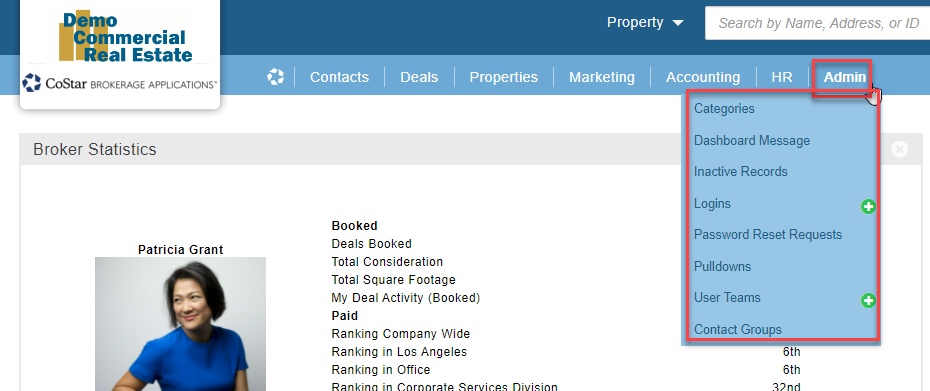 image-20220309-235523.png (image/png)
 image-20220309-235449.png (image/png)
 image-20220309-235410.png (image/png)
 image-20220309-235332.png (image/png)
 image-20220309-211429.png (image/png)
image-20220309-212444.png (image/png)
image-20220309-211429.png (image/png)
image-20220309-212444.png (image/png)
 image-20220309-212503.png (image/png)
 image-20220309-212509.png (image/png)
 image-20220309-213518.png (image/png)
 image-20220309-214522.png (image/png)
