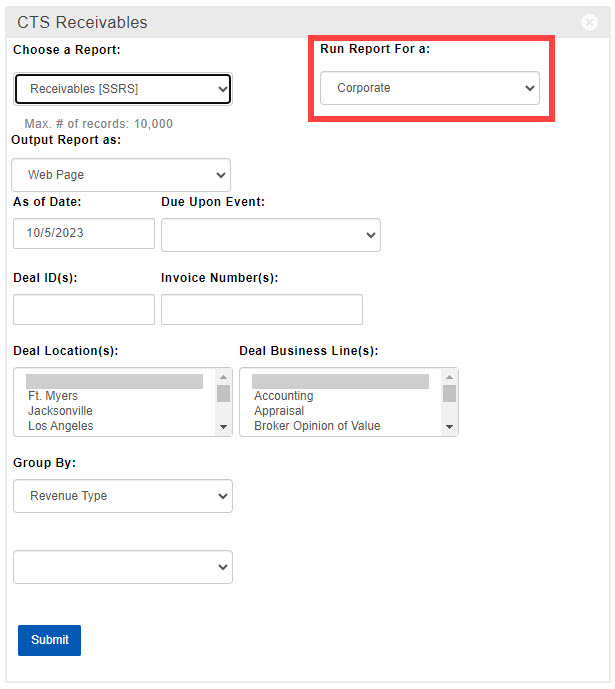
The CTS Receivables Reports widget allows users to run accounting reports related to the ‘Commission Tracking System’ module. This document covers the CTS Receivables reports which can be run for/by executives, administrative staff, or for corporate reporting.
Reports
Invoice Audit List [SSRS]
This report contains a list of all Invoice and Invoice Void records, regardless of billing, payment or void state of the Invoice. You can audit all invoice records via this report, e.g. to determine why the system-assigned Invoice # may have skipped a sequential number (generally it’s because another Invoice was voided, and the system assigned that number to the Void record).
This report is limited to 10,000 records. If your Invoice/Void activity exceeds that number, use the System Sequence # filter to report on a range of System IDs at a time (e.g. 1 - 10,000, then 10,001 - 20,000, etc.).
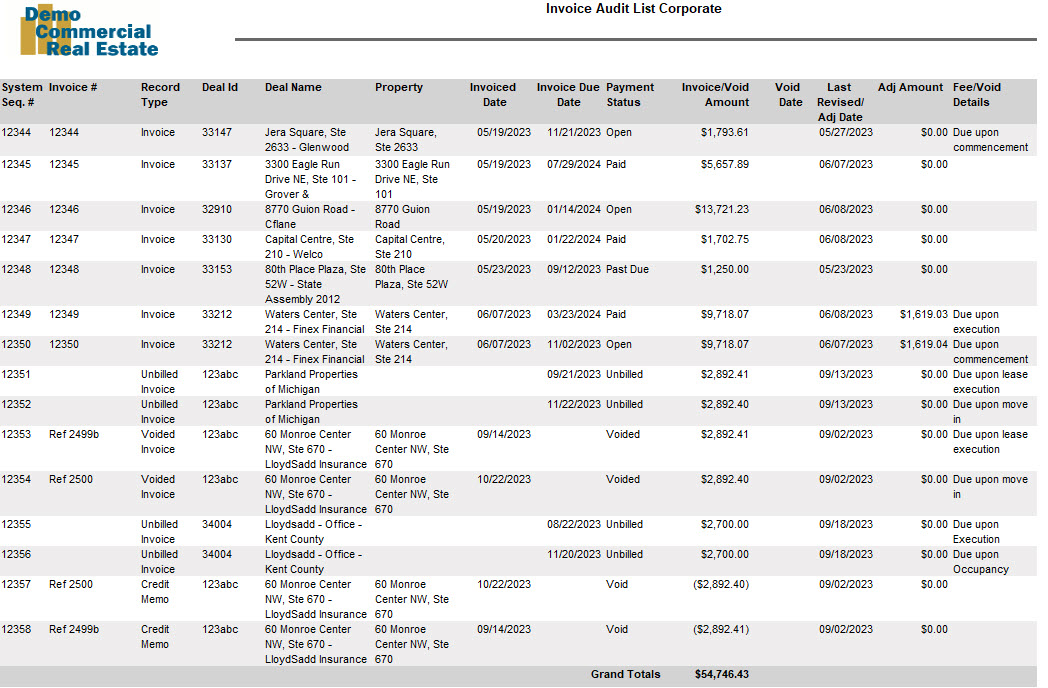
Report Fields:
System Seq. # - The System ID assigned to that Invoice or Invoice Void record.
Invoice # - The Invoice # from the Create Invoice form. May reflect a custom Invoice number or may be identical to the System ID of the Invoice.
Record Type - Indicates whether the record is an Invoice, a Voided Invoice (i.e. an Invoice that has been voided), or an Invoice Void (i.e. the record that represents the Void action).
Deal ID - The Internal ID on the Deal Settings form for the Deal. If there is no Internal ID, the report will display the System ID for the Deal.
Deal Name - The Deal Name on the Deal Settings form
Property - The Property Address from the Lease/Sale/Deal Location form
Invoiced Date - The billing date for this Invoice. Specifically, the Invoice Date on the Create Invoice form.
Invoice Due Date - The date the Invoice is due. Specifically, the Due Date on the Invoices tab of the Closed Deal.
Payment Status - Indicates whether the Invoice is
Open (not fully paid & Due Date is in the future),
Past Due (not fully paid & Due Date is in the past),
Paid (fully paid),
Voided (not paid and also voided),
Void (represents a Void record, therefore cannot be paid), or
Unbilled (not invoiced, i.e. not given an Invoice # and Invoice Date)
Invoice/Void Amount - For Invoices: the Invoice Amount. For Voids: the Void Amount (which is the negative of the Invoice Amount)
Void Date - The Void Date on the Void Invoice form
Last Revised/Adj Date - The most recent date any modification was made to or activity taken on the Invoice
Adj Amount - The total Adjustment Amount of all Adjustments made to that Invoice
Fee/Void Details - For Invoices: the Fee Details on the Invoices tab of the Closed Deal. For Voids: the Void Comments on the Void Invoice form.
Report Filters:
Deal ID(s) - Text entry. Enter one or more Internal or System Deal IDs, separated by a comma.
Deal Name - Text entry. Filters for deals with that text as part of the Deal Name.
Invoice #(s) - Text entry. Enter one or more Invoice Numbers, separated by a comma.
System Sequence # - Min-max range for Invoice System IDs
Invoiced Date - Min-max range. Defaults to the first & last day of the current fiscal year.
Invoice Due Date - Min-max range.
Invoice/Void Amount - Min-max range for Invoice Amount or Invoice Void Amount
Deal Location(s) - No selection, single selection, multiple selections. Refers to the Location on the Deal Settings form.
Deal Business Line(s) - No selection, single selection, multiple selections. Refers to the Business Line on the Deal Settings form.
Property - Text entry. Filters for deals with that text as part of the Street Address.
Group By Options (up to 2):
Deal Business Line
Deal ID
Deal Location
Deal Name
Property
Sort By Options (up to 2):
Adj Amount
Deal Business Line
Deal ID
Deal Location
Deal Name
Invoice Due Date
Invoice #
Invoice/Void Amount
Invoiced Date
Last Revised/Adj Date
Payment Status
Property
Record Type
System Sequence #
Void Date
Click to go back to the list of reports.
Open Balances [SSRS]
A summary of A/R totals for each Closed Deal that has not been fully paid. Includes total Expected Gross (Total Fees) for the entire Deal, how much of that amount was invoiced vs not invoiced, how much was paid, and the remaining balance. This is a great report for finding Deals which may need a small write-off, which still need to be invoiced, or which may need to go to Collections.
This is a list of Closed Deals with total amounts for the entire Deal, not a list of individual Invoices or Payments.
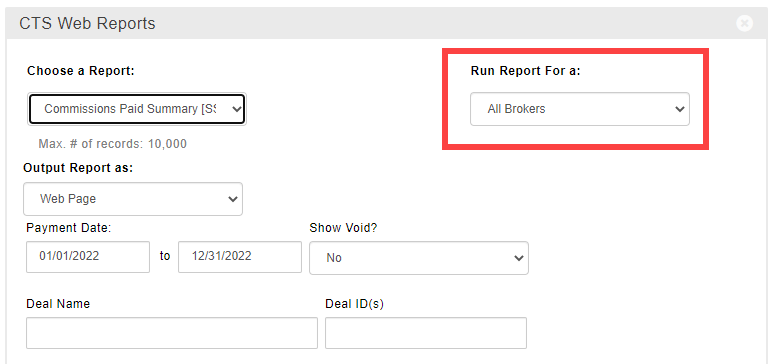
If you are looking for a breakdown of amounts for each deal participant, run the All Brokers version *[link] of this report instead.

Report Fields:
Deal ID - The Internal ID on the Deal Settings form for the Deal. If there is no Internal ID, the report will display the System ID for the Deal.
Deal Name - The Deal Name on the Deal Settings form
Property Address - The Street Address from the Lease/Sale/Deal Location form
Landlord / Seller - The first Company on the Deal Contacts form with a Role of “Seller/Landlord”
Tenant / Buyer - The first Company on the Deal Contacts form with a Role of “Buyer/Tenant”
Brokers - The names of any Contacts who are linked to an In-House Vendor on the Fee Splits / Split Worksheet form
Expected Gross - Total Fees from the Fee Calculation form.
Invoiced - The total amount billed on this Deal, i.e. the total Invoice Amount from Invoices which have been assigned an Invoice Date and Invoice # (regardless of whether the Invoice has been paid)
Uninvoiced - The total Expected Gross amount that has not been billed on this Deal.
Specifically, the Expected Gross amount minus the Invoiced amount.Paid - The total Payment Amount applied to this Deal.
Outstanding - The remaining balance of unpaid fees on this Deal.
Specifically, the Expected Gross amount minus the Paid amount.Brokers/Staff Gross Remaining - The total Gross amount on this Deal that hasn’t (yet) been paid to internal brokers or staff.
Specifically, the portion of the Outstanding amount that is allocated to In-house or Staff Vendors on the Split Worksheet (as opposed to Outside Vendors or House Accounts).
Report Filters:
Closed Date - Date range. Defaults to the first & last day of the current fiscal year. Refers to the Deal Closed Date on the Deal Settings form.
Deal ID(s) - Text entry. Enter one or more Internal or System Deal IDs, separated by a comma.
Deal Location(s) - No selection, single selection, multiple selections. Refers to the Location field on the Deal Settings form.
Broker(s) - No selection, single selection, multiple selections. Lists internal Contacts whose Deals you are allowed to see.
Group By Options (up to 2):
Deal Business Line
Deal Location
Deal Name
Landlord/Seller
Primary Salesperson
Property Address
Tenant/Buyer
Sort By Options (up to 2):
Deal ID
Deal Name
Property Address
Landlord/Seller
Tenant/Buyer
Expected Gross
Invoiced
Uninvoiced
Paid
Outstanding
Click to go back to the list of reports.
Open Invoice Statement [SSRS]
Produces statements with open invoices and (if selected) payment history for Customer accounts. The relevant pages of this report are designed to be sent to each Customer so they can see their billed invoices, upcoming billings (i.e. unbilled invoices), payment history, and current balance.
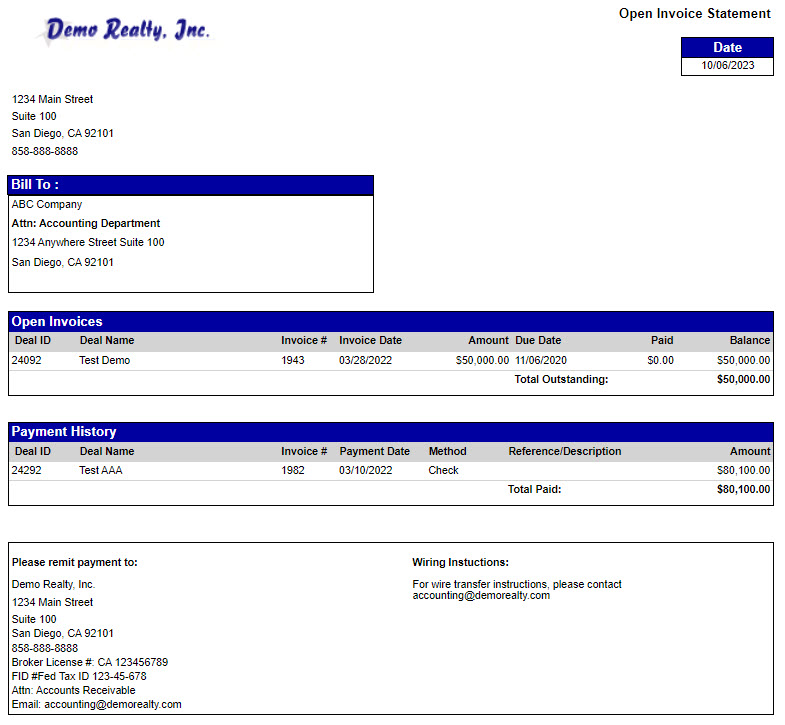
Report Fields:
Date - Today’s date
Address & Phone number under the logo - Displays the Address & Phone Number from the selected Remittance Address or the Remittance Address for the user’s primary location
Bill To - Displays the Address & Email from the Customer form
Open Invoices - Displays billed and unbilled invoices
Deal ID - The Internal ID on the Deal Settings form for the Deal. If there is no Internal ID, the report will display the System ID for the Deal.
Deal Name - The Deal Name on the Deal Settings form
Invoice # - The Invoice # from the Create Invoice form. May reflect a custom Invoice number or may be identical to the System ID of the Invoice.
Invoice Date - The billing date for this Invoice. Specifically, the Invoice Date on the Create Invoice form.
Amount - The entire amount billed on this Invoice. Specifically, the Invoice Amount from the Invoicing form.
Due Date - The date the Invoice is due. Specifically, the Due Date on the Invoices tab of the Closed Deal.
Paid - The total amount applied to this Invoice via Payment(s).
Balance - The current unpaid amount for this Invoice. Specifically, the Invoice Amount minus the Payment Amount applied to this Invoice.
Total Outstanding - The remaining balance of unpaid fees from the Invoices listed in this section. Specifically, the total (Invoice) Amount minus the total Paid amount.
Payment History - Displays Payments
Deal ID - The Internal ID on the Deal Settings form for the Deal. If there is no Internal ID, the report will display the System ID for the Deal.
Deal Name - The Deal Name on the Deal Settings form
Invoice # - The Invoice # from the Create Invoice form. May reflect a custom Invoice number or may be identical to the System ID of the Invoice.
Payment Date - The Payment Date from the Payment Application form
Method - The Method on the Payment Application form
Reference/Description - The Reference # on the Payment Application form
Amount - The amount applied to this Invoice Number from this Payment.
Total Paid - The total Amount paid on Payments listed in this section.
Please remit payment to - Displays the Address, Phone Number, and Attention To from the selected Remittance Address or the Remittance Address for the user’s primary location
Wiring Instructions - The Wiring/ACH Instructions from the Remittance Address form
Report Filters:
Customer - Customer Account Entity lookup.
Deal Close Date - Date range. Defaults to the first & last day of the current fiscal year. Refers to the Deal Closed Date on the Deal Settings form.
Deal Location(s) - No selection, single selection, multiple selections. Refers to the Location field on the Deal Settings form.
Deal Business Line(s) - No selection, single selection, multiple selections. Refers to the Business Line field on the Deal Settings form.
Include customers with balance greater than - When populated, the report will only produce statements for Customers which have a total account balance that exceeds the specified amount.
Include paid invoices paid after [date] - If selected and a date is not specified, the report includes invoices with and without payments. If selected and a date is specified, the report only includes invoices with applied payments.
Include Payment History after [date] - When selected, displays the Payment History section with Payments applied to this Customer’s Deals. If the [date] field is populated, the Payment History section only displays Payments with a Payment Date after the indicated date. If this option is not selected, the entire Payment History section is hidden.
Display Options:
Include Remittance Address under Logo - When selected, displays the selected Remittance Address under the logo (e.g. for windowed envelopes). If not selected, the Remittance Address under the logo is hidden (it still displays at the bottom of the statement).
Include Customer Email Address - When selected, displays the Email address from the Customer record in the “Bill To” section of each statement.
Remit Address - Allows you to select which Invoice Remittance Address is displayed on each statement. If none of the available addresses are selected, the statement displays the Remittance Address for the user’s primary location.
Click to go back to the list of reports.
Open Invoices and Aging Summary [SSRS]
View a list of open (billed and not paid) Invoices with key billing details, current aging (both the specific # of days aged past the Due Date and the Aging category), and the latest Status information.
If you are looking for a breakdown of amounts for each deal participant, run the All Brokers version
*[link] of this report instead.

Report Fields:
Invoice No. -The Invoice # from the Create Invoice form. May reflect a custom Invoice number or may be identical to the System ID of the Invoice.
Due Date - The date the Invoice is due. Specifically, the Due Date on the Invoices tab of the Closed Deal.
Payment Status - Indicates whether the Invoice is Open (not fully paid & Due Date is in the future) or Past Due (not fully paid & Due Date is in the past)
Invoice Amount - The entire amount billed on this Invoice. Specifically, the Invoice Amount from the Invoicing form.
Amount Paid - The total amount applied to this Invoice via Payment(s).
Outstanding - The current unpaid amount for this Invoice.
Customer - The name of the Company on the Deal Contacts form designated as the “Billing Customer”
Assignment ID - The ‘Internal ID’ from the Assignment Settings form, or the System ID if there is no Internal ID
Deal ID - The Internal ID on the Deal Settings form for the Deal. If there is no Internal ID, the report will display the System ID for the Deal.
Deal - The Deal Name on the Deal Settings form
Buyer/Tenant - The first Company on the Deal Contacts form with a Role of “Buyer/Tenant”
Broker(s) - The names of any Contacts who are linked to an In-House Vendor on the Fee Splits / Split Worksheet form
Deal Location - The Location on the Deal Settings form (vs. the broker's Primary Location)
Aging - A categorization of how many days are between the Due Date of the Invoice and today’s date
# Days Aged - The specific number of days past the Invoice Due Date (displays 0 if the Invoice is not yet Due)
Revenue Type - The Revenue Type on the Invoicing form
Status Details - The Status Details on the Invoicing form
Report Filters:
Due Date - Date range. Defaults to today’s date as the max date (so by default, the report only includes past due Invoices). Refers to the Due Date on the Invoice.
Invoice #(s) - Text entry. Enter one or more Invoice Numbers, separated by a comma.
Buyer/Seller - Text entry. Filters for invoices with that text as part of the Company name for the first Contact or Company on the Deal Contacts form with a Role of “Buyer/Tenant” or “Seller/Lessor”.
Aging - No selection, single selection, multiple selections. Refers to the number of days past the Invoice Due Date.
As Of Date - Required. Date (mm/dd/yyyy). Defaults to today’s date. Determines which Invoices, Adjustments or Payments to include when calculating Aging and certain amounts. Click here for more information.
Revenue Type - No selection, single selection, multiple selections. Refers to the Revenue Type field on the Invoicing form.
Assignment ID(s) - Text entry. Enter one or more Assignment IDs, separated by a comma.
Deal ID(s) - Text entry. Enter one or more Internal or System Deal IDs, separated by a comma.
Deal Location(s) - No selection, single selection, multiple selections. Refers to the Location field on the Deal Settings form.
Group By Options (up to 2):
Defaults to Aging
Deal Business Line
Primary Salesperson
Due Date
Payment Status
Customer
Assignment ID
Deal ID
Deal Location
Aging
# Days Aged
Revenue Type
Sort By Options (up to 2):
Invoice No.
Due Date
Payment Status
Invoice Amount
Amount Paid
Outstanding
Customer
Assignment ID
Deal ID
Aging
# Days Aged
Display Options:
Display Criteria on Report
Break Page After a Group
Click to go back to the list of reports.
Receivables [SSRS]
View a list of open (billed and not paid) Invoices with key billing details, a breakdown of outside vs internal balances, and key deal information.
If you are looking for a breakdown of amounts for each deal participant, run the All Brokers version
*[link] of this report instead.

Report Fields:
Revenue Type - The Revenue Type on the Invoicing form
Invoice Number - The Invoice # from the Create Invoice form. May reflect a custom Invoice number or may be identical to the System ID of the Invoice.
System Date - The date the Invoice was entered into the system, whether it was billed on the same date or on a later date. May also be different from the Invoice Date.
Invoice Date - The billing date for this Invoice. Specifically, the Invoice Date on the Create Invoice form.
Due Date - The date the Invoice is due. Specifically, the Due Date on the Invoices tab of the Closed Deal.
Invoice Amount - The entire amount billed on this Invoice. Specifically, the Invoice Amount from the Invoicing form.
Paid Amount - The total Payment Amount applied to this Invoice.
Outstanding - The current unpaid amount for this Invoice.
Specifically, the Invoice Amount minus the total Payment Amount applied to this Invoice.Outside Unpaid - The amount of unpaid fees on this Invoice allocated to any outside brokers, i.e. Contacts listed on the Fee Splits / Split Worksheet form with an Outside Vendor record.
InHouse Unpaid - The amount of unpaid fees on this Invoice allocated internally, i.e. to House Accounts or to Contacts listed on the Fee Splits / Split Worksheet form with an In-House or Staff Vendor record.
Outside % - The percentage of unpaid fees on this Invoice allocated to any outside brokers, i.e. Contacts listed on the Fee Splits / Split Worksheet form with an Outside Vendor record.
InHouse % - The percentage of unpaid fees on this Invoice allocated internally, i.e. to House Accounts or to Contacts listed on the Fee Splits / Split Worksheet form with an In-House or Staff Vendor record.
Deal ID - The Internal ID on the Deal Settings form for the Deal. If there is no Internal ID, the report will display the System ID for the Deal.
Deal Name - The Deal Name on the Deal Settings form
Customer - The name of the Customer Account Entity associated with the Deal on the Invoicing form
Broker(s) - The names of any Contacts who are linked to an In-House Vendor on the Fee Splits / Split Worksheet form
Deal Type - The Deal Type on the Deal Settings form
Deal Location - The Location on the Deal Settings form (vs. the broker's Primary Location)
Deal Business Line - The Business Line on the Deal Settings form (vs. the broker’s Primary Business Line)
Deal Division - The Division on the Deal Settings form (vs. the broker’s Primary Division)
Invoice ID - The System ID of this Invoice
Report Filters:
As Of Date - Required. Date (mm/dd/yyyy). Defaults to today’s date. Determines which Invoices, Adjustments or Payments to include when calculating Aging and certain amounts. Click here for more information.
Due Upon Event - Yes/No. Refers to the Revenue Type on the Invoicing form. Indicates whether to include Invoices which are designated as “Due Upon Event” rather than “Receivable”.
Deal ID(s) - Text entry. Enter one or more Internal or System Deal IDs, separated by a comma.
Invoice Number(s) - Text entry. Enter one or more Invoice Numbers, separated by a comma.
Deal Location(s) - No selection, single selection, multiple selections. Refers to the Location field on the Deal Settings form.
Deal Business Line(s) - No selection, single selection, multiple selections. Refers to the Business Line field on the Deal Settings form.
Group By Options (up to 2):
Defaults to: Revenue Type
Deal Business Line
Customer
Deal Division
Deal ID
Deal Location
Deal Name
Month Due
Primary Salesperson
Revenue Type
Deal Type
Click to go back to the list of reports.
Unbilled Invoices [SSRS]
A general overview of Invoices which have been entered into the system but not billed yet (i.e. not assigned an Invoice # and Invoice Date). Includes the Fee Details for each Invoice to help determine which invoices are ready to be billed.

Report Fields:
Deal ID - The Internal ID on the Deal Settings form for the Deal. If there is no Internal ID, the report will display the System ID for the Deal.
Invoice ID - The System ID of this Invoice
Closed Date - The Deal Closed Date on the Deal Settings form, typically the date a lease was finalized or when escrow closed on a sale
Deal Name - The Deal Name on the Deal Settings form
Property - The Street Address from the Lease/Sale/Deal Location form
Deal Type - The Deal Type on the Deal Settings form
Deal Location - The Location on the Deal Settings form (vs. the broker's Primary Location)
Business Line - The Business Line on the Deal Settings form
Brokers - The names of any Contacts who are linked to an In-House Vendor on the Fee Splits / Split Worksheet form
Billing/Customer - The name of the Company on the Deal Contacts form designated as the “Billing Customer”
Fee Type - The Fee Type on the Invoicing form
Due Date - The date the Invoice is due. Specifically, the Due Date on the Invoicing form of the Closed Deal.
Fee Details - The Fee Details on the Invoicing form
Outside Fees - The portion of this Invoice Amount allocated to any outside brokers, i.e. Contacts listed on the Fee Splits / Split Worksheet form with an Outside Vendor record.
In-House Fees - The portion of this Invoice Amount allocated internally, i.e. to House Accounts or to Contacts listed on the Fee Splits / Split Worksheet form with an In-House or Staff Vendor record.
Invoice Amount - The entire amount on this Invoice. Specifically, the Invoice Amount from the Invoicing form.
Report Filters:
Due Date - Date range. Refers to the Due Date on the Invoice
Invoice Amount - Min-max range for the Invoice Amount
Billing/Customer Company - Text entry. Filters the report for the name of the Company on the Deal Contacts form designated as the “Billing Customer”. Filters for Customer Names that contain this entry.
Deal Closed Date - Date range. Refers to the Deal Closed Date on the Deal Settings form.
Deal ID(s) - Text entry. Enter one or more Internal or System Deal IDs, separated by a comma.
Deal Location(s) - No selection, single selection, multiple selections. Refers to the Location field on the Deal Settings form.
Deal Business Line(s) - No selection, single selection, multiple selections. Refers to the Business Line field on the Deal Settings form.
Deal Type(s) - No selection, single selection, multiple selections. Refers to the Deal Type field on the Deal Settings form.
Group By Options (up to 2):
Billing/Customer
Business Line
Deal ID
Deal Location
Deal Name
Deal Type
Property
Sort By Options (up to 2):
Billing/Customer
Brokers
Business Line
Closed Date
Deal ID
Deal Location
Deal Name
Deal Type
Due Date
Fee Details
Fee Type
In-House Fees
Outside Fees
Property
Total Fees
Click to go back to the list of reports.
Related Articles
If you have any questions or would like to schedule a detailed training on this feature, please contact [email protected].
© 2023 CoStar Group
Attachments:
 2023-09-14_14-00-42.jpg (image/jpeg)
 2023-09-14_13-09-26.jpg (image/jpeg)
 2023-09-05_17-18-33.jpg (image/jpeg)
 2023-07-25_16-53-07.jpg (image/jpeg)
 2022-12-05_11-32-42b.jpg (image/jpeg)
 2022-12-05_11-32-42.jpg (image/jpeg)
 2022-12-01_16-38-41b.jpg (image/jpeg)
 2022-12-01_16-38-41.jpg (image/jpeg)
 2022-12-01_16-27-52.jpg (image/jpeg)
 2022-12-01_15-54-41.jpg (image/jpeg)
 2022-12-01_15-54-00.jpg (image/jpeg)
 2022-12-01_15-38-23.jpg (image/jpeg)
 2022-11-29_16-56-49.jpg (image/jpeg)
 2022-11-28_14-34-41.jpg (image/jpeg)
 2022-11-28_13-50-43.jpg (image/jpeg)
 CTS_LeaseExpirationWithContactInfoCorporate (2).xlsx (application/vnd.openxmlformats-officedocument.spreadsheetml.sheet)
2022-11-18_16-10-38.png (image/png)
CTS_LeaseExpirationWithContactInfoCorporate (2).xlsx (application/vnd.openxmlformats-officedocument.spreadsheetml.sheet)
2022-11-18_16-10-38.png (image/png)
 2022-11-18_13-48-49.png (image/png)
 2022-11-17_17-18-34.png (image/png)
 2022-11-01_13-14-29b.jpg (image/jpeg)
 2022-11-01_13-14-29.jpg (image/jpeg)
 2022-10-31_16-49-59.jpg (image/jpeg)
 2022-10-31_15-40-54.jpg (image/jpeg)
 2022-10-31_15-38-19.jpg (image/jpeg)
 2022-06-09_17-02-38.jpg (image/jpeg)
 2022-10-31_15-22-10.jpg (image/jpeg)
 2022-10-28_16-40-22.jpg (image/jpeg)
 2022-10-28_15-56-48.jpg (image/jpeg)
 2022-10-25_12-36-18.jpg (image/jpeg)
 2022-10-25_12-18-25.jpg (image/jpeg)
 2022-10-25_11-33-36.jpg (image/jpeg)
 2022-10-24_15-10-15.jpg (image/jpeg)
 2022-10-24_14-32-19.jpg (image/jpeg)
 2022-10-21_16-11-50b.jpg (image/jpeg)
 2022-10-21_16-11-50.jpg (image/jpeg)
 2022-10-20_16-24-31.jpg (image/jpeg)
 2022-10-20_16-22-44.jpg (image/jpeg)
 2022-07-29_11-55-43.jpg (image/jpeg)
 2022-07-28_11-53-27.jpg (image/jpeg)
 2022-07-18_12-11-28.jpg (image/jpeg)
 2022-07-15_14-25-47.jpg (image/jpeg)
 2022-07-14_16-08-38.jpg (image/jpeg)
 2022-07-12_13-35-15.jpg (image/jpeg)
 2022-07-01_16-27-10.jpg (image/jpeg)
 2022-07-01_15-49-10.jpg (image/jpeg)
 2022-06-27_14-12-25.jpg (image/jpeg)
 2022-06-23_16-16-30.jpg (image/jpeg)
 2022-06-23_15-40-39.jpg (image/jpeg)
 2022-06-23_15-38-58.jpg (image/jpeg)
 2022-06-17_12-47-07.jpg (image/jpeg)
 2022-06-14_14-41-39.jpg (image/jpeg)
 2022-06-13_13-37-26.jpg (image/jpeg)
 2022-06-10_16-28-24.jpg (image/jpeg)
 2022-06-07_16-28-30.jpg (image/jpeg)
 2022-05-24_16-45-32b.jpg (image/jpeg)
 2022-05-24_16-45-32.jpg (image/jpeg)
 image-20220531-234710.png (image/png)
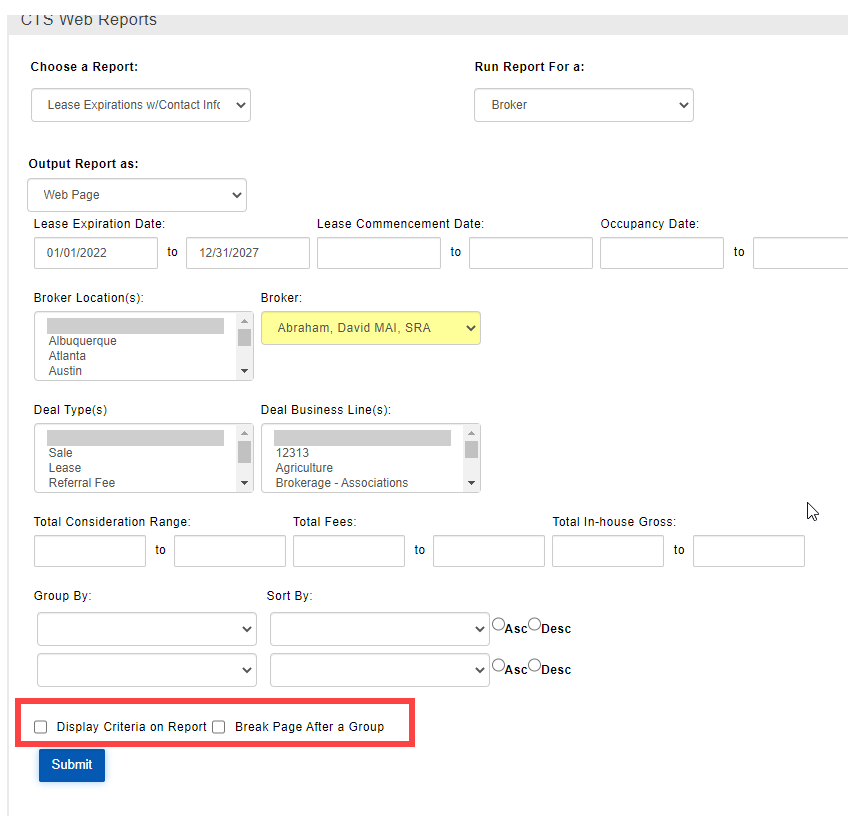 image-20220531-232742.png (image/png)
 image-20220524-192005.png (image/png)
 image-20220524-191348.png (image/png)
 image-20220524-191201.png (image/png)
 2022-05-05_11-55-06-20220505-185547.png (image/png)
 image-20220426-144156.png (image/png)
 image-20220421-182604.png (image/png)
 image-20220421-172246.png (image/png)
 image-20220421-172038.png (image/png)
 image-20220421-171648.png (image/png)
 image-20220421-171055.png (image/png)
 image-20220421-170934.png (image/png)
 image-20220421-170835.png (image/png)
 image-20220421-170731.png (image/png)
 image-20220421-170346.png (image/png)
 image-20220421-165957.png (image/png)
 image-20220421-165909.png (image/png)
 image-20220421-165824.png (image/png)
 image-20220421-165738.png (image/png)
 image-20220421-165317.png (image/png)
 image-20220421-165121.png (image/png)
 image-20220421-165032.png (image/png)
 image-20220421-163826.png (image/png)
 image-20220421-163815.png (image/png)
 image-20220421-162544.png (image/png)
 image-20220421-162418.png (image/png)
 image-20220421-162217.png (image/png)
 image-20220415-184543.png (image/png)
 image-20220415-154721.png (image/png)
 image-20220413-210401.png (image/png)
 image-20220413-204916.png (image/png)
 image-20220408-164207.png (image/png)
 2022-08-22_12-02-51.png (image/png)
 2022-08-22_12-07-07.png (image/png)
 2022-08-22_13-34-49.png (image/png)
 2022-08-22_14-04-50.png (image/png)
 2022-08-23_17-04-42.png (image/png)
 2022-08-26_15-57-49.png (image/png)
 2022-08-26_16-12-44.png (image/png)
 2022-08-26_16-22-52.png (image/png)
 2022-08-26_16-39-49.png (image/png)
 2022-09-01_19-41-14.png (image/png)
 2022-09-06_15-14-45.png (image/png)
 2022-09-06_15-18-37.png (image/png)
 2022-09-06_15-27-39.png (image/png)
 2022-09-06_15-27-39b.png (image/png)
 2022-09-06_15-33-19.png (image/png)
 2022-09-06_17-26-44.png (image/png)
 2022-09-09_13-05-55.jpg (image/jpeg)
 2022-09-09_13-20-10.jpg (image/jpeg)
 2022-09-09_15-30-05.jpg (image/jpeg)
 2022-10-03_18-09-27.jpg (image/jpeg)
 2022-10-06_17-58-06.jpg (image/jpeg)
 2022-10-07_13-25-37.jpg (image/jpeg)
 2022-10-14_16-07-03.jpg (image/jpeg)
 2023-09-15_17-14-38.jpg (image/jpeg)
2023-09-18_16-41-26.jpg (image/jpeg)
2023-09-22_16-15-59.jpg (image/jpeg)
2023-09-25_13-30-30.jpg (image/jpeg)
2023-09-26_16-28-54.jpg (image/jpeg)
2023-10-05_15-40-09b.jpg (image/jpeg)
2023-09-15_17-14-38.jpg (image/jpeg)
2023-09-18_16-41-26.jpg (image/jpeg)
2023-09-22_16-15-59.jpg (image/jpeg)
2023-09-25_13-30-30.jpg (image/jpeg)
2023-09-26_16-28-54.jpg (image/jpeg)
2023-10-05_15-40-09b.jpg (image/jpeg)
 2023-10-06_16-34-38.jpg (image/jpeg)