The CTS Receivables Reports widget allows users to run accounting reports related to the ‘Commission Tracking System’ module. This document covers the CTS Receivables reports which can be run for/by a Manager, Team Leader, or Admin/Support staff.
Reports
Open Balances [SSRS]
A summary of A/R totals for each Closed Deal that has not been fully paid, plus each broker’s outstanding gross commission. Includes total Expected Gross (Total Fees) for the entire Deal, how much of that amount was invoiced vs not invoiced, how much was paid, and the total outstanding balance. This is a great report for finding Deals which may need a small write-off, which still need to be invoiced, or which may need to go to Collections.
This is a list of Closed Deals with total amounts for each Broker on the Deal, not a list of individual Invoices or Payments.

Report Fields:
Deal ID - The Internal ID on the Deal Settings form for the Deal. If there is no Internal ID, the report will display the System ID for the Deal.
Deal Name - The Deal Name on the Deal Settings form
Property Address - The Street Address from the Lease/Sale/Deal Location form
Landlord / Seller - The first Company on the Deal Contacts form with a Role of “Seller/Landlord”
Tenant / Buyer - The first Company on the Deal Contacts form with a Role of “Buyer/Tenant”
Broker - The broker’s Last Name, First Name
Expected Gross - Total Fees from the Fee Calculation form.
Invoiced - The total amount billed on this Deal, i.e. the total Invoice Amount from Invoices which have been assigned an Invoice Date and Invoice # (regardless of whether the Invoice has been paid)
Uninvoiced - The total Expected Gross amount that has not been billed on this Deal.
Specifically, the Expected Gross amount minus the Invoiced amount.Paid - The total Payment Amount applied to this Deal.
Outstanding - The remaining balance of unpaid fees on this Deal.
Specifically, the Expected Gross amount minus the Paid amount.Brokers Gross Remaining - The broker’s share of the remaining balance of unpaid fees on this Deal.
Specifically, the Expected Gross for this Contact from the Fee Splits / Split Worksheet form, divided by the Total Fees from the Fee Calculation form, multiplied by the Outstanding amount on this report.
Report Filters:
Closed Date - Date range. Defaults to the first & last day of the current fiscal year. Refers to the Deal Closed Date on the Deal Settings form.
Deal ID(s) - Text entry. Enter one or more Internal or System Deal IDs, separated by a comma.
Deal Location(s) - No selection, single selection, multiple selections. Refers to the Location field on the Deal Settings form.
Broker(s) - No selection, single selection, multiple selections. Lists internal Contacts whose Deals you are allowed to see.
Broker Location(s) - No selection, single selection, multiple selections. Refers to the Contact’s Primary Location.
Display Options
Start each grouping on a new page or tab (same option as Break Page After a Group)
Group By Options (up to 2):
Defaults to Broker
Broker
Broker Business Line
Broker Division
Broker Location
Deal Business Line
Deal Location
Deal Name
Landlord/Seller
Primary Salesperson
Property Address
Tenant/Buyer
Sort By Options (up to 2):
Deal ID
Deal Name
Property Address
Landlord/Seller
Tenant/Buyer
Expected Gross
Invoiced
Uninvoiced
Outstanding
Paid
Broker Gross Remaining
Click to go back to the list of reports.
Open Invoices and Aging Summary [SSRS]
View a list of open (billed and not paid) Invoices with key billing details, current aging (both the specific # of days aged past the Due Date and the Aging category), the broker’s and firm’s estimated Net Commission amounts, and the latest Status information.
The same Invoice may display more than once on this report if more than one internal Contact expects a share of the fees.

Report Fields:
Invoice No. -The Invoice # from the Create Invoice form. May reflect a custom Invoice number or may be identical to the System ID of the Invoice.
Due Date - The date the Invoice is due. Specifically, the Due Date on the Invoices tab of the Closed Deal.
Payment Status - Indicates whether the Invoice is Open (not fully paid & Due Date is in the future) or Past Due (not fully paid & Due Date is in the past)
Invoice Amount - The entire amount billed on this Invoice. Specifically, the Invoice Amount from the Invoicing form.
Amount Paid - The total amount applied to this Invoice via Payment(s).
Outstanding - The current unpaid amount for this Invoice.
Customer - The name of the Company on the Deal Contacts form designated as the “Billing Customer”
Assignment ID - The ‘Internal ID’ from the Assignment Settings form, or the System ID if there is no Internal ID
Deal ID - The Internal ID on the Deal Settings form for the Deal. If there is no Internal ID, the report will display the System ID for the Deal.
Deal - The Deal Name on the Deal Settings form
Buyer/Tenant - The first Company on the Deal Contacts form with a Role of “Buyer/Tenant”
Broker - The broker’s name
Estimated Net to Broker - The calculated Net Commission amount for this broker if this invoice were to be paid today.
Estimated Net to House - The firm’s calculated share of this broker’s Gross Commission amount if this invoice were to be paid today.
Deal Location - The Location on the Deal Settings form (vs. the broker's Primary Location)
Aging - A categorization of how many days are between the Due Date of the Invoice and today’s date
# Days Aged - The specific number of days past the Invoice Due Date (displays 0 if the Invoice is not yet Due)
Revenue Type - The Revenue Type on the Invoicing form
Status Details - The Status Details on the Invoicing form
Report Filters:
Due Date - Date range. Defaults to today’s date as the max date (so by default, the report only includes past due Invoices). Refers to the Due Date on the Invoice.
Invoice #(s) - Text entry. Enter one or more Invoice Numbers, separated by a comma.
Buyer/Seller - Text entry. Filters for invoices with that text as part of the Company name for the first Contact or Company on the Deal Contacts form with a Role of “Buyer/Tenant” or “Seller/Lessor”.
Aging - No selection, single selection, multiple selections. Refers to the number of days past the Invoice Due Date.
As Of Date - Required. Date (mm/dd/yyyy). Defaults to today’s date. Determines which Invoices, Adjustments or Payments to include when calculating Aging and certain amounts. Click here for more information.
Revenue Type - No selection, single selection, multiple selections. Refers to the Revenue Type field on the Invoicing form.
Assignment ID(s) - Text entry. Enter one or more Assignment IDs, separated by a comma.
Deal ID(s) - Text entry. Enter one or more Internal or System Deal IDs, separated by a comma.
Broker(s) - No selection, single selection, multiple selections. Lists internal Contacts whose Deals you are allowed to see.
Group By Options (up to 2):
Defaults to Aging
Broker Business Line
Broker Division
Broker Location
Deal Business Line
Primary Salesperson
Due Date
Payment Status
Customer
Assignment ID
Deal ID
Broker
Deal Location
Aging
# Days Aged
Sort By Options (up to 2):
Invoice No.
Due Date
Payment Status
Invoice Amount
Amount Paid
Outstanding
Gross to Broker
Customer
Assignment ID
Deal ID
Broker
Aging
# Days Aged
Display Options:
Display Criteria on Report
Break Page After a Group
Click to go back to the list of reports.
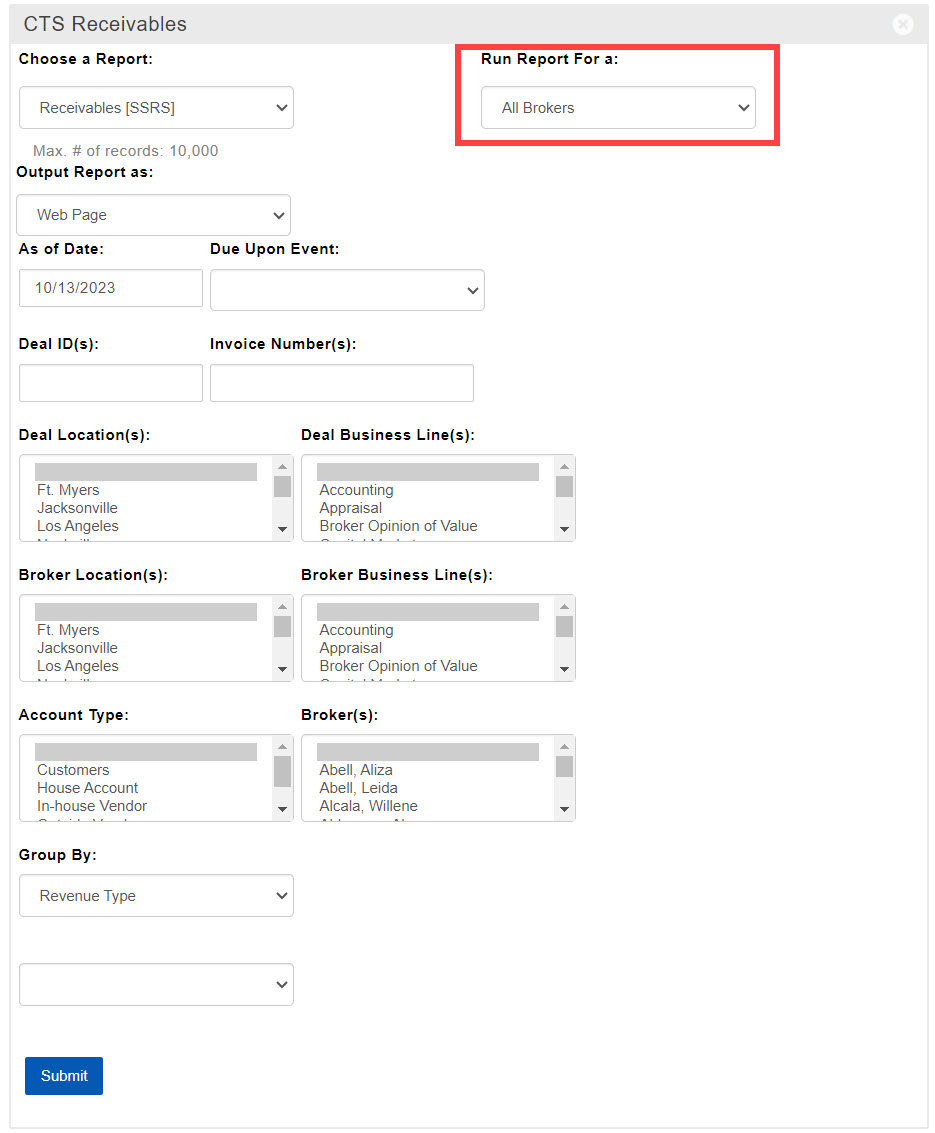
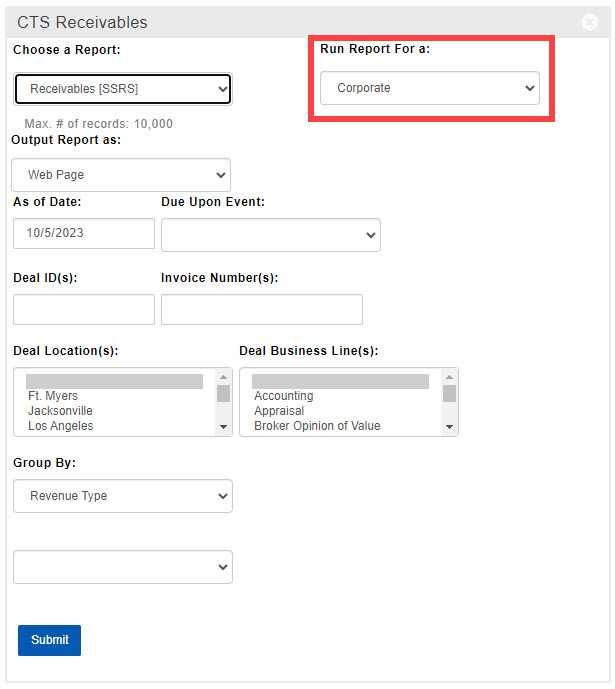
Receivables [SSRS]
View a list of open (billed and not paid) Invoices with key billing details, a breakdown of paid vs unpaid amounts for each broker, and key deal information.
The same Invoice may display more than once on this report if more than one Contact / Vendor Account expects a share of the fees.

Report Fields:
Broker - The Name of the Contact whose details and amounts are reflected in this row for this invoice
Account Name - The The Vendor or House Account Name associated with this broker on the Fee Splits / Split Worksheet form
Account Type - Indicates whether this Vendor or Account reflects an outside party, or is in internal broker, staff member, or house account. Specifically, the Entity Type field on the Vendor / House Account forms.
Revenue Type - The Revenue Type on the Invoicing form
Invoice Number - The Invoice # from the Create Invoice form. May reflect a custom Invoice number or may be identical to the System ID of the Invoice.
System Date - The date the Invoice was entered into the system, whether it was billed on the same date or on a later date. May also be different from the Invoice Date.
Invoice Date - The billing date for this Invoice. Specifically, the Invoice Date on the Create Invoice form.
Due Date - The date the Invoice is due. Specifically, the Due Date on the Invoices tab of the Closed Deal.
Invoice Amount - The entire amount billed on this Invoice. Specifically, the Invoice Amount from the Invoicing form.
Invoice Paid Amount - The total Payment Amount applied to this Invoice.
Invoice Outstanding - The current unpaid amount for this Invoice.
Specifically, the Invoice Amount minus the total Payment Amount applied to this Invoice.Outside Unpaid - The amount of unpaid fees on this Invoice allocated to any outside brokers, i.e. Contacts listed on the Fee Splits / Split Worksheet form with an Outside Vendor record.
InHouse Unpaid - The amount of unpaid fees on this Invoice allocated internally, i.e. to House Accounts or to Contacts listed on the Fee Splits / Split Worksheet form with an In-House or Staff Vendor record.
Broker Paid Gross - The actual gross commission amount distributed to this Contact / Vendor for this Invoice.
Broker Remaining Gross - The unpaid gross commission amount that has not yet been distributed to this Contact / Vendor for this Invoice.
Est. Broker Net Unpaid - The broker’s estimated Net share of their Remaining Gross on this Invoice after splitting their Gross Commission with the firm. Generally calculated based on their current YTD Total and the broker’s Split Plan.
Est. House Net Unpaid - The firm’s estimated Net share of the broker’s Remaining Gross on this Invoice after the broker splits their Gross Commission with the firm. Specifically, the Broker Remaining Gross minus the Est. Broker Net Unpaid.
Deal ID - The Internal ID on the Deal Settings form for the Deal. If there is no Internal ID, the report will display the System ID for the Deal.
Deal Name - The Deal Name on the Deal Settings form
Customer - The name of the Customer Account Entity associated with the Deal on the Invoicing form
Deal Type - The Deal Type on the Deal Settings form
Broker Location - The broker’s Primary Location
Broker Business Line - The broker’s Primary Business Line
Broker Division - The broker’s Primary Division
Invoice ID - The System ID of this Invoice
Report Filters:
As Of Date - Required. Date (mm/dd/yyyy). Defaults to today’s date. Determines which Invoices, Adjustments or Payments to include when calculating Aging and certain amounts. Click here for more information.
Due Upon Event - Yes/No. Refers to the Revenue Type on the Invoicing form. Indicates whether to include Invoices which are designated as “Due Upon Event” rather than “Receivable”.
Deal ID(s) - Text entry. Enter one or more Internal or System Deal IDs, separated by a comma.
Invoice Number(s) - Text entry. Enter one or more Invoice Numbers, separated by a comma.
Deal Location(s) - No selection, single selection, multiple selections. Refers to the Location field on the Deal Settings form.
Deal Business Line(s) - No selection, single selection, multiple selections. Refers to the Business Line field on the Deal Settings form.
Broker Location(s) - No selection, single selection, multiple selections. Refers to the Contact’s Primary Location.
Broker Business Line(s) - No selection, single selection, multiple selections. Refers to the Contact’s Primary Business Line.
Account Type - No selection, single selection, multiple selections. Refers to the Entity Type on the Vendor/House Account.
Broker(s) - No selection, single selection, multiple selections. Lists internal Contacts whose Deals you are allowed to see.
Group By Options (up to 2):
Defaults to: Revenue Type
Account Name
Account Type
Broker Business Line
Broker Division
Broker Location
Broker
Deal Business Line
Customer
Deal Division
Deal ID
Deal Location
Deal Name
Month Due
Revenue Type
Deal Type
Click to go back to the list of reports.
Related Articles
If you have any questions or would like to schedule a detailed training on this feature, please contact [email protected].
© 2023 CoStar Group
Attachments:
 2023-10-06_16-34-38.jpg (image/jpeg)
 2023-10-05_15-40-09b.jpg (image/jpeg)
 2023-09-26_16-28-54.jpg (image/jpeg)
 2023-09-25_13-30-30.jpg (image/jpeg)
 2023-09-22_16-15-59.jpg (image/jpeg)
 2023-09-18_16-41-26.jpg (image/jpeg)
 2023-09-15_17-14-38.jpg (image/jpeg)
 2022-10-14_16-07-03.jpg (image/jpeg)
 2022-10-07_13-25-37.jpg (image/jpeg)
 2022-10-06_17-58-06.jpg (image/jpeg)
 2022-10-03_18-09-27.jpg (image/jpeg)
 2022-09-09_15-30-05.jpg (image/jpeg)
 2022-09-09_13-20-10.jpg (image/jpeg)
 2022-09-09_13-05-55.jpg (image/jpeg)
 2022-09-06_17-26-44.png (image/png)
 2022-09-06_15-33-19.png (image/png)
 2022-09-06_15-27-39b.png (image/png)
 2022-09-06_15-27-39.png (image/png)
 2022-09-06_15-18-37.png (image/png)
 2022-09-06_15-14-45.png (image/png)
 2022-09-01_19-41-14.png (image/png)
 2022-08-26_16-39-49.png (image/png)
 2022-08-26_16-22-52.png (image/png)
 2022-08-26_16-12-44.png (image/png)
 2022-08-26_15-57-49.png (image/png)
 2022-08-23_17-04-42.png (image/png)
 2022-08-22_14-04-50.png (image/png)
 2022-08-22_13-34-49.png (image/png)
 2022-08-22_12-07-07.png (image/png)
 2022-08-22_12-02-51.png (image/png)
 image-20220408-164207.png (image/png)
 image-20220413-204916.png (image/png)
 image-20220413-210401.png (image/png)
 image-20220415-154721.png (image/png)
 image-20220415-184543.png (image/png)
 image-20220421-162217.png (image/png)
 image-20220421-162418.png (image/png)
 image-20220421-162544.png (image/png)
 image-20220421-163815.png (image/png)
 image-20220421-163826.png (image/png)
 image-20220421-165032.png (image/png)
 image-20220421-165121.png (image/png)
 image-20220421-165317.png (image/png)
 image-20220421-165738.png (image/png)
 image-20220421-165824.png (image/png)
 image-20220421-165909.png (image/png)
 image-20220421-165957.png (image/png)
 image-20220421-170346.png (image/png)
 image-20220421-170731.png (image/png)
 image-20220421-170835.png (image/png)
 image-20220421-170934.png (image/png)
 image-20220421-171055.png (image/png)
 image-20220421-171648.png (image/png)
 image-20220421-172038.png (image/png)
 image-20220421-172246.png (image/png)
 image-20220421-182604.png (image/png)
 image-20220426-144156.png (image/png)
 2022-05-05_11-55-06-20220505-185547.png (image/png)
 image-20220524-191201.png (image/png)
 image-20220524-191348.png (image/png)
 image-20220524-192005.png (image/png)
 image-20220531-232742.png (image/png)
 image-20220531-234710.png (image/png)
 2022-05-24_16-45-32.jpg (image/jpeg)
 2022-05-24_16-45-32b.jpg (image/jpeg)
 2022-06-07_16-28-30.jpg (image/jpeg)
 2022-06-10_16-28-24.jpg (image/jpeg)
 2022-06-13_13-37-26.jpg (image/jpeg)
 2022-06-14_14-41-39.jpg (image/jpeg)
 2022-06-17_12-47-07.jpg (image/jpeg)
 2022-06-23_15-38-58.jpg (image/jpeg)
 2022-06-23_15-40-39.jpg (image/jpeg)
 2022-06-23_16-16-30.jpg (image/jpeg)
 2022-06-27_14-12-25.jpg (image/jpeg)
 2022-07-01_15-49-10.jpg (image/jpeg)
 2022-07-01_16-27-10.jpg (image/jpeg)
 2022-07-12_13-35-15.jpg (image/jpeg)
 2022-07-14_16-08-38.jpg (image/jpeg)
 2022-07-15_14-25-47.jpg (image/jpeg)
 2022-07-18_12-11-28.jpg (image/jpeg)
 2022-07-28_11-53-27.jpg (image/jpeg)
 2022-07-29_11-55-43.jpg (image/jpeg)
 2022-10-20_16-22-44.jpg (image/jpeg)
 2022-10-20_16-24-31.jpg (image/jpeg)
 2022-10-21_16-11-50.jpg (image/jpeg)
 2022-10-21_16-11-50b.jpg (image/jpeg)
 2022-10-24_14-32-19.jpg (image/jpeg)
 2022-10-24_15-10-15.jpg (image/jpeg)
 2022-10-25_11-33-36.jpg (image/jpeg)
 2022-10-25_12-18-25.jpg (image/jpeg)
 2022-10-25_12-36-18.jpg (image/jpeg)
 2022-10-28_15-56-48.jpg (image/jpeg)
 2022-10-28_16-40-22.jpg (image/jpeg)
 2022-10-31_15-22-10.jpg (image/jpeg)
 2022-06-09_17-02-38.jpg (image/jpeg)
 2022-10-31_15-38-19.jpg (image/jpeg)
 2022-10-31_15-40-54.jpg (image/jpeg)
 2022-10-31_16-49-59.jpg (image/jpeg)
 2022-11-01_13-14-29.jpg (image/jpeg)
 2022-11-01_13-14-29b.jpg (image/jpeg)
 2022-11-17_17-18-34.png (image/png)
 2022-11-18_13-48-49.png (image/png)
 2022-11-18_16-10-38.png (image/png)
 CTS_LeaseExpirationWithContactInfoCorporate (2).xlsx (application/vnd.openxmlformats-officedocument.spreadsheetml.sheet)
2022-11-28_13-50-43.jpg (image/jpeg)
CTS_LeaseExpirationWithContactInfoCorporate (2).xlsx (application/vnd.openxmlformats-officedocument.spreadsheetml.sheet)
2022-11-28_13-50-43.jpg (image/jpeg)
 2022-11-28_14-34-41.jpg (image/jpeg)
 2022-11-29_16-56-49.jpg (image/jpeg)
 2022-12-01_15-38-23.jpg (image/jpeg)
 2022-12-01_15-54-00.jpg (image/jpeg)
 2022-12-01_15-54-41.jpg (image/jpeg)
 2022-12-01_16-27-52.jpg (image/jpeg)
 2022-12-01_16-38-41.jpg (image/jpeg)
 2022-12-01_16-38-41b.jpg (image/jpeg)
 2022-12-05_11-32-42.jpg (image/jpeg)
 2022-12-05_11-32-42b.jpg (image/jpeg)
 2023-07-25_16-53-07.jpg (image/jpeg)
 2023-09-05_17-18-33.jpg (image/jpeg)
 2023-09-14_13-09-26.jpg (image/jpeg)
 2023-09-14_14-00-42.jpg (image/jpeg)
 2023-10-13_13-33-10.jpg (image/jpeg)
 2023-10-16_15-55-22.jpg (image/jpeg)
 2023-10-23_16-13-59.jpg (image/jpeg)
 2023-10-30_14-40-33.jpg (image/jpeg)
