The CTS Web Reports widget allows users to run reports related to the ‘Commission Tracking System’ module. This document covers the CTS Web Reports which can be run for a Broker.
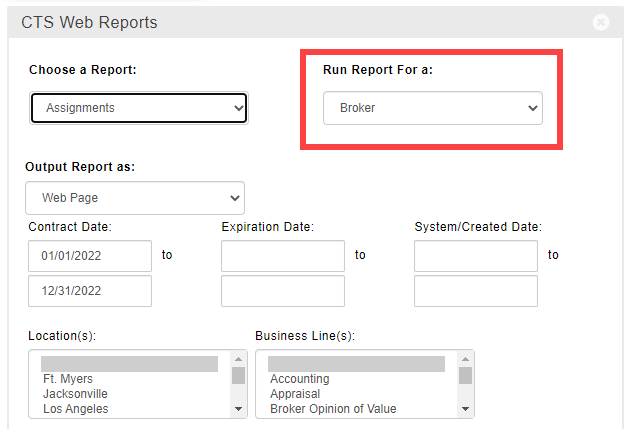
Reports
- Assignments
- Assignments w/Contact Info
- Billings and Cash Collected [SSRS]
- Broker Historical Review - Payments Received [SSRS]
- Broker Pay Sheet [SSRS]
- Broker Pay Sheet Summary [SSRS]
- Broker Ranking - Deal Statistics
- Broker Ranking - Payments Received [SSRS]
- Client Relationships Report [SSRS]
- Commissions Report - Payments Received [SSRS]
- Commissions Report - Payments Received - Basic [SSRS]
- Deal Activity [SSRS]
- Deal Activity Detail - Excel [SSRS]
- HR Split Plans Report [SSRS]
- Lease Expirations w/Contact Info [SSRS]
- Lease Options w/Contacts & Notice Date [SSRS]
- Production Summary Report [SSRS]
- Projected Income Report [SSRS]
- Revenue Projection Report [SSRS]
Assignments
A general overview of Assignments you have permission to see that includes key contract dates and the current status. Each row represents one Assignment.

Report Fields:
Assignment ID - The Internal ID from the Assignment Settings form, or the System ID if there is no Internal ID
Network ID - The Network ID from the Assignment Settings form
Assignment Name - The Assignment Name from the Assignment Settings form
Assignment Type - The Assignment Type from the Assignment Settings form (e.g. Landlord Representation, Buyer Representation, etc.)
Business Line - The Business Line stored on the Assignment Settings form
Location - The Location stored on the Assignment Settings form
Building(s) SF - The total of all Building SF from the Property Details form for the Properties that are linked to that specific Assignment
Contract Date - The Contract Date from the Assignment Settings form
Expiration Date - The Expiration Date from the Assignment Settings form
Status - The Status from the Assignment Settings form
Report Filters:
Contract Date - Minimum date, maximum date, or range of dates. Defaults to the first through last day of the current year.
Expiration Date - Minimum date, maximum date, or range of dates
System/Created Date - Minimum date, maximum date, or range of dates. Refers to the date the Assignment was entered into the system.
Location(s) - No selection, single selection, multiple selections
Business Line(s) - No selection, single selection, multiple selections
Assignment Type(s) - No selection, single selection, multiple selections
Status - No selection, single selection, multiple selections
Team Member - Single selection. Lists internal Contacts who are in your Office / Location(s). Defaults to your name (i.e. the logged in user). Refers to any Contact on the Assignment Contacts form.
Group By Options (up to 2):
Broker
Assignment Type
Business Line
Location
Contract Date
Expiration Date
Status
Sort By Options (up to 2):
Assignment ID
Assignment Name
Assignment Type
Business Line
Location
Building(s) SF
Contract Date
Expiration Date
Status
Display Options:
Display Criteria on Report
Break Page After a Group
Click to go back to the list of reports.
Assignments w/Contact Info
A general overview of Assignments you have permission to see that includes contact information for the Client as well as key contract dates and the current status. Each row represents one Assignment.

Report Fields:
Assignment ID - The Internal ID from the Assignment Settings form, or the System ID if there is no Internal ID
Network ID - The Network ID from the Assignment Settings form
Assignment Name - The Assignment Name from the Assignment Settings form
Assignment Type - The Assignment Type from the Assignment Settings form (e.g. Landlord Representation, Buyer Representation, etc.)
Business Line - The Business Line stored on the Assignment Settings form
Location - The Location stored on the Assignment Settings form
Building(s) SF - The total of all Building SF from the Property Details form for the Properties that are linked to that specific Assignment
Contract Date - The Contract Date from the Assignment Settings form
Expiration Date - The Expiration Date from the Assignment Settings form
Contact - The Name, Company and Direct Phone number for the Contact flagged as the Client on the Assignment Contacts form
Status - The Status from the Assignment Settings form
Report Filters:
Contract Date - Minimum date, maximum date, or range of dates. Defaults to the first through last day of the current year.
Expiration Date - Minimum date, maximum date, or range of dates
System/Created Date - Minimum date, maximum date, or range of dates. Refers to the date the Assignment was entered into the system.
Location(s) - No selection, single selection, multiple selections
Business Line(s) - No selection, single selection, multiple selections
Assignment Type(s) - No selection, single selection, multiple selections
Status - No selection, single selection, multiple selections
Team Member - Single selection. Lists internal Contacts who are in your Office / Location(s). Defaults to your name (i.e. the logged in user). Refers to any Contact on the Assignment Contacts form.
Group By Options (up to 2):
Broker
Assignment Type
Business Line
Location
Contract Date
Expiration Date
Contact
Status
Sort By Options (up to 2):
Assignment ID
Assignment Name
Assignment Type
Business Line
Location
Building(s) SF
Contract Date
Expiration Date
Status
Display Options:
Display Criteria on Report
Break Page After a Group
Click to go back to the list of reports.
Billings and Cash Collected [SSRS]
For a given Contact, see total amounts and deal counts for billed invoices and for payments received in a given month, year and previous years.

Report Fields:
Broker - The broker’s Last Name, First Name. Refers to Contacts who are associated with an In-House or Staff Vendor on a deal’s Fee Splits / Split Worksheet form.
Selected Month / Selected Year
Total Invoiced (Broker Share) - Total for each broker’s share of invoice amounts billed during the selected month or year. The share amount is calculated based on the gross commission allocated to that person on the deal’s Split Worksheet.
# Deals Billed - Total number of deals on which an invoice was billed during the selected month or year
Gross Cash Collected - Total for each broker’s Gross Commission amount from payments received during the selected month or year
# Deals Cash Collected - Total number of deals on which a payment was received during the selected month or year
Budget - The HR Goal amount from the Personnel (HR) record for each Contact for the selected year
Previous 4 Years
Gross Cash Collected - Total for each broker’s Gross Commission amount from payments received during the indicated year
Report Filters:
Billing Month Sent - Single selection. Indicates which month (for the Invoice Date) to focus on. By default, or if nothing is selected, the report will run for the current month.
Billing Year Sent - Single selection. Indicates which year (for the Invoice Date) to focus on. By default, or if nothing is selected, the report will run for the current year.
Deal Type(s) - No selection, single selection, multiple selections. Refers to the Deal Type field on the Deal Settings form.
HR Status - No selection, single selection, multiple selections. “Active” is the default selection. Refers to the Status field on the broker’s HR/Personnel Record form.
Broker - Required. Single selection from a list of internal Contacts whose Deals you are allowed to see. Defaults to your name (i.e. the logged in user).
Group By Options (up to 2):
Deal Business Line - The Business Line from the Deal Settings form
Broker Location - The broker’s Primary Location
Sort By Options (up to 2):
Deal Business Line
Broker Location
Gross Cash Collected 4 Years Ago
Gross Cash Collected 3 Years Ago
Gross Cash Collected 2 Years Ago
Gross Cash Collected Previous Year
Current Month Billings - i.e. for the selected month
Current Month # Deals Billed - i.e. for the selected month
Current Month Gross Cash Collected - i.e. for the selected month
Current Month # Deals Cash Collected - i.e. for the selected month
YTD Billings - i.e. for the selected year
YTD # Deals Billed - i.e. for the selected year
YTD Gross Cash Collected - i.e. for the selected year
YTD # Deals Cash Collected - i.e. for the selected year
Budget Current Year
Click to go back to the list of reports.
Broker Historical Review - Payments Received [SSRS]
A summary of Gross Commissions paid/credited to a broker during the selected year and five prior years. This report includes a comparison of total paid vs the annual goal for the selected year, as well as a 3-year average.

Report Fields:
Broker - The broker’s Last Name, First Name. Refers to Contacts who are associated with an In-House or Staff Vendor on a deal’s Fee Splits / Split Worksheet form.
Primary Location - The broker’s Primary Location
Primary Business Line - The broker’s Primary Business Line
Hire Date - The Start Date from the broker’s HR/Personnel File form
Payments Received [Year] - Total Gross Commissions/Fees credited to this Contact from Payments received in the selected year
[Year] Goal - The HR Goal amount for the selected year from the broker’s Personnel (HR) record
% of Goal - An indication of how close the Broker is to meeting their Goal for the selected year.
Specifically, the Payments Received for the select Year divided by the HR Goal for the same year.Three Year Average - Average of the total Gross Payments
Prior Years Payments Received - Total Gross Commissions/Fees credited to this Contact from Payments received in the 4 years prior to the selected year
Contact ID - The system ID assigned to the broker’s Contact record
Report Filters:
Year - Number field. Enter a 4-digit year. Indicates which year (for the Payment Date) to focus on. By default, or if nothing is selected, the report will run for the current year.
Broker(s) - Required. Single selection from a list of internal Contacts whose Deals you are allowed to see. Defaults to your name (i.e. the logged in user).
Group By Options (up to 2):
Broker Primary Location
Broker Primary Business Line
HR Status
Sort By Options (up to 2):
Broker Primary Location
Broker Primary Business Line
Broker
Hire Date
Selected Year Cash Collected
Receivables
Selected Year Budget
Three Year Average
Click to go back to the list of reports.
Broker Pay Sheet [SSRS]
View In-House or Staff Vendor account activity for a specific pay period (or other date range) and for the entire fiscal year to that point. The account balance is summarized for the period and for the year, with a separate summary for Broker Draws. This report includes a detailed breakdown of Account Transactions for that date range. Account Transactions are debits or credits on the Vendor account that can be created manually, or that are automatically created when Payments are applied.
Results are limited to In-House and Staff Vendors only. Each Vendor will have their own page(s).
Please note that the same Contact can potentially be associated with more than one Vendor account, and that each account will display separately.

Click here to watch a video tutorial on the Broker Pay Sheet report.
Report Fields:
Contact & Vendor Details
Vendor Name - The Vendor Name from the Vendor Details form
Pay Period - The name of the selected Pay Period
Effective Start - End Date - The selected Effective Start Date and Effective End Date
As Of - Today’s date
Name - First & Last Name of the Contact from the Vendor Details form
Primary Location - The Contact’s Primary Location
Primary Business Line - The Contact’s Primary Business Line
Primary Division - The Contact’s Primary Division
Salary - The Pay Rate & Frequency from the Compensation History on the Contact’s HR (Personnel File) record
Compensation Memo - The Compensation Memo from the Compensation History on the Contact’s HR (Personnel File) record
Current Pay Period - Summary of all activity on this Vendor Account for this pay period (i.e. the selected Effective Start/End Date range), with subtotals and totals
Balance Forward - The account balance at the beginning of the pay period.
Specifically, the total of all Account Transaction amounts from before the selected Effective Start Date.Commissions - All of the Vendor’s Net Payments and Net Adjustments for this Pay Period.
Specifically, the total of Account Transactions for the selected Effective Date range with a Type of “Commission Net Expense” or “Commission Payment”.Non-Commission Sub Total - Any debits or credits on the account for this pay period that aren’t associated with Deal Payments or Payroll.
Specifically, the total of Account Transactions for the selected Effective Date range with a Type other than “Commission Net Expense”, “Commission Payment” or “Payroll”.Gross Pay Out - The recommended amount to process for payroll.
Specifically, the total of Account Transactions for the selected Effective Date range with a Type other than “Payroll”.Payroll - Any payroll related activity on the account for this pay period.
Specifically, the total of Account Transactions for the selected Effective Date range with a Type of “Payroll”.
Only displays if there is any activity. For example, if payroll is processed on a delayed schedule, you should see a Payroll amount for the previous pay period that was processed during this pay period.Ending Balance - The account balance at the end of the pay period.
Specifically, the total of all Account Transaction amounts up to and including the selected Effective End Date.
YTD Payroll Information - Summary of all activity on this Vendor Account for this fiscal year (i.e. from the first day of the fiscal year through the selected Effective End Date), with subtotals and totals
Balance Forward - The Account Balance at the beginning of the year.
Specifically, the total of all Account Transaction amounts from before the first day of the year.Commissions - All of the Vendor’s Net Payments and Adjustments for this year.
Specifically, the total of all Account Transactions for the year through the selected Effective End Date with a Type of “Commission Net Expense” or “Commission Payment”.Non-Commission Sub Total - Any debits or credits added to the account this year that aren’t associated with Deal Payments or Payroll.
Specifically, the total of Account Transactions for the year through the indicated Effective End Date with a Type other than “Commission Net Expense”, “Commission Payment” or “Payroll”.Gross Pay Out - The recommended amount to process for payroll.
Specifically, the total of Account Transactions for the year with a Type other than “Payroll”.Payroll - All payroll related activity on the account for this year.
Specifically, the total of Account Transactions for the year with a Type of “Payroll”.
Only displays if there has been any Payroll activity this year.Ending Balance - The account balance at the end of the pay period.
Specifically, the total of all Account Transaction amounts up to and including the selected Effective End Date.
Draw Balance - Summary of all Draw activity on this Vendor Account through the selected Effective End Date
Balance Forward - The Draw balance at the beginning of the pay period.
Specifically, the total of all Account Transaction amounts from before the selected Effective Start Date with a Type that contains the word “Draw”.Ending Balance - The Draw balance at the end of the pay period.
Specifically, the total of all Account Transaction amounts up to and including the selected Effective End Date with a Type that contains the word “Draw”.
Commissions for this Period -
Deal ID - The Internal ID on the Deal Settings form for the Deal. If there is no Internal ID, the report will display the System ID for the Deal.
System ID - The System ID for the Deal
Account Trans ID - The System ID for this Account Transaction
Date Paid - The Account Transaction Date (which will match the Payment Date from the Apply Payment form of the Deal)
Deal Name - The Deal Name on the Deal Settings form
Commission Paid - The total Payment Amount for this Payment
Deal % - This Vendor’s overall % share of the Total Fees on this Deal, i.e. the % of Deal for this Vendor on the Fee Splits / Split Worksheet form for the Deal
Gross to Broker - The Vendor’s Gross Commission for this Payment
Applied Split Plan - The Name of the Split Plan that was applied for this Vendor on this Payment
Split % - The % used to determine the Vendor’s Net Commission for this Payment. May have been manually applied (i.e. as a Fixed Net) or determined by the Applied Split Plan.
Net to Broker - Account Transaction Amount (which will match the Net Commission amount for this Vendor on the Payment)
Commission Net Expense for this Period
Deal ID - The Internal ID on the Deal Settings form for the Deal. If there is no Internal ID, the report will display the System ID for the Deal.
System ID - The System ID for the Deal
Account Trans ID - The System ID for this Account Transaction
Date Paid - The Account Transaction Date (which will match the Payment Date from the Payment Application form of the Deal)
Deal Name - The Deal Name on the Deal Settings form
From - The name of the Vendor account that was debited (which will match the From Vendor on the Closed Deal Net Adjustments form and the Payer on the Payment Application form)
To - The name of the Vendor account that was credited (which will match the To Vendor on the Closed Deal Net Adjustments form and the Vendor/Account on the Payment Application form)
Type - The Type on the Closed Deal Net Adjustments form
Comments - The Memo on the Closed Deal Net Adjustments form
Amount - The $ to Apply amount on the Payment Application form. Note that if the amount is “From” this Vendor, the amount will show as a debit or negative number. If the amount is “To” this Vendor, the amount will show as a credit or positive number.
Other Account Transactions
Account Trans ID - The System ID for this Account Transaction
Date - The Transaction Date on the Account Transaction Form
Type - The Transaction Type on the Account Transaction Form
Account - The other Vendor or House Account involved in this Transaction (i.e. the To Account or From Account on the Account Transaction Form that is not this Vendor)
Description - The Comments on the Account Transaction Form
Debit/Credit - The Amount on the Account Transaction form. Note that if the amount is “From” this Vendor, the amount will show as a debit or negative number. If the amount is “To” this Vendor, the amount will show as a credit or positive number.
Report Filters:
Pay Period - Single selection from a list of pre-defined Pay Periods (via the Define Payroll Periods form). Defaults to the last completed Pay Period (based on today’s date).
Effective Start Date - Required. Determines the beginning of the Account Transaction Date range that the report will encompass. Defaults to the Start Date associated with the selected Pay Period on the Define Payroll Periods form.
Effective End Date - Required. Determines the end of the Account Transaction Date range that the report will encompass. Defaults to the End Date associated with the selected Pay Period on the Define Payroll Periods form.
Broker - Required. Single selection from a list of internal Contacts whose Deals you are allowed to see. Defaults to your name (i.e. the logged in user).
Only include Vendors with activity in this Pay Period - Checkbox. Selected by default. When checked, will only include pages for Vendors which have at least one Account Transaction for the selected date range.
Click to go back to the list of reports.
Broker Pay Sheet Summary [SSRS]
A spreadsheet-style, one line per broker version of the Broker Pay Sheet report with only subtotals and totals for the selected Effective Date range.

Report Fields:
Vendor Name - The Vendor Name from the Vendor Details form
Contact Name - First & Last Name of the Contact from the Vendor Details form
Primary Location - The Contact’s Primary Location
Primary Business Line - The Contact’s Primary Business Line
Primary Division - The Contact’s Primary Division
Current Balance Forward - The Vendor account balance at the beginning of the pay period.
Specifically, the total of all Account Transaction amounts from before the selected Effective Start Date.Current Commission Sub Total - All of the Vendor’s Net Payments and Net Adjustments for this Pay Period.
Specifically, the total of Account Transactions for the selected Effective Date range with a Type of “Commission Net Expense” or “Commission Payment”.Current Non-Commission Sub Total - Any debits or credits on the account for this pay period that aren’t associated with Deal Payments or Payroll.
Specifically, the total of Account Transactions for the selected Effective Date range with a Type other than “Commission Net Expense”, “Commission Payment” or “Payroll”.Current Gross Pay Out - The recommended amount to process for payroll.
Specifically, the total of Account Transactions for the selected Effective Date range with a Type other than “Payroll”.Current Payroll - Any payroll related activity on the account for this pay period.
Specifically, the total of Account Transactions for the selected Effective Date range with a Type of “Payroll”.
For example, if payroll is processed on a delayed schedule, you should see a Payroll amount for the previous pay period that was processed during this pay period.Current Ending Balance - The account balance at the end of the pay period.
Specifically, the total of all Account Transaction amounts up to and including the selected Effective End Date.YTD Balance Forward - The Account Balance at the beginning of the fiscal year.
Specifically, the total of all Account Transaction amounts from before the first day of the fiscal year.YTD Commission Sub Total - All of the Vendor’s Net Payments and Adjustments for this fiscal year.
Specifically, the total of all Account Transactions for the year through the selected Effective End Date with a Type of “Commission Net Expense” or “Commission Payment”.YTD Non-Commission Sub Total - Any debits or credits added to the account this fiscal year that aren’t associated with Deal Payments or Payroll.
Specifically, the total of Account Transactions for the year through the indicated Effective End Date with a Type other than “Commission Net Expense”, “Commission Payment” or “Payroll”.YTD Gross Pay Out - The recommended amount to process for payroll.
Specifically, the total of Account Transactions for the year with a Type other than “Payroll”.YTD Payroll - All payroll related activity on the account for this fiscal year.
Specifically, the total of Account Transactions for the year with a Type of “Payroll”.YTD Ending Balance - The account balance at the end of the pay period.
Specifically, the total of all Account Transaction amounts up to and including the selected Effective End Date.Draw Balance Forward - The Draw balance at the beginning of the pay period.
Specifically, the total of all Account Transaction amounts from before the selected Effective Start Date with a Type that contains the word “Draw”.Draw Advance - The total of Account Transactions for the selected Effective Date range with a Type of “Draw Advance”
Draw Recovery - The total of Account Transactions for the selected Effective Date range with a Type of “Draw Recovery”
Draw Ending Balance - The Draw balance at the end of the pay period.
Specifically, the total of all Account Transaction amounts up to and including the selected Effective End Date with a Type that contains the word “Draw”.Vendor ID - Unique System ID for the Vendor
Contact ID - Unique System ID for the Contact
Report Filters:
Pay Period - Single selection from a list of pre-defined Pay Periods (via the Define Payroll Periods form). Defaults to the current Pay Period (based on today’s date) or to the most current Pay Period in the list.
Effective Start Date - Required. Determines the beginning of the Account Transaction Date range that the report will encompass. Defaults to the Start Date associated with the selected Pay Period on the Define Payroll Periods form.
Effective End Date - Required. Determines the end of the Account Transaction Date range that the report will encompass. Defaults to the End Date associated with the selected Pay Period on the Define Payroll Periods form.
Broker - Required. Single selection from a list of internal Contacts whose Deals you are allowed to see. Defaults to your name (i.e. the logged in user).
Only include Vendors with activity in this Pay Period - Checkbox. Selected by default. When checked, will only include entries for Vendors which have at least one Account Transaction for the selected date range.
Click to go back to the list of reports.
Broker Ranking - Deal Statistics
A list of internal Contacts whose deals you are allowed to see, with rank, deal counts, total consideration (e.g. lease value or sale price), and square footage/acreage for a specific time frame.
All statistics on this report are based on Deals with a Closed Date that falls within the selected time frame, for which this Contact has an Expected Gross Commission on the Deal’s Fee Splits (Split Worksheet) form. Default ranking is based on the Contact’s Expected Gross Commission (not shown).

Report Fields:
Rank - Each Contact’s ranking on this report, based on the current sort order
Broker - The Last Name, First Name of the Contact. Refers to Contacts who are associated with an In-House or Staff Vendor on a deal’s Fee Splits / Split Worksheet form.
Broker Primary Location - The Contact’s Primary Location
Broker Primary Division - The Contact’s Primary Division
Primary Business Line - The Contact’s Primary Business Line
No. of Deals - Total number of Deals with a Closed Date in the selected date range
Total Consideration - Total Transaction Value from the Fee Calculation form associated with Deals with a Closed Date in the selected date range.
Total Sq. Ft. - Total of Space SF from the Space Details form or (if the Deal is for the entire Property) the Building/Property SF from the Property Details form. This total includes all Space or Property Types except Land associated with Deals with a Closed Date in the selected date range.
Acres - Total of Land Size (Acres) from the Space Details form or (if the Deal is for the entire Property) from the Building Details form. This includes only Land Spaces or Properties associated with Deals with a Closed Date in the selected date range.
Report Filters:
Closed Date - Date range. Defaults to the first & last day of the current fiscal year. Refers to the Deal Closed Date from the Deal Settings form.
Broker Location(s) - No selection, single selection, multiple selections. Refers to the Contact’s Primary Location.
Broker Business Line(s) - No selection, single selection, multiple selections. Refers to the Contact’s Primary Business Line.
Broker Division(s) - No selection, single selection, multiple selections. Refers to the Contact’s Primary Division.
Broker - Single selection from a list of internal Contacts whose Deals you are allowed to see.
Primary Business Line - Ignore: duplicate filter
HR Status - No selection, single selection, multiple selections. “Active” is the default selection. Refers to the Status field on the broker’s HR/Personnel Record form.
Group By Options (up to 2):
HR Status
Broker
Broker Primary Location
Broker Primary Division
Primary Business Line
Sort By Options (up to 2):
HR Status
Broker
Broker Primary Location
Broker Primary Division
Primary Business Line
No. of Deals
Total Consideration
Total Sq. Ft.
Acres
Display Options:
Display Criteria on Report
Break Page After a Group
Click to go back to the list of reports.
Broker Ranking - Payments Received [SSRS]
A summary for internal Contacts whose deals you are allowed to see, with rank, commission totals, and other deal statistics.
All statistics on this report are based on Deals with at least one Payment Date that falls within the selected time frame, for which this Contact has been credited a Gross Commission amount on the Payment Application form.

Report Fields:
Rank - Will always be 1, since this report only reports on 1 Contact at a time
Broker - The Last Name, First Name of the Contact. Refers to Contacts who are associated with an In-House or Staff Vendor on a deal’s Fee Splits / Split Worksheet form.
Broker Primary Location - The Contact’s Primary Location
Broker Primary Division - The Contact’s Primary Division
Primary Business Line - The Contact’s Primary Business Line
Broker Gross - Total Gross Commission/Fees credited to this Contact from Payments received in the selected date range
Net to Broker - Total Net Commission/Fees distributed to this Contact from Payments received in the selected date range. Does not include Net Adjustment amounts.
Total Consideration - The Total Transaction Value from the Fee Calculation form, typically either the sales price or the value of the lease agreement (Lease Rate per SF x SF leased x Lease Term).
Total Sq. Ft. - Total of Space SF from the Space Details form or (if the Deal is for the entire Property) the Building/Property SF from the Property Details form. This total includes all Space or Property Types except Land associated with Deals which received a Payment in the selected date range.
Count - Total number of Deals with a Payment Date in the selected date range.
Acres - Total of Land Size (Acres) from the Space Details form or (if the Deal is for the entire Property) from the Building Details form. This includes only Land Spaces or Properties associated with Deals which received a Payment in the selected date range.
Report Filters:
Payment Date - Date range. Defaults to the first & last day of the current fiscal year. Refers to the Payment Date on the Payment Application form.
Exclude Adjust - Yes/No. Defaults to “Yes”. Indicates whether or not to include voided Payments or Payment Voids in the calculations for the selected date range.
Broker - Required. Single selection from a list of internal Contacts whose Deals you are allowed to see. Defaults to your name (i.e. the logged in user).
Group By Options (up to 2):
HR Status
Broker Division
Broker
Broker Primary Location
Broker Primary Division
Primary Business Line
Sort By Options (up to 2):
HR Status
Broker
Broker Primary Location
Broker Primary Division
Primary Business Line
Broker Gross
Net to Broker
Total Consideration
Total Sq. Ft.
Count
Acres
Click to go back to the list of reports.
Client Relationships Report [SSRS]
A list of internal Contacts and their Closed Deals. This report displays some key Deal and Property information and includes active and Closed Deals.
If there are multiple brokers associated with a particular Deal, you will see that Deal listed more than once - each time with a different broker’s name.

Report Fields:
Contact - The First and Last Name of the broker. Refers to internal Contacts with a role of Listing Broker or Procuring Broker, or designated as the Primary Salesperson on the Deal Contacts form.
Deal Location - The Location from the Deal Settings form
Business Line - The Business Line from the Deal Settings form
Deal Closed Date - The Deal Closed date from the Deal Settings form
Deal ID - The Internal ID on the Deal Settings form for the Deal. If there is no Internal ID, the report will display the System ID for the Deal.
Deal Name - The Deal Name from the Deal Settings form
Property Name - The Property Name from the Lease/Sale/Deal Location form
Property Address - The Property Address from the Lease/Sale/Deal Location form
Report Filters:
Client Company Name - Text entry. Use the % as a wildcard symbol. Refers to the name of the Company flagged as the Client on the Deal Contacts form.
Deal/Property (searches Deal Name, Property Name, Property Address) - Text entry. Use % as a wildcard symbol.
Broker(s) - No selection, single selection, multiple selections. Lists internal Contacts whose Deals you are allowed to see.
Group By Options (up to 2):
Defaults to Client
Client
Contact
Location
Business Line
Deal Closed Date
Click to go back to the list of reports.
Commissions Report - Payments Received [SSRS]
Breaks down Payments received (i.e. cash flow) by Broker with Gross, Net, and Adjusted Net amounts. This report includes key details of the Payment, Deal, and Property. When grouped, subtotals and totals are summarized at the bottom of each group.

Report Fields:
Confidential - The Confidential checkbox from the Deal Settings or Lease/Sale Details forms. When a Deal is identified as Confidential, it is excluded from Comp search results unless Confidential Deals are specifically included.
Deal ID - The Internal ID on the Deal Settings form for the Deal. If there is no Internal ID, the report will display the System ID for the Deal.
Broker - The broker’s Last Name, First Name
Outside Broker - The name(s) of any outside brokers who are allocated a share of the deal commissions/fees.
Specifically, the name(s) of Contacts or Companies listed on the Fee Splits / Split Worksheet form with an Outside Vendor record.Deal Type - The Deal Type on the Deal Settings form
Deal Business Line - The Business Line from the Deal Settings form (vs. the broker’s Primary Business Line)
Seller/Lessor - The first Company on the Deal Contacts form with a Role of “Seller/Landlord”
Buyer/Lessee - The first Company on the Deal Contacts form with a Role of “Buyer/Tenant”
Property Address - The Property Address from the Lease/Sale/Deal Location form
SF - Space SF from the Space Details form or (if the Deal is for the entire Property) the Building/Property SF from the Building Details form.
Transaction Value - The Total Transaction Value from the Fee Calculation form, typically either the sales price or the value of the lease agreement (dollar amount x SF leased x term).
Vendor - The name of the Vendor record receiving this payment distribution
Deal % - This broker’s share of the Total Fees on the Deal. Matches the % of Deal for that Broker on the Fee Splits / Split Worksheet form.
Payment Date - The Payment Date on the Payment Application form
Payment Created Date - The date the Payment was actually entered in the system
Commissions Paid - The total Payment Amount before distribution
Gross to Broker - The broker’s Gross share of that Payment, i.e. the amount that will be added to their Production Credit / YTD Total.
Net to Broker - The broker’s Net share after splitting their Gross Commission with the firm. Generally calculated based on their current YTD Total and their Split Plan.
Net Adjustment - Total Net Adjustment / Net Expense amount applied for this Payment. If the Net Adjustment was taken from the Broker, the amount will be negative. If it was given to the Broker, the amount will be positive.
Adjusted Net to Broker - Final Net amount distributed to Broker after all splits or adjustments have been applied.
Specifically, the Net to Broker amount minus the Net Adjustment amount.Split % - The broker’s Net Commission Split percent for this Payment. Should match up with the Net to Broker divided by the Gross to Broker.
Split Plan - The name of the Split Plan that was applied to calculate the Net to Broker, or an indication that a Fixed Net was applied to override system calculations
Report Filters:
Payment Date - Date range. Defaults to the first & last day of the current fiscal year. Refers to the Payment Date on the Payment Application form.
First Payment Only - Checkbox. Defaults to unchecked. When checked, only the very first Payment on the Deal will be included on the report, provided it falls within the Payment Date filter range. If there are other Payments on the Deal that fall within the Payment Date filter range but they are not the first Payment on the Deal, they will not display on the report.
Show Voids - Checkbox. Defaults to unchecked. Indicates whether or not to include voided Payments or Payment Voids.
Show Split Plan - Checkbox. Defaults to checked. Indicates whether or not to include the Split Plan Name (or Fixed Net indicator).
Deal Name - Text entry. Use % as a wildcard symbol.
Deal ID(s) - Text. Searches both the Internal Deal ID field on the Deal Settings form and the System ID for the Deal. Use a comma to separate multiple IDs (e.g. 5839, 3856a).
Broker - Required. Single selection from a list of internal Contacts whose Deals you are allowed to see. Defaults to your name (i.e. the logged in user).
Deal Type(s) - No selection, single selection, multiple selections. Refers to the Deal Type field on the Deal Settings form.
Deal Business Line(s) - No selection, single selection, multiple selections. Refers to the Business Line field on the Deal Settings form.
Display Options:
Do Not Repeat Deal Data - Click here for more details about this setting
Group By Options (up to 2):
Defaults to: Broker, Deal Business Line
Broker
Buyer/Lessee
Deal Business Line
Deal ID
Deal Location
Deal Name
Deal Type
Month - i.e. the Payment Date’s month
Primary Salesperson - Refers to the name of the Contact flagged as the Primary Salesperson on the Deal Contacts form
Property Address
Quarter - i.e. the Payment Date’s quarter
Seller/Lessor
Side Represented - Refers to the Side Represented field on the Deal Settings form
Split Plan
Year - i.e. the Payment Date’s year
Click to go back to the list of reports.
Commissions Report - Payments Received - Basic [SSRS]
Breaks down Payments received (i.e. cash flow) by Broker with Gross, Net, and Adjusted Net amounts. Only includes Payments distributed to Contacts associated with In-House or Staff Vendors on the Deal’s Split Worksheet. This report includes key details of the Payment, Deal, and Property. When grouped, subtotals and totals are summarized at the bottom of each group. When not grouped, this report has a format that is easier to work with in Excel than the Commissions Report - Payments Received [SSRS].

Report Fields:
Confidential - The Confidential checkbox from the Deal Settings or Lease/Sale Details forms. When a Deal is identified as Confidential, it is excluded from Comp search results unless Confidential Deals are specifically included.
Deal ID - The Internal ID on the Deal Settings form for the Deal. If there is no Internal ID, the report will display the System ID for the Deal.
Broker - The broker’s Last Name, First Name
Outside Broker - The name(s) of any outside brokers who are allocated a share of the deal commissions/fees.
Specifically, the Last Name, First Name of Contacts listed on the Fee Splits / Split Worksheet form with an Outside Vendor record.Deal Type - The Deal Type on the Deal Settings form
Deal Business Line - The Business Line field on the Deal Settings form.
Seller/Lessor - The first Contact or Company on the Deal Contacts form with a Role of “Seller/Landlord”
Buyer/Lessee - The first Contact or Company on the Deal Contacts form with a Role of “Buyer/Tenant”
Property Address - The Property Address from the Lease/Sale/Deal Location form
SF - Space SF from the Space Details form or (if the Deal is for the entire Property) the Building/Property SF from the Building Details form. Does not pertain to Land Spaces or Properties.
Transaction Value - Total value of the transaction, typically either the sales price or the value of the lease agreement (dollar amount x SF leased x term).
Deal % - This Broker’s share of the Total Fees on the Deal. Matches the % of Deal for that Broker on the Fee Splits / Split Worksheet form.
Date Paid - The Payment Date on the Payment Application form
Payment Created Date - The date the Payment was actually entered in the system. Displays only if that option is selected on the widget before running the report.
Commissions Paid - The total Payment Amount before distribution
Gross to Broker - The Broker’s Gross share of that Payment, i.e. the amount that will be added to their Production Credit / YTD Total.
Net to Broker - The broker’s Net share after splitting their Gross Commission with the firm. Generally calculated based on their current YTD Total and their Split Plan.
Net Adjustment - Total Net Adjustment / Net Expense amount applied for this Payment. If the Net Adjustment was taken from the Broker, the amount will be negative. If it was given to the Broker, the amount will be positive.
Adjusted Net to Broker - Final Net amount distributed to Broker after all splits or adjustments have been applied.
Specifically, the Net to Broker amount minus the Net Adjustment amount.Split % - The broker’s Net Commission Split percent for this Payment. Should match up with the Net to Broker divided by the Gross to Broker.
Report Filters:
Payment Date - Date range. Defaults to the first & last day of the current fiscal year. Refers to the Payment Date on the Payment Application form.
First Payments Only - Yes/blank (blank=No). Defaults to blank (“No”). When “Yes” is selected, only the very first Payment on the Deal will be included on the report, provided it falls within the Payment Date filter range. If there are other Payments on the Deal that fall within the Payment Date filter range but they are not the first Payment on the Deal, they will not display on the report.
Show Void? - Yes/No. Defaults to “No”. Indicates whether or not to include voided Payments or Payment Voids.
Deal Name - Text entry. Use % as a wildcard symbol.
Deal ID(s) - Text. Searches both the Internal Deal ID field on the Deal Settings form and the System ID for the Deal. Use a comma to separate multiple IDs (e.g. 5839, 3856a).
Show Payment Created Date - Yes/No. Defaults to “No”. Indicates whether or not to include the date the Payment was entered into the system.
Broker - Required. Single selection from a list of internal Contacts whose Deals you are allowed to see. Defaults to your name (i.e. the logged in user).
Deal Type(s) - No selection, single selection, multiple selections. Refers to the Deal Type field on the Deal Settings form.
Deal Business Line(s) - No selection, single selection, multiple selections. Refers to the Business Line field on the Deal Settings form.
Group By Options (up to 2):
Broker
Buyer/Lessee
Deal Business Line
Deal ID
Deal Location
Deal Name
Deal Type
Month - i.e. the Payment Date’s month
Primary Salesperson - Refers to the name of the Contact flagged as the Primary Salesperson on the Deal Contacts form
Property Address
Quarter - i.e. the Payment Date’s quarter
Seller/Lessor
Side Represented - Refers to the Side Represented field on the Deal Settings form
Split Plan - Refers to the name of the Split Plan selected for each In-House or Staff Vendor on the Split Worksheet of the Deal
Year - i.e. the Payment Date’s year
Sort By Options (up to 2):
Broker
Buyer/Lessee
Commissions Paid
Confidential
Date Paid
Deal %
Deal ID
Deal Business Line
HR Status
Net to Brokers
Property Address
Seller/Lessor
SF
Side Represented - Refers to the Side Represented field on the Deal Settings form
Total Commission
Transaction Value
Click to go back to the list of reports.
Deal Activity [SSRS]
View Closed Deal details for a given time period. This report reflects all deals (regardless of billing or payment status), and can include Total Consideration, Total Commission/Fees, a breakdown of In-House vs Outside commissions, and the broker’s allocated Gross Commission amount.

Report fields:
Deal ID - The Internal ID on the Deal Settings form for the Deal. If there is no Internal ID, the report will display the System ID for the Deal.
Deal Name - The Deal Name from the Deal Settings form
Booking Date - The Booking Date from the Fee Splits / Split Worksheet form, i.e. the date the deal was booked into the accounting/GL system
Closed Date - The Deal Closed Date from the Deal Settings form, typically the date a lease was finalized or when escrow closed on a sale
Deal Type - The Deal Type on the Deal Settings form
Referral Type - The Referral Type on the Deal Settings form, i.e. the type of lead that generated the deal
Assignment ID - The System ID of the Assignment the Deal is linked to
Business Line - The Business Line from the Deal Settings form
Division - The Division from the Deal Settings form
Seller/Landlord - The first Company on the Deal Contacts form with a Role of “Seller/Landlord”
Buyer/Tenant - The first Company on the Deal Contacts form with a Role of “Buyer/Tenant”
Represented - The Side Represented field from the Deal Settings form
Property Address - The Street Address from the Lease/Sale/Deal Location form
City - The City from the Lease/Sale/Deal Location form
State - The State/Province from the Lease/Sale/Deal Location form
SF - The Space SF from the Space Details form, or (if the Deal is for the entire Property) the Building/Property SF from the Building Details form. Does not pertain to Land Spaces or Properties.
Acres - Total of Land Size (Acres) from the Space Details form or (if the Deal is for the entire Property) from the Building Details form. This pertains only to Land Spaces or Properties.
Lease Rate - The Actual/Starting Rent on the Lease Details form
Term - The Term (# of months) from the Lease Details form
Sale Price/SF - Reflects the final Sale Price per square foot.
Specifically, the Sale (Actual) Price from the Sale Details form divided by the Space SF from the Space Details form or (if the Deal is for the entire Property) the Building/Property SF from the Property Details form.Consideration - The Total Transaction Value from the Fee Calculation form, typically either the sales price or the value of the lease agreement (Lease Rate per SF x SF leased x Lease Term).
Total Commission - Total Fees (Gross Commission) from the Fee Calculation form. Note that this includes all fees & commissions, not just this Contact’s share.
Outside Comm - The total commission/fee amount for any outside brokers who are allocated a share of the deal commissions/fees.
Specifically, the total Expected Gross for Contacts listed on the Fee Splits / Split Worksheet form with an Outside Vendor record.In-house Gross - The total commission/fee amount for any internal parties or accounts who are allocated a share of the deal commissions/fees.
Specifically, the total Expected Gross for House Accounts or for Contacts listed on the Fee Splits / Split Worksheet form with an In-House or Staff Vendor record.Gross to Broker - The broker’s Expected Gross Commission.
Specifically, the Expected Gross Commission for this Contact on the Fee Splits / Split Worksheet form, provided the Contact is associated with an In-House or Staff Vendor record on that form.Deal % - Percent of the total commission/fee amount that is allocated to the broker.
Specifically, the Gross to Broker divided by the Total Commission.Broker - The broker’s Last Name, First Name
Report Filters:
Closed Date - Date range. Defaults to the first & last day of the current fiscal year. Refers to the Deal Closed Date from the Deal Settings form.
Deal Location(s) - No selection, single selection, multiple selections. Refers to the Location field on the Deal Settings form.
Deal Business Line(s) - No selection, single selection, multiple selections. Refers to the Business Line field on the Deal Settings form.
Deal Division(s) - No selection, single selection, multiple selections. Refers to the Division field on the Deal Settings form.
Referral Type - No selection, single selection, multiple selections. Refers to the Referral Type field on the Deal Settings form.
Deal Type - No selection, single selection, multiple selections. Refers to the Deal Type field on the Deal Settings form.
Deal Status - No selection, single selection, multiple selections. Refers to the Status field on the Deal Settings form.
Broker - Required. Single selection from a list of internal Contacts whose Deals you are allowed to see. Defaults to your name (i.e. the logged in user).
Total Consideration Range - Numeric min/max range. Refers to the Total Transaction Value from the Fee Calculation form.
Exclude Commission Amounts - Yes/No checkbox. Defaults to unchecked (i.e. commission amounts will be included). Checking the box hides the Total Commission, Outside Comm., In-House Gross, Gross to Broker and Deal % fields from the report.
Group By Options (up to 2):
Deal Status
Broker (default)
Deal ID
Deal Name
Booking Date
Closed Date
Deal Type
Referral Type
Assignment ID
Business Line
Division
Seller/Landlord
Buyer/Tenant
City
State
Deal %
Sort By Options (up to 2):
Property Address
Deal Status
Deal ID
Deal Name
Booking Date
Closed Date
Deal Type
Referral Type
Assignment ID
Business Line
Division
Seller/Landlord
Buyer/Tenant
City
State
SF
Acres
Lease Rate
Sale Price/SF
Consideration
Total Commission
Outside Comm
In-house Gross
Gross to Broker
Deal %
Display Options:
Display Criteria on Report
Break Page After a Group
Click to go back to the list of reports.
Deal Activity Detail - Excel [SSRS]
Spreadsheet-style report that includes robust deal, property, deal participant, and broker share details and is designed to be exported to Excel. From there, sort and filter to conduct your own analysis and/or create your own graphs, charts, or pivot tables.

Report Fields:
Deal ID - The Internal ID on the Deal Settings form for the Deal. If there is no Internal ID, the report will display the System ID for the Deal.
Confidential - The Confidential checkbox from the Deal Settings or Lease/Sale Details forms. When a Deal is identified as Confidential, it is excluded from Comp search results unless Confidential Deals are specifically included.
Deal Name - The Deal Name from the Deal Settings form
Transaction Value - The Total Transaction Value from the Fee Calculation form, typically either the sales price or the value of the lease agreement (Lease Rate per SF x SF leased x Lease Term).
Total Fees - Total Fees (Gross Commission) from the Fee Calculation form. Note that this includes all fees & commissions, not just this Contact’s share.
Outside Gross - The total commission/fee amount for any outside brokers who are allocated a share of the deal commissions/fees.
Specifically, the total Expected Gross for Contacts listed on the Fee Splits / Split Worksheet form with an Outside Vendor record.In-House Gross - The total commission/fee amount for any internal parties or accounts who are allocated a share of the deal commissions/fees.
Gross to Broker - The broker’s Expected Gross Commission.
Specifically, the Expected Gross Commission for this Contact on the Fee Splits / Split Worksheet form, provided the Contact is associated with an In-House or Staff Vendor record on that form.Deal % - This broker’s share of the Total Fees on the Deal. Matches the % of Deal for that Broker on the Fee Splits / Split Worksheet form.
Payment Status - Indicates whether the Total Fees of the Deal have been Fully Paid, Partially Paid, or whether no Payment has been received yet for this Deal.
Closed Date - The Deal Closed Date from the Deal Settings form, typically the date a lease was finalized or when escrow closed on a sale
Broker - The broker’s Name
Deal Type - The Deal Type on the Deal Settings form
Broker Location - The broker’s Primary Location
Broker Business Line - The broker’s Primary Business Line
Broker Division - The broker’s Primary Division
Referral Type - The Referral Type on the Deal Settings form, i.e. the type of lead that generated the deal
Side Represented - The Side Represented field from the Deal Settings form
Client - The name of the Company which is designated as the Client on the Deal Contacts form
Seller/Landlord - The first Company on the Deal Contacts form with a Role of “Seller/Landlord”
Buyer/Tenant - The first Company on the Deal Contacts form with a Role of “Buyer/Tenant”
Property/Space Type - Space Type from the Space Details form or (if the Deal is for the entire Property) the Property Type from the Lease/Sale/Deal Location form.
Primary Use - Primary Use from the Space Details form or (if the Deal is for the entire Property) the Primary Use from the Building Details form.
Property Name - The Property Name from the Lease/Sale/Deal Location form
Property Address - The Street Address from the Lease/Sale/Deal Location form
City - The City from the Lease/Sale/Deal Location form
State - The State/Province from the Lease/Sale/Deal Location form
Zip Code - The Zip/Postal Code from the Lease/Sale/Deal Location form
County - The County from the Lease/Sale/Deal Location form
SF - Space SF from the Space Details form or (if the Deal is for the entire Property) the Building/Property SF from the Building Details form. Does not pertain to Land Spaces or Properties.
Acres - Land Size (Acres) from the Space Details form or (if the Deal is for the entire Property) from the Building Details form. This pertains only to Land Spaces or Properties.
Units - # Units from the Building Details form. This pertains only to Healthcare, Hospitality, Manufactured Housing, Multi-Family, and Self-Storage Properties.
Lease Rate - The Actual/Starting Rent on the Lease Details form
Rate Type - The Actual/Starting Rent Type on the Lease Details form. Indicates what is included (or not included) in the Lease Rate: e.g. NNN, Gross, etc.
Lease Term - The Term (# of months) from the Lease Details form
Commencement Date - The Commencement (date) from the Lease Details form
Free Rent (mth(s)) - The Free Rent on the Lease Details form
TI Allowance / SF - The TI Allowance / SF on the Lease Details form
Sale Price - The Sale (Actual) Price from the Sale Details form
Deal Location - The Location from the Deal Settings form (vs. the broker’s Primary Location)
Deal Business Line - The Business Line from the Deal Settings form (vs. the broker’s Primary Business Line)
Deal Division - The Division from the Deal Settings form (vs. the broker’s Primary Division)
Market - The Market from the Lease/Sale/Deal Location form
Sub-Market - The SubMarket/District from the Lease/Sale/Deal Location form
Micro-Market - The Micromarket/Node from the Lease/Sale/Deal Location form
Seller/Landlord Business Type - The Business Type from the Company Details form for the first Company on the Deal Contacts form with a Role of “Seller/Landlord”
Seller/Landlord Parent Company - The Parent Company name from the Company Details form for the first Company on the Deal Contacts form with a Role of “Seller/Landlord”
Seller/Landlord Parent Business Type - The Business Type from the Company Details form for Parent Company of the first Company on the Deal Contacts form with a Role of “Seller/Landlord”
Tenant/Occupier Industry Type - The Tenant/Occupier Industry Type from the Lease Details form
Booking Date - The Booking Date from the Fee Splits / Split Worksheet form, i.e. the date the deal was booked into the accounting/GL system
On Market Date - The On Market (date) from the Lease/Sale Details form
Months on Market - The Months On Market from the Lease/Sale Details form, which is typically calculated as the number of months between the On Market and Off Market (Sign Date).
Assignment ID - The ‘Internal ID’ from the Assignment Settings form, or the System ID if there is no Internal ID
System Deal ID - The System ID of this Deal
Comp Type - The Comp Type from the Record Settings form. Indicates whether this Deal is a Lease, a Sale, or some other kind of deal such as Consulting or Referral. Effectively indicates whether this Deal will also show up in Comp searches (Lease, Sale).
Report Filters:
Deal Closed Date - Date range. Defaults to the first & last day of the current fiscal year. Refers to the Deal Closed Date from the Deal Settings form.
First Payment Date - Date range. Refers to the Payment Date of the first Payment applied to a Deal, even if other Payments have been applied to the same Deal.
Broker Location(s) - No selection, single selection, multiple selections
Broker Business Line(s) - No selection, single selection, multiple selections
Deal Type(s) - No selection, single selection, multiple selections. Refers to the Deal Type field on the Deal Settings form.
Referral Type(s) - No selection, single selection, multiple selections. Refers to the Referral Type field on the Deal Settings form.
Broker Division(s) - No selection, single selection, multiple selections
Broker - Required. Single selection from a list of internal Contacts whose Deals you are allowed to see. Defaults to your name (i.e. the logged in user).
Total Consideration - Numeric min/max range. Refers to the Total Transaction Value from the Fee Calculation form.
Deal Payment Status - No selection, single selection, multiple selections. Indicates whether the Total Fees of the Deal have been Fully Paid, Partially Paid, or whether no Payment has been received yet for this Deal.
Click to go back to the list of reports.
HR Split Plans Report [SSRS]
Find all of the details for your commission split plan(s): date ranges, dollar ranges, and the split percentage for each tier.

Report Fields:
The first 2 columns display your selected Group By fields with sub-totals for each Group.
Contact Name - The First and Last Name of the broker
Title - The Title from the Contact Details form
Primary Division - The broker’s Primary Division
Salary - The Pay Rate & Frequency from the Compensation History on the Contact’s HR (Personnel File) record
Compensation Comments - The Compensation Memo from the Compensation History on the Contact’s HR (Personnel File) record
Split Plan Name - The Split Plan Name on the HR Split Information form
Start Date - The Start (date) on the HR Split Information form, i.e. when the Split Plan comes into effect.
End Date - The End (date) on the HR Split Information form, i.e. the last day the Split Plan is in effect.
Default - The “Use this Plan by default” setting on the HR Split Information form
From $ - The low end of the range for a split threshold.
Specifically, the From $ on the HR Split Information form.To $ - The high end of the range for a split threshold.
Specifically, the To $ on the HR Split Information form.Split % - The broker’s commission split with the firm while their total gross for the year falls within the range for this tier.
Specifically, the Split % on the HR Split Information form.Contact Id - The system ID assigned to the broker’s Contact record
Hr Id - The system ID assigned to the broker’s HR / Personnel File record
Split Plan Id - The system ID assigned to this Split Plan
Report Filters:
Split Plan Dates - Date range. Defaults to the first & last day of the current fiscal year. Refers to the Start and End Dates on the HR Split Information form.
Broker - Required. Single selection from a list of internal Contacts whose Deals you are allowed to see. Defaults to your name (i.e. the logged in user).
Display Options:
Display Record IDs - When checked, the Contact Id, Hr Id, and Split Plan Id fields will display at the end of the report.
Display Contact Split Detail - When checked, the individual split threshold tiers will automatically display for each Split Plan.
Group By Options (up to 2):
Defaults to: Primary Location, Primary Business Line
Primary Business Line
Primary Division
Primary Location
Split Plan Name
Split Plan Type - Determines whether net commissions are calculated when the Deal is booked or when a Payment is received. Specifically, the “Calculate YTD Production and Net Split amounts” field on the HR Split Information form.
Click to go back to the list of reports.
Lease Expirations w/Contact Info [SSRS]
See details of lease expirations from your past lease deals to help plan your client follow up and business prospecting. This report includes the option to display contact details for the Lessor and Lessee as well as links to each Deal, Contact, Company, and email address.
This SSRS report replaces both of the older Lease Expirations and Lease Expirations w/Contact Info reports.

Report Fields:
Deal ID - The Internal ID on the Deal Settings form for the Deal. If there is no Internal ID, the report will display the System ID for the Deal.
Broker - The broker’s Last Name, First Name
Commencement - The Commencement (date) from the Lease Details form
Expiration - The Expiration (date) from the Lease Details form
Term - The Term (# of months) from the Lease Details form
Represented - The Side Represented field on the Deal Settings form
Lessor - The Company name of the first party on the Deal Contacts form with a Role of “Seller/Landlord”
Lessor Name - The Contact name of the first party on the Deal Contacts form with a Role of “Seller/Landlord” (if that party is a Contact, not just a Company)
Lessor Phone - The Direct Phone number of the first party on the Deal Contacts form with a Role of “Seller/Landlord” (if that party is a Contact, not just a Company)
Lessor Email - The Email address of the first party on the Deal Contacts form with a Role of “Seller/Landlord” (if that party is a Contact, not just a Company)
Lessee - The Company name of the first party on the Deal Contacts form with a Role of “Buyer/Tenant”
Lessee Name - The Contact name of the first party on the Deal Contacts form with a Role of “Buyer/Tenant” (if that party is a Contact, not just a Company)
Lessee Phone - The Direct Phone number of the first party on the Deal Contacts form with a Role of “Buyer/Tenant” (if that party is a Contact, not just a Company)
Lessee Email - The Email address of the first party on the Deal Contacts form with a Role of “Buyer/Tenant” (if that party is a Contact, not just a Company)
Address - The Street Address from the Deal’s Lease Location form
SF Leased - Space SF from the Space Details form or (if the Deal is for the entire Property) the Building/Property SF from the Building Details form
Total Consideration - The Total Transaction Value from the Fee Calculation form, typically the value of the lease agreement (Lease Rate per SF x SF leased x Lease Term).
System ID - The System ID of the Deal
Report Filters:
Lease Expiration Date - Date range. Defaults to the first & last day of the current fiscal year.
Lease Commencement Date - Date range. Refers to the Commencement (date) on the Lease Details form.
Occupancy Date - Date range. Refers to the Occupancy (date) on the Lease Details form.
Broker - Required. Single selection from a list of internal Contacts whose Deals you are allowed to see. Defaults to your name (i.e. the logged in user).
Deal Type(s) - No selection, single selection, multiple selections. Refers to the Deal Type field on the Deal Settings form.
Deal Business Line(s) - No selection, single selection, multiple selections. Refers to the Business Line field on the Deal Settings form.
Display Options:
Include Contact Details
Start each grouping on a new page or tab (same option as Break Page After a Group)
Display Criteria on Report
Group By Options (up to 2):
Broker
Broker Business Line
Broker Division
Broker Location
Deal Business Line
Deal Location
Expiration
Lessee
Lessor
Month
Quarter
Represented
Click to go back to the list of reports.
Lease Options w/Contacts & Notice Date [SSRS]
See details of lease options from your past lease deals to help plan your client follow up and business prospecting. In addition to your typical filters, this report offers detailed date range searches for all of the lease options tracked within your system: Renewals, Purchase Options, Expansion Options, and Early Termination. The report includes various options to display or hide each Lease Option and/or contact details for the Lessor and Lessee.
This SSRS report replaces all other versions of the Lease Options w/ Contact Info and Lease Options with Notice Date reports.

Report Fields:
Deal ID - The Internal ID on the Deal Settings form for the Deal. If there is no Internal ID, the report will display the System ID for the Deal.
Renewal Option - The Renewal (option date) from the Lease Details form
Renewal Option Notice - The Renewal Notice (date) from the Lease Details form
Renewal Option Note - The Renewal Notes from the Lease Details form
Purchase Option - The Purchase (option date) from the Lease Details form
Purchase Option Notice - The Purchase Notice (date) from the Lease Details form
Option to Purchase Note - The Purchase Notes from the Lease Details form
Expansion Option - The Expansion (option date) from the Lease Details form
Expansion Option Notice - The Expansion Notice (date) from the Lease Details form
Expansion Option Note - The Expansion Notes from the Lease Details form
Early Termination Option - The Early Termination (option date) from the Lease Details form
Early Termination Option Notice - The Expansion Notice (date) from the Lease Details form
Early Termination Option Note - The Expansion Notes from the Lease Details form
Side Represented - The Side Represented field from the Deal Settings form
Lessor - The Company name of the first party on the Deal Contacts form with a Role of “Seller/Landlord”
Lessor Contact - The Contact name of the first party on the Deal Contacts form with a Role of “Seller/Landlord” (if that party is a Contact, not just a Company)
Lessor Phone - The Direct Phone number of the first party on the Deal Contacts form with a Role of “Seller/Landlord” (if that party is a Contact, not just a Company)
Lessor Email - The Email address of the first party on the Deal Contacts form with a Role of “Seller/Landlord” (if that party is a Contact, not just a Company)
Lessee - The Company name of the first party on the Deal Contacts form with a Role of “Buyer/Tenant”
Lessee Contact - The Contact name of the first party on the Deal Contacts form with a Role of “Buyer/Tenant” (if that party is a Contact, not just a Company)
Lessee Phone - The Direct Phone number of the first party on the Deal Contacts form with a Role of “Buyer/Tenant” (if that party is a Contact, not just a Company)
Lessee Email - The Email address of the first party on the Deal Contacts form with a Role of “Buyer/Tenant” (if that party is a Contact, not just a Company)
SF Leased - Space SF from the Space Details form or (if the Deal is for the entire Property) the Building/Property SF from the Building Details form
Address - The Street Address from the Lease Location form
Broker - The Broker’s Contact name
Lease Option Comments - The Lease Option Comments from the Lease Details form
System ID - The System ID of the Deal
Display Options:
Include Contact Details - display/hide: Lessor Contact, Lessor Phone, Lessor Email, Lessee Contact, Lessee Phone, Lessee Email
Include Renewal Option - display/hide: Renewal Option (date), Renewal Option Notice (date), Renewal Option Note
Include Purchase Option - display/hide: Purchase Option (date), Purchase Option Notice (date), Purchase Option Note
Include Expansion Option - display/hide: Expansion Option (date), Expansion Option Notice (date), Expansion Option Note
Include Early Termination Option - display/hide: Early Termination Option (date), Early Termination Option Notice (date), Early Termination Option Note
Report Filters:
Renewal Option Date - Date range.
Renewal Option Notice Date - Date range.
Purchase Option Date - Date range.
Purchase Option Notice Date - Date range.
Expansion Option Date - Date range.
Expansion Option Notice Date - Date range.
Early Termination Option Date - Date range.
Early Termination Option Notice Date - Date range.
Property Name - Text. Filters for deals with that text as part of the Property Name.
Broker - Required. Single selection from a list of internal Contacts whose Deals you are allowed to see. Defaults to your name (i.e. the logged in user).
Deal Type(s) - No selection, single selection, multiple selections. Refers to the Deal Type field on the Deal Settings form.
Deal Business Line(s) - No selection, single selection, multiple selections. Refers to the Business Line field on the Deal Settings form.
Total Consideration - Numeric min/max range. Refers to the Total Transaction Value from the Fee Calculation form.
Total Fees - Numeric min/max range. Refers to the Total Fees from the Fee Calculation form.
In-House Gross - Numeric min/max range. Refers to the total commission/fee amount for any internal parties or accounts who are allocated a share of the deal commissions/fees.
Specifically, the total Expected Gross for Contacts listed on the Fee Splits / Split Worksheet form with an In-House or Staff Vendor record or for House Accounts.
Group By Options (up to 2):
Deal Business Line
Lessee
Side Represented
Lessor
Sort By Options (up to 2):
Deal Business Line
Lessee
Purchase
Renewal
Expansion
Early Termination
Side Represented
Lessor
Address
Click to go back to the list of reports.
Production Summary Report [SSRS]
View totals for the number of deals closed during a given month or year and the Expected Gross Commission allocated to internal brokers on those deals. A table, bar graphs, and pie charts break the information down by Location, Business Line, and Division.
The totals on this report reflect amounts allocated to brokers based on when a deal closed, not paid amounts.

Report Fields:
The first 2 columns display your selected Group By fields with sub-totals for each Group
Gross Commissions: MTD - Total of the Expected Gross Commission for all (internal) brokers from deals closed in the selected month.
Specifically, the total Expected Gross Commission amount allocated to In-House Vendors on the deal’s Fee Splits / Split Worksheet form from deals with a Deal Closed Date in the selected month.Gross Commissions: YTD - Total of the Expected Gross Commission for all (internal) brokers from deals closed in the selected year.
Specifically, the total Expected Gross Commission amount allocated to In-House Vendors on the deal’s Fee Splits / Split Worksheet form from deals with a Deal Closed Date in the selected year.Deal Count: MTD - Total number of deals closed in the selected month.
Specifically, the total number of deals with a Deal Closed Date in the selected month.Deal Count: YTD - Total number of deals closed in the selected year.
Specifically, the total number of deals with a Deal Closed Date in the selected year.
Report Filters:
Closed Deal Date Month - Single selection from a pulldown menu. Defaults to the current month. Refers to the The Deal Closed Date from the Deal Settings form, typically the date a lease was finalized or when escrow closed on a sale.
Closed Deal Date Year - Single selection from a pulldown menu. Defaults to the current year. Refers to the The Deal Closed Date from the Deal Settings form, typically the date a lease was finalized or when escrow closed on a sale.
Gross Commission Range - Numeric min/max range. Refers to the Total Fees from the deal’s Fee Calculation form.
Broker - Required. Single selection from a list of internal Contacts whose Deals you are allowed to see. Defaults to your name (i.e. the logged in user).
Display Options:
Show Details? - By default, the report displays the subtotals and totals for each selected grouping, with the option to expand each group to see its contents. When this box is checked, each group is expanded on the report as soon as it opens.
Group By Options (up to 2):
Defaults to: Broker, Deal Business Line
Broker
Deal Business Line
Deal Location
YTD Count
Click to go back to the list of reports.
Projected Income Report [SSRS]
View a forecast of projected (pipeline), unbilled, billed (invoiced), and/or paid gross commissions and other fees with details about the deal, invoice, payment, and broker. Includes a breakdown of those amounts for the next 12 months based on the invoice due date or the payment date. Flexible options allow you to include pipeline deals, unbilled invoices, and/or recent payments. You can also indicate whether the amounts should reflect the broker’s gross or net, or the anticipated or paid net for the firm.
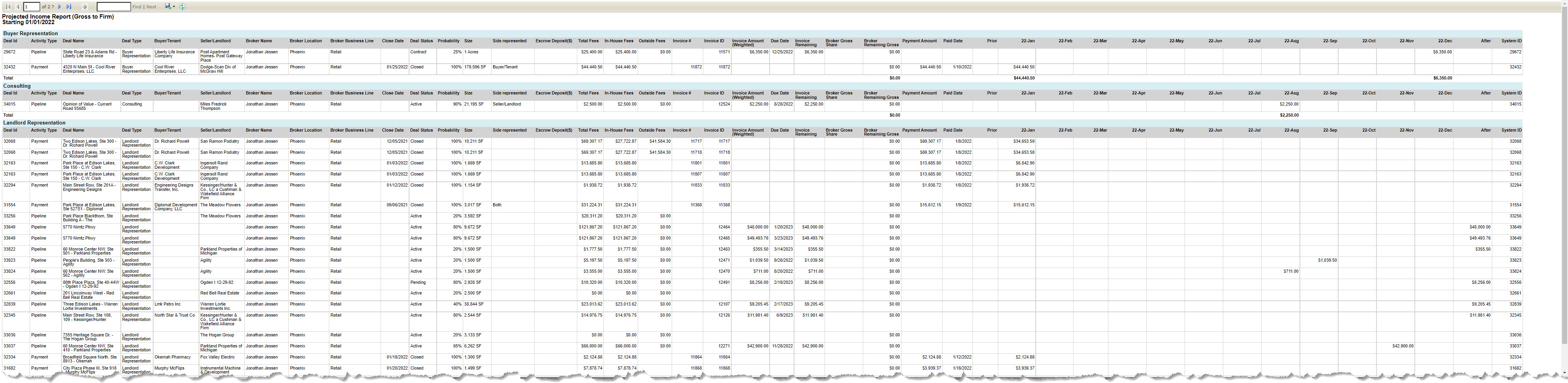
Report Fields:
Deal ID - The Internal ID on the Deal Settings form for the Deal. If there is no Internal ID, the report will display the System ID for the Deal.
Activity Type - Indicates whether each row represents a projected payment from a Pipeline deal (i.e. a deal that hasn’t closed yet), an unbilled vs billed Invoice on a closed deal, or from a received Payment
Deal Name - The Deal Name from the Project/Deal Settings form
Deal Type - The Deal Type on the Project/Deal Settings form
Buyer/Tenant - The first Company on the Deal Contacts form with a Role of “Buyer/Tenant”
Seller/Landlord - The first Company on the Deal Contacts form with a Role of “Seller/Landlord”
Broker Name - The First & Last Name of the Contact whose details and amounts are reflected in this row for this invoice or (anticipated) payment
Broker Location - The broker’s Primary Location
Broker Business Line - The broker’s Primary Business Line
Close Date - The Deal Closed Date from the Deal Settings form, typically the date a lease was finalized or when escrow closed on a sale
Deal Status - The ‘Status’ from the Project/Deal Settings form
Probability - The Est. Probability (%) from the deal’s Pipeline form
Size - For Land Spaces or Properties: Land Size (Acres) from the Space Details form or (if the Deal is for the entire Property) from the Building Details form. For all other Space/Property Types: Space SF from the Space Details form or (if the Deal is for the entire Property) the Building/Property SF from the Building Details form.
Side Represented - The Side Represented field from the Deal Settings form
Escrow Deposit($) - The Escrow Deposit from the Sale Details form
Total Fees - For Pipeline Deals: Total Estimated Fees ($) from the Pipeline form.
For Closed Deals: Total Fees (Gross Commission) from the Fee Calculation form.
Note that in all cases, this includes all fees & commissions, not just this Contact’s share.In-House Fees - The total commission/fee amount for any internal parties or accounts who are allocated a share of the deal commissions/fees.
Specifically, for Pipeline Deals: The Est. Gross In-House Fees ($) from the Pipeline form.
For Closed Deals: The total Expected Gross for Contacts listed on the Fee Splits / Split Worksheet form with an In-House or Staff Vendor record or for House Accounts.Outside Fees - The total commission/fee amount for any external parties or accounts who are allocated a share of the deal commissions/fees.
Specifically, for Pipeline Deals: Est. Outside Fees ($) + Est. Referral Fees ($) from the Pipeline form.
For Closed Deals: The total Expected Gross for Contacts listed on the Fee Splits / Split Worksheet form with an Outside Vendor record.Invoice # - The Invoice # from the Create Invoice form. May reflect a custom Invoice number or may be identical to the System ID of the Invoice.
Invoice ID - The System ID of this Invoice
Invoice Amount (Weighted) - Total invoice amount multiplied by the probability of closure, e.g. $10,000 x 50% = $5,000.
Specifically, for Pipeline Deals: Total Invoice Amount from the Payment Schedule on the Pipeline form x Est. Probability (%) on the Pipeline form.
For Closed Deals: Invoice Amount from the Invoicing form x 100% (all Closed Deals have a 100% probability of closure).Due Date - The date the (anticipated, billed or paid) Invoice is due.
Specifically, for Pipeline Deals: Due Date from the Payment Schedule on the Pipeline form.
For Closed Deals: the current Due Date from the Invoicing form.Invoice Remaining - The current unpaid amount for this Invoice.
Specifically, the Invoice Amount minus the Payment Amount applied to this Invoice.Broker Gross Share - The broker’s current share of this Invoice before their share is split with the firm.
Specifically, for Pipeline Deals: The Total Invoice Amount on the Pipeline form multiplied by the % Share (Gross) for this Contact from the Deal Share form.
For Closed Deals: The Invoice Amount from the Invoicing form multiplied by the Split $ (Listing Side + Procuring Side) for this Contact from the Fee Splits / Split Worksheet form divided by the Total Fees from the Fee Calculation form. Note that to ensure accuracy, this calculation uses the actual $ amounts rather than the Split % from the Fee Splits / Split Worksheet form.Broker Remaining Gross - The broker’s share of the remaining balance on this Invoice before their share is split with the firm.
Specifically, for Pipeline Deals: The Total Invoice Amount on the Pipeline form multiplied by the % Share (Gross) for this Contact from the Deal Share form (i.e. the same as for Broker Gross Share since a Pipeline Invoice can’t have any Payments applied to it).
For Closed Deals: The Invoice Remaining amount (Invoice Amount minus Amount Paid on this Invoice) divided by the unpaid balance of the Total Fee amount (Total Fees minus Total Paid on the Deal) multiplied by the unpaid balance of this Contact’s Split $ from the Fee Splits / Split Worksheet form (Expected Gross minus Paid Gross).Payment Amount - The Payment Amount from the Payment Application form
Paid Date - The Payment Date from the Payment Application form
Prior - The anticipated or paid amount for this Broker or for the firm, if the Due Date for the Invoice or (for Payments) the Payment Date is earlier than the month for the As Of Date. The amount will reflect gross or net for the Broker or the firm depending on your selection on the widget before running the report. Except for Payments, the amount includes all invoice adjustments made to date.
Year-Month - 12 columns representing the 12 months that start with the As Of Date’s month. These columns contain the anticipated or paid amount for this Broker or for the firm, if the Due Date for the Invoice or (for Payments) the Payment Date falls in this month. The amount will reflect gross or net for the Broker or the firm depending on your selection on the widget before running the report. Except for Payments, the amount includes all invoice adjustments made to date.
After - The anticipated or paid amount for this Broker or for the firm, if the Due Date for the Invoice or (for Payments) the Payment Date is later than the last Year-Month column on this report. The amount will reflect gross or net for the Broker or the firm depending on your selection on the widget before running the report. Except for Payments, the amount includes all invoice adjustments made to date.
System ID - The System ID of this Deal
Display Options:
Represent the amounts on this report as
Gross to Firm - The commission/fee amount due to a broker or other internal party before net split calculations
Estimated Net to Firm - The estimated commission/fee amount due to the firm after net split calculations. Net split calculations are based on the broker’s current YTD Production Credit (total gross commission received) and their current split plan.
Estimated Net to Broker(s) - The estimated commission/fee amount due to the broker after net split calculations. Net split calculations are based on the broker’s current YTD Production Credit (total gross commission received) and their current split plan.
Report Filters:
As Of Date - Required. Date (mm/dd/yyyy). Defaults to today’s date. Determines when the 12-month breakdown begins and whether an amount is included in one of those months or in the Prior or After columns. Click here for more information.
Include Payments (in this period) - Checkbox. Determines whether to include Payments with a Payment Date that falls within the 12-month breakdown.
Include Unbilled Invoices - Checkbox. Determines whether to include unbilled Invoices with a Due Date that falls within the 12-month breakdown.
Include Pipeline - Checkbox. Determines whether to include projected Invoices with a Due Date that falls within the 12-month breakdown.
Note: If none of the above boxes are checked, the report will only include billed Invoices with a Due Date that falls within the 12-month breakdown.Probability minimum % - Numeric. Refers to the Est. Probability (%) on the Pipeline form.
Deal Type(s) - No selection, single selection, multiple selections. Refers to the Deal Type field on the Deal Settings form.
Deal Status - No selection, single selection, multiple selections. Refers to the Status field on the Deal Settings form.
Broker - Required. Single selection from a list of internal Contacts whose Deals you are allowed to see. Defaults to your name (i.e. the logged in user).
Group By Options (up to 2):
Defaults to: Broker Location
Deal ID
Deal Type
Broker Location
Broker Activity Type
Broker Business Line
Close Date
Deal Status
Invoice #
Invoice ID
Due Date
Invoice Status Aging - Refers to the Aging categories for Invoices, e.g. 0-30 days, 31-60 days, etc.
Click to go back to the list of reports.
Revenue Projection Report [SSRS]
An older version of the Projected Income [SSRS] report. View a forecast of projected (pipeline), unbilled, and billed gross commissions and other fees with details about the deal, invoice, and broker. Includes a breakdown of those amounts for the next 12 months based on expected or actual invoice due date. You have the option to include Pipeline deals or only report on Closed Deals.

Report Fields:
Broker - The broker’s Last Name, First Name
Deal ID - The Internal ID on the Deal Settings form for the Deal. If there is no Internal ID, the report will display the System ID for the Deal.
Deal Name - The Deal Name from the Project/Deal Settings form
Close Date - The Deal Closed Date from the Deal Settings form, typically the date a lease was finalized or when escrow closed on a sale
Status - The Status from the Project/Deal Settings form
Probability - The Est. Probability (%) from the deal’s Pipeline form
Buyer/Tenant - The first Company on the Deal Contacts form with a Role of “Buyer/Tenant”
Seller/Landlord -The first Company on the Deal Contacts form with a Role of “Seller/Landlord”
Sq.Ft./Acres - For Land Spaces or Properties: Land Size (Acres) from the Space Details form or (if the Deal is for the entire Property) from the Building Details form. For all other Space/Property Types: Space SF from the Space Details form or (if the Deal is for the entire Property) the Building/Property SF from the Building Details form.
Side Represented - The Side Represented field from the Deal Settings form
Total Transaction Value - The Total Transaction Value from the Fee Calculation form, typically either the sales price or the value of the lease agreement (Lease Rate per SF x SF leased x Lease Term).
Gross Fees - Total Fees (Gross Commission) from the Fee Calculation form. Note that this includes all fees & commissions, not just this Contact’s share.
In-House Fees - The total commission/fee amount for any internal parties or accounts who are allocated a share of the deal commissions/fees.
Specifically, for Pipeline Deals: The Est. Gross In-House Fees ($) from the Pipeline form.
For Closed Deals: The total Expected Gross for Contacts listed on the Fee Splits / Split Worksheet form with an In-House or Staff Vendor record or for House Accounts.Invoice # - The Invoice # from the Create Invoice form. May reflect a custom Invoice number or may be identical to the System ID of the Invoice.
Invoice Amount - The entire amount anticipated or billed on this Invoice.
Specifically, for Pipeline Deals: Total Invoice Amount from the Payment Schedule on the Pipeline form.
For Closed Deals: Invoice Amount from the Invoicing form.Due Date - The date the (anticipated or billed) Invoice is due.
Specifically, for Pipeline Deals: Due Date from the Payment Schedule on the Pipeline form.
For Closed Deals: The current Due Date from the Invoicing form.Amount Paid - The total Payment Amount applied to this Invoice
Outstanding - The current unpaid amount for this Invoice.
Specifically, the Invoice Amount minus the total Payment Amount applied to this Invoice.Deal Share % - This broker’s share of the Total Fees on the Deal.
Specifically, for Pipeline Deals: % Share (Gross) for this Contact from the Deal Share form.
For Closed Deals: % of Deal for that Broker on the Fee Splits / Split Worksheet form.Broker Gross Commission - The broker’s share of this Invoice before their share is split with the firm. Specifically, for Pipeline Deals: The Total Invoice Amount on the Pipeline form multiplied by the % Share (Gross) for this Contact from the Deal Share form.
For Closed Deals: The Outstanding amount (see above) multiplied by the Deal Share % (see above).Prior - The anticipated (gross) amount for this Broker, if the Due Date for the Invoice is earlier than the selected Actual/Estimated Due Date month.
Year-Month - 12 columns representing the 12 months that start with the selected Actual/Estimated Due Date month, with the anticipated (gross) amount for this Broker.
After - The anticipated (gross) amount for this Broker, if the Due Date for the Invoice is later than the last Year-Month column on this report.
Report Filters:
Only Closed Deals - Checkbox. Filters out Pipeline Deals from the results on the report.
Actual/Estimate - Required. Pulldown with a list of years. Defaults to the current year. Determines when the 12-month breakdown begins and whether an amount is included in one of those months or in the Prior or After columns.
Due Date - Required. Pulldown with a list of months. Defaults to the current month. Determines when the 12-month breakdown begins and whether an amount is included in one of those months or in the Prior or After columns.
Deal Type(s) - No selection, single selection, multiple selections. Refers to the Deal Type field on the Deal Settings form.
Deal Status - No selection, single selection, multiple selections. Refers to the Status field on the Deal Settings form.
Deal Location(s) - No selection, single selection, multiple selections. Refers to the Location field on the Deal Settings form.
Deal Business Line(s) - No selection, single selection, multiple selections. Refers to the Business Line field on the Deal Settings form.
Broker - Required. Single selection from a list of internal Contacts whose Deals you are allowed to see. Defaults to your name (i.e. the logged in user).
Display Options:
Do Not Repeat Deal Data - Click here for more details about this setting
Group By Options (up to 2):
Broker
Buyer/Tenant
Closed Date
Deal ID
Deal Name
Due Date
Seller/Landlord
Side Represented
Status
Click to go back to the list of reports.
Related Articles
If you have any questions or would like to schedule a detailed training on this feature, please contact [email protected].
© 2023 CoStar Group
Attachments:
 image-20220408-164207.png (image/png)
 image-20220413-204916.png (image/png)
 image-20220413-210401.png (image/png)
 image-20220415-154721.png (image/png)
 image-20220415-184543.png (image/png)
 image-20220421-162217.png (image/png)
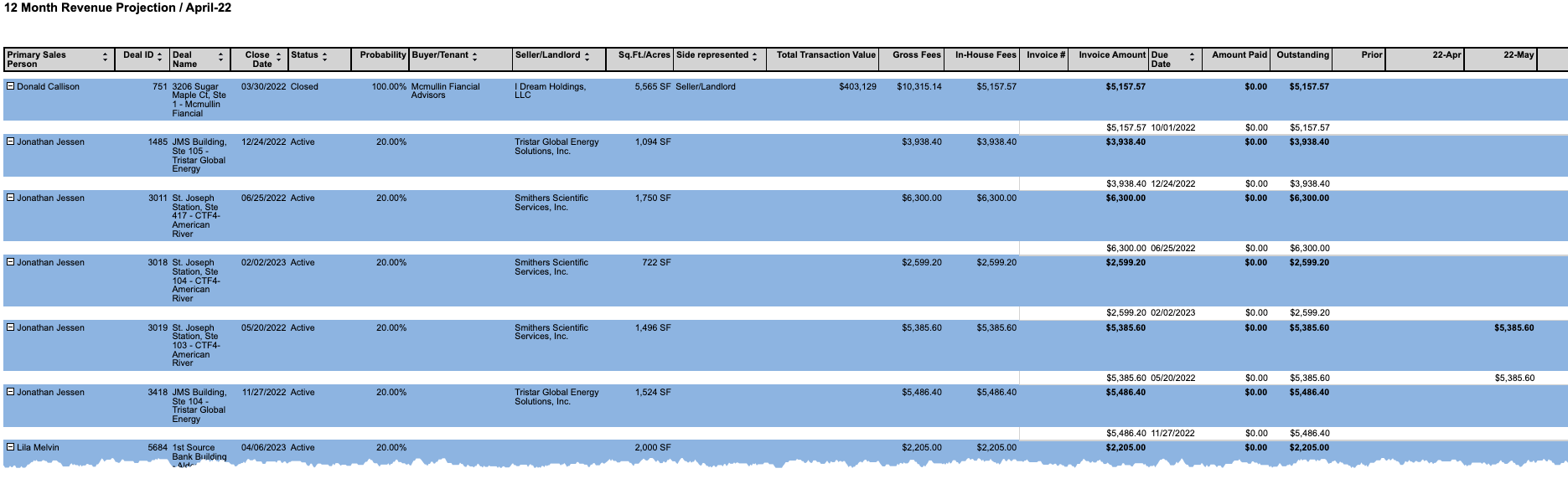 image-20220421-162418.png (image/png)
 image-20220421-162544.png (image/png)
 image-20220421-163815.png (image/png)
 image-20220421-163826.png (image/png)
 image-20220421-165032.png (image/png)
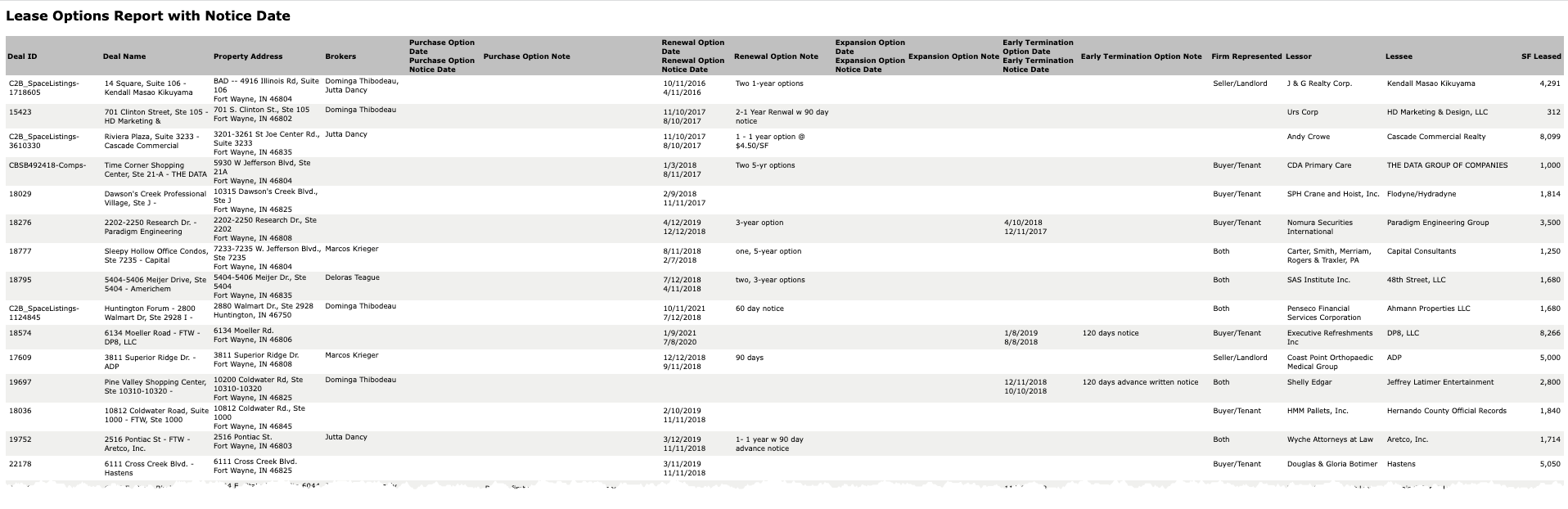 image-20220421-165121.png (image/png)
 image-20220421-165317.png (image/png)
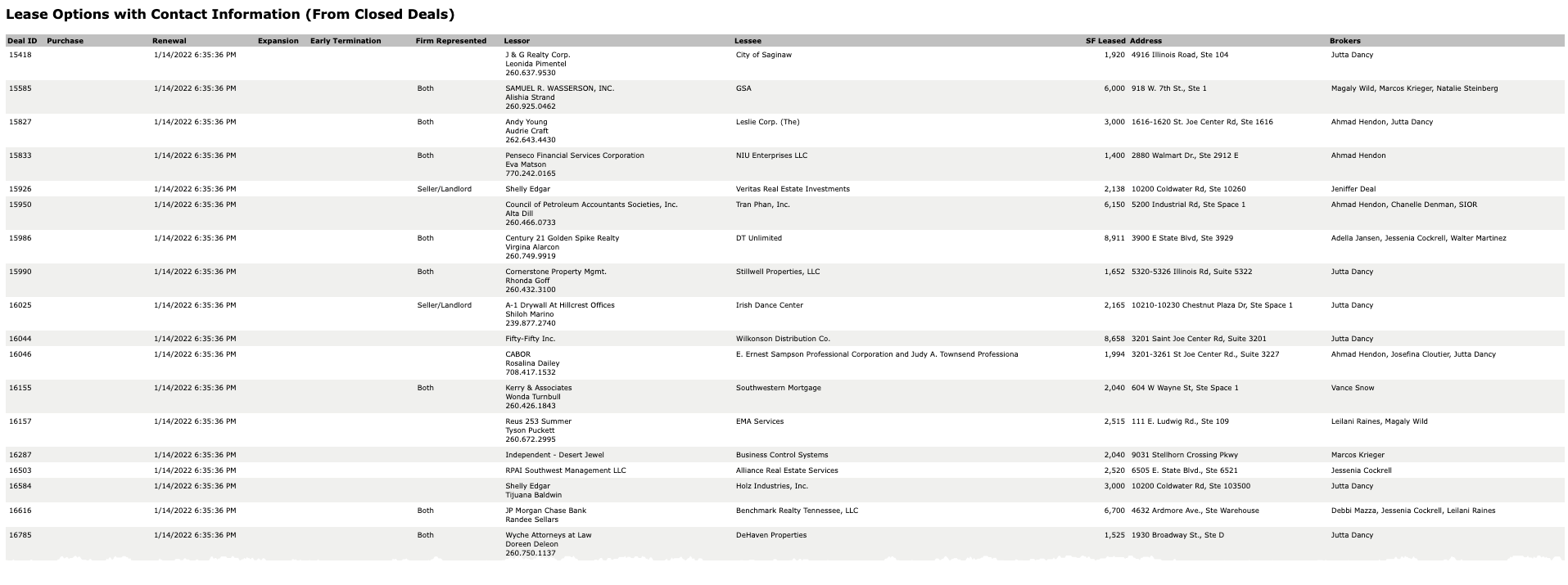 image-20220421-165738.png (image/png)
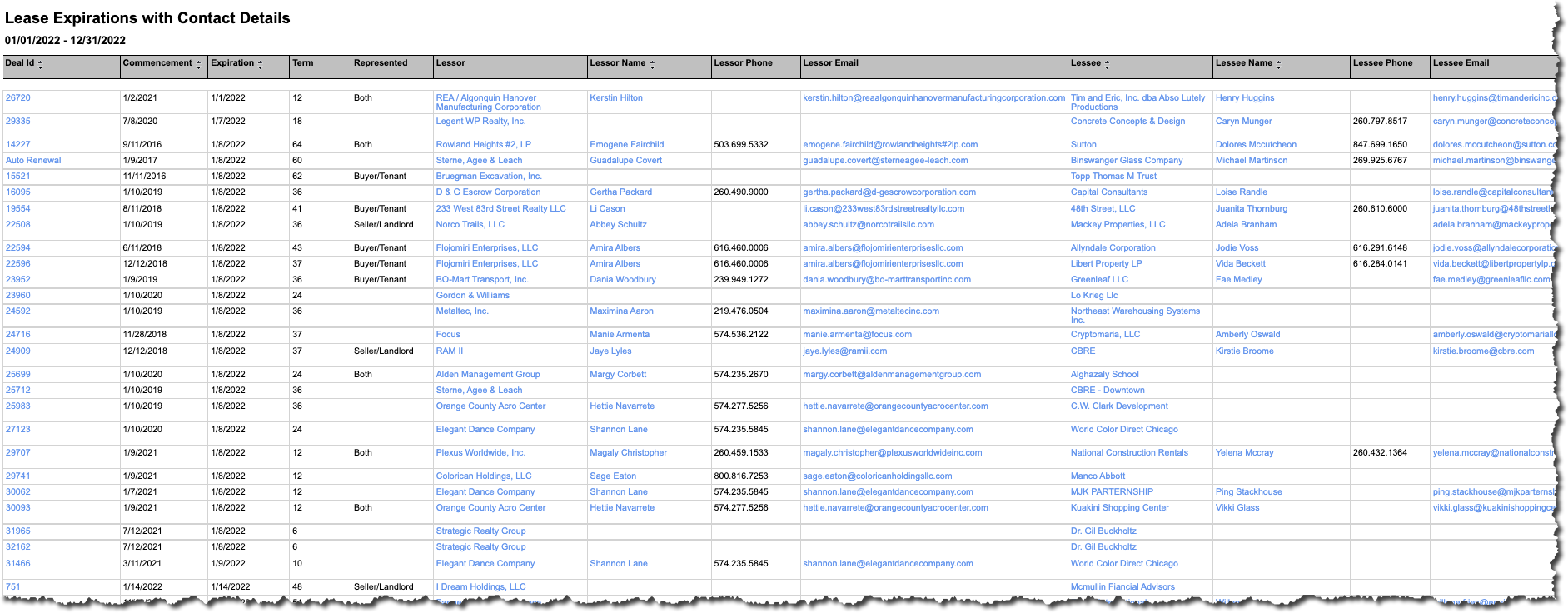 image-20220421-165824.png (image/png)
 image-20220421-165909.png (image/png)
 image-20220421-165957.png (image/png)
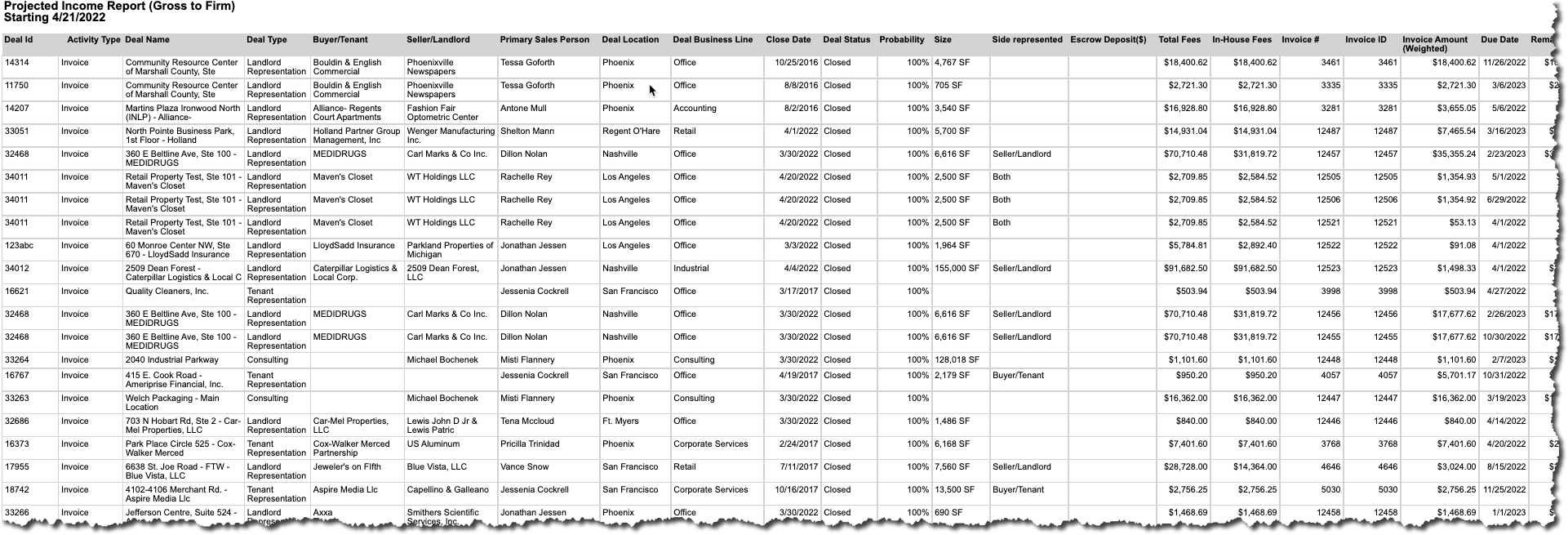 image-20220421-170346.png (image/png)
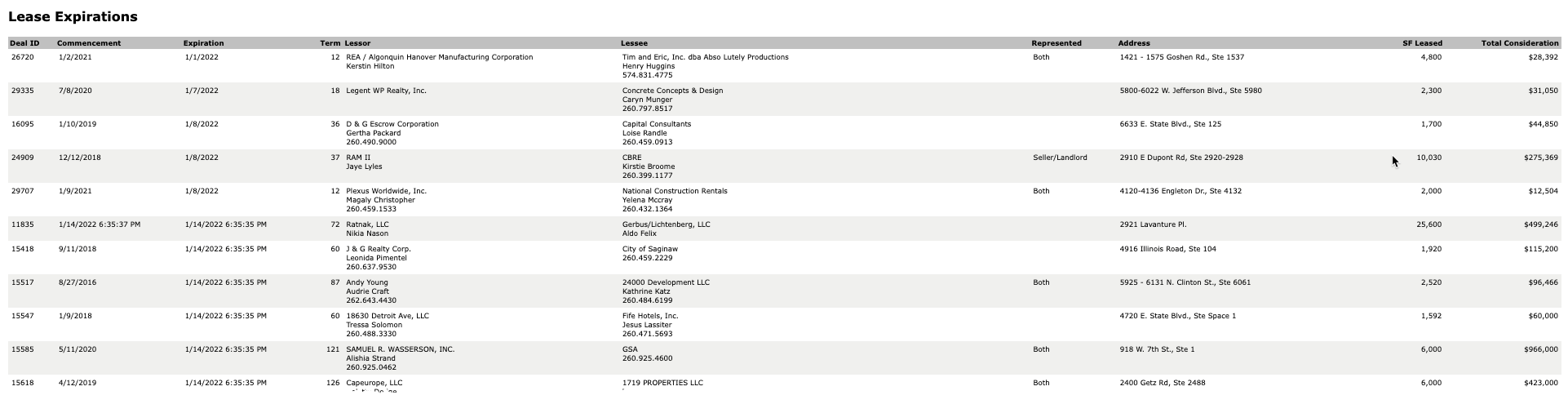 image-20220421-170731.png (image/png)
 image-20220421-170835.png (image/png)
 image-20220421-170934.png (image/png)
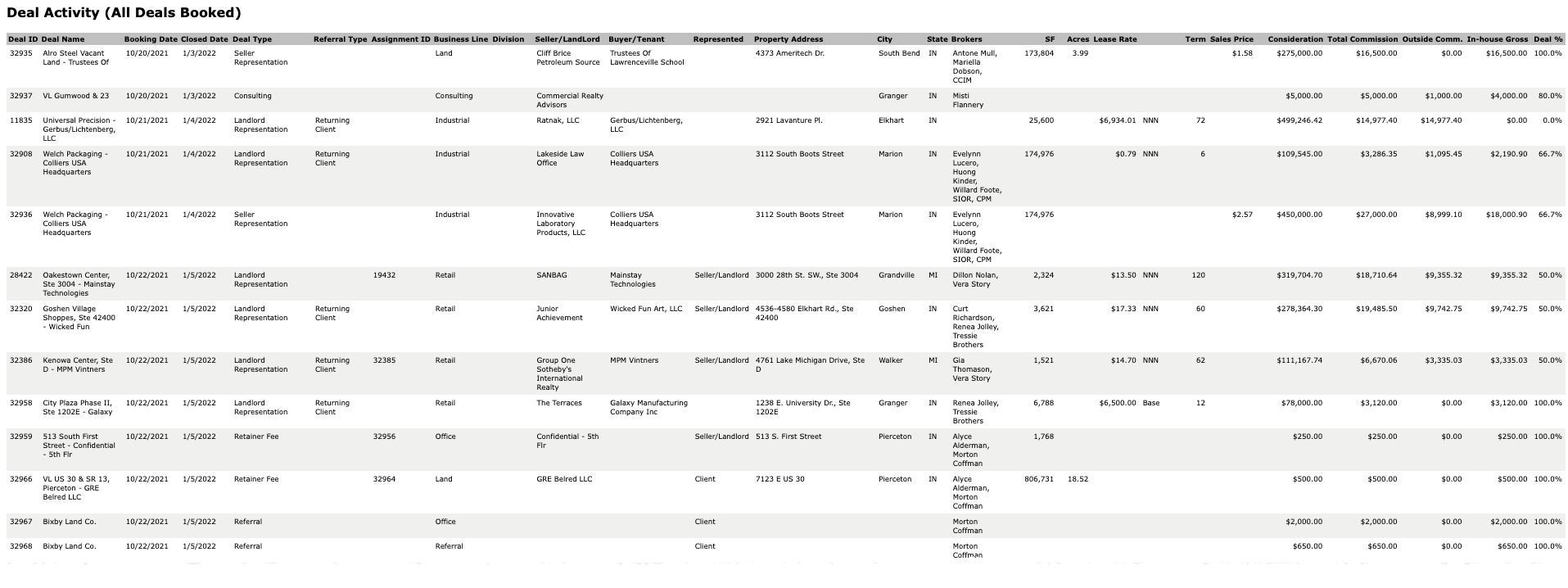 image-20220421-171055.png (image/png)
 image-20220421-171648.png (image/png)
 image-20220421-172038.png (image/png)
 image-20220421-172246.png (image/png)
 image-20220421-182604.png (image/png)
 image-20220426-144156.png (image/png)
 2022-05-05_11-55-06-20220505-185547.png (image/png)
 image-20220524-191201.png (image/png)
 image-20220524-191348.png (image/png)
 image-20220524-192005.png (image/png)
 image-20220531-232742.png (image/png)
 image-20220531-234710.png (image/png)
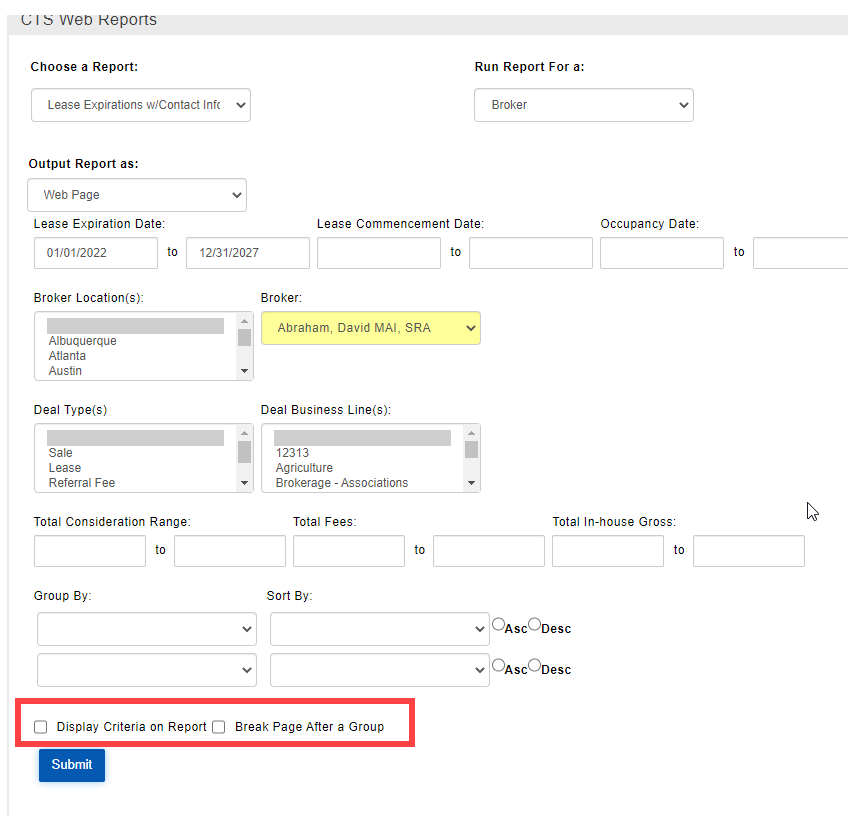 2022-05-24_16-45-32.jpg (image/jpeg)
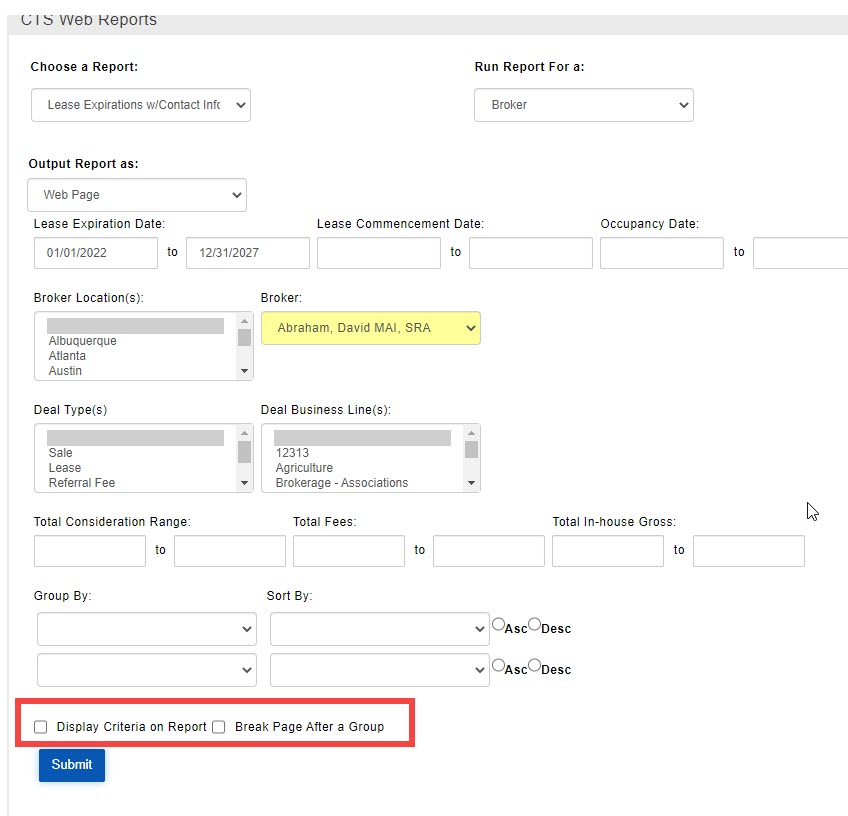 2022-05-24_16-45-32b.jpg (image/jpeg)
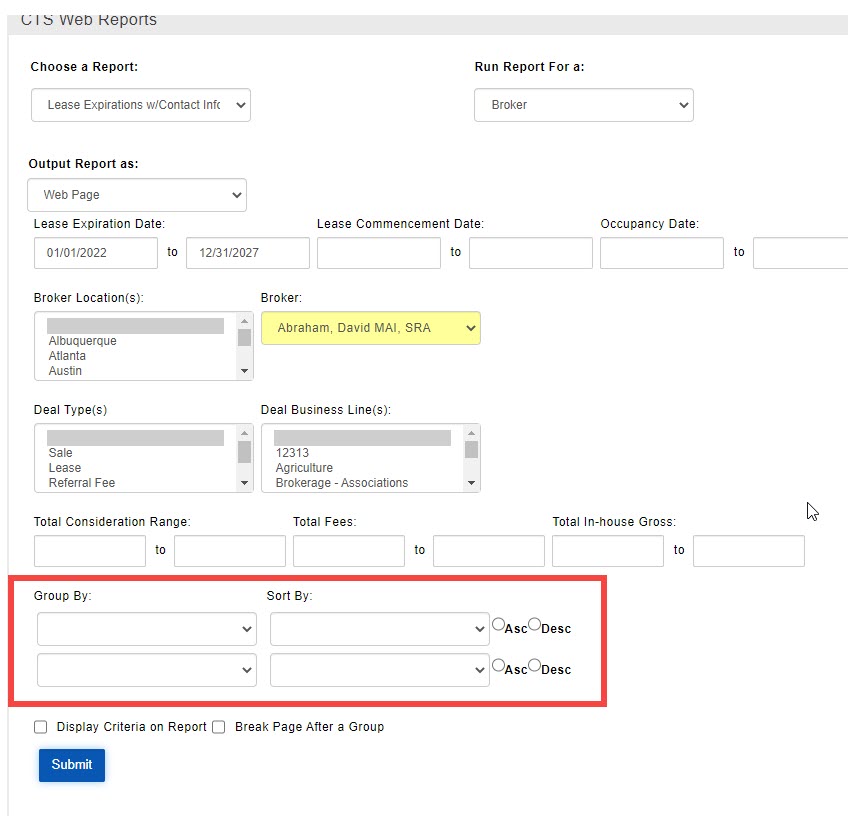 2022-06-07_16-28-30.jpg (image/jpeg)
2022-06-09_17-02-38.jpg (image/jpeg)
2022-06-10_16-28-24.jpg (image/jpeg)
2022-06-07_16-28-30.jpg (image/jpeg)
2022-06-09_17-02-38.jpg (image/jpeg)
2022-06-10_16-28-24.jpg (image/jpeg)
 2022-06-13_13-37-26.jpg (image/jpeg)
2022-06-14_14-41-39.jpg (image/jpeg)
2022-06-17_12-47-07.jpg (image/jpeg)
2022-06-23_15-38-58.jpg (image/jpeg)
2022-06-13_13-37-26.jpg (image/jpeg)
2022-06-14_14-41-39.jpg (image/jpeg)
2022-06-17_12-47-07.jpg (image/jpeg)
2022-06-23_15-38-58.jpg (image/jpeg)
 2022-06-23_15-40-39.jpg (image/jpeg)
 2022-06-23_16-16-30.jpg (image/jpeg)
2022-06-27_14-12-25.jpg (image/jpeg)
2022-07-01_15-49-10.jpg (image/jpeg)
2022-06-23_16-16-30.jpg (image/jpeg)
2022-06-27_14-12-25.jpg (image/jpeg)
2022-07-01_15-49-10.jpg (image/jpeg)
 2022-07-01_16-27-10.jpg (image/jpeg)
 2022-07-12_13-35-15.jpg (image/jpeg)
 2022-07-14_16-08-38.jpg (image/jpeg)
 2022-07-15_14-25-47.jpg (image/jpeg)
 2022-07-18_12-11-28.jpg (image/jpeg)
2022-07-28_11-53-27.jpg (image/jpeg)
2022-07-18_12-11-28.jpg (image/jpeg)
2022-07-28_11-53-27.jpg (image/jpeg)
 2022-07-29_11-55-43.jpg (image/jpeg)
2022-08-22_13-41-34.png (image/png)
2022-08-22_13-45-05.png (image/png)
2022-08-23_17-01-28.png (image/png)
2023-07-25_15-35-18.jpg (image/jpeg)
2022-07-29_11-55-43.jpg (image/jpeg)
2022-08-22_13-41-34.png (image/png)
2022-08-22_13-45-05.png (image/png)
2022-08-23_17-01-28.png (image/png)
2023-07-25_15-35-18.jpg (image/jpeg)
 2023-09-05_14-11-46.jpg (image/jpeg)
 2023-09-05_16-53-29.jpg (image/jpeg)
2023-09-07_15-20-34.jpg (image/jpeg)
2023-09-12_15-57-07b.png (image/png)
2023-09-05_16-53-29.jpg (image/jpeg)
2023-09-07_15-20-34.jpg (image/jpeg)
2023-09-12_15-57-07b.png (image/png)
 2023-09-12_16-26-19.png (image/png)
2023-09-14_13-43-08.jpg (image/jpeg)
2023-09-12_16-26-19.png (image/png)
2023-09-14_13-43-08.jpg (image/jpeg)